

I’ve discovered that Google Docs includes a speech-to-text feature; however, the resulting audio cannot be accessed or saved as a standalone file. This means that if I want to save the audio separately, I have to use screen recording. So, is it possible to record audio directly within Google Docs? This article provides a detailed answer.
Can Google Docs Record Audio
Certainly. As far as I know, Google Docs has a built-in audio and video recording feature, which allows me to start an audio recording directly within a document. However, this feature is somewhat limited, so I have also experimented with a third-party Google Docs voice recorder for more advanced recording needs.
In short, with the right tools, capturing audio from Google Docs can be done easily and seamlessly.
How to Record Audio on Google Docs
As I mentioned previously, recording audio within Google Docs can be done either directly inside the file itself or by using third-party recording tools. After trying both methods, I have summarized their general features and the steps for using them below.
#1 Use Google Docs Built-in Recording Feature
Fast Track Steps:
- Open Google Docs
- Navigate to the Record video section
- Choose the target window
- Enable the audio recording feature
- Start the audio recording process
- Play the audio in the document
- End the recording process and check the recorded audio
To my surprise, the recording feature, available as an extension within Google Docs, offers a versatile range of modes; for instance, I can record the screen, webcam feed, or even capture just the audio. Once a recording is complete, the content is automatically transferred to Google Vids, where I can then utilize its AI-powered transcription tools for further editing.
Below is a guide on how to voice record on Google Docs.
1. Open Chrome, then click the Google apps icon in the upper-right of the main interface, then choose the Docs option to enter the Google Docs interface.
2. Then, expand the File option and choose the Record video option.
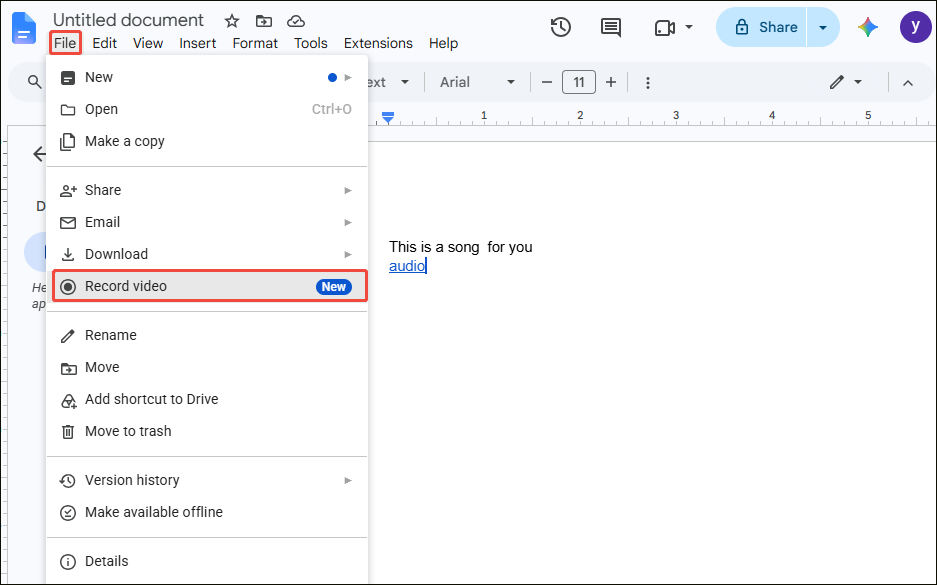
3. In the new interface, select the Screen option and click the Next option.
4. Then, choose the Google Docs window and check the Share with tab audio option. Then, click the Share with Audio option to begin the recording process.
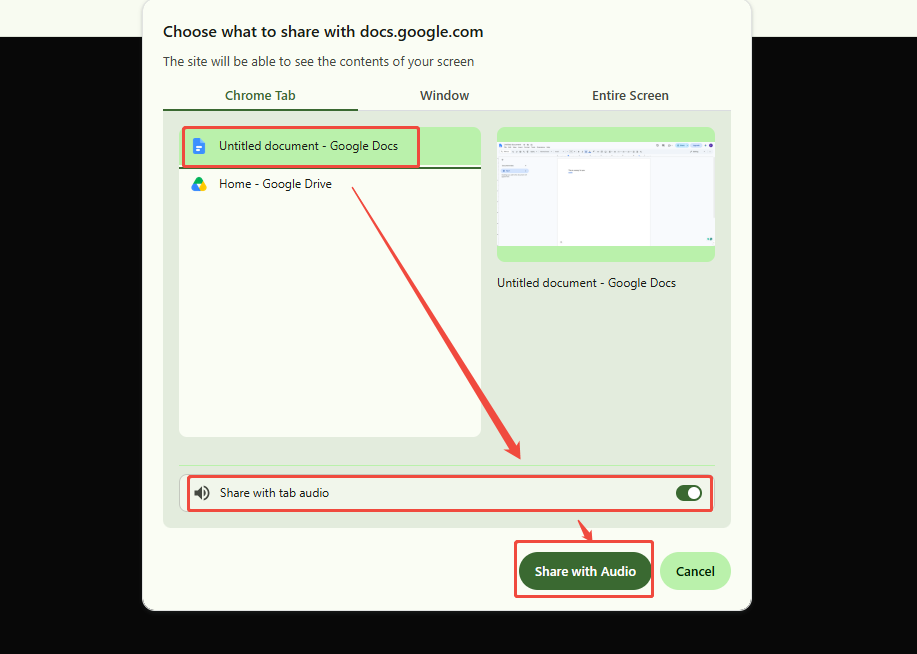
5. Next, play the audio in Google Docs. To end the recording process, click the Stop recording option at the top of the interface.
6. Finally, the recorded audio will automatically appear in a new interface; then you can click the Play icon to check it.
However, one drawback is that the audio and video recording feature in Google Docs has a ten-minute time limit, so I also tried out the third-party recording tool mentioned below.
#2 Use MiniTool Screen Recorder
Fast Track Steps:
- Launch MiniTool Screen Recorder
- Choose recording area
- Enable the system audio recording feature
- Start the audio recording process
- Play the audio in Google Docs
- End the recording process
- Check the recorded audio under the Video list section
MiniTool Screen Recorder is a free voice recorder for Google Docs; I simply need to log in to my account to unlock all its features. It allows for the capture of screen activity, webcam footage, content from additional displays, as well as system and microphone audio.
What I appreciate most is the ability to customize settings, such as video quality, frame rate, recording duration, and webcam parameters, before starting a recording.
Furthermore, beyond just recording audio, I frequently use this application to create tutorial videos. It includes a handy built-in annotation tool that lets me add shapes (like circles and lines), text, and highlights to the screen in real time.
Now follow the detailed steps below to record audio from Google Docs.
1. Click the button below to download and install MiniTool Screen Recorder. Then, launch it on the PC.
MiniTool Screen RecorderClick to Download100%Clean & Safe
2. To capture Google Docs in full-screen mode, keep the software’s default settings. If you wish to capture a specific area or window, expand the Full Screen option and select the corresponding options.
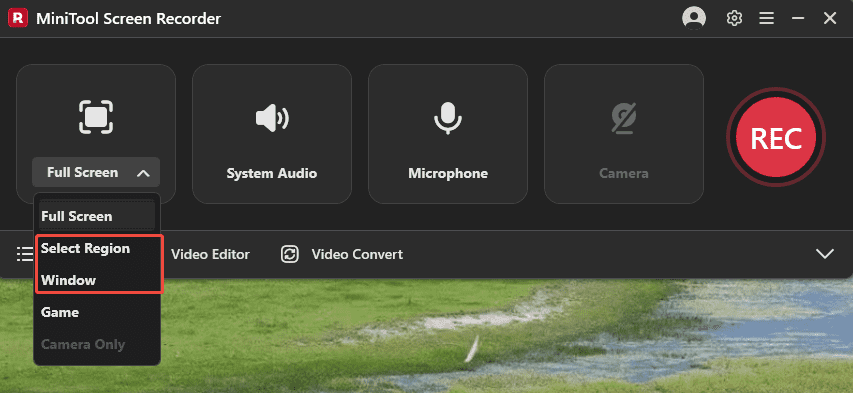
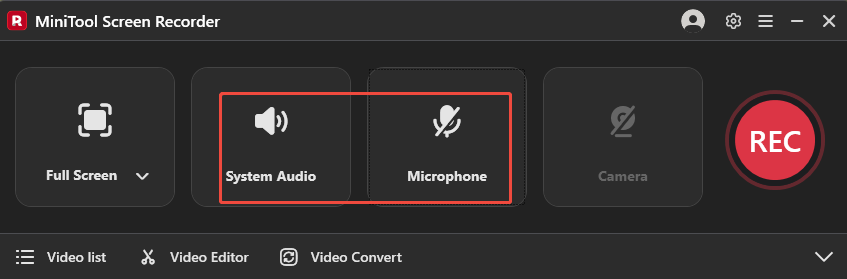
3. To capture Google Docs audio, make sure the system audio recording feature is enabled and the microphone audio recording feature is disabled.
4. If there is a need to capture the webcam footage, click the Camera icon on the right.
5. Then, click the REC button to start the recording process. After a 3-second countdown, play the audio in Google Docs.
6. To end the recording process, click the Stop recording icon on the floating bar or press the F6 key.
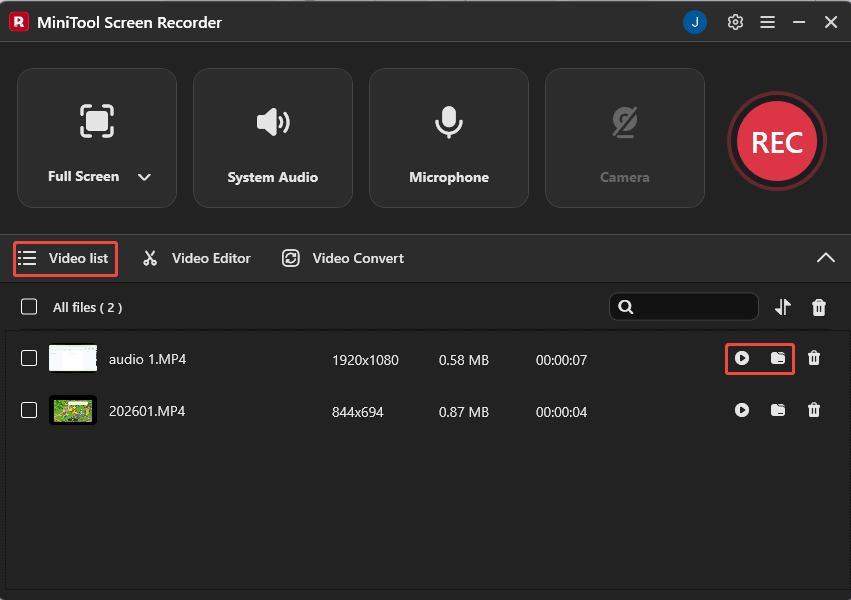
7. Finally, the tool will automatically switch to the Video list section; then click the Play icon to listen to it directly or click the Folder icon to move to the file storage location to check it.
In addition to capturing audio, MiniTool Screen Recorder also allows me to capture gameplay, online meetings, online lectures, video calls, and more.
Bonus: How to Insert Audio in Google Docs
Additionally, I’ve figured out how to insert audio directly into Google Docs to help boost work efficiency. I discovered two simple methods for doing this:
- Insert audio using the audio feature
- Insert audio by adding a link to the document
#1 Use the Listen to This Tab Feature
Fast Track Steps:
- Open Google Docs and create a new document
- Move to the Tools section
- Find the Audio option
- Start listening to the tab
- Play the audio
Google Docs has introduced a new feature that enables text-to-speech, allowing the content of a document to be read aloud with the resulting audio embedded directly into the document.
Here is a step-by-step guide for reference.
1. Open the browser and go to Google Docs. Then, create a new document.
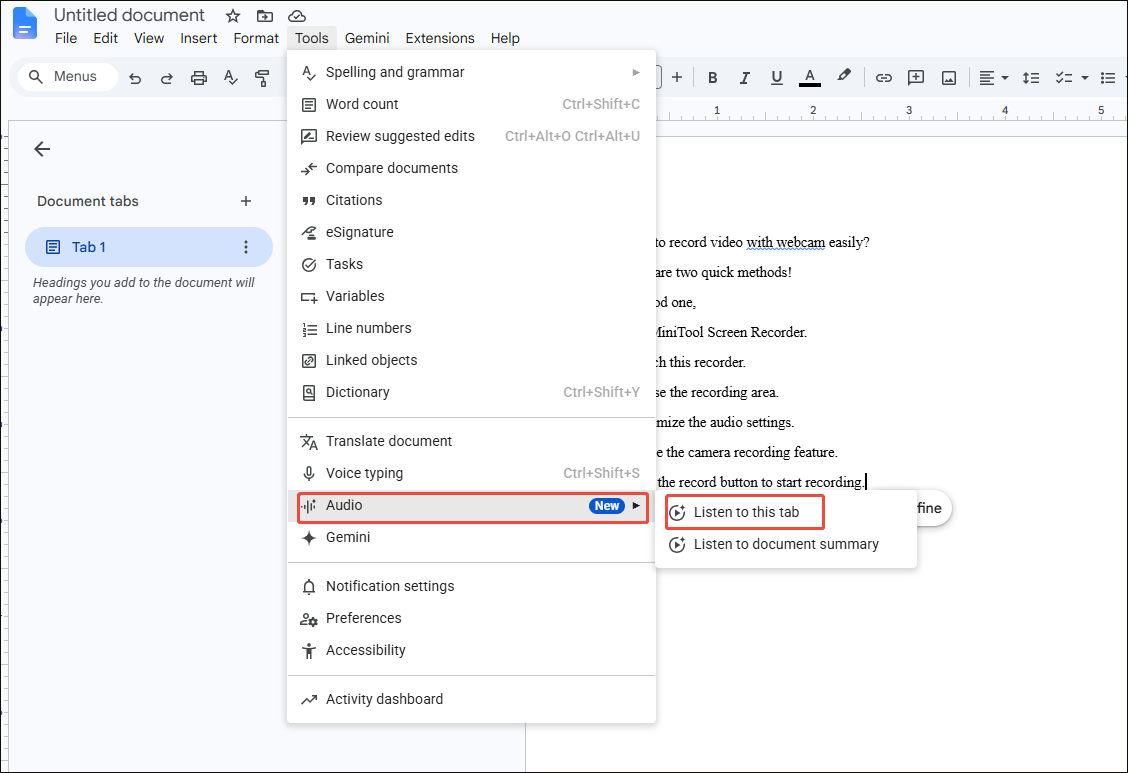
2. Expand the Tools option and click the Audio option. Then, choose the Listen to this tab option.
3. Then, an audio progress bar will appear in the bottom-left corner of the document.
#2 Add the Audio Link to Google Docs
Fast Track Steps:
- Open Google Drive
- Upload an audio file to it
- Copy the link of the audio file
- Paste the audio link into Google Docs
In addition, Google Docs allows users to insert audio files from Google Drive directly into a document as links. The detailed steps are provided below.
1. Open Google Drive. Then, click the New option and click the File upload option to import an audio file into Google Drive.
2. Next, move to the My Drive section, find the target audio file, and copy its link by clicking the More option.
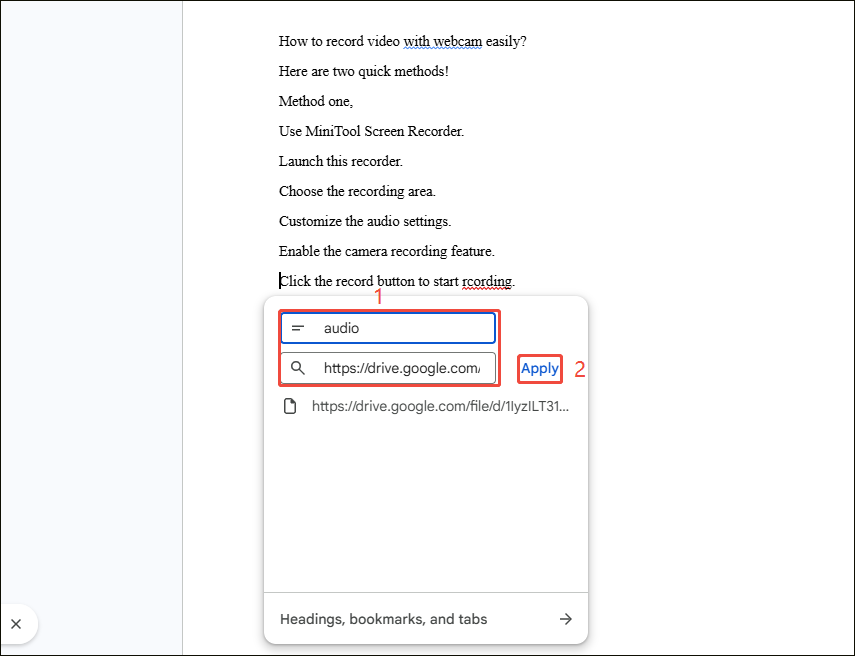
3. Go to Google Docs and create a new document. Then, expand the Insert option and click the Link option. In the new pop-up window, paste the audio link into the box and type the name for the audio link. Finally, click the Apply option to add it to the document.
Final Words
How to record audio on Google Docs? Users can accomplish this task seamlessly by using either the built-in recording feature or a third-party screen recorder, such as MiniTool Screen Recorder. Furthermore, the methods for inserting audio into Google Docs provided in this article can help you significantly improve your work efficiency.
If you have any questions when using MiniTool Screen Recorder, send an email to support@minitool.com.
People Also Ask
1. Create a Google document.
2. Expand the Tools option at the top of the interface.
3. Click the Voice typing option to enable the microphone.
1. Create a Google document.
2. Expand the Tools option at the top of the interface.
3. Click the Voice typing option to enable the microphone.
4. Expand the Language option and choose the target language you want.