

What causes Windows 10 voice recorder not working? After investigating extensive user reports, we found the issue is often associated with improper sound settings. Other factors like Windows updates, incompatible applications, and problematic recording device properties can trigger the problem as well. Don’t worry. We explore several solutions to the issue:
- Enable the recording device
- Enable the mixer input device
- Adjust the recording device properties
- Reset the voice recorder app
- Set the correct recording device as the default device
- Run the recording audio troubleshooter
- Allow apps to access your recording devices
- Undo the recent changes you have made
- Clear Windows Store Cache
- Perform a clean boot
Fix 1. Enable the Recording Device
- Open the Sound interface
- Move to the Recording tab
- Enable the recording device
Sometimes the Windows 10 voice recorder not working issue can occur when the correct recording device is accidentally disabled. Here, you can follow the steps below to check if the device is enabled.
1. Right-click the Speak/Volume icon at the bottom of Windows taskbar and select Sounds/Recording devices.
2. Navigate to the Recording tab, and then right-click your desired recording device from the list and select Enable.
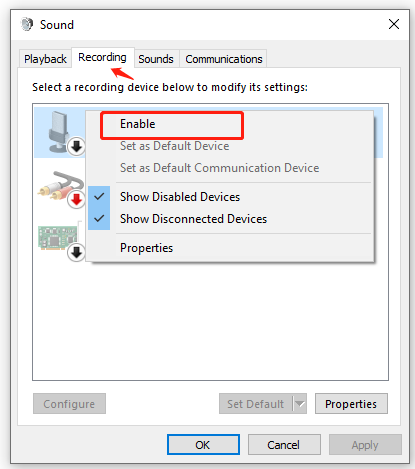
3. Sometimes the disabled devices might be hidden. So, you can right-click the device list and select Show disabled devices.
Fix 2. Enable the Mixer Input Device
- Enter the Sound settings interface
- Move to the Manage sound devices section
- Scroll down to the Input devices section
- Enable the mixer input device
Many users encounter the voice recorder not working problem when recording a sound from an MP3 playing. Some of them fixed the issue by activating the mixer as an input device in Settings. Here’s how:
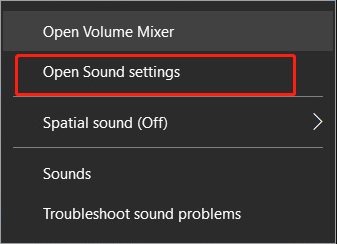
1. Right-click the Speaker icon again and select Open Sound settings.
2. Scroll down the right sidebar and click on Manage sound devices.
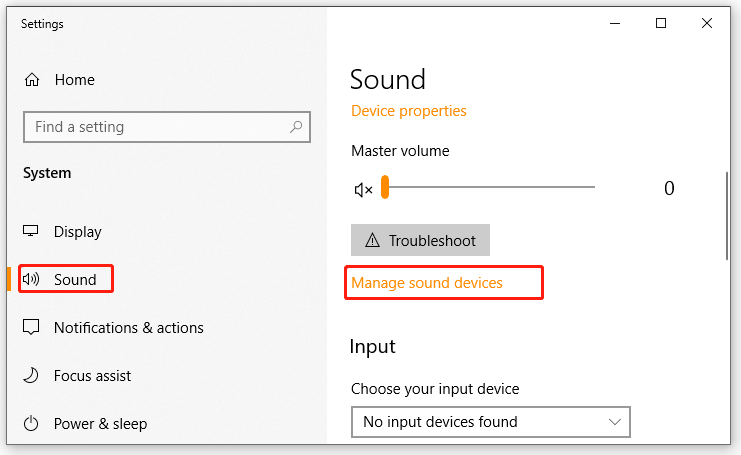
3. Scroll down to the Input devices section, and then select the Stereo mix device under it and click on Enable.
Now, you can restart your computer and check if the voice recorder not working Windows 10 problem is resolved.
Fix 3. Adjust the Recording Device Properties
- Launch the Sound window
- Move to the Recording tab
- Open the recording device’s properties panel
- Adjust the microphone settings
The Windows 10 recording not working problem can occur when the recording sound level was reduced to zero automatically. To fix it, you can adjust the properties of your recording device.
1. Open the Sound window again.
2. Navigate to the Recording tab, and then right-click your desired recording device and select Properties.
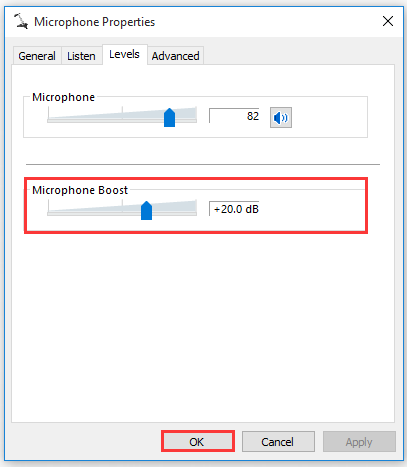
3. In the Properties level, go to the Levels tab and you can adjust the Microphone Boost and Microphone slider to a higher level. Once done, click on OK to save the change.
Fix 4. Reset the Voice Recorder App
- Open Settings app
- Move to the Apps section
- Move to the Advanced options under the Apps & features section
- Reset the voice recorder app
If you encounter the Windows voice recorder not working issue with a voice recorder app, you can try resetting it in Settings. Here’s a quick guide for you.
1. Press Win + I keys to open the Settings app and select Apps.
2. Select Apps & features from the left pane, and scroll down to the voice recorder app. Select it and click on Advanced options.
3. In the new window, click on Reset and confirm it. Once done, you can go to Store and see if there are any updates for the app. If yes, install them.
Fix 5. Set the Correct Recording Device as Default Device
- Open Sound settings
- Go to the Playback tab
- Enable the desired recording device
- Choose the Set as Default Device option
If you installed more than one recording device on your computer, you may encounter the voice recorder not working Windows 10 issue. In this case, you need to manually set the correct recording device as the default device.
1. Open the Sound settings window again and navigate to the Playback tab.
2. Right-click your desired recording device and select Enable.
3. Right-click it again and select the Set as Default Device option.
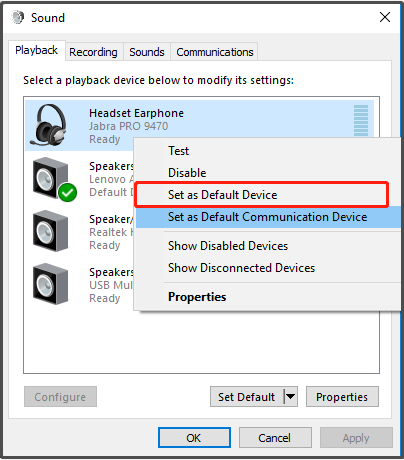
Now, you can use the recorder again and check if the Windows voice recorder not working issue is solved.
Fix 6. Run Recording Audio Troubleshooter
- Open Settings > Update & Security > Troubleshoot.
- Select Recording Audio and click Run the troubleshooter.
- Choose the affected recording device and click Next.
- Click Apply this fix if a solution is found.
Another simple solution is to run the Recording Audio Troubleshooter. It is a Windows built-in tool that can automatically detect and repair the errors related to the voice recording. Here’s how to run the troubleshooter.
1. Open the Settings app again, and then click on Updates & Security > Troubleshoot one by one.
2. Scroll down the right sidebar to the Find and fix other problems section, and then select the Recording Audio and click on Run the troubleshooter.
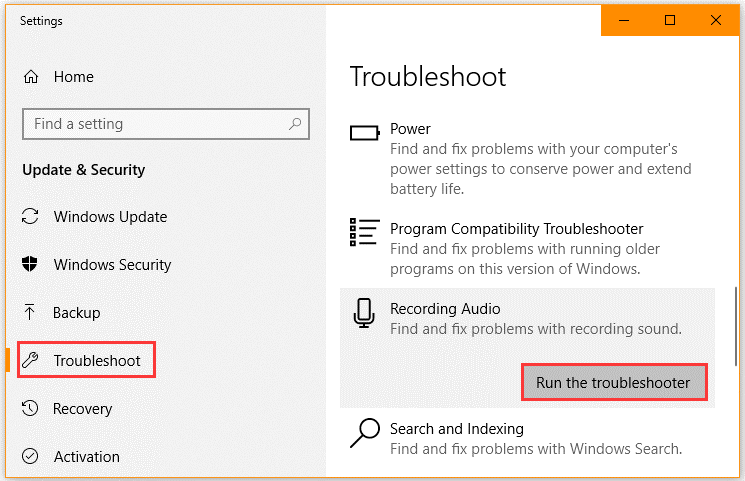
3. Wait for the detecting process to complete, and then select the recording devicethat you have issues with and click on Next.
4. Once the investigation completes, click on Apply this fix if an available repair is found.
Fix 7. Allow Apps to Access Your Recording Device
- Open Settings > Privacy > Microphone.
- Turn on Allow apps to access your microphone.
- Enable microphone access for the apps you want to use.
Windows 10 has some new privacy options that allow you to control the access for installed apps. Sometimes, these options may block you from accessing the voice recorder app. To fix the Windows voice recorder not working, you can try granting the recording permission to the app.
1. Open the Settings window and then select Privacy.
2. Select Microphone from the left side, and then make sure the “Allow apps to access your microphone”slider is turned on.
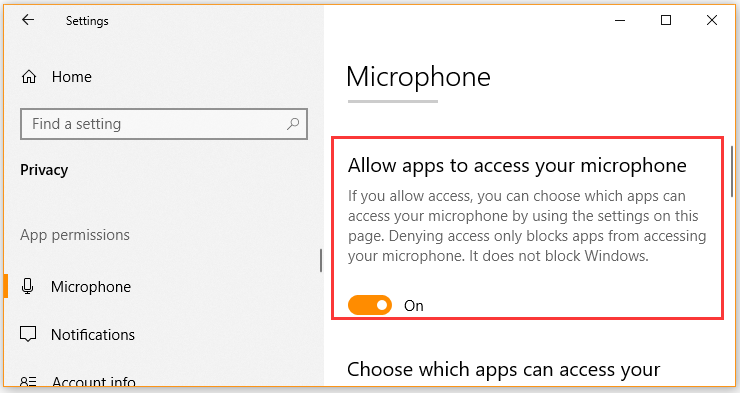
3. Select the apps that you want to use with your recording device and turn on their sliders.
Fix 8. Undo the Recent Changes You Have Made
Some users reported that the Windows voice recorder not working problem happens after they installed Windows updates. These updates may change your privacy settings. In this case, you can undo them by performing a system restore.
Fix 9. Clear Windows Store Cache
- Press Win + R, type WSReset.exe, and press Enter.
- Wait for the process to finish and the Microsoft Store to open.
- Restart your computer and check whether the problem is resolved.
According to some user reports on the Microsoft forum, the Windows 10 voice recorder not working issue can be resolved by clearing the Windows store cache. Let’s have a try.
1. Press Win + R keys to open the Run box, and then type WSReset.exe in it and hit Enter.
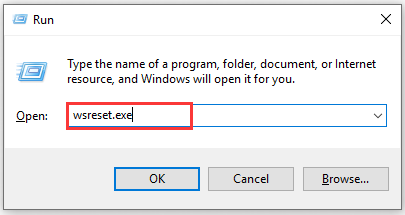
2. Then you need to wait for some time for the process completes. After that, the Windows store window will pop up.
3. Restart your computer and see if the problem is fixed.
Fix 10. Perform a Clean Boot
Sometimes, the “Windows 10 recording not working” issue could be caused by the conflicts between certain applications and the voice recorder. Here we recommend you perform a clean boot to find the conflicting application, and then uninstall it from Apps and Features.
Fix 11. Use an Alternative Tool
If none of the 10 solutions above resolve the issue of Windows Voice Recorder failing to run, the most time-efficient approach is to use an alternative tool, such as MiniTool Screen Recorder. This is a free desktop screen recording tool for Windows capable of capturing all on-screen activity, as well as system and microphone audio.
Additionally, it supports webcam and secondary monitor capture, making it a comprehensive recording solution. Below are the detailed steps for recording audio using MiniTool Screen Recorder:
Fast Track Steps:
- Launch MiniTool Screen Recorder
- Choose the recording area
- Configure the audio recording settings
- Adjust the camera recording feature
- Start recording the audio
- End the recording process
- Check the recorded audio
1. Click the button below to download and install MiniTool Screen Recorder on the PC. Then, launch it on the PC.
MiniTool Screen RecorderClick to Download100%Clean & Safe
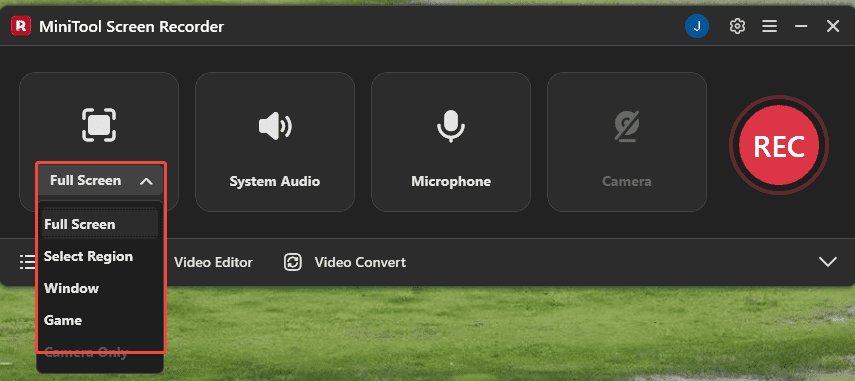
2. This toolcaptures the full screen by default. To record a specific area, window, or monitor, expand the Full Screen option to choose the relevant option.
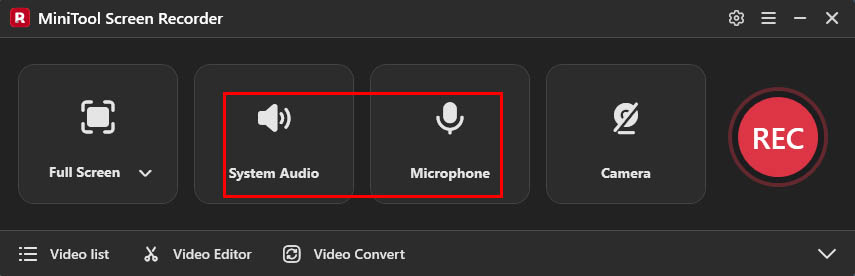
3. To record the audio from the computer or microphone, make sure the System Audio icon and the Microphone icon are enabled by default.
4. If there is a need to capture the webcam footage while screen recording, click the Camera icon on the right.
5. Tostart recording the screen with audio, click the REC button. After a 3-second countdown, the recording process will automatically start.
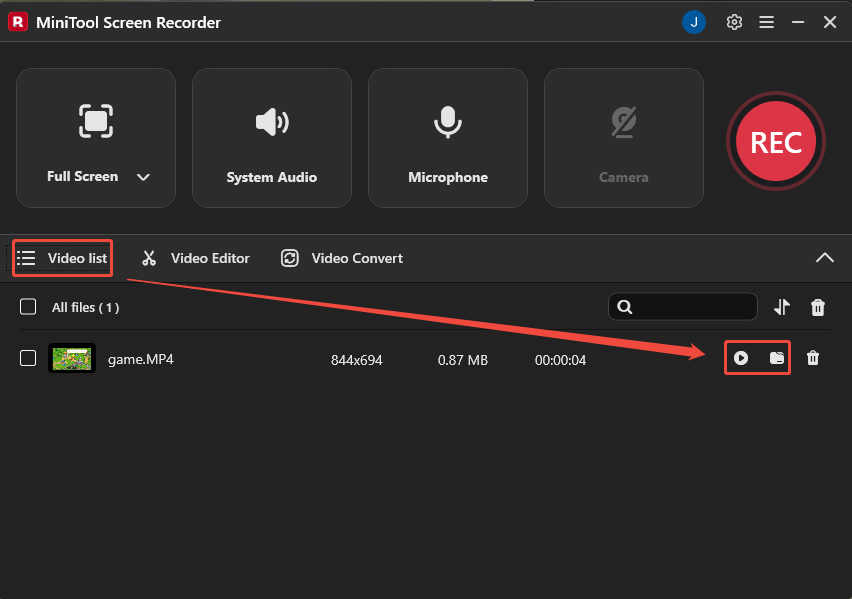
6. To end the recording process, click the F6 key. Then the recorded video will automatically appear in the Video list section. Next, click the Play icon to view the recorded video, or click the Folder icon to see the file save location.

Final Words
If Windows Voice Recorder not working is still an issue, try the fixes in this guide, such as enabling the recording device, resetting the app, clearing the Windows cache, or using an alternative tool, and more.
If you have any questions when using MiniTool Screen Recorder, send an email to support@minitool.com.
People Also Ask
1. Press Windows + G to open Xbox Game Bar.
2. Make sure the audio recording feature is enabled in the Capture panel.
3. Then, start recording the system audio.