

Xbox Game Bar is a built-in recording tool in Windows. It is excellent for capturing gameplay and other application windows. However, following an update, I began encountering Game Bar errors, specifically, error codes such as 0x82323f03 and 0x8232360f. After checking the settings, I discovered that various factors can cause these issues.
Why Is Xbox Game Bar Not Working
When errors occur in the Game Bar, it usually fails to open, cannot record or take screenshots, cannot save recording files, and recording is interrupted. These problems are usually caused by three broad categories of factors:
- Insufficient Configuration: Game Bar feature not enabled, Xbox services disabled, or insufficient permissions.
- System and Software Conflicts: Software conflicts, hotkey conflicts, or outdated graphics drivers.
- Core Component and File Issues: Component anomalies, outdated versions, corrupted system files, registry corruption, or missing Windows Media Feature Pack.
![How to Adjust Xbox Game Bar Maximum Recording Length [Pro Guide]](https://images.minitool.com/recorder.minitool.com/images/uploads/2026/07/xbox-game-bar-maximum-recording-length-thumbnail.jpg)
How to Fix Game Bar Error
After some experimentation, I found that common Game Bar issues are not difficult to resolve using the following methods. These approaches cover standard fixes, such as adjusting settings, restarting relevant services, repairing components, updating drivers, resolving software conflicts, using alternative software, and more.
Fix 1: Enable Xbox Game Bar
Suitable for: Game Bar not opening, recording feature unavailable, and the Windows + G keys not working
Although Xbox Game Bar is built into Windows, the recording overlay cannot be launched unless the necessary permissions are enabled. Therefore, if the issue of Game Bar not opening occurs, it is recommended to check the Windows Settings to ensure the feature is turned on. Follow the steps below:
1. Press Windows + I to launch the Windows Settings interface.
2. Then, move to the Gaming module.
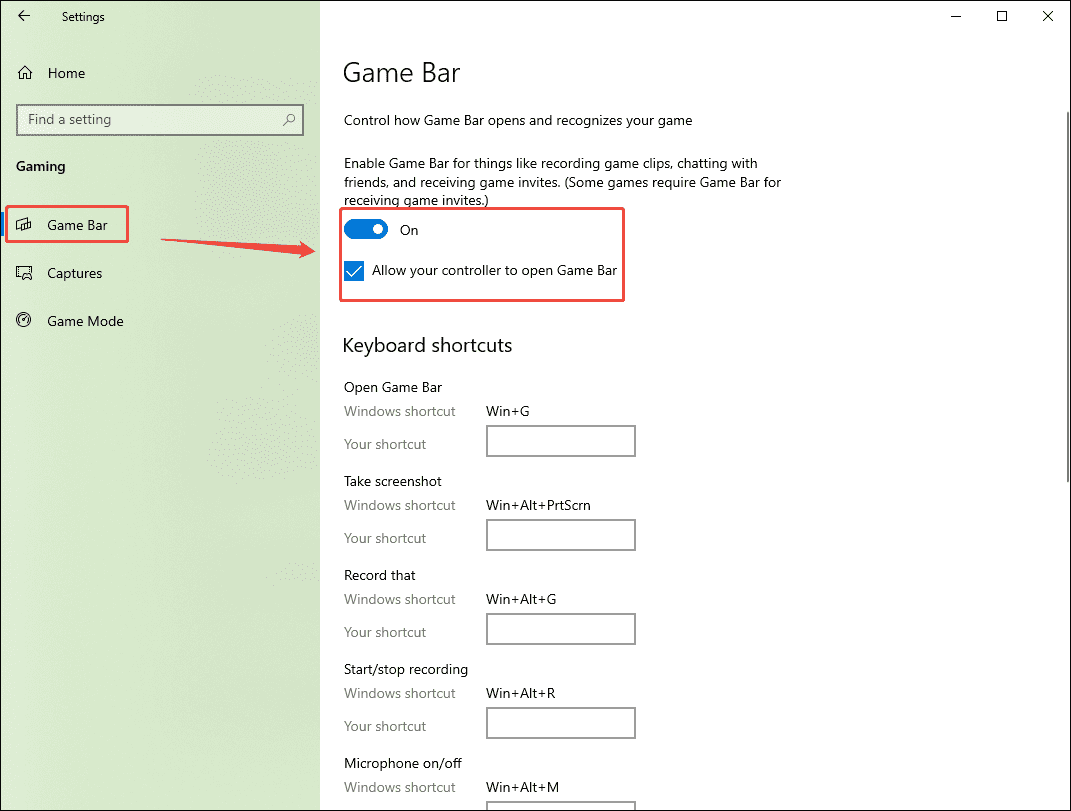
3. Switch to the Game Bar section. Then, turn on the Game Bar feature switch and check the box below to allow your controller to open the Game Bar.
Fix 2: Check Xbox Services
Suitable for: Game Bar error 0x82323f03, Game Bar error 0x8232360f
Game Bar relies on several background services to function correctly. Disabling Xbox-related services prevents Game Bar from detecting whether a game is running, thereby disabling game recording features.
Additionally, this prevents Game Bar from recognizing users’ account information, causing both Game Bar and the game to fail to run. The best way to resolve this issue is to set the relevant services to automatic mode.
1. Press the Windows + R keys.
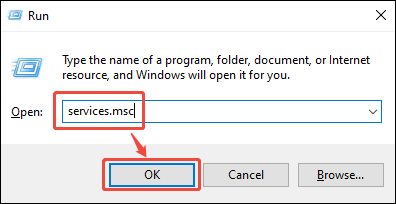
2. Then, in the new window that appears, type services.msc into the box. Then, click OK.
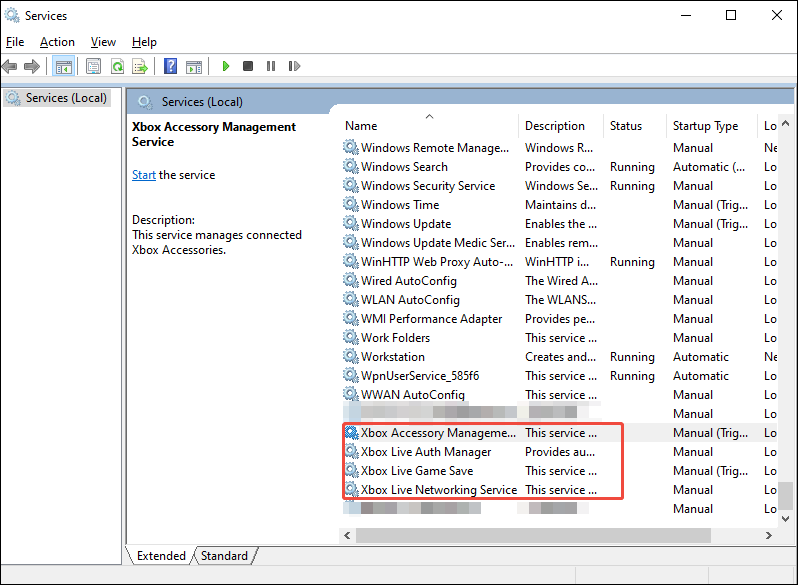
3. In the interface that appears, scroll down to locate the following options: Xbox Accessory Management Service, Xbox Live Auth Manager, Xbox Live Game Save, and Xbox Live Networking Service. Then, right-click on each of these options and select the Properties option.
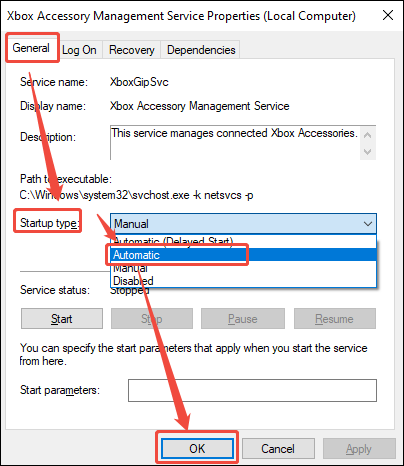
5. In the new pop-up window, locate the Startup type under the General section. Then, expand the drop-down menu on the right and select the Automatic option. Finally, click the OK button to save the changes.
Fix 3: Run Game Bar with Sufficient Permissions
Suitable for: Game Bar does not record audio, Overlay not detected, Game Bar does not detect game
Typically, Xbox Game Bar requires specific permissions from Windows to function correctly. If the system restricts these permissions, Game Bar may fail to properly recognize the game, preventing users from recording gameplay.
Additionally, I once encountered an issue where recording worked, but there was no audio captured; I later discovered that Game Bar also requires permission to access audio.
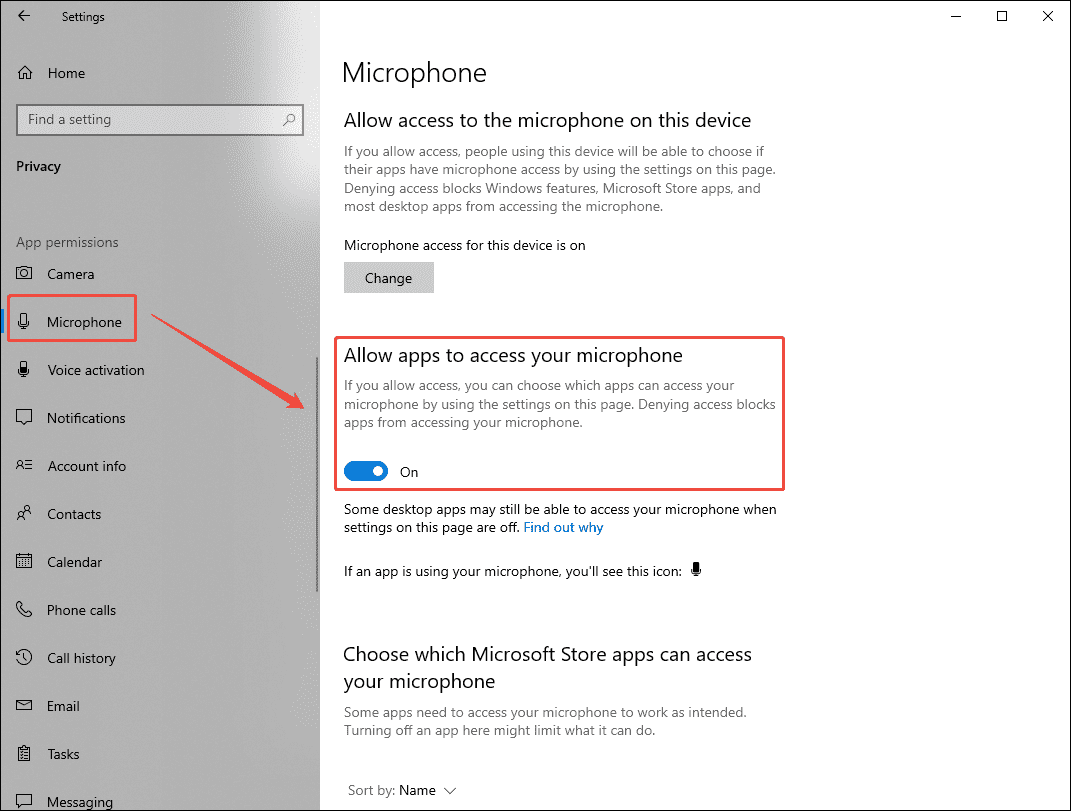
1. Press the Windows + I keys, then navigate to the Privacy module.
2. Then, scroll down the screen and find the Microphone section.
3. Turn on the Allow all apps to access your microphone option so that Game Bar can use the microphone permissions properly.
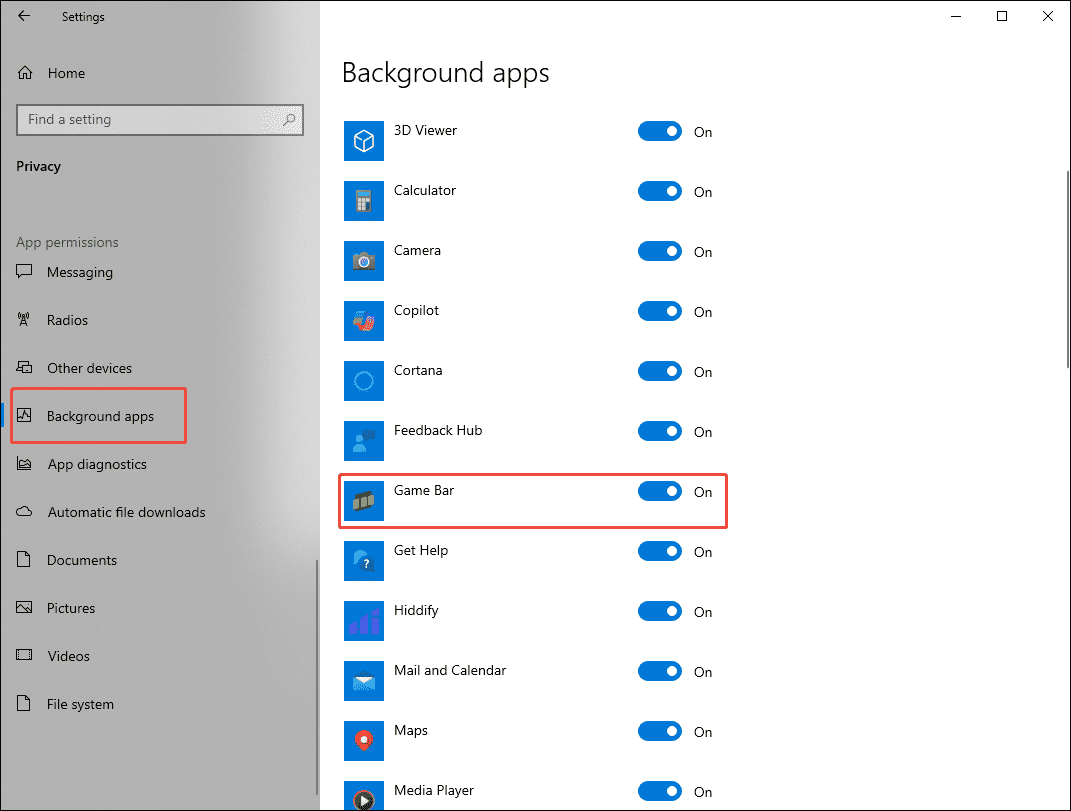
4. Then, move to the Background apps section, and enable the permission for Game Bar to run in the background.
Fix 4: Disable Conflicting Overlays & Software
Suitable for: Game Bar recording stops unexpectedly, Windows + G keys not working
This is a factor users often overlook. Running multiple overlays or software applications simultaneously, such as Discord, Steam, or ShadowPlay, can interfere with Game Bar's ability to detect game activity. Moreover, hotkeys used by certain screen recorder may conflict with Xbox Game Bar's recording shortcuts, preventing the recording function from working properly.
Therefore, before using the Game Bar to capture gameplay, I recommend closing any software that runs in the background. This not only ensures the Game Bar runs more smoothly but also helps avoid conflicts with other applications.
Fix 5: Update Graphic Drivers
Suitable for: Game Bar not recording, black screen
Compatibility issues are a major reason why the Xbox Game Bar fails to function. In particular, outdated graphics drivers can prevent the Game Bar from accessing game frame rate and resource usage data via the Windows graphics driver model and DirectX interfaces. Consequently, updating the graphics driver often resolves this issue.
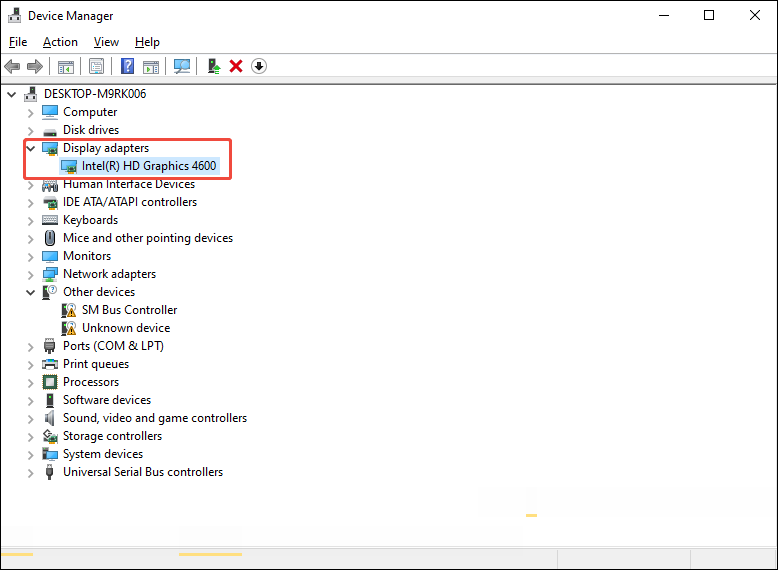
1. Press the Windows + X keys, then choose the Device Manager option in the expanded menu.
2. In the new interface, expand the Display adapters option. Then, right-click the graphics card driver and select the Update driver option from the menu that appears.
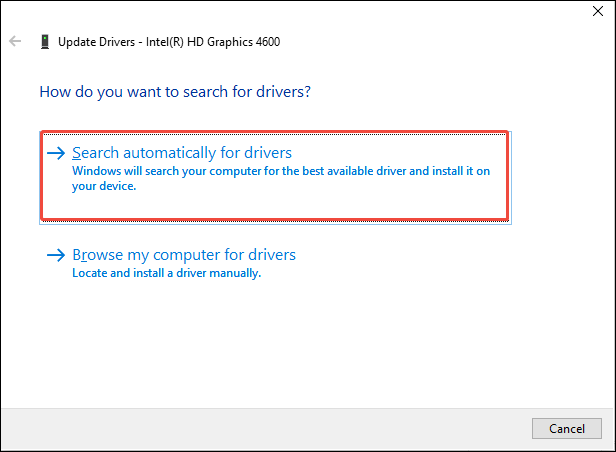
3. In the new window, click the Search automatically for drivers option to check if there is a new version available.
Fix 6: Repair or Reset Game Bar
Suitable for: Game Bar file anomaly
In my experience, if Game Bar encounters a sudden system shutdown or update-related issue while running, it can lead to file corruption. Furthermore, errors within cache files accumulated during prolonged use may also cause core files to become corrupted. In such cases, the issue can usually be resolved by repairing or resetting Game Bar.
1. Press Windows + I to launch Windows Settings.
2. Navigate to the Apps module.
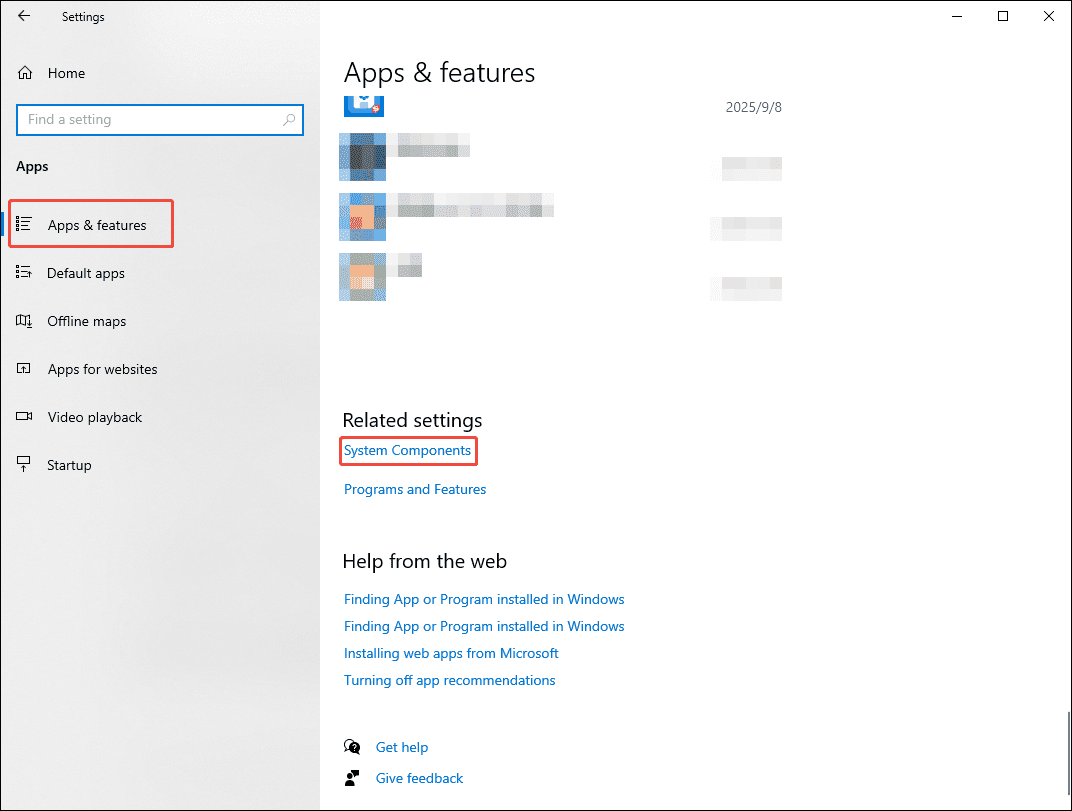
3. In the new interface, scroll down the interface and find the System Components section to open it under the Apps & features section.
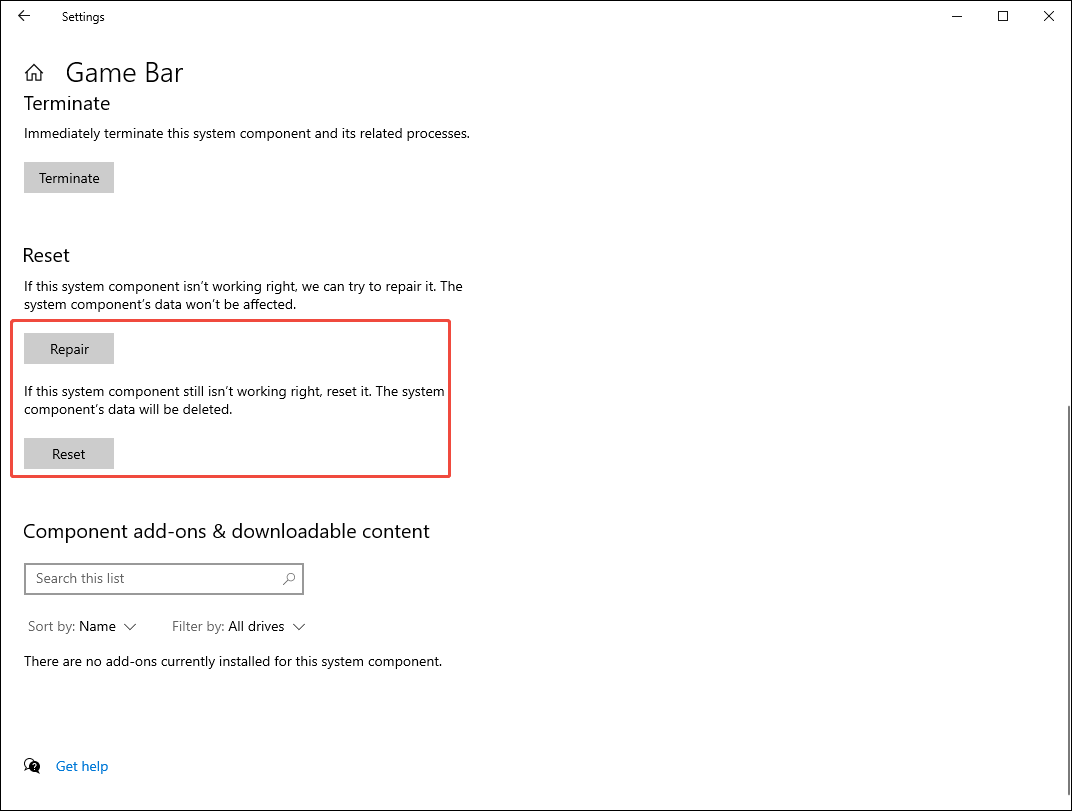
4. In the new interface, find the Xbox Game Bar and click Advanced options in the expanded interface.
5. Then, to repair and reset the Xbox Game Bar, click the Repair or Reset option in the new window.
Fix 7: Reinstall Game Bar
Suitable for: Severe Game Bar component damage
While resetting or repairing the Game Bar can resolve issues such as corrupted files or configuration errors, these methods typically address only minor glitches. If the file corruption is severe, the most thorough solution is to reinstall the app. However, since Game Bar is a built-in Windows component, the reinstallation process is relatively complex.
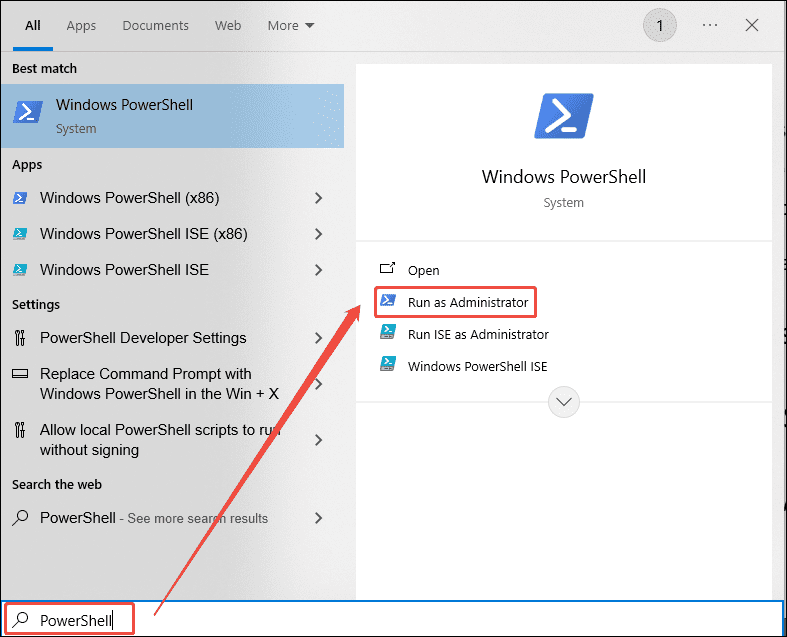
1. Press PowerShell in the Windows search bar at the bottom. Then, click the Run as Administrator option.
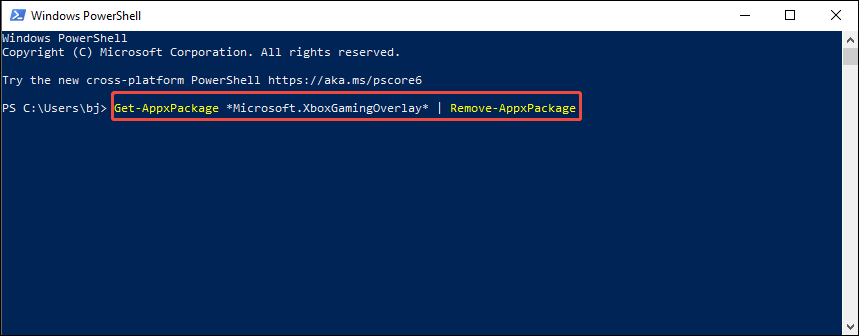
2. Then, paste the command Get-AppxPackage *Microsoft.XboxGamingOverlay* | Remove-AppxPackage into the PowerShell window. Finally, press the Enter key to uninstall the Game Bar.
3. Finally, go to the Microsoft Store to reinstall the Xbox Game Bar.
Fix 8: Update Windows System
Suitable for: Game Bar compatibility issues
An outdated version of Windows is also a common cause of Game Bar errors. Older versions often cause compatibility issues with Game Bar, leading to various operational errors. Therefore, it is necessary to update the Windows system.
1. Open Windows Settings.
2. Navigate to the Update & Security module.
3. In the new interface, click the Check for updates option to see if there is a new version available under the Windows Update section.
Fix 9: Reinstall Media Feature Pack
Suitable for: Media feature pack missing
As a built-in Windows component, Game Bar relies on specific media frameworks to provide recording capabilities. Since "N" editions of Windows typically lack these frameworks, users of these editions cannot use Game Bar. To resolve this issue, first check the system version; if the device is running an "N" edition, installing the "Media Feature Pack" can fix the problem.
# Check the Windows Version
1. Press Windows + R. Then, type winver into the box and click OK.
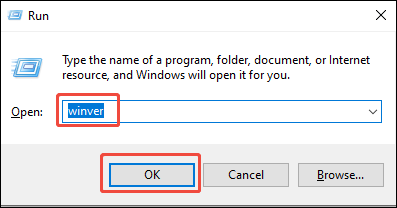
2. In the new pop-up window, the version will be displayed.
# Install Media Feature Pack
1. Open Windows Settings.
2. Move to the Apps module. Then find the Optional features section.
3. Search for the Media Feature Pack and install it on the PC.
Fix 10: Utilize an Alternative Tool
Suitable for: Xbox Game Bar continues to fail after troubleshooting
When the aforementioned methods fail to resolve Game Bar-related issues, I typically switch to other software to handle recording tasks more efficiently. MiniTool Screen Recorder is a free tool I frequently use; it can detect game windows, allowing for the quick selection of the recording area. Additionally, it supports webcam recording, a feature Game Bar lacks.
In addition, the app features built-in, convenient annotation tools, making it ideal for creating tutorial videos. My favorite feature is that it supports unlimited recording time.
Fast Track Steps:
- Open the target game.
- Launch MiniTool Screen Recorder.
- Configure the recording parameters under the Settings module.
- Choose the Game option within the Full Screen section.
- Select the target game window.
- Control the audio and microphone recording on the floating bar.
- Click the REC button to begin recording.
- Play the game.
- Annotate the screen while capturing the game.
- End the recording process and check the recorded game video.
- Edit the recorded game video by clicking the Video Editor option.
1. Open the game that needs to be recorded.
2. Click the button below to download and install MiniTool Screen Recorder. Then, launch it on the PC.
MiniTool Screen RecorderClick to Download100%Clean & Safe
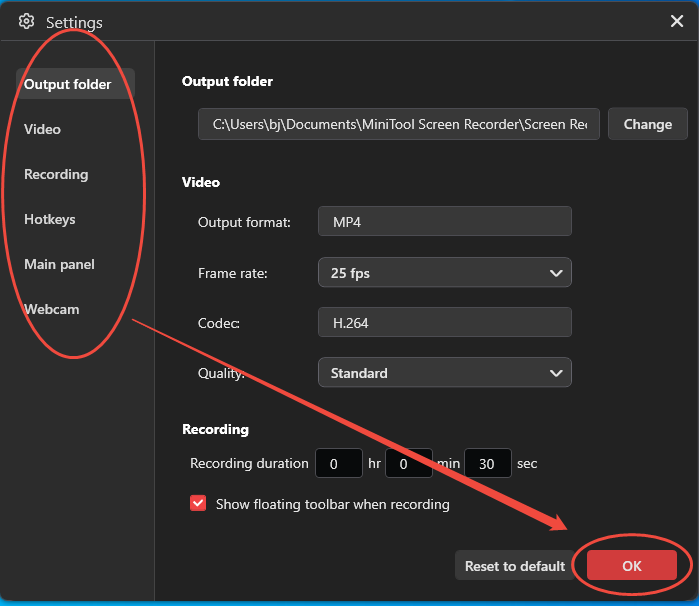
3. Click the Settings icon in the top-right corner of the main interface, then adjust the video recording settings within the relevant sections, such as file save path, frame rate, video quality, hotkeys, webcam parameters, and many more. Finally, click on OK.
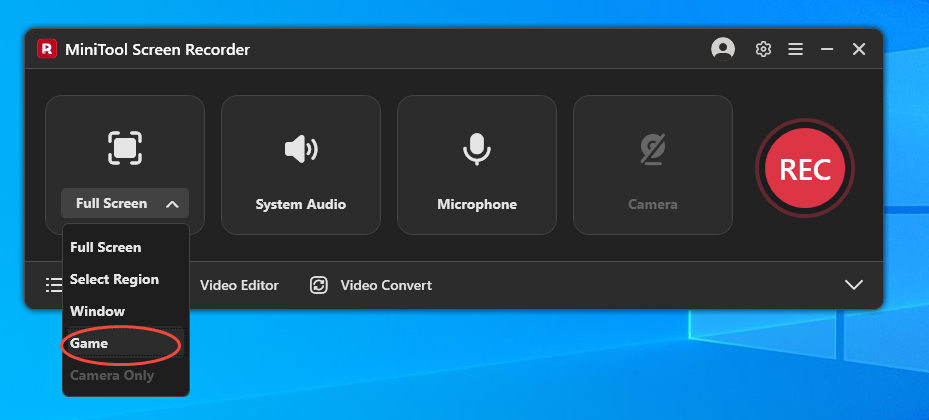
4. This tool automatically selects Full Screen as the default recording mode. To capture a game efficiently, expand the Full Screen option, then choose the Game option.
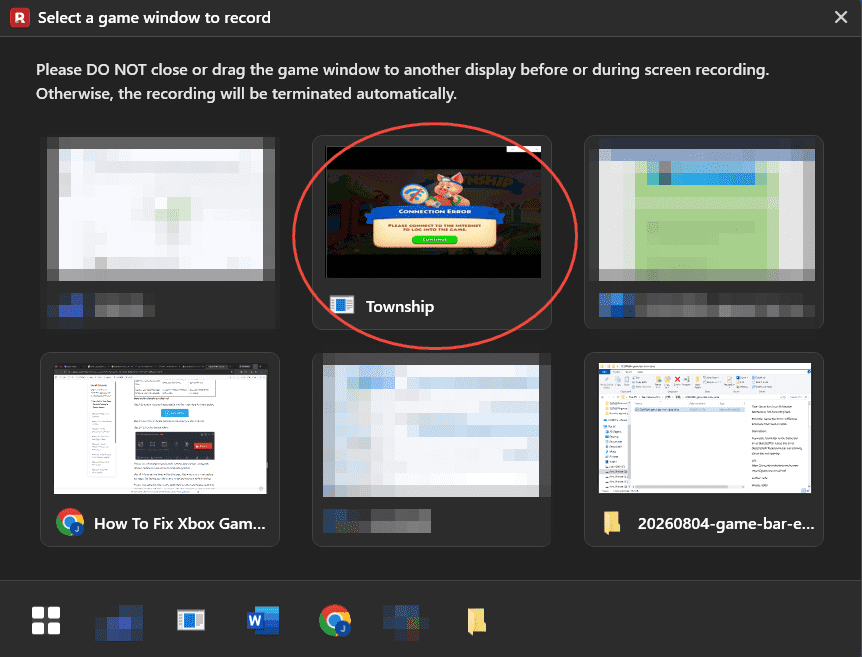
4. In the new pop-up window, select the target game window.
5. Then, make sure the computer audio and microphone input recording features are enabled by default on the floating bar.
6. To add a webcam overlay when capturing games, click the Camera icon on the floating bar.
7. Press the REC button to start the game recording process. When the 3-second countdown ends, play the target game. Please do not close or drag the window to another monitor before or during screen recording.
8. If there is a need to mark the screen while screen recording, choose tools from the annotation toolbar.
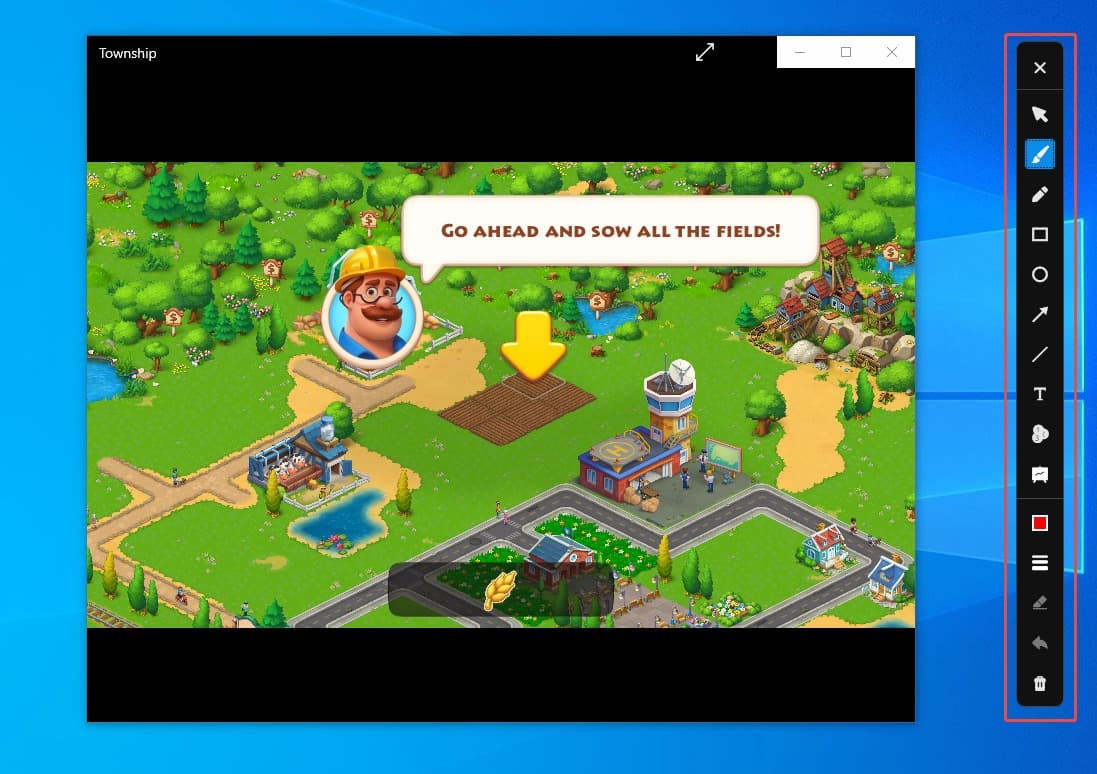
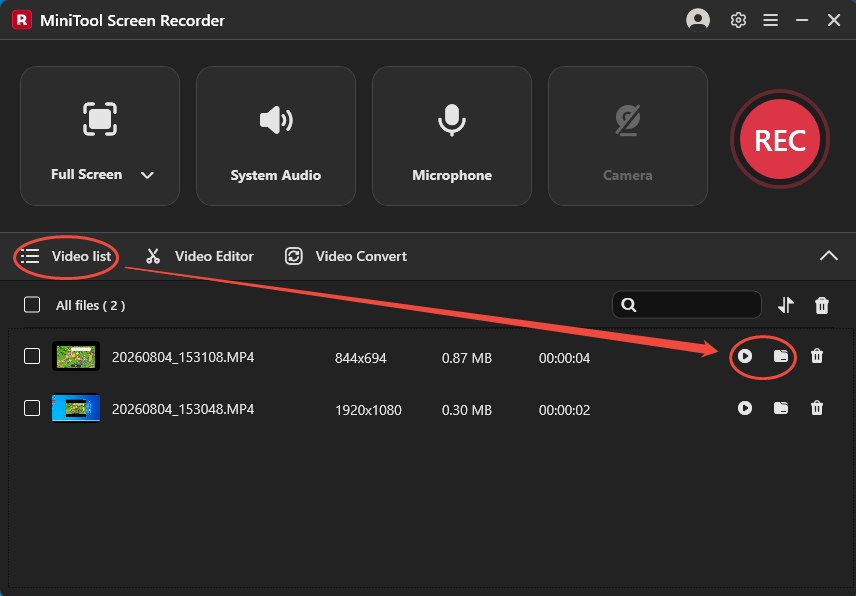
9. To end the recording, click the Stop recording icon on the floating bar or press the F6 key. Then, the tool will switch to the Video list module. Click the Play icon to view the recorded game video and click the Folder icon to locate the recording file.
10. Finally, if there is a need to optimize the recorded game video, click the Video Editor option on the main interface to get the editing tool, MiniTool MovieMaker.
MiniTool MovieMakerClick to Download100%Clean & Safe
In short, following the troubleshooting steps outlined above, progressing from simple to complex, will usually resolve Game Bar errors. If these methods prove ineffective, it is recommended to switch to a third-party alternative for more efficient recording.
To Wrap Things Up
Game Bar errors can usually be resolved by reinstalling the application, repairing corrupted files, closing conflicting software, installing missing files, and more. If these methods prove ineffective, try using other tools, such as MiniTool Screen Recorder, to record gameplay.
If you encounter any questions when using MiniTool Screen Recorder or MiniTool MovieMaker, send an email to support@minitool.com.