

How to record audio from browser on PC? The two excellent screen recorders introduced in this article, Xbox Game Bar and MiniTool Screen Recorder, offer the best solutions. It also shares detailed steps and practical tips for improving recording quality.
Many people need to record audio from browsers, such as audio from online meetings, podcasts, online courses, social media videos, etc. As someone who frequently participates in online meetings and often needs to back up the discussions, I eventually found two suitable audio and video recording tools:
- Xbox Game Bar
- MiniTool Screen Recorder
How Can I Record Audio from Browser
After using both of these tools, I found that they share a similar recording workflow.
Quick Steps:
- Open the recording software.
- Select the target browser and prepare the audio that needs to be recorded.
- Adjust the audio recording settings.
- Record the audio in browser.
- End the recording process.
- Play and check the recorded browser audio under the relevant section.
Of course, to provide a clearer understanding of how to record audio from browser, I have also outlined the detailed steps involved.
Option 1: Xbox Game Bar
While the Xbox Game Bar is often regarded as a go-to tool for gamers to record their highlights, I find its recording capabilities equally well-suited for capturing browser audio. It allows me to configure the microphone and system audio recording independently, giving me the flexibility to choose my audio source.
Furthermore, the way it launches, simply by pressing the Windows + G keys, helps boost efficiency. What appeals to me most is its ability to capture the last thirty seconds of activity, making it perfect for preserving those exciting moments that are easily missed. The detailed recording steps on how to record sound from browser are as follows:
1. Go to the browser and find the audio within the interface that needs to be recorded.
2. Press the Windows + G keys to launch the panel of the Xbox Game Bar.
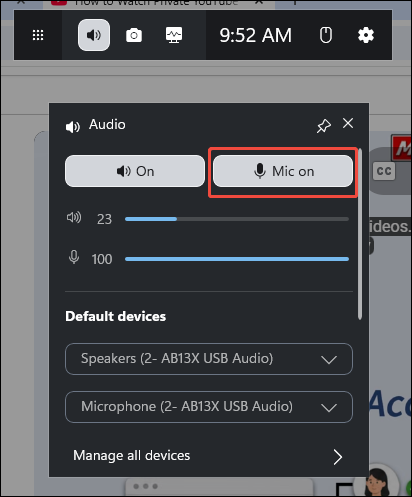
3. Click the Widget Menu icon and select the Audio option. Then, choose whether to disable the microphone recording feature.
4. Click the Widget Menu again and choose the Capture option. Then, make sure the audio recording feature is enabled. Click the Start recording icon or press the Windows + Alt + R keys to begin recording.
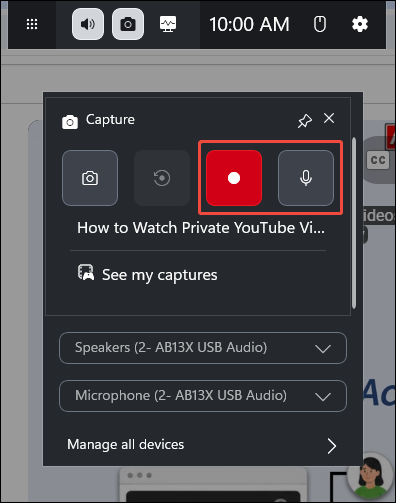
5. Then, play the target audio. To end the recording process, press the Windows + Alt + R keys again.
6. Finally, view the recorded browser audio under the See my captures section.
It is worth noting that the Xbox Game Bar is built into Windows, so no manual installation is required. However, it has a two-hour recording limit. Therefore, I also chose MiniTool Screen Recorder as an alternative.
Option 2: MiniTool Screen Recorder
MiniTool Screen Recorder is a free screen recording tool. It imposes no limits on recording duration and offers the ability to capture system audio and microphone input either separately or simultaneously.
Compared to the Xbox Game Bar, this tool boasts a richer set of features, including options to record the full screen, a specific area, a window, a secondary display, or webcam footage. Additionally, it includes annotation tools that allow users to mark information while recording. Below are detailed instructions on how to use the program to record audio in browser.
1. Click the button below to download and install MiniTool Screen Recorder on the PC. Then, launch it.
MiniTool Screen RecorderClick to Download100%Clean & Safe
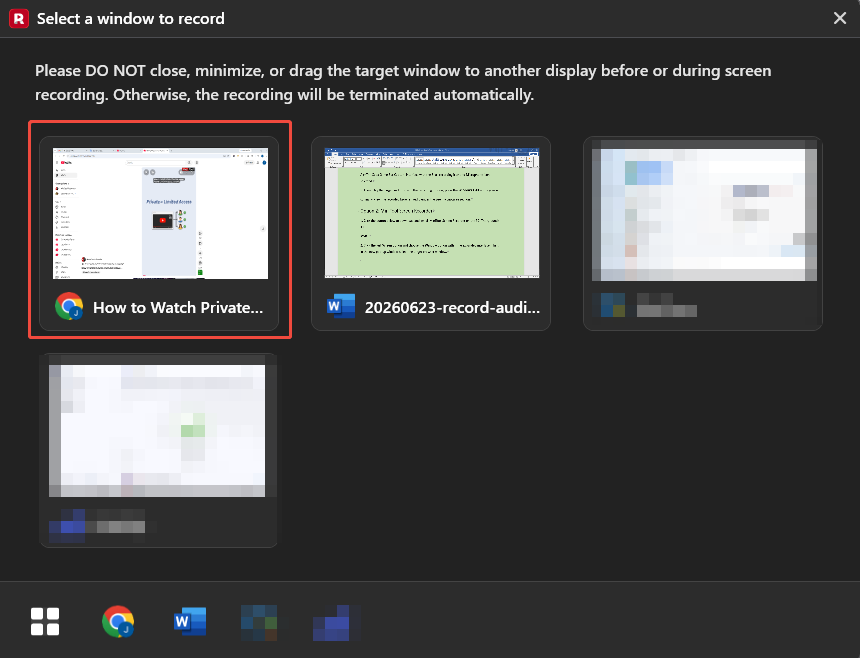
2. Click the Full Screen option and choose the Window option within the expanded interface. Then, in the new pop-up window, select the target browser window.
3. Then, choose whether to record system audio alongside the microphone input based on the needs. If no, simply click the Microphone icon on the floating bar to disable the feature.
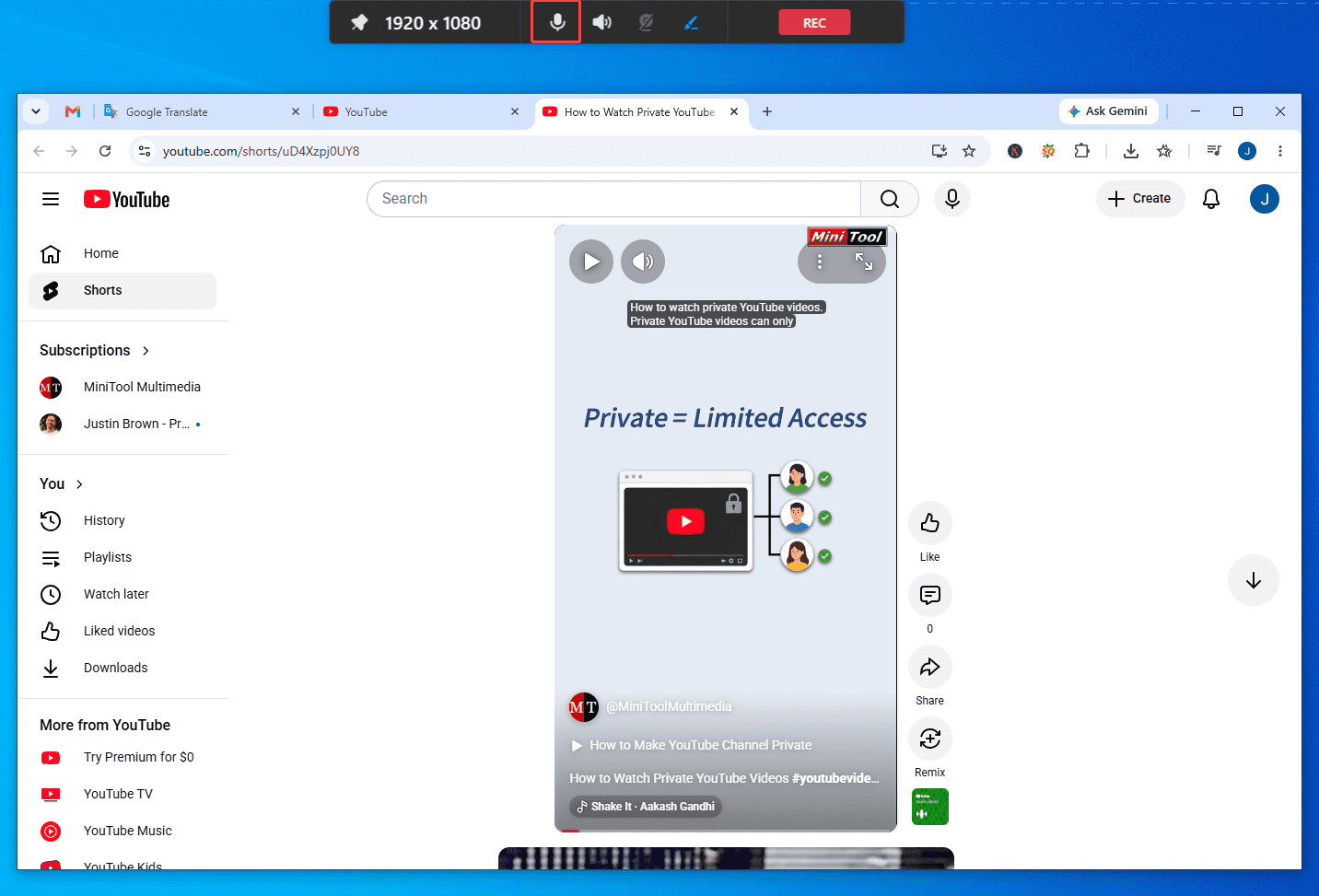
4. If there is a need to capture the webcam footage while screen recording, click the Camera icon on the floating bar.
5. To start the recording process, click the REC button on the floating bar or press the F6 key. Then, play the target audio.
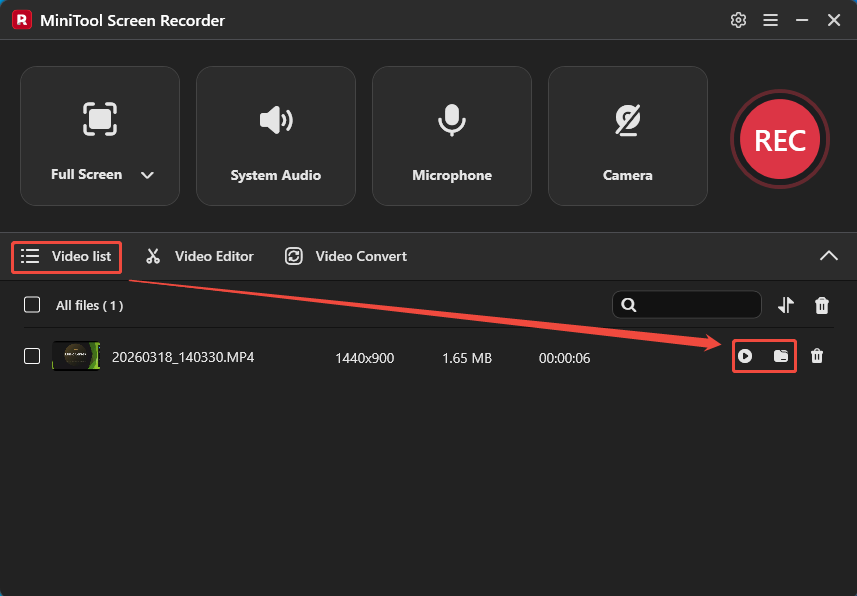
6. To end the recording process, press the F6 key again. Finally, play and check the recorded browser audio under the Video list section.
In addition to being a deal for recording browser audio, the software can also capture any other on-screen activity, such as video chats, online meetings, webinars, live streams, gameplay, presentations, and more.
How Can I Make the Audio Recordings Better
Generally speaking, thorough pre-recording preparation and proper post-recording work can both help improve the quality of browser-based audio recordings to some extent. Here are a few common methods.
#1 Adjust System Audio Volume
Since recording browser audio, I recommend adjusting the volume in the Windows audio settings beforehand to ensure the recorded sound level is appropriate.
#2 Prepare a Quiet Recording Environment.
If there is a need to capture microphone audio, choosing a quiet recording environment is essential. Additionally, I prefer using a headset to better capture the microphone's sound source.
#3 Edit and Optimize the Audio Recordings
I frequently use MiniTool MovieMaker for my video editing needs. It not only allows for trimming, cutting, and rotating videos but also enables users to add various overlays, such as filters, transitions, text, music, and more. I usually use it to add subtitles to my audio or video recordings, making them easier to review later.
To access this software, click the Video Editor option on the main interface of MiniTool Screen Recorder.
MiniTool MovieMakerClick to Download100%Clean & Safe
Bottom Line
It is easy to record audio from browser with the right tools. The two tools featured in this article, Xbox Game Bar and MiniTool Screen Recorder, can meet a wide range of audio recording needs, from basic to advanced.
If you encounter any problems when using the MiniTool Screen Recorder and MiniTool MovieMaker, contact the support team at support@minitool.com.