

How to perform an Omegle recording easily? Since Omegle does not offer a built-in recording feature, video captures like MiniTool Screen Recorder or Clipchamp can be used to record video chats and audio conversations.
While using Omegle a while back, I unexpectedly met someone who shared similar interests. We started with simple greetings but gradually moved on to in-depth discussions about topics we both enjoyed. This made me want to save those interesting conversations or video chats.
However, I discovered that Omegle lacks a built-in recording feature. After some testing, I found two simple yet effective methods for capturing Omegle sessions:
- MiniTool Screen Recorder
- Microsoft Clipchamp
![How to Record Messenger Calls Efficiently [Step-by-Step Guide]](https://images.minitool.com/recorder.minitool.com/images/uploads/2026/04/record-messenger-calls-thumbnail.jpg)
How Can I Screen Record Omegle
Omegle users are likely aware that clicking the Save button before ending a chat allows them to preserve the chat log; otherwise, the conversation content automatically disappears once the session ends.
However, for those wishing to save the entire video chat session, simply saving the chat log is clearly insufficient; in such cases, professional Omegle recorders are required to capture the session via real-time screen recording. The following two methods allow me to easily record video chats and audio.
#1 MiniTool Screen Recorder
While browsing relevant forums, I discovered that MiniTool Screen Recorder, a free Windows screen recorder, is an excellent choice for capturing Omegle video chats. It not only records both video and audio simultaneously but also allows me to freely select the recording area.
Notably, this software features built-in webcam recording and real-time screen annotation, making it highly convenient for creating tutorials, recording picture-in-picture content, or capturing other screen activity.
Quick Steps:
- Launch MiniTool Screen Recorder.
- Set the recording area under the Full Screen option.
- Manage the audio recording settings.
- Control the webcam recording.
- Click the REC button to begin recording.
- Annotate the screen if necessary.
- Press the F6 key to end recording.
- View and locate the recorded Omegle video under the Video list section.
The following steps show how to screen record Omegle using MiniTool Screen Recorder.
1. Download and install MiniTool Screen Recorder, then launch it on the PC.
MiniTool Screen RecorderClick to Download100%Clean & Safe
2. Determine the Recording Area
A. This software records the full screen by default.
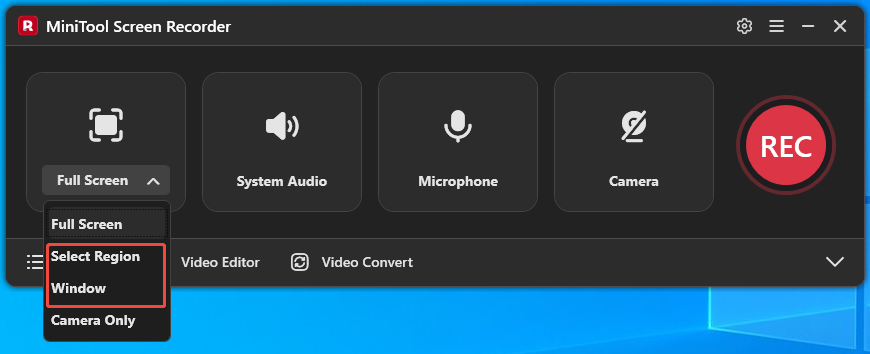
B. To capture the specific region or a website window, expand the Full Screen option, then choose the Select Region option and the Window option.
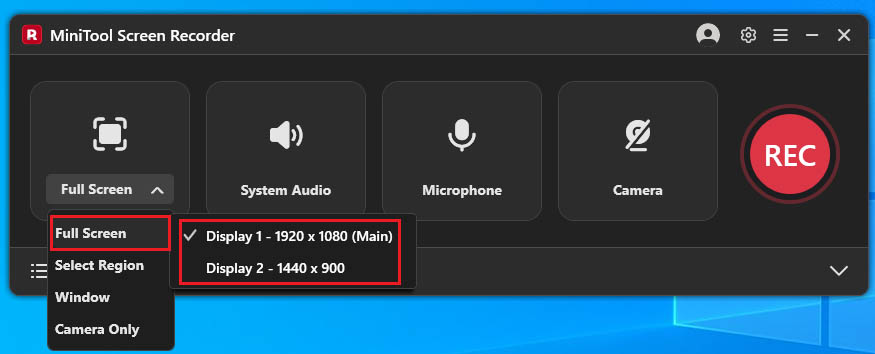
C. In a multi-monitor setup, expand the Full Screen option and select the monitor displaying the Omegle chat for recording.
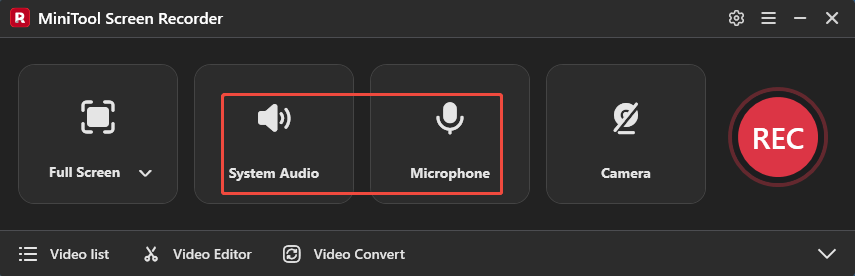
3. The system and microphone audio recording features are enabled by default, so there is no need to turn them on manually.
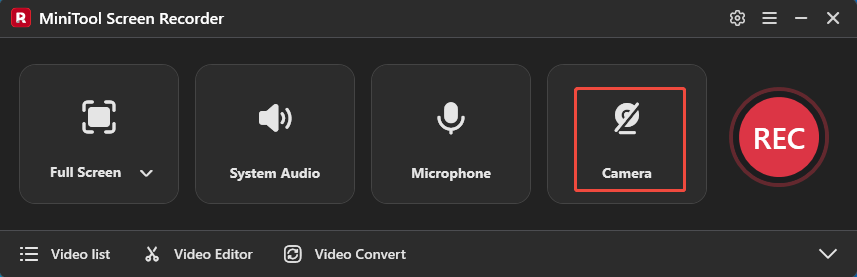
4. If there is a need to capture the webcam footage when chatting on Omegle, simply click on the Camera icon.
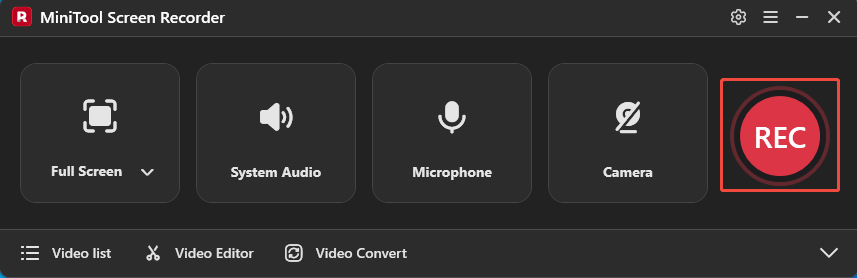
5. To start recording, click the REC button or press the F6 key. After a 3-second countdown, switch to Omegle and start a new chat.
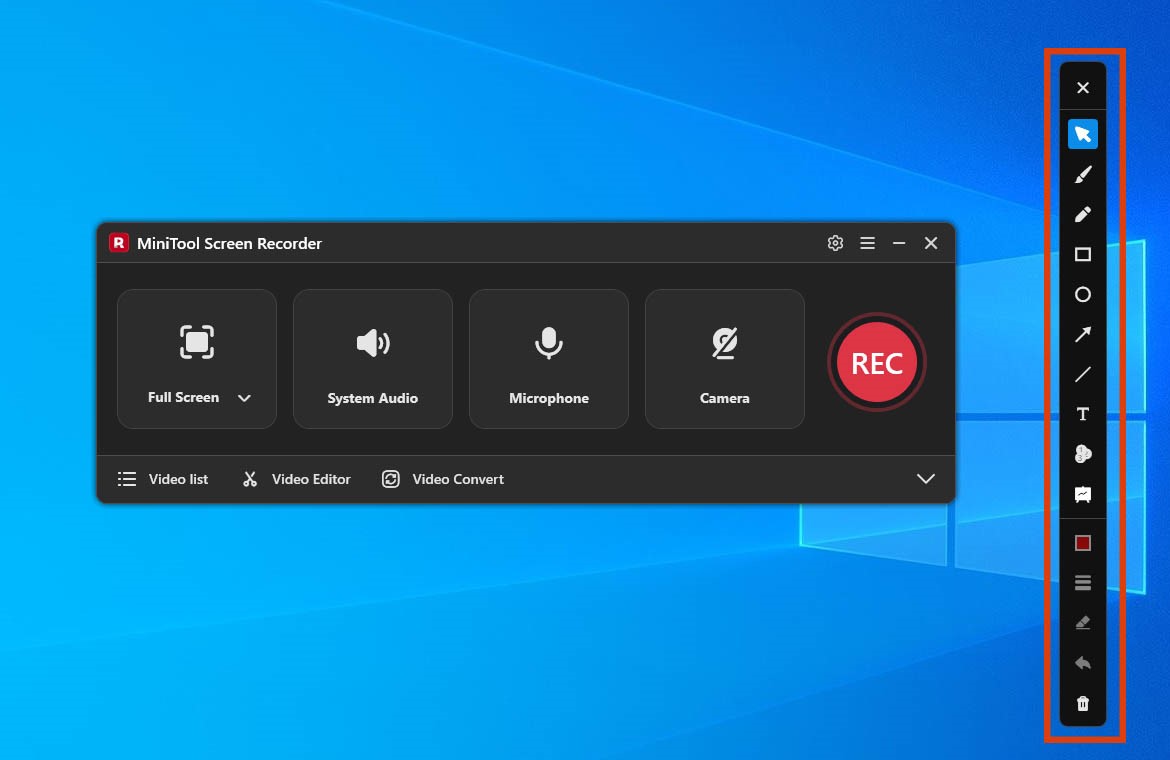
6. To annotate the screen while screen recording, choose tools from the annotation toolbar.
7. To end the recording process, press the F6 key again.
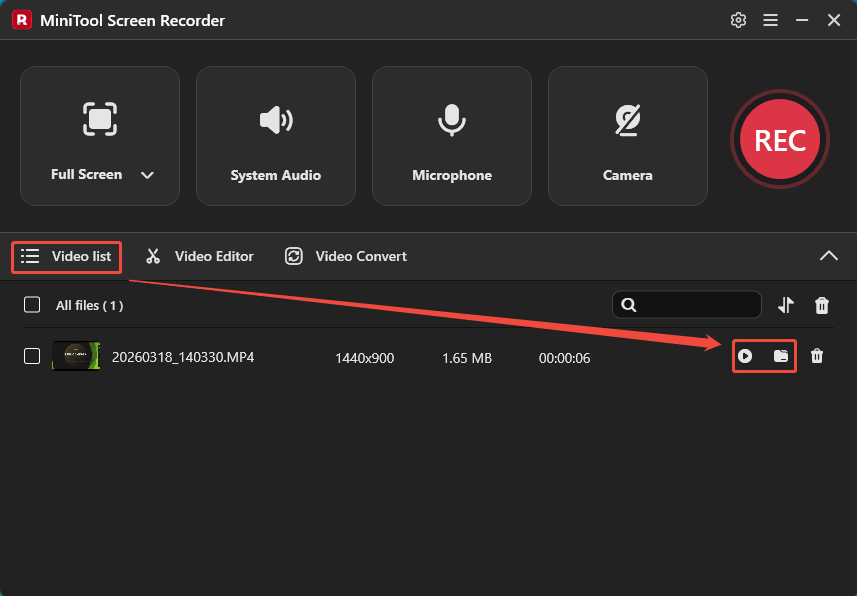
8. Once the recording ends, the tool will automatically switch to the Video list section. Then, click the Play icon to view the recorded Omegle video and click the Folder icon to locate it on the PC.
#2 Clipchamp
Clipchamp is another screen recorder for Omegle recording, offering both web and desktop versions for flexibility. It combines screen recording and video editing capabilities, allowing me to record the screen, webcam, and audio simultaneously.
In my view, it is ideal for video content that requires quick editing after recording. Additionally, recorded videos can be saved directly to the cloud or shared on platforms like YouTube.
Fast Track Steps:
- Launch Clipchamp and sign in to the account.
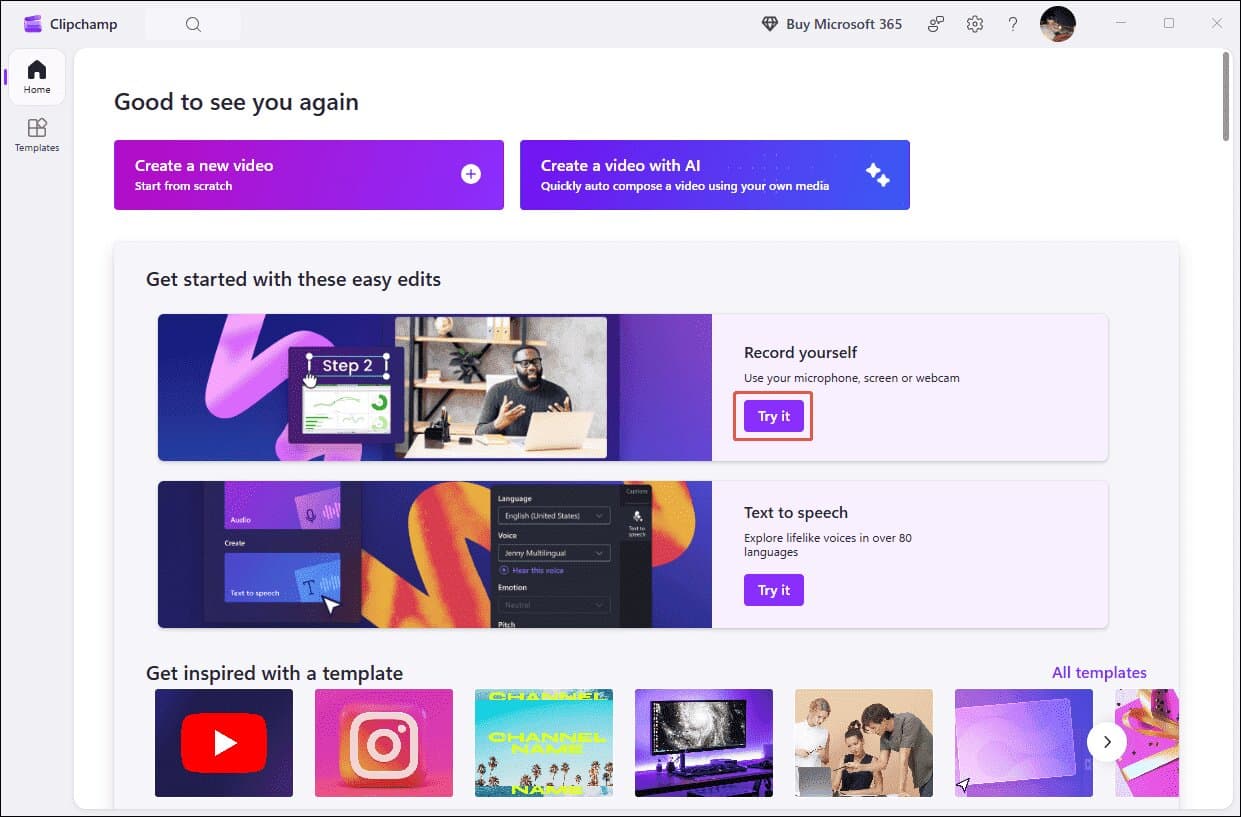
- Click Try it within the Record yourself section to enter the Record & create interface.
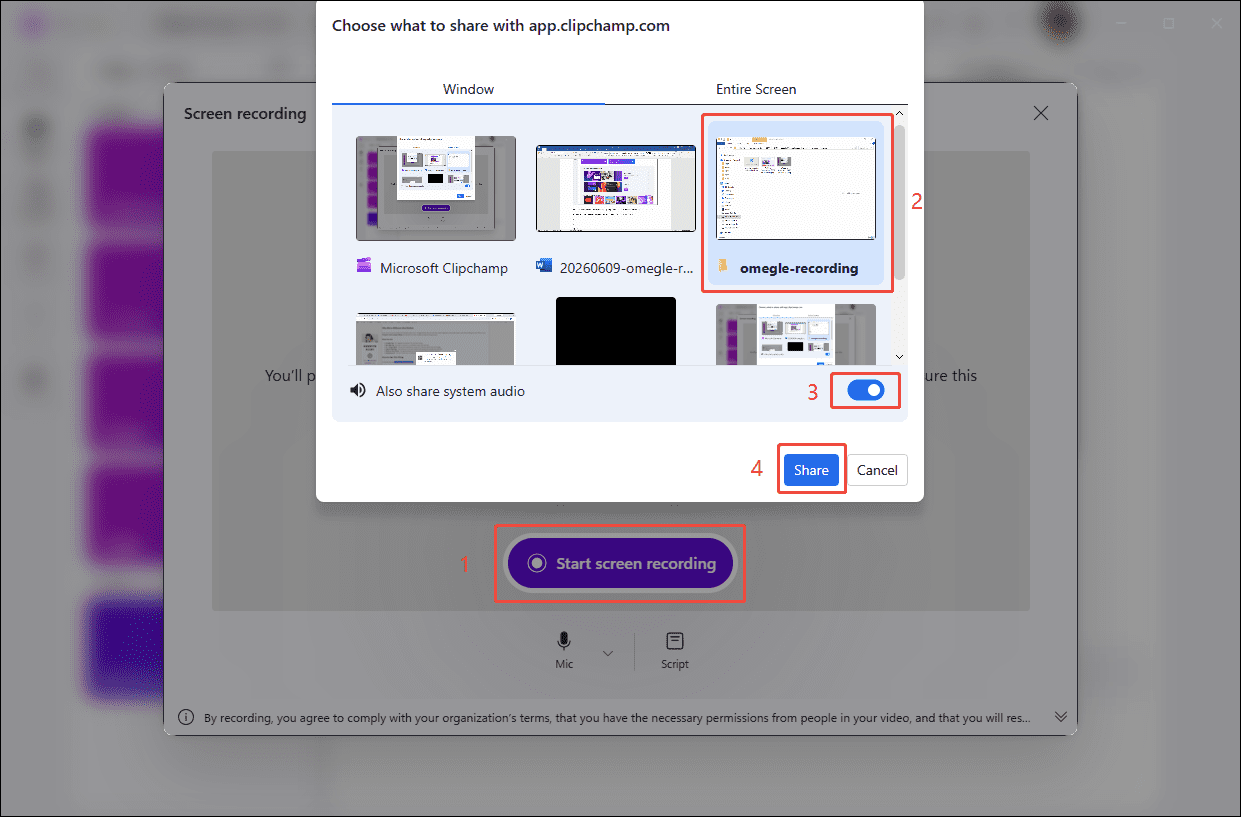
- Choose the Screen option and click the Start screen recording option.
- Choose the recording window and configure the microphone and webcam settings.
- Click the Share option to start recording.
- Click the Stop sharing option to end recording.
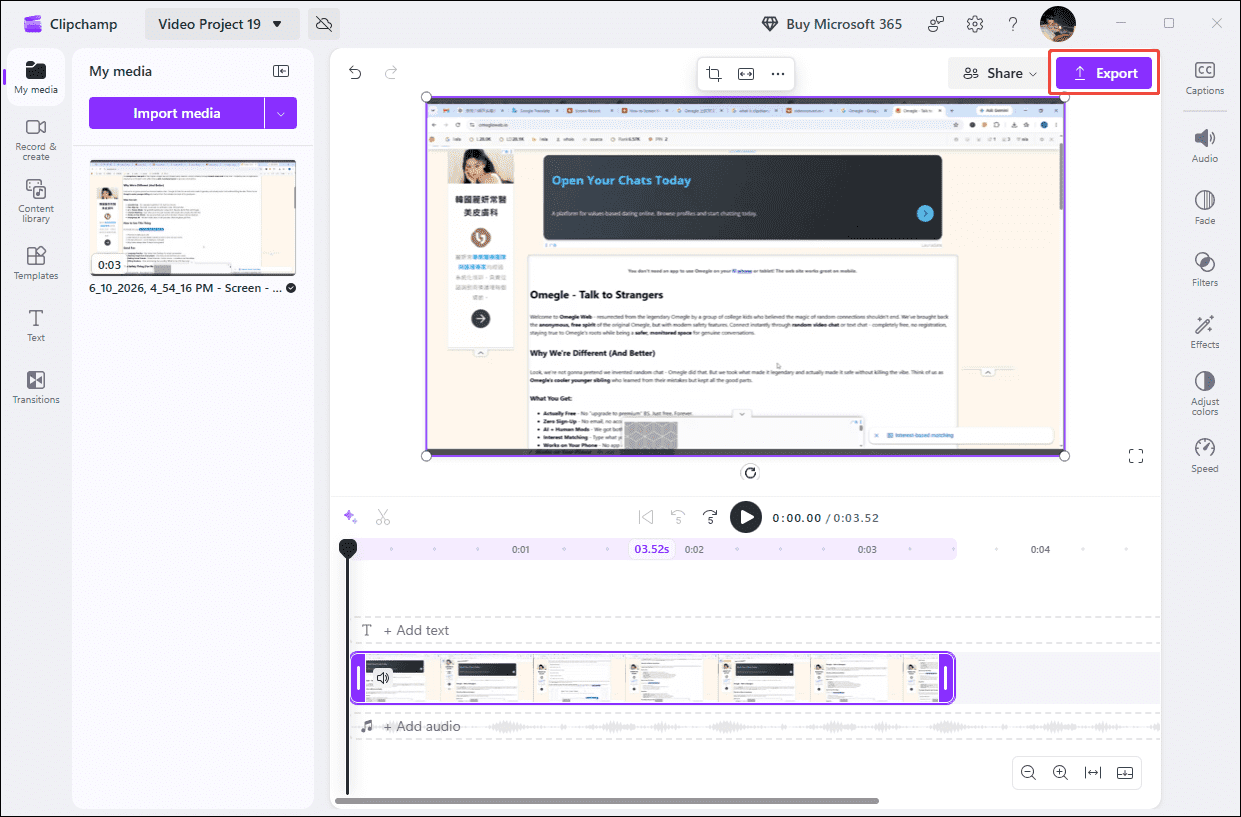
- Press the Export button to save the recorded video.
Now follow the detailed steps to screen record Omegle with Clipchamp.
1. Launch Clipchamp on the PC.
2. Click the Try it option within the Record yourself section to enter the Record & create interface.
3. Choose the Screen option under the Record section on the left side.
4. Click the Start screen recording option and choose the Omegle window, then enable the audio recording feature and click the Share option to start recording.
5. To end the recording process, click the Stop sharing option.
6. Finally, click the Save and edit option to view the recorded Omegle video. Then, press the Export button to save the recorded video.
Both MiniTool Screen Recorder, which offers flexible recording options, and Clipchamp, which includes built-in editing features, are capable of handling Omegle recording effectively.
Is It Legal to Capture Omegle
The legality of recording Omegle chats or video calls depends on local laws. However, since recording involves the other party's privacy, it is advisable to obtain their prior consent and commit to using the recording solely for private purposes.
Bonus: How to Edit Omegle Recordings
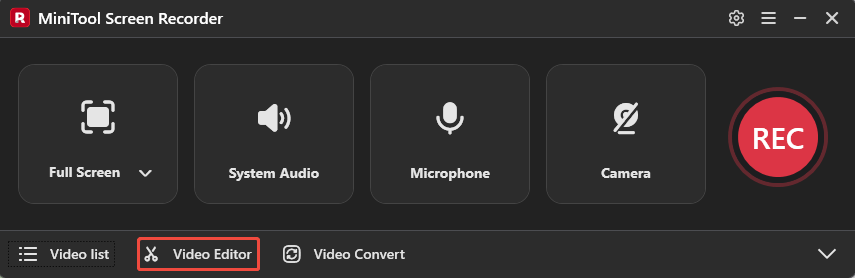
After recording, I typically use a professional editing tool, MiniTool MovieMaker, to trim or remove unwanted segments or to add extra content. To access this tool directly, simply click the Video Editor option on the main interface of MiniTool Screen Recorder.
This software supports both video and audio file editing. It also offers a variety of filters, transitions, and special effects to enhance videos. After editing, the finished project can be exported in formats including MP4, MKV, MOV, GIF, and other formats.
Final Words
Omegle recording is not as complicated as it may seem. With the help of tools such as MiniTool Screen Recorder and Clipchamp, the chats and video calls on Omegle can be captured and saved with ease.
If there are any questions about MiniTool Screen Recorder and MiniTool MovieMaker, please contact the support team at support@minitool.com.