

How to screen record on LG computer? This can be done using a dedicated screen recorder, MiniTool Screen Recorder, or the Windows built-in Snipping Tool. Whether recording tutorials, meetings, or other on-screen activities, both methods are explained in detail.
LG computers, with their slim and portable design and stable performance, are widely used in office, study, and entertainment scenarios. Whether for online meetings, creating presentations, or recording exciting gaming moments, the demand for screen recording continues to grow.
Can You Record on LG
Of course. Since most LG computers run Windows, screen recording can be accomplished using either the built-in recording tool, Snipping Tool, or a professional third-party Windows screen recorder, MiniTool Screen Recorder.
A Comparison of the Two Recording Methods
Here is a brief comparison of the two recording methods:
| Feature | MiniTool Screen Recorder | Snipping Tool |
| Free Version | Yes | Yes |
| Flexible Recording Area Options | Yes | Yes |
| Audio Recording | Yes | Yes |
| Webcam Recording | No | No |
| Multiple Screen Recording | Yes | No |
| Real-time Annotation | Yes | No |
| Recording Quality Settings | Yes | No |

How to Screen Record on LG Computer
After testing, I found that both methods are very simple to operate. Below, I will briefly describe the contents of these two LG computer screen recorders and the detailed steps on how to screen record on LG laptop with them.
#1 MiniTool Screen Recorder
MiniTool Screen Recorder is a free Windows screen recording tool. It can record not only any activity on the screen, but also webcam feeds. Furthermore, this tool can flexibly record system audio and microphone audio.
Most notably, this software's annotation tool allows me to annotate key information or steps while recording the screen, especially when creating tutorial videos.
Fast Track Steps:
- Launch MiniTool Screen Recorder.
- Configure the video recording settings.
- Choose the recording region under the Full Screen option.
- Control the audio and webcam recording settings.
- Click the REC button to start recording.
- Annotate the screen if necessary.
- Press the F6 key to end recording.
- Check the recorded video under the Video list section.
The detailed instructions are described as follows:
1. Download and install MiniTool Screen Recorder, then install it on the PC.
MiniTool Screen RecorderClick to Download100%Clean & Safe
2. Configure the Video Recording Settings
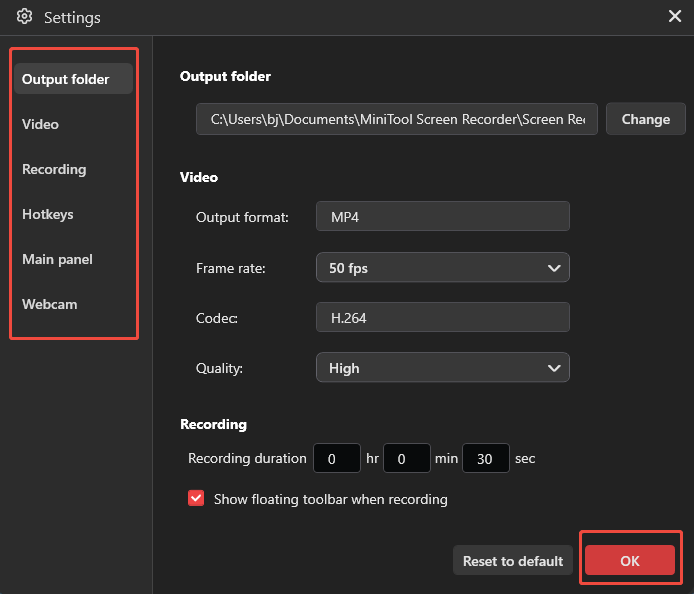
A. Click the Settings icon in the upper-right corner of the main interface.
B. Then switch to the relevant sections to adjust the video recording settings, like frame rate, quality, hotkeys, webcam parameters, and more.
C. Finally, click on the OK button to save the changes.
3. Select the Recording Region
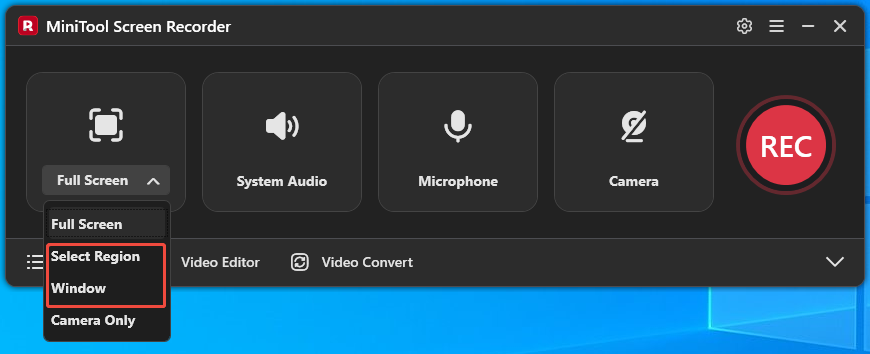
A. By default, MiniTool Screen Recorder records the full screen.
B. To capture part of the screen or an application window, expand the Full Screen drop-down menu. Then choose either the Select Region or Window option.
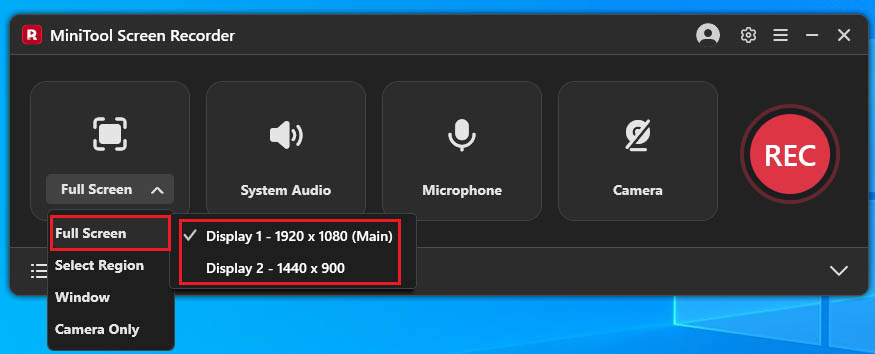
C. To capture content from a specific monitor, click the Full Screen option and select the preferred display from the available options.
4. Adjust the Audio Settings
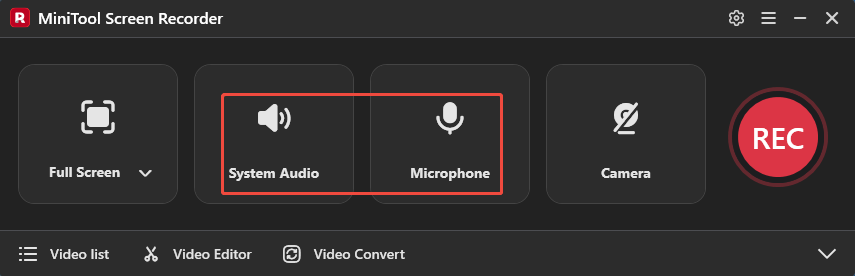
A. MiniTool Screen Recorder captures the system audio and microphone sound by default.
B. If there is a need to turn them off, simply click the System Audio and the Microphone icon, respectively.
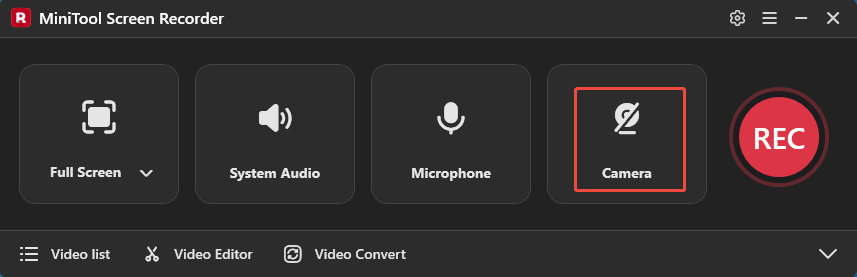
5.Click the Camera icon to turn on webcam capture if there is a need to include webcam footage during screen recording.
6. Begin and End Recording
A. Click the REC button or press the F6 key to start the recording process.
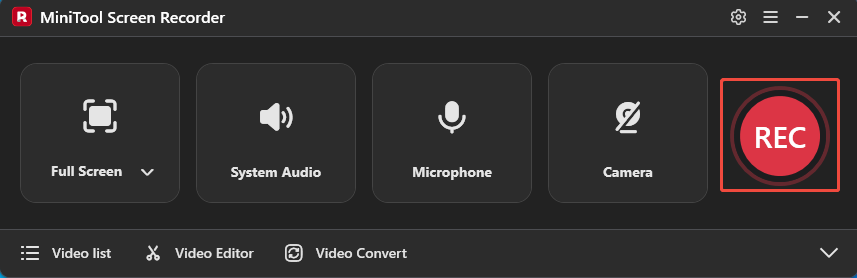
B. After a 3-second countdown, switch to the content that will be recorded.
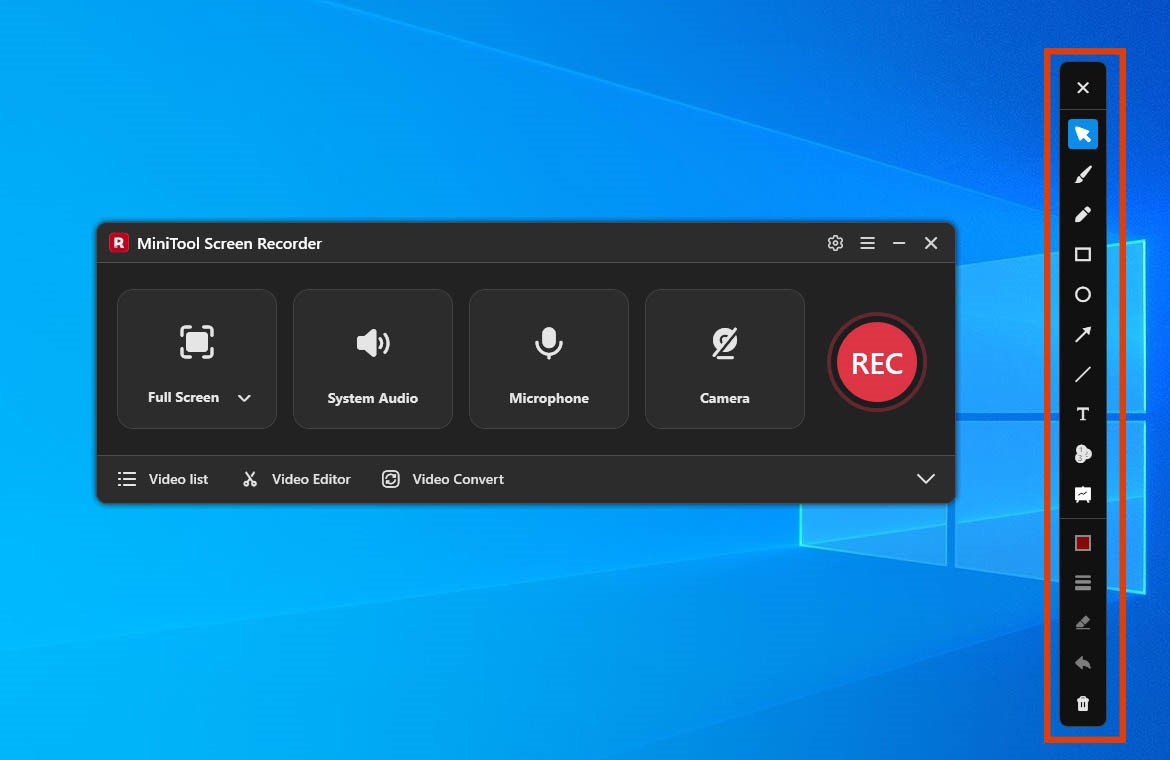
C. The annotation toolbar on the right side of the screen can be used during the recording process to highlight important information.
D. To end the recording process, press the F6 key again.
7. Play and Locate the Recorded Video
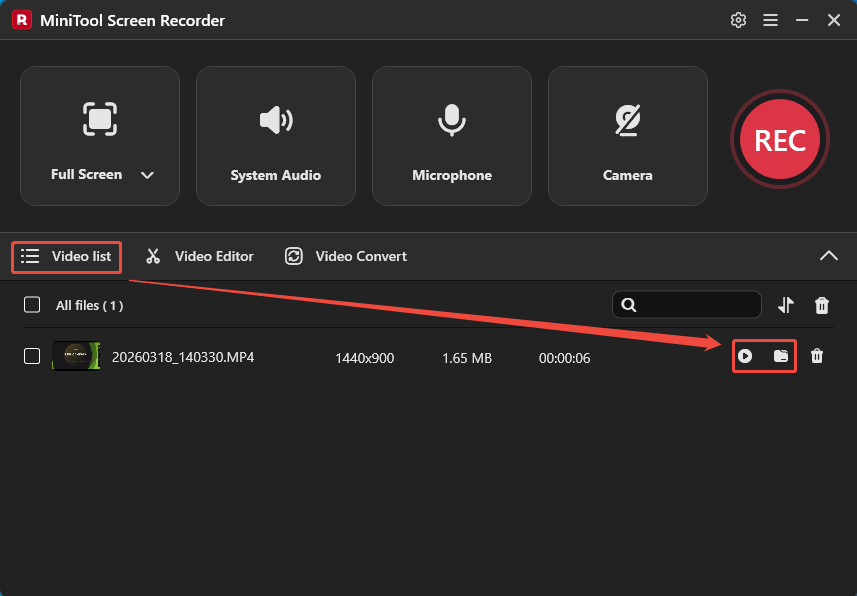
A. Once the recording finishes, the tool automatically switches to the Video list section, where the latest recorded video appears.
B. Then, click the Play icon to check the recorded video and click the Folder icon to locate it on the PC.
By the way, to avoid forgetting to manually stop a recording, MiniTool Screen Recorder provides a preset recording duration feature that automatically ends the recording at the specified time.
#2 Snipping Tool
Snipping Tool is a built-in Windows screenshot tool that also includes a screen recording feature in Windows 11. Since it doesn't require downloading or installing, I can usually just open it and start recording. Although its functions are relatively basic, they are practical enough for capturing a specified area or full-screen activity.
Quick Steps:
- Open the Snipping Tool.
- Select the recording region.
- Control the audio recording.
- Begin and end recording.
The following are the detailed steps on how to screen record on LG computer with Snipping Tool.
1.Switch to the Windows search bar, type Snipping Tool. Then, click on Open to launch the Snipping Tool.
2. Choose the Recording Area
A. Click the New option in the main interface.
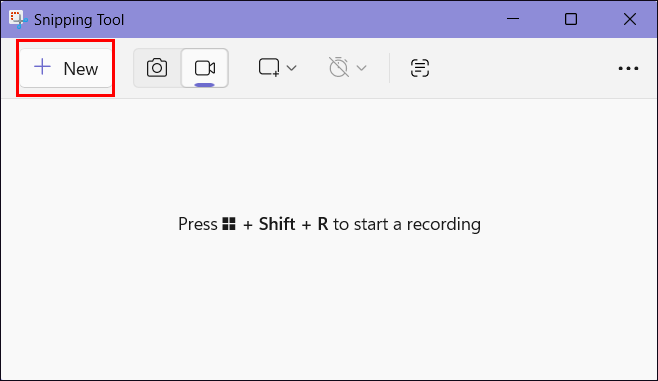
B. Then, click the Record icon to enter the recording interface.
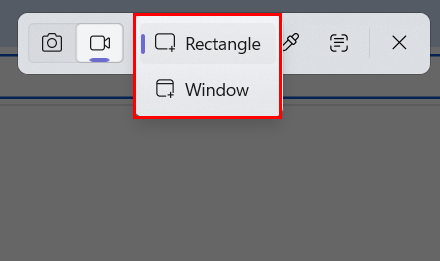
C. Expand the Snipping area option. Then choose the Rectangle option to customize the recording area, or choose the Window option to capture an application window.
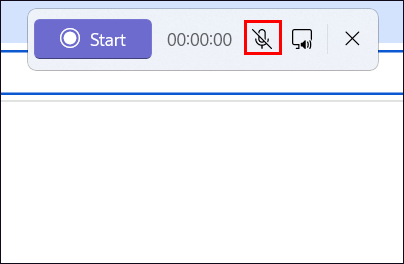
3. Click the Microphone icon to turn on the audio recording feature while screen recording.
4. Start and End Recording
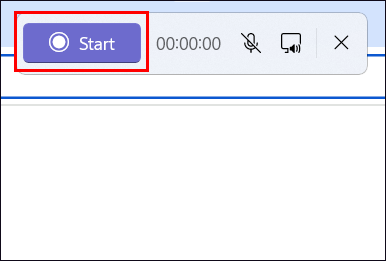
A. Click the Start option or press the Windows + Shift + R keys to begin the recording process.
B. Switch to the target content that needs to be recorded.
C. To end the recording process, click on the Stop recording button in the horizontal panel.
In summary, both tools can fully meet the needs of screen record on LG computers across different scenarios. The former offers flexible and diverse screen recording modes, while the latter is more suitable for fast screen recording.
Final Words
After testing these two methods, understanding how to screen record on LG computer should be much easier. Whether using the built-in Snipping Tool or the MiniTool Screen Recorder, both options can effectively capture on-screen activities on LG computers.
If there are any questions about MiniTool Screen Recorder, please contact the support team at support@minitool.com.