

Does Snipping Tool record audio on Windows? Of course! This article shows the Windows built-in tool: Windows 11 Snipping Tool. It also shares a third-party audio recorder: MiniTool Screen Recorder.
What Is the Snipping Tool
Snipping Tool is a built-in screenshot utility designed for Windows 10 and Windows 11 systems. It supports free-form snip, window snip, and full-screen snip on Windows 10. It also allows you to screen record without downloading or installing extra applications. Compared to Windows 10, Windows 11 increases screen recording with audio support. In addition, both versions use Win + Shift + S to launch the screenshot tool, which continues the Windows users’ screenshot habits.
Does Snipping Tool Record Audio
Can the Snipping Tool capture audio? Of course! The Snipping Tool on Windows 11 can record audio efficiently. If you need to record audio while taking a screenshot, you can also use the screenshot tool directly.
What Audio Can the Snipping Tool Capture
Different people have different recording needs. The Snipping Tool supports recording two audio sources.
System Audio
System audio refers to the sounds within a computer’s operating system and software. These are sounds produced by internal computer components. Examples include system notification sounds, button sounds, and sounds from within applications. You can record system audio when you only want to record video audio, podcast audio, or some sound effects from your computer.
Microphone Sound
Microphone audio is sound information collected by a computer from its external environment. This sound is typically used for broadcasting, recording, and communication. Recording microphone audio can preserve your voice or ambient sounds for use in creating sound effects or for sharing.
How to Record Audio with the Snipping Tool on Windows 11
Snipping Tool on Windows 11 is a robust pre-install application, allowing you to record audio smoothly. It also allows recording system audio and microphone audio. Snipping Tool on Windows 11 also supports integration with Clipchamp for editing.
Below is a tutorial on how to record audio with Snipping Tool on Windows 11.
Step 1. Launch Snipping Tool
First, check if your Windows system is Windows 11. If not, you must update your Windows PC to the latest version. Then, press Windows key + Shift + S to open the Snipping Tool.
Step 2. Set the Recording Region and Recording Audio
Click on the Video Record button in the top bar to highlight which area you want to record. After you decide on the recording area. Click on the Microphone icon and the System Audio icon to decide whether to enable them separately or simultaneously.
Step 3. Start Recording
After setting the recording area and audio, click on the Start button to record the screen.
Step 4. Stop Recording and Save the Recorded Audio
When this recording finishes, click on the Stop Recording icon to end it. The recorded video will be opened in the Snipping Tool. Then, press Ctrl + S to save it.
Using the Windows 11 built-in Snipping Tool to record is efficient. You can easily master how to record audio with this tool.
Extended: An Extra Recorder to Record Audio
Apart from recording audio with the Snipping Tool in Windows 11. MiniTool Screen Recorder is also an ideal recorder to capture audio. It supports recording system audio and voiceover separately or simultaneously. What’s more, it also supports recording audio without a time limit. MiniTool Screen Recorder allows you to preset the record duration, so you don’t have to sit in front of the screen.
Step 1. Get MiniTool Screen Recorder
Click on the download button to download MiniTool Screen Recorder. Then, follow the on-screen instructions to set up this application.
MiniTool Screen RecorderClick to Download100%Clean & Safe
Step 2. Select a Screen Recording Type
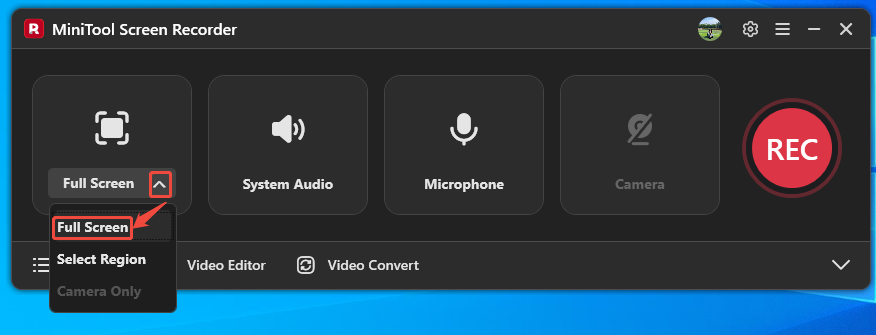
Launch MiniTool Screen Recorder and log in to it. Expand the screen recording option and choose one for screen capturing. Here, I take Full Screen as an example.
Step 3. Control the Audio
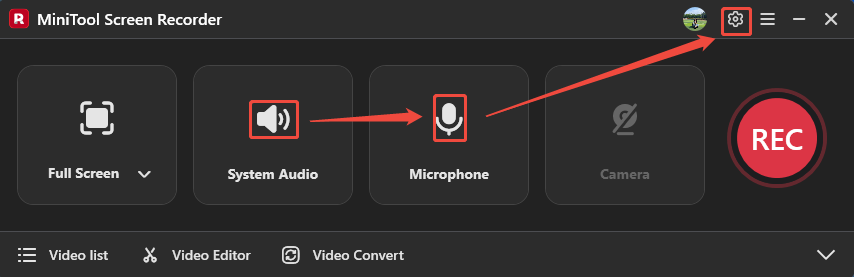
Click on the System Audio icon and the Microphone icon to confirm recording the system sound and voiceover separately or simultaneously. Then, click on the Settings icon to open the Setting window.
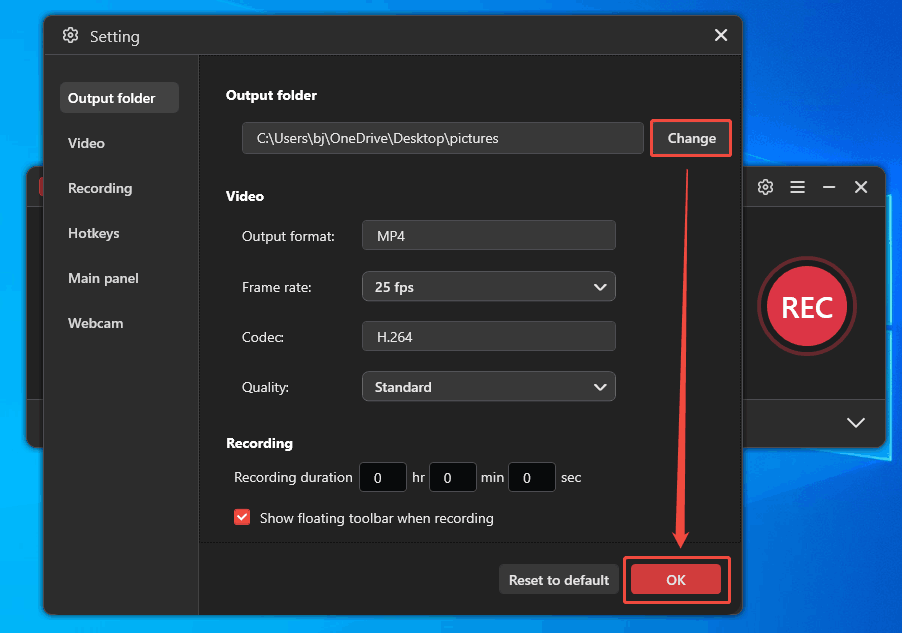
In the Setting window, click on the Change button to configure a suitable location for the recorded audio. Then, click on the OK button to save the change.
Step 4. Stop Recording
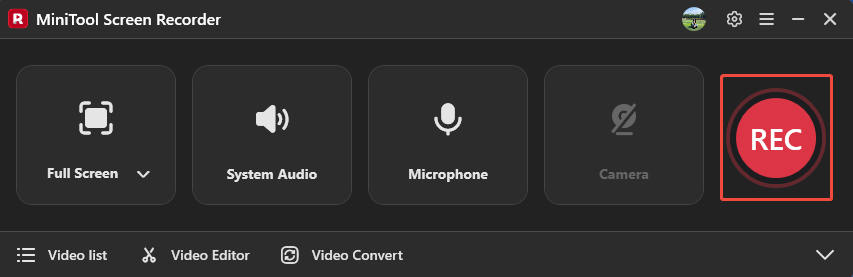
Click on the REC button and wait 3-second countdown to start recording. Then, you play the system audio you want to record or speak your narrations. To stop the audio recording, press the F6 key. The recorded audio will appear in the Video list tab.
Step 5. Check the Recorded Audio
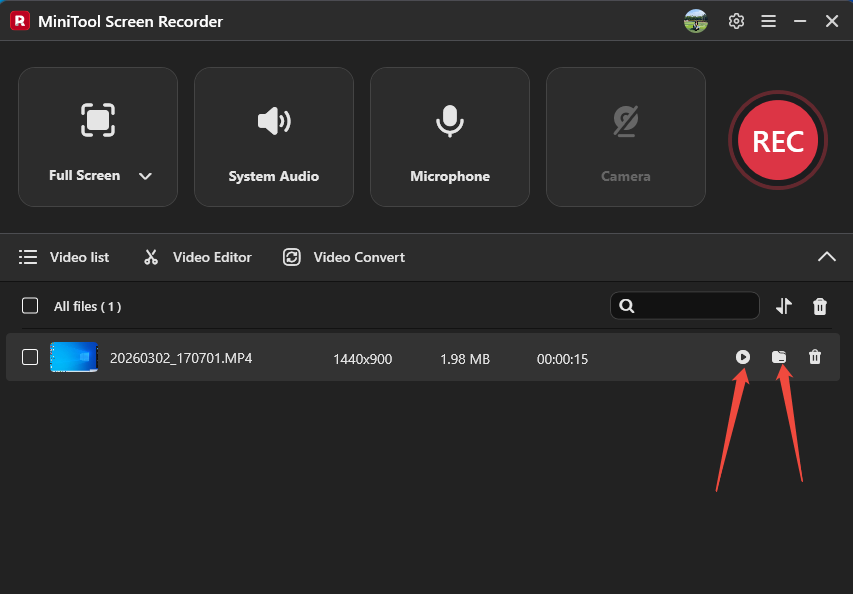
In the Video list tab, click on the Play icon or the Folder icon to check the recorded audio or locate it on your computer.
MiniTool Screen Recorder makes audio recording much easier and more professional. It doesn’t bundle any ads and supports free use.
Conclusion
Does Snipping Tool record audio? This article confirms that it is indeed possible and shows how to use it to record audio on Windows 11. It also introduces another professional audio recording software: MiniTool Screen Recorder.
If you are interested in MiniTool Screen Recorder, feel free to contact us via email at support@minitool.com. Or you can send me a message on X. I will reply as soon as possible.