

This article explains how to record a podcast on Spotify with 2 easy methods. Since Spotify lacks a built-in recording feature, the 2 video capture tools, MiniTool Screen Recorder and Snipping Tool, are provided as alternative ways to capture a podcast from Spotify.
Spotify is an online digital streaming platform that primarily offers online music listening. Unlike other music platforms, it also provides podcast services, allowing users to listen online or save podcasts for offline listening. However, offline listening requires a subscription service.
Quick Answer for Spotify Podcast Recording
- Can I record a podcast on Spotify: Yes. Spotify doesn't offer a built-in audio recording function, so the best way to listen to podcasts offline for free is to record them.
- What can I use to record a podcast on Spotify: Recording high-quality Spotify podcasts is actually quite simple with a reliable recording tool. After testing, I ultimately chose the following 2 Spotify podcast recorders that I worthing trying: MiniTool Screen Recorder and Snipping Tool.
How to Record a Podcast on Spotify
The two tools I chose differ in functionality and recording methods, but both offer a smooth recording experience. I have described their functions and explained the steps on how to record a podcast on Spotify for free with MiniTool Screen Recorder and Snipping Tool.
Comparison Table:
| Features | MiniTool Screen Recorder | Snipping Tool |
| Best for | Flexible recording | Quick recording |
| Recording Area | Full screen, specific region, window, other monitor | Rectangle, window |
| Audio Recording | Computer audio and microphone input | Computer audio and microphone input |
| Webcam Recording | Yes | No |
| Installation | Yes | No |
Fast Track Steps:
- Launch the recording tool.
- Choose the recording area.
- Manage the audio recording features.
- Start recording the Spotify podcast.
- Play the target Spotify podcast.
- End the recording process and check the recorded Spotify podcast.
#1 MiniTool Screen Recorder
When I need to record podcast reviews, MiniTool Screen Recorder, a free recording tool, is usually my first choice. This tool offers more recording area options, and I can control system and microphone audio recording separately as needed. Furthermore, by enabling webcam recording, I can record podcast reviews with faces visible.
What’s more, this application has built-in convenient annotation tools, making it an ideal choice for recording instructional videos. What surprised me most was that MiniTool Screen Recorder doesn't limit recording time and allows me to set preset recording times.
1. Get and Launch the Tool
First things first, click the button below to download and install MiniTool Screen Recorder, then launch it on the PC.
MiniTool Screen RecorderClick to Download100%Clean & Safe
2. Define the Capture Area
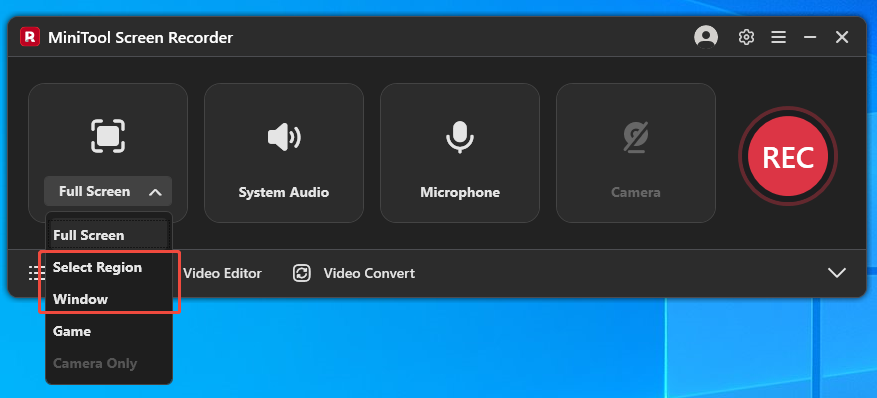
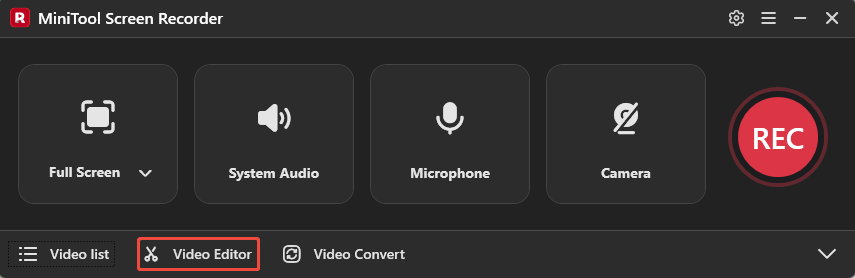
Next, keep the default options to capture the entire screen while recording the Spotify podcast, or expand the Full Screen options, select the Select Region option to capture a specific area, or select the Window option to capture the Spotify app area.
3. Control the Audio
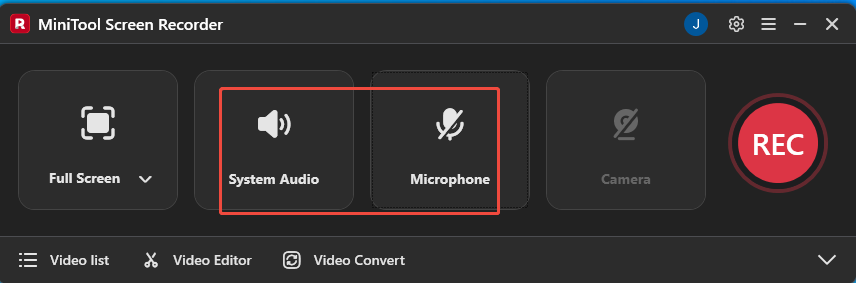
This software keeps system audio and microphone audio recording enabled by default. Since there is a need to capture podcasts from Spotify, it's recommended to enable only computer audio recording and disable the microphone.
4. Manage the Camera Recording Feature
If the goal is to create a podcast review video, turn on the Camera option on the right and add a face overlay to make the video more visually appealing.
5. Start Recording
Next, click the REC button or press the F6 key to begin the Spotify podcast recording process. After a 3-second countdown, play the target podcast on Spotify.
6. End Recording and Check the Recorded Video
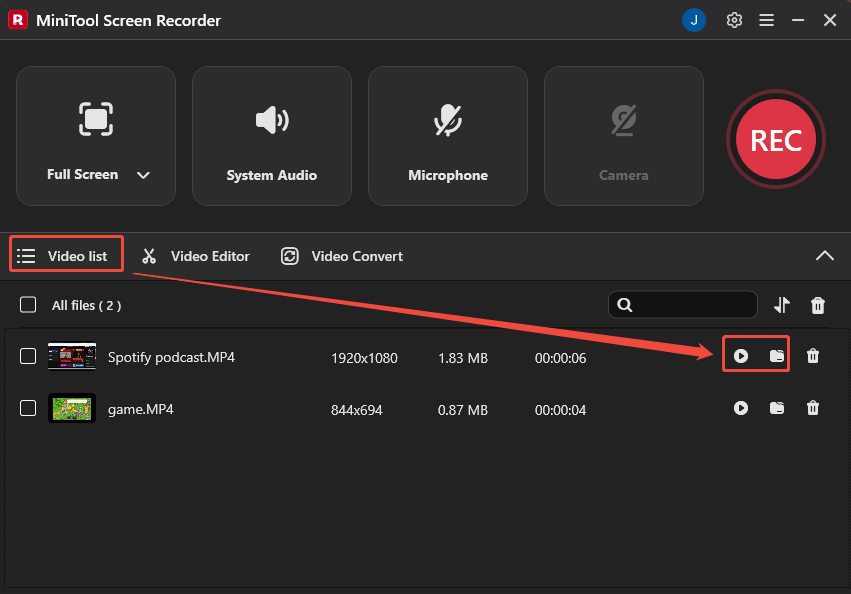
To end the recording process, press the F6 key again or click the Stop recording option on the floating bar. Then, the tool will automatically move to the Video list section, where I can view and check the recorded podcast by clicking the Play icon and the Folder icon.
7. Edit the Recorded Spotify Podcast
After recording, click the Video Editor option to access the video editing tool MiniTool MovieMaker, to trim off any unnecessary parts.
MiniTool MovieMakerClick to Download100%Clean & Safe
#2 Snipping Tool
The Snipping Tool is built into Windows and requires no manual installation, making it a go-to choice for quick recordings. It offers two recording modes, custom area and window, and supports independent control of system audio and microphone input.
After selecting the recording area, I simply need to press Windows + Shift + R to start recording. However, compared to MiniTool Screen Recorder, Snipping Tool offers relatively limited customization options.
1. Launch Snipping Tool
Go to the Windows search bar and type Snipping Tool into the box. Then, click the Open option to launch the Snipping Tool.
2. Choose the Recording Area
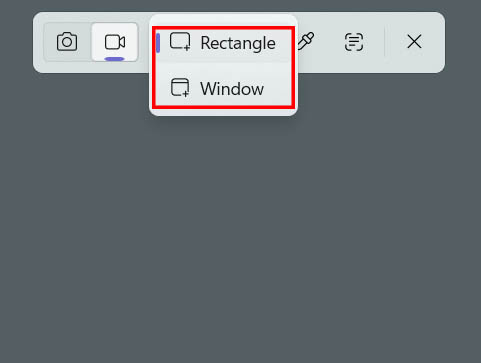
In the new pop-up toolbar, expand the Recording area option. Then, determine the recording area between the Rectangle and Window options.
3. Manage the Audio Recording Features
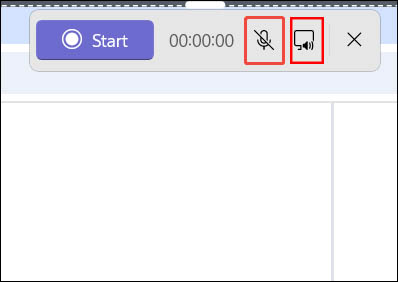
Next, make sure the computer audio recording feature is enabled, and the microphone recording function is disabled.
4. Start and End Recording
Click the Start option on the toolbar to start recording the Spotify podcast. Then, paly the target podcast on Spotify. To end the recording process, press the Windows + Shift + R keys.
5. Check the Recorded Spotify Podcast
Once the recording ends, a new window will appear, showing a preview of the recorded Spotify podcast.
In short, these two tools cater to a wide range of user needs. MiniTool Screen Recorder is suitable for users requiring advanced recording capabilities, while Snipping Tool is ideal for quick recordings.
Final Words
How to record a podcast on Spotify? MiniTool Screen Recorder and Snipping Tool offer efficient recording solutions. The former provides more flexible recording options, while the latter offers a faster and simpler recording method. The final choice depends on the user's required level of audio control.
If you encounter any questions when using MiniTool Screen Recorder or MiniTool MovieMaker, send an email to support@minitool.com.