

This post introduces the 6 best Spotify recorders for capturing music efficiently, including Clipchamp, Xbox Game Bar, MiniTool Screen Recorder, Apowersoft Free Online Audio Recorder, Audacity, and OBS Studio. It compares their key features and explains how to record Spotify music step by step.
Spotify is a popular music streaming platform offering digital music, podcasts, and video services. It allows users to create music playlists and save podcasts based on their preferences. Additionally, the service is available across multiple platforms, including computers, tablets, and smartphones.
Can You Record Spotify
The answer is yes. As an online platform, Spotify offers standard streaming playback. Under its official terms, the service does not support exporting music for use outside the application, and offline listening is restricted to premium users. Users who wish to listen offline for free or export the music as standalone files must use third-party audio or video recording tools.
However, it is worth noting that recording methods may vary depending on the features offered. Some tools provide basic audio recording capabilities, while others offer additional advanced recording functions. Therefore, based on different recording needs, I have selected 6 Spotify recorders worth considering:
- Clipchamp
- Xbox Game Bar
- MiniTool Screen Recorder
- Apowersoft Free Online Audio Recorder
- Audacity
- OBS Studio
Top 6 Spotify Recorders
The 6 high-quality Spotify recording tools I have selected differ in their recording methods, additional features, and performance, thereby catering to the diverse needs of various users. The following section provides a detailed comparison and description of their features.
Quick Comparison
| Tool | Best for | Installation Required | Price |
| Clipchamp | Basic recording & editing | No | Free/paid |
| Xbox Game Bar | Quick recording | No | Free |
| MiniTool Screen Recorder | Flexible screen & audio recording | Yes | Free |
| Apowersoft Free Online Audio Recorder | Online audio recording | No | Free |
| Audacity | Audio recording & editing | Yes | Free |
| OBS Studio | Advanced recording | Yes | Free |
#1 Clipchamp
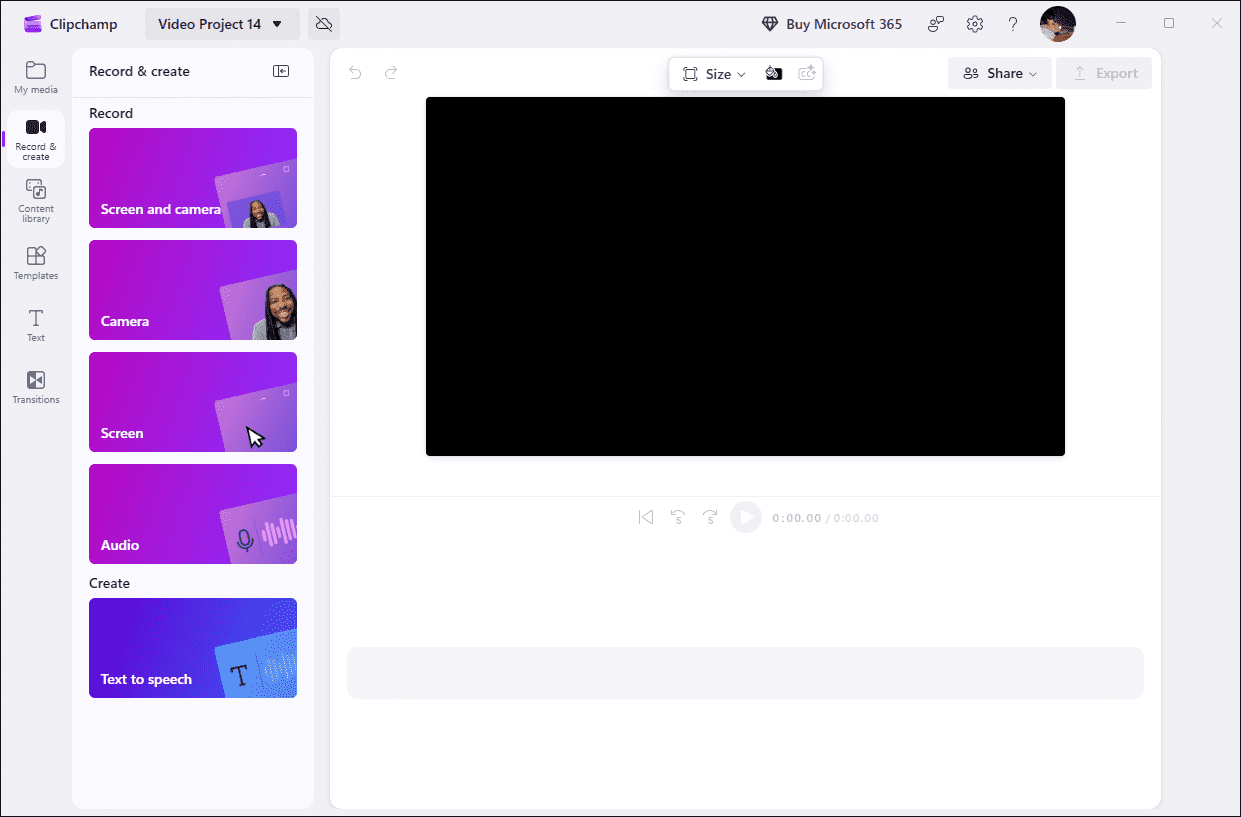
When choosing software to record Spotify, efficiency is my top priority, and Clipchamp excels in this regard. I can use it on my desktop without needing to install it. Additionally, this tool offers a web-based version, which saves even more time.
Clipchamp's audio recording feature must be enabled alongside screen capture; however, I can capture audio directly from the browser tab while disabling microphone recording. Furthermore, once the recording is complete, I can proceed directly to the editing interface to edit the audio. All in all, Clipchamp is an excellent choice for handling both recording and editing in a single workflow.
Pros:
- Easy to use.
- No installation required.
- Provide built-in video editing feature.
Cons:
- Some advanced features require a subscription.
- Up to 30 minutes of recording.
A benefit of Clipchamp being a web app is that you can access a project you create on your PC from wherever else you sign into your account.https://www.pcmag.com/reviews/clipchamp
#2 Xbox Game Bar
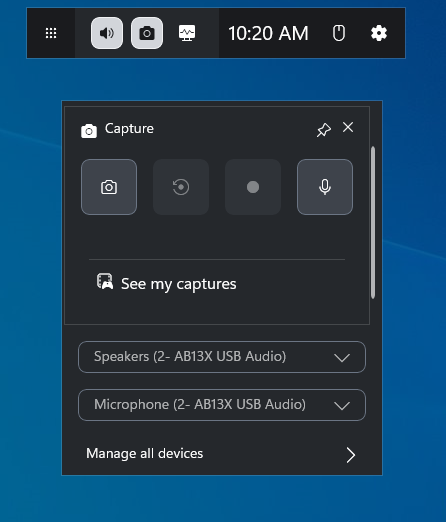
The quick-launch feature in recording tools may seem minor, but it can save a significant amount of time. The Xbox Game Bar excels in this regard; since it is built into Windows, no manual installation is required.
Moreover, regardless of which application window is active, I can launch the software instantly simply by pressing the Windows + G keys. This makes it ideal for users who need to quickly capture music from Spotify. However, since the Xbox Game Bar was originally designed specifically for gamers, I configure the settings to allow audio recording from all sources before I start recording.
Pros:
- Easy to launch.
- Built into Windows.
- Completely free.
Cons:
- Do not support capturing the desktop and File Explorer.
- Limited recording features.
- Do not provide window or specific region recording features.
Windows 10 includes a native gameplay recording feature called Game Bar that performs quite well at times and is relatively easy to use.https://www.pcworld.com/article/402801/game-bar-for-windows-10-review.html
#3 MiniTool Screen Recorder
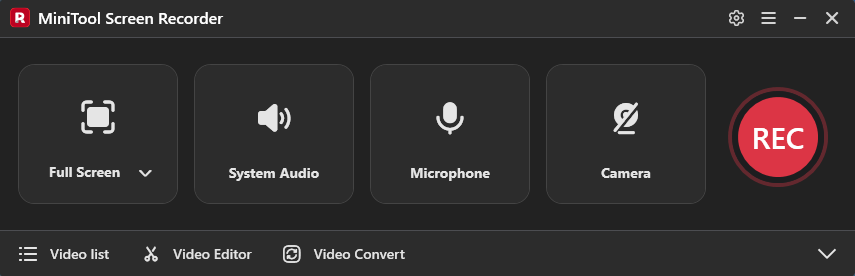
As my recording needs have become more varied, I always opt for tools that offer flexible recording options. MiniTool Screen Recorder is an excellent choice in this regard. What appeals to me most is that it is not only completely free but also highly versatile.
For instance, when capturing music from Spotify, I can choose between full-screen, region-specific, or window-based recording depending on my requirements.
What’s more, the app allows me to independently toggle system audio and microphone audio on or off, enabling me to focus on capturing Spotify audio without including background noise. More importantly, the tool lets me overlay my webcam feed and use built-in annotation tools to highlight important information.
Pros:
- Easy to use.
- Completely free.
- No recording time limit.
- Support controlling audio recording separately.
- Provide advanced recording features.
Cons:
- Installation required.
- Only for Windows users.
The recorder allows independent control of system audio and microphone input. That lets you capture game or app sound while recording your narration on a separate track (or at least as separate inputs), simplifying post‑production audio mixing. https://windowsforum.com/windows-news.4/minitool-screen-recorder-1-0-free-4k-screen-recording-with-no-watermarks.395197/
#4 Apowersoft Free Online Audio Recorder
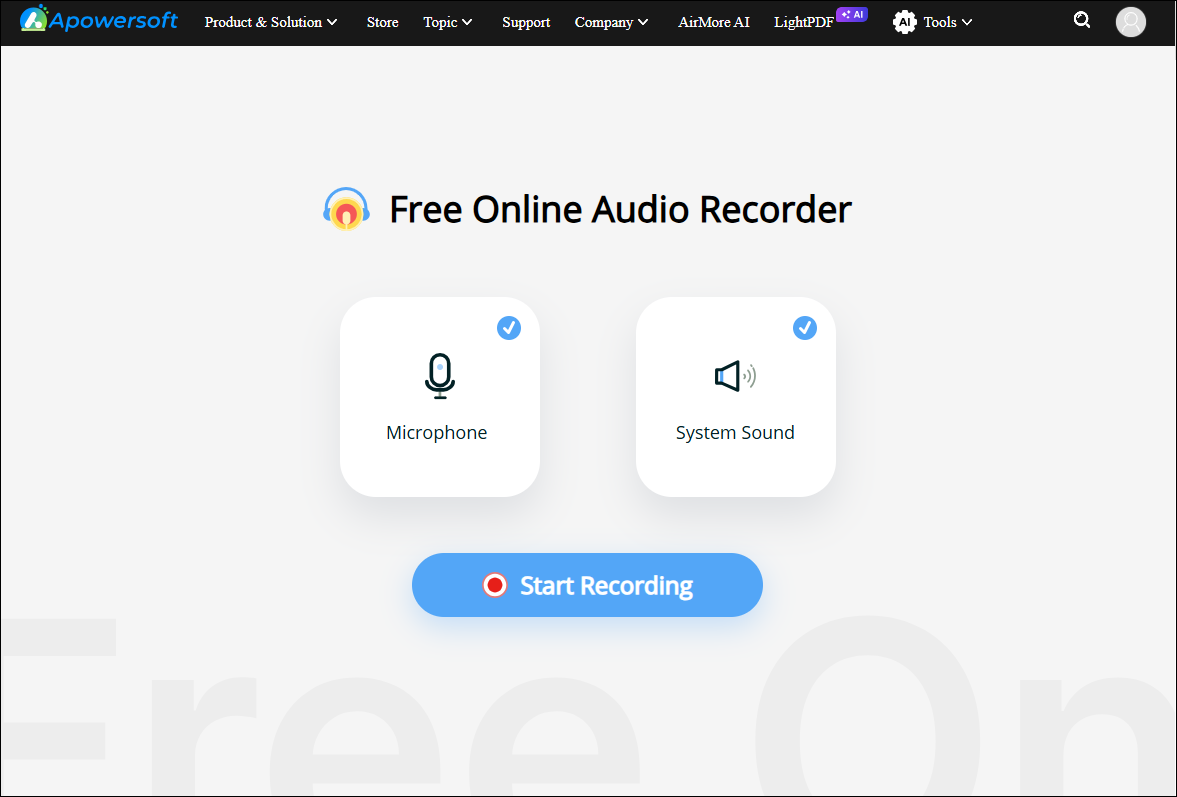
Apowersoft Free Online Audio Recorder is a free online Spotify recorder. I often use it to capture and save audio from Spotify directly. Since the tool focuses on audio recording and allows for independent control of system audio and microphone input, it is very easy to use.
After recording, I usually save the file directly to the cloud to avoid consuming too much system memory. Additionally, if I need to transcribe the recorded Spotify podcast content into text, I can utilize the tool's AI audio-to-text feature.
What appeals to me most about Apowersoft Free Online Audio Recorder, however, is its ability to convert songs to various formats, including WMA, FLAC, WAV, and AAC.
Pros:
- Easy to use.
- Completely free.
- No installation required.
- Support recording system audio and microphone audio independently.
- Support saving recorded files in the cloud.
- Provide multiple formats.
Cons:
- Recording long audio via the web version tends to be unstable.
- Advanced audio recording features require the desktop version.
Apowersoft Free Screen Recorder is an interesting concept: record your screen, system audio, microphone and webcam, all from a webpage.https://www.techradar.com/reviews/apowersoft-free-online-screen-recorder-2022
#5 Audacity
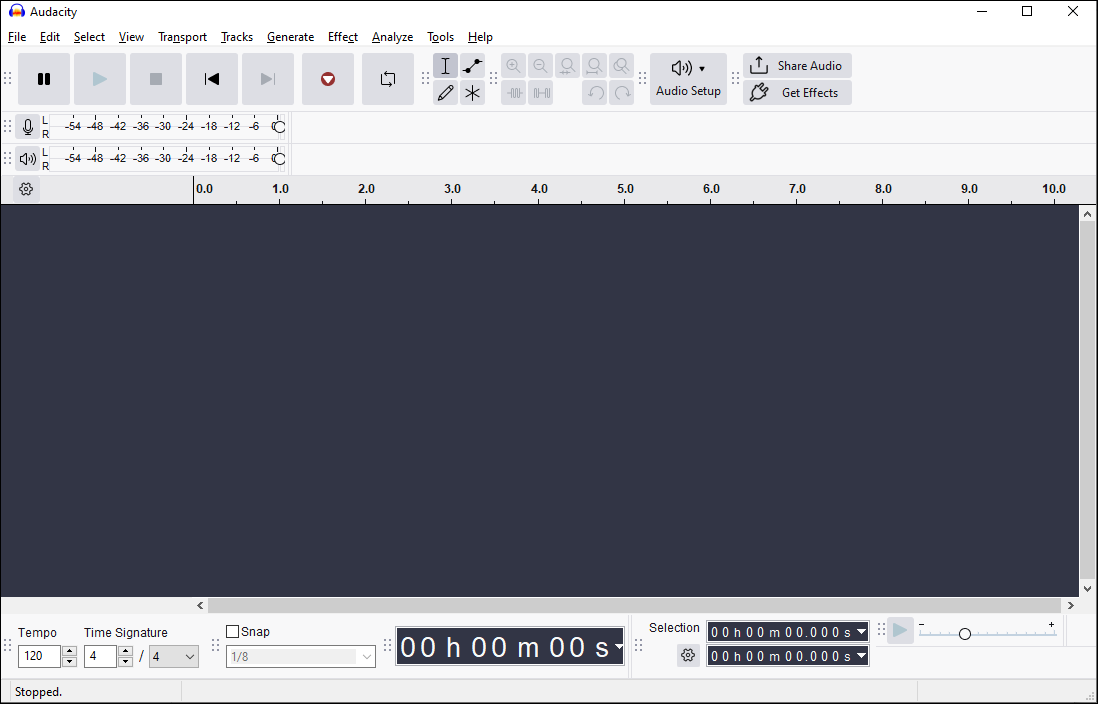
Audacity is a free, open-source audio recording tool. What makes it truly remarkable is its integration of recording and advanced audio editing capabilities, making it an ideal choice for professionals handling audio files.
The software captures highly detailed audio quality at high sample rates. Additionally, after recording, I can use the vocal isolation feature to separate vocals from the instrumental backing, allowing for further creative work.
But the deal is, my overall impression is that the learning curve is quite steep; therefore, I believe Audacity is better suited for professionals who need to record audio.
Pros:
- Completely free and open source.
- Support running on multiple platforms.
- Provide advanced audio editing features.
- Support multiple recording formats.
Cons:
- Only for audio recording.
- The learning curve is steep.
Audacity allows you to set a timer to start recording after a short interval, for example, if your recording position is away from the computer. https://www.pcmag.com/reviews/audacity
#6 OBS Studio
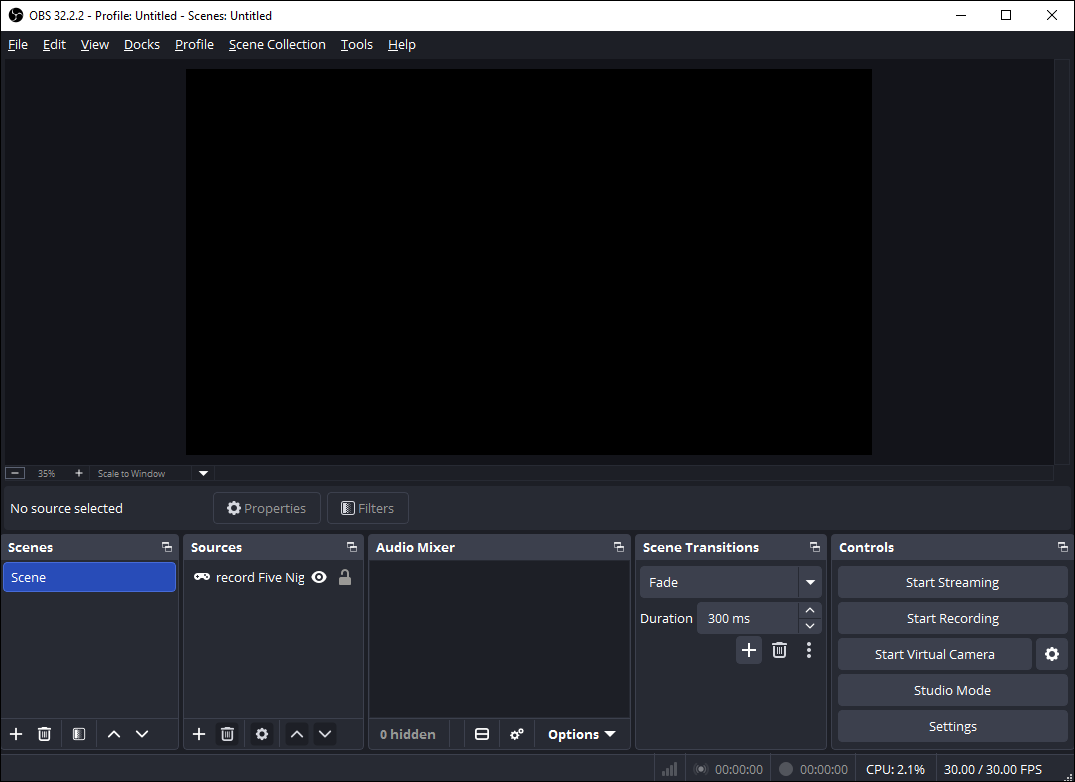
OBS Studio is another free and open-source recording software. However, it's more suitable for users who need finer control over audio recording. This tool has more advanced audio recording capabilities, allowing it to capture audio from individual applications. In other words, I can directly set the Spotify app as an audio source.
Furthermore, OBS Studio is more than capable of capturing clean, noise-free human voices. I once used it to record a narration, and its noise reduction function clearly removed various background noises from the voice. That being said, the learning curve for this application is more complex than for other tools.
Pros:
- Free and open source.
- Cross-platform compatibility.
- Support capturing audio from a single application.
- Provide a noise reduction function.
Cons:
- Steep learning curve.
- The setup before recording is complex.
OBS Studio is a popular open-source solution for recording you gameplay, and more specifically, for blasting it out to the world. OBS Studio can broadcast your game streams to platforms like Twitch and YouTube, and OBS is also used for creating screencasts.https://www.pcworld.com/article/402776/obs-studio-review.html
These Spotify recorders each have their own unique features. The specific choice depends on whether the user prioritizes fast recording, flexible audio recording and editing, or precise audio control.
How to Record Spotify Music
After choosing the right tool, I continued experimenting with recording music from Spotify and found that the steps on how to record from Spotify are quite simple.
Fast Track Steps:
- Open the recording tool.
- Choose the recording mode.
- Enable the computer audio recording function.
- Start the recording process.
- Play the Spotify music.
- End the recording process.
- Check the recorded audio.
- Edit the recorded audio if necessary.
This article uses MiniTool Screen Recorder as an example to demonstrate the detailed operation on how to record Spotify audio as follows.
1. Click the button below to download and install MiniTool Screen Recorder. Then, launch it on the PC.
MiniTool Screen RecorderClick to Download100%Clean & Safe
2. Click the Settings icon. In the new window, adjust the recording parameters in the relevant sections, then click the OK button to save the changes.
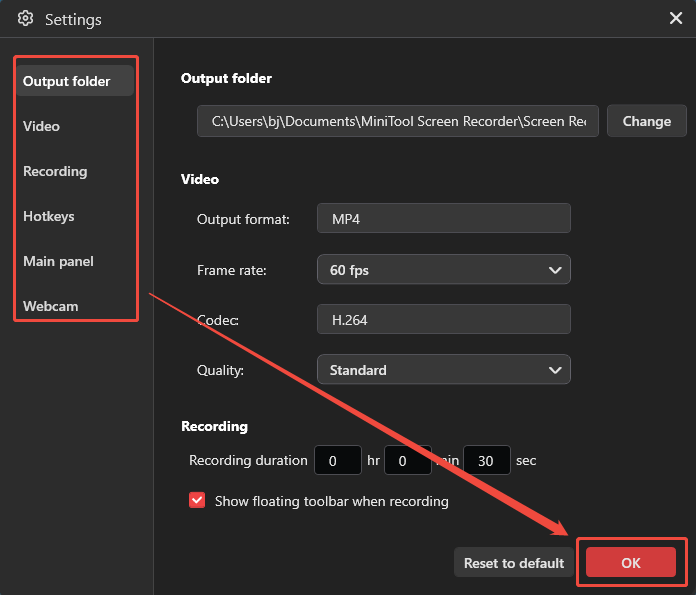
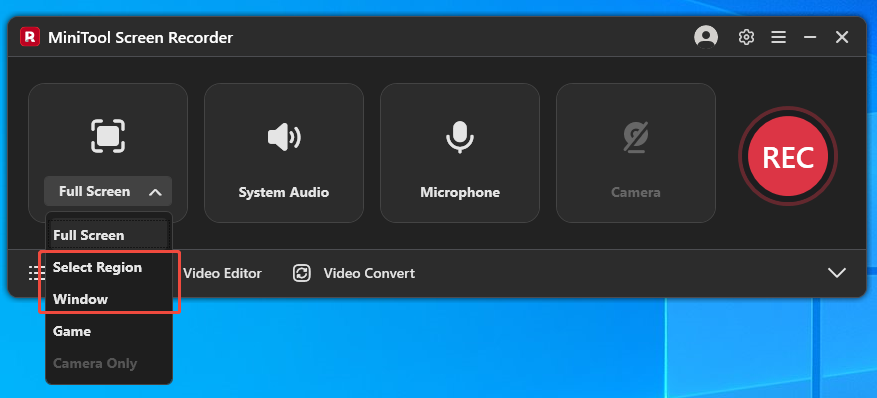
3. If the entire screen needs to be captured while recording Spotify, use the software's default recording mode. To record a specific area or an entire window, expand the Full Screen option and choose the Select Region option or the Window option.
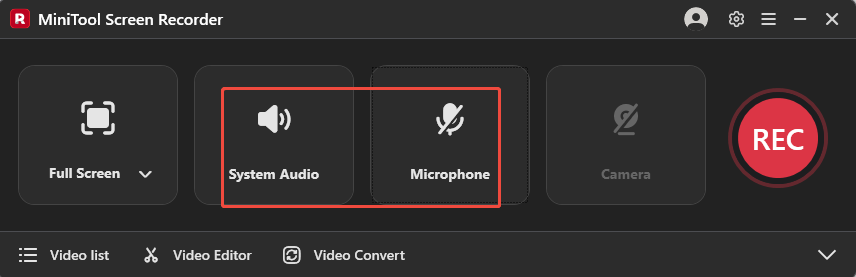
4. To capture music from Spotify, it is recommended to turn on the system audio recording feature and disable the microphone recording function.
5. If there is a need to capture the audio with the webcam footage, click the Camera icon on the right.
6. Then, click the REC button to start the recording process. After a 3-second countdown, play the music on Spotify.
7. To end the recording process, press the F6 key or click the Stop recording option on the floating bar.
8. Finally, when the tool automatically switches to the Video list section, click the Play icon to view the recorded Spotify video, and click the Folder icon to locate it.
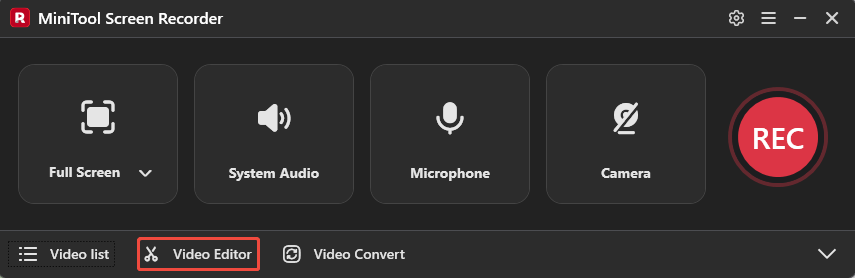
9. After stopping the recording, if there is a need to remove any unwanted sections, click the Video Editor option to access the video editing tool, MiniTool MovieMaker.
MiniTool MovieMakerClick to Download100%Clean & Safe
Tips for Recording Spotify Audio
To obtain high-quality recorded audio, the performance of the recording tool is not the only determining factor. The entire process, from before recording to after recording, will affect the final result. Therefore, the following suggestions can also be considered for better Spotify audio recording.
- Check system audio: Since it's only capturing Spotify audio, it is necessary to check whether the system audio is outputting normally before recording to ensure the application is not muted.
- Avoid unwanted noise: Disable microphone recording before starting to prevent background noise or other unwanted sounds from being captured.
- Close unnecessary applications: Too many applications running in the background can load the GPU and affect recording smoothness. Closing these programs can prevent audio recording from stuttering or lagging.
Final Thoughts
A reliable Spotify recorder can simplify the recording process and help achieve better audio quality. This article introduces 6 tools, Clipchamp, Xbox Game Bar, MiniTool Screen Recorder, Apowersoft Free Online Audio Recorder, Audacity, and OBS Studio, for different recording needs. The best choice ultimately depends on the features that matter most.
If you encounter any questions when using MiniTool Screen Recorder or MiniTool MovieMaker, send an email to support@minitool.com.