

Does Facebook notify screen recording? No—with the exception of messages sent via Messenger’s Vanish Mode. This article will teach you how to use MiniTool Screen Recorder and Xbox Game Bar to record. It will also tell you how to prevent others from recording your Facebook videos and posts.
These days, screen recording has become an integral part of our online surfing. Many people use screen recorders to capture videos from social media platforms, and I’m one of them. When I come across a video on Facebook that I find interesting, I use a screen recording tool to record it. However, while recording, I believe you have the same question as me: Does Facebook notify of screen recording? After searching online and testing it myself, I finally figured it out. In this article, I’ll share what I discovered.
Does Facebook Notify Screen Recording?
Whether you receive a notification for recording Facebook content depends on the content you record. Here are the details.
Situation 1: Record Facebook Live
Facebook Live allows you to live-stream videos to your Facebook friends, followers, or the public. Does Facebook have any built-in features that alert a streamer when their live broadcast is being recorded? The answer is no.
To verify whether Facebook notifies a streamer when their video is being recorded, I asked a friend to start a Facebook Live broadcast while I attempted to record the stream using a screen recorder. The result was that my friend didn’t receive any notifications, nor was I blocked by Facebook from recording.
Although I can record a Facebook Live seamlessly, I noticed that the streamer can still see me watching through the audience list during the broadcast. When I want to stay completely anonymous, I record the live stream directly from the preview screen instead. As long as I don’t click to expand the live stream or interact with the streamer, they won’t know I’m there. This little trick keeps me invisible while still capturing what I need.
Situation 2: Record Facebook Reels
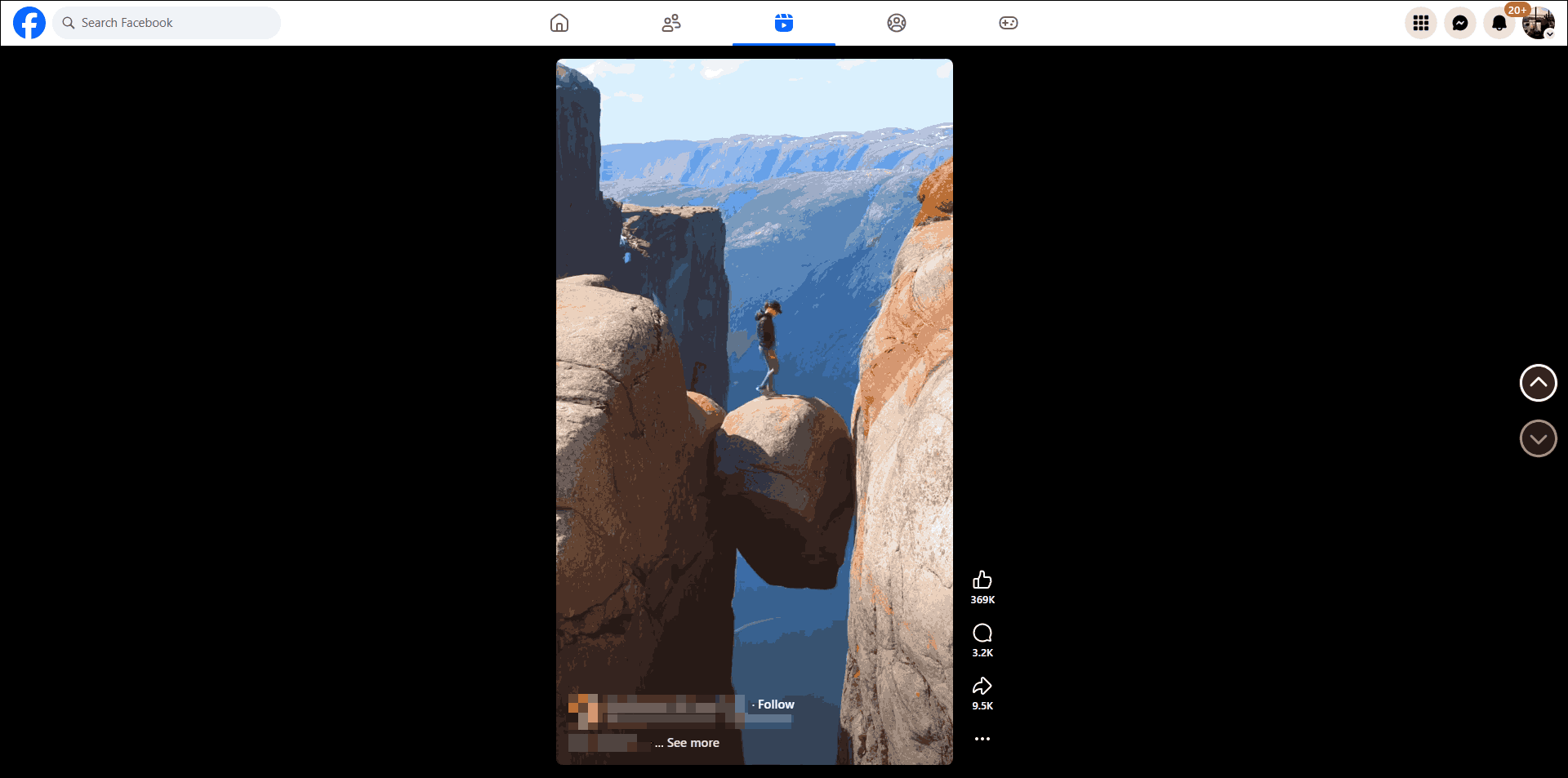
Facebook Reels are short videos, typically no longer than 90 seconds. They are usually vertical videos in a 9:16 aspect ratio. Reels offer you a wealth of AR effects, editing tools, and a music library. These short videos appear on Facebook’s Feed page and a dedicated Reels tab.
I’ve recorded plenty of Facebook Reels myself, and I can confirm it doesn’t send any notification to the video publisher. You’re free to capture this content without the creator receiving alerts. What’s more, Facebook itself has never sent me any notification messages about my recording activities either.
Situation 3: Record Facebook Stories
Facebook Stories are short collections of videos and photos posted by you. Similar to the Stories feature on Snapchat and Instagram, Facebook Stories are designed to enhance user and audience interaction. However, these photos and videos automatically disappear 24 hours after being posted. After this time, other users will no longer be able to view them.
Since Facebook Stories are ephemeral, I usually record the ones I want to keep in advance so that I can watch them later. However, does Facebook stories notify screen recording? After tasting it myself, I discovered that it does not. Therefore, as long as you can view the Stories of a specific Facebook user in the first place, you can absolutely record them anonymously.
![How to Record on Snapchat Without Holding the Button [2 Ways]](https://images.minitool.com/recorder.minitool.com/images/uploads/2026/03/how-to-record-on-snapchat-without-holding-the-button-thumbnail.png)
Situation 4: Record Facebook Posts
Facebook Posts refer to text-based updates. You can create a post by clicking “What’s on your mind?” on the app or desktop version of the site. Feeds allow you to add various elements, such as photos, videos, links, locations, moods, and check-ins.
Does Facebook notify screen recording posts? No! When you screen record a post, Facebook doesn’t notify the poster. I tried recording my friend’s Facebook posts, and she didn’t receive any notification. Also, I didn’t encounter any black screen issues during recording.
Situation 5: Record Facebook Messenger
Messenger is a feature on Facebook that allows you to communicate in real time with your Facebook friends and contacts from your phone’s address book. It supports sending text messages, making voice or video calls, creating group chats, and sharing files. You can access this feature directly through the Messenger option on Facebook, or via the messenger.com website and mobile app.
I often use screen recording tools to save interesting chat logs or videos that friends send me. If you ask me, “Does Facebook Messenger notify screen recording?” I can answer that: it depends on what you record. I discovered that my friends never received Facebook notifications when I recorded regular conversations, video calls, or videos sent by them. However, when I tried recording a self-destructing message, my friend received a notification immediately.
How to Screen Record a Facebook Video on PC?
To record Facebook content, use a reliable screen recorder like MiniTool Screen Recorder and Windows built-in Xbox Game Bar.
Option 1. Use MiniTool Screen Recorder
I’ve been using MiniTool Screen Recorder for capturing high-quality screen recordings with synchronized audio. It is a free screen recorder, and I love its flexible recording options. This application lets me capture my entire screen or specific regions. I can also record system audio and microphone audio separately or simultaneously, which is perfect for my Facebook content projects.
Beyond basic recording, I also like the customization options of MiniTool Screen Recorder. I can configure the resolution, quality, and frame rate in advance to ensure my recordings look professional. What’s more, there is no time limit on my recording sessions so that I can capture long videos freely. Plus, my videos come out clean without watermarks, which is suitable for further editing.
How do I record Facebook Live, Reels, Stories, or other content with MiniTool Screen Recorder? Follow the steps below:
Step 1. Download and Install MiniTool Screen Recorder
Get the installer of MiniTool Screen Recorder, launch the installer, and follow the on-screen instructions to install it on a PC within moments.
MiniTool Screen RecorderClick to Download100%Clean & Safe
Step 2. Choose the Recording Area
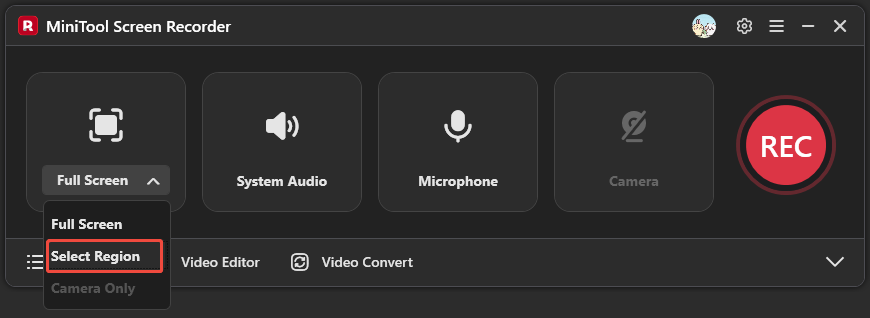
MiniTool Screen Recorder starts in full-screen mode by default. If I want to record a specific area on my screen, I will expand the Full Screen option, click Select Region, and draw the area I want to capture.
Step 3: Choose the Audio to Record
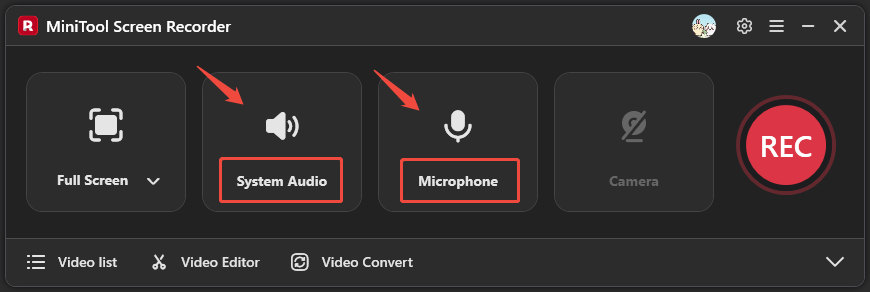
MiniTool Screen Recorder enables the options to record system audio and microphone audio by default. Simply click the System Audio and Microphone options to enable or disable the capture of system sounds and microphone input as needed.
Step 4. Start and End Recording
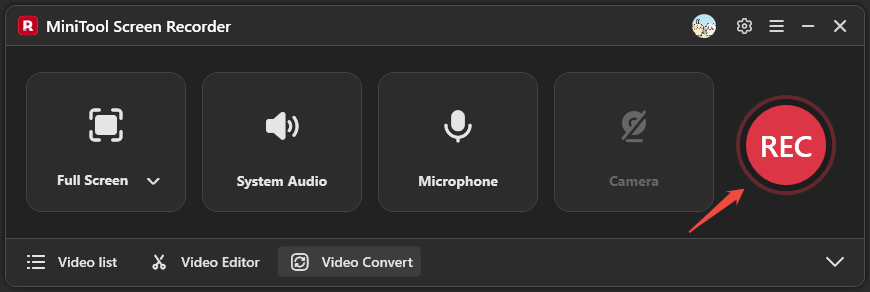
I click the REC button and wait for the 3-second countdown to complete. Once recording begins, I open Facebook to capture live streams, videos, and whatever content I need. When I’m finished, I press F6 to stop my recording session.
Step 5: Check and Locate Recordings
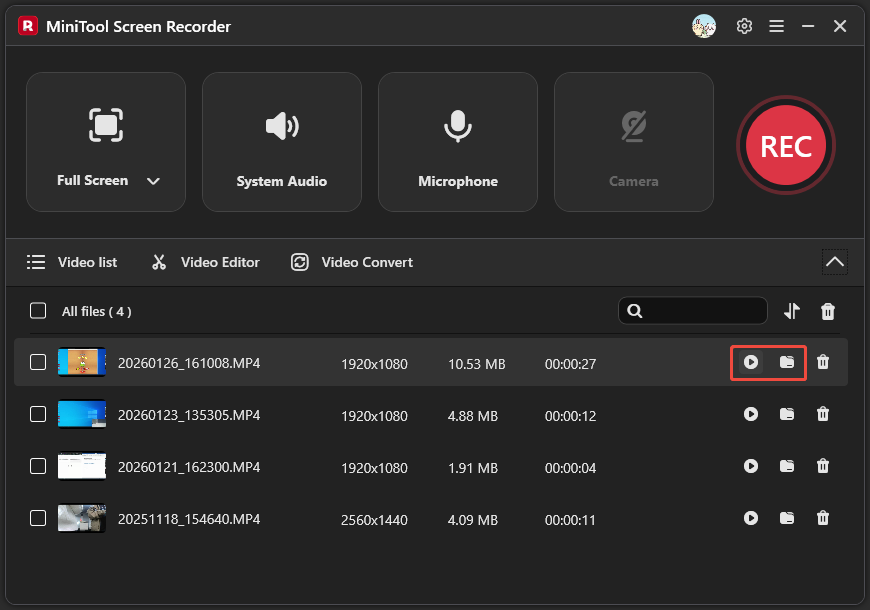
When my recording ends, the video list automatically expands, and I can find the recording right there. Then, I usually click the play icon to review what I captured, or I click the folder icon to locate the recorded file on my computer.
You can also follow the steps I outlined above to record on Facebook. If you want to create tutorial videos, I recommend using MiniTool Screen Recorder’s webcam recording and screen annotation features, which make your videos more professional and engaging.
Option 2. Use Xbox Game Bar
Xbox Game Bar is a built-in screen recording tool on Windows 10 and 11. It allows me to record my screen, review footage, and manage tasks without exiting my game. Although it is called the “Game Bar,” I have found that its capabilities extend far beyond just gameplay recording. It can also record windows from other applications, such as web browsers. I have used Xbox Game Bar to record content from Facebook successfully.
Here is how I use Xbox Game Bar to record videos on Facebook:
Step 1: Enable Game Bar
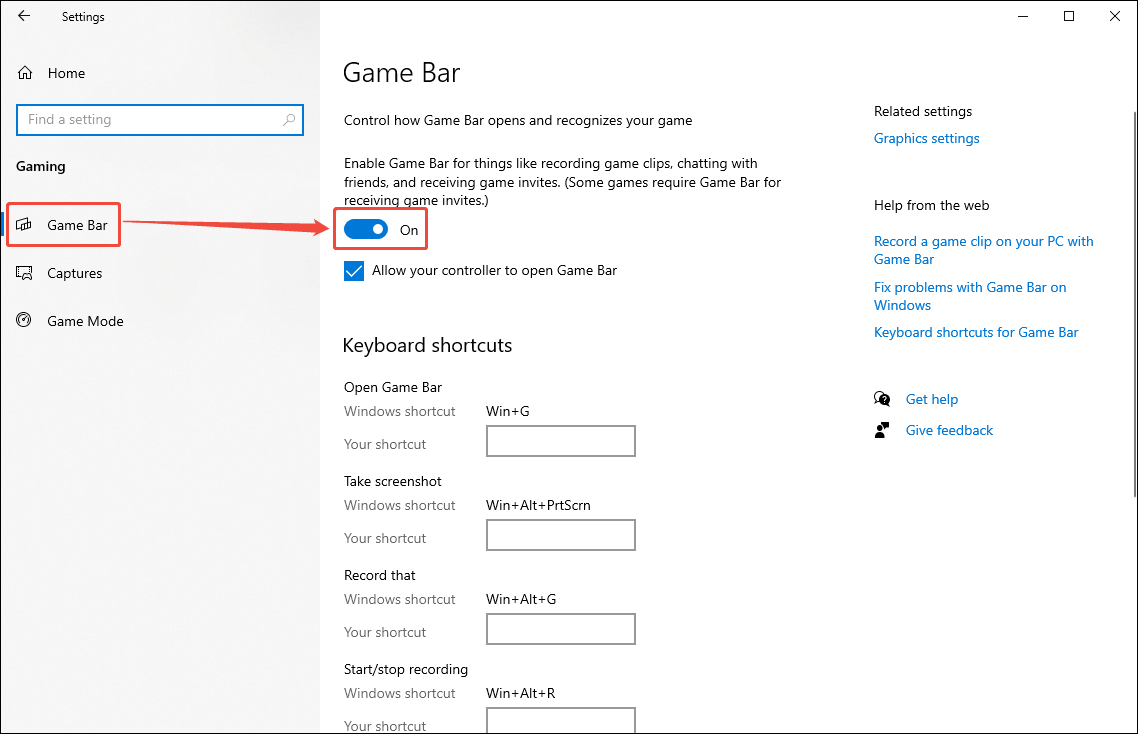
I click the Start menu, choose Settings, and select the Gaming option. Then, I toggle on the Game Bar option.
Step 2: Start and End Recording
After I enable Xbox Game Bar, I start recording my screen by pressing Win + Alt + R. Then, I open the Facebook webpage to capture what I need. To end my recording, I press Win + Alt + R again. You can use the same method to finish.
Step 3: Locate the Recorded File
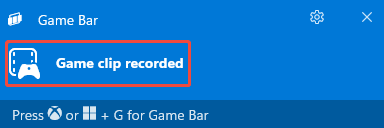
Click the Game clip recorded option to open the Gallery window.
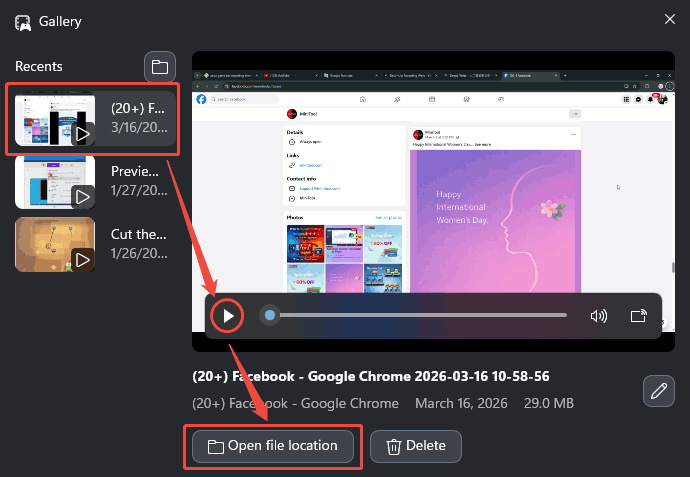
In the Gallery window, I select the video I just recorded, click the play icon to preview it, and click Open file location to find where it is saved on my computer.
I like that the Xbox Game Bar for it is directly available on Windows 10 and 11, without the need for additional downloads. However, I have also noticed that it offers limited frame rate options and imposes a duration limit, which may make it unsuitable for recording longer videos.
Comparison of Two Recording Methods
I’ve walked you through two screen-recording tools I actually use for Facebook content. But which one is right for you? Below, I outline a comparison of the two tools to help you make your own informed choice.
1. Installation and Accessibility
MiniTool Screen Recorder is a desktop application. While Xbox Game Bar is a built-in feature on Windows 10/11. If you do not want to install software on your computer, the latter might be more suitable for you.
2. Recording Capabilities
In terms of recording capabilities, MiniTool Screen Recorder is better. Not only does it support both regional and full-screen recording, but it also allows for webcam recording, the addition of real-time screen annotations, and more. In contrast, the Xbox Game Bar is limited to recording only an entire active application window or game.
Furthermore, MiniTool Screen Recorder offers the flexibility to select a specific frame rate, whereas the Xbox Game Bar supports only 30 fps and 60 fps.
3. Recording Duration
MiniTool Screen Recorder has no limits on recording duration. It is ideal for recording movies, documentaries, live streams, and other long-form content. In contrast, Xbox Game Bar is limited to a maximum recording time of four hours. If you prefer recording long-form videos, MiniTool Screen Recorder is the better choice for you.

Advantages of Recording Facebook
Recording Facebook offers various benefits, whether I’m capturing someone else’s or my own content.
1. Recording Others’ Facebook Content
- Collect Evidence: Record disputes occurring in private or public conversations, which can serve as evidence if necessary.
- Used as a Reference: Save important posts for future reference.
- Research and Analysis: Save and analyze posts from industry leaders to improve your own content.
2. Recording My Own Content
- Repurpose Content: Record my Facebook Live streams, posts, videos, and other content for repurposing on other platforms.
- Backup: Save my Facebook content to prevent accidental loss.
- Protect Intellectual Property: Record the publication dates of my Facebook posts, serving as evidence in the event of copyright infringement.
How to Stop Others from Recording Your Facebook?
Since Facebook neither prevents users from recording content nor notifies the original poster, I started wondering: how can I prevent others from recording my posts? I’ve identified the following two methods that work for me.
1. Lock Your Facebook Profile
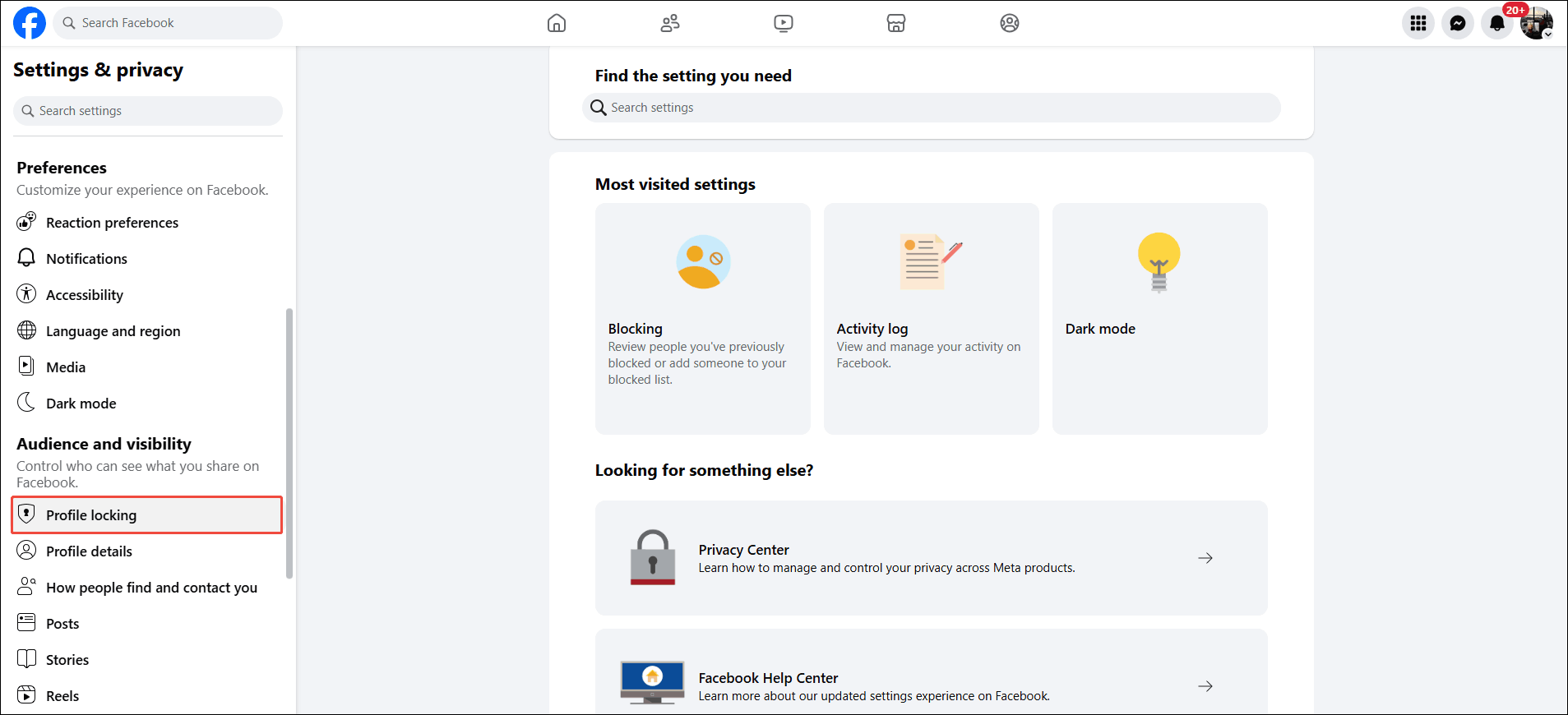
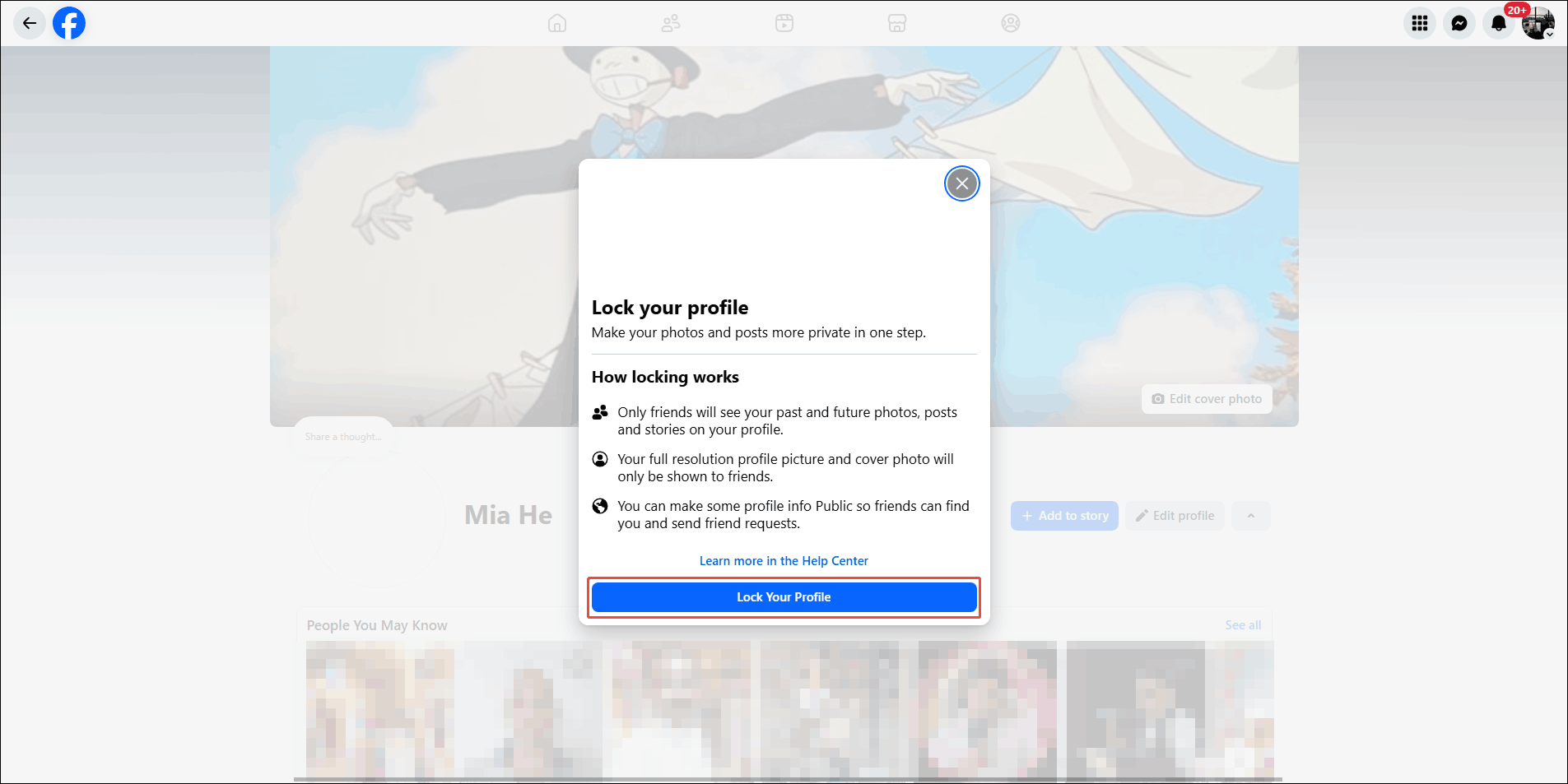
After I locked my Facebook profile, I discovered that only my friends could view my existing and future posts. This prevents strangers from recording my Facebook content. How to lock your Facebook profile? Click your profile picture > Go to Settings & Privacy > Choose Settings > Go to Audience and Visibility > Choose Profile locking > Click on Lock Your Profile.
2. Set Your Post Visibility
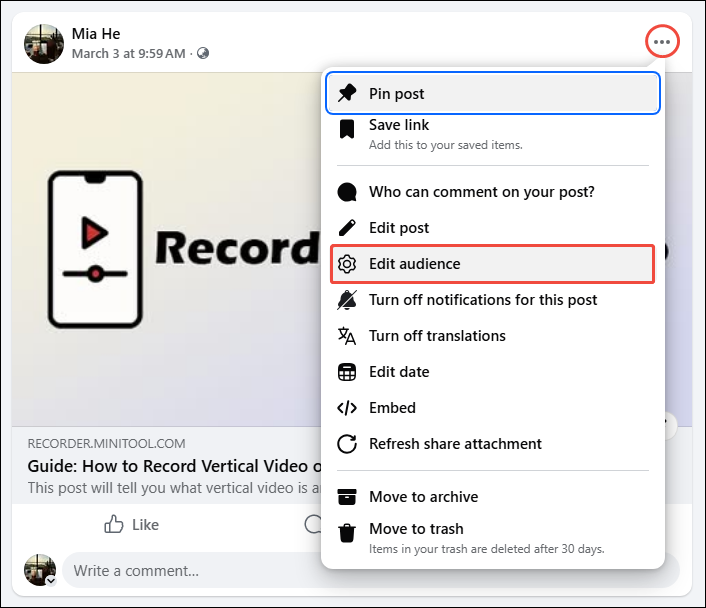
If I only want to prevent a specific post from being recorded by others, I will adjust that post’s visibility settings individually. Here’s how: Go to the profile page > Find the post > Click the more icon > Select Edit audience > Select audience (Public, Friends, Friends except, Specific friends, or Only Me) > Click Done.
Does Facebook Detect Screenshots?
When I take a screenshot of a Live stream, Story, post, or photo, Facebook does not send any notification to the original poster. However, I discovered that taking a screenshot of an encrypted chat will trigger a notification. The other person’s chat interface will display a “[Your Name] forwarded a message” alert.
Conclusion
This article addresses the question: "Does Facebook notify screen recording?" Based on my testing, recipients receive no notification when live streams, reels, stories, or posts are recorded. Notifications are only triggered when private message content is recorded.
What’s more, I demonstrated how to use MiniTool Screen Recorder and Xbox Game Bar to record Facebook activity without a watermark. Additionally, I also found that locking my Facebook profile and adjusting post visibility can help prevent others from screen recording my posts.
If you encounter any issues while using MiniTool Screen Recorder, feel free to email us via support@minitool.com or send me a message on X for assistance.