

Black screen records are a common issue during recording. This article explains why you might encounter black screen records on Windows during recording and shows 7 methods to fix this problem, including updating the software, operating system, hard drive, and adjusting video recorders.
Possible Reasons for Black Screen Records
Have you ever encountered black screen records on a computer? Below are the most common reasons why a black screen appears during screen recording.
#1 Graphics Card Issues
The graphics card affects screen display and video recording. If the graphics card driver is outdated, corrupted, or incompatible with screen recording software, the software may fail to record videos or the screen may give you a dead screen.
Black screen recordings also commonly occur on computers equipped with both NVIDIA and AMD graphics cards. A black screen may occur when the screen recording software and the recording content use different graphics cards.
#2 Incorrect Display Settings
Display settings, such as resolution, scaling, frame rate, and aspect ratio, also affect screen recording. If your screen recorder is incompatible with the current display settings, you may record a blank or black screen. Also, black screen recording issues are common when pursuing high-resolution monitors, high frame rates, and customized Windows scaling settings.
#3 Software Compatibility Issues
Many screen recorders can't be compatible with all applications. Some applications and browsers use special rendering methods that most standard recorders can't internalize. This may cause conflicts between the screen recording tools and background processes, as well as with media players and browsers, resulting in black screen recordings.
#4 Hardware Limitations
Old version computers or low-performance hardware may have difficulty handling the demands of screen recording. For example, excessive CPU and GPU load can cripple recording functionality. Insufficient memory or computing power also causes recording difficulties, leading to black screens.
#5 Screen Recording Permission Restriction
Many streaming platforms, such as YouTube and Netflix, will block screen recording by setting up barriers to protect copyrighted or sensitive content for economic reasons. If viewers insist on recording the protected content, the recording process may be disturbed, resulting in only a black screen being recorded eventually.
How to Fix Screen Recording Black Issue
Based on the common reasons for black screen records mentioned above, there are 6 general methods. You can choose different solutions or try them one by one according to the difficulties you encounter.
Method 1. Restart the Computer and Screen Reorder
Restarting your computer is usually the quickest way to resolve black screen recording issues. Restarting clears temporary system errors, storage space, and resets background services that might be interfering with screen recording. After restarting, reopen your screen recording software and try recording again.
If you don't want to restart your entire system, at least close your screen recorder and restart it. Then, record your screen again.
Method 2. Update Your Software, System, and Drivers (PC Only)
Outdated hardware and software configuration are one of the reasons for black screen recordings on Windows. Check and update your screen recording software, Windows system version, and graphics card drivers. Updating effectively unifies performance configurations, improves compatibility, and fixes unknown bugs. Here’s how:
1. Check and Update Recording Application:
Stay tuned for in-app update notifications. Most third-party apps will notify users of new version releases upon launch. You can also find updated information in the application’s About and Help options.
2. Check and Update Windows System Version:
Follow the simple steps below to update your Windows system:
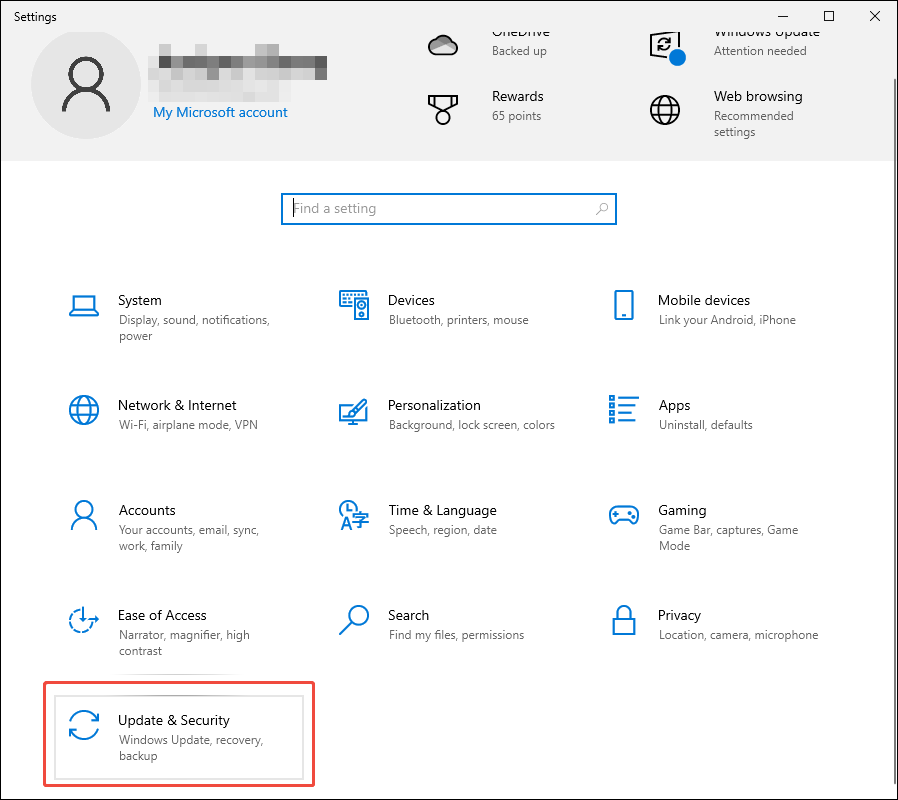
Step 1. Open Windows Settings
Press Win + I to go to the Settings window. Then, click on the Update & Security option.
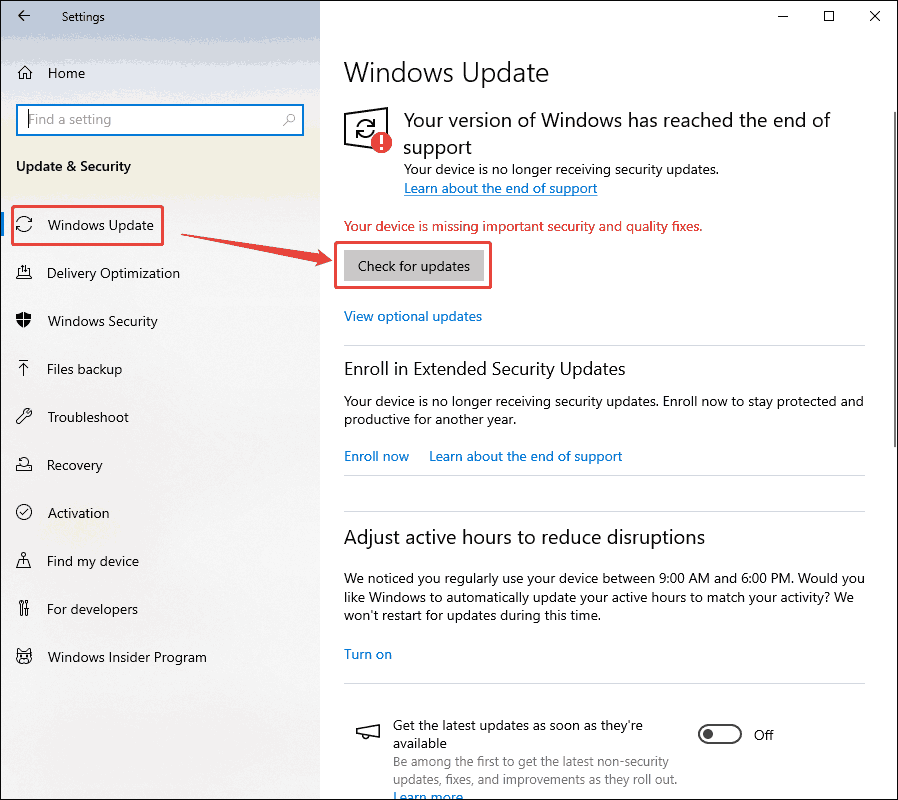
Step 2. Check and Update the Recording Tool
Switch to the Windows Update (Windows 10) option. Then, click on Check for updates.
3. Check and Update Graphics Card Drivers
Firstly, determine your current hardware and driver details:
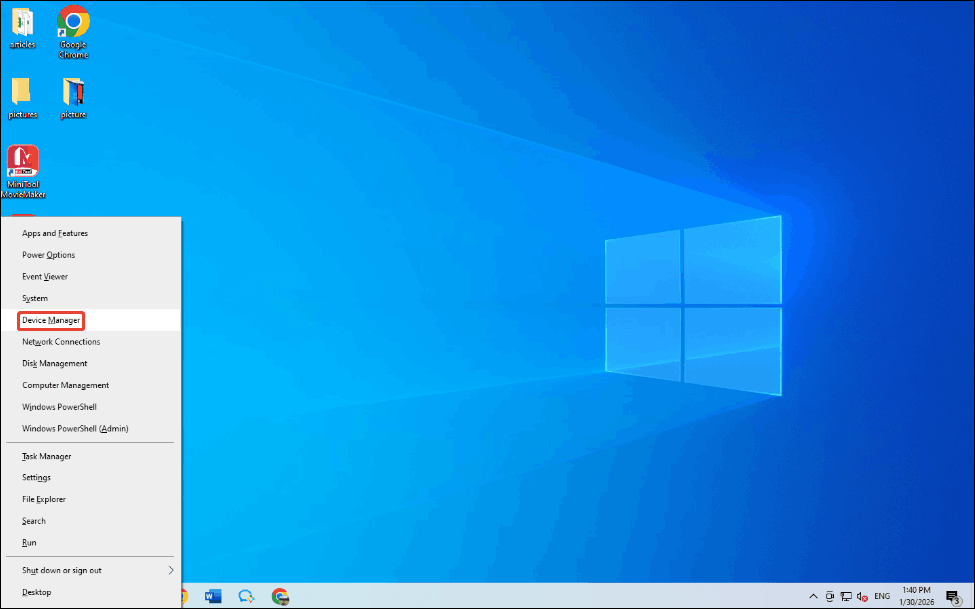
Step 1. Check the Graphics Card
Press Windows icon + X and click Device Manager to enter the Device Manager window. Then, click Display adapters to check the graphics card model.
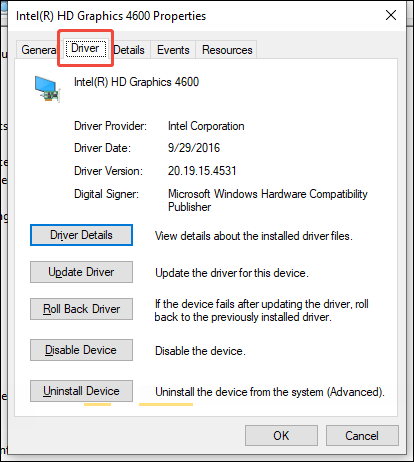
Step 2. Check the Version and Date of the Graphics Card
Right-click the graphics card option and choose Properties. Then, switch to Driver to view the version and date in the Properties window.
Secondly, check and update NVIDIA and AMD graphics drivers:
To check and update NVIDIA, get and open this application. Go to the Drivers Tab. Next, click the Download button to start downloading the latest version. Then, select Express Installation to set up the new graphics card driver.
To check and update AMD, download and install Adrenalin Edition. Click Settings, click on System, and click on Check for updates to obtain the latest version. Then, you follow the installation prompts to put it on your computer.
After any of those updates above end, you need to restart your computer to ensure the changes work.
Method 3. Check Screen Recording Permissions
Besides hardware and technical issues, permission restrictions can also cause black screen recordings. In Windows systems, many screen recording applications require access to the screen, microphone, or system audio. If you ignore the permissions in the pop-up window, your recorder may be blocked from recording or produce a black screen recording.
Here's a quick way to check screen recording software permissions on Windows.
Step 1. Open the Windows Settings
Press Windows icon + I to open the Windows Settings window.
Step 2. Check the Camera and Audio State
Navigate to Privacy > App Permissions. There, check the Camera option, the Microphone option, and the Voice Activation option to make sure these settings are enabled for your recorder.
Method 4. Change Recording Settings
Incorrect recording settings also result in black screen records. You can switch between full-screen and custom area models to select the appropriate recording type for your target. You can also fine-tune the frame rate or change the video format.
Method 5. Play the Recorded Video by Other Players or Browsers
Some black screen recordings are due to media players or browsers failing to play the video. You can try other well-compatible video players, such as Windows Media Player and VLC Media Player. Alternatively, you can choose a suitable browser from Google Chrome, Firefox, Edge, and Opera. Below is how to use VLC Media Player to play your recorded video.
Step 1. Get VLC Media Player
Download and install VLC Media Player from the official website.
Step 2. Import the Target Video and Play It
Launch VLC Media Player. Click on Media Open file… to import the recordings. Then, the imported video will be played automatically.
Method 6. Adjust Display Settings
If you are using multiple monitors or have a custom display scaling, you can turn off the connection of other monitors, reset the display scaling to 100%, and reduce the screen resolution. Below is how:
Step 1. Run Windows Settings
Press Win + I to land on the Settings window.
Step 2. Customize Display Settings
Click on the Display option. There, customize the Scale and layout option and the Display resolution option.
After adjusting the display settings, you will also need to restart the recording tool and record again.
How to Fix Black Screen Records with Other Recorders
Want a reliable screen recorder? I would like to recommend an offline and an online recorder to you.
1. MiniTool Screen Recorder
Why choose MiniTool Screen Recorder? The following is a comprehensive overview of it.
#1 No Recording Duration Limits
MiniTool Screen Recorder allows you to record your screen as long as you want. Moreover, it designs a preset feature, preventing you from staying in front of the screen all the time.
#2 Customizable Recording Types
MiniTool Screen Recorder enables you to choose the recording type, including full-screen and selected region models. What’s more, it allows you to capture window tabs and browsers.
#3 Dural Audio Control
MiniTool Screen Recorder supports recording system audio and voiceover, or both simultaneously.
#4 Webcam Recording
MiniTool Screen Recorder offers webcam recording to make a PiP effect, enriching the recording content.
#5 Annotation and Whiteboard Support
MiniTool Screen Recorder releases auxiliary tools, including annotation and whiteboard, which empower users to use brushes, highlighters, shapes, texts, and numbering to produce more creative output in the recordings.
#6 Free and Easy to Use
MiniTool Screen Recorder is free without any ads, bundles, or watermarks. In addition, it is user-friendly even for beginners due to its clean interface and simple operation steps.
The following is a tutorial to help you record videos using MiniTool Screen Recorder.
Step 1. Download and Install MiniTool Screen Recorder
Click on the download button below to get MiniTool Screen Recorder. Then, launch it on your screen.
MiniTool Screen RecorderClick to Download100%Clean & Safe
Step 2. Choose Recording Type and Control Audio
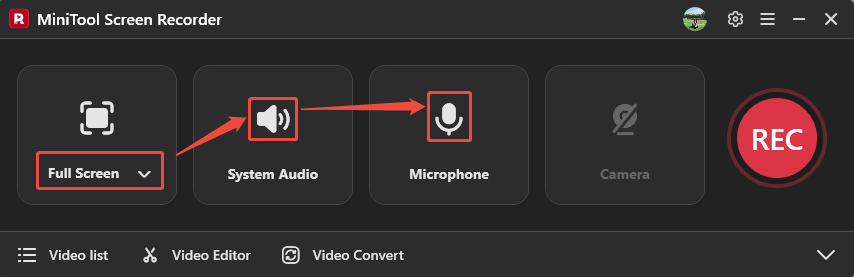
After running MiniTool Screen Recorder, sign in to this application. Expand the screen type option to select Full Screen. Then, click the System Audio icon and the Microphone icon to decide whether to record computer sound and voiceover.
Step 3. Specify a Save Location
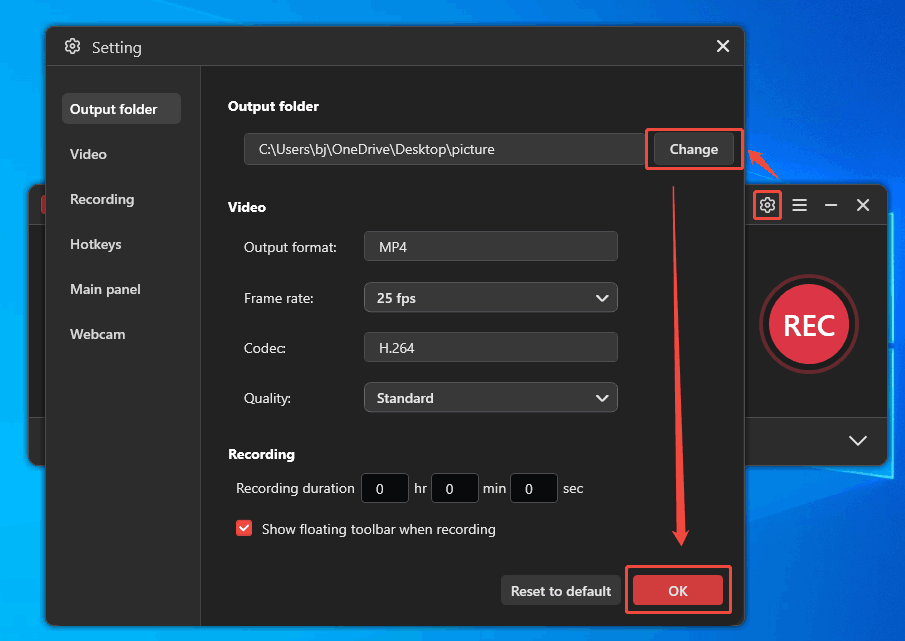
Click the Settings icon on the upper-right to open the Setting window. There, click the Change button to select a save location. Then, click the OK button to store these changes.
Step 4. Start the Recording
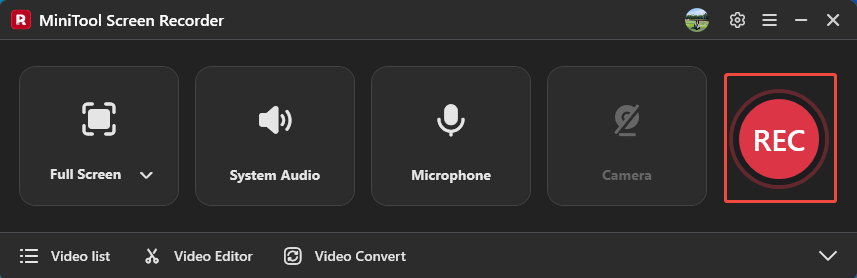
After completing the settings, return to the main interface of the screen recorder. There, click the REC button. This recording process will start after a 3-second countdown. Then, present the content you want to record on your screen.
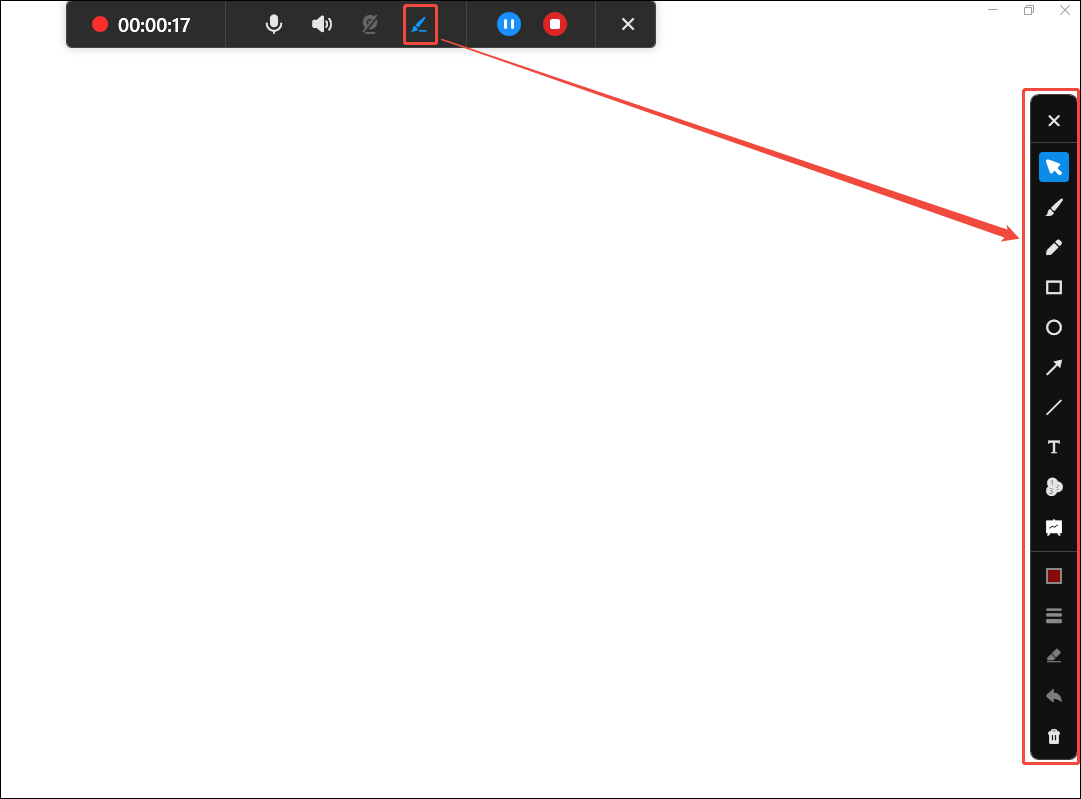
During the recording, click the Brush icon on the floating toolbar to open the annotation toolbar. Here, you can use a series of tools to add annotations. Then, press the F9 key to pause or resume capturing. To end this recording, press the F6 key.
Step 5. View and Locate the Recorded Video
To view this result, click on the Play icon under the Video list tab. Or click the Folder icon to locate the recorded video on your PC.
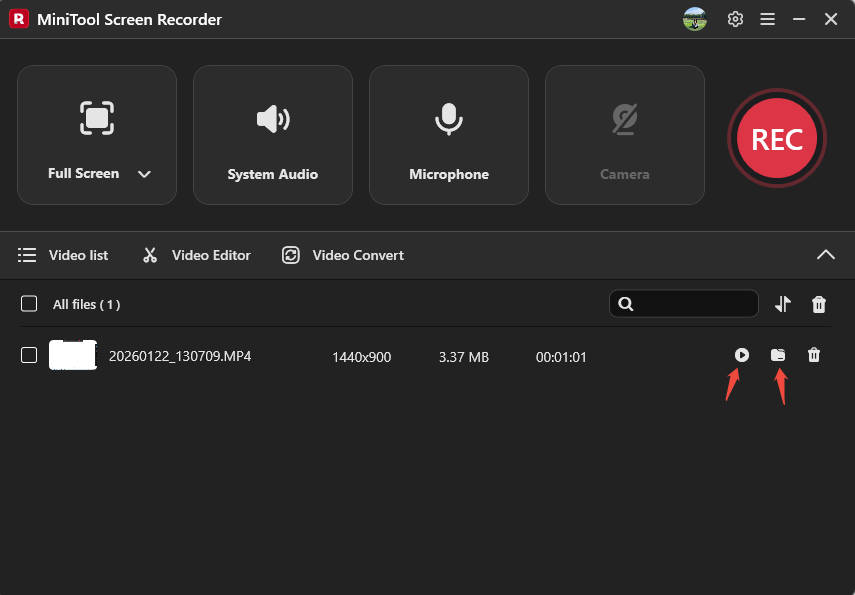
MiniTool Screen Recorder allows you to easily record videos with an unlimited length. Also, to suit your usage habits, it supports custom recording hotkeys.
2. Apowersoft
Apowersoft is a comprehensive media file processing tool that enables effortless video recording. It allows you to record both the screen and webcam. Apowersoft also empowers you to record system audio and microphone sound, or both simultaneously. However, as an online recorder, Apowersoft has limited features. If you want to experience more, you have to download the desktop version.
Let’s take a look at how to record video with Apowersoft online.
Step 1. Open Apowersoft’s Recording Webpage
Visit https://www.apowersoft.com/free-online-screen-recorder to enter Apowersoft ‘s webpage.
Step 2. Adjust Recording Settings
Click on the Start Recording button to enter the Settings page. Here, check or uncheck Screen, Webcam, System Sound, and Microphone. Then, click on the Start Recording option and click on the Continue recording option in a pop-up window to trigger the recording type window.
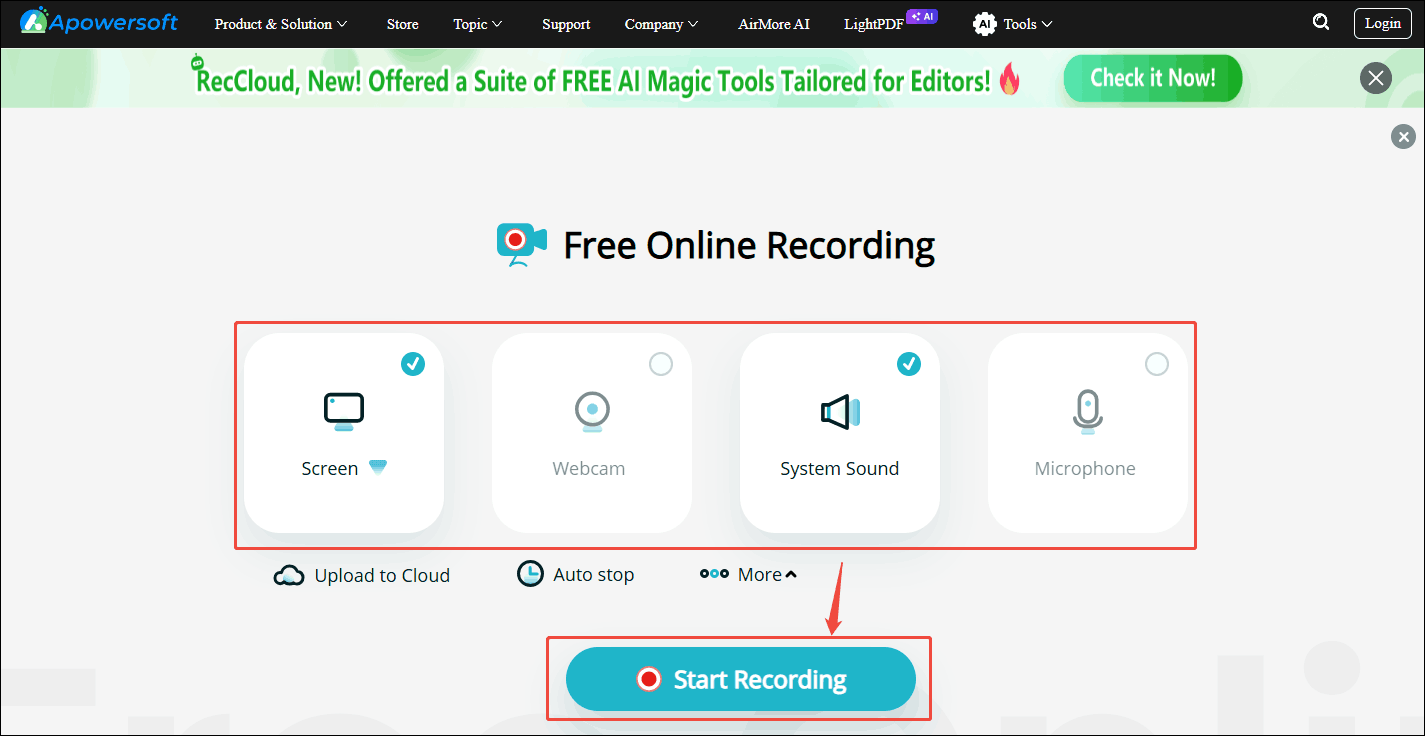
Step 3. Choose Recording Type and Start Recording
Switch to the Entire screen tab and select the Entire screen option. Next, enable the Also share system audio button. Then, click on the Share button to start the recording and display the video or materials you want to record on the screen.
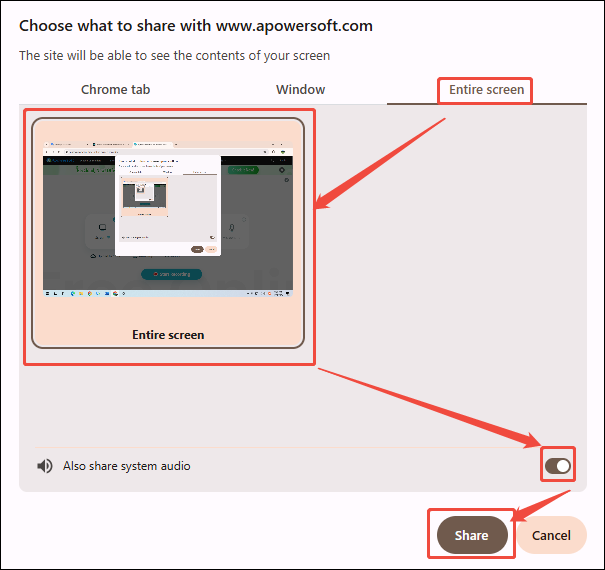
Step 4. End the Recording
To stop this recording, click on the Stop button. Then, expand the Save option to choose the Original file option for storing this recorded video.
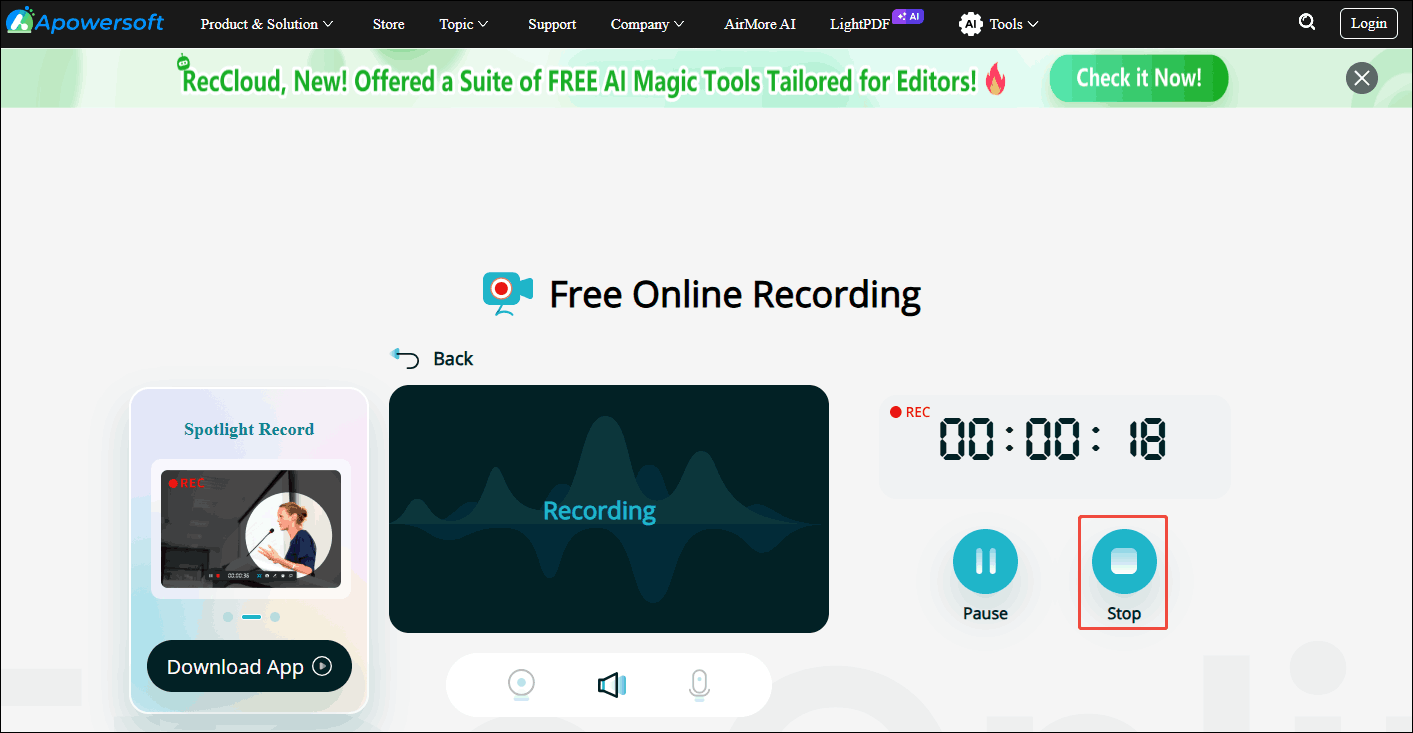
Apowersoft is an easy-to-use recorder. However, it offers limited personalized settings and can only meet basic recording needs.
Bottom Line
This article explains why black screen records occur and provides 7 effective methods to solve them. Troubleshooting these issues includes checking computer and software settings, as well as using different screen recording software, such as MiniTool Screen Recorder.
If you want to get more information about MiniTool Screen Recorder, please feel free to contact us via email at support@minitool.com. Or send me a message on X. I am willing to solve your problem.