

How to screen record Hotstar videos? Learn to bypass DRM black screens and record with MiniTool Screen Recorder. In addition, you will also learn the legal considerations for Hotstar recording. To edit recordings, try MiniTool MovieMaker.
Hotstar is an Indian streaming platform launched in 2015. Now, searching for Hotstar in your browser will usually bring up a website called JioHotstar. What’s the difference between it and Hotstar? They are essentially the same.
After Disney acquired Star India in 2020, Hotstar was renamed Disney+ Hotstar. Subsequently, in 2025, JioCinema merged with Disney, and the platform was finally renamed JioHotstar. Now, this comprehensive platform includes Disney+ original content, live sports events, and a variety of movies.
I discovered many popular movies and animated series on JioHotstar and wanted to download them for offline viewing. However, I couldn’t find any download option. After researching online, I learned that downloading is only available on limited devices and requires a paid subscription.
Since I couldn’t access the official download feature, I decided to screen record the content instead, which worked successfully. Below, I’ll explain how I did it.
How to Record Hotstar Videos?
When I first tried recording a JioHotstar video, the screen was completely black. I later discovered it was a DRM (Digital Rights Management) issue. I found that disabling my browser’s hardware acceleration solves this issue. It worked, and I was able to successfully record the video. Below are the steps to disable hardware acceleration and record using screen recording software.
Part 1: Disable Hardware Acceleration
DRM refers to an encryption technology. It prevents unauthorized distribution and copying of media content. This technology is commonly used in movies, music, games, and e-books to protect copyright. When you try to record this content directly, you’ll likely find that the recorded video is a black screen.
However, disabling hardware acceleration in your browser can resolve the black screen issue caused by DRM. This prevents the GPU from forcibly implementing security content protection, thus allowing for successful recording. For example, with Chrome, you can do this:
Step 1: Go to Chrome Settings
Click the More option in the upper right corner of the Chrome browser, then select Settings.
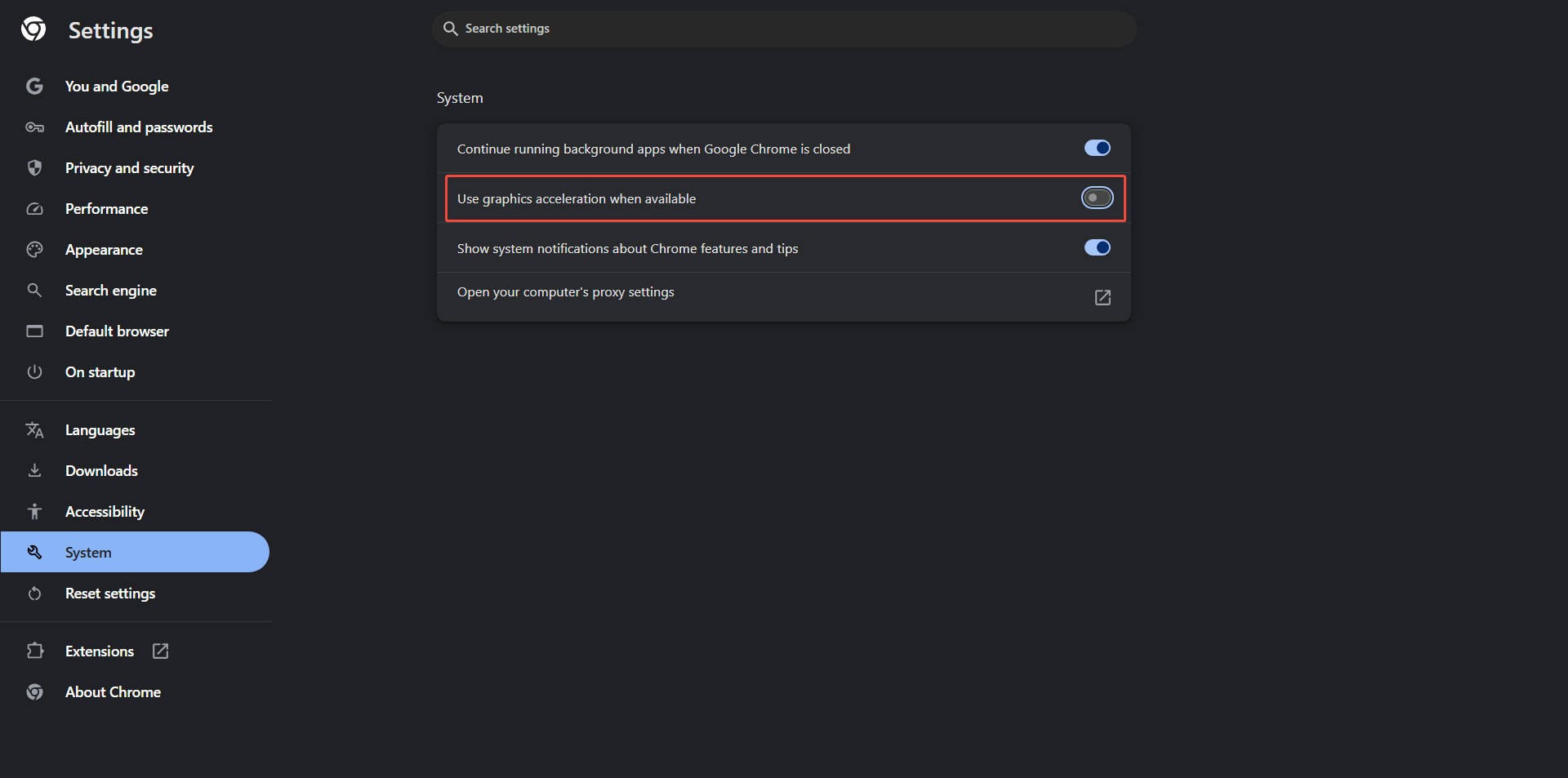
Step 2: Turn off Graphics Acceleration
In the Settings page, choose the System tab on the left, and toggle off the Use graphics acceleration when available option.
By disabling hardware acceleration before Hotstar screen recording, you’ve already solved the hardest part. Now, you can use third-party screen recorders like MiniTool Screen Recorder to capture the video on Hotstar.
Part 2: Use Third-Party Recorders to Record Hotstar
To record high-resolution Hotstar videos, choosing a screen recorder that supports capturing clear footage is crucial. Of all the screen recording software I’ve used, MiniTool Screen Recorder supports 4K resolution recording. Furthermore, it’s free and very easy to use.
MiniTool Screen Recorder allows me to set the audio source in advance, such as the microphone or system audio. To ensure clear audio recordings of Hotstar movies, I disable the microphone recording option beforehand to avoid noise interference.
In addition, MiniTool Screen Recorder supports preset recording durations. Once set, the recording will automatically stop when the time is up. Therefore, I don’t need to keep staring at the screen. I can also preset the recording quality and frame rate.
Here is how to screen record Hotstar videos with MiniTool Screen Recorder:
Step 1: Download and Install MiniTool Screen Recorder
Click the download button below to install MiniTool Screen Recorder on the computer. Then, lunch this free Hotstar recorder.
MiniTool Screen RecorderClick to Download100%Clean & Safe
Step 2: Choose Recording Section
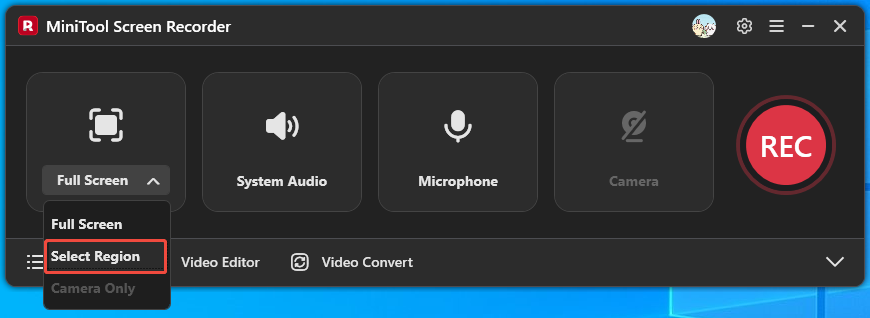
By default, the software records in Full Screen mode. Since I only want to record the player section of the Hotstar video, I expand the first option on the left, choose Select Region, and drag the frame to only include the video player window.
Step 3: Disable Microphone Recording (If Necessary)
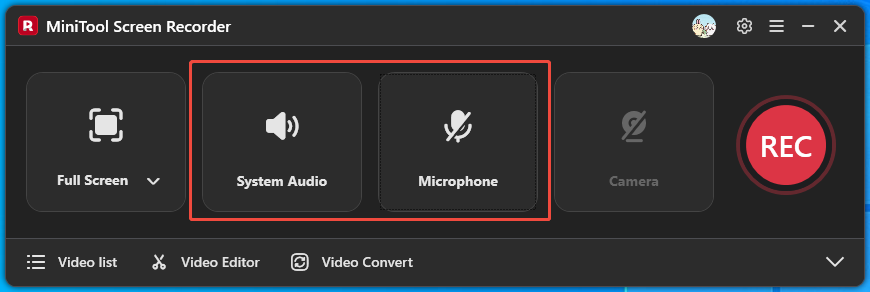
To avoid microphone interference, I click the Microphone button to mute it, but keep the System Audio enabled to capture the video’s sound.
Step 4: Set the Save Location
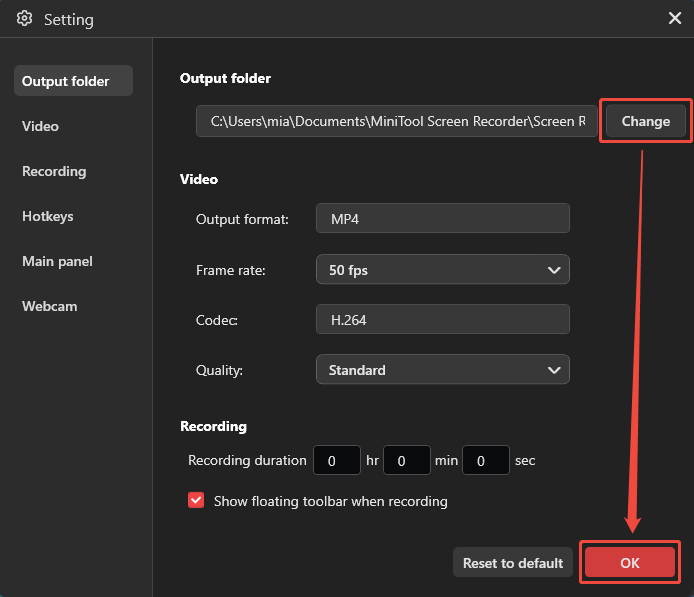
Then, I click the gear icon in the top-right corner to open the Setting window. In the Output folder section, click Change to choose where to save my recordings, then click OK to confirm.
Step 5: Start and End Recording
On the main interface, click the REC button to start recording. After a three-second countdown, play the video on Hotstar. When the video finishes playing, press the F6 key to end recording.
Step 6: Navigate to the Recorded Video
Once recording stops, the video is automatically saved to my computer. The MiniTool Screen Recorder interface reappears with my new recording in the Video list. I can click the play icon to watch it, or click the folder icon to find its location.
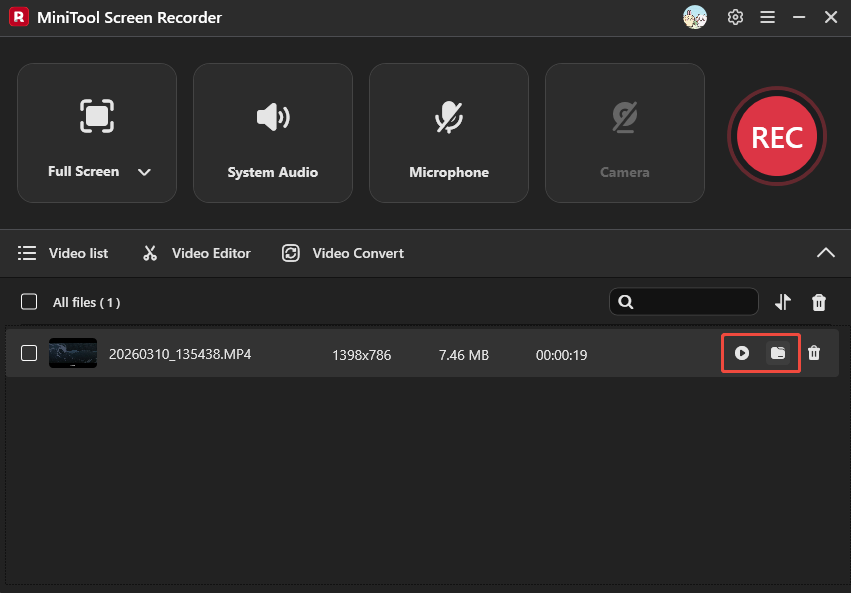
MiniTool Screen Recorder will not add any watermarks to the recorded video, giving my content a clean and professional look. Furthermore, if I want to record a tutorial video or instructional content, I can use its webcam recording feature to show myself alongside my screen. This screen recorder also has a built-in screen annotation tool that allows me to draw, highlight, and explain concepts while recording.

Is It Legal to Record Hotstar Videos?
According to Hotstar’s Terms of Use, recording, copying, and distributing videos on Hotstar is illegal. Therefore, screen record on Hotstar is risky. However, some legal arguments suggest that using the recorded video strictly for private, non-commercial purposes may not be illegal.
How to Edit Recorded Hotstar Videos?
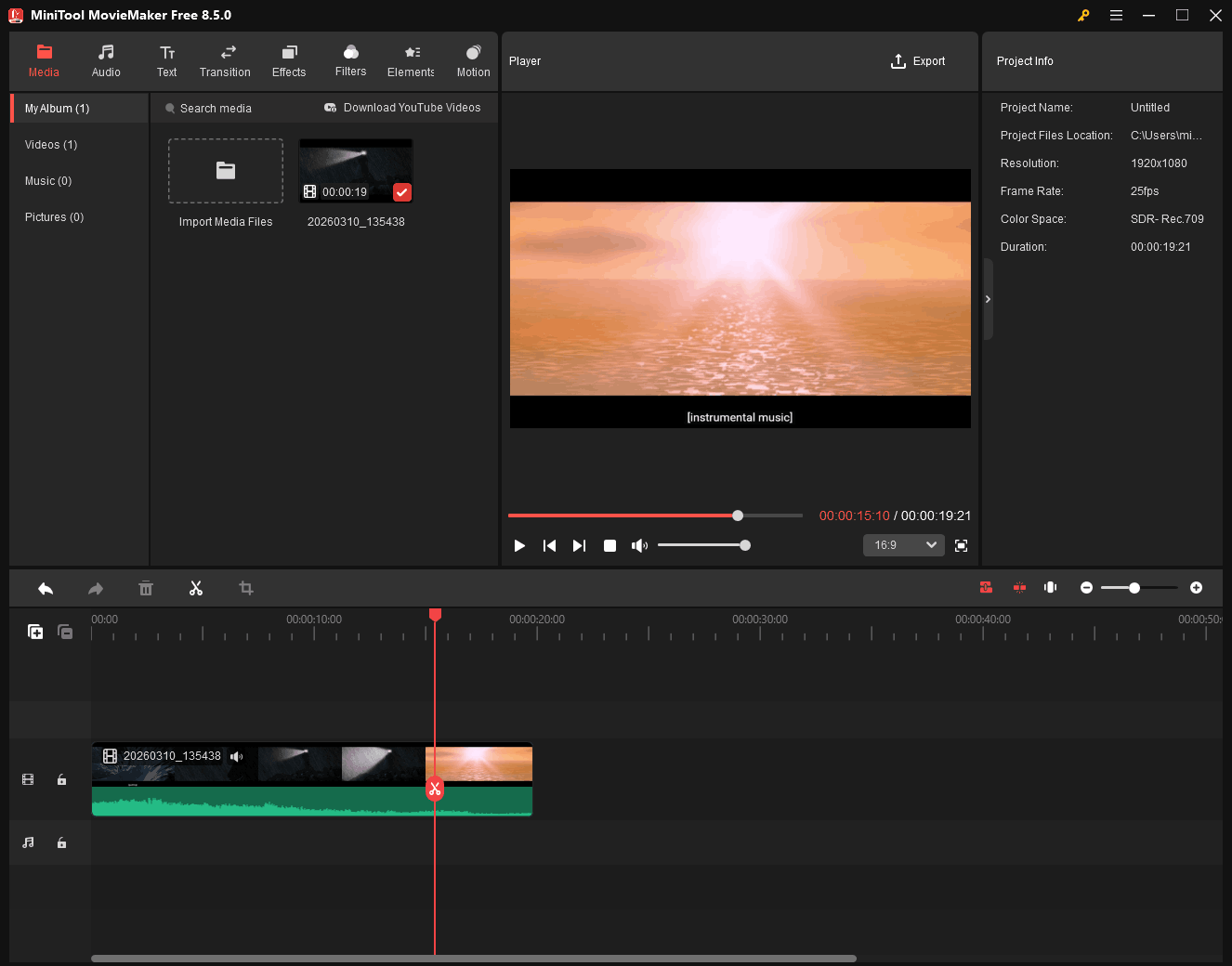
After recording my Hotstar video, I can further edit it using a third-party video editor. For example, I will use a video editor to trim or delete some unwanted segments from the recording. To enhance the video, I can also apply various filters. MiniTool MovieMaker can help me with these tasks.
MiniTool MovieMaker offers basic editing functions such as trim, crop, and split. It also allows me to add various effects, transitions, filters, background music, picture-in-picture, and more. It supports exporting videos to multiple formats, including MP4, MOV, WMV, AVI, WEBM, MKV, MP3, and more. Furthermore, I can use this video editor to adjust the video’s resolution and frame rate before export.
MiniTool MovieMakerClick to Download100%Clean & Safe
Conclusion
In this article, I explain how to screen record Hotstar videos. Please note that recorded content should not be used commercially or distributed to others. Otherwise, you may violate copyright laws.
Our support team is ready to assist with any questions about MiniTool Screen Recorder and MiniTool MovieMaker. Email us at support@minitool.com.