

Snapchat is a popular multimedia messaging application known for sharing photos, videos, and messages that typically disappear after being viewed. When you are recording videos with fun filters, one thing that might be annoying is that you have to hold down the button during the recording.
How to record on Snapchat without holding the button? How long does Snapchat record for? This post shares two practical methods to record hands-free on Snapchat. Besides, this post also explains how to record Snapchat on PC using a third-party screen recorder, MiniTool Screen Recorder.
How to Record on Snapchat Without Holding the Button
This section guides you through how to record hands free on Snapchat using the camera lock and timer features, which work on both iOS and Android devices. Let’s review each method one by one.
Method 1: Use the Camera Lock Feature
The camera lock feature allows you to record videos hands-free by locking the camera button, so you no longer need to hold it down during recording.
How to record hands free on Snapchat using the camera lock feature? Follow the guide below.
Step 1: Open Snapchat
Open Snapchat and select your desired filter in the Camera tab. You can also choose the default camera.
Step 2: Start and End Recording Hands-Free
Press and hold the Camera icon until a lock icon appears on the left. Then, swipe your finger to the lock icon and release to start recording hands-free. To stop the recording, simply tap the Camera button again.
Method 2: Use the Timer Feature
The Timer feature not only lets you record automatically after a 3-second countdown but also allows you to set a specific recording duration.
How to auto record on Snapchat using the Timer feature? Here is the detailed guide.
Step 1: Open Snapchat and Set Recording Duration
Open Snapchat and tap the Arrow icon on the right side of the screen. Select Timer. Then, tap it again to set the recording duration by moving the slider. Once set, tap Set Timer.
Step 2: Start and Stop Recording
Choose your desired filter or use the default camera. Tap the Camera button, and the recording will begin automatically after a 3-second countdown. It will stop once the set duration is reached.

How to Record Snapchat on PC
Now that you know how to record on Snapchat without holding the button on mobile, you might also wonder how to record Snapchat on PC. Since Snapchat Web doesn’t support built-in video recording, using a third-party screen recording tool like MiniTool Screen Recorder is the most effective solution.
What Is MiniTool Screen Recorder
MiniTool Screen Recorder is a powerful and easy-to-use screen recorder for Windows. It is free of ads, bundles, and watermarks, allowing users to focus on recording without distractions.
This software offers flexible recording options. You can record the entire screen, a selected area, or the webcam only. You can also record the screen and webcam simultaneously to create a webcam overlay effect. In addition, it supports recording system audio and microphone sound either together or separately, which meets your diverse needs.
MiniTool Screen Recorder also provides customizable recording settings, such as frame rate, video quality, and recording duration. You can also adjust the webcam’s position and shape as needed. What’s more, this application includes an advanced screen annotation tool that allows you to add real-time drawings, text, shapes, and whiteboards during recording.
All recorded videos are saved in MP4 format, making them easy to share, play, or edit across a wide range of platforms.
How to Record Snapchat on PC Using MiniTool Screen Recorder
Here are the detailed steps for recording Snapchat using MiniTool Screen Recorder.
Step 1: Access MiniTool Screen Recorder
Click the button below to start downloading this robust screen recorder. Install and open it on your computer.
MiniTool Screen RecorderClick to Download100%Clean & Safe
Step 2: Select the Recording Area
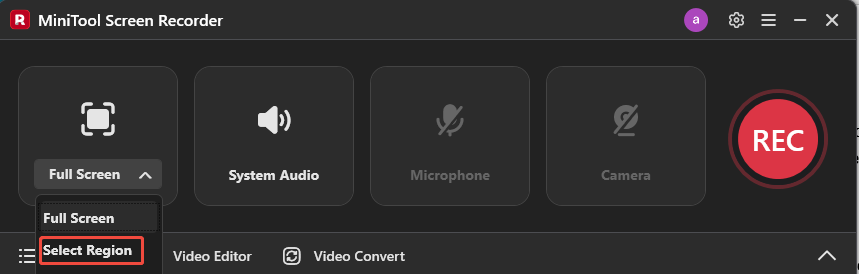
By default, MiniTool Screen Recorder records the entire screen. To record only the Snapchat area, expand the Full Screen option and choose Select Region. Then, drag the mouse to customize the recording area to fit the Snapchat window.
Step 3: Check the Audio
The system sound and microphone audio are enabled by default. To turn the microphone off, simply click the Microphone option.
Step 4: Adjust Additional Settings
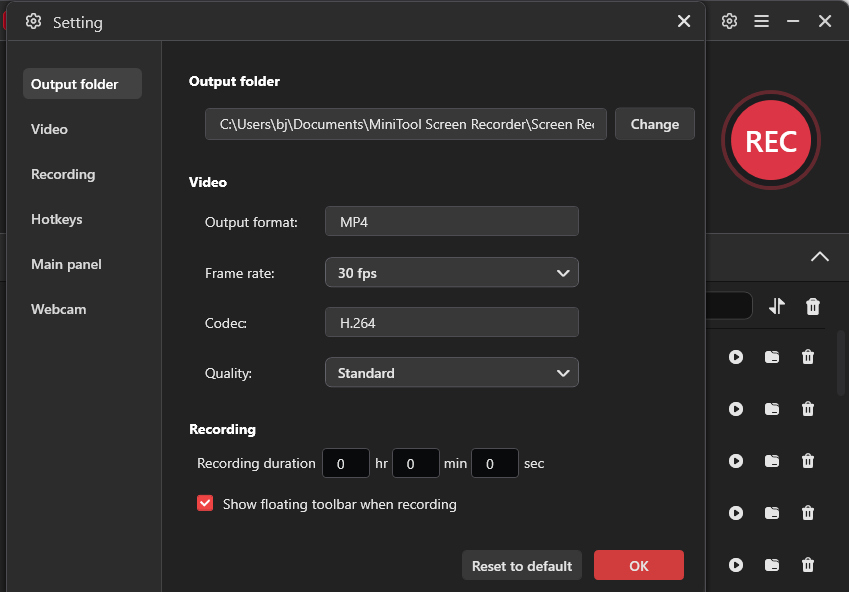
Click the Gear icon at the upper-right corner of the interface. You can choose a desired video quality from original, standard, and high options. Also, you can change the save location and preset the recording duration to automatically stop the recording. Click OK to save all the changes.
Step 5: Start and End Recording
Click the red REC button or press the default F6 key to start recording. After a 3-second countdown, the recording will begin, and you can start playing the Snapchat video you want to record from the beginning. To pause or resume the recording for smooth playback, press F9 on the keyboard.
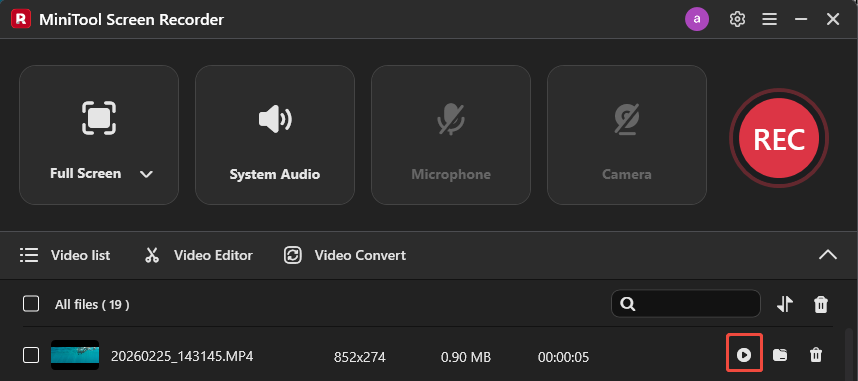
When the video finishes, press F6 again to stop recording. The latest Snapchat recording will appear at the top of the Video list module in the main interface. Here, you can click the Play icon to preview the recording.
Step 6: Edit the Recording (Optionally)
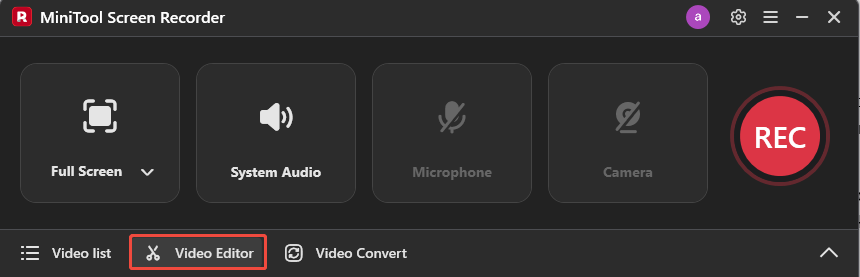
Once the recording is complete, you can further edit the Snapchat video by trimming clips or adding text and background music. MiniTool Screen Recorder includes access to a free editing tool, MiniTool MovieMaker. Click the Video Editor option to launch or download the editor.
Conclusion
This post explains how to record on Snapchat without holding the button using the camera lock and timer features. It also demonstrates how to record Snapchat on PC using the third-party screen recorder, MiniTool Screen Recorder.
If you have any suggestions or encounter any problems when using MiniTool Screen Recorder and MiniTool MovieMaker, please don’t hesitate to contact us via support@minitool.com.