

Whenever someone records screen content on the Snapchat platform, Snapchat sends a notification to the content creator. How to screen record Snapchat without them knowing? You can turn on airplane mode, use another device, disable network connection, use Snapchat for Web on a desktop, and screen mirror to a computer.
Snapchat is a multimedia messaging app that allows users to send photos and videos (collectively referred to as Snaps), stories, text, voice messages, and video calls. Messages and Snaps are deleted from servers after they are viewed or after 24 hours.
To capture what you see on Snapchat forever, you might think of taking a screenshot or recording the content. However, an often-asked question arises: Whether Snapchat sends notifications to the content creator when I capture or not. The next section will tell the answer.
Does Snapchat Notify When You Screen Record
Can Snapchat tell if you screen record? The short answer is yes. Snapchat’s core privacy feature is its ability to detect when a user captures content. When you record someone’s Snapchat content, the creator will receive a gray message saying, “Name took a screenshot” or indicating a screen recording.
Sometimes, your friends post an interesting story or message on Snapchat, and you want to screenshot or record it to share with others. You may find it embarrassing as Snapchat would inform your friend about the time you have taken a screenshot of their story or message. Is there a solution to screen record Snapchat without notification? Sure! 5 methods are introduced in the next section.
How to Screen Record Snapchat without Them Knowing
Read on for 5 workarounds to avoid sending Snapchat recording notifications to creators.
Method 1. Turn on Airplane Mode
Firstly, open Snapchat and let the Snap load completely before you take a recording. Next, turn airplane mode on to disconnect from the internet. Then, use the phone’s built-in screen recording tool to screen record or screenshot the Snap. Finally, the recorded video will be saved in the photo album. Close the Snapchat app completely and reconnect to the internet.
Method 2. Disable Network Connection
Disabling the network connection can reach the same result as turning on airplane mode. Still, you must let the Snap load completely before disabling the network connection. Then, turn off your phone’s Wi-Fi and disconnect from cellular data. Lastly, you can proceed to screen-record a Snapchat content the same way you would in airplane mode.
Method 3. Use Another Device to Record
Don’t want to disconnect the network when recording Snapchat? Using another device, like a phone and camera, can also screen record Snapchat without notification. However, it’s not the most professional way because the recorded content has low quality.
Method 4. Use Snapchat for Web on Desktop
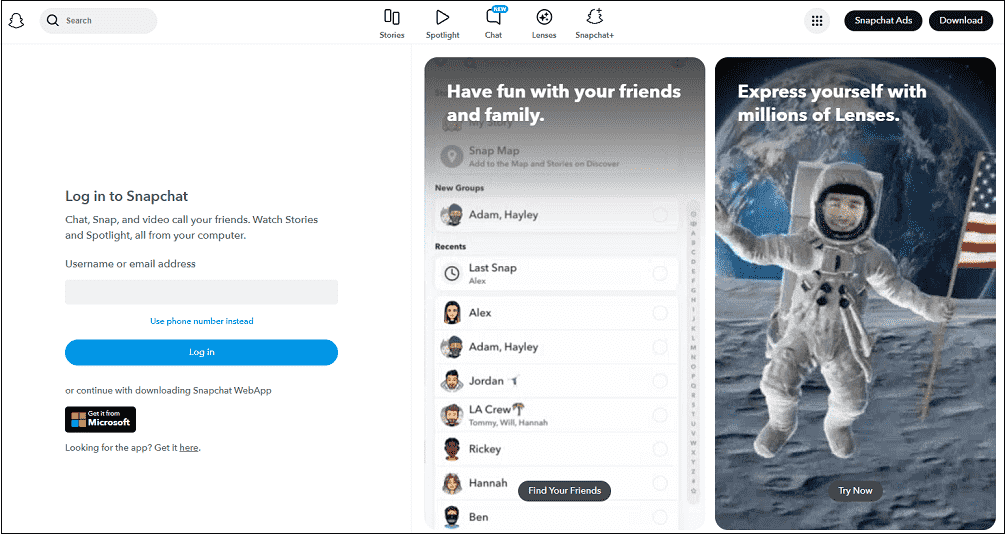
Snapchat for Web lets you access chats, send Snaps, and make video calls from your desktop browser. It doesn’t send notifications when you take screenshots or record the screen, as the web platform lacks the notification feature of the mobile app. You just need to open the Snap content you want to record and then use a desktop screen recording program to capture it.
Method 5. Screen Mirror to a Computer
Screen mirroring your phone to a PC is the last method to record a Snap, story, and message without them noticing. You need to activate the screen mirroring feature on your iOS or Android device and keep the computer and the phone connected to the same Internet to cast successfully. Then, play the content you want to record on the computer and record it with a third-party application on PC.
As mentioned above, methods 4 and 5 both require a screen recorder on a PC. The following section will show you how to record Snapchat without them knowing on a PC.
![How to Record Twitter Spaces on Windows [4 Reliable Methods]](https://images.minitool.com/recorder.minitool.com/images/uploads/2026/02/record-twitter-spaces-thumbnail.png)
How to Screen Record Snapchat on PC
If you’re using Snapchat Web on your PC or screen casting to your PC, I recommend MiniTool Screen Recorder as the most reliable recorder to screen record Snapchat without notification. It is completely safe, without any ads, bundles, malware, or spyware.
This recording application provides you with a watermark-free experience without any time limits or payment. You can record the full-screen Snapchat content with/without system audio or microphone, or with/without webcam. What astonishes me about MiniTool Screen Recorder is that it has an annotation toolbar to highlight texts and pictures during Snapchat recording.
Lastly, the recorded Snapchat videos are saved in the MP4 format, which empowers you to share, play, or edit your recording files on a wide range of platforms. Now, follow the 5 steps below to get your favorite Snapchat content without notifying the creator.
Step 1. Get MiniTool Screen Recorder
Download MiniTool Screen Recorder by clicking on the download button below. Then, follow the on-screen instructions to install it.
MiniTool Screen RecorderClick to Download100%Clean & Safe
Step 2. Select the Snapchat Recording Area
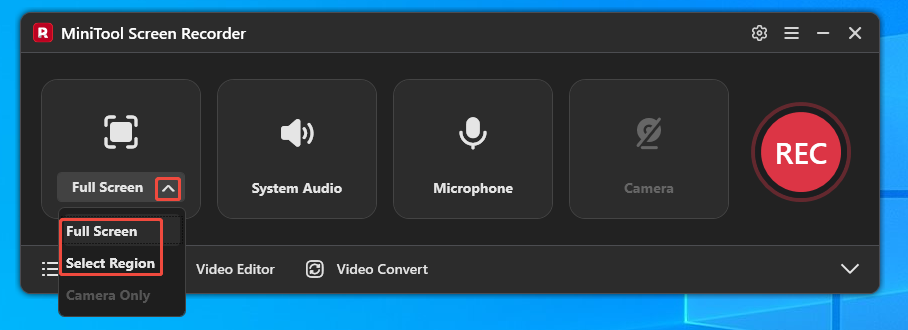
Recording the full screen is the default option. Or, click the Full Screen option to expand the dropdown list and choose the Select Region option to record the specific area of Snapchat.
Step 3. Control the Audio
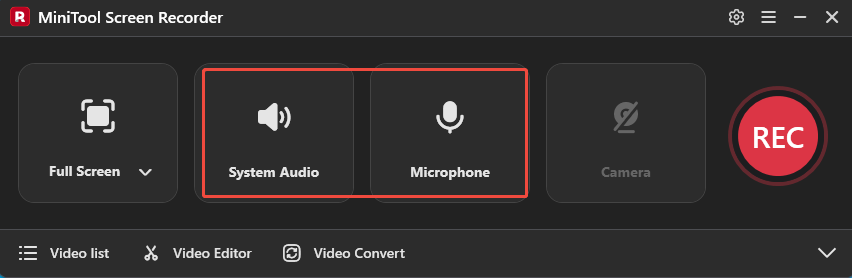
The System Audio and Microphone are opened by default. Click on the corresponding icon to turn off the sound.
Step 4. Start and End Snapchat Recording
1. Press F6 on your keyboard. After a 3-second countdown, MiniTool Screen Recorder will automatically start recording.
2. Open the wanted recording content on Snapchat Web or open the screen casting video on PC.
3. When the recording process ends, stop it by pressing the F6 key again.
Step 5. Locate the Recorded Snapchat File
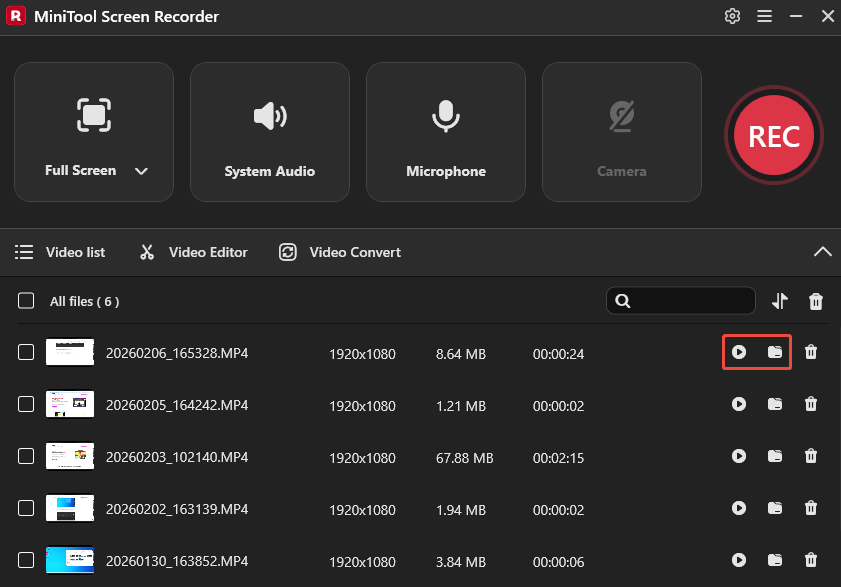
Under the Video list, click on the Play icon at the top to view the newest Snapchat recording file directly. If you want to locate the recorded video, click on the Folder icon next to the Play icon.
Capturing Snapchat without notification is incredibly easy after reading this article.Click to Tweet
To Wrap Things Up
When you screenshot or record Snapchat. The application sends a notification to the content creator. How to screen record Snapchat without them knowing? This post provides 5 methods, including turning on airplane mode, disabling network connection, using another device, using Snapchat for Web on a desktop, and screen mirroring to a computer.
If you have encountered any problems when using MiniTool Screen Recorder, you can ask for help by sending an email to support@minitool.com. Also, you can directly send me a message on X.