

Want to record TikTok videos on Windows? This post introduces six reliable TikTok recorders, including desktop software like MiniTool Screen Recorder, Xbox Game Bar, and OBS Studio, as well as online recording tools such as ScreenApp, Snipclip, and VEED.IO, to help you capture TikTok videos easily.
As one of the most popular short-form video platforms, TikTok allows users to download videos for offline viewing and sharing. However, if creators disable the download option, you won’t be able to save the video directly. To solve this issue, this post introduces six practical TikTok recorders that help you record TikTok videos for personal use.
Before exploring these TikTok video recorders, let’s learn what a TikTok recorder is and the benefits of recording TikTok videos.
What Is a TikTok Recorder
A TikTok recorder is a tool that allows you to capture and save TikTok videos and audio by recording your screen. A useful TikTok screen recorder not only helps you preserve videos for offline viewing and sharing with friends, but also can record the entire screen, including likes and on-screen interactions, making the captured videos more complete and engaging.
When choosing a reliable TikTok video recorder, it’s important to consider several key features in advance. For example, customizable video and audio settings are essential if you want to record high-resolution videos with a mixed microphone voice. Other factors, such as a flexible recording area, stable recording performance, and smooth playback, are also worth paying attention to.
Beyond technical features, your reason for recording TikTok videos also affects which TikTok recorder is most suitable. The next section outlines the main reasons why users choose to record TikTok videos.
Why Record TikTok Videos
Save for Later.
One of the most common reasons for recording TikTok videos is to save them for offline viewing. This allows users to watch entertaining or educational content anytime, even without an internet connection.
Share with Friends.
Compared with sharing videos directly through TikTok, recorded videos remain accessible even if the original content is deleted or set to private by the creator. In addition, recorded clips can be shared with friends who don’t use TikTok.
Content Creation.
Content creators often record TikTok videos to add reactions, commentary, or edits for new videos. It also makes it easier to review specific moments, learn editing styles, and find ideas for future content.
In addition, TikTok does not notify creators when someone records their videos using a screen recorder. While creators can view the number of shares on TikTok, they are not alerted when their content is captured through screen recording.
Top 6 TikTok Recorders for Windows
There are six powerful TikTok recorders worth trying on Windows:
- MiniTool Screen Recorder
- Xbox Game Bar
- OBS Studio
- ScreenApp
- Snipclip
- VEED.IO
Based on how they are used, these TikTok recorders can be divided into desktop tools and online recorders.
Best 3 Desktop TikTok Recorders
Below are three desktop TikTok recorders.
1. MiniTool Screen Recorder
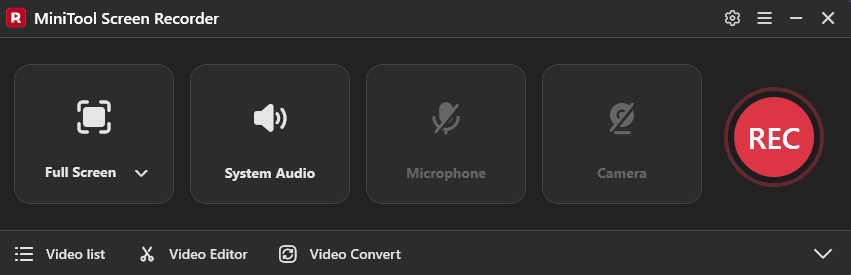
MiniTool Screen Recorder is the first tool recommended for recording TikTok videos. As a professional screen recorder for Windows, it balances powerful features with ease of use, making it suitable for both beginners and experienced users. Below are its key features for TikTok recording.
Flexible Recording Options.
MiniTool Screen Recorder supports full-screen recording, custom recording areas, and webcam recording, allowing you to choose the option that best fits your needs. For example, you can customize the recording area to capture only the TikTok video and avoid irrelevant parts of the screen.
In addition, the recorder lets you decide whether to include your voice in the recording. If you only want to capture the original TikTok video, make sure the system audio is turned on. For commentary or reaction videos, you can record the screen and webcam with microphone input enabled.
Customizable Recording Settings.
MiniTool Screen Recorder provides adjustable settings such as video frame rate, video quality, and recording duration. With support for up to 50 FPS and high video quality, the recorded videos remain smooth and clear. You can also preset the recording duration, which is useful for longer recording tasks.
Additional Features.
Beyond basic recording, MiniTool Screen Recorder includes practical annotation tools, such as pens, shapes, step numbers, and a whiteboard tool, making it easier to add notes during recording. It also supports 4K recording without watermarks, ensuring a clean and professional output.
Pros:
- Intuitive interface without steep learning curve.
- Customizable recording area and flexible audio selection.
- Adjustable frame rate, video quality, and recording duration.
- Record up to 4K resolution without watermarks.
- Saves recordings in MP4 format with no time limits.
Cons:
- Available only on Windows.
How to Record TikTok Videos Using MiniTool Screen Recorder
Follow the steps below to record TikTok videos with MiniTool Screen Recorder.
Step 1: Download and Install
Click the button below to download MiniTool Screen Recorder. Then, follow the on-screen instructions to complete the installation.
MiniTool Screen RecorderClick to Download100%Clean & Safe
Step 2: Select the Recording Area
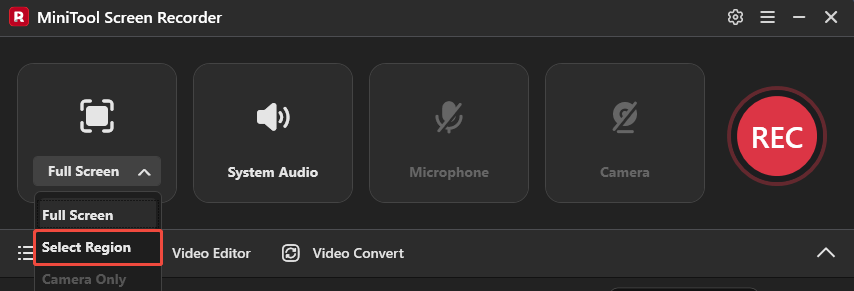
Go to the TikTok website and open the video you want to record. Then, launch the free screen recorder. Click the Full Screen drop-down menu and choose Select Region. Drag your mouse to define the recording area and capture only the TikTok video.
Step 3: Check Audio Settings
By default, both system audio and microphone input are enabled. If you only want to record TikTok audio, click the Microphone icon to turn it off.
Step 4: Adjust Other Settings
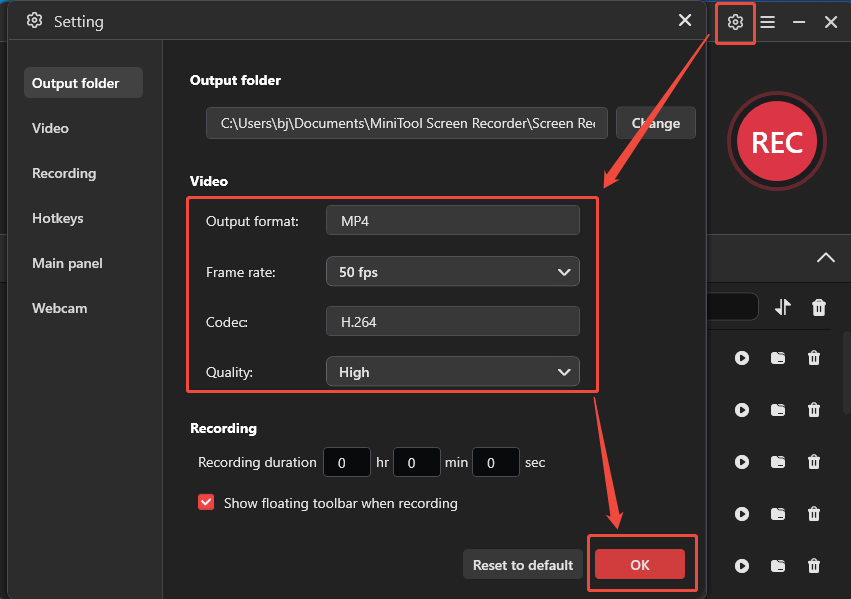
Click the Gear icon in the upper-right corner to open the settings window. Here, you can choose a frame rate, including 15, 20, 25, 30, and 50 FPS, and adjust video quality to Standard, Original, or High.
For smoother playback and clearer visuals, it’s recommended to select 50 FPS and High quality. Then, click OK to save your changes.
Step 5: Start and Stop Recording
Click REC on the main interface or press the default F6 key to start recording. After a 3-second countdown ends, play the TikTok video from the beginning to ensure the full video is captured.
Press F9 to pause or resume the recording if you want to skip unwanted parts. To stop recording, press F6 again.
Step 6: Check and Locate the Recording
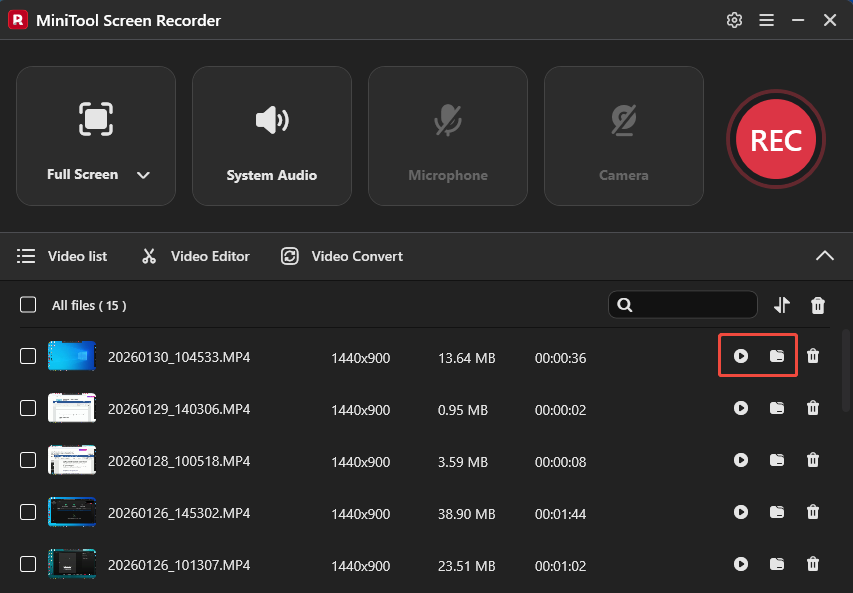
Once the recording stops, the latest video will appear at the top of the video list module in the main interface. Click the Play icon to preview it, or click the Folder icon to open the file location on your computer.
It’s easier to record TikTok videos with MiniTool Screen Recorder than you might think.
2. Xbox Game Bar
Xbox Game Bar is a built-in Windows tool designed for game recording. It allows users to capture screenshots and record gameplay or application windows using simple keyboard shortcuts. Thanks to its lightweight design and ease of use, Xbox Game Bar can also be used as a TikTok recorder.
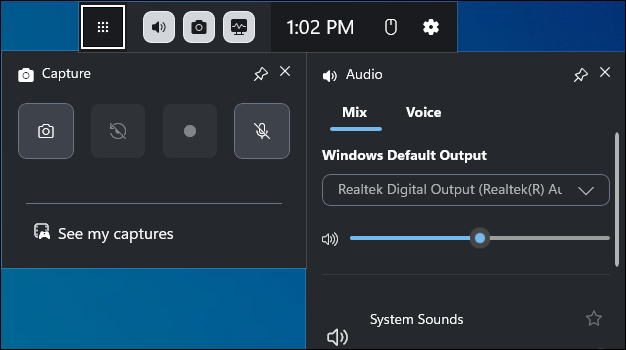
Xbox Game Bar automatically detects the active recording window and does not require manual selection of a recording area. It also lets you adjust the TikTok video audio, system sound, and microphone volume separately while recording.
In addition, users can customize recording settings such as frame rate and video quality. Xbox Game Bar can record at 30 FPS and 60 FPS, along with Standard and High video quality options.
Pros:
- Built-in Windows screen recorder with no installation required.
- Simple interface and easy operation.
- Supports basic customization for audio, frame rate, and video quality.
Cons:
- Does not support recording a specific region of the screen.
- Recording length is limited to a maximum of 4 hours.
3. OBS Studio
OBS Studio is a free, open-source program for screen recording and live streaming. It works on Windows, macOS, and Linux. With support for multiple capture sources, such as application windows, browser content, webcams, and images, it can be used to record TikTok videos on a computer.
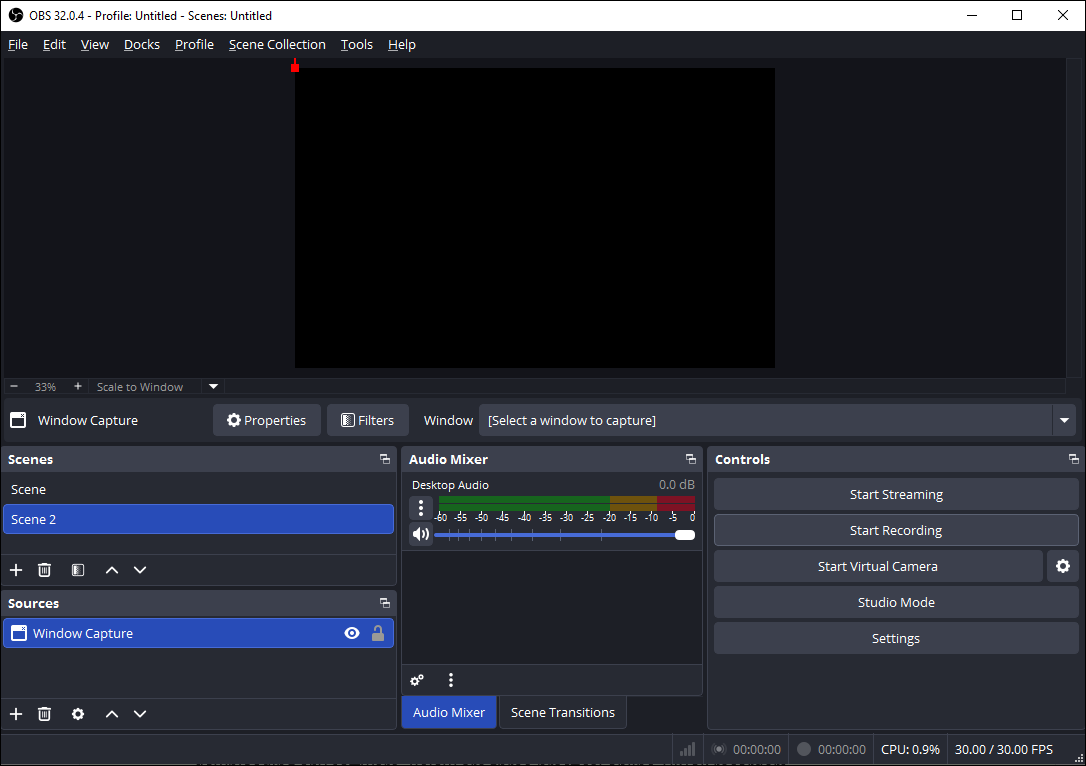
OBS Studio stands out for its advanced audio control and highly customizable settings. It features a built-in audio mixer that lets you manage TikTok audio and microphone input separately, with optional filters like noise suppression. You can also fine-tune recording parameters, including format, frame rate, resolution, and video quality.
Pros:
- Free and open source.
- Cross-platform support.
- Powerful and flexible recording options.
Cons:
- Steep learning curve for beginners.
Top 3 Online TikTok Recorders
Online TikTok recorders are popular since they can be used directly in a browser without downloading any software. Below are three practical online TikTok recorders.
1. ScreenApp
ScreenApp is an all-in-one online screen recorder that allows you to record TikTok videos and TikTok live streams directly. It supports screen and audio recording simultaneously and delivers recordings in high quality, up to 4K, without watermarks.
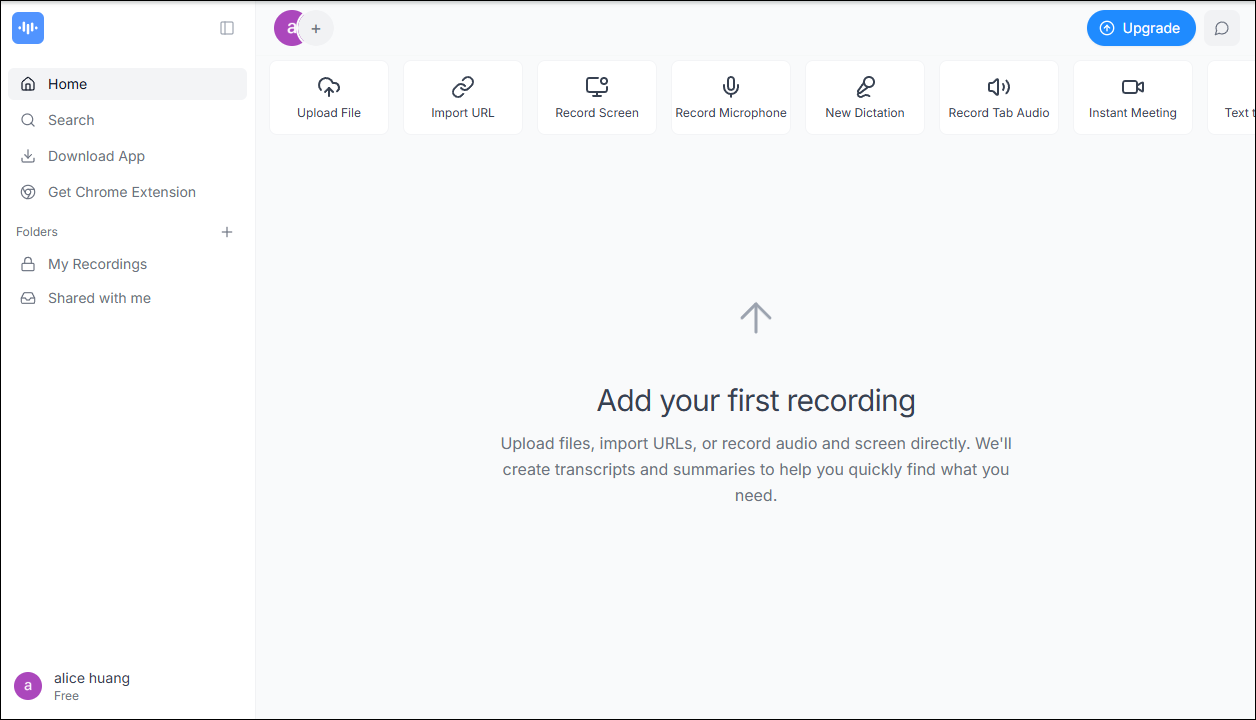
ScreenApp supports recording a browser tab, window, or the entire screen. For TikTok videos, choosing the specific TikTok tab helps produce cleaner and clearer recordings. After recording, it provides additional features such as AI-generated summaries and audio-to-text transcription.
The recorded video can be shared instantly with others via a link. In addition to the web version, ScreenApp also offers a Chrome extension and a desktop app to meet different recording needs.
Pros:
- Easy to use.
- Intuitive interface.
Cons:
- The free plan only allows up to 3 recordings.
- Does not support selecting a custom recording area.
2. Snipclip
Snipclip is a web-based screen recorder that can be used to record TikTok videos directly from a browser without a login. With a clean and straightforward interface, it allows you to record the screen and webcam together or separately, which is useful for creating TikTok reaction or commentary videos.
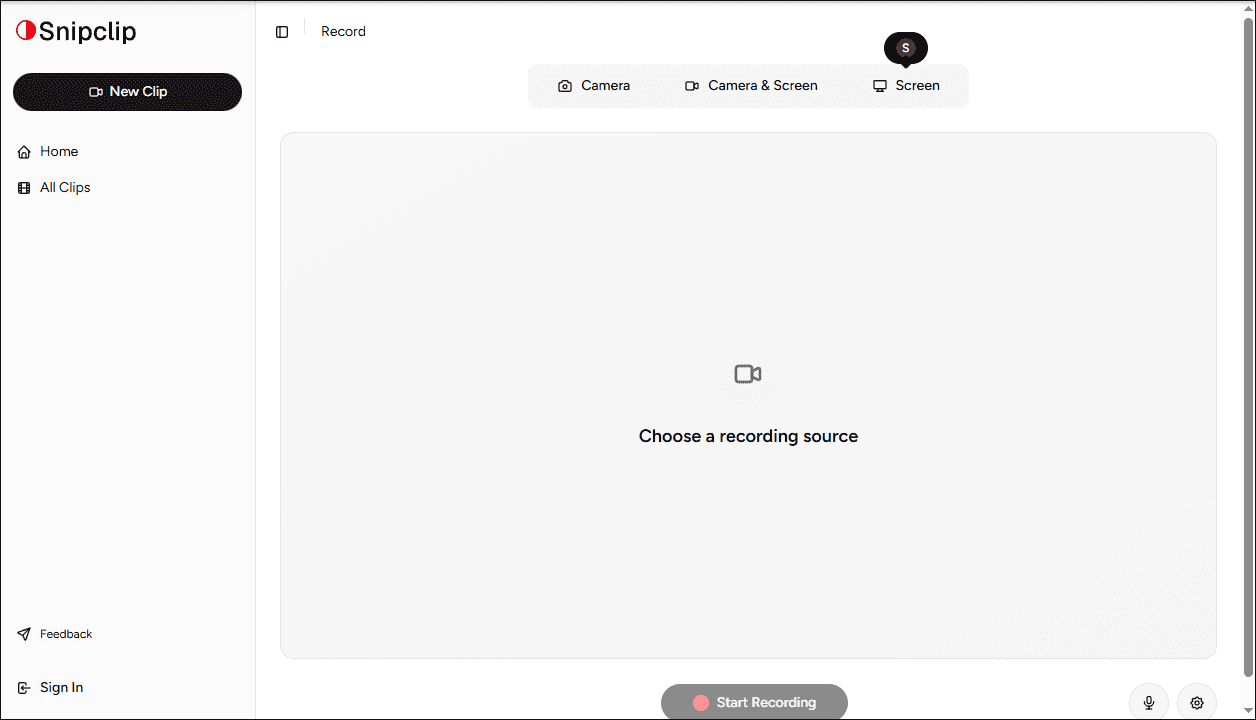
Snipclip supports recordings in up to 4K resolution without time limits or watermarks. After recording, you can download the video to your device in WEBM format. However, if you want to edit the recording online, a paid subscription is required.
Pros:
- No login or installation required.
- Suitable for quick TikTok screen recording in a browser.
- Supports up to 4K recording without watermarks.
Cons:
- Does not support selecting a custom recording area.
- Online editing features require a paid account.
3. VEED.IO
VEED.IO is a versatile online screen recorder and video editor that works well for recording TikTok videos. It offers several recording modes, suitable for different needs. For instance, the screen mode is ideal for recording TikTok videos or live streams. Audio-only mode works well if you want to save music or sound from a TikTok video without recording visuals.
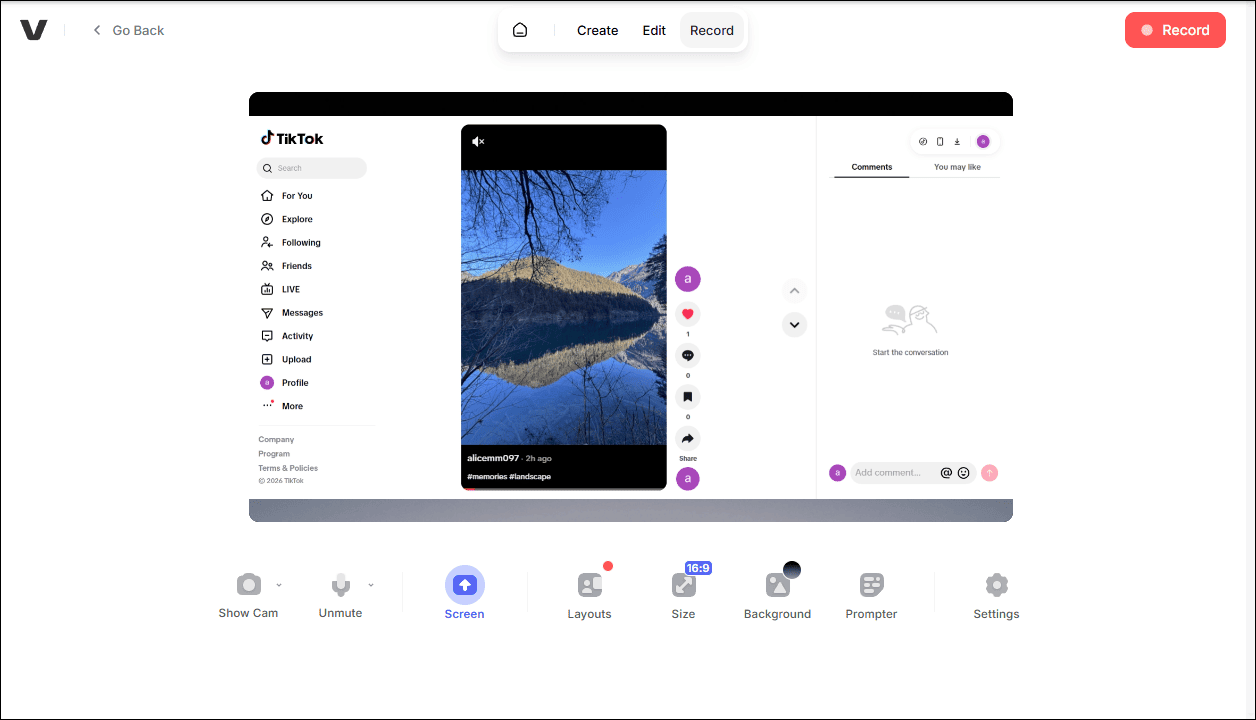
In addition, VEED.IO offers useful creator-focused features such as scene switching, virtual backgrounds, and a built-in teleprompter for reading scripts while recording. For recording quality, you can choose between standard and high resolution.
However, VEED.IO limits the maximum recording length to 60 minutes for all plans. In addition, recordings made with the free plan will include a watermark.
Pros:
- Includes basic creator tools like a teleprompter.
- Adjustable video quality settings.
Cons:
- Recording length is limited to 60 minutes.
- Free plan includes a watermark.
Bonus: How to Edit the TikTok Recording
After recording a TikTok video, you may want to remove unnecessary parts at the beginning or end. In this case, trimming the recording is a simple and practical solution. MiniTool MovieMaker is a recommended tool that helps you quickly cut unwanted segments. You can click the button below to download it.
MiniTool MovieMakerClick to Download100%Clean & Safe
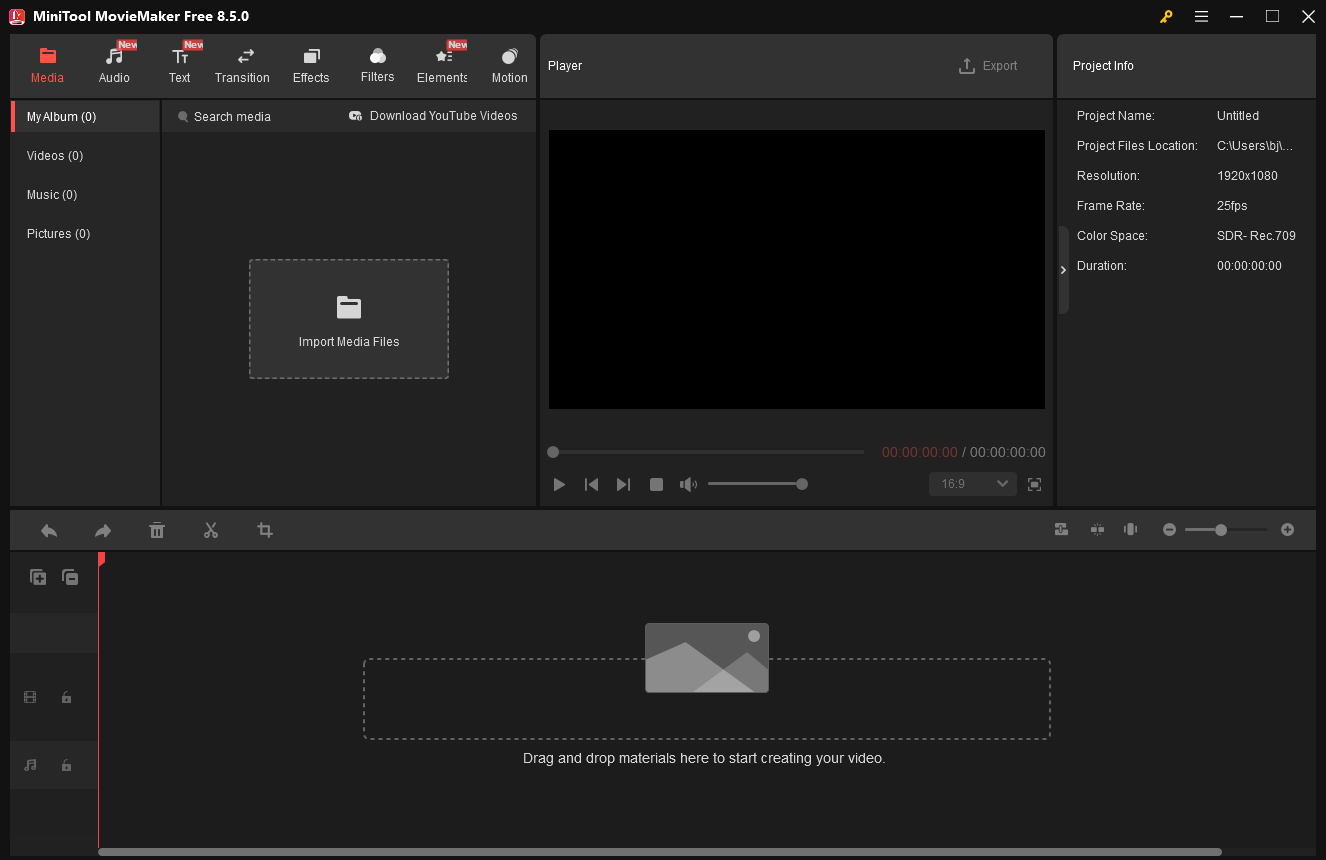
MiniTool MovieMaker provides essential editing tools such as trimming, cutting, rotating, and splitting videos without adding watermarks. For recordings split into multiple clips due to recording time limits, it also allows you to merge the clips into a single video.
In addition, MiniTool MovieMaker offers a wide range of built-in resources, including text templates, music, elements, filters, and transitions, helping you refine your TikTok recordings and make them more polished and stunning.
Conclusion
Recording TikTok videos is a practical solution when you want to save content for offline viewing, sharing, or reference, but downloads are unavailable.
This post introduces six practical TikTok recorders, including desktop and browser-based tools, to help you capture TikTok videos smoothly with good audio and video quality. Each option has its own strengths and limitations, so you can choose the one that best fits your recording needs and usage scenarios.
If you have any questions or suggestions about MiniTool Screen Recorder and MiniTool MovieMaker, please don’t hesitate to email us at support@minitool.com.