

This post explains how to record audio from websites using MiniTool Screen Recorder, Audacity, and Windows 11’s built-in Sound Recorder. Use these applications to download music, lectures, and other audio content from any site for offline enjoyment.
Why Record Audio from Websites
Generally speaking, people capture audio from websites for learning, offline listening, and other personal uses. For example, download pronunciation or conversations to learn a language, save talks or online courses to review later, record podcasts or streaming music to listen offline, etc.
With the right streaming audio recorder, you can grab audio from online platforms with a few clicks. This post offers three simple and free solutions. Similarly, you can easily record all the internal audio from your computer with the following methods.
How to Record Audio from Websites with MiniTool Screen Recorder
MiniTool Screen Recorder allows you to record your entire screen, specific application windows, or a custom region with ease. It’s also endowed with the ability to capture system audio and microphone input.
If you need to record your screen with audio, MiniTool Screen Recorder won’t let you down. With the extensive screen annotation tools, you can add shapes, step numbers, text, and more during recording to emphasize key information.
Additionally, MiniTool Screen Recorder allows you to add a camera overlay to record yourself on screen, making it easier to create engaging videos. Best of all, this program is easy to use and has no time limits or watermarks.
How to record audio from websites using MiniTool Screen Recorder? Here are the steps.
Step 1: Download & Install
Click the button below to download the excellent screen recorder to your computer.
MiniTool Screen RecorderClick to Download100%Clean & Safe
Then, open the file and follow the prompts to install the software.
Step 2: Check Audio Settings
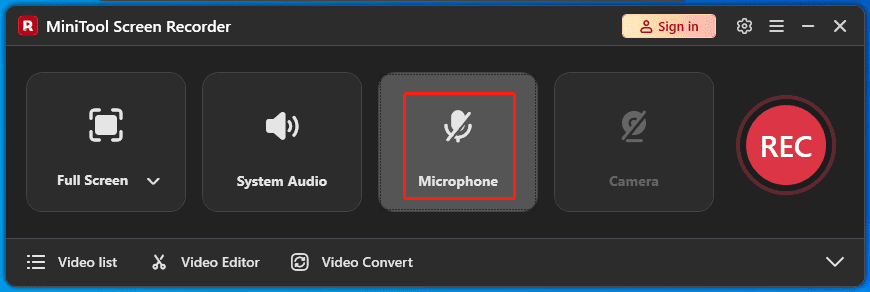
Launch the program, and you’ll see the main interface of MiniTool Screen Recorder. By default, your computer audio and microphone (If it’s plugged into your PC) will be captured simultaneously.
If you don’t need to add a voiceover or want to record audio from the website without distractions, click Microphone to turn it off.
Step 3: Schedule the Recording (Optional)
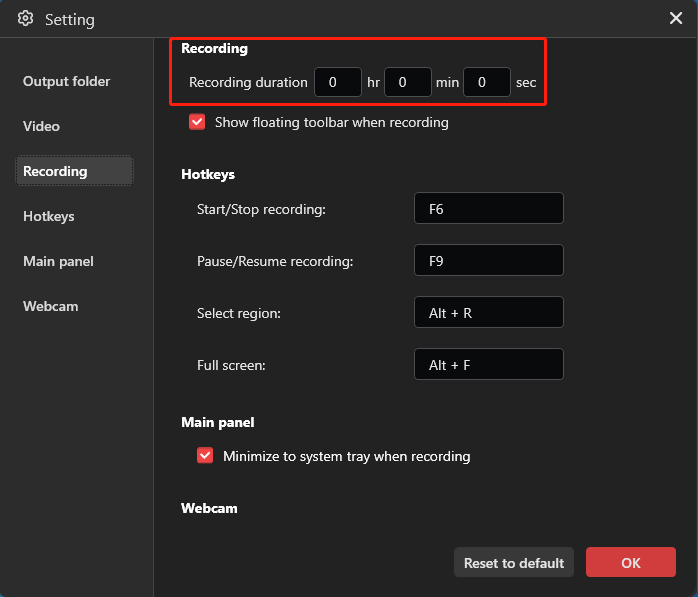
If you have a long recording, set a duration to stop it automatically at the end. Click the Gear icon in the upper-right corner to open Settings, go to Recording, set your recording duration, and click OK.
Step 4: Start Recording
Open your browser and go to the target website where you want to record audio. Also, mute other tabs you don’t need to capture.
Click the red REC button on the right of the main interface or press F6, and the recording begins after a 3-second countdown. Then, go to the website and play the content for recording. During recording, you can press F9 to pause or resume the process if you do not wish to record a certain part.
Step 5: Stop and Check the Recording
The recording will stop automatically after the preset duration is reached. You can also press F6 to end the recording.
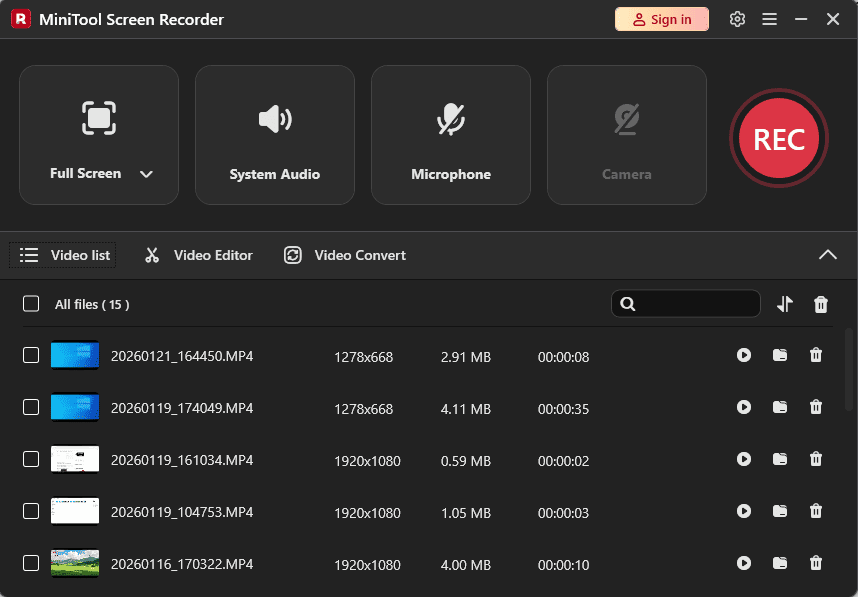
The recording will be saved as an MP4 file and appear at the top of the Video list section. From there, you can play or locate it on your computer.
Step 6: Extract Audio from MP4
MP4 is a popular video format that is supported by most media players and modern devices. Therefore, you can easily play the file to listen to the recorded audio on your device.
If you still want to extract audio from the MP4 file, use MiniTool Video Converter, a free video and audio converter. The software can handle a wide range of media formats and allows you extract audio from videos.
1. Install the software
Click the button below to download and install the MP4 to audio converter on your computer.
MiniTool Video ConverterClick to Download100%Clean & Safe
2. Upload your MP4 file
Run the application, click the Add Files option at the top to add the MP4 file from your computer.
3. Choose an audio format
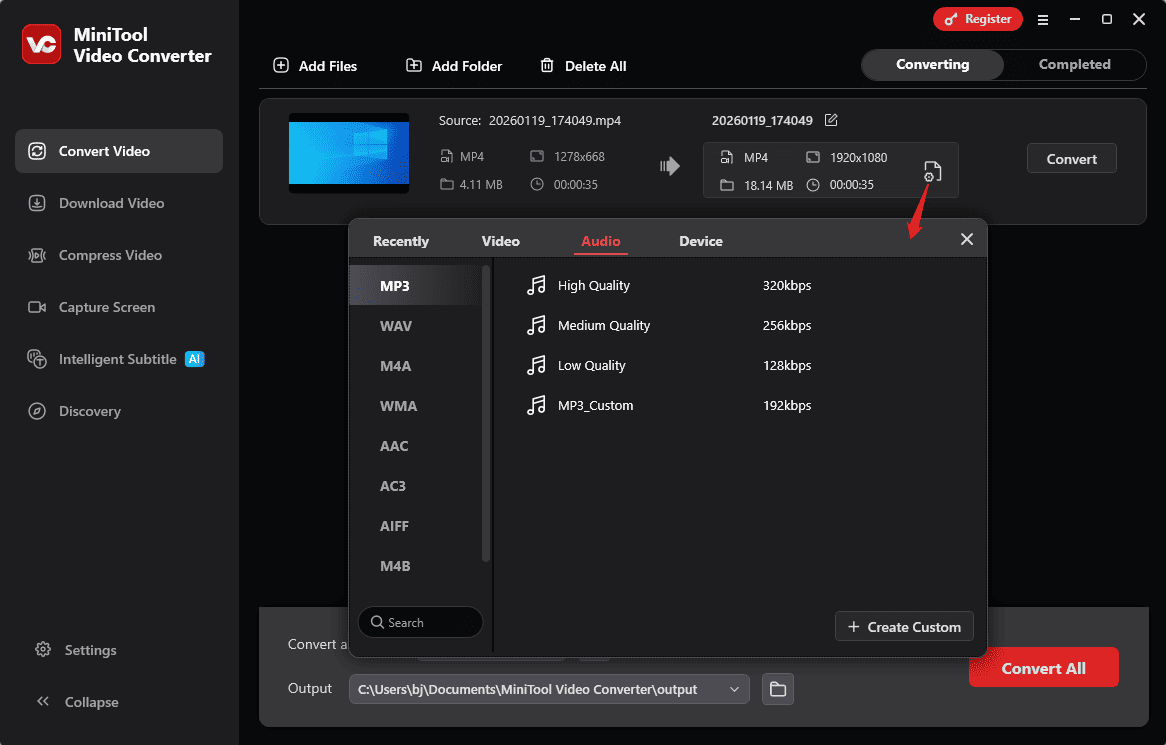
Click the Edit icon in the target file section, select Audio from the pop-up window, choose an output format like MP3 from the left sidebar, and click the option with your desired quality.
4. Start conversion
Click the Convert button to start converting the MP4 file to audio. Once done, you’ll be directed to the Completed tab, and your audio file appears at the top of the list.
How to Record Audio from Websites with Audacity
Audacity is a free and open-source audio recording and editing application. It allows you to record computer audio and microphone sounds with high quality and exports them as MP3, WAV, FLAC, or other audio formats.
Here’s how to record audio from a website using Audacity.
Step 1: Install the Software
Navigate to the Audacity website to download the application and complete the installation.
Step 2: Configure Audio Settings
Click Edit in the upper-left corner of the main interface and choose Preferences at the bottom from the dropdown to open Audio Settings. Then, you need to:
- Set the Host: Change the Host to Windows WASAPI. It’s Microsoft’s newest audio interface, best for low latency and high audio quality.
- Choose Playback Device: Expand the Device menu and select the computer audio output device you are listening to.
- Select Recording Device: Set the recording device to the same playback device with loopback.
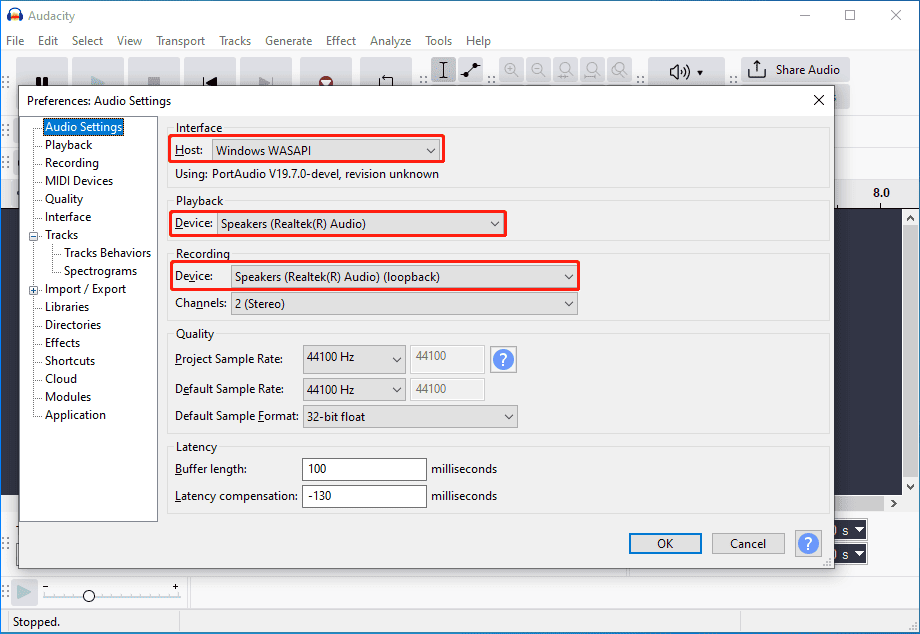
You can also adjust the sample rate to control the recording quality. Click OK to save changes.
Step 3: Record Audio from the Website
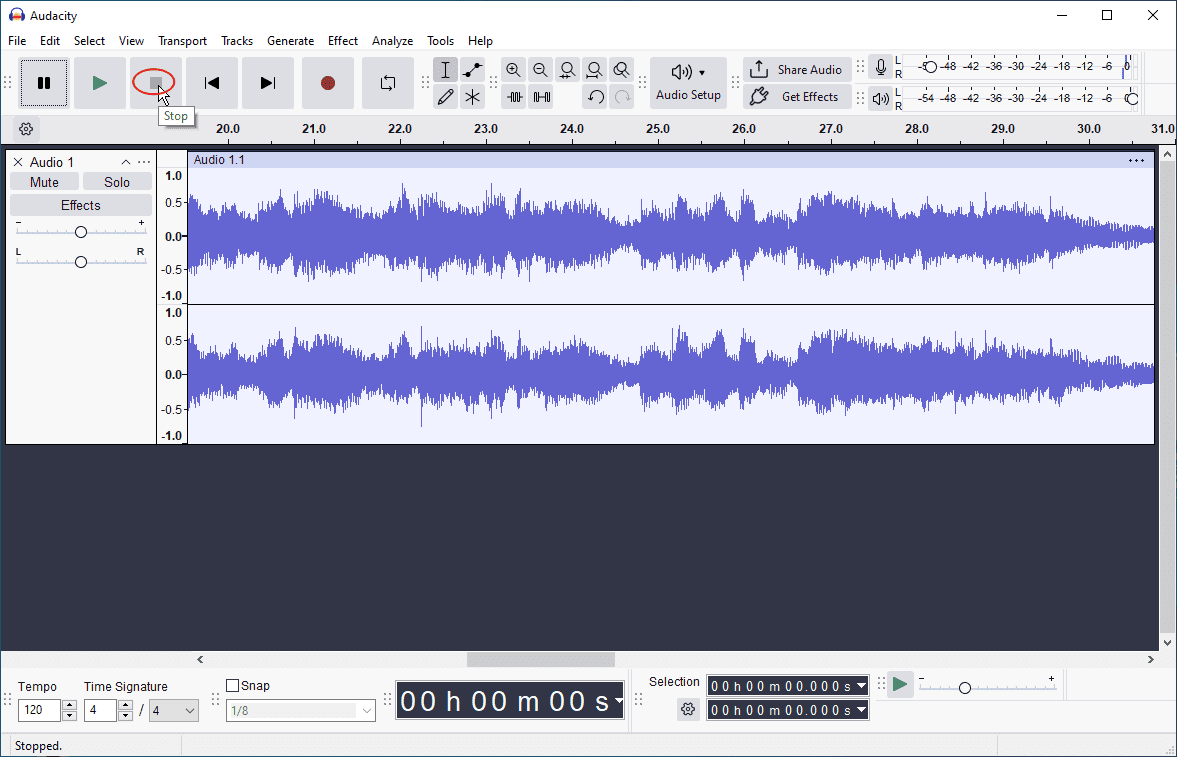
Click the red Record button at the top to start recording and go to the website to play the audio. To end the recording, click the Stop icon at the top.
Step 4: Export Audio
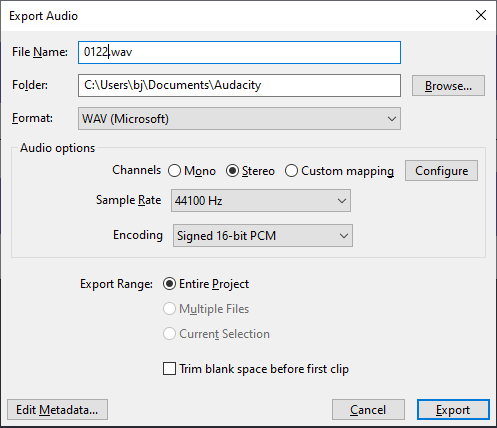
Select File in the top left corner and click Export Audio. You can then give the file a name, change the output folder, choose a format, and adjust the sample rate in the Export Audio window. Click Export to save the audio file to your computer.
How to Record Audio from Websites with Windows 11’s Sound Recorder
Windows 11’s Sound Recorder (Voice Recorder on Windows 10) is a simple audio recording app. You can also download audio from websites using this tool.
Step 1: Enable Stereo Mix
- Right-click the Speaker icon at the bottom of your screen and select Sound Settings.
- Scroll down to the Advanced section and click More sound settings.
- In the Sound dialogue, go to Recording.
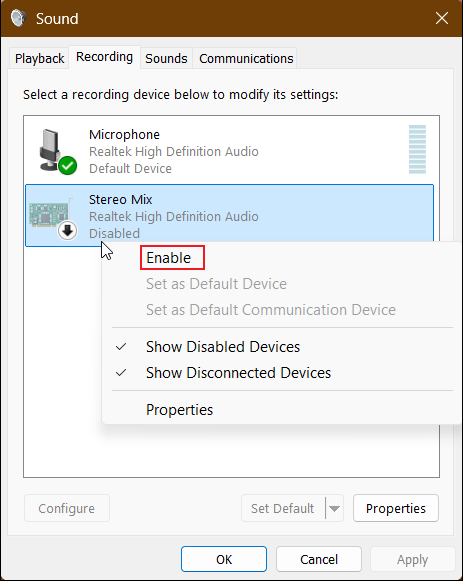
- Right-click the blank area and choose Show Disabled Devices.
- Right-click Stereo Mix and select Enable.
- Click OK.
Step 2: Open Sound Recorder
Click the Search box, type “sound recorder”, and open the app.
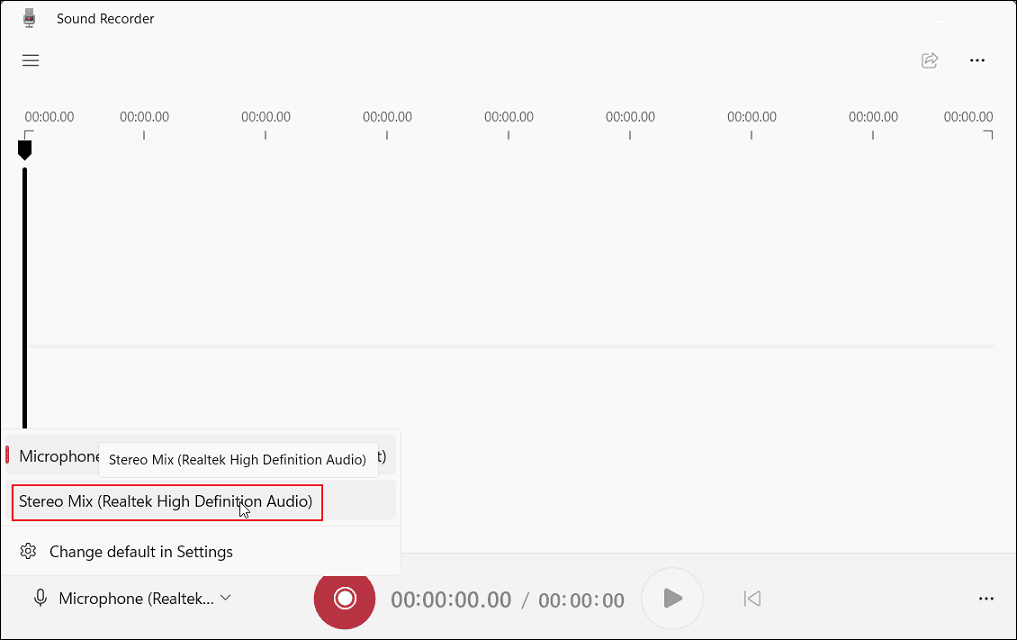
Step 3: Set Stereo Mix to the Recording Device
Click the arrow next to the Microphone option at the bottom and click Stereo Mix (Realtek High Definition Audio).
Step 4: Start and Stop Recording
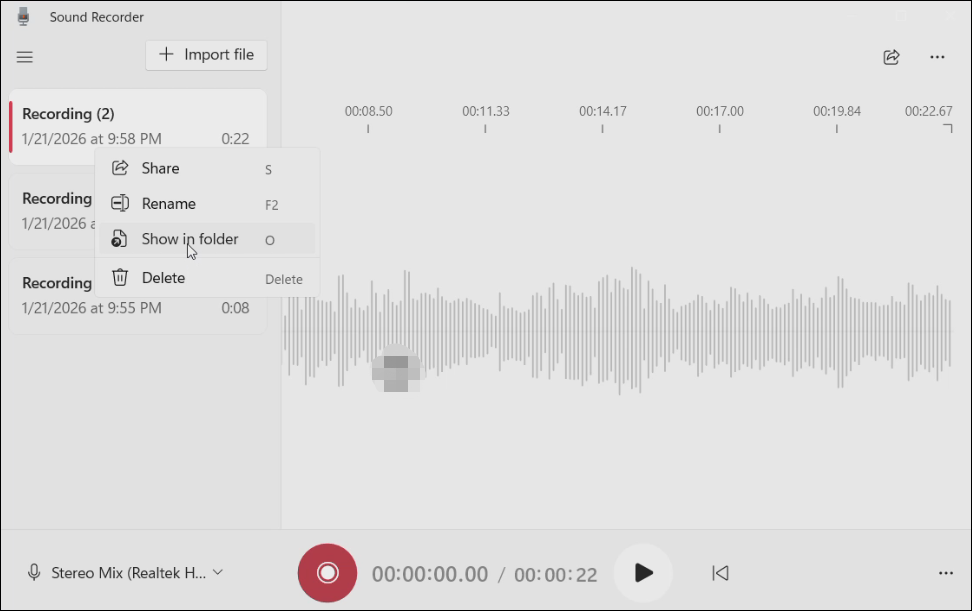
Click the red Record button to initiate the recording. To stop it, click the Stop recording icon at the bottom. After that, right-click the recording and select Show in folder to locate the audio (an M4A file).
Conclusion
It’s easy to record audio from websites. It’s your turn now! Follow the steps above to grab audio from your browser tab for offline listening.
If you encounter problems while using MiniTool Screen Recorder or MiniTool Video Converter, please email us at support@minitool.com for help.