

This post shows you how to convert cassette to MP3 using your computer and screen recording software – MiniTool Screen Recorder. It also compiles a list of USB cassette to MP3 converters for seamless audio conversion.
Cassette tapes were primarily used for audio recording, music distribution, and playback in the late 70s and 80s. Then, it was replaced by CDs and digital formats in the early 2000s. If you still have some old cassette tapes, converting them to digital formats like MP3 is the best way to preserve and review your childhood recordings and classic songs.
Therefore, this post covers 2 effective methods to convert cassette to MP3:
- Method 1: Use a Cassette Deck and a Computer
- Method 2: Use a USB Cassette Converter
How to Convert Cassette to MP3 via a Deck
To convert a cassette tape to MP3 format on a computer, first, connect a cassette player to your computer using an audio cable, and use a free application to record the music. Finally, edit and export it as an MP3. Here is the complete guide.
Step 1: Gather Equipment
To convert cassette tape to MP3, you need:
- A cassette deck – that’s the player of your tape.
- A computer – a laptop, or a desktop.
- An audio interface that can convert the analog signal from your tape deck into a pristine digital signal for your computer, which ensures high sound quality.
- A cable – used to connect your tape deck and the audio interface.
- A desktop application like MiniTool Screen Recorder can record computer audio together with the screen in high quality.
Step 2: Connect the Cassette Player's Audio Output to Your Computer
- Find your cassette tape and clean it by removing dust and dirt to ensure good sound quality for both playback and recording. Then, clean the playback head for clear audio and insert your cassette into the deck.
- Connect your tape deck's line out or headphone jack to the input of your USB audio interface using your cable.
- Plug the USB audio interface into your computer’s line-in port or microphone.
Step 3: Adjust Computer Volume
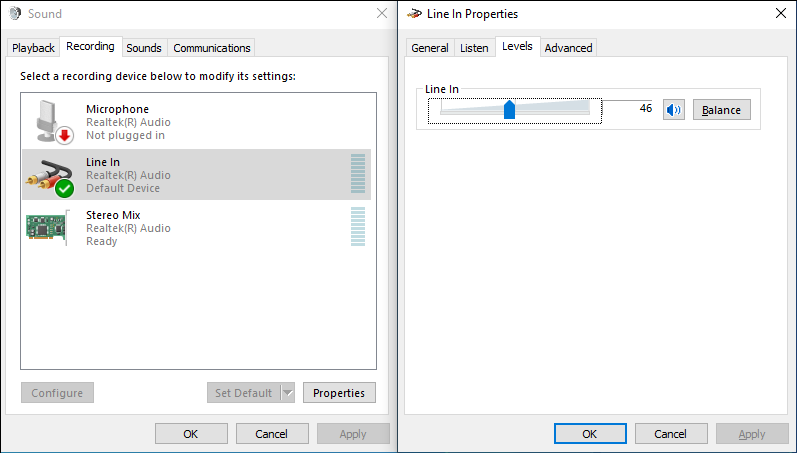
- Adjust your computer's sound levels to ensure a clear recording.
- Right-click the Speaker icon at the bottom of your screen and select Sound Settings.
- Scroll down to the Advanced section and click More sound settings.
- In the Sound dialogue, go to Recording.
- Double-click your cassette deck's input and go to the Levels tab.
- Drag the slider to decrease or increase the volume.
- Click OK to save changes.
Step 4: Install MiniTool Screen Recorder
It’s a free screen and webcam recording program that can capture your desktop, camera, system audio, and microphone. It also provides various screen annotation tools to make engaging tutorials.
Click the button below to download the software. Then, install the cassette to MP3 converter on your computer.
MiniTool Screen RecorderClick to Download100%Clean & Safe
Step 5: Configure Audio Recording
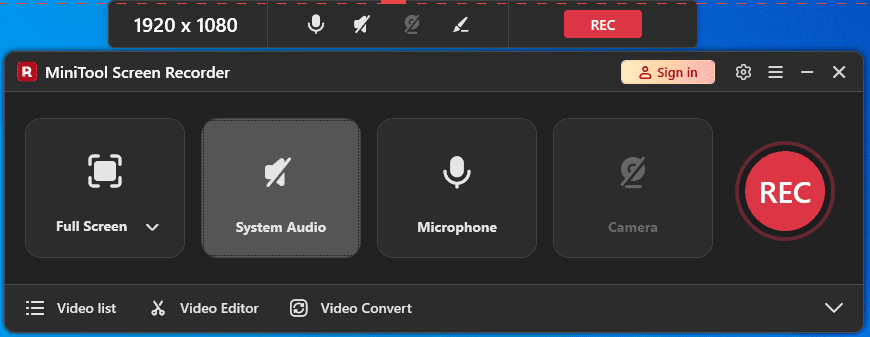
Launch MiniTool Screen Recorder. On the main interface, you’ll find that System Audio and Microphone are both enabled by default. To record the signal from your tape clearly without distractions, mute System Audio to stop capturing any audio playing from your current tabs.
Step 6: Set a Recording Duration
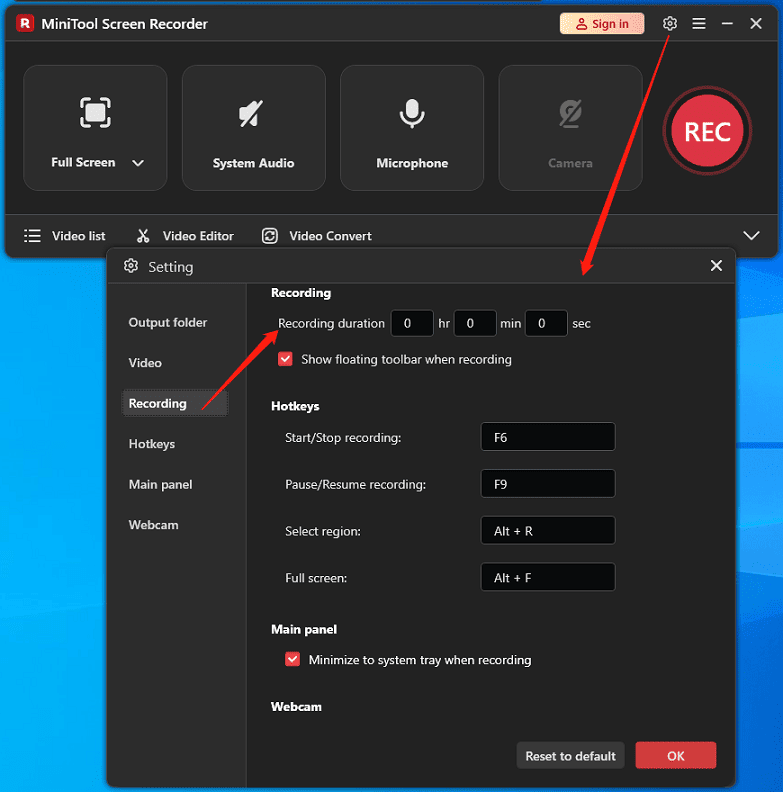
If you want to record a long tape, you don't need to stay in front of the screen waiting to stop the recording manually. This application lets you set long recordings to stop automatically. Click the Settings icon in the upper-right corner, go to Recording, set your recording duration, and click OK.
Step 7: Start and Stop Recording
Click the red REC button, and the recording will start after a 3-second countdown. Then, turn on the tape deck to play the audio cassette, and the music or audio from the tapes will be captured. To manually end the recording, press F6 or your own hotkey.
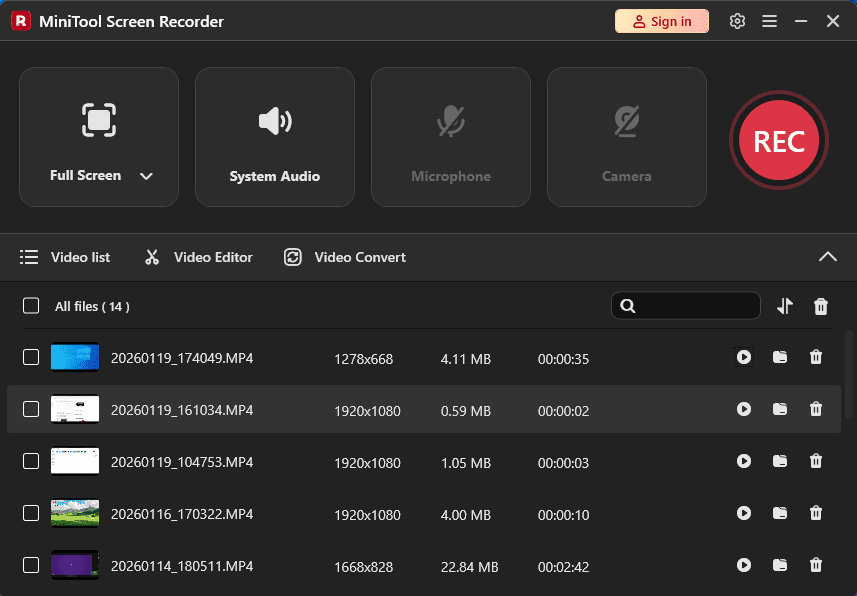
Finally, you’ll get an MP4 file at the top of the Video list. You can then play the file or locate it on your computer. MP4 is the most widely used media format and is accepted by most software media players and devices, making it easy to enjoy music or audio from your old tape.
Step 8: Extract and Edit
To turn your cassette tape into an MP3 (audio-only) file, use MiniTool MovieMaker to edit and convert the MP4 file to MP3.
1. Run the software
Click the button below to download and install the application.
MiniTool MovieMakerClick to Download100%Clean & Safe
Then, open it on your PC and close the pop-up window to access the main interface.
2. Upload the MP4 file you just recorded
Click Import Media Files to navigate to the target folder and add your MP4 file. Then, drag it to the timeline.
3. Trim the Recording
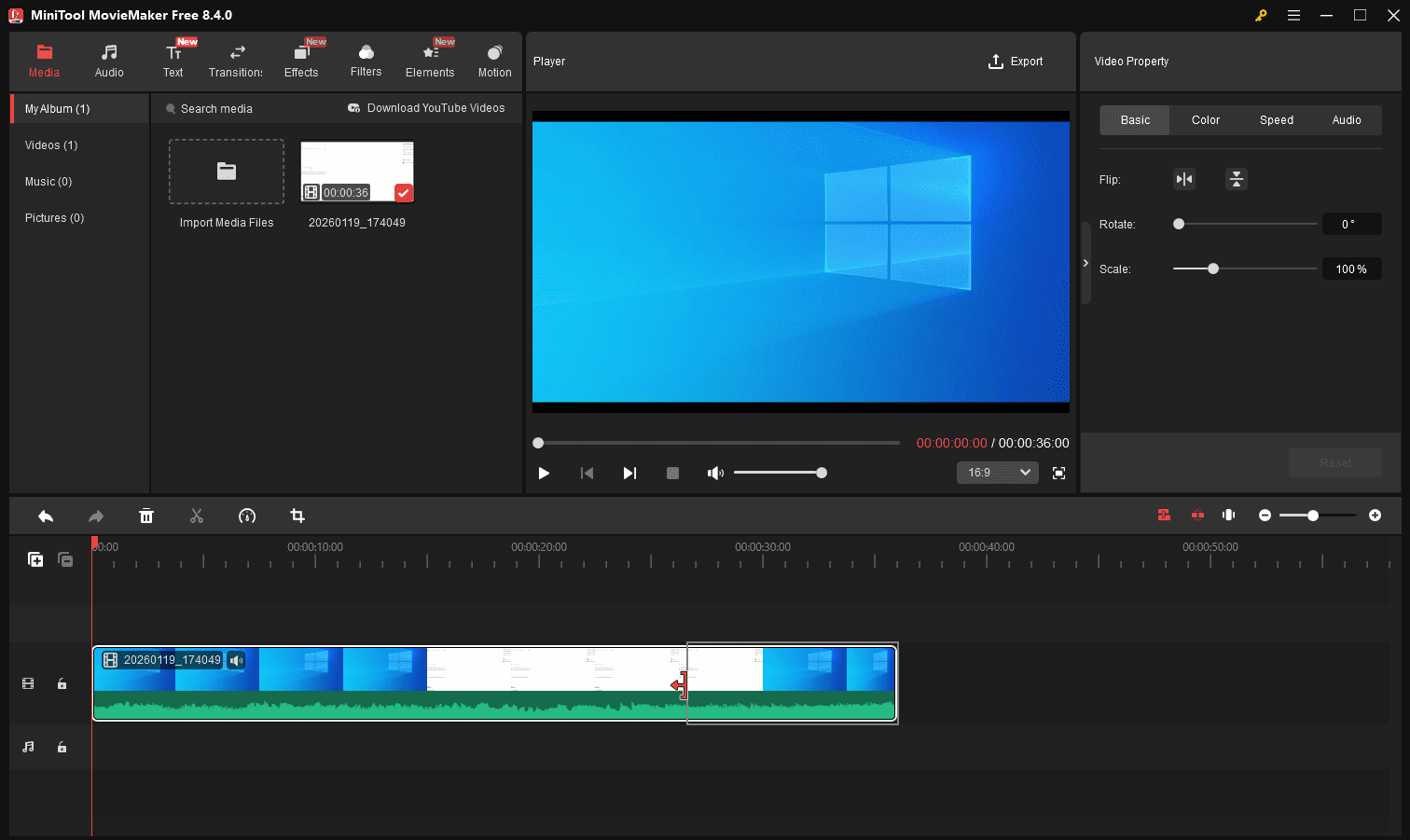
Hover the mouse cursor over the start or end of the clip on the timeline until you see the Trim icon, then drag the icon inward to delete unwanted parts at the beginning or end of the audio.
4. Export the Cassette Recording as MP3
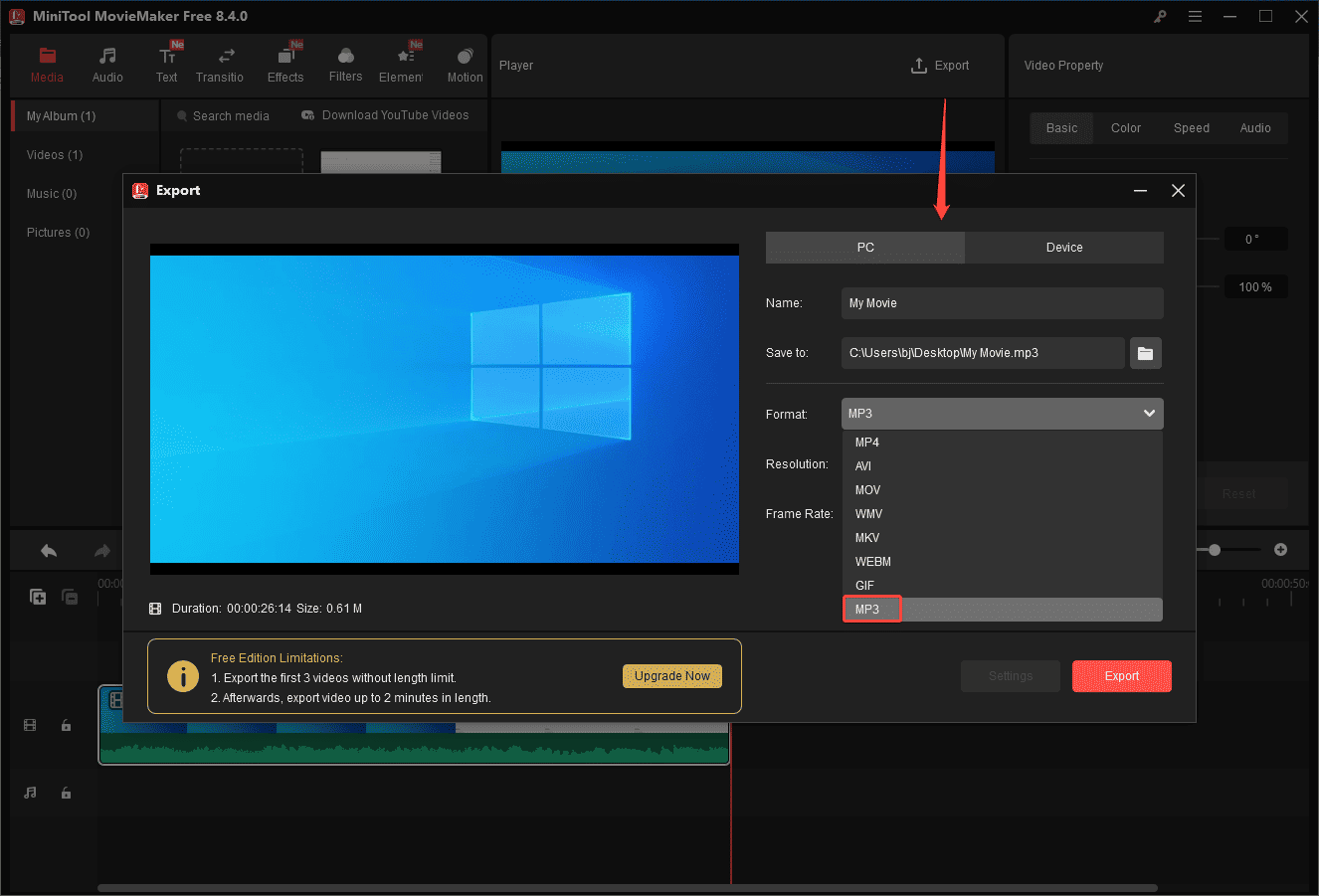
Click Export in the upper-right corner, then expand the Format menu in the Export window, and click MP3 from the Format dropdown. Then, give the audio file a name and specify the save path. Finally, click the Export button.
Standalone USB Cassette to MP3 Converters
A dedicated USB cassette to MP3 converter can play tapes and save the digital audio directly to a USB drive. However, some devices still require a computer connection via software like MiniTool Screen Recorder for capturing audio.
With the following devices, you can easily convert cassette to MP3 and share old memories via a modern format.
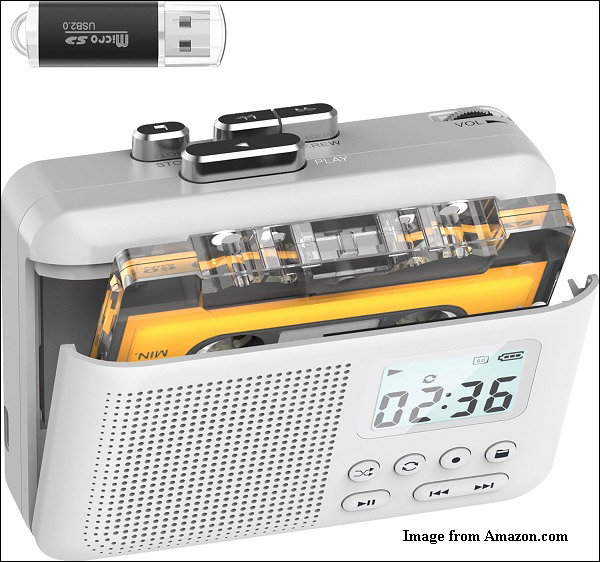
Gracioso Tape Recorder
If you’re seeking a cassette to MP3 converter, Gracioso Tape Recorder is a reliable choice. With the built-in high-sensitivity microphone, it’s able to record music from tapes directly to the SD card with good quality.
Reshow Cassette Tape Player
As a classic cassette tape player, this device provides smooth playback with high-quality magnetic heads and lets you quickly locate favorite songs via fast forward and rewind functions.
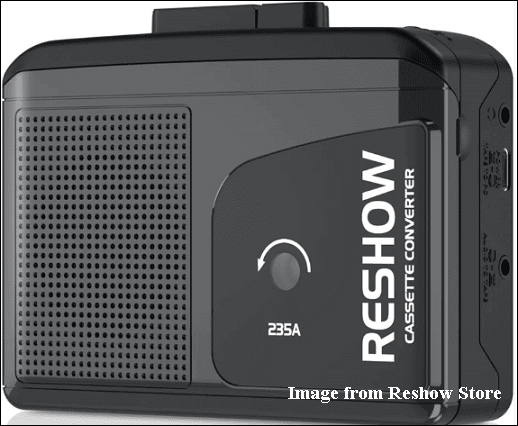
To convert your cassette tape to MP3 with this device, connect it to your computer using the included USB cable, then use a recorder to capture the audio. With an AUX cable, you can also record external audio.
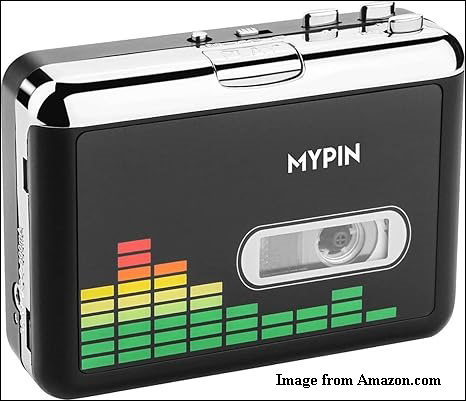
MYPIN Cassette to MP3 Converter
This device allows you to convert cassette to MP3 without a computer required. It can capture your tape onto a USB drive, and then you can share the file anywhere for easy playback. During recording, it also enables you to adjust the volume.
However, these portable cassette players usually cost some money. If you’re on a budget, consider the previous solution.
Conclusion
Whether you use a deck and connect it to your PC or choose a portable cassette to MP3 converter to digitize your tapes, you can easily transform them into MP3 files for better preservation and to enjoy your favorite old music on modern devices.
If you have any questions while using MiniTool Screen Recorder, please email us at support@minitool.com for help.