

This post introduces 5 reliable MP4 audio recorders, including MiniTool Screen Recorder, Xbox Game Bar, Snipping Tool, Clipchamp, and Bandicam, along with detailed steps for saving recordings in MP4 format.
What Is an MP4 Audio Recorder
We generally think of MP4 as a video format compatible with various video players, converters, and recording software, but it can also serve as an audio container. The MP4 audio recorder discussed in this article is an application that simultaneously records screen activity and audio, saving the output in MP4 format. Here are five MP4 sound recorders I have tested and selected that are worth trying.
- MiniTool Screen Recorder
- Xbox Game Bar
- Snipping Tool
- Clipchamp
- Bandicam
Additionally, to make the selection process easier, a feature comparison table is also provided below.
| Tool | Audio Recording | Flexible Recording Options | Webcam Recording |
| MiniTool Screen Recorder | Yes | Yes | Yes |
| Xbox Game Bar | Yes | No | No |
| Snipping Tool | Yes | Yes | No |
| Clipchamp | Yes | Yes | Yes |
| Bandicam | Yes | Yes | Yes |
5 Best MP4 Audio Recorders
I understand that users have diverse needs when choosing an MP4 voice recorder. Some prioritize ease of use, others focus on recording quality, while some prefer an all-in-one workflow that combines recording and editing. The five tools I introduced below cover a wide range of use cases and recording scenarios.
#1 MiniTool Screen Recorder
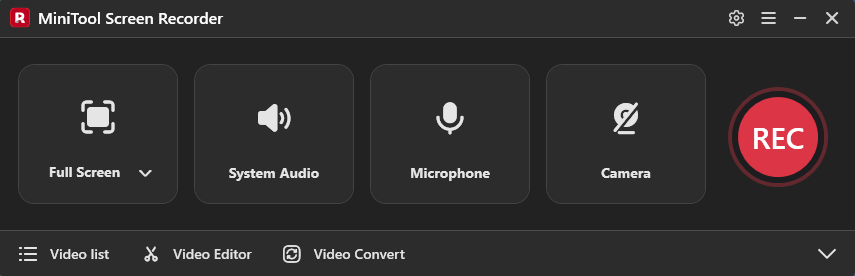
MiniTool Screen Recorder is a free MP4 audio recorder designed for Windows users. It supports recording the full screen, specific regions, windows, and webcam feeds, while simultaneously capturing system audio and microphone. Additionally, the software supports multi-monitor recording, catering to a variety of recording scenarios.
Notably, this tool features built-in annotation tools that make it easy to highlight key information in real-time during recording. It also includes a scheduled recording function that automatically stops the recording at a preset time, preventing excessively long recordings caused by forgetting to stop manually.
| Pros | Cons |
| 1. Free to use. 2. No ads, watermark, bundles. 3. Support multiple recording modes. 4. Allow to annotate the screen in real time. 5. Support system audio and microphone recording. 6. Allow 4K HD recording. | 1. Only for Windows users. 2. Lack a built-in video editing feature. |
My Take
What impressed me most when I first used MiniTool Screen Recorder was its user-friendly interface. Most features are easy to pick up without complex setup processes. I was initially drawn to its flexible recording options, and in practice, these features proved highly useful for recording online meetings, live streams, video calls, and presentations.
However, users looking to record gameplay might find it somewhat limited, as the maximum supported frame rate is currently 50 FPS. Overall, I think this tool strikes a great balance between ease of use and functionality.
#2 Xbox Game Bar
Unlike MiniTool Screen Recorder, Xbox Game Bar is an MP4 audio recorder installed on Windows systems, so it requires no additional downloads. I frequently use it to record gameplay because it allows for real-time monitoring of performance metrics, such as FPS, CPU, and RAM usage, while recording.
Naturally, Xbox Game Bar offers standard recording capabilities; it supports capturing application windows, system audio, and microphone input, saving the output in MP4 format. Additionally, this tool is relatively lightweight in terms of CPU and RAM, ensuring a smooth recording experience in most scenarios.
| Pros | Cons |
| 1. Easy to use. 2. No watermark. 3. No installation required. 4. Support customizing recording time. 5. Quickly enable through keyboard shortcuts. | 1. Do not support capturing the desktop. 2. No flexible recording area options. 3. The recording time limit is 4 hours. |
My Take
The main reason I chose Xbox Game Bar is its convenience. I can simply press the Windows + G keys to bring up the recording overlay and start capturing the screen immediately. In practice, I’ve found it offers a decent level of customization, such as adjusting recording quality and frame rates, as well as enabling features like "Record the last 30 seconds."
However, the tool cannot directly record the desktop and does not support custom recording areas. Consequently, it may not be the best choice for users requiring greater flexibility in how they record. Overall, though, I believe Xbox Game Bar is an excellent option for Windows users looking to quickly handle basic MP4 recording tasks.
#3 Snipping Tool
Snipping Tool is another application that comes pre-installed with Windows. It was originally designed as a basic screenshot utility, but Microsoft later introduced screen recording capabilities in Windows 11.
Users can choose to capture the entire screen or a selected region, control audio recording settings, and save recordings in MP4 format by default. With its clean and straightforward interface, Snipping Tool is well-suited for basic screen recording tasks.
| Pros | Cons |
| 1. User-friendly interface. 2. No watermark. 3. No installation required. 4. Flexible recording area options supported. 5. Suitable for quick MP4 audio captures. | 1. No webcam recording feature. 2. Limited recording settings. |
My Take
Like Xbox Game Bar, Snipping Tool offers relatively basic recording functionality. However, for users who need more flexible recording options, I consider it a better choice than the former.
During testing, I also found it convenient that recordings can be opened directly in the editing window after capture, allowing for simple adjustments and refinements. As a result, it is particularly suitable for users who need basic video editing capabilities alongside screen recording.
That said, Snipping Tool is still somewhat limited in functionality, especially in its recording modes and advanced features. Overall, I believe it is a solid option for users looking for a lightweight MP4 audio recording solution without unnecessary complexity.
#4 Clipchamp
Clipchamp is another free MP4 sound recorder pre-installed on the Windows 11 system. Unlike the Xbox Game Bar and the Snipping Tool, however, it integrates recording and editing capabilities into a single platform. Users can record the screen, audio, or webcam feed individually, or capture multiple sources simultaneously.
Once recording is complete, Clipchamp automatically transitions to the editing interface, where users can split and trim the video, or add elements such as filters, transitions, and music. Finally, the recorded video can be exported in MP4 format.
| Pros | Cons |
| 1. Combine recording and editing features. 2. Quick share functionality supported. 3. Multiple recording options supported. | 1. Some advanced features are not free. 2. The recording time limit is 30 minutes. |
My Take
In my view, Clipchamp is an excellent choice for users who prioritize productivity. Its all-in-one workflow allows me to handle the entire process, from recording to editing, without having to switch between multiple applications. Additionally, I appreciate the built-in quick-sharing feature, which enables direct uploading of recorded videos to social media platforms like YouTube and TikTok.
However, I did notice that some advanced features require a subscription to a specific service plan. Nevertheless, considering the overall experience, the features and convenience it offers provide significant value. Therefore, I believe that for users who frequently record and edit videos, subscribing to the service is well worth considering.
#5 Bandicam
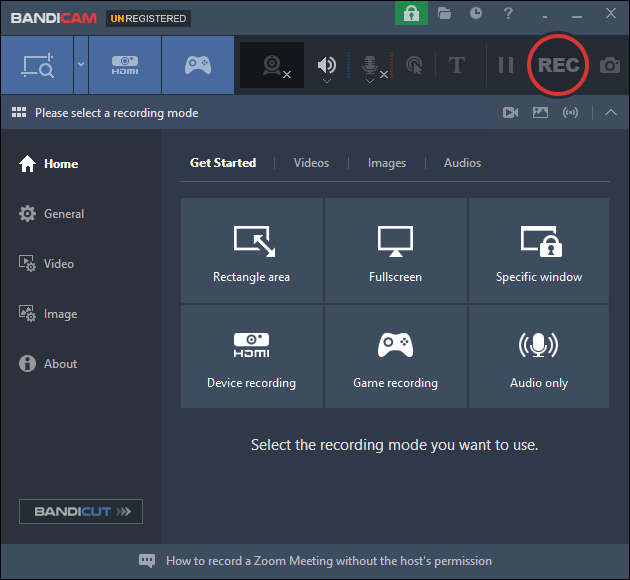
Bandicam is a Windows application ideally suited for recording gameplay; it supports 2D and 3D gameplay recording and can even capture footage from external devices like game consoles. Furthermore, the tool offers various advanced features, such as annotation tools, mouse effects, picture-in-picture video, and scheduled recording.
Naturally, Bandicam also provides multiple recording area options, including full-screen, specific regions, and webcam feeds. It is worth noting that Bandicam’s game recording function utilizes hardware acceleration technology, which helps minimize system resource usage and ensures smoother recording performance.
| Pros | Cons |
| 1. Multiple recording modes supported. 2. Hardware accelerators are employed. 3. Supports real-time FPS monitoring. 4. Offer device recording. | 1. Adds a watermark to the video in the free version. 2. The recording time limit is 10 minutes. |
My Take
Based on my hands-on testing, Bandicam delivers outstanding performance in terms of recording smoothness. It not only captures high-quality video but also allows for some control over file size, making it an excellent choice for users who frequently record high-resolution content.
However, I did notice certain limitations in the free version, such as a 10-minute limit per recording session and the inclusion of a Bandicam watermark on exported MP4 videos. Overall, I consider Bandicam a tool geared toward professional recording needs, particularly for users who prioritize recording quality and performance.
Based on my testing, I believe the five tools mentioned above can meet a wide range of recording needs. Whether the priority is ease of use, audio and video recording capabilities, or built-in editing features, there is a suitable option among them.
How to Record in MP4 Format with Audio
To demonstrate the workflow more clearly, I will use the first software I introduced, MiniTool Screen Recorder, as an example. Here are a few simple steps to quickly record video with audio and save the result in MP4 format.
- Launch MiniTool Screen Recorder.
- Set the output format in the Settings interface.
- Choose the recording area under the Full Screen section.
- Control the audio and webcam recording settings.
- Click the REC button to start recording.
- Annotate the screen if necessary.
- Press the F6 key to end recording.
- Play and locate the MP4 recordings under the Video list section.
Additionally, here are the detailed steps on how to record in MP4 on the PC.
1. Download and install MiniTool Screen Recorder, and launch it on the computer.
MiniTool Screen RecorderClick to Download100%Clean & Safe
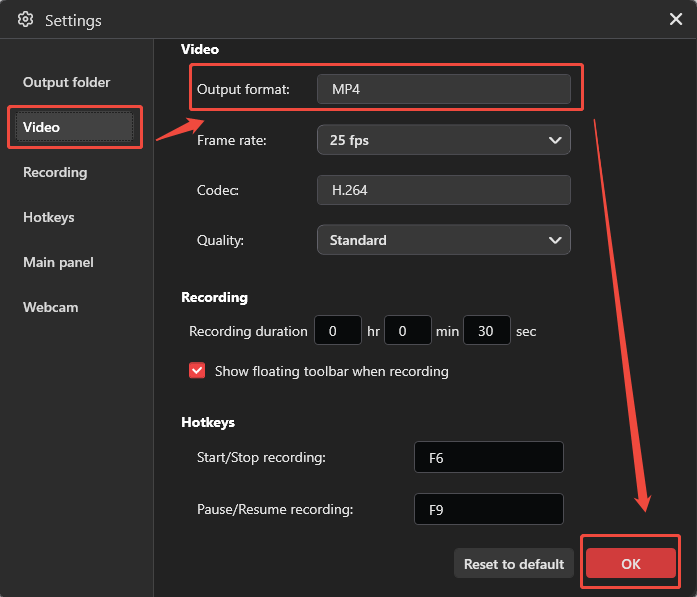
2. Click the Settings icon in the upper-right corner of the main interface, then switch to the Video section and select the MP4 format within the Output format section. Finally, click on OK.
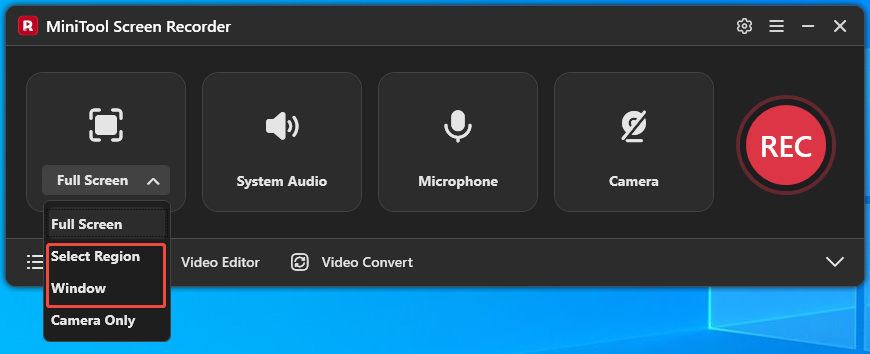
3. This tool defaults to recording the full screen. To customize the recording area or capture an application window, expand the Full Screen option, then select the Select Region option or the Window option.
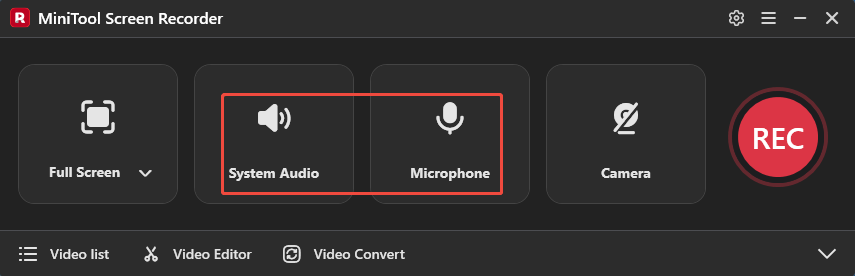
4. System audio and microphone recording features are enabled by default and require no additional setup.
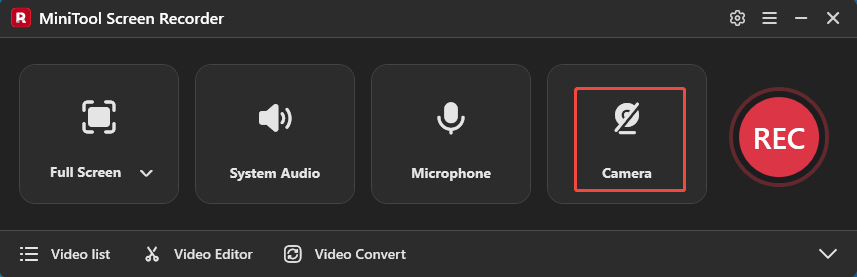
5. To create a picture-in-picture MP4 recording video, click the Camera icon on the right.
6. Then, click the REC button on the left side of the main interface or press the F6 key to start recording. Following the 3-countdown, switch to the content that needs to be recorded.
7. To emphasize key information while recording, use the annotation tools on the toolbar on the right side of the screen.
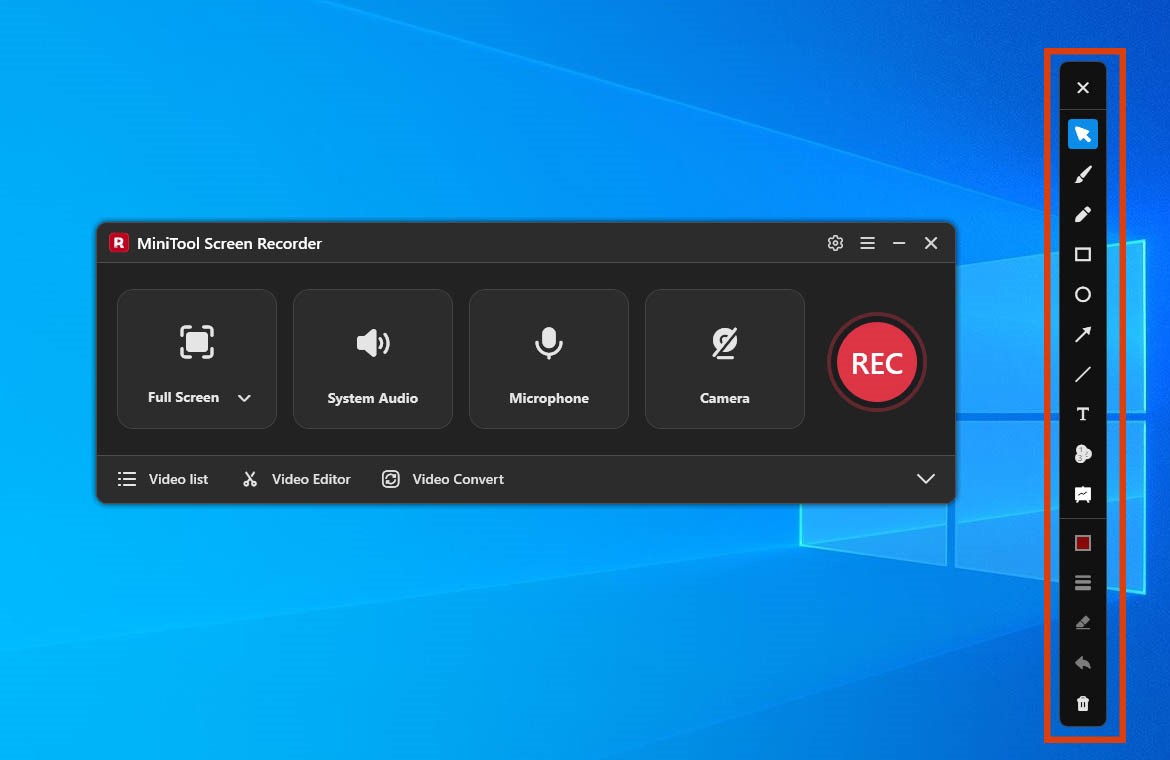
8. To end the recording process, press the F6 key again. Finally, the recorded MP4 file will then appear in the Video list section, where I can view it by clicking the Play icon or locate it via the Folder icon.
How to Edit MP4 Recordings
Before sharing the recorded MP4 file on a platform or sending it to others, I typically refine the video using Clipchamp’s editing tools or MiniTool MovieMaker, a professional video editing tool. Accessing this tool is easy; simply click the Video Editor option on the MiniTool Screen Recorder homepage.
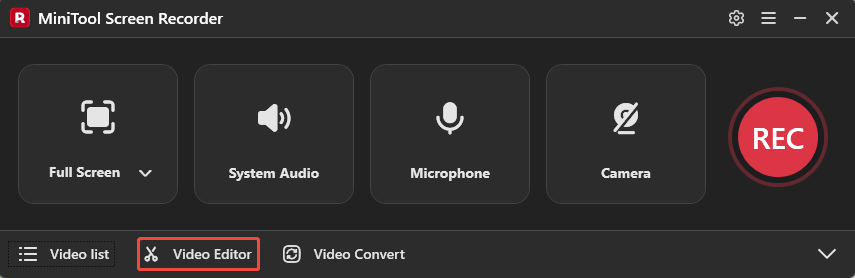
During the editing process, I usually trim away unwanted footage and edit the audio in sync to ensure a smooth, seamless playback experience. Additionally, I add elements such as subtitles, filters, and transitions as needed to enhance the video's visual appeal and professional quality.
Bottom Line
An MP4 audio recorder is a practical solution for capturing audio and video content in a widely supported format. This article explores five options, ranging from built-in Windows tools to professional recording software, each offering unique advantages. Ultimately, the best choice depends on the recording requirements of the intended task.
If there are any questions about MiniTool Screen Recorder or MiniTool MovieMaker, please contact the support team at support@minitool.com.