

People can use Google Translate audio for oral practice, building language material libraries, and more. How to record Google Translate voice? This article introduces two excellent screen recorders, MiniTool Screen Recorder and Xbox Game Bar, to help you achieve that, along with professional tools for optimizing your recorded videos.
Introduction to Google Translate
Google Translate is a free multilingual machine translation service developed by Google for websites and mobile applications. It supports converting words, phrases, documents, and even entire websites from one language to another within seconds.
Its operation is extremely simple: users simply paste text into the input box, select the target language, and the translated text appears in the output box. Additionally, Google Translate offers a voice functionality, making it a valuable tool for language learners.
Why Record Google Translate Voice
Although Google Translate voice feature meets users' needs for real-time listening, recording these audio clips holds greater value.
#1 Practice Speaking and Listening
For learners, Google Translate audio recording helps build a language resource library. For example, these audio clips can be organized into a dialogue library and saved to mobile devices for convenient shadowing or listening practice anytime.
#2 Share in Real Time
When preparing for cross-cultural negotiations or international business trips, users can pre-record audio translations of conversations and share them in real time during exchanges. This not only saves time on instant translation but also eliminates the need for a stable internet connection.
#3 Boost Video Production Efficiency
For content creators, recording Google Translate voice can save significant time. They can use recorded Google Translate audio to add a clear voiceover to videos, eliminating the need for manual voice recording. Additionally, by utilizing translated voice clips, subtitles can be generated for videos, greatly simplifying the video production process.

How to Record Google Translate Voice
Now, you can easily record Google Translate audio without lag using these two efficient Google Translate sound recorders below. Let’s dive in.
Method 1: MiniTool Screen Recorder
The first method is using the professional Windows desktop screen recorder, MiniTool Screen Recorder. It allows users to capture system audio or microphone audio, with the option to record both simultaneously as needed. It also supports full-screen recording, specific area recording, and webcam capture, meeting diverse recording needs across various scenarios.
Additionally, its built-in annotation tools provide educators with powerful auxiliary features, enabling users to annotate the screen while recording for clearer explanations. Moreover, MiniTool Screen Recorder allows flexible adjustment of recording parameters, including hotkey, video quality, frame rate, and webcam configuration, to meet personalized video production needs.
Now, you can follow the detailed instructions below to record Google Translate voice with MiniTool Screen Recorder.
Step 1: Download and Install MiniTool Screen Recorder
Click on the button below to download and install the latest version of MiniTool Screen Recorder on your PC.
MiniTool Screen RecorderClick to Download100%Clean & Safe
Step 2: Choose the Recording Area
1. Launch MiniTool Screen Recorder after you install it on your PC.
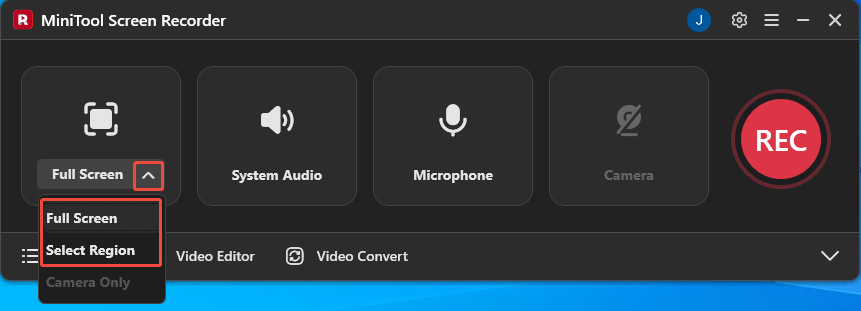
2. Expand the drop-down menu of the Full Screen option, then determine whether to record the entire screen or the specific area.
Step 3: Set the Audio Recording
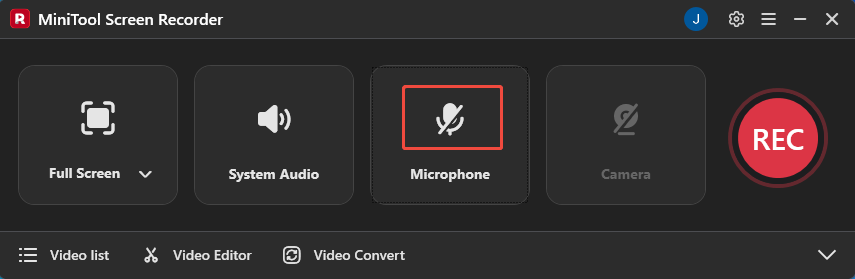
Since you’re recording Google Translate voice, it is recommended to record only the system audio, so you just need to click the Microphone icon to disable this feature.
Step 4: Start and End Recording
1. Prepare the Google Translate voice you need to capture.
2. Click on the REC button or press the F6 key to start the recording process. After a 3-second countdown, it will start recording.
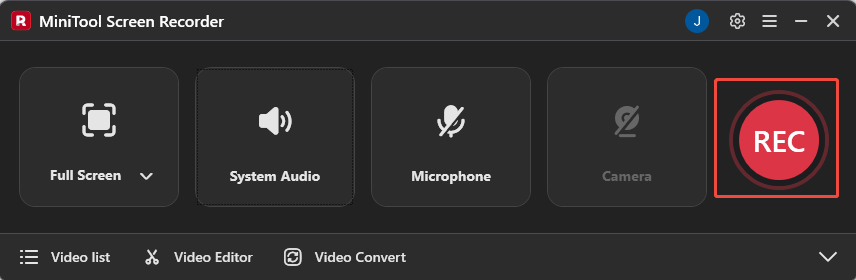
3. To end the recording process, press the F6 key again.
Step 5: Check the Recorded Audio
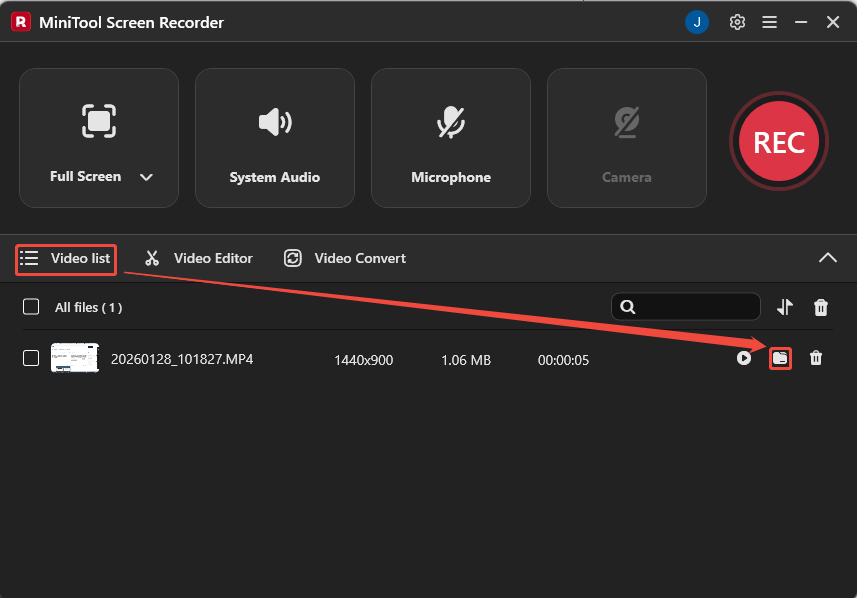
After the recording is complete, you will be automatically redirected to the Video list module, and then you can click the folder icon on the right of the recorded audio to view its storage location.
Method 2: Xbox Game Bar
In addition to desktop applications, the Xbox Game Bar, a built-in screen recording tool in Windows, can also fulfill your need to record Google Translate audio. Designed specifically for gamers, this overlay tool captures both gameplay footage and audio simultaneously.
Furthermore, the Xbox Game Bar supports screenshot functionality and enables interactions like chatting through its integrated social features, making it easy for users to connect with others.
Below is a detailed tutorial on using the Xbox Game Bar to record Google Translate voice.
Step 1: Open Xbox Game Bar
Press the Windows + G key to launch the Xbox Game Bar on your PC.
Step 2: Configure Audio Features
1. Click the Settings button on the upper-right side of the main panel, then select the More settings option.
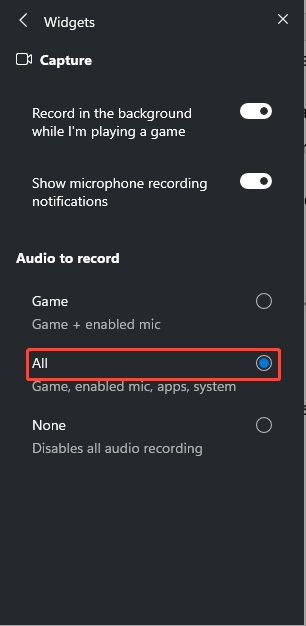
2. Navigate to the Widgets module, then check All options under Audio to record section to enable audio recording from other applications.
Step 3: Go to the Capture Mode
Click the Widget Menu icon and choose the Capture option to enter the capture interface.
Step 4: Start and End Recording
1. Prepare the Google Translate voice you need to capture.
2. Click on the Microphone icon to enable the audio recording feature.
3. Then, click on the Start recording icon or press Windows + Alt + R to start recording the Google Translate voice.
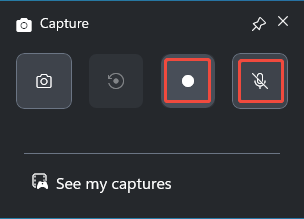
3. To end the recording process, press Windows + Alt + R again. Finally, you can check the recorded audio under the See my captures module.
In short, both methods can be used to record Google Translate audio. However, please note that when selecting the audio recording option, you must disable the microphone audio function to avoid background noise in the recording.
Bonus: How to Edit Your Recordings
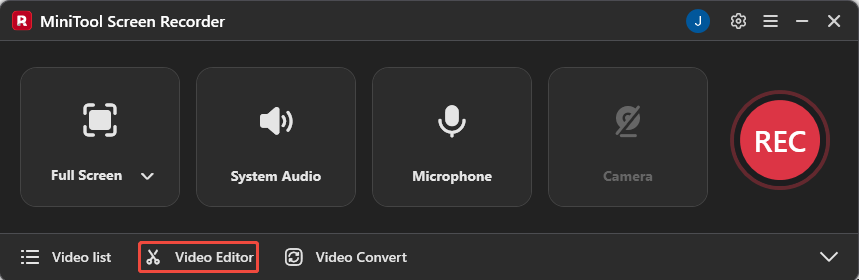
If you need to edit the recorded audio, you can click the Video Editor option at the bottom of the MiniTool Screen Recorder main interface to get MiniTool MovieMaker.
Alternatively, click the button below to directly access this feature.
MiniTool MovieMakerClick to Download100%Clean & Safe
You can use its splitting function to trim recorded audio as needed. Volume adjustments can also be made directly within the application. Additionally, you can choose to export edited audio as MP3, MOV, or MKV files.
Final Words
In short, whether you choose the feature-rich MiniTool Screen Recorder or the convenient Xbox Game Bar, you can easily record Google Translate voice. Furthermore, with the recommended video editor, you can transform your recordings into professional audio assets, helping you build your own audio resource library.
If you encounter any issues or have suggestions while using MiniTool Screen Recorder or MiniTool MovieMaker, you can reach out for assistance by emailing us via support@minitool.com or sending a message on X.