

Instagram is a widely popular social platform for sharing photographs and videos, where users may upload image and video content via Reels and Stories. Stories appear as full-screen vertical posts or photos at the top of the application, automatically disappearing after 24 hours.
Users can enhance these Stories with interactive elements such as filters, text, and stickers, a feature that undoubtedly provides creators with a more effortless way to engage with their followers.
Why People Record Instagram Stories
As ephemeral media content, Instagram Stories frequently prompt users to wish to save such material. However, Instagram does not provide a built-in download button, making screen recording a common method for preserving Instagram Stories.
Additionally, users wish to record Instagram Stories for the following common reasons:
#1 Enable Cross-Platform and Subsequent Sharing
Instagram Stories automatically disappear after 24 hours. Therefore, users can permanently save their favorite Stories via screen recording, enabling them to share these precious moments with friends and family at any time in the future.
Moreover, when users wish to share Stories with non-Instagram users on other platforms, screen recording is the most convenient method.
#2 Draw Inspiration
Instagram is a treasure trove for drawing inspiration. Users can save captivating Instagram Stories posted by designers, artists, or popular accounts, organizing them into inspiration boards for future reference or as creative references in subsequent projects.
#3 Save Important Information
Instagram Stories serve as a vital channel for online marketing. Some users or businesses utilize Stories to promote brands or market products, such as sharing product links, DM code, or discount vouchers. Consequently, when users encounter such content, they often record screens to save it for future reference.
#4 Analyze Content
For content creators or social media managers, preserving a large volume of Instagram Stories resources through screen recording builds a valuable media library. This enables the study of successful accounts' engagement strategies, call-to-action methods, visual expression techniques, and other elements, thereby optimizing one's own brand development.
While screen recording can fulfill users' need to save Instagram Stories, its notification system often causes hesitation before recording. If you're wondering whether Instagram will notify someone when you record their Story, keep reading for a detailed answer.
Does Instagram Notify When You Screen Record a Story
Can people see if you screen record their Instagram Story? The answer is absolutely no. To ensure you can safely record Instagram content, we have compiled the screen recording notification mechanism into a table below for your reference:
| Formats of Instagram Content | Notification |
| Instagram Story | No |
| Instagram Reel | No |
| Instagram Post | No |
| Regular Videos in Instagram DM | No |
| Disappearing Photos or Videos in DM | Yes |
As shown above, whether Instagram sends notifications during screen recording depends entirely on the type of content being recorded. Recording Stories, posts, Reels, or regular videos in direct messages will not trigger notifications.
However, please note: If you record videos or photos sent/received in vanish or limited-time modes, Instagram will send notifications to the other party. But don't worry, the guide below will help you avoid such risks.
How to Avoid Instagram Notifications When You Screen Record
Although it has been confirmed that Instagram does not send notifications when users record Stories, some users may still exercise caution when recording other content. The following four proven methods can help you avoid screen recording notification risks:
#1 Use Different Devices
The safest and most foolproof method is to use a separate device to record Instagram activity. This approach ensures Instagram cannot detect screen recording, thereby avoiding triggering its notification system. However, its drawbacks are equally evident: videos captured this way have lower quality, failing to meet users' needs for the recording content repurposing.
#2 Log Out of the Instagram Account
Another reliable method is to log out of your account before recording. Instagram also cannot detect screen recording, and the process is very simple: just log out of your Instagram account before recording, then search for the Instagram content you want to capture. Then tap the user's profile picture to enter the view page, and finally start recording.
#3 Disconnect the Network
Offline recording does not trigger Instagram's notification system, but this method carries higher risks and requires users to precisely time their actions. Users must load the Instagram content they wish to record before disconnecting from the internet, then perform screen recording while offline. Without an internet connection, Instagram cannot send notification alerts to recipients.
#4 Use the Instagram Website
The most viable method is to record content directly on the Instagram website. Users simply navigate to the target webpage to begin recording. Since the Instagram website lacks advanced tracking mechanisms, the subject will not receive any notifications when content triggering alert systems is recorded.
How to Screen Record Instagram Stories
Now that you've confirmed that recording Instagram Stories doesn't trigger notifications, you can learn how to record a Story on Instagram using these two efficient methods below.
Method 1: Use MiniTool Screen Recorder
When you need to screen record an Instagram Story for media creation or business analysis, MiniTool Screen Recorder is an excellent choice that helps you achieve professional-grade recording results.
It supports unlimited-duration recording of specific screen areas or the entire screen, while simultaneously capturing both system audio and microphone audio. MiniTool Screen Recorder's camera recording feature also enables users to create personalized video content featuring their own faces. Additionally, users can utilize annotation tools during recording to annotate key points.
What's more, MiniTool Screen Recorder supports customizable settings, including changing the recording output path, setting hotkeys, selecting video quality and frame rate, and adjusting the camera's size, shape, and position as needed. Notably, this excellent screen recording tool enables high-definition recording without watermarks.
Here are the detailed instructions to record an Instagram Story using MiniTool Screen Recorder.
Step 1: Download and Install MiniTool Screen Recorder
Click on the button below to download MiniTool Screen Recorder. Then, follow the prompts to install it on your computer.
MiniTool Screen RecorderClick to Download100%Clean & Safe
Step 2: Choose the Recording Area
1. Launch MiniTool Screen Recorder after you install it on your computer.
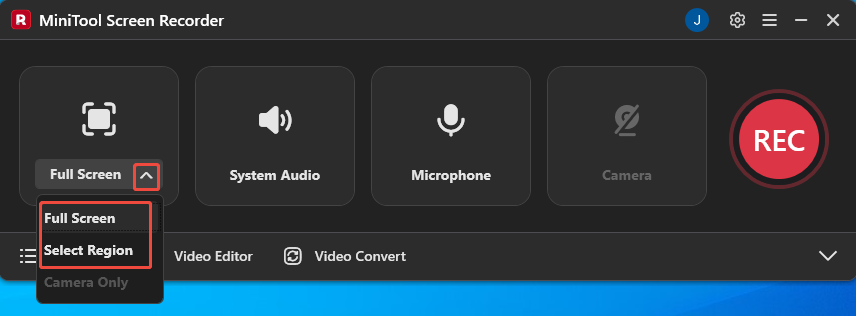
2. MiniTool Screen Recorder defaults to the full-screen recording mode. If you want to record a specific area, expand the drop-down menu next to the Full Screen option and click on the Select Region option to customize the recording area.
Step 3: Control the Audio Recording
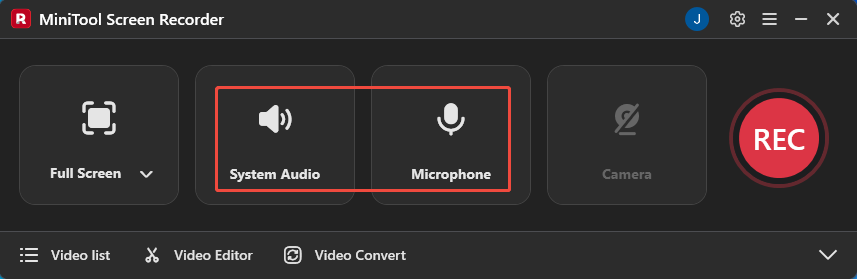
By default, the audio recording function is enabled. If you want to disable the system or microphone audio recording feature, simply click the System Audio icon or the Microphone icon.
Step 4: Set the Camera Recording
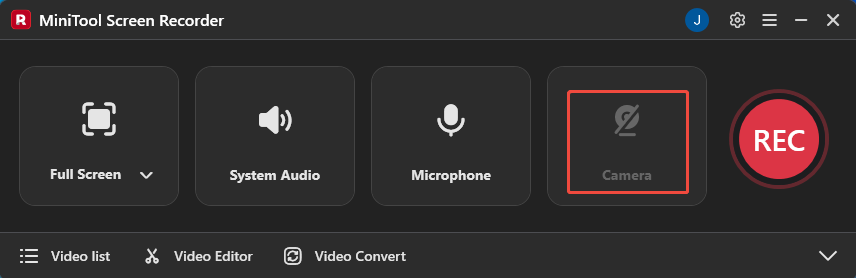
If you want to record the Instagram Story with your face, you can click on the Camera icon to enable the webcam recording feature.
Step 5: Start and End Recording
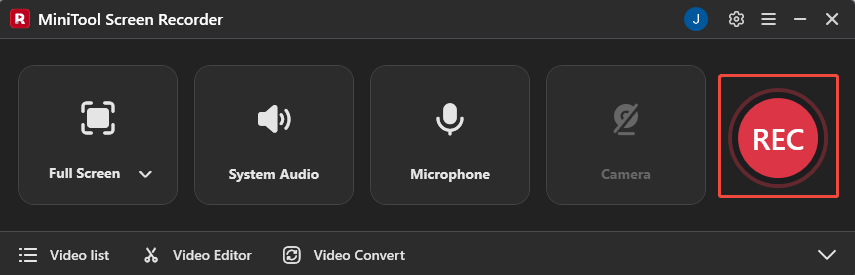
1. If you want to start the recording process, click on the REC button on the right side of the main interface or press the F6 key on your keyboard. After a 3-second countdown, it will automatically start recording.
2. Go to the Instagram website and play the Story you want to record.
3. During the recording, you can press the F9 key to pause or resume the recording process.
4. When you want to end the recording process, press the F6 key again.
Step 6: Check the Recorded Instagram Story
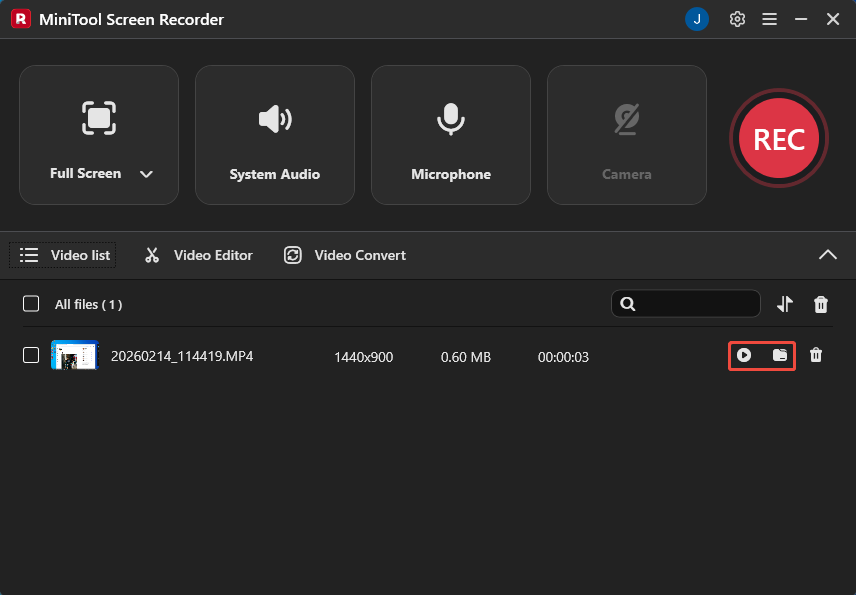
1. After the recording is completed, you will be redirected to the Video list section, where the recorded video will be listed.
2. Then, click the play icon next to the video to watch the recorded Instagram Story or click the folder icon to locate it.
Method 2: Use Snipping Tool
If you only need to fulfill basic Instagram Story recording requirements, consider using the built-in Windows screen recorder, Snipping Tool. It allows Windows 10 and 11 users to capture screenshots. With updates to the system application, the Snipping Tool now provides basic recording functionality for Windows 11 users.
It supports recording full-screen, specific regions, and application windows while simultaneously capturing audio. After recording, users can directly optimize and edit videos using the built-in video editing tools. Additionally, its sharing feature allows users to share recordings directly via links with others or to mainstream platforms like YouTube, TikTok, and LinkedIn.
Now, you can check the step-by-step guide below to record an Instagram Story with the Snipping Tool.
Step 1: Launch the Snipping Tool
To open the Snipping Tool on your computer, simply press the Print Screen key. If it does not open, you can go to the Windows search bar, type 'Snipping Tool', and then click Open to launch it.
Step 2: Choose the Recording Area
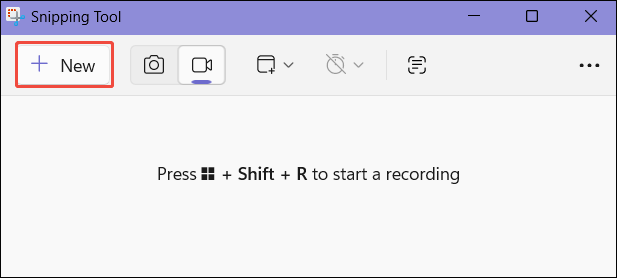
1. Click the New option and tap the Record icon to enter the recording interface.
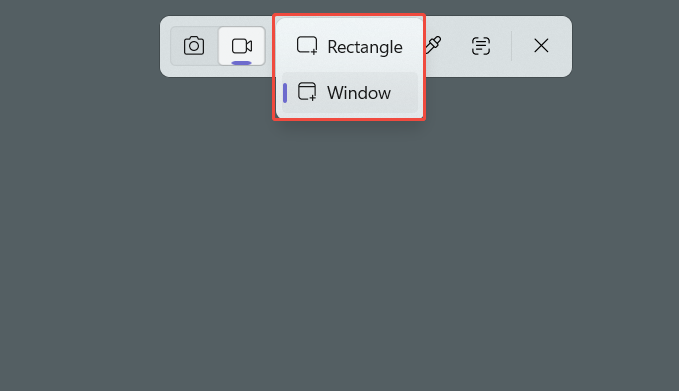
2. Expand the drop-down menu next to the Snipping area option. Then, click the Rectangle option to customize the recording region, or click the Window option to record the entire screen.
Step 3: Control the Audio Recording
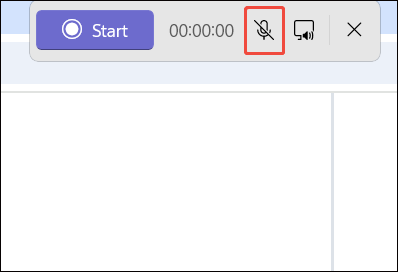
If you want to record the audio from the Instagram Story, tap the Microphone icon in the newly displayed horizontal panel.
Step 4: Start and End Recording
1. To start the recording process, click the Start option or press the Shift + R key.
2. Play the Instagram Story you want to record on the Instagram website.
3. When you want to end the recording process, click on the Stop recording button on the horizontal panel.
In short, both methods allow you to record Instagram Stories easily, and you can choose the one that best suits your needs. Users requiring advanced recording features can consider using MiniTool Screen Recorder; those needing only basic recording functions can use the Snipping Tool.
Bonus: How to Edit Your Recordings
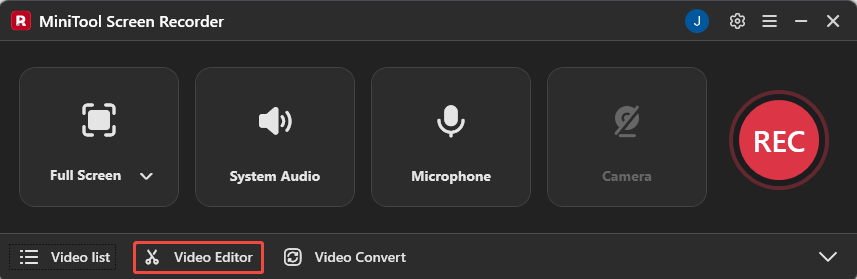
Recorded Instagram Story videos may contain unnecessary elements such as timestamps and the Instagram icon. If you need to use the recorded content for secondary creation, you must first remove these elements. Now, click on the Video Editor option at the MiniTool Screen Recorder main interface to get the professional video editing tool.
Or, you can directly tap the button below to get this video editing tool.
MiniTool MovieMakerClick to Download100%Clean & Safe
This editing tool offers cropping and trimming features to help users effortlessly remove black borders, Instagram icons, and other elements while quickly cutting out excess video content. Its built-in media library lets you instantly start reshaping your content by adding filters, transitions, and text to enhance your video's appeal and professionalism.
Additionally, this video editing tool supports multiple video output formats, including MP4, MKV, MOV, WebM, and GIF, enabling users to flexibly convert formats during export.
Bottom Line
Does Instagram notify when you screen record a Story? The answer is absolutely no. However, Instagram will issue a warning when users record Instagram content in vanish mode. The tips outlined above can help you avoid such risks.
Additionally, this article recommends two excellent screen recorders, MiniTool Screen Recorder and Snipping Tool, to help you record Instagram Stories efficiently. If you encounter any issues while trying out MiniTool Screen Recorder or MiniTool MovieMaker, feel free to email us via support@minitool.com or send me a message on X for assistance.