

Does screen recording record audio? Yes, screen recording does record audio when system sound and microphone input are enabled. This guide explains why recordings may have no sound and how to record system and microphone audio on Windows with MiniTool Screen Recorder.
Does Screen Recording Record Audio
Yes, screen recording can capture audio. Most screen recorders allow you to record the screen with system sound, microphone audio, or both, depending on your settings. In addition to screen recorders, there are also dedicated audio recording tools, such as streaming audio recorders, designed specifically for capturing sound only.
However, you may sometimes find that your screen recording has no audio on Windows. Whether you’re using a built-in tool like Xbox Game Bar or a third-party recorder, missing audio is usually caused by incorrect system settings or audio conflicts. The following section explains the common reasons and how to fix them.
Why Is There No Audio in Screen Recording on Windows
This section outlines three common reasons why screen recordings have no audio on Windows and explains how to fix each issue. Let’s go through them one by one.
Issue 1: Audio Is Not Enabled
First, check your screen recorder’s settings and make sure that system sound and microphone audio are enabled. If the audio options are already turned on in the recorder, you should then check the Windows audio settings.
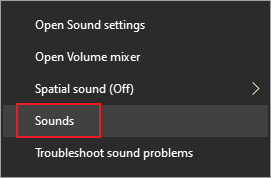
Right-click the Speaker icon in the lower-right corner of the Windows taskbar and select Sounds.
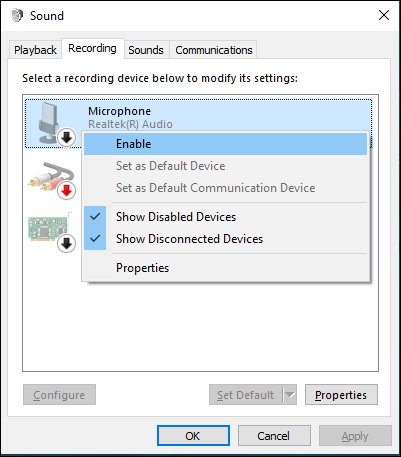
In the Sound window, switch to the Recording tab. Right-click the Microphone and select Enable, then click OK to save the changes.
Issue 2: Apps Are Not Granted Permission to Access the Microphone
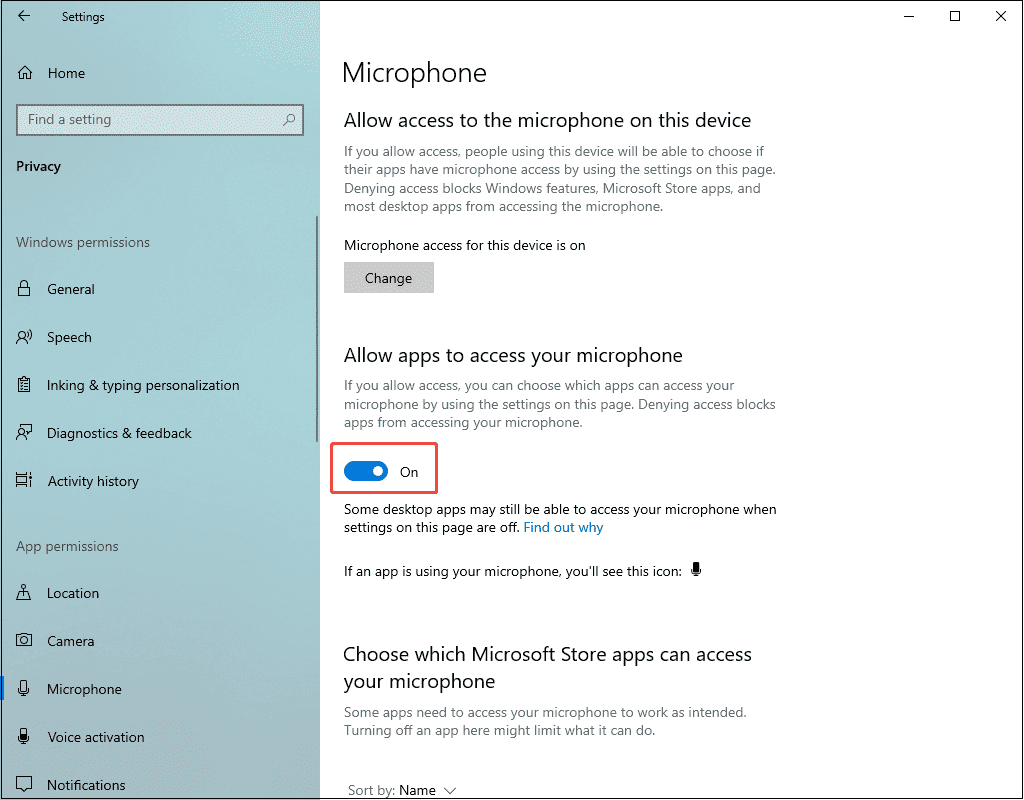
Another possible reason is that your microphone is blocked from being used by certain apps. To check whether your screen recorder has permission to access the microphone, open Settings and go to Privacy.
Select Microphone from the left sidebar, then turn on Allow apps to access your microphone. After that, scroll down and make sure your screen recorder is allowed to use the microphone.
Issue 3: Sound Drivers Are Not Updated
Outdated sound drivers can affect audio recording and may cause issues such as missing sound, delays, or system conflicts. Updating the driver is a reliable way to resolve these problems.
Press Windows + I to open Windows Settings, then search for Device Manager and open it. Expand Sound, video and game controllers, right-click your sound device, and select Update driver.
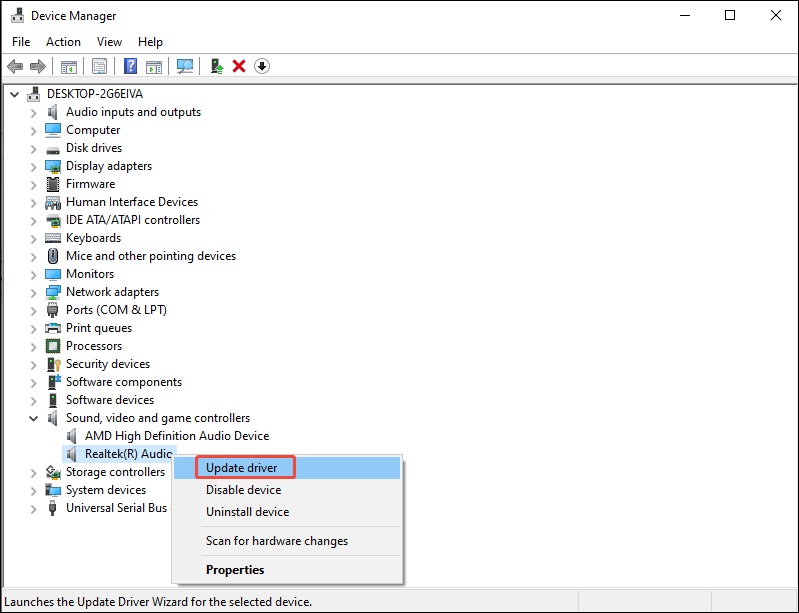
After the update is complete, restart your computer and try recording again.
How to Record Screen with Audio on Windows
Now, let’s see how to record your screen with audio on Windows. This section uses MiniTool Screen Recorder as an example.
Overview of MiniTool Screen Recorder
MiniTool Screen Recorder is a practical screen recording tool for Windows, suitable for both beginners and experienced users. It features a clean and straightforward interface that makes it easy to start recording.
With MiniTool Screen Recorder, you can customize the recording area by choosing full screen, a selected region, or webcam mode. It also allows you to record system audio, microphone audio, or simultaneously, giving you flexible audio options for different recording needs.
In addition, the program provides adjustable recording settings, including multiple frame rate options (15, 20, 25, 30, and 50 fps) and different video quality levels (Original, Standard, and High), helping you capture smooth and clear footage with ease.
Another useful feature is the built-in annotation tool, which lets you add drawings, shapes, step numbers, or a whiteboard while recording to highlight key information. What’s more, MiniTool Screen Recorder can record video up to 4K and save recordings in MP4 format. It also comes with no time limits or watermarks, making it easier to capture long recordings without restrictions.
Guide to Recording Screen and Audio Using MiniTool Screen Recorder
How to record screen with audio? Follow the steps below.
Step 1: Download MiniTool Screen Recorder
Click the button below to start downloading this free screen recorder. Complete the installation by following the instructions.
MiniTool Screen RecorderClick to Download100%Clean & Safe
Step 2: Select the Recording Area
Open the video or window you want to record. Next, launch MiniTool Screen Recorder. By default, the software records the full screen. To customize the recording area, expand the Full Screen option and choose Select Region. Drag the mouse to define the area you want to capture.
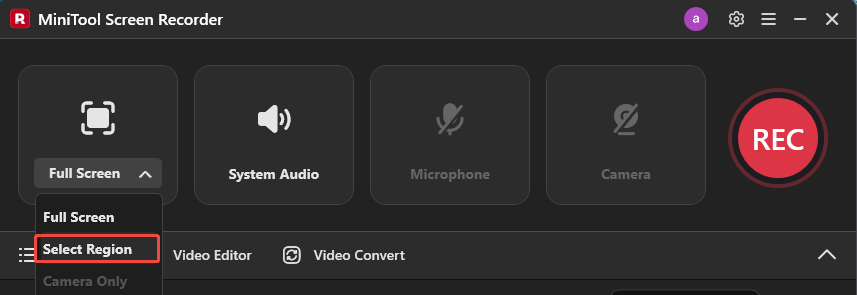
Step 3: Check the Audio Option
By default, the screen is recorded with both system audio and microphone audio. If you don’t want to record your voice, simply click the Microphone icon in the main interface to turn it off.
Step 4: Adjust Advanced Settings
Click the Gear icon in the upper-right corner to open the settings window. Here, you can adjust the video output folder, frame rate, video quality, and preset recording duration. It is recommended to pick 50 fps and High video quality for smoother and cleaner results. You can also customize shortcut keys in the Hotkeys section.
Once the settings are done, click OK to save all adjustments.
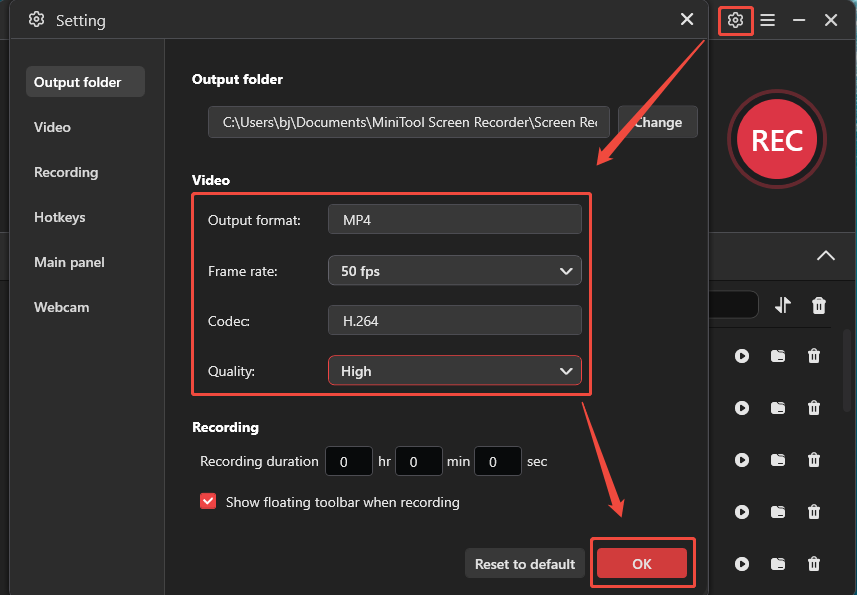
Step 5: Start and Stop Recording
Click the REC button on the right side of the main interface or press the default F6 key. After a 3-second countdown, start playing the video or performing the actions you want to record. To skip irrelevant parts, press the F9 key to pause or resume the recording. Press F6 again to end the recording.
Step 6: Play, Locate, or Delete the Recording
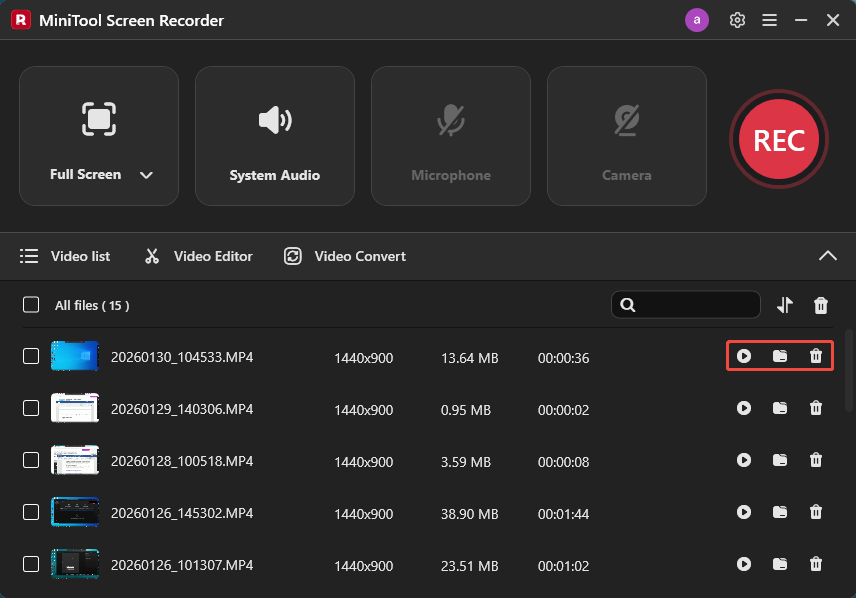
Once the recording is complete, the latest video appears at the top of the video list module in the interface. You can click the Play icon to preview the recording. To locate and delete it, click the Folder and Delete icons.
Conclusion
Does screen recording record audio? Yes, it does as long as the correct audio settings are enabled. This post also explains why screen recordings have no audio on Windows and shows how to record your screen with audio using MiniTool Screen Recorder, helping you capture clear video and sound more easily.
Finally, if you have any questions while using MiniTool Screen Recorder, please email us at support@minitool.com for help.