

This article introduces Oculus to you and shows you how to record on Oculus with a built-in recorder or an offline screen recorder: MiniTool Screen Recorder. Meanwhile, it recommends a fabulous video editor: MiniTool MovieMaker to edit your recordings.
How to record on Oculus Quest 3? How to record Oculus Quest 2 gameplay PC? Recently, more and more users have been asking for answers to those questions. To facilitate your screen recording, read the following paragraphs.
What Is Oculus
Founded in 2012, Oculus is a powerful producer of virtual reality (VR) headsets. In 2014, it was acquired by Meta. Oculus headsets, which are also known as Meta Quest, are widely used for gaming. Meanwhile, more and more game players want to know how to screen record on Oculus. To help you, the following content is written here.

Method 1. Use the Built-in Recorder
Oculus features a built-in recording function. Below are the instructions on how to record Oculus with the built-in recorder.
Step 1. Enter the universal menu.
On the right controller, press the Home button to enter the universal menu.
Step 2. Enable the microphone audio recording.
Choose the Camera icon and hit the Record Video option. Next, if you want to capture the microphone sounds, turn on the Include Mic Audio option.
Step 3. Start the recording process.
Begin the recording process by selecting the Start Recording option.
Step 4. End the recording.
When the recording process finishes, press the Home button again. Next, select the Camera icon and choose the Stop Recording option.
Step 5. Check the recording.
To check the recorded video, press the Home button. Then, choose the Files app. Next, switch to the left-side Recents or Media tab. There, view and check the recordings.
With the above-detailed steps, it will be effortless for you to grasp how to record on Oculus Quest 2/3.
Method 2. Use MiniTool Screen Recorder
If you want an offline screen recorder to record on Oculus, MiniTool Screen Recorder can help. Before the screen recording, remember to connect the Oculus to your PC.
How to Connect Oculus to Your PC
Below is a step-by-step guide on how to connect Oculus to your PC.
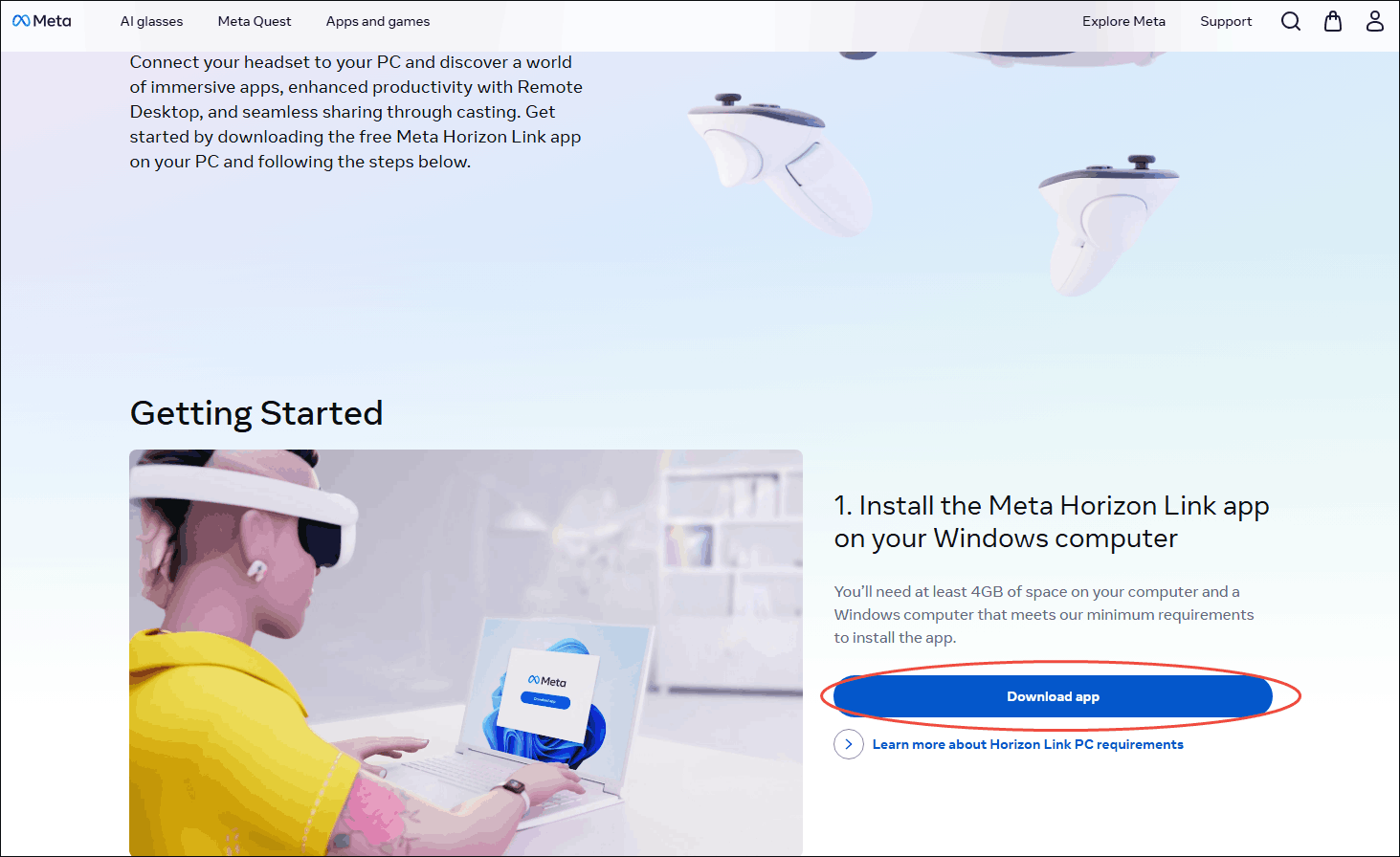
Step 1. Download and install the Meta Horizon Link app.
Visit https://www.meta.com/help/quest/1517439565442928/. Next, click on the Download app button to download and install the Meta Horizon Link app on your PC.
Step 2. Connect Oculus to your PC.
Find the USB 3.0 port on your PC. Then, firmly plug a USB-C 3.0 cable into that port. Next, put the other end into the headset.
Step 3. Activate Oculus on your computer.
After turning on your headset, launch the Meta Horizon Link app. When you see the prompts to allow Quest Link in the headset, click on the Activate or Enable option to activate Oculus on your PC.
After the connection, try MiniTool Screen Recorder to screen record on Oculus.
Why Select MiniTool Screen Recorder
MiniTool Screen Recorder is a versatile application that enables you to capture the screen, record the webcam, and annotate your screen. More importantly, it offers you a watermark-free recording experience without any time constraints.
Meanwhile, MiniTool Screen Recorder is an MP4 video recorder, which allows you to share or edit the recordings without effort. What’s more, this program features an intuitive interface. As such, even if you are a beginner in screen recording, you can access MiniTool Screen Recorder effortlessly. It also allows you to capture videos from websites.
How to Record on Oculus with MiniTool Screen Recorder
Below are the detailed steps to record on Oculus using MiniTool Screen Recorder.
Step 1. Download and install MiniTool Screen Recorder.
MiniTool Screen RecorderClick to Download100%Clean & Safe
Click on the download button above to download and install MiniTool Screen Recorder on your PC. Then, launch this gameplay recorder.
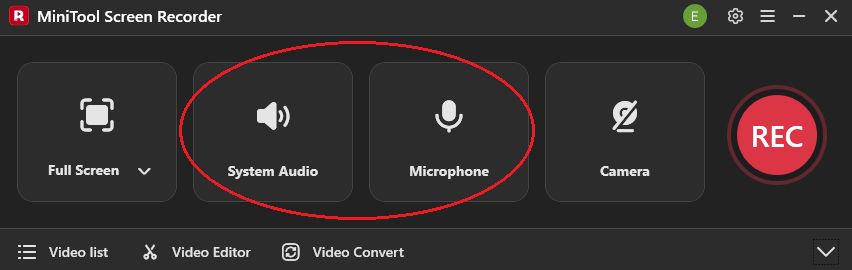
Step 2. Choose the recording area and manage the audio recording.
By default, MiniTool Screen Recorder will capture the whole screen. If you want to select the recording region based on your needs, press the Alt + R keys to make a choice. Then, click on the System Audio icon and the Microphone icon to turn on/off the recording of system and microphone sounds.
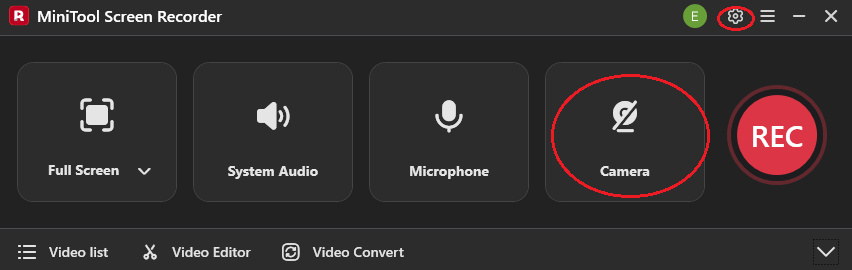
Step 3. Enable the webcam recorder and configure other recording settings.
Click on the Camera icon to enable the webcam recorder. Next, click on the upper-right Settings icon to enter the Settings window.
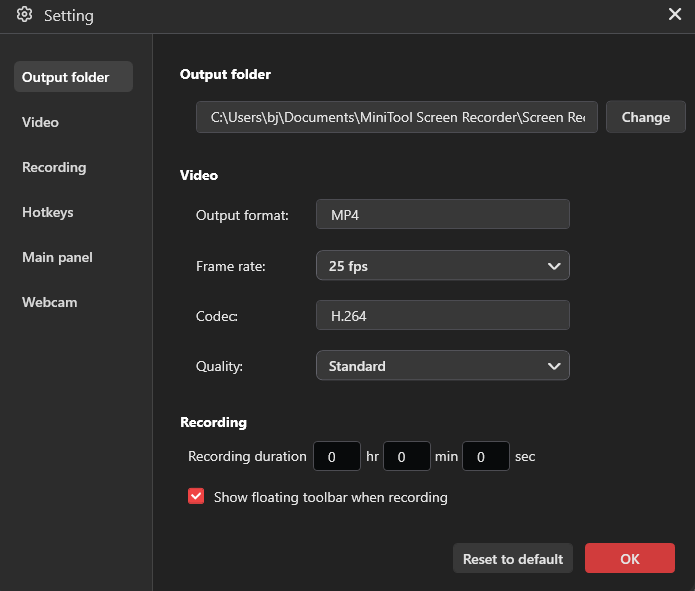
In the pop-up window, you can select an output folder for the recorded videos. Meanwhile, you are free to set the frame rate as 15fps, 20fps, 25fps, 30fps, or 50fps. Plus, you can configure the recording quality as Original, Standard, or High. Finally, click on the OK button to save the changes.
Step 4. Begin/end the recording and check the output files.
Start the recording process by clicking on the REC button. After a 3-second countdown, play the game that you want to capture. When you have recorded what you want, stop the recording by pressing the F6 key.
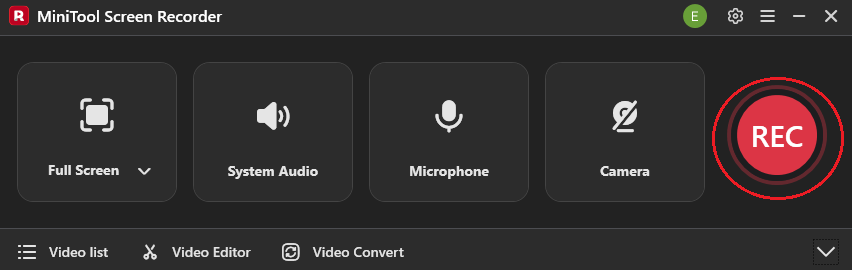
In the expanded file list, click on the Play icon to view the recorded video. If you want to locate the recording, click on the Folder icon.
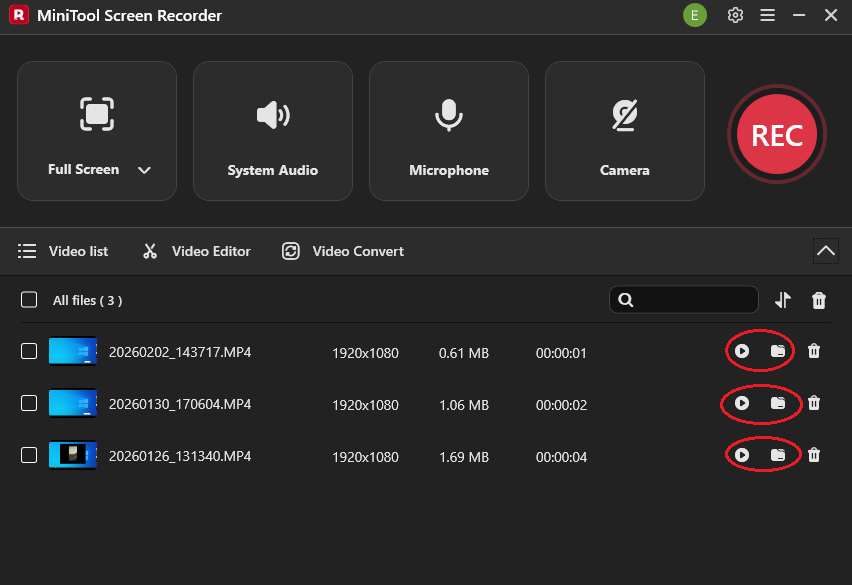
With MiniTool Screen Recorder, you can record on Oculus without hassle. Meanwhile, it also empowers you to record a webinar or record on Facebook effortlessly.
Bonus: How to Edit Your Recordings
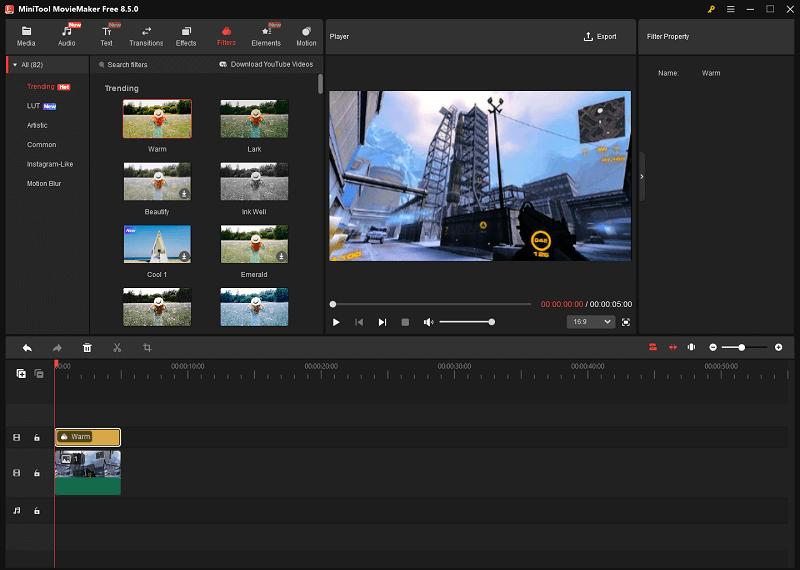
How to edit the gameplay recordings effortlessly? Never miss MiniTool MovieMaker. It enables you to edit your videos frame by frame. Specifically, it empowers you to merge, crop, reverse, rotate, flip, or speed up the recording effortlessly. Meanwhile, this application allows you to change the volume or aspect ratio of the recorded video.
MiniTool MovieMaker also allows you to add various elements, such as motions, transitions, filters, effects, credits, and more. In addition, it can save your recordings in multiple formats, such as MP4, MKV, MOV, WMV, MP3, and so on.
MiniTool MovieMakerClick to Download100%Clean & Safe
Bottom Line
How to record on Oculus? Both the built-in recording function and MiniTool Screen Recorder can help! If you don’t want to download extra software, try the former one. Provided that you want to capture the gameplay on PC with rich recording settings, never miss MiniTool Screen Recorder.
If you are bothered by any problems when using MiniTool Screen Recorder or MiniTool MovieMaker, please ask for help by sending an email to support@minitool.com. Also, you can directly share your problems with me on X. I will help you as quickly as possible.