

How do you record a video on Facebook? This article shares 2 screen recording tools along with specific steps that you can use with ease, including MiniTool Screen Recorder and Movavi Screen Capture. Also, it tells you the privacy issues when you screen record.
Why Recorder on Facebook
There are many instructional videos, interesting stories, and exciting live streams on Facebook. People often need to save these videos. However, Facebook doesn’t support saving or recording videos. Therefore, a third-party Facebook screen recorder is the ideal solution.
A Facebook screen recorder helps record high-quality videos. It allows you to record any part of the screen according to your needs. A Facebook screen recorder helps you save the recorded videos on your PC freely. What’s more, it can record quickly and smoothly without taking up too much time.
Is It Legal to Record Videos on Facebook
Before recording a Facebook video, it’s necessary to understand the relevant laws and regulations to avoid trouble. Generally, recording a Facebook video for personal use is legal. Therefore, you can record tutorials or educational courses for self-study.
However, you can’t forward or circulate the recorded videos uploaded by other creators without permission. More importantly, you can’t use the recorded videos for commercial purposes. Additionally, recording private groups, meetings, or private messages without permission is also prohibited by law.
Can Others See If You Screen Record on Facebook
If you are recording someone’s Facebook videos, will they know? Absolutely not! Facebook prioritizes privacy protection. It won’t notify users that you are recording their videos, including recording Facebook stories, feed videos, and live streams.
How Do You Record a Video on Facebook
How do you record a video on Facebook? As long as you follow the corresponding rules and permissions, you can easily capture videos on Facebook. Here are 2 recorders that can meet your recording needs comprehensively.
1. Use MiniTool Screen Recorder
MiniTool Screen Recorder is a robust recording tool that allows you to record Facebook videos for free. It supports recording without a time limit, no matter how long the Facebook video is. MiniTool Screen Recorder also provides full-screen recording and selected-region recording, helping you record only the content you need.
MiniTool Screen Recorder allows you to control dual audio. It supports separate system audio and voiceover, which you can choose as needed. In addition, it enables you to record with the camera, which can be used simultaneously with the full-screen and selected-area recording modes. MiniTool Screen Recorder also supports recording the webcam independently.
Below is how to record a video from Facebook using MiniTool Screen Recorder without any ads, watermarks, or bundles.
Step 1. Download and Install MiniTool Screen Recorder
Click on the download button below to download and install MiniTool Screen Recorder. Then, launch it.
MiniTool Screen RecorderClick to Download100%Clean & Safe
Step 2. Select the Recording Mode
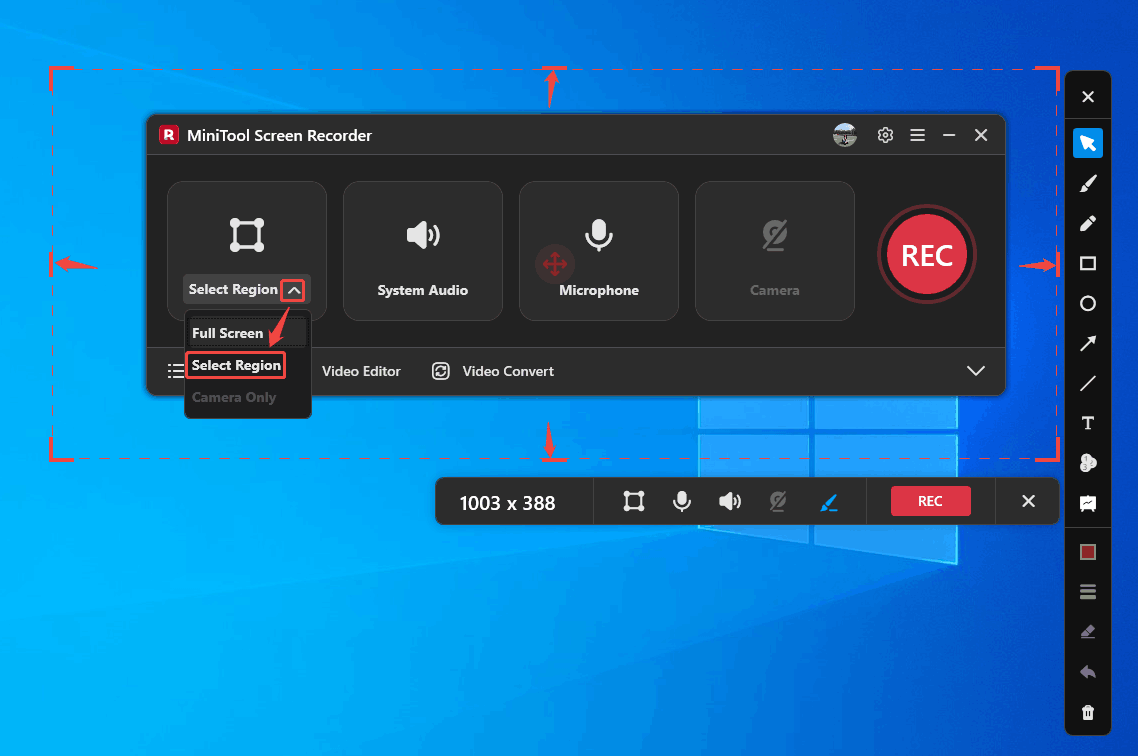
Expand the recording mode option and choose a recording mode as needed. Here, I only need to focus on a specific area of the screen, so I pick the Select Region mode. Then, adjust the red border to frame the screen you want to record.
Step 3. Set the Dual Audio
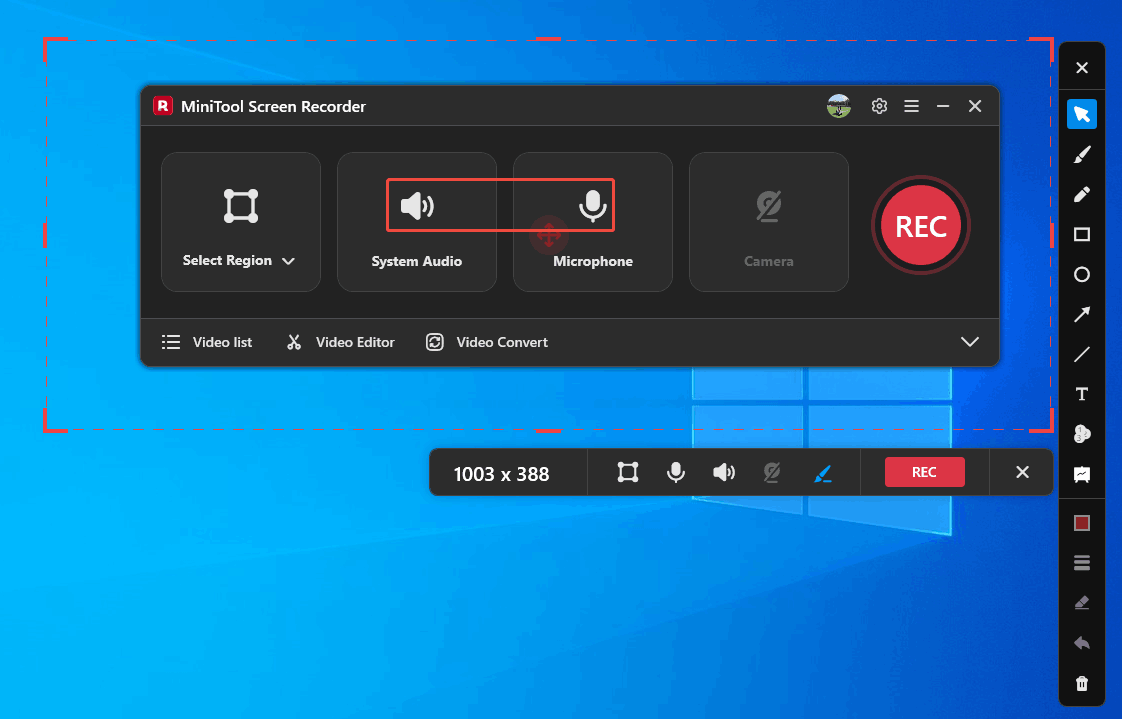
Click on the System Audio icon and the Microphone icon to set whether to record computer audio and microphone sound.
Step 4. Configure Save Location
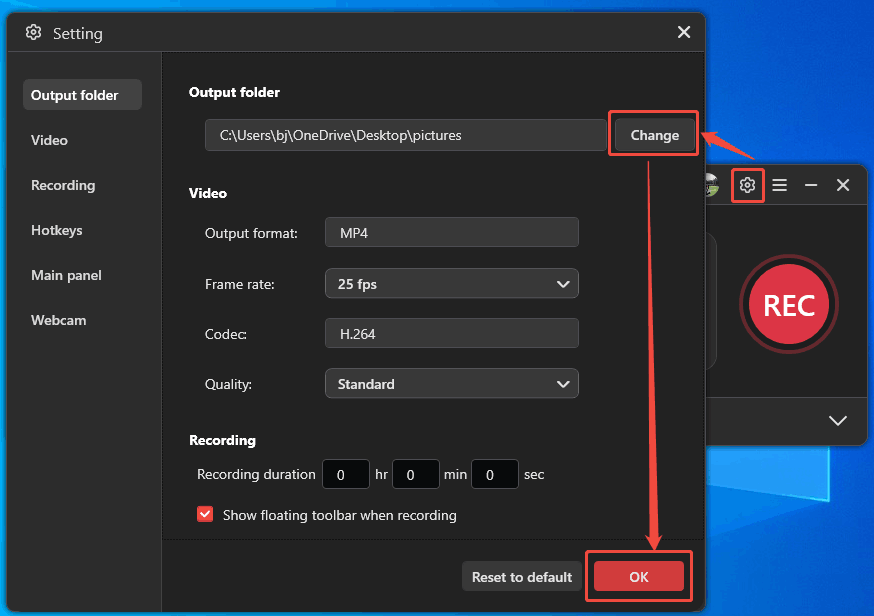
Click on the Gear icon to open the Setting window. In this window, click on the Change button to specify a save location. Then, click on the OK button to save the change.
Step 5. Start the Recording
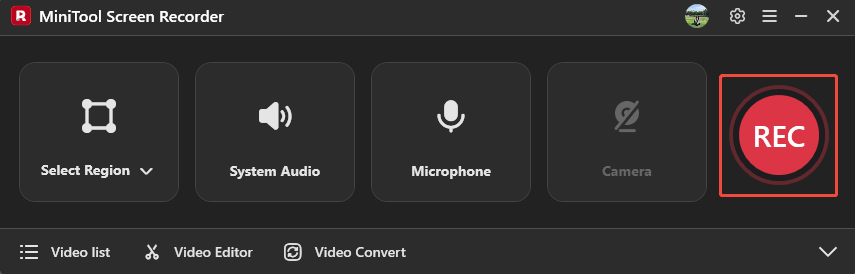
After setting the storage location, click on the REC button to start the recording.
Step 6. Stop the Recording
If you want to pause or resume the recording, you can click on the Play/Resume button on the floating toolbar. To end this recording, you can click on the Stop button.
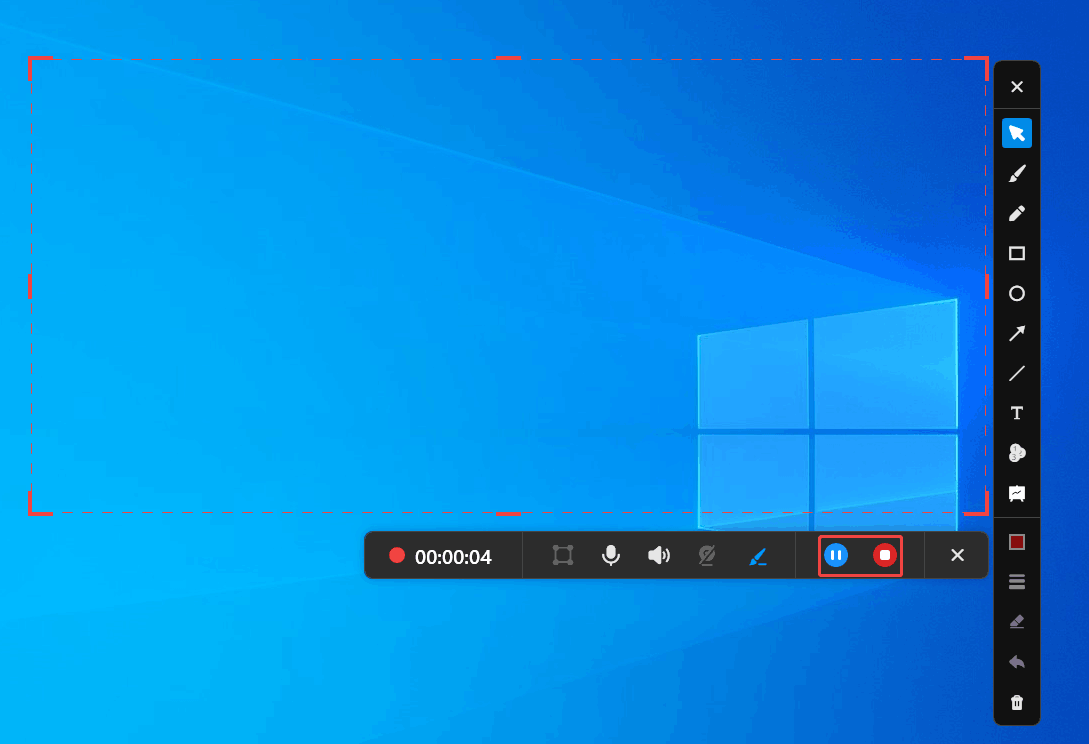
Stop 7. Check the Recording Result
When the recording finishes, the recorded video will appear in the Video list tab. Here, click on the Play icon to check the recorded video. Besides, you can click on the Folder icon to find the storage destination.
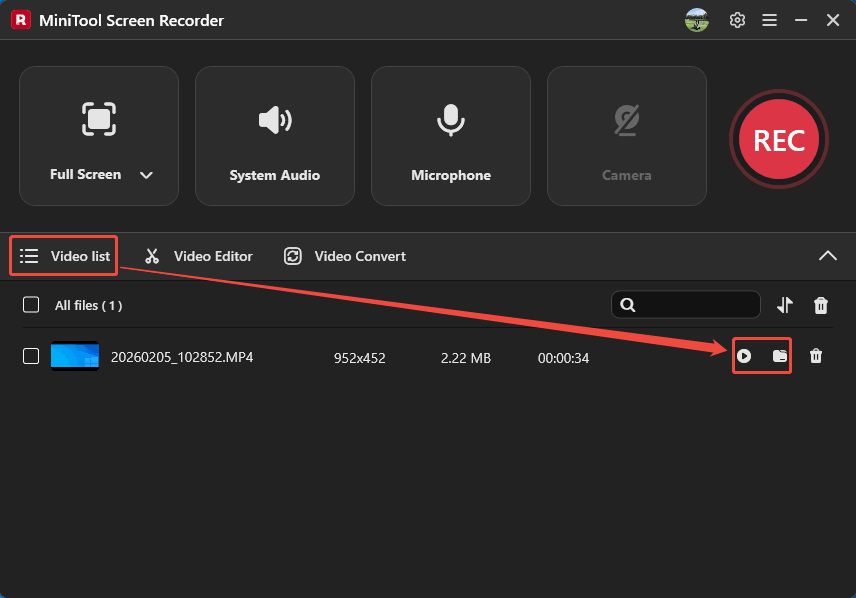
MiniTool Screen Recorder makes it easier to record a video on Facebook. Also, it allows users to customize the frame rate and video quality.
2. Use Movavi Screen Capture
Movavi Screen Capture is an online screen recorder that supports recording windows, browser webpages, and the entire screen. It also allows you to record webcam, system sound, and microphone sound. What’s more, Movavi Screen Capture can be compatible with Firefox and Google Chrome.
How do you record a video on Facebook using Movavi Screen Capture? The steps below use Chrome as an example.
Step 1. Navigate to Movavi Screen Capture’s Webpage
Go to https://www.screencapture.com/ to open Movavi Screen Capture’s webpage.
Step 2. Complete Pre-recording Settings
Check or uncheck Webcam, Microphone, and Sound to confirm whether to record them. Then, click on the Start Recording option to trigger the recording mode window.
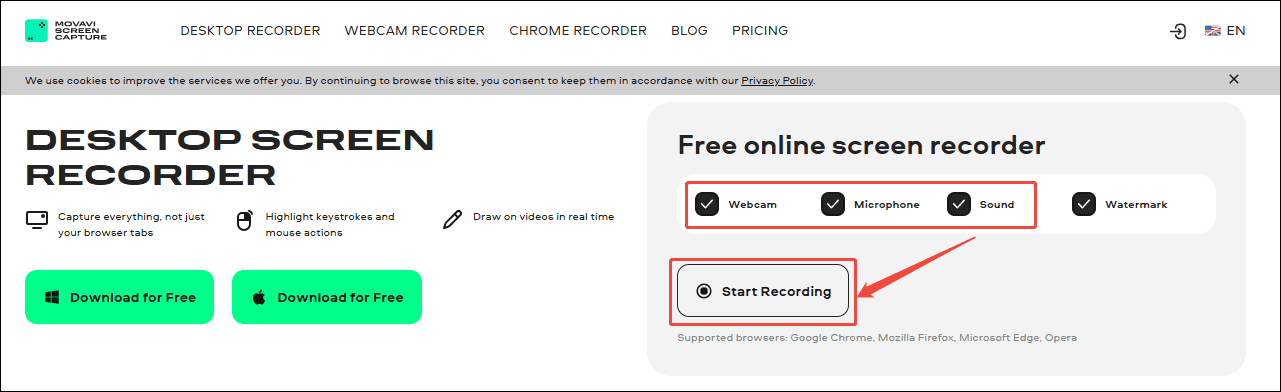
Step 3. Choose a Recording Type
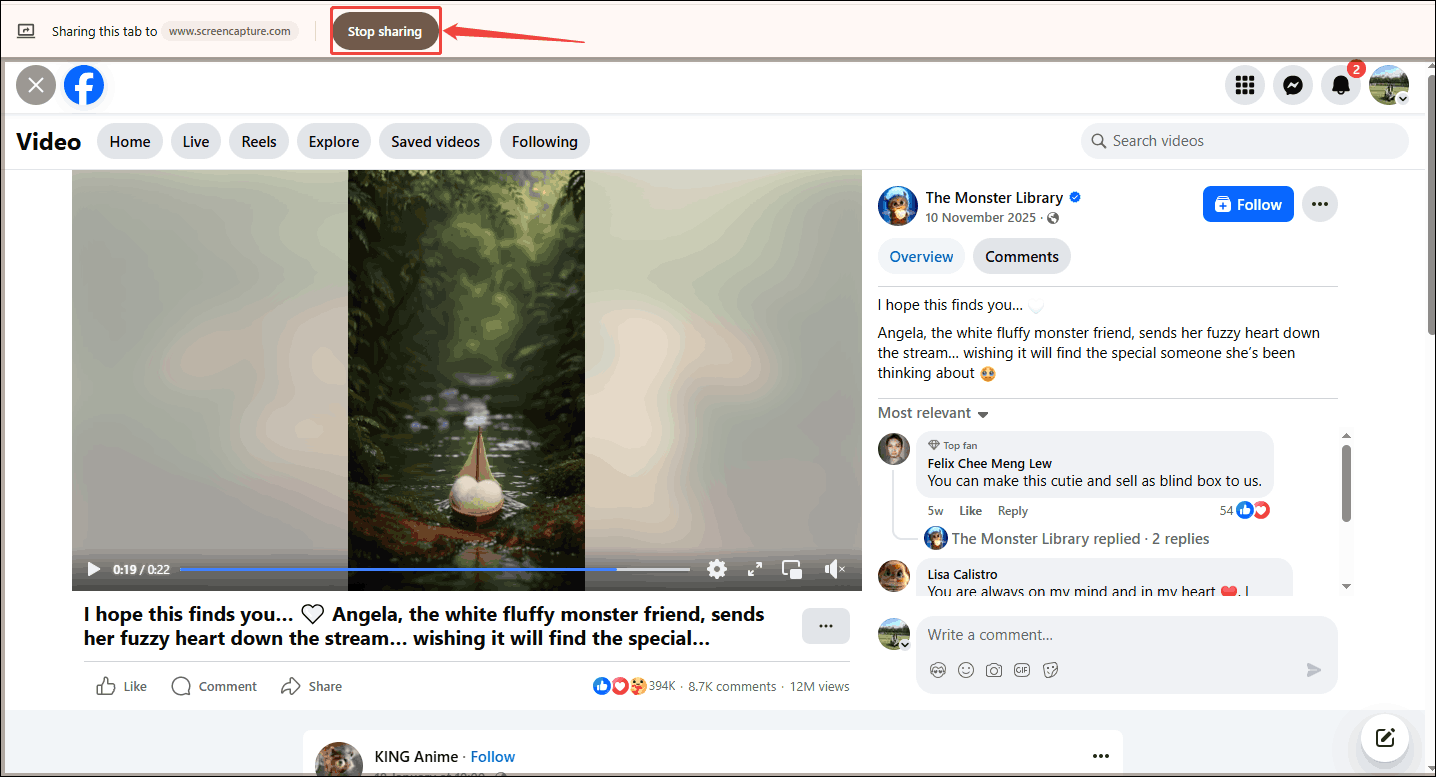
In the recording mode window, switch to Chrome tab and click on the Facebook page option. Next, enable the Also share tab audio button. Then, click on the Share button to start the recording.
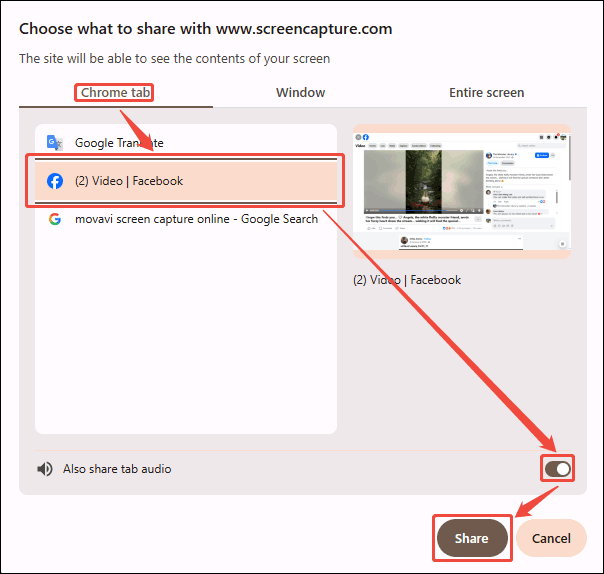
Step 4. Stop Recording
Click on the Stop sharing button to end this recording and switch to the Movavi Screen Capture webpage. Here, you can click on the Download button to save the recorded video.
Movavi Screen Capture allows you to record a Facebook video with simple steps. It is a free and safe online recorder. However, Movavi Screen Capture only offers recording videos with watermarks for unpaid users.
Bottom Line
How do you record a video on Facebook? This article shows 2 marvelous recorders to you, including MiniTool Screen Recorder and Movavi Screen Capture. If you want a comprehensive recorder that offers customizable settings, choose the former. To record a Facebook video without downloading or installing, use the latter. If you want to learn more about MiniTool Screen Recorder, feel free to contact us via email at support@minitool.com. In addition, you can send me a message on X. I will reply to you as soon as I see it.