

Sims 4 is a popular social simulation game. This article explains why record Sims 4 and how to record Sims 4 gameplay with 2 approaches, including using the Sims 4 built-in function and the screen recorder: MiniTool Screen Recorder.
About Sims 4
Sims 4 is a global social simulation game developed by Maxis of EA (Electronic Arts). It is a sequel to the Sims series. Sims 4 offers players a different immersive gaming experience based on the real world. It provides players with character customization options, building tools, and game scenarios.
Why Record on Sims 4
Players choose to record gameplay videos of The Sims 4 for many reasons:
- Capture unforgettable moments: Players can record interactions, funny situations, and memorable moments in The Sims.
- Create tutorials and videos: Players can share their gameplay, building creations, and character traits through screen recordings on social media platforms such as YouTube, TikTok, and X.
- Capture the game story: Players can record their unique scene construction and narrative building. For example, players record custom interactions between Sims or show how a specific module presents the most realistic construction.
![How to Record 3DS Gameplay Without a Capture Card [Solved]](https://images.minitool.com/recorder.minitool.com/images/uploads/2026/01/how-to-record-3ds-gameplay-thumbnail.jpg)
How Choose a Screen Recorder
Not all screen recording software performs well when recording games. Here are a few things to consider.
Smooth Operation
A good screen recorder won’t slow down the game. Sims 4 installs many mods and resource packs, placing high demands on the computer system. Therefore, you need to choose a screen recording application that won’t put a heavy burden on your system.
Adjustable Settings
Choosing a recording tool that allows you to adjust resolution, frame rate, and video quality can help you gain a better visual experience. However, you also need to adjust the parameters to a well-suited level according to your computer performance.
Audio Control
If you record the Sims 4 gameplay, you need a recorder that supports recording game sound and microphone voice, which allows you to easily add voiceover during gameplay.
Easy to Use
For a recording beginner, choose a tool with a clear interface and simple setup steps so you can easily grasp how to record with just a few clicks.
How to Record Sims 4 Gameplay with Built-in Camera
The Sims 4 has a built-in basic camera function, allowing you to record gameplay clips without an extra application. However, it can only support some basic recording needs, such as recording quick clips. If you want higher video quality or better flexibility, it's best to use a professional recorder.
Below is a guide on how to record gameplay on Sims 4 using the built-in camera.
Step 1. Enter the Live Mode Tab in the Sims 4
Launch Sims 4 and press the Tab key to switch to the in-game camera mode.
Step 2. Adjust Your Game View
Press W, A, D, S, and move your mouse to adjust your game view and plan zoom in/out.
Step 3. Start/Stop Recording
Press V to start and end the recording.
Step 4. Locate the Recorded File
After recording, exit the game and go to Documents > Electronic Arts > The Sims 4 > Recorded Videos.
The Sims 4 built-in game recording tool requires no installation. It also helps quickly and easily record gameplay. However, this tool only has limited adjustable recording settings.
How to Record Sims 4 Gameplay with MiniTool Screen Recorder
MiniTool Screen Recorder is a useful recording tool for capturing Sims 4 gameplay. It supports recording full screen and a selected region. MiniTool Screen Recorder also enables you to capture a video from websites or windows. Plus, it allows you to record the screen for any length of time you want.
What’s more, MiniTool Screen Recorder can record system audio and microphone audio simultaneously, making it suitable for gameplay recording. Besides, this application has a clear interface and simple recording steps.
MiniTool Screen Recorder also supports webcam recording, making a PiP (Picture-in-Picture) effect. In addition, it provides an annotation feature, helping add more content to your Sims 4 gameplay recording.
Below is a tutorial on how to capture Sims 4 gameplay with MiniTool Screen Recorder.
Step 1. Get MiniTool Screen Recorder
Download MiniTool Screen Recorder by clicking on the download button below. Then, follow the on-screen instructions to install it.
MiniTool Screen RecorderClick to Download100%Clean & Safe
Step 2. Choose the Recording Type
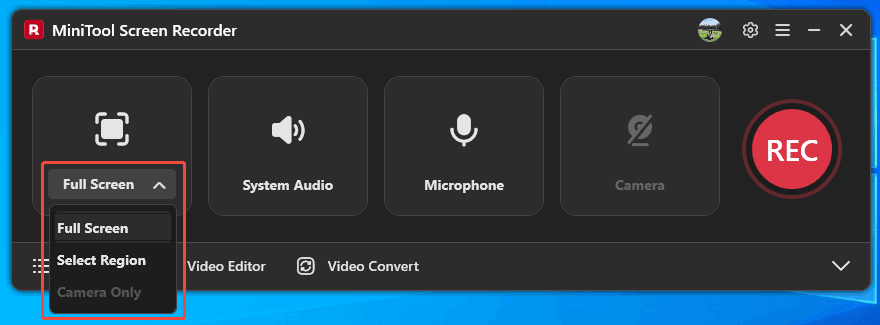
Open Sims 4 and launch MiniTool Screen Recorder. Next, sign in to the recorder. Then, expand the screen recording type option to choose from. Here, I take Full Screen as an example.
Step 3. Control the Audio
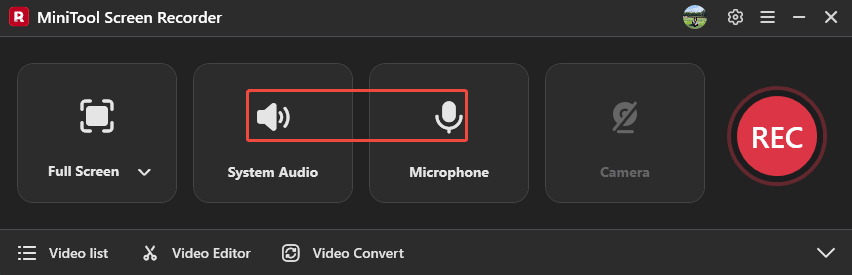
Click on the System Audio icon and the Microphone icon to confirm whether to record computer audio and voiceover.
Step 4. Adjust Settings for the Recorded Video
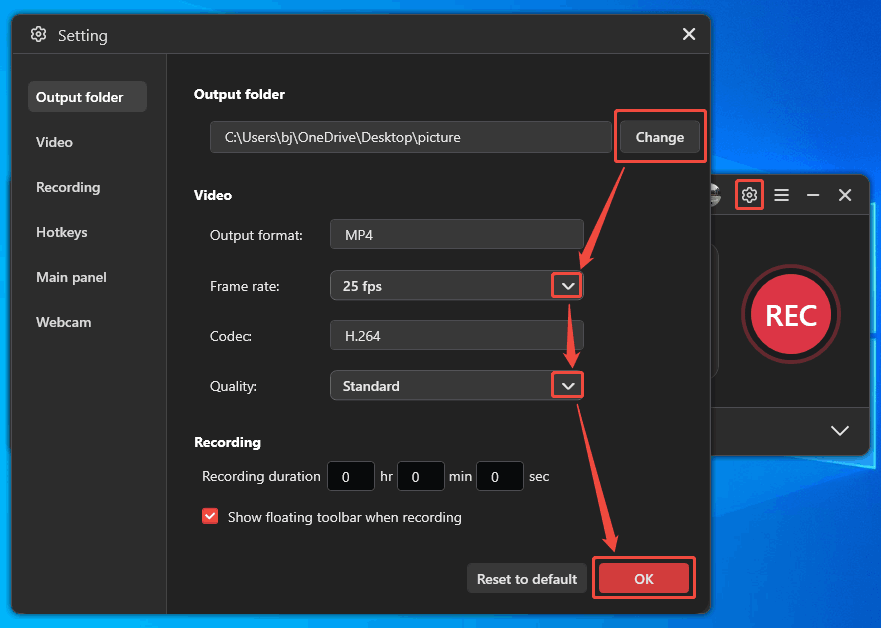
1. Click on the gear icon to open the Setting window.
2. In this window, click on the Change button to pick a storage folder for the recorded video.
3. Expand the Frame rate option to select a frame rate for your recorded gameplay.
4. Expand the Quality option to choose a video quality for your recording.
Step 5. Start Recording the Gameplay
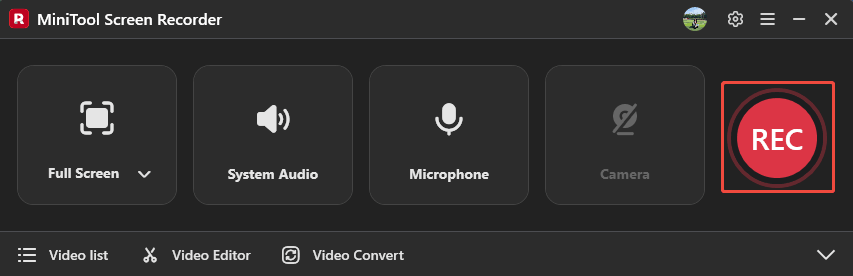
When you complete the settings, this video recorder will take you back to the main interface. Here, click on the REC button to start the recording process and open the gameplay you want to record.
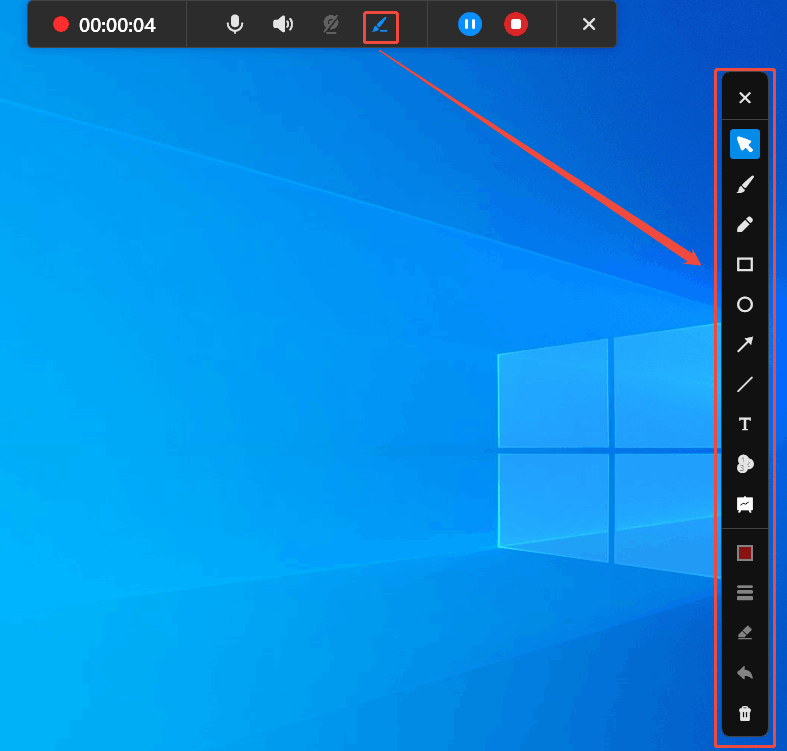
To enrich the gameplay recording, you can click on the Brush icon in the floating toolbar to open the annotation column. There, choose the proper tools to mark your gameplay during recording.
Step 6. Stop the Recording
To stop recording and complete other things on screen, press F9 to pause or resume the recording. If you have done your recording, press the F6 key to end it.
Step 7. Check the Recorded Gameplay
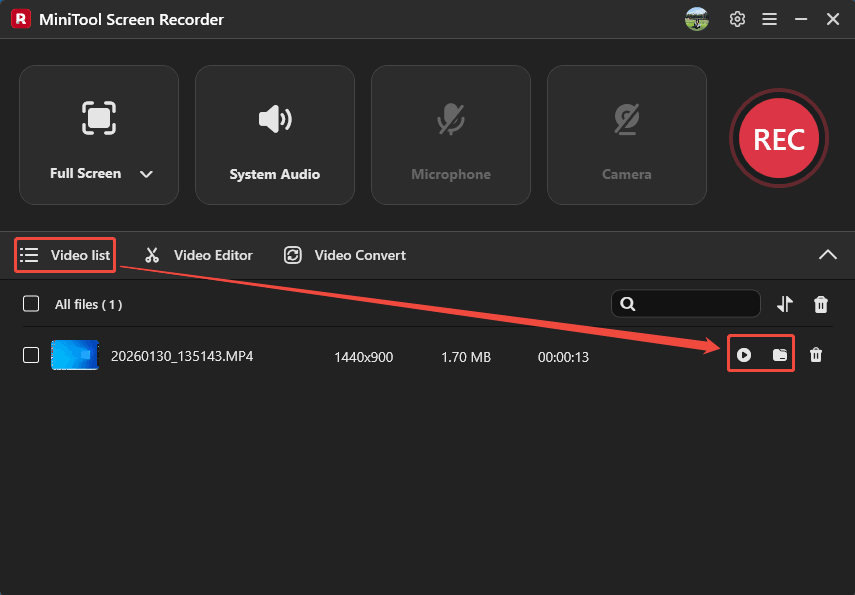
Upon completion of the recording, it will land on the Video list tab. From there, click the Play icon to view the recorded gameplay. Or click the Folder icon to locate it on PC.
MiniTool Screen Recorder helps record Sims 4 gameplay instantly and effortlessly. It doesn’t have any ads, watermarks, or bundles.
Final Words
How to record Sims 4 gameplay? This article shows this game’s built-in recording tool for quick recording. Also, it recommends a powerful desktop recorder, MiniTool Screen Recorder, for higher image quality and greater flexibility.
If you would like to obtain more information about MiniTool Screen Recorder, don’t hesitate to get in touch with us via email at support@minitool.com. Alternatively, you can send me a message online. I will reply as soon as possible.