

This post covers how to record 3DS gameplay using a computer and desktop software such as MiniTool Screen Recorder. Alternatively, you can capture your gameplay on 3DS using a phone or camera.
The Nintendo 3DS is a foldable dual-screen handheld game console. Although it was discontinued in September 2020, the Nintendo 3DS has become popular again since 2025 because of nostalgia and its high-quality game library. Its prices have even skyrocketed in 2026.
If you have a Nintendo 3DS and want to share your gameplay with friends, how do you do that? In other words, how to record 3DS gameplay?
Why Record 3DS Gameplay
Before we dive into the methods, let's consider the main reasons for capturing 3DS gameplay.
Preserving Memories: Saving gameplay highlights is the most direct reason for recording on your 3DS.
Content Creation: If you want to build a YouTube channel for sharing gameplay videos, the Nintendo 3DS is a great option. In addition to a vast library of games, it’s also a memory for a generation, which will help you attract potential subscribers and viewers.
The Nintendo 3DS consoles don’t have built-in features to share videos. Therefore, recording gameplay on a 3DS requires more processes. Don’t worry, this post provides a tutorial for you.
How to Record 3DS Gameplay Without Capture Card on PC
Let’s get back on the subject. In this section, let’s learn how to record gameplay on 3DS.
Step 1: Modify Your 3DS Console
When it comes to capturing your 3DS footage, you may think that a specialized 3DS capture card is necessary, such as the Elgato Game Capture HD60 S, a reliable choice for recording in 1080P 60FPS. Then, you can capture your 3DS gameplay in super quality on your computer.
However, the old Nintendo 3DS, Nintendo 3DS XL, and Nintendo 2DS lack a native HDMI output, so these models cannot be connected directly to a standard capture card. Therefore, how do you record 3DS gameplay without a capture card?
For this purpose, you need to modify your 3DS with a physical capture card to add a mini-USB or micro-USB port to the console for video output.
To modify your console, you need to send it to the modder, which might cost you a sum of money. Once you get the modified 3DS, you can directly connect it to your PC using the USB cable.
Next, you need to install the software provided by the modder to display your gameplay on your computer. After that, you can record your 3DS gameplay using a screen recorder.
If you own one of the New Nintendo 3DS models, then you don’t have to modify the console. You can use a CFW to connect the console to the computer.
Step 2: Record 3DS Gameplay with a Desktop Screen Recorder
After connecting your game console to your computer, you can forge ahead to the ultimate goal. How do you record 3DS gameplay on a PC? Let’s move on:
1. Install a desktop screen recording application
A screen recorder is necessary to record 3DS gameplay on your computer. There are many tools available on the market, and MiniTool Screen Recorder stands out for its user-friendly design, no cost, and powerful capabilities.
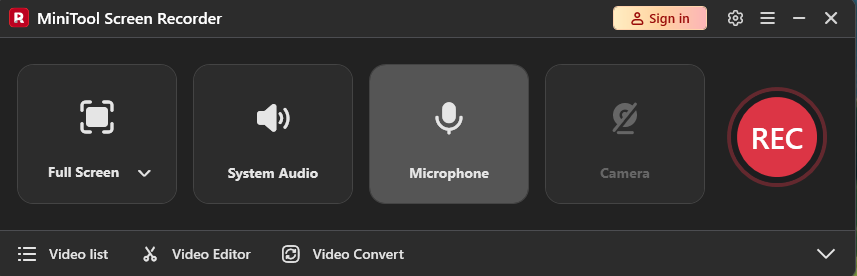
With this program, you can effortlessly record on-screen activities, such as gameplay, lectures, training sessions, and software demonstrations. You can also record yourself with the screen to create engaging videos and highlight key information with its extensive screen annotation tools.
Click the button below to download the excellent screen recording software and install it on your computer.
MiniTool Screen RecorderClick to Download100%Clean & Safe
Here’s how to record 3DS gameplay on a Windows PC using MiniTool Screen Recorder.
2. Adjust recording settings
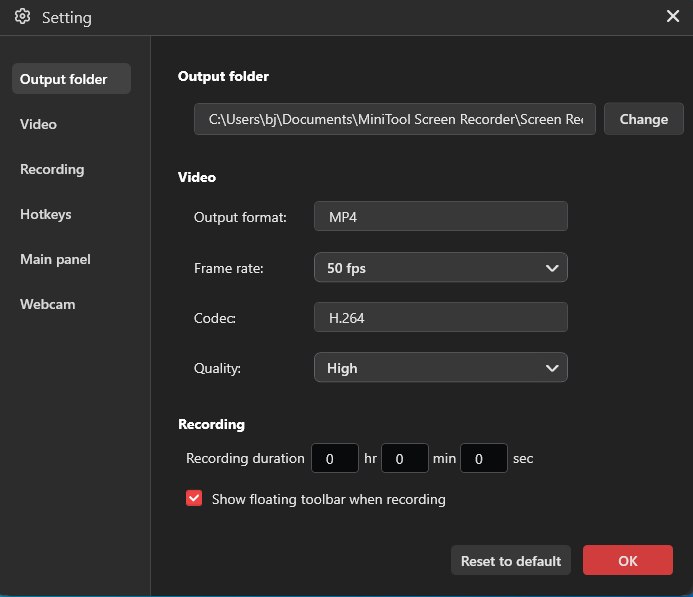
After running the software, click the Gear icon in the upper-right corner to open Settings. You can then change the output folder, select a higher frame rate, set the quality to High, or set a recording duration for automatic stop at the end. Click OK to apply the changes.
3. Choose recording area
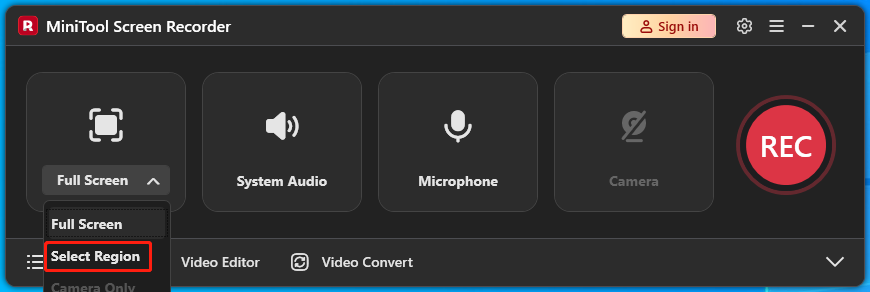
Click the Full Screen option, click the Select Region option, and drag to select your game window.
4. Record your 3DS gameplay
Click the red REC button on the right side of the interface, and the recording starts after a 3-second countdown. Start your game, and the process will be recorded.
You can press F9 to pause the recording if you don’t wish to record a certain part of the gameplay. Press F9 again to resume the recording.
5. Check and edit the gameplay
The recording stops automatically once the set duration is reached. You can also press F6 to end the recording.
The video will then appear at the top of the expanded video list. From there, you can play, locate, or delete the file.
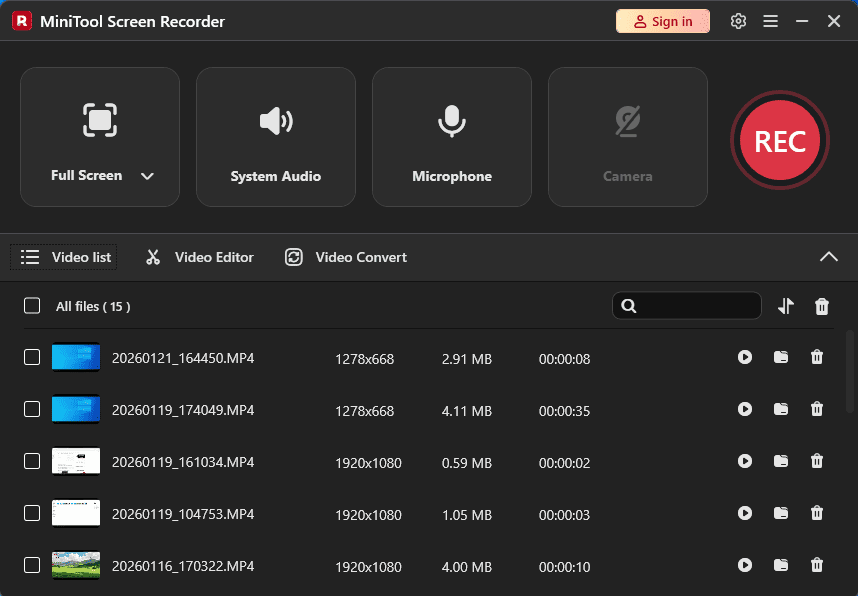
Next, you can click the Video Editor option inside the MiniTool Screen Recorder interface to edit your gameplay. Trim unwanted parts, add stickers, add background music, and more to make your video more engaging.
How to Record 3DS Gameplay Using a Camera
If you don’t want to modify your console or use a CFW, you can use your phone or a camera to record the console screen. However, the video may be of low quality due to issues like glare, blur, or poor audio.
Step 1: Place Your Phone/Camera on a Tripod
Placing your phone or camera on a tripod is crucial for eliminating shake and maintaining video stability. And finally, you’ll get smooth gameplay footage.
Step 2: Keep the Camera Lens Focused on the 3DS Screen
Make sure your phone’s camera focuses on the console screen. You can zoom in on your phone screen to ensure everything is captured clearly.
Step 3: Control the Lighting
Good lighting conditions are necessary to ensure the final video looks natural and clear. First, make sure you’re in an environment with adequate natural light. You can then open your phone’s camera and adjust exposure and other settings.
Step 4: Record Gameplay on 3DS
Click the Record button on your phone to start recording immediately, and meanwhile, start your gameplay. Tap the button again to stop the recording.
Conclusion
That's all about how to record 3DS gameplay. Although the process seems to be complex, especially the connection setup, there's still a way. If you want to record 3DS gameplay for convenience and at no cost, your phone’s camera can help.
Finally, if you have problems while using MiniTool Screen Recorder, email us at support@minitool.com for help.