

Can you record on Pluto TV? Of course you can. Although Pluto TV itself doesn't have a built-in recording, you can use third-party screen recording tools, such as MiniTool Screen Recorder, to record the content.
What Is Pluto TV?
Pluto TV is a streaming television service. It is available on a variety of devices, including smart TVs, game consoles, smartphones, and tablets. Pluto TV offers a wide range of video contents, including news, movies, sports, and reality shows. It allows you to watch approximately 425 channels live and also supports on-demand viewing of specific TV programs.
The contents on Pluto TV are completely free. However, some contents are ad-supported. This means you will need to watch advertisements to view the contents. Additionally, you don't need to create an account to watch all the programs on Pluto TV. However, to save your favorite shows, you will need to register for an account and log in.

Why Record Pluto TV?
Recording live programs on Pluto TV offers several advantages:
- Skip Advertisement: Recorded contents can be watched later without commercials.
- Offline Viewing: Once the content is recorded, you can enjoy it anytime without requiring an internet connection.
- Flexible Playback Control: Live content recorded from Pluto TV can be paused, rewound, or fast-forwarded during playback.
Can You Record on Pluto TV?
Can you record shows on Pluto TV? If you want to record videos directly in Pluto TV, the answer is no. This is because Pluto TV doesn’t have a built-in digital video recorder (DVR) function. However, you can record videos from it using third-party screen recording software.
The contents on Pluto TV are protected by digital rights management (DRM). This will prevent you from recording. Therefore, you might experience a black screen during recording. In this case, you can disable hardware acceleration in your browser to bypass the DRM restrictions.
Importantly, make sure the videos you record are for personal, private, and family use only. Distributing or profiting from them may violate Pluto TV's terms of service and copyright law.
How to Record Pluto TV on Your PC?
Firstly, you need to disable hardware acceleration to bypass black screen recording.
Disable Hardware Acceleration on Your Browser
When hardware acceleration is enabled, Pluto TV's DRM technology encrypts the video within the GPU, so screen recording software will only see a black screen. When hardware acceleration is disabled, the browser uses the CPU for decoding. In this case, the video frames are stored in regular memory, and any screen recording software can capture them.
Here is a guide on how to disable hardware acceleration on Chrome and Edge:
# Disable Hardware Acceleration on Chrome
Step 1: Go to Chrome Settings
Open Chrome on your desktop, click the more icon at the top-right corner, and select Settings.
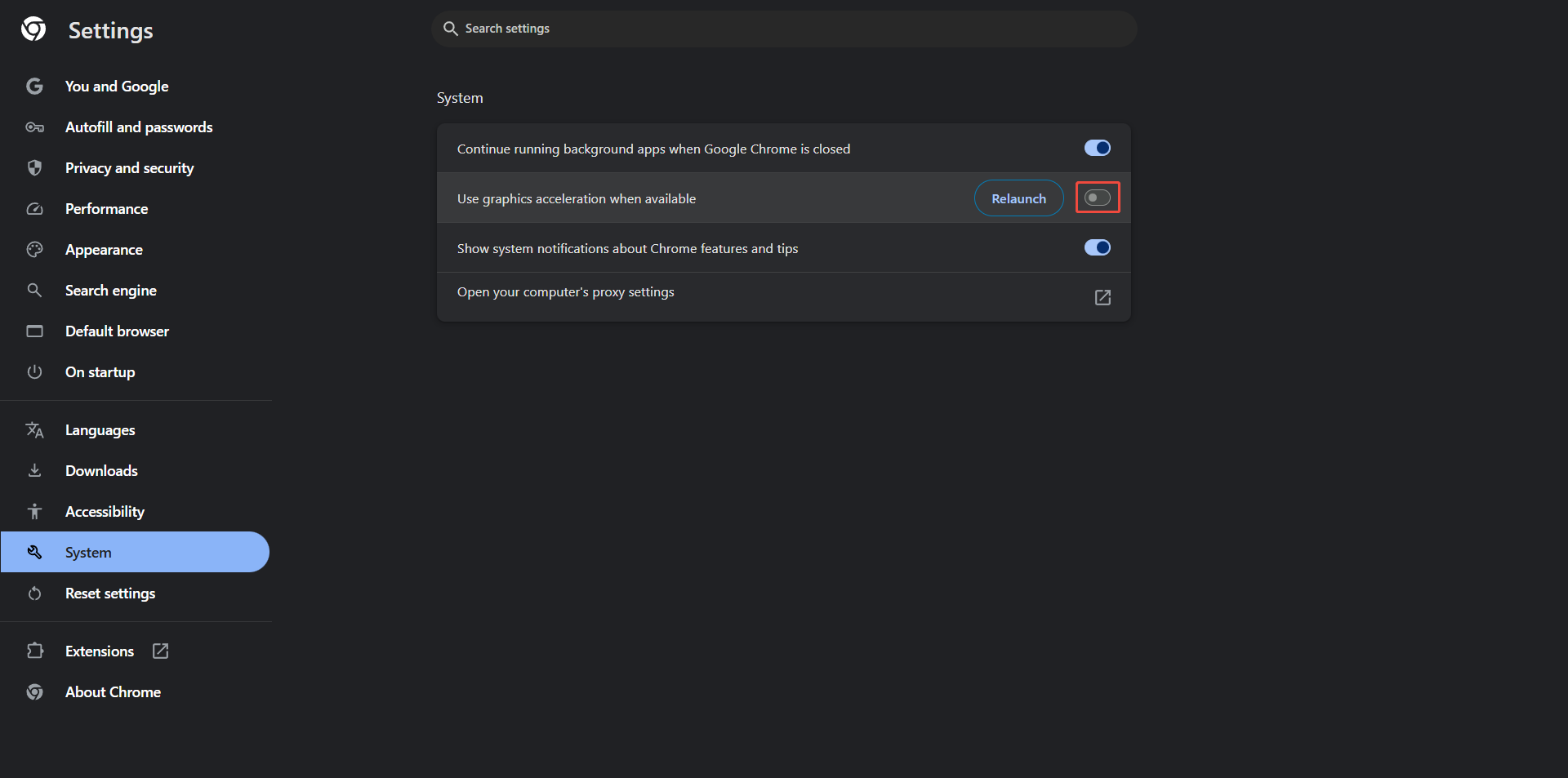
Step 2: Disable Graphics Acceleration
Choose the System tab and toggle off Use graphics acceleration when available.
# Disable Hardware Acceleration on Edge
Step 1: Go to the Settings Page of Edge
Launch Edge on your computer, click the Settings and more icon in the top-right corner, and choose Settings.
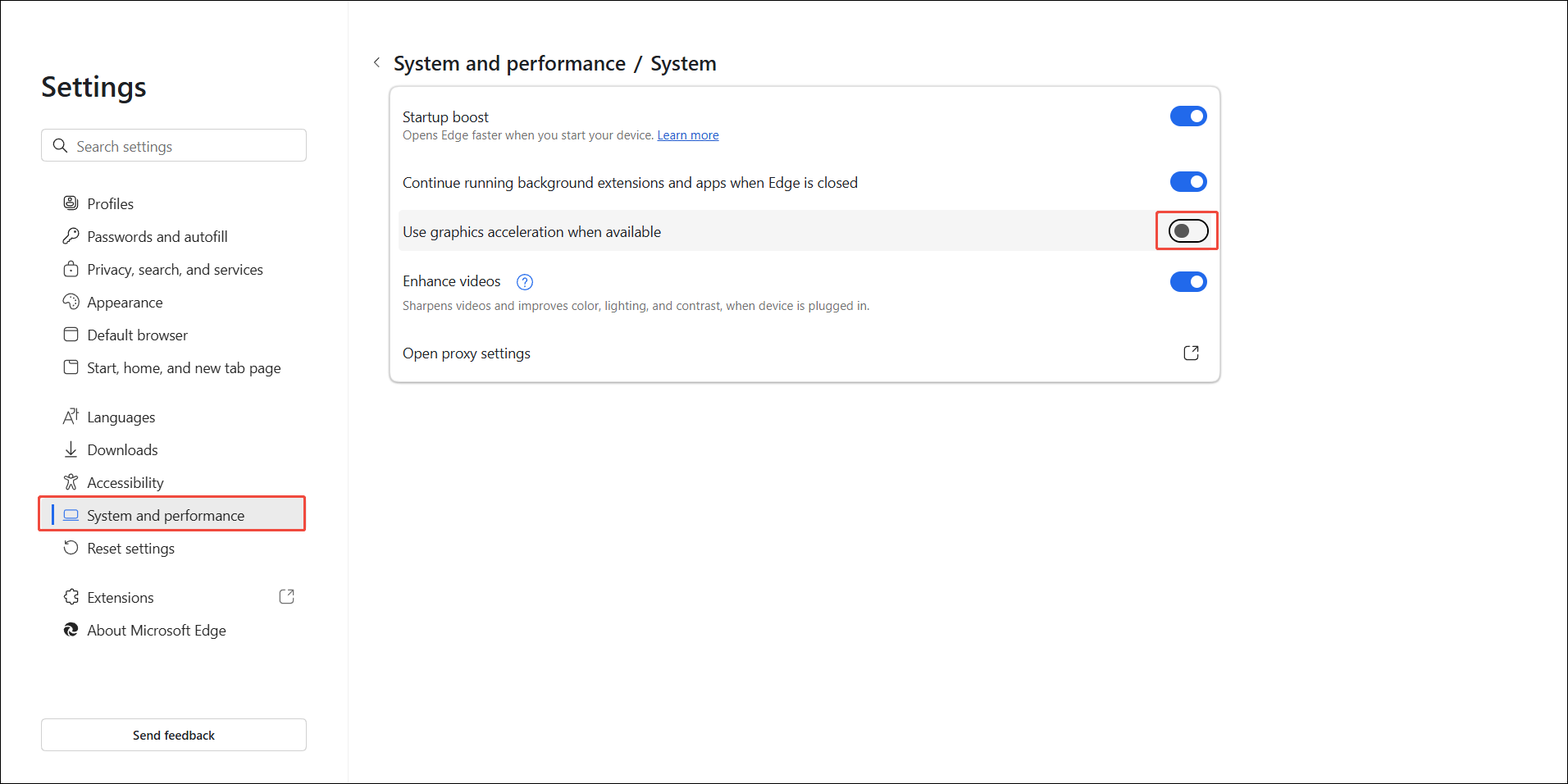
Step 2: Turn off the Graphics Acceleration
In the Settings page, switch to the System and performance tab, and disable the Use graphics acceleration when available option.
After disabling hardware acceleration, you can start recording with third-party screen recording software.
Use MiniTool Screen Recorder to Capture Pluto TV Shows
MiniTool Screen Recorder is a free and professional screen recorder without a time limit, allowing you to record for several hours or even longer. MiniTool Screen Recorder supports recording the entire computer screen, custom areas, webcam footage, system audio, and microphone sound.
Furthermore, it allows you to add screen annotations such as arrows, lines, rectangles, numbers, or text in real time during recording. Whether you're recording TV shows, games, lectures, or presentations, it meets all your needs.
Here’s how to record Pluto TV with this free screen recorder:
Step 1. Install and Launch MiniTool Screen Recorder
Click the download button below, launch the installer, and follow the quick prompts to install MiniTool Screen Recorder on your computer. Then, launch this free recorder.
MiniTool Screen RecorderClick to Download100%Clean & Safe
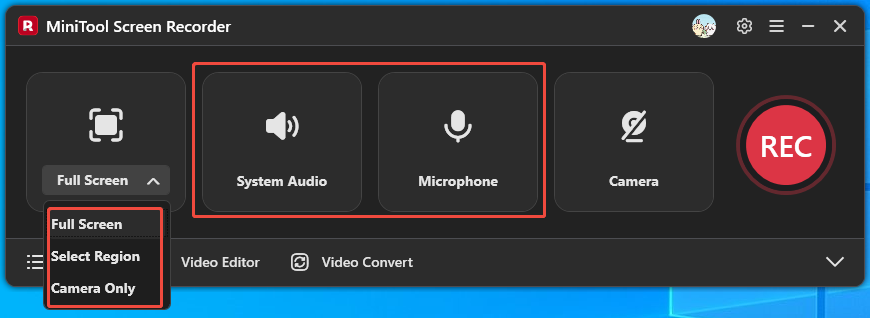
Step 2. Set the Recording Area and Audio
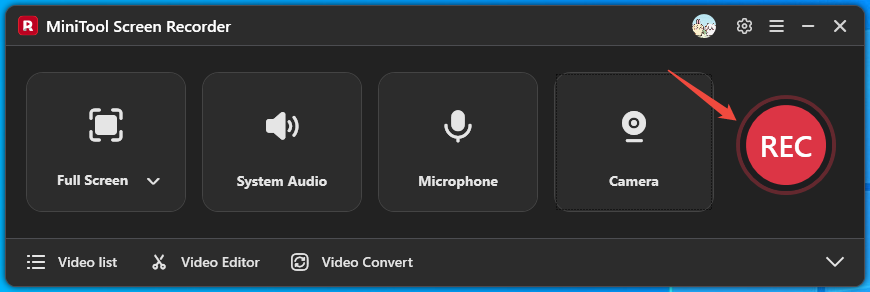
On the main interface, click the first option to set the area you want to record. Here, I chose full-screen recording. The software records system audio and microphone audio by default. If you don't want to record them, simply click the corresponding icons.
Step 3: Select a Save Location
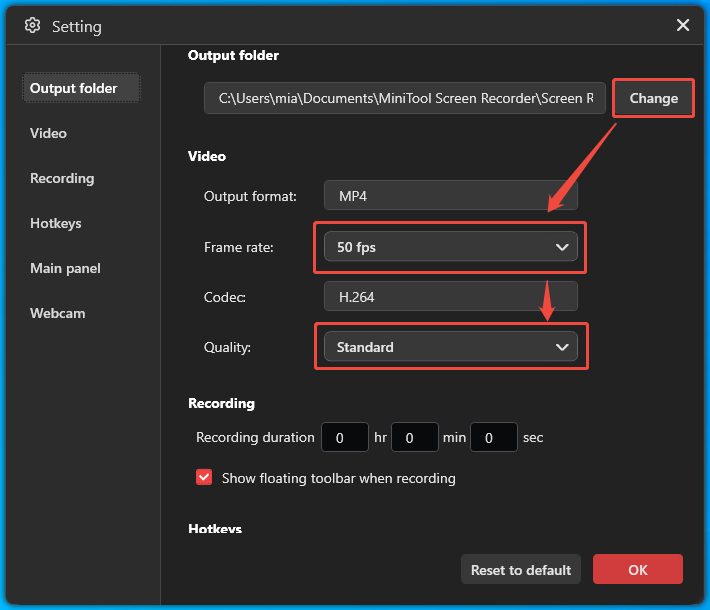
Click the gear icon to open the Setting window. In the Output folder section, click the Change option to set the save folder.
Step 4: Set the Video Parameters
You can select a recording frame rate of 15fps, 20fps, 25fps, 30fps, or 50fps under the Video tab and set quality to Standard, High, or Original. After everything is set up, click OK to save.
Step 5. Start and End Recording
Open the video you want to record on Pluto TV, then click the REC button.
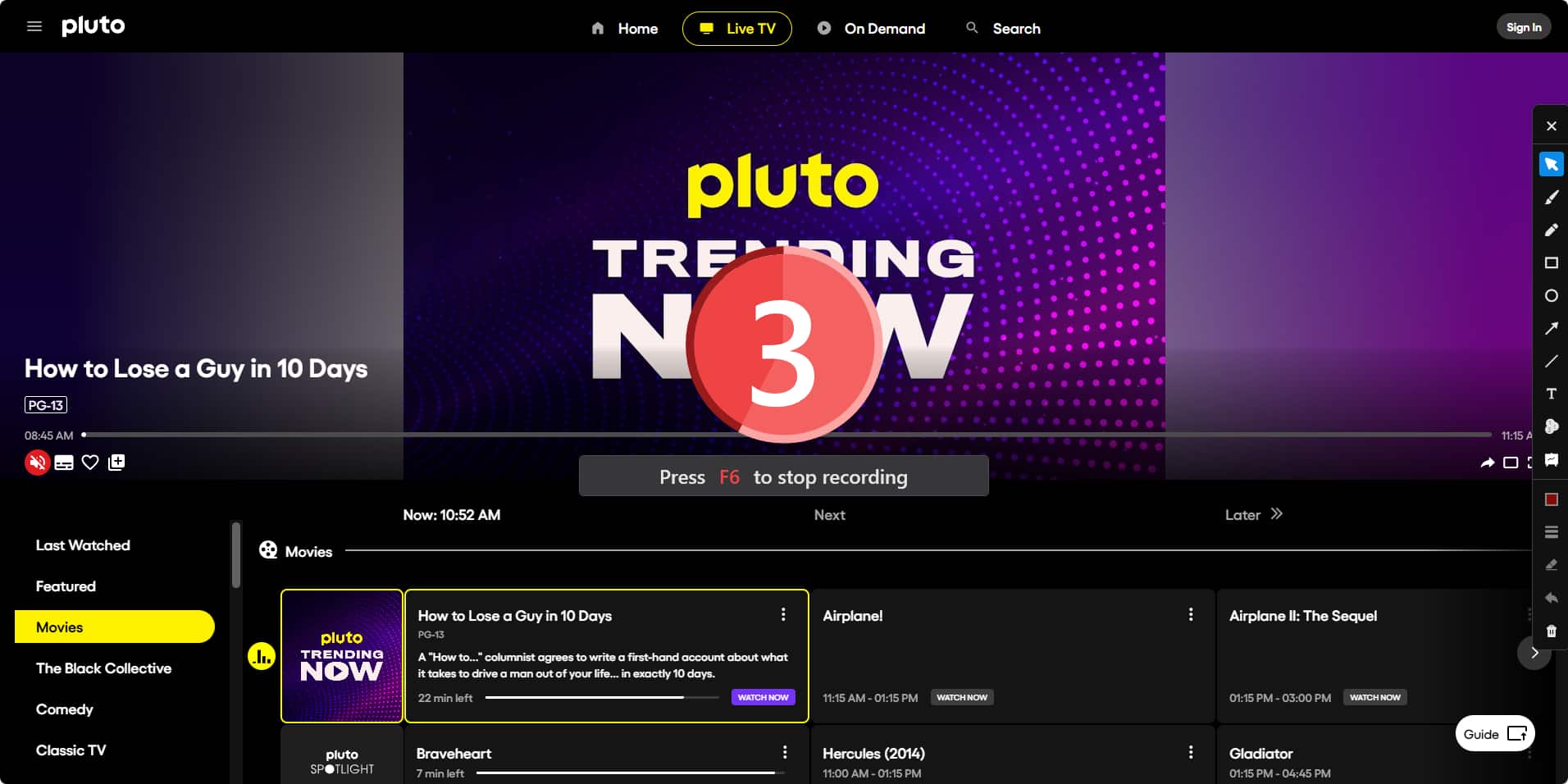
After the 3-second countdown ends, you can play the video you want to record. Press F9 at any time to pause the recording and skip unimportant segments. Press F9 again to resume. When you want to finish recording, press the F6 key to stop recording immediately.
Step 6: Check the Recorded Video
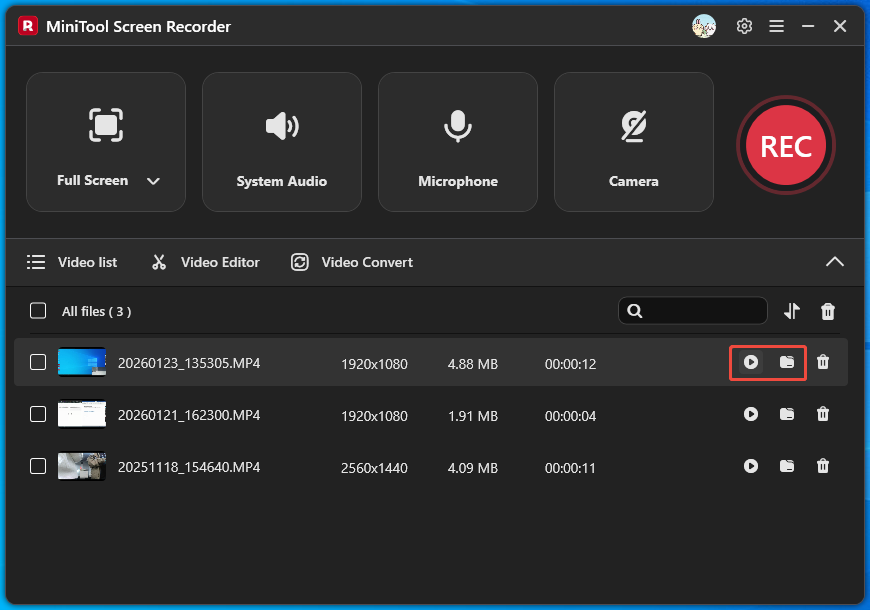
Once you stop recording, the new video pops into the Video list. Click the play icon to watch the clip, or the folder icon to open its save location.
In short, MiniTool Screen Recorder gives you multiple screen recording frame rates and quality settings for crisp, smooth playback, making it a top pick for any recording task.
Conclusion
Can you record on Pluto TV? Yes! A third-party recording tool like MiniTool Screen Recorder supports doing that. However, to avoid recording a black screen, please disable hardware acceleration in your browser first.
Need help or have feedback about MiniTool Screen Recorder? Email us anytime at support@minitool.com.