

Bandicam can record your computer screen and audio. How to fix Bandicam audio not recording? Follow the 6 fixes mentioned in this article, including checking sound settings for Bandicam and Windows, unchecking the compatibility mode, enabling stereo mix, reinstalling Bandicam, or using an alternative – MiniTool Screen Recorder.
Bandicam is a lightweight screen recorder that allows you to capture what you want on your PC screen and save it in MP4 HD. It features multiple recording modes, such as game mode, device mode, and audio-only mode. Also, multiple recording area options are available, such as full screen, a rectangular area, or a customizable section.
How to Use Bandicam to Record Video with Audio
Let’s learn how to use Bandicam to record video with audio.
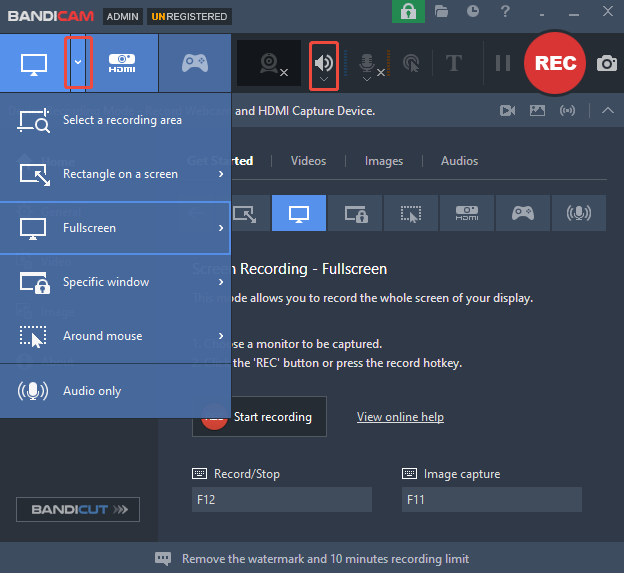
Step 1. Choose Recording Mode and Audio
1. Open Bandicam and select a recording mode by clicking the drop-down arrow.
2. Please make sure that the Speaker is open.
Step 2. Record the Video with Audio
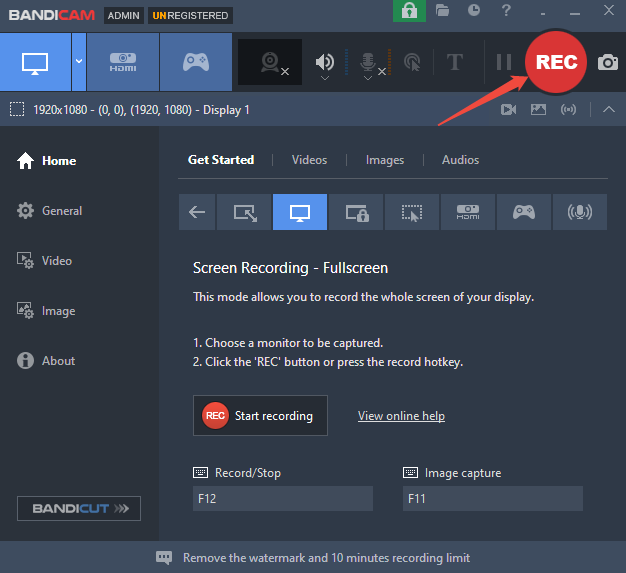
1. Play the video that you want to record.
2. Press the REC button to start recording. To stop the recording, press the F12 key.
Step 3. Locate the Recorded Video
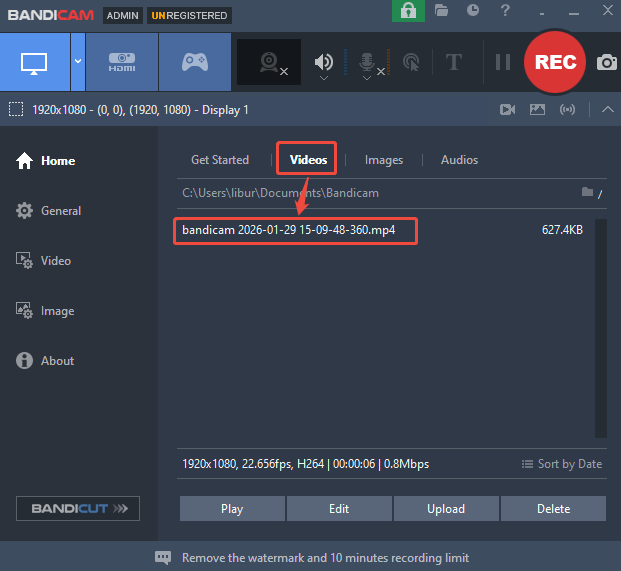
The recorded video will be saved under Videos and you can double-click to view it.
After recording the video, do you find Bandicam no audio? This is the most common issue and the recording is useless. The video will play without any sound from the microphone or the system. How to fix Bandicam audio not working? The next section shows you the answer.

How to Fix Bandicam Audio Not Recording
In this part, you will get 6 solutions for Bandicam not recording audio.
Solution 1. Check Bandicam Sound Settings
The simplest method to fix Bandicam not recording game audio is to check the sound settings. Sometimes, after you install Bandicam, you need to add sound to Bandicam manually.
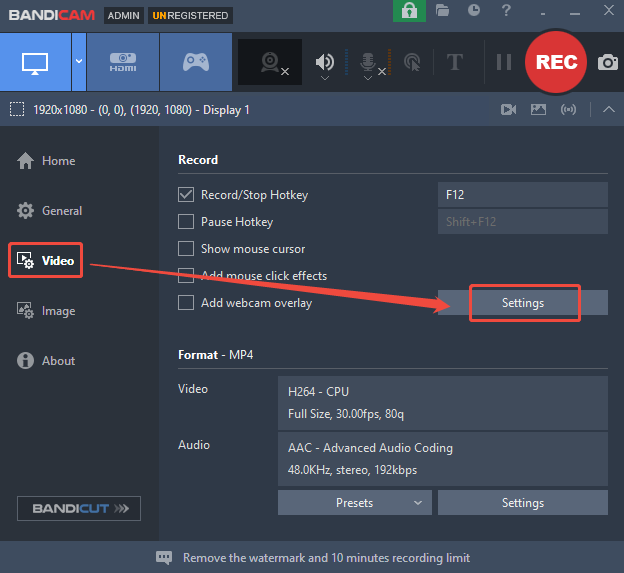
Step 1. Open Recording Settings Window
1. Open Bandicam on your PC and click on Video on the left side.
2. Click Settings in the Record section to open the Record Settings window.
Step 2. Enable Bandicam Sound
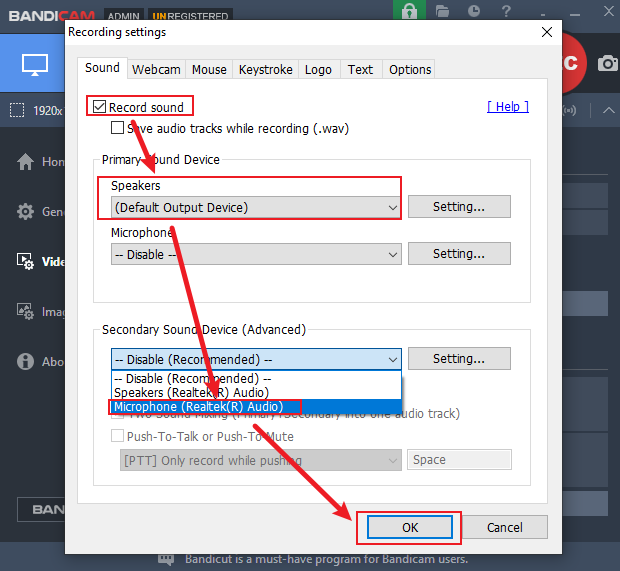
1. Under the Sound tab, make sure the Record sound option is checked.
2. Under the Primary Sound Device section, choose Default Sound Device under Speaker.
3. You can also set the microphone as the Secondary Sound Device option.
4. Click on Save to save the changes.
Solution 2. Check Windows Sound Settings
If changing Bandicam’s sound settings doesn’t work out for you, checking Windows sound settings is another audio fix.
Step 1. Set Speaker as the Default Device
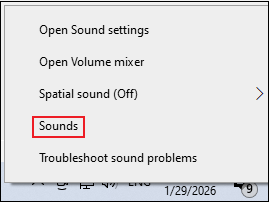
1. Go to the System Tray and right-click the sound icon. Then, click on Sounds.
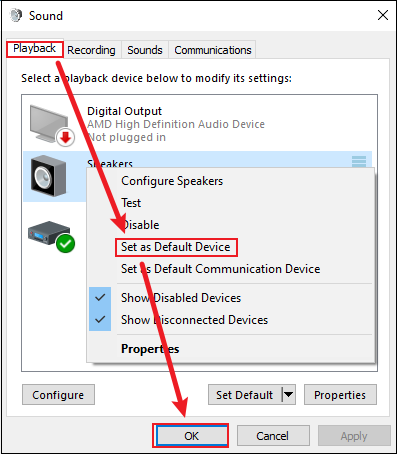
2. Locate Playback, right-click the Speakers to set it as the default device.
Step 2. Access Volume Mixer to Set Volume
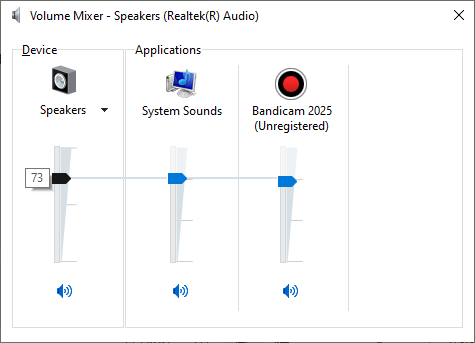
Right-click the sound icon and select Open Volume Mixer to set the volume between 70 and 90.
Solution 3. Uncheck the Compatibility Mode
Compatibility mode can sometimes interfere with Bandicam, causing audio recording issues, so uncheck compatibility mode.
Step 1. Go to Bandicam’s Properties
Right-click on the Bandicam icon on your desktop, select Properties at the bottom of the drop-down list.
Step 2. Uncheck the Compatibility Mode
1. Switch to the Compatibility tab, uncheck the option Run this program in compatibility mode for, and click Apply.
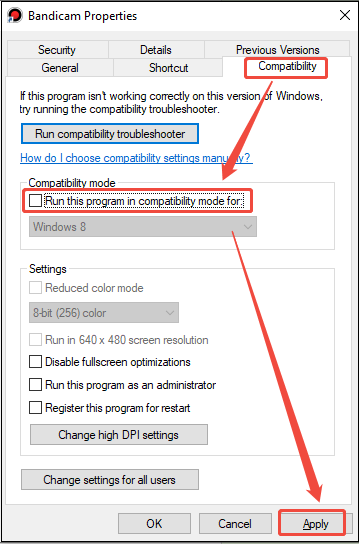
2. Then, restart Bandicam and check if it can record your computer sound.
Solution 4. Enable Stereo Mix
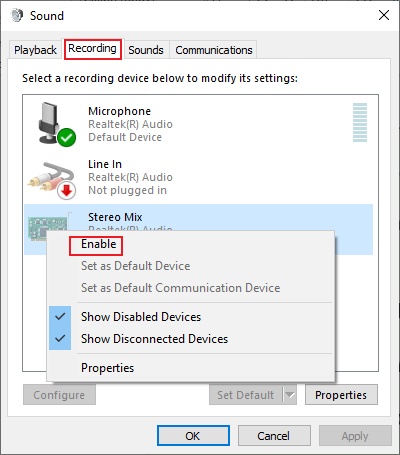
Stereo Mix is a Windows feature that enables you to get the audio output from your computer. Enabling Stereo Mix will allow Bandicam to capture all system sounds.
Right-click the sound icon on the System Tray and click on Sounds. Then, go to Recording, right-click Stereo Mix, and click on Enable.
Solution 5. Uninstall and Reinstall Bandicam
Sometimes, the installation files of Bandicam may get corrupted or outdated, causing audio recording issues. Try to uninstall Bandicam and reinstall it to fix the recording issue.
Step 1. Uninstall Bandicam
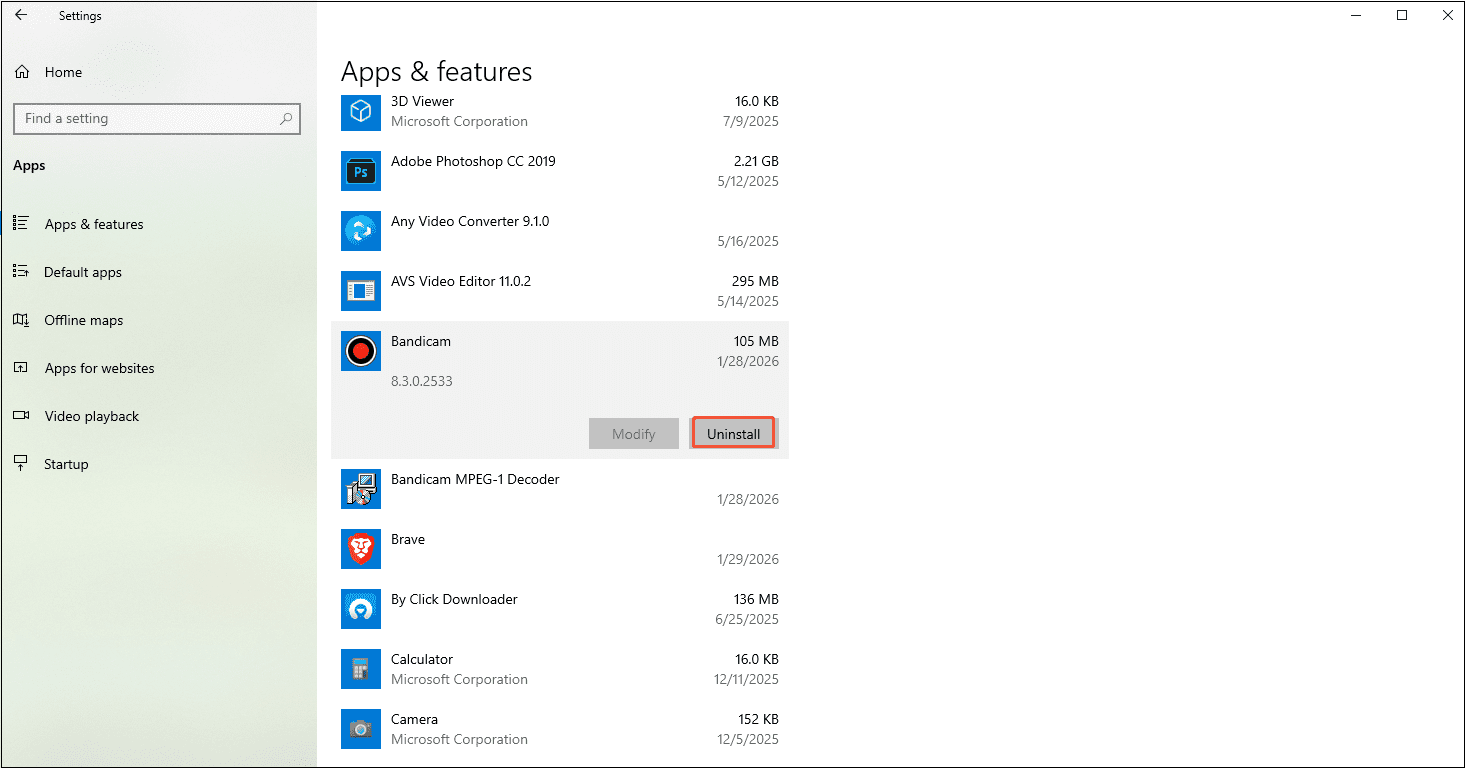
1. Press Windows + I to open settings quickly and click on Apps.
2. Scroll down to locate Bandicam, right-click it, and click on Uninstall.
Step 2. Reinstall Bandicam
Visit the official website of Bandicam to download and install it.
Solution 6. Use a Bandicam Alternative
Suppose Bandicam audio is still not recording after trying all the solutions above, you can use an alternative. I carefully selected MiniTool Screen Recorder from all the recorders I have used.
Why MiniTool Screen Recorder is a brilliant Bandicam alternative? Firstly, it has some similar functions to Bandicam. For example, you can record any screen areas, record the system audio and your voice, add webcam overlay, set recording duration, add real-time annotations, etc.
Additionally, what makes MiniTool Screen Recorder better than Bandicam is that the former doesn’t have recording time limitations, and it doesn't add watermarks to the recorded videos.
Now, read the steps below to record the computer screen with audio using MiniTool Screen Recorder.
Step 1. Install MiniTool Screen Recorder
Download MiniTool Screen Recorder by clicking the button below and follow the prompts to install it.
MiniTool Screen RecorderClick to Download100%Clean & Safe
Step 2. Adjust the Recording Settings
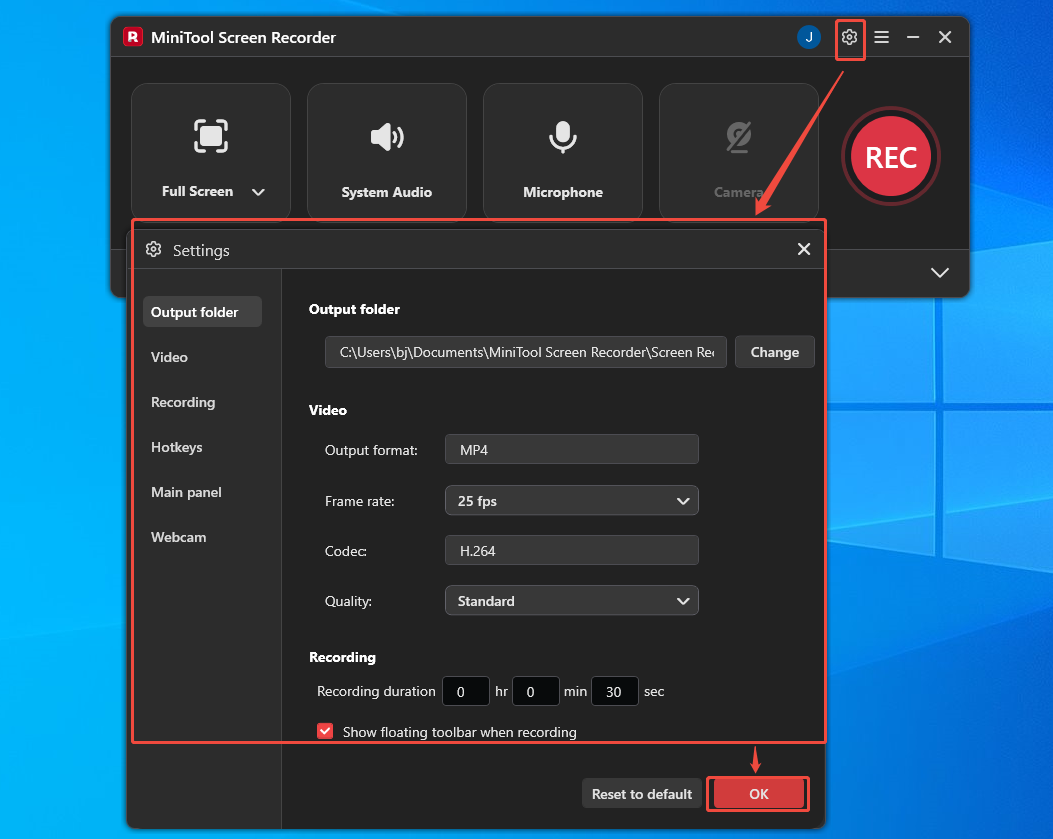
1. After opening this recorder, click on the Settings button at the upper-right corner to open the setting window.
2. You can change the output folder, use a higher frame rate and better quality, customize the hotkeys, adjust webcam position, shape, and size.
3. Click on OK to save all the changes.
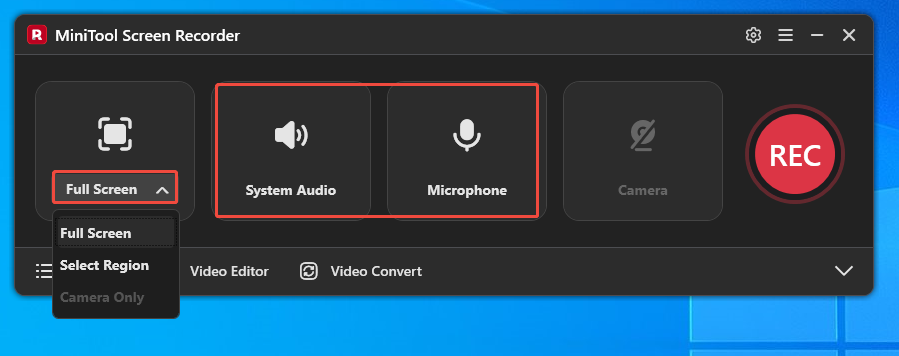
Step 3. Choose Recording Area and Audio
1. Click the drop-down menu next to Full Screen and select the corresponding recording area option.
2. The system audio and microphone audio are opened by default, so you don’t need to enable them manually.
Step 4. Record the Video with Audio
1. Open the video on your computer and press the REC button to record it.
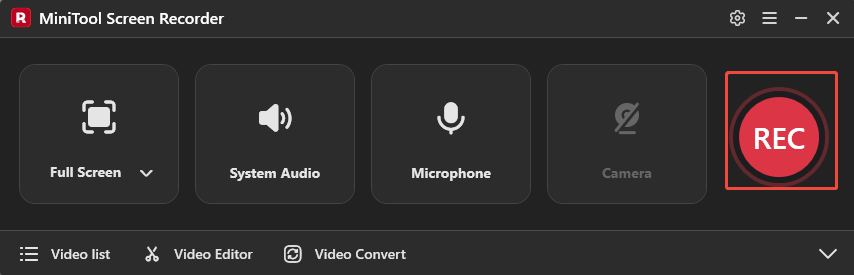
2. Press F6 to stop recording.
Step 5. Play and Locate the Recorded Video with Audio
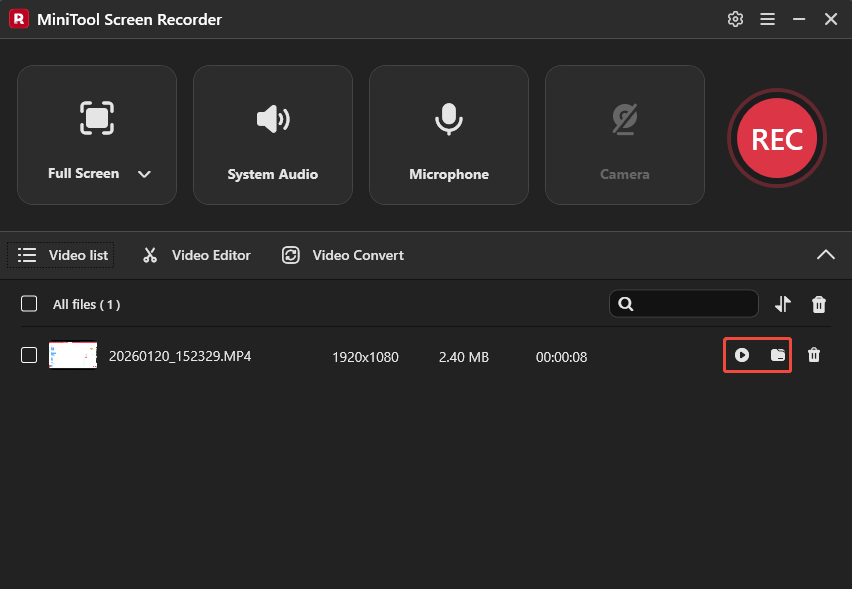
1. The recorded video with audio will be saved under the Video list.
2. Click on the play icon to watch it or click on the folder icon to navigate to the save location.
Bandicam audio not recording issue is addressed by using MiniTool Screen Recorder!Click to Tweet
Bottom Line
Bandicam is a wonderful recording software, but it also has some problems with audio recording. By following the 6 solutions above, including checking sound settings for Bandicam and Windows, unchecking the compatibility mode, enabling stereo mix, reinstalling Bandicam, or using MiniTool Screen Recorder, addressing the Bandicam audio not recording issue is an easy piece.
If you have any problems when using MiniTool Screen Recorder, please send an email to support@minitool.com to ask for help.