

What Is Steps Recorder
Steps Recorder, formerly called Problem Steps Recorder in Windows 7, is a built-in Windows tool that captures and documents user actions on the screen. It lets you record your exact clicks step-by-step. Moreover, this utility is capable of automatically recording screenshots of your actions with descriptive and annotated steps.
As the name suggests, Problem Steps Recorder is primarily used to capture steps, making it easier for IT support or developers to troubleshoot and resolve issues. It is also useful for creating tutorials or documenting standard procedures.
Key Features of Steps Recorder:
- Step-by-Step Documentation: Steps Recorder automatically captures screenshots whenever you perform an action on the screen and records a text description of each action, including mouse clicks and keyboard inputs. These are combined into a clear step-by-step guide showing the sequence of actions performed on the computer.
- Highlighting User Actions: When you click on the screen, the tool highlights the selected area in the screenshot, making it easier to see where each action occurred.
- Comment Support: Users can add comments to specific parts of the screen while recording to add additional context.
- Review and Save: Once recording is complete, users can review the captured steps and save them as a compressed ZIP file with an MHTML document, which can be easily viewed in any web browser.
How to Use Steps Recorder on Windows
This section explains how to use Steps Recorder to capture steps on your computer.
Step 1: Open the Steps Recorder Tool
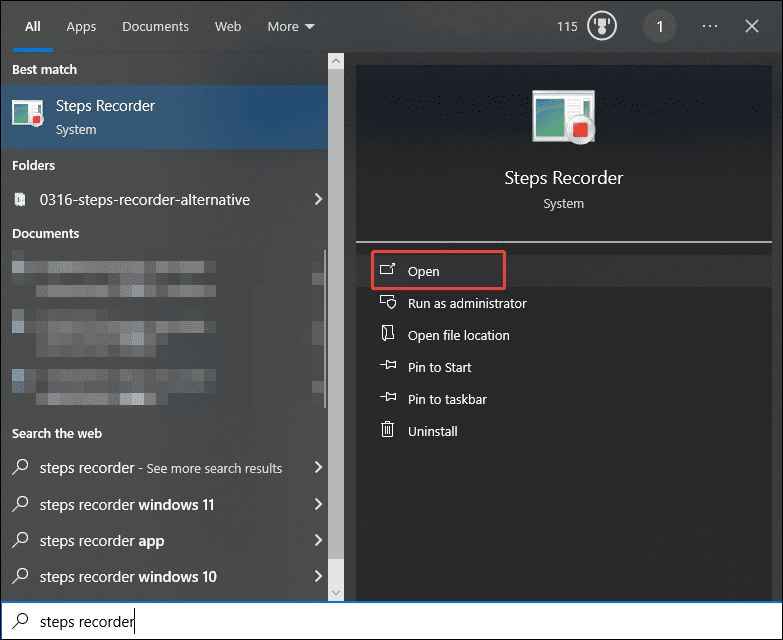
Type Steps Recorder in the search box in the lower-left corner of your screen. Click Open in the right panel to launch Steps Recorder.
Step 2: Adjust Recording Settings
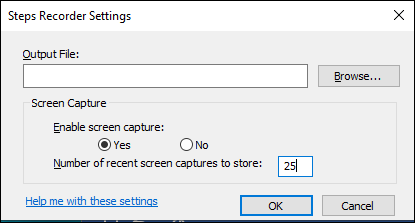
Click the Settings icon and select the Settings option from its drop-down list. Here, you can change the output file location by clicking the Browser button. If you don’t want to capture the screenshots for your action, choose No to disable screen capture.
By default, Steps Recorder saves 25 screenshots, but you can adjust this by entering a different number. Then, click OK to save all adjustments.
Step 3: Start Recording and Add Comments
When you are ready to begin recording, click the Start Record button. You can start your screen activities. If you want to pause for a break, click Pause Record and click Resume Record to continue.

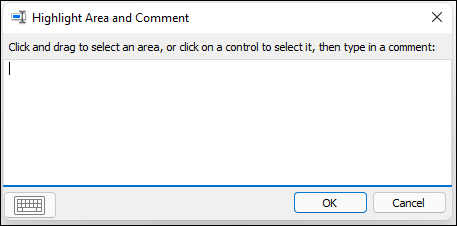
To add a comment, select Add Comment in the interface. Then, drag your mouse cursor to highlight the area you want to add a comment to. Type the text in the Highlight Problem and Comment box and select OK to save it.
Step 4: Stop and Save the Recording
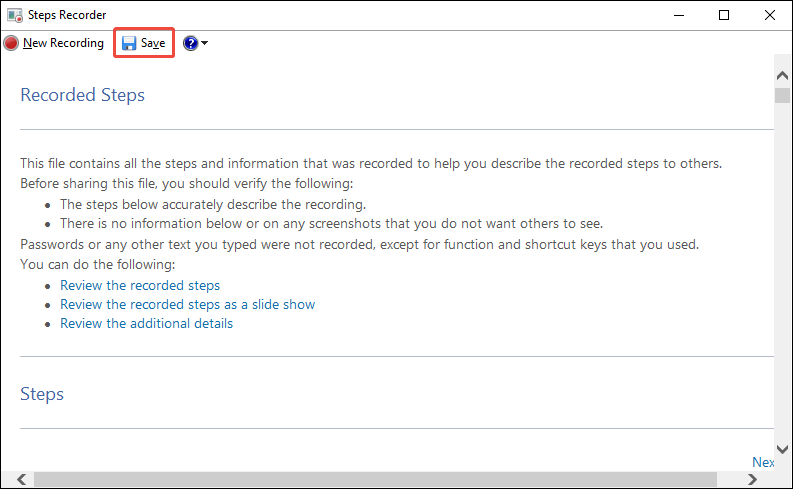
When you are finished recording, click Stop Record. And a list of recorded steps will appear on your screen. You can review what you have done, including instructions and screenshots.
To save it, click the Save button. Choose a file name and location, and the recording will be saved as a compressed MHTML (.zip) file. It can be opened by any Windows system using popular Internet browsers like Microsoft Edge, Google Chrome, Safari, etc.
Top 6 Steps Recorder Alternatives
However, Microsoft announced that Steps Recorder is gradually being phased out following the Windows 11 update in February 2024. The tool can still be used on Windows, but Microsoft is focusing on improving the overall Windows experience through other built-in or alternative tools.
In addition to this gradual deprecation, Steps Recorder has several limitations. It may crash unexpectedly, lacks basic editing and customization features, and supports only a limited output format.
More importantly, it relies heavily on screenshots and text, which can be less intuitive for demonstrating complex actions. In contrast, video recordings provide a clearer and more dynamic way to present on-screen processes, making them especially suitable for tutorials and step-by-step guides.
Therefore, this section presents the 6 best alternatives to Steps Recorder, all of which can effectively capture action steps:
- MiniTool Screen Recorder
- Xbox Game Bar
- Snipping Tool
- Microsoft Clipchamp
- Scribe
- Screencastify
Let’s take a closer look at each of them.
MiniTool Screen Recorder
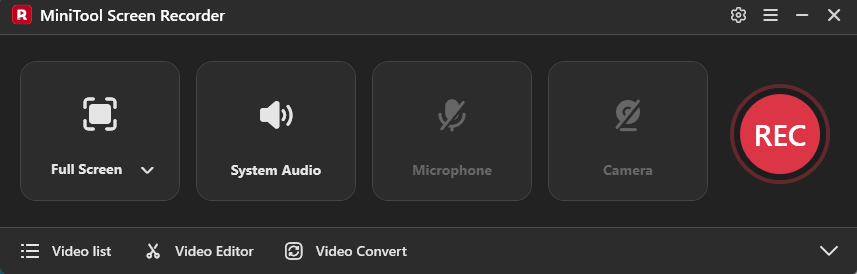
MiniTool Screen Recorder is the first alternative to Steps Recorder that comes to my mind, thanks to its ease of use and versatile features. As a powerful screen recorder, this software captures on-screen activity clearly, providing a detailed visual record of every step.
MiniTool Screen RecorderClick to Download100%Clean & Safe
Lightweight and Easy to Use
When I first installed MiniTool Screen Recorder on my computer, I was impressed by its lightweight design, which allows smooth background recording without taking up much space. Its intuitive and user-friendly interface is ideal for beginners without prior experience.
Flexible Visual and Audio Controls
MiniTool Screen Recorder offers flexible controls to achieve professional-looking results. Users can select the recording region, including full-screen, a custom area, and a specific window. As a webcam recorder, it also supports recording camera footage. The software also supports dual audio capture, allowing users to record system audio and microphone either simultaneously or separately.
Customizable Settings
To meet different needs, MiniTool Screen Recorder provides multiple customizable settings. Users can adjust frame rates and video quality, choosing from Original, Standard, or High options. Additionally, the output file location can be changed as needed, and the recording duration can be preset for scheduled recording.
Screen Annotation Feature
The standout feature of MiniTool Screen Recorder is its screen annotation function. It offers a variety of tools, including drawings, shapes, arrows, text, step numbers, and a whiteboard, which allows users to add real-time notes and highlight information while recording.
Format Support and Connected Editing Option
Moreover, this software can save videos in MP4 format, making it easier to share or edit with others. MiniTool Screen Recorder also provides a shortcut to download or launch its companion video editor, MiniTool MovieMaker, allowing users to quickly polish their recordings.
Limits of MiniTool Screen Recorder
This software is only available on Windows.
All in all, as a screen recorder without a time limit or watermark, MiniTool Screen Recorder delivers clear recordings, making it a reliable alternative to Steps Recorder on Windows.
Xbox Game Bar
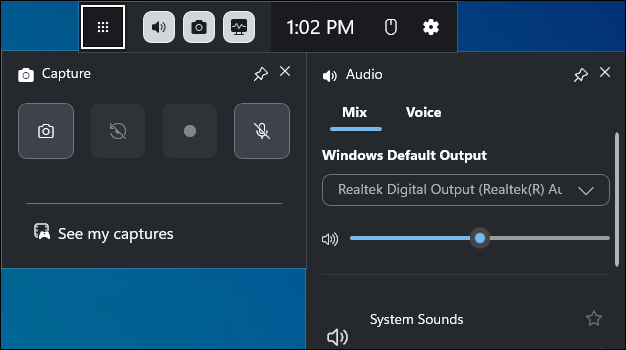
Xbox Game Bar is a tool integrated into Windows and is one of the official alternatives recommended for Steps Recorder. Since it is pre-installed, there’s no need to download it separately, and it delivers strong performance when recording screen activities.
Adjustable Settings
Xbox Game Bar provides flexible recording settings in the Windows Captures panel. Users can choose a maximum recording length, select the audio quality, adjust the video frame rate, and video quality as needed. As this application was originally designed for game players, it supports 60 fps for smoother recordings. It also allows users to decide whether to record audio when screen recording or record game audio only.
Convenient Shortcuts and Straightforward Interface
When I was using Xbox Game Bar, the handy keyboard shortcuts and straightforward interface soon grabbed my attention. Just press the default Windows + Alt + R (or the designated shortcuts), and the application will start recording automatically. The simple interface allows even first-time users to begin recording without difficulty.
Automatic Window Recording
Unlike other screen recorders, Xbox Game Bar can automatically detect and record the active window, so users don’t need to select a recording area manually. And all recordings are saved in MP4 format for review and sharing.
Limits of Xbox Game Bar
However, Xbox Game Bar does not support recording webcam footage. It also has a maximum recording duration of 4 hours. If you need to record longer programs, be sure to keep an eye on the time and restart the recording when necessary.
Snipping Tool
Snipping Tool is another recommended Problem Steps Recorder alternative. It allows users to take screenshots and record videos of on-screen steps on Windows 11.
User-friendly Interface
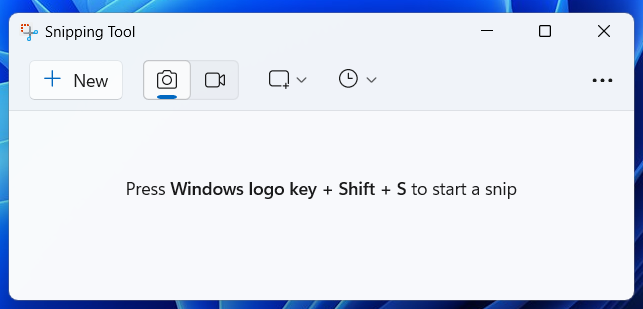
Snipping Tool can be launched by pressing the default Windows + Shift + S on the keyboard. The user-friendly interface displays icons for essential tools, making it easy for beginners to start taking screenshots or recording.
Flexible Options
Snipping Tool offers full-screen, free-form, and window snips. It allows audio capture during video recording. This software provides drawing tools for screenshot editing, as well as a shortcut to open Clipchamp for video editing.
Limits of Snipping Tool
The recording feature is only available on Windows 11. If you are running Windows 10, you can only use Snipping Tool to take screenshots.
Microsoft Clipchamp
Microsoft Clipchamp is an all-in-one tool for recording the screen and editing videos, pre-installed on Windows 11. It also has a web-based version for quick recording without installation. As a Problem Steps Recorder alternative, Microsoft Clipchamp delivers robust features to present detailed steps.
Multiple Recording Options
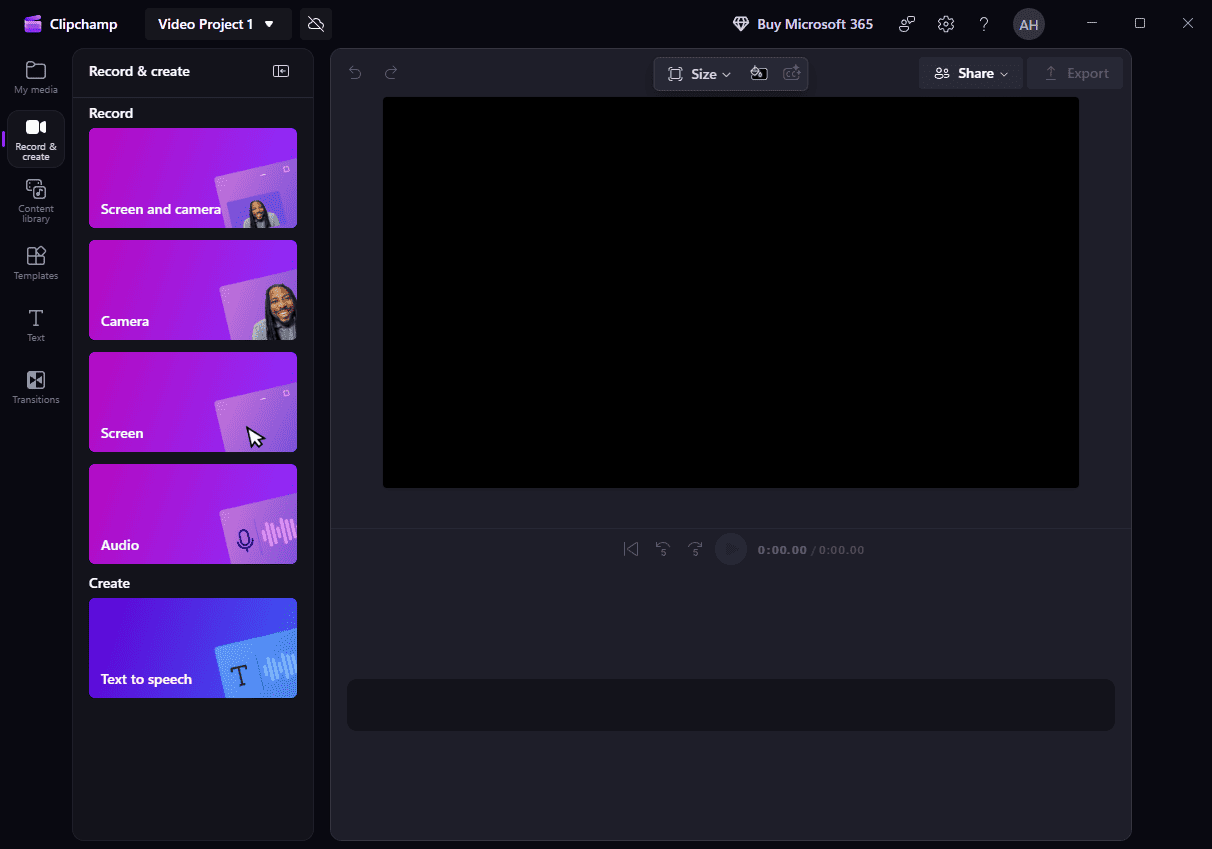
When screen recording, Microsoft Clipchamp supports capturing the camera, screen, audio, and both the screen and camera simultaneously. It allows users to choose to record the entire screen or a specific window. It also gives flexible controls over audio choices, including system audio and microphone audio.
Teleprompter Feature
A notable feature of Clipchamp is its built-in teleprompter, allowing users to display scripts or step-by-step instructions directly on the screen while recording. Users can adjust the scrolling speed, font size, and position of the teleprompter text to match their recording pace, ensuring clarity and ease of use throughout the recording process.
Edit Recording
After recording, Microsoft Clipchamp offers a comprehensive suite of editing tools. Users can trim, split, and crop videos, and add filters, frames, and transitions for polished results.
Limits of Microsoft Clipchamp
One drawback is that each recording session in Microsoft Clipchamp is limited to 30 minutes. Users need to monitor the recording duration and restart if the task exceeds this limit.
Scribe
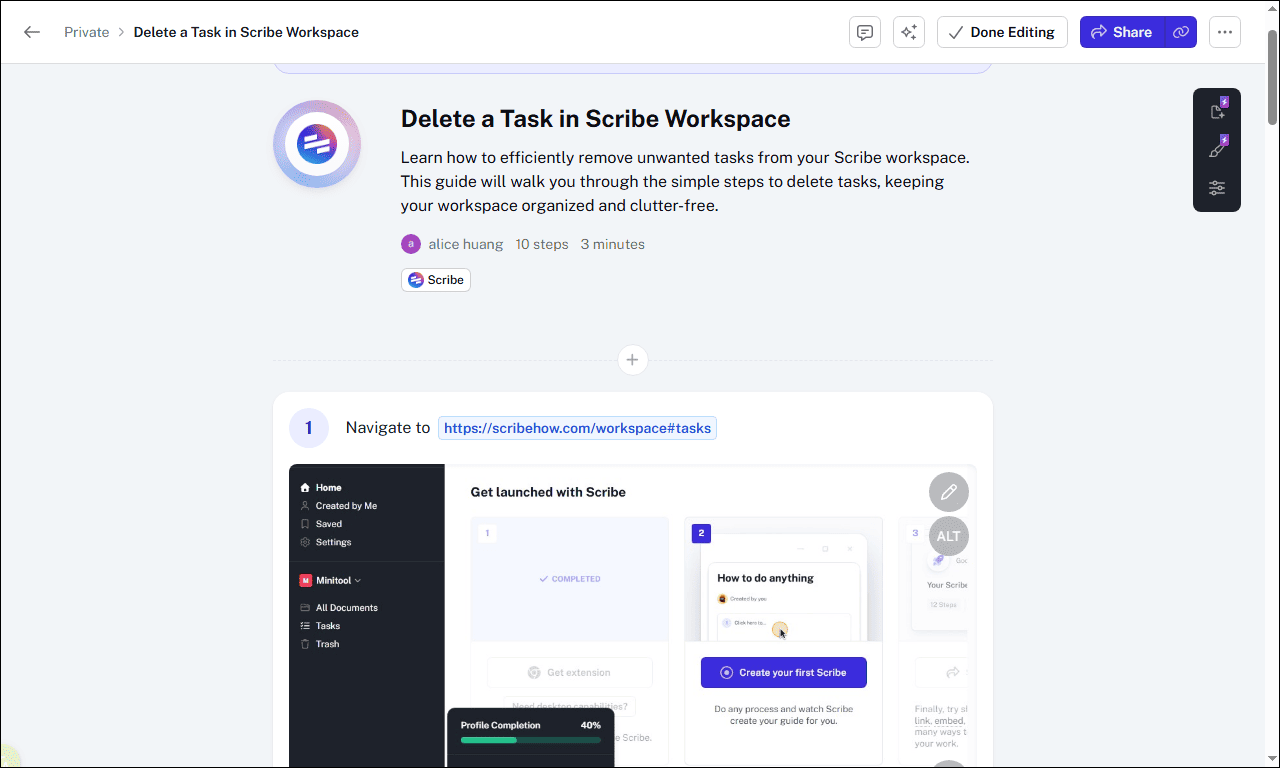
If you prefer documenting your steps instead of recording videos, the browser extension Scribe offers an effective solution. Scribe can automatically transform your actions into a professional guide with screenshots and descriptions.
AI Assistance
Compared with Steps Recorder, Scribe provides enhanced step-by-step documentation. With AI assistance, it can generate a complete document automatically without manual input. It can also create titles, summaries, and subtitles based on your actions to create a polished and professional result.
Editing Feature
Scribe includes powerful editing features, allowing users to add alt text and crop, highlight, and annotate screenshots directly within the extension, ensuring each step is clearly illustrated and easy to understand. This makes the final guide more polished and professional, and helps viewers quickly grasp key actions without confusion.
Versatile Output Format
Scribe supports multiple output formats, including PDF, HTML, Microsoft Word, Markdown, and Confluence. Documents can also be shared directly via a link.
Limits of Scribe
However, most advanced features, such as annotation and cropping screenshots, require a paid account. And free users can only export documents in PDF format.
Screencastify
Screencastify is another browser-based screen recorder that captures screen activities as video footage. As a Chrome extension, it eliminates the need for downloading and installing, providing a convenient solution as a Windows Steps Recorder alternative.
Diverse Recording Options
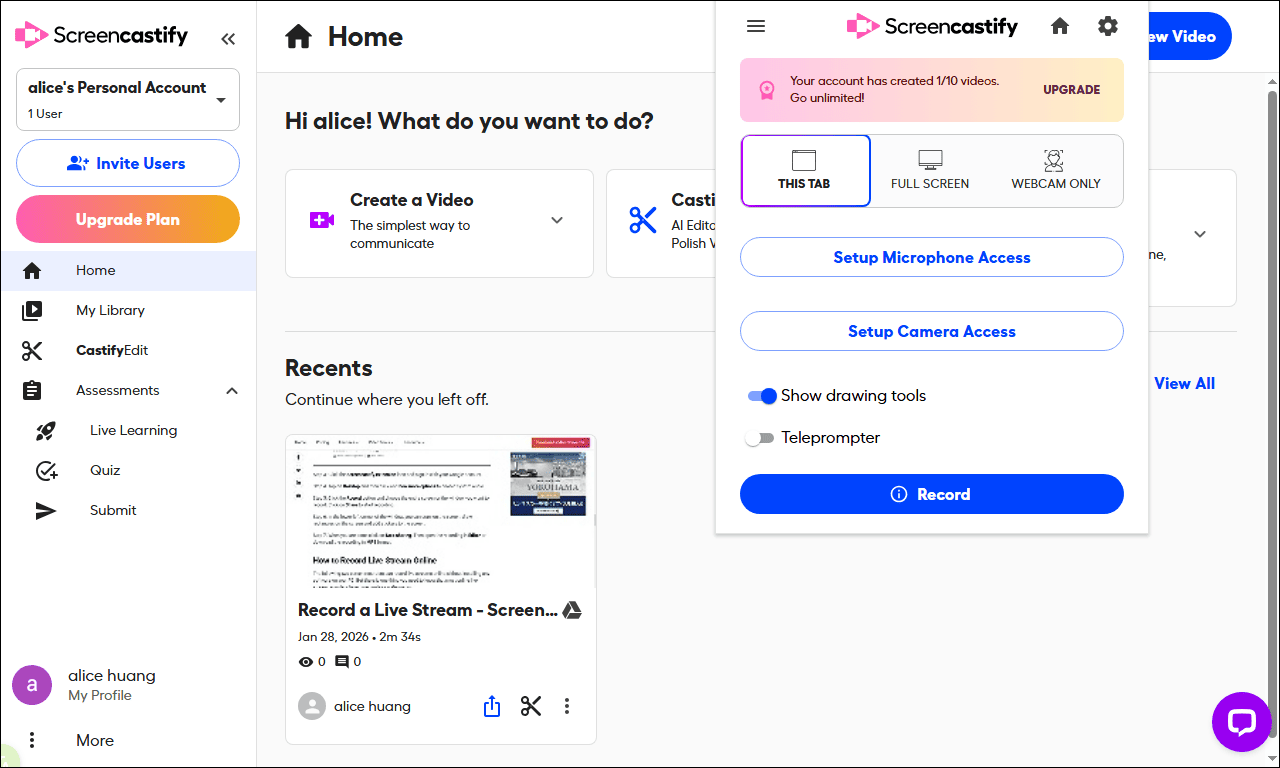
Screencastify supports recording browser tabs, desktop screens, and webcam footage with audio. It also allows users to customize settings, such as resolution, frame rate, maximum recording duration, and countdown timer, making it easy to capture clear steps.
Real-time Drawing and Teleprompter Features
Screencastify delivers powerful tools during recording. With the teleprompter tool, users can enter the script before recording to avoid mistakes. This application also includes real-time drawing tools to highlight information while recording, improving clarity for viewers.
Output Support
Screencastify supports saving recordings as GIF, MP4, or MP3, meeting various needs. Recordings can also be shared via a link.
Limits of Screencastify
Free users can record videos of up to 30 minutes per recording and are limited to 10 recordings in total. Additionally, free users can only export videos up to 5 times.
Conclusion
This post explains how to use Steps Recorder and introduces 6 reliable Windows Steps Recorder alternatives. Whether you prefer desktop software, such as MiniTool Screen Recorder and Microsoft screen recorders, or online tools like Scribe and Screencastify, you can capture your on-screen activities clearly and easily. Choose the tool that best matches your workflow and requirements.
If you have any suggestions or encounter any problems when using MiniTool Screen Recorder, please don’t hesitate to contact us via support@minitool.com.