

What Is Snagit
TechSmith Snagit is a widely used screen capture and recording tool for Windows and Mac systems, integrating convenient capture, editing, and quick sharing features into a streamlined interface. It supports full-screen recording, window recording, and custom region recording, while simultaneously capturing system audio and microphone input – making it ideal for creating tutorials and online course videos.
After recording, you can save the video file as an MP4 or GIF animation format and open it in the Snagit Editor. There, you can preview the video and trim unwanted sections. The built-in editor allows users to add arrows, text, shapes, and highlights.
Snagit is not free and requires an annual subscription. For now, it typically costs around $39 per year for individual users. It offers a 15-day free trial with full functionality. If you don’t want to pay for screen recording, try some Snagit alternatives, like MiniTool Screen Recorder, Game Bar, Clipchamp, etc. Before we learn about that, let’s see how to use Snagit to record.
Guide on How Screen Record with Snagit
Follow the step-by-step guide below to record with Snagit on Windows.
Step 1. Go to Snagit’s official website to download and install it on your computer. Then, launch it.
Step 2. Click the Video tab and choose the red Capture button.
Step 3. Click and drag the mouse to select the recording area, or click the Fullscreen option to record the whole screen.
Step 4. Control system audio, microphone sound, and webcam based on your needs.
Step 5. Click the Record button or press Shift + F9 to start recording.
Step 6. Click the Stop button or press Shift + F10 to end the recording. View the video in Snagit Editor later.
That’s it! For people who have a limited budget, try the Snagit alternatives below.
![9 Best Webcam Recorders for Windows [Beginners & Professionals]](https://images.minitool.com/recorder.minitool.com/images/uploads/2025/12/webcam-recorder-thumbnail.png)
Top 9 Snagit Alternatives
Here are 9 reliable Snagit alternatives you can use to record your screen:
- MiniTool Screen Recorder
- Game Bar
- Windows 11 Snipping Tool
- Microsoft Clipchamp
- OBS Studio
- Bandicam
- iTop Screen Recorder
- RecMaster
- ScreenRec
Now, let’s explore them one by one.
#1. MiniTool Screen Recorder
MiniTool Screen Recorder is a professional and easy-to-use screen recorder designed for Windows users. It is a free Snagit alternative that has a clean user interface, allowing both beginners and professionals to record computer screens with no effort. It has no ads, bundles, or watermarks, and enables you to record screen activities for as long as you want.
In addition, MiniTool Screen Recorder offers flexible recording options, supporting full-screen recording, selected region recording, camera-only recording, and screen and webcam recording. While recording, the system audio and microphone sound can be captured simultaneously or separately.
More than that, MiniTool Screen Recorder allows you to customize parameters for output videos, including frame rates and quality. You can also schedule the recording time according to your needs. This way, you don’t have to stay glued to the computer and can deal with other things. With the hotkeys, you can start or stop the recording with no hassle.
Furthermore, MiniTool Screen Recorder features real-time screen annotation tools, empowering you to add text/numbers/arrows/shapes and draw on the screen. With this tool, you can create tutorials, presentations, and online lesson videos easily.
Click the download button below to try it!
MiniTool Screen RecorderClick to Download100%Clean & Safe

Pros:
- Ease of use.
- No recording time limits.
- Flexible recording modes.
- Screen annotation tools.
- Multiple custom recording settings.
Cons:
- Only for Windows users.
#2. Game Bar
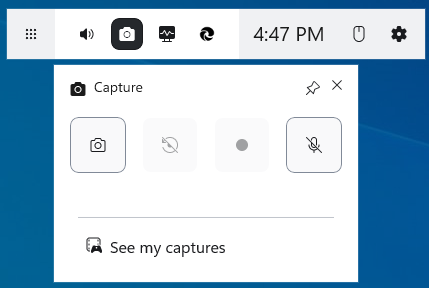
Game Bar is a free and built-in screen recording overlay for Windows 10/11 that can serve as an alternative to Snagit. It allows users to record screen activity and take screenshots. Recorded video clips and images are automatically saved to a dedicated folder for easy editing, sharing, or uploading.
Besides, this built-in recording tool runs smoothly without significantly impacting system performance, making it an ideal choice for recording activities on screens. Moreover, Game Bar also captures system audio and microphone sound.
Pros:
- Easy to use.
- No installation required.
- Record screen activities smoothly.
- Capture system audio and microphone sound.
Cons:
- Limited advanced features.
#3. Window 11 Snipping Tool
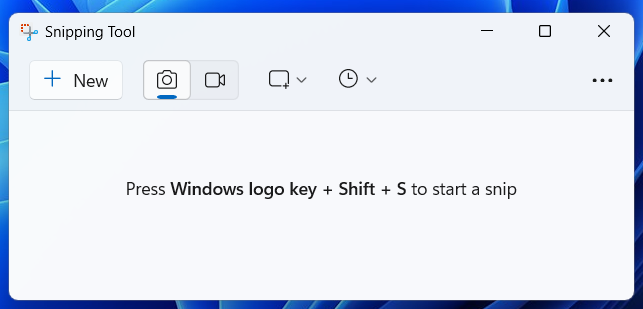
Snipping Tool is an easy-to-use screen recorder running on Windows 11 without installation. It can record your computer screen and take screenshots. Plus, this tool allows you to choose the recording area, including full screen, a specific window, etc. It offers quick access: press Windows Key + Shift + S.
Pros:
- Ease of use.
- Quick start.
- Flexible recording options.
Cons:
- Limited advanced functions.
- Cannot capture webcam footage.
- Cannot schedule recording.
#4. Microsoft Clipchamp
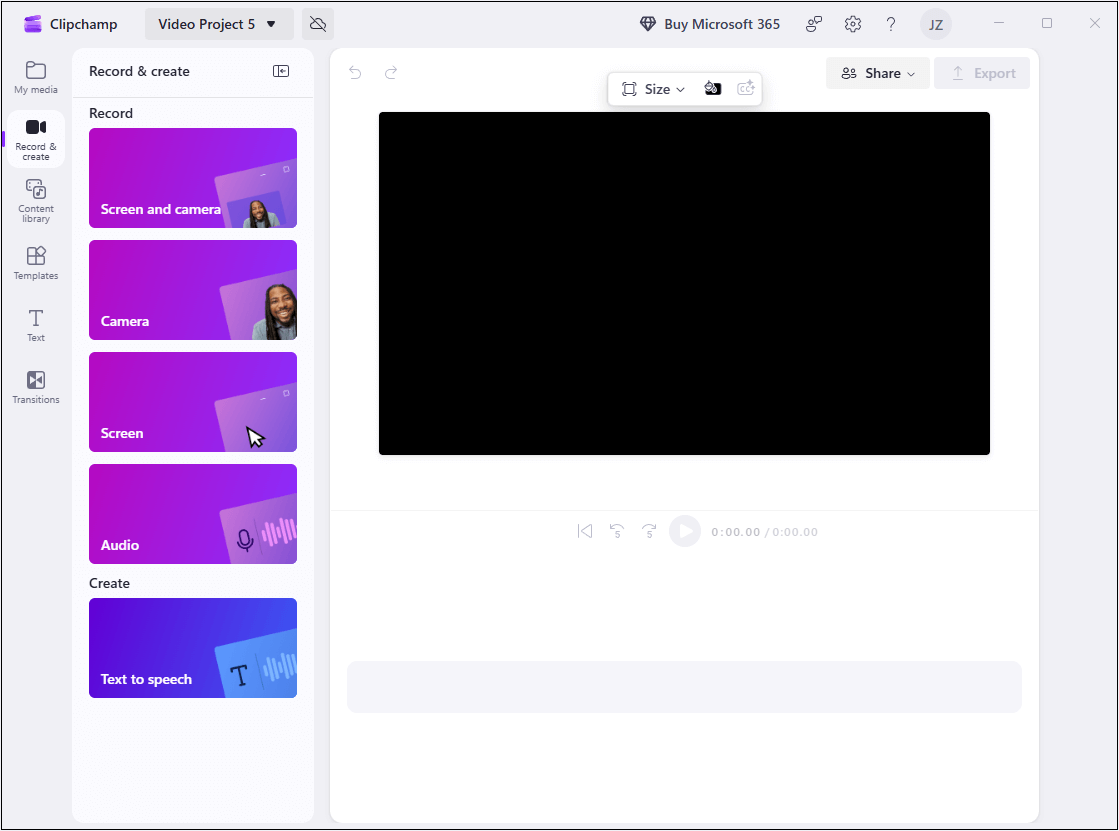
Microsoft Clipchamp features built-in screen recording capabilities designed specifically for Windows users, seamlessly integrated with the Microsoft ecosystem. No additional software, complex setup, or hidden subscriptions are required.
Clipchamp’s screen recorder supports three flexible recording modes: full screen, a single window, and a browser tab. You can precisely select what to record, which saves time for cropping. It also supports synchronous audio recording, capturing both system sounds and microphone inputs simultaneously or separately.
Additionally, Clipchamp supports simultaneous screen and camera recording, enabling the creation of picture-in-picture videos, making it perfect for producing online courses and presentations. This makes Clipchamp a perfect choice for educators, streamers, and remote workers.
Pros:
- User-friendly.
- No installation needed for Windows 11.
- Allows 4K output videos.
- Flexible recording options.
Cons:
- 30 minutes recording time limit.
#5. OBS Studio
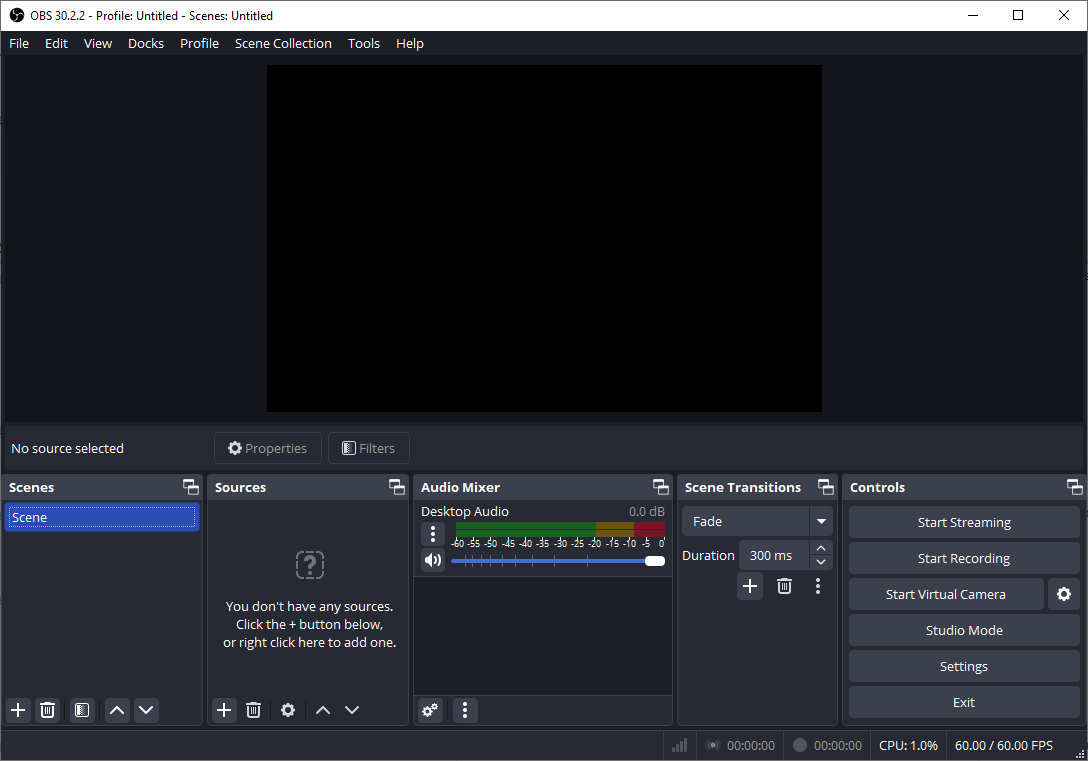
OBS Studio is a free and open-source tool renowned for its high-performance screen recording capabilities. Its screen capture functionality supports multiple recording modes to accommodate various needs: full-screen recording, and specific application window recording. Also, you can blend screen content with webcams to create innovative content.
Plus, OBS features a built-in mixer that allows independent control of system audio and microphone inputs. You can record system audio, microphone sound, or both simultaneously, and precisely adjust the volume to ensure clear audio output.
Pros:
- Free and open-source.
- Lightweight performance.
- Flexible control of audio.
- Cross-platform.
Cons:
- Steep learning curve.
#6. Bandicam
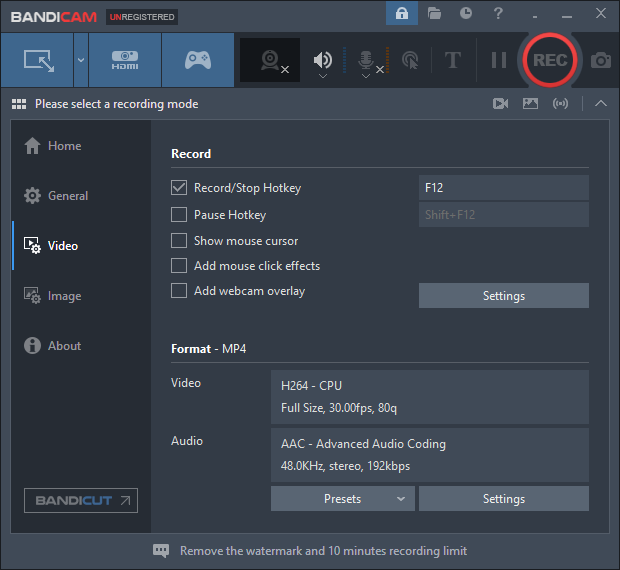
Bandicam is a widely popular screen recording tool for Windows systems, commonly used by gamers, educators, and content creators. It is user-friendly, efficient, and offers high-quality outputs, making it perfect for daily recordings, gaming highlights, tutorial videos, and presentations. It uses fewer system resources while producing professional-level recording results.
Additionally, Bandicam offers three main recording modes to meet diverse needs: screen recording, game recording, and device recording. Users can capture specified areas, game highlight, online webinars, presentations, and more.
Moreover, Bandicam supports up to 4K Ultra HD resolution and frame rates of 480 FPS, enabling smooth and clear video recording. The recorded videos can be saved in MP4 or AVI.
Pros:
- High performance.
- High-quality outputs.
- Multiple recoding modes.
- Scheduled recording.
Cons:
- Only supported by Windows systems.
- The free version has a 10-minute recording time limit.
- The free version leaves a watermark on videos.
#7. iTop Screen Recorder
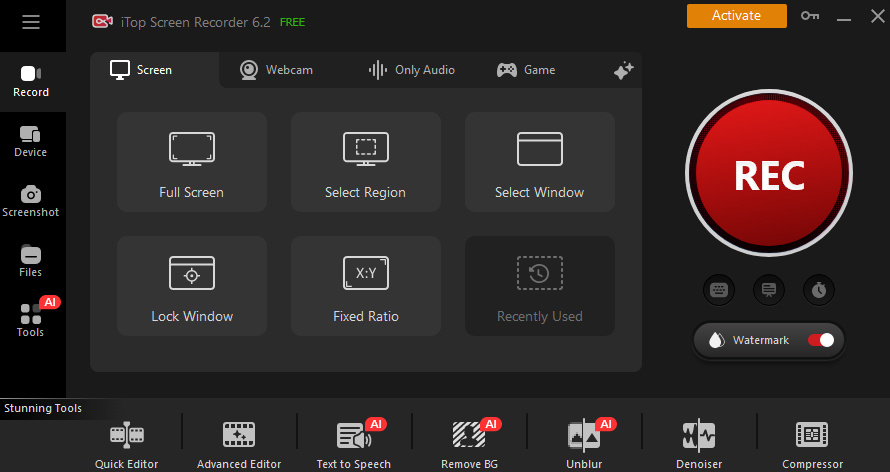
iTop Screen Recorder is a powerful and user-friendly Snagit alternative supported by Windows. It offers four flexible recording modes: full screen, custom region, active window, and game mode. You can freely choose the recording mode based on your needs. Also, this screen reorder features extremely low latency and minimal CPU usage.
In addition, iTop Screen Recorder supports recording system audio and microphone input separately or simultaneously. It also supports picture-in-picture recording, enabling simultaneous capture of both screen and webcam footage – ideal for creating reaction videos, online courses, and webinars.
Pros:
- Easy to use.
- Offer high-quality results.
- Flexible recording modes.
- Support picture-in-picture recording.
- Capture system audio and microphone inputs.
Cons:
- The free version has recording time limits.
#8. RecMaster
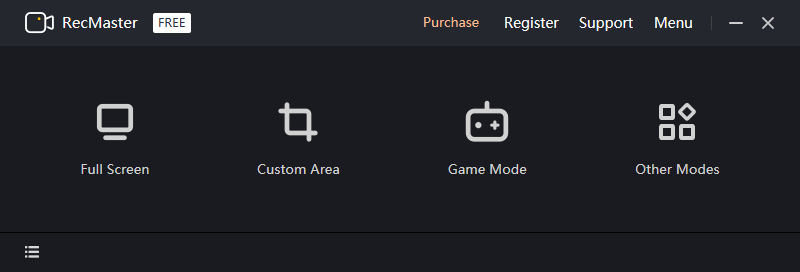
RecMaster has a straightforward interface, enabling both novices and professionals to record screen activities with no effort. As a reliable Snagit alternative, it can meet various recording requirements, including creating tutorial videos, capturing online webinars, recording gameplay, saving videos/movies, etc.
In addition, RecMaster offers multiple recording options to suit different scenarios: full screen, custom area, game, webcam, and audio only, allowing users to precisely capture the content they need. Moreover, the recorded video and audio both have a high and clear quality.
Pros:
- User-friendly.
- High-quality and clear outputs.
- Multiple recording modes.
Cons:
- The free version has recording time limits.
#9. ScreenRec
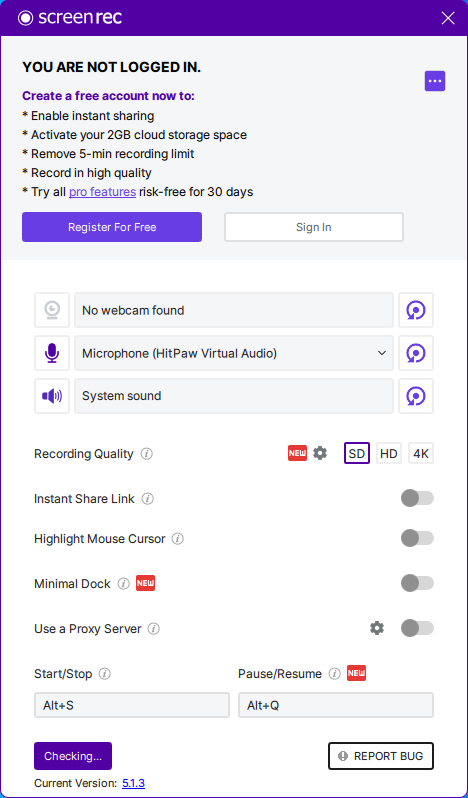
ScreenRec is a free and lightweight screen recording tool supported by Windows, Mac, and Linux. It enables you to record the screen, webcam, system audio, and microphone without watermarks. You can record for as long as you want. Plus, ScreenRec features annotation tools that allow you to draw and text on the screen. With its intuitive user interface, you can have an efficient and smooth recording.
Pros:
- No watermarks.
- Easy to use.
- Versatile recording options.
Cons:
- Unregistered users have a recording time limit.
How to Screen Record with MiniTool Screen Recorder
In this section, I’d like to take MiniTool Screen Recorder as an example to show you how to screen record on Windows step-by-step. Follow the instructions below.
Step 1. Download and Install MiniTool Screen Recorder
Click the download button below to download MiniTool Screen Recorder. Next, follow the on-screen setup instructions to install it on your computer. Then, double-click the desktop shortcut to launch this program.
MiniTool Screen RecorderClick to Download100%Clean & Safe
Step 2. Set Recording Settings
Set Audio Settings
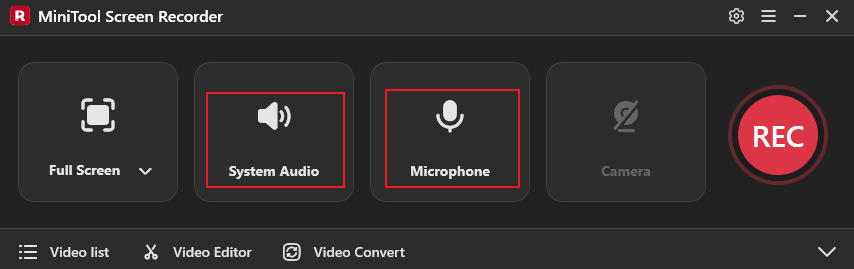
By default, the system audio and microphone are turned on. You turn them off based on your needs by clicking their corresponding icons.
Choose the Recording Region
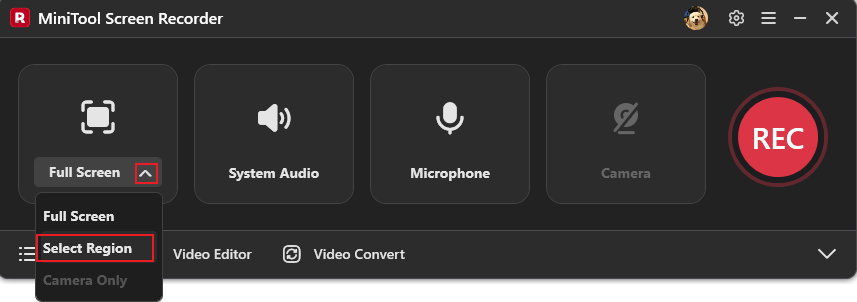
The recorder records the full screen by default. If you want to record a specified area, expand the Full Screen menu, choose Select Region, and then drag the mouse cursor to select the area you wish to record.
Capture Webcam Footage
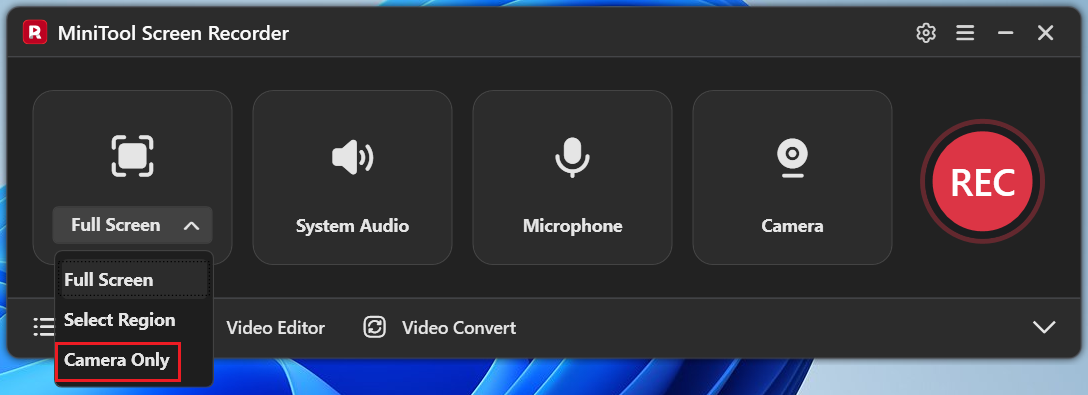
To record webcam footage and the computer screen simultaneously, keep the camera turned on by default. If you only want to capture the camera, not including your screen, choose the Camera Only option from the drop-down Full Screen menu.
Access More Settings
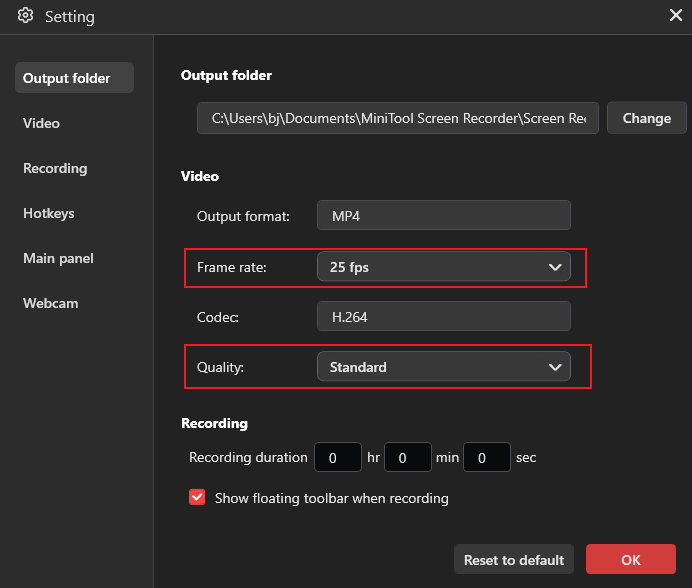
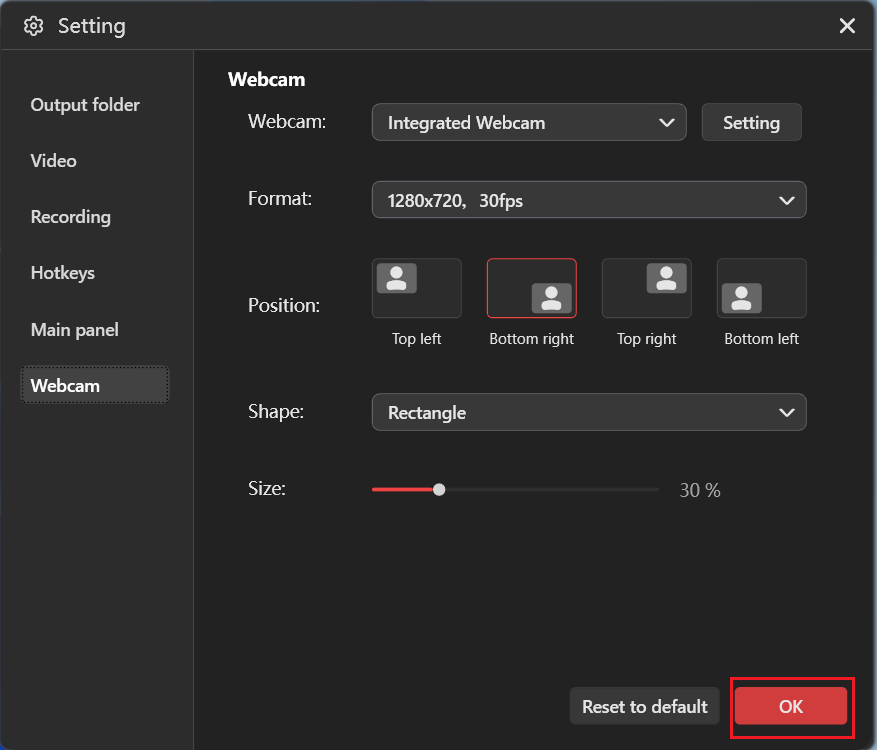
Click the Settings icon in the top-right corner to access the Settings window. Then, you can adjust the frame rate and quality for the output video.
Go to the Webcam tab, then you can choose the format, position, shape, and size of the webcam overlay. Once done, click the OK button to save the changes.
Step 3. Start Screen Recording on Your PC
Click the REC button in MiniTool Screen Recorder. The recording will start after a three-second delay. Display the target area you want to record. During the recording, you can press the F9 key to pause/resume.
Step 4. Add Annotations when Recording (Optional)
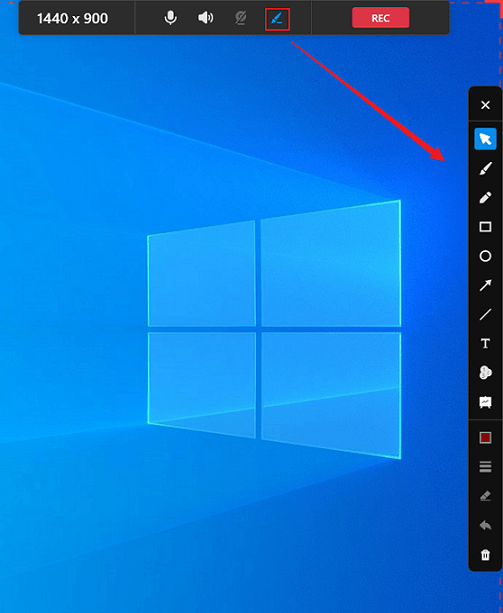
This function is mainly for creating online tutorials, presentations, lessons, etc. In the top middle floating toolbar, click the Brush icon to open the annotation column. There, you can add text/numbers/arrows, or directly draw on the screen while recording.
Step 5. End the Recording
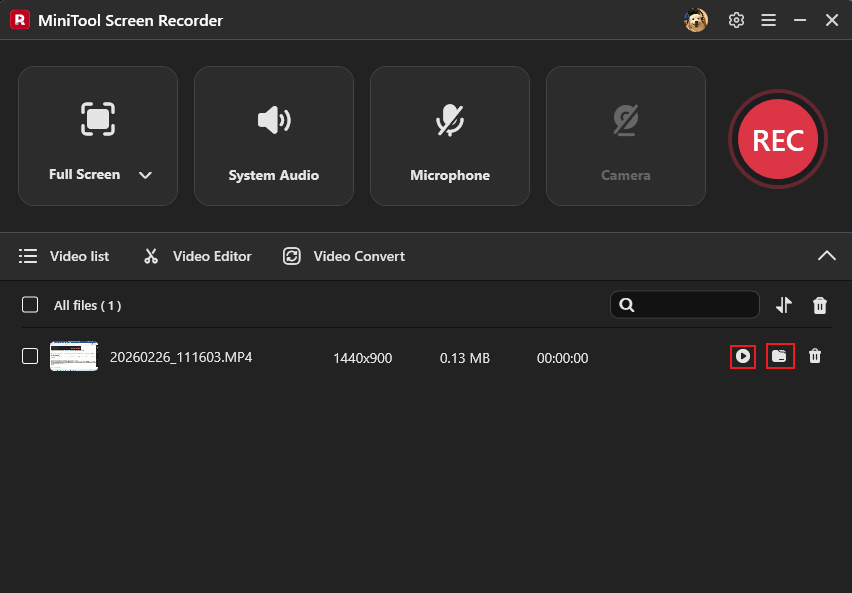
To end the recording, press F6. After that, check the recording in the Video list section. Click the Folder icon to locate the recorded video, or click the Play icon to view it.
Think your recordings are too ordinary? Want to make them more engaging? Never miss MiniTool MovieMaker. Simply click the Video Editor option next to the Video list to download or open this powerful video editor. In this software, you can edit videos by trimming, cropping, reversing, rotating, speeding up/slowing down, and more.
Additionally, MiniTool MovieMaker features a rich library of transitions, stickers, music, filters, and more, which are all free to add. Moreover, this video editor supports multi-track editing, high-resolution editing, photo collage, copy and paste on the timeline, and more.
MiniTool MovieMakerClick to Download100%Clean & Safe
![Top 9 Video Recorder Apps for Windows Users [Your Pro Handbook]](https://images.minitool.com/recorder.minitool.com/images/uploads/2026/02/video-recorder-app-thumbnail.png)
Final Words
This article introduces 9 Snagit alternatives, and all of them can record your screen into video files. They are reliable and can record the screen with high quality. If you want a screen recorder that is easy to use, has no watermarks or time limits, MiniTool Screen Recorder is highly recommended. Feel free to choose the most suitable Snagit alternative based on your needs. Hope you find this article helpful!
You can contact us via support@minitool.com if you encounter any questions about using MiniTool Screen Recorder or MiniTool MovieMaker. Alternatively, you can send me messages directly on X, and I’ll help you as soon as I can.