

OBS (Open Broadcasting Software) is the go-to tool for gamers, streamers, and content creators looking to record or stream gameplay. As a content creator who aims for clean, game-only sound for post-production, here are some steps on how to only capture game audio OBS without interrupting recording.
How to Capture Only Game Audio OBS
Now, we’ll explore the steps to help you achieve professional-quality game audio recordings with ease.
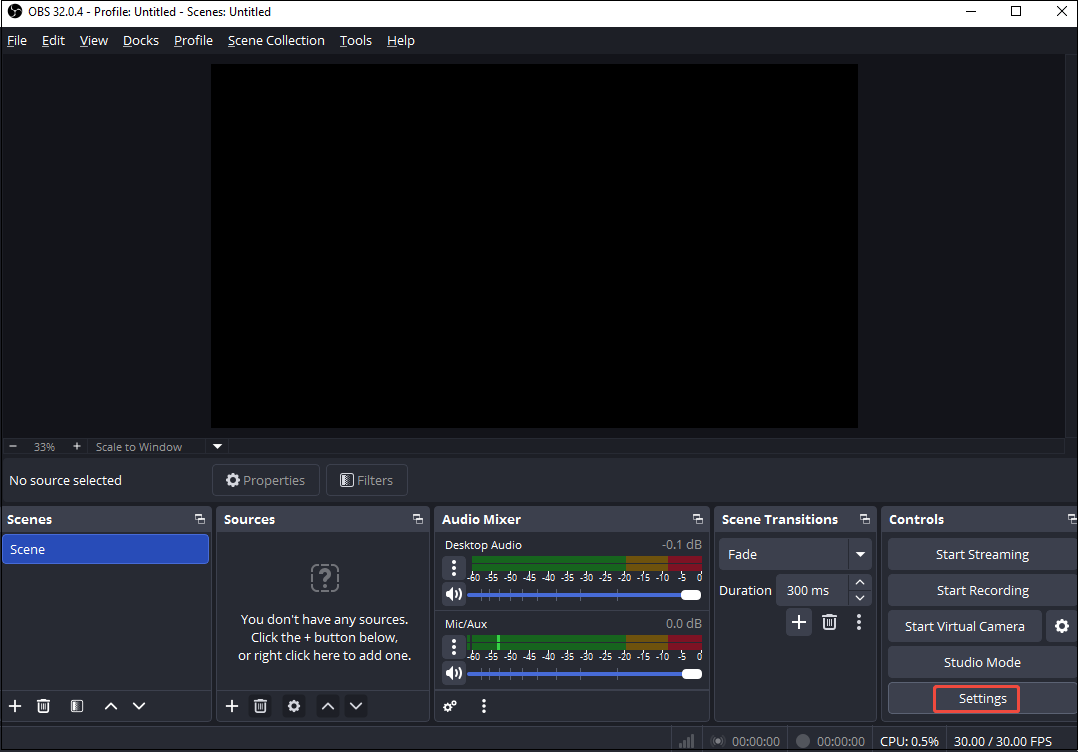
Step 1. Go to the Settings Interface of OBS
1. Download and install OBS Studio.
2. Launch the app and click on Settings in the bottom-left corner.
Step 2. Disable Default Audio Devices in OBS
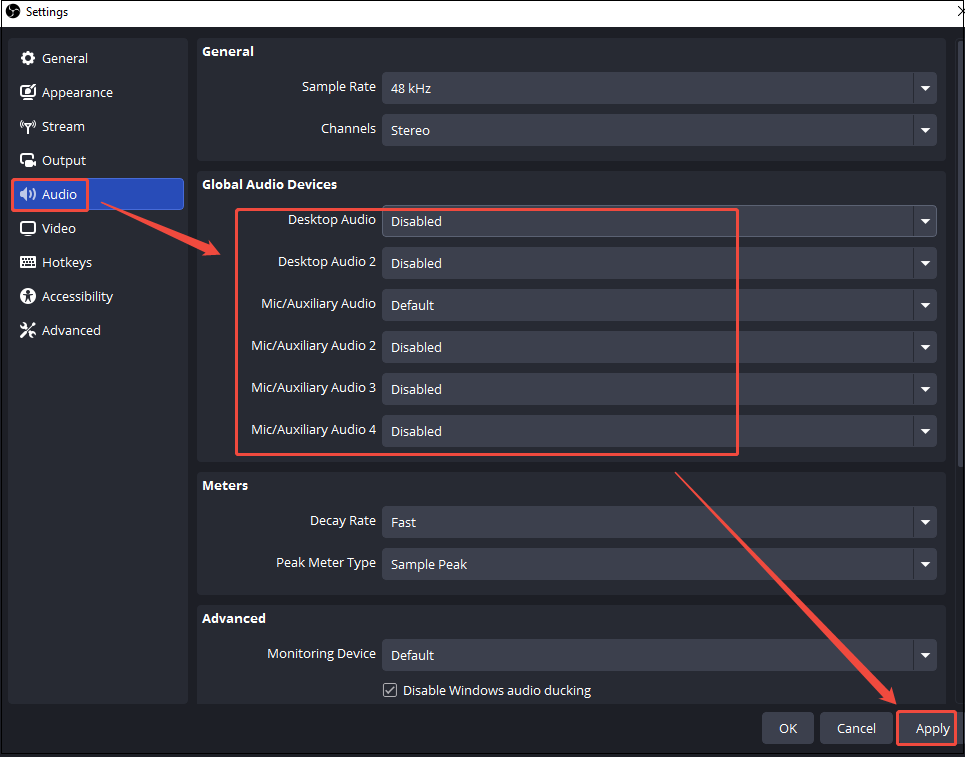
1. Under Settings, click the Audio menu from the left sidebar.
2. Scroll to Global Audio Devices and set all the options to Default.
3. Next, click Apply > OK to save the changes.
Step 3. Add Game Audio as a Separate Source
1. Open your game in advance.
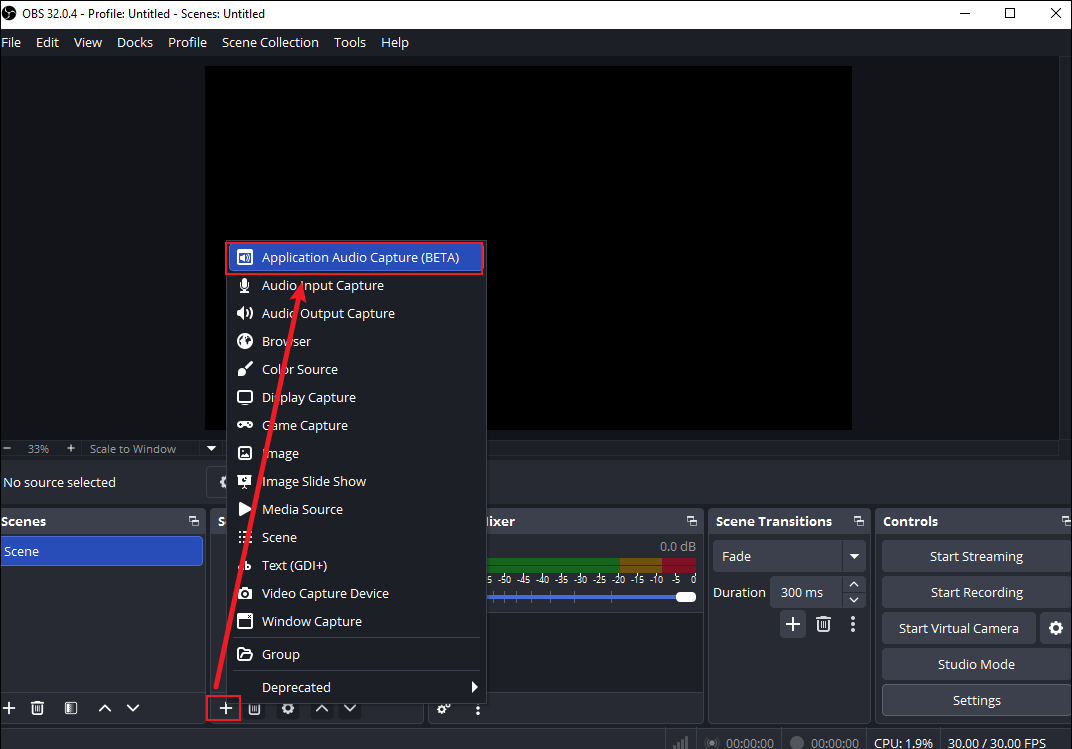
2. Navigate to the Sources panel in OBS, click the + icon, and select Application Audio Capture (BETA) from the dropdown menu.
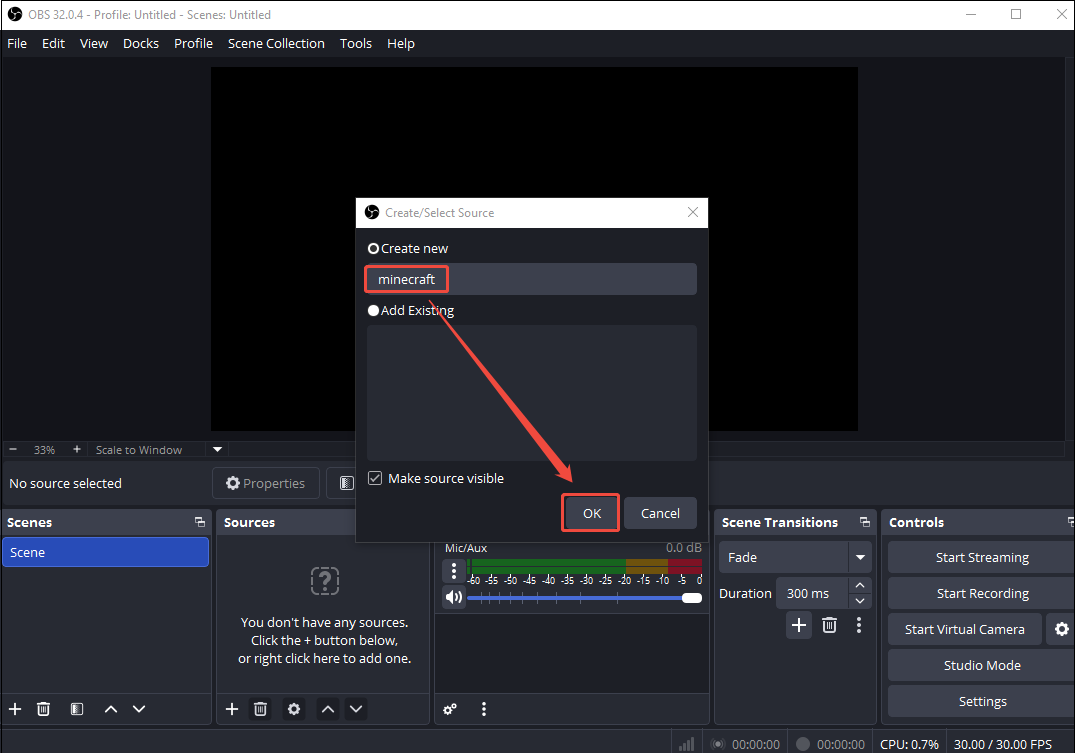
3. Name the source and click on OK.
4. In the new window, expand the Window dropdown menu, select your game from the list, and click OK to add the source.
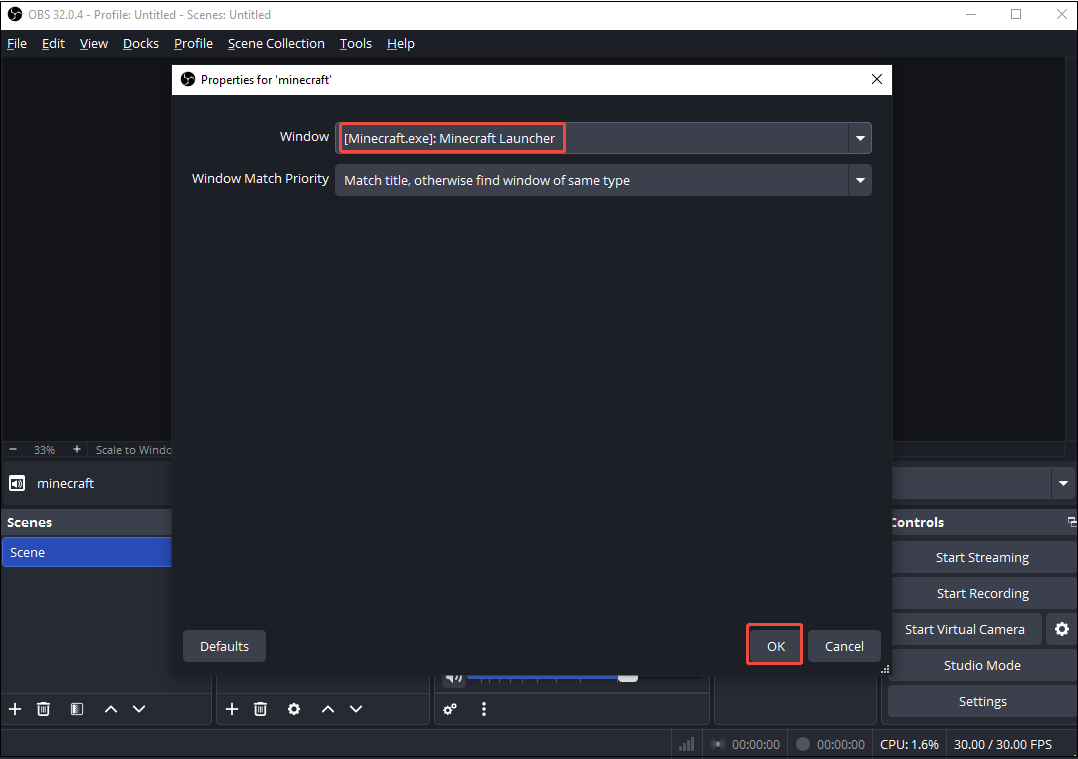
Step 4. Record Game Audio Only
Now you are good to go. Click on Start Recording to only record game audio in OBS.
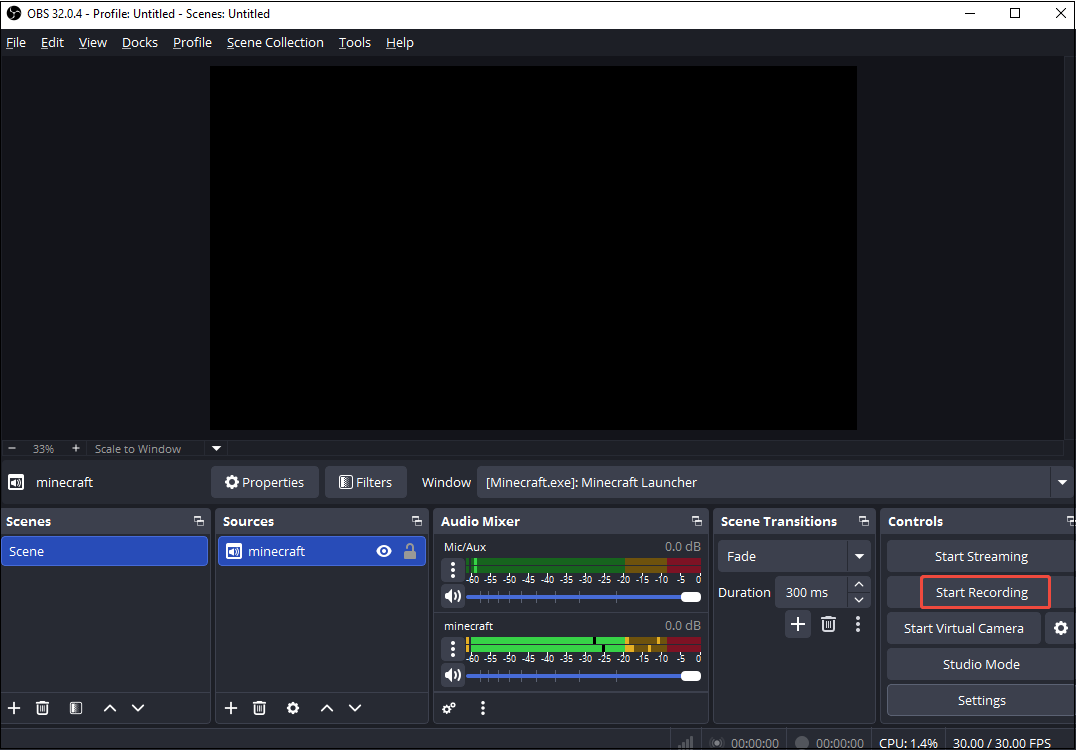

OBS Alternative to Capture Game Audio Only
Don’t you think the above steps of OBS capture game audio only are complicated? We can use a beginner-friendly recorder instead. MiniTool Screen Recorder is the first reaction on my mind when it comes to a clear and simple audio recorder.
MiniTool Screen Recorder is one of the best choices for gamers, content creators, organizers, and teachers. It cannot only record gameplay but also meetings, livestreams, video calls, online courses, etc. You can opt to record system audio or the microphone separately or simultaneously.
More importantly, MiniTool Screen Recorder supports webcam recording, which puts your face in one corner of your video and adjusts its shape as you need. Meantime, this free video and audio recorder features an annotation toolbox, so you can add, highlight, or mark specific information on screen recordings.
Now, let us look at the steps to record the game audio only with MiniTool Screen Recorder.
Step 1. Download, Install, and Launch MiniTool Screen Recorder
Download and install MiniTool Screen Recorder on your PC and then launch it.
MiniTool Screen RecorderClick to Download100%Clean & Safe
Step 2. Set the Recording Area and Audio
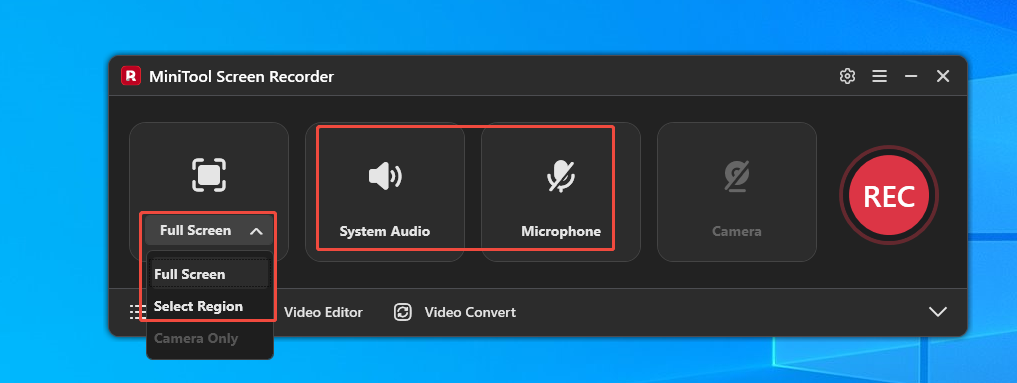
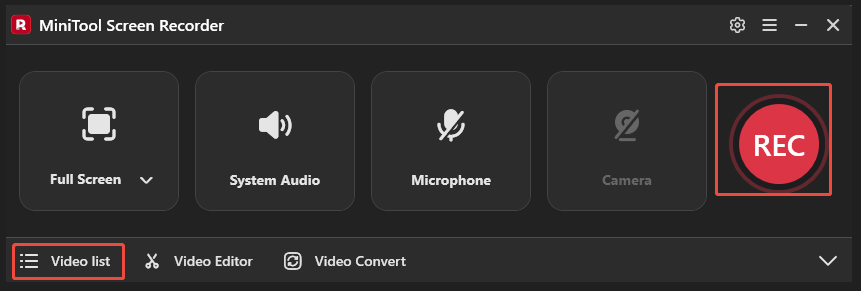
1. Expand the drop-down menu next to Full Screen to decide to record full screen or a selected area.
2. The System Audio option is open by default, and click the Microphone option to turn it off, ensuring that MiniTool Screen Recorder only records in-game audio.
Step 3. Customize Output Settings
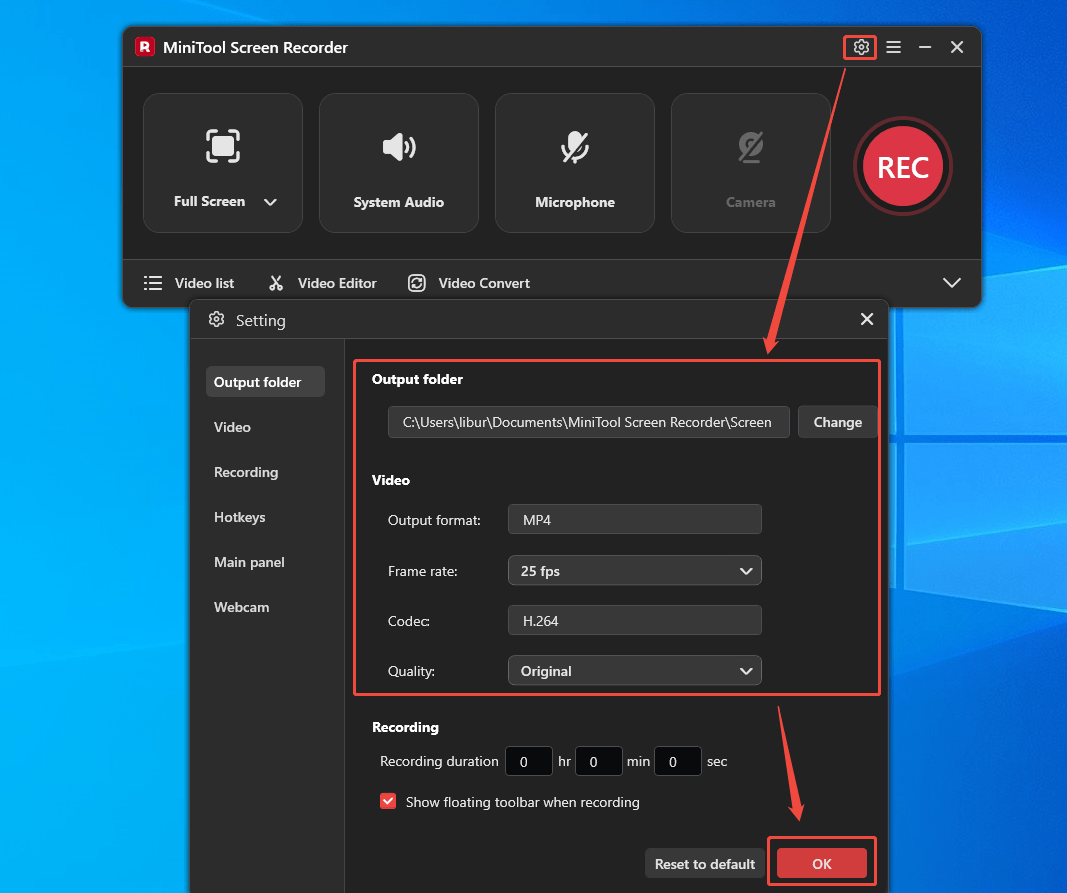
1. To adjust the output position and parameter, click on the upper-right Settings icon.
2. In the Settings window, you can select a destination folder for the recorded audio, specify the frame rate for recording as 15fps, 20fps, 25fps, 30fps, or 50fps, and quality.
3. Click on the bottom-right OK button to save the changes.
Step 4. Start and End Game Audio Recording
1. Click the red REC button in MiniTool Screen Recorder or press F6 on your keyboard to start your recording.
2. Open the game whose audio you want to record.
3. Press F6 to end your recording.
4. The recorded game audio is saved under the Video list.
Pro Tips to Optimize Game Audio Recording
To ensure your game audio is crisp and free of issues, follow these tips:
Adjust Volume Levels
You need to regularly check and adjust audio levels to ensure clarity and balance. In the OBS Audio Mixer, keep game audio in the green zone and use the volume fader if it hits the red zone.
Use Noise Suppression and Filters
Filter settings are crucial for delivering clear audio in OBS. You can use noise suppression to reduce background noise or use a compressor to make loud and quiet sounds more even, making your recording sound better and more professional. Here, we take noise suppression as an example to show how to optimize game audio recording.
Step 1. Add Noise Suppression
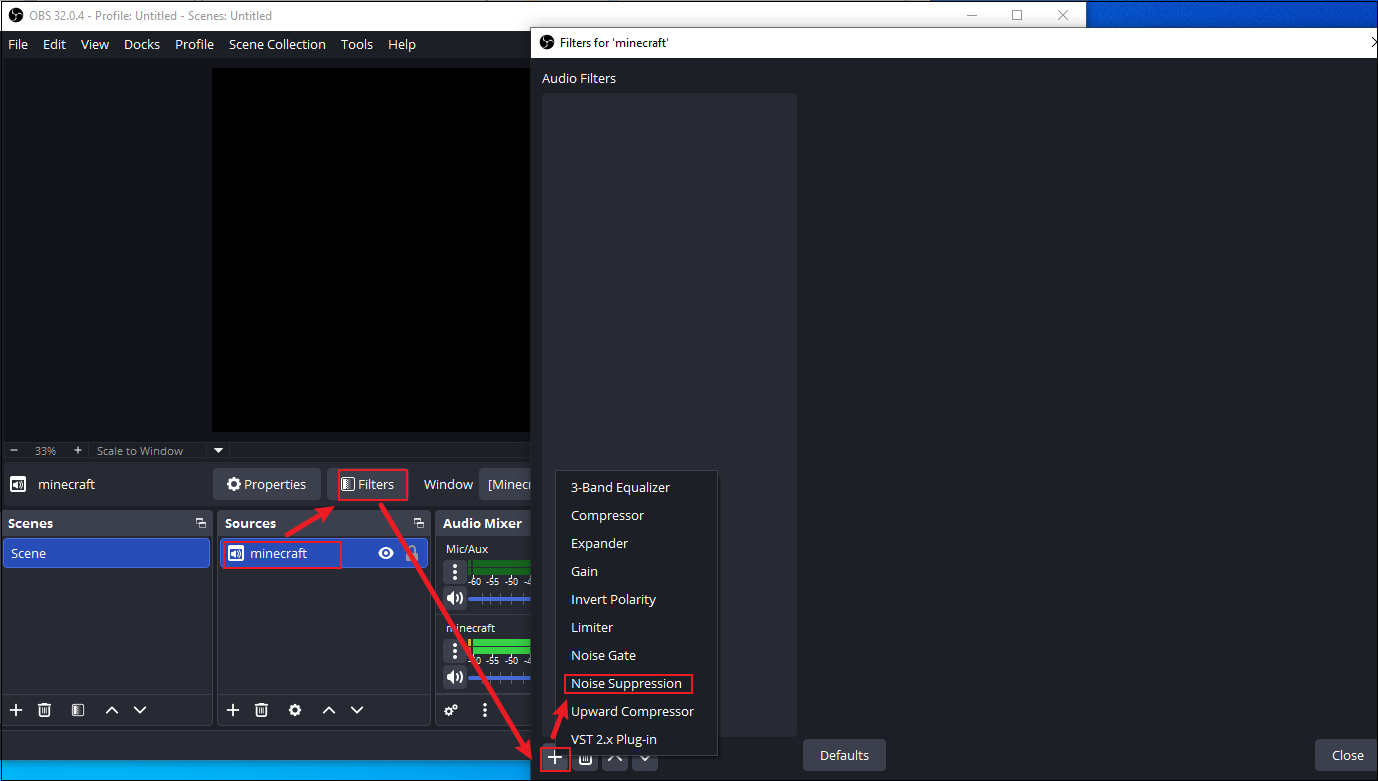
1. Click on the added source in OBS and click on Filters.
2. In the pop-up window, click on the + icon and choose Noise Suppression.
3. Specify a name and click on OK.
Step 2. Adjust Suppression Level
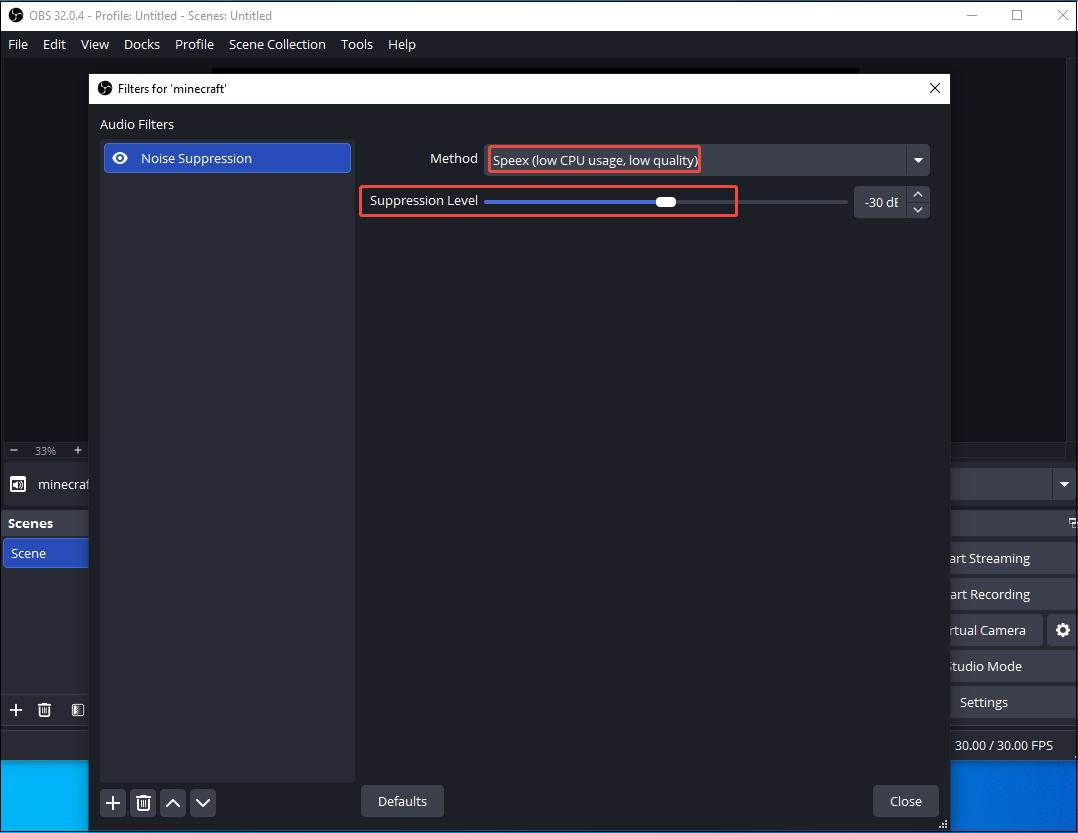
1. Expand the drop-down menu next to Method and choose Speex (low CPU usage, low quality).
2. The suppression level starts at -30dB, then test while quiet.
Quick Test Recording
Before recording the game audio, take some time to test your audio setup. Ensure your audio levels aren’t too high. Meantime, check that your filter settings are right again.
Bottom Line
OBS is a good screen recorder for game recording, live streaming, and so on. You can learn how to make OBS only capture game audio after reading this article. Alternatively, using MiniTool Screen Recorder can simplify recording steps to capture game audio only. Meantime, follow the tips above to optimize the audio recording.
If you have encountered any problems when using MiniTool Screen Recorder, you can send an email to support@minitool.com to ask for help. Also, you can directly share your problems with me on X. I will help you as quickly as possible.