

Camtasia is a multifunctional video recording and editing software. How to save Camtasia video as MP4? You can record the video with Camtasia or MiniTool Screen Recorder and save it in MP4 format for free, while learning how to convert the recorded video to more formats.
What’s Camtasia
Camtasia is a powerful video recording and editing software created by TechSmith, compatible with both Microsoft and macOS devices. For its editing feature, Camtasia allows users to add effects, subtitles, annotations, transitions, and cursor enhancements. It allows you to view the timeline frame by frame by zooming in so as not to miss something important.
Recording is the core feature of Camtasia. This handy tool can simultaneously or separately record your computer screen, webcam, system audio, and microphone. Additionally, it has flexible capture areas, allowing for recording the full screen, a specific window, or a selected region.
Users, including me, frequently use its recording feature. How to save a Camtasia project as MP4 format? It’s as easy as the steps below!
How to Save Camtasia File as MP4
The following are the detailed steps.
Step 1. Sign in to Camtasia and Create a Recording
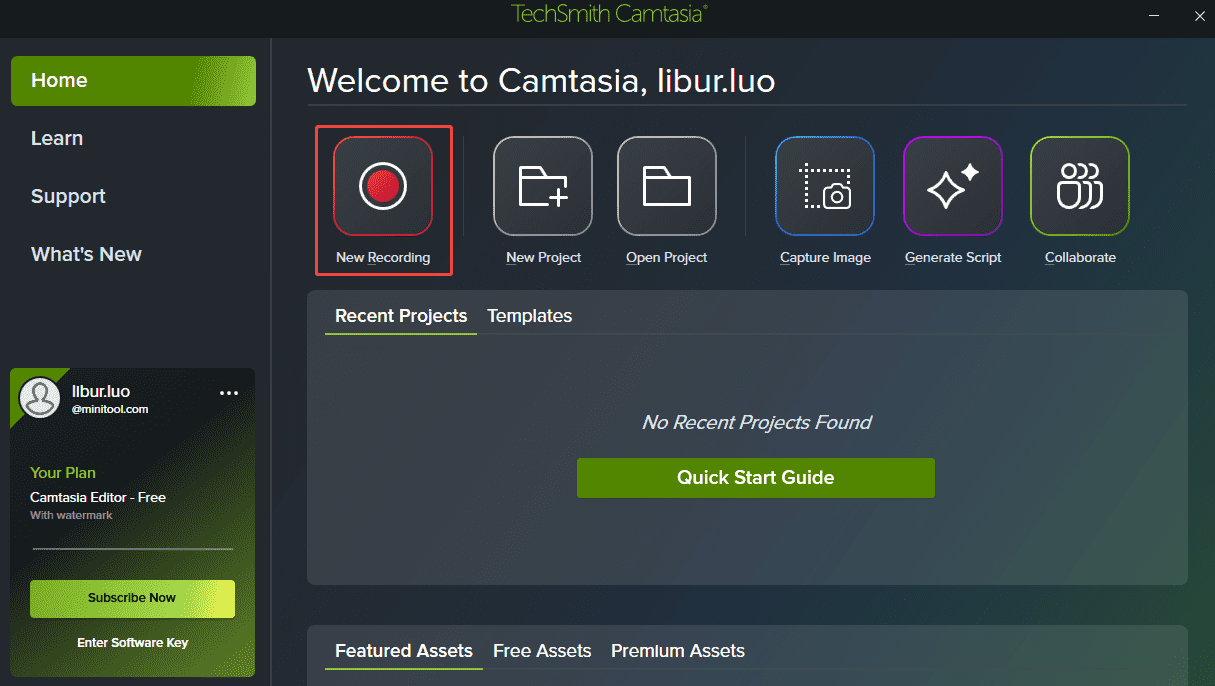
1. Open Camtasia and sign in to start a trial.
2. Click on New Recording.
Step 2. Set the Recording Area and Audio
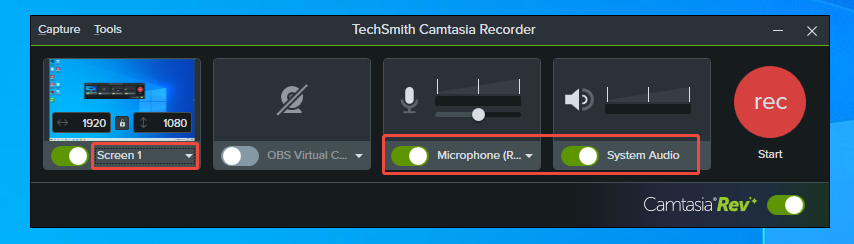
1. Choose a recording area by expanding the Screen 1 drop-down menu.
2. Toggle on or off the Microphone or System Audio to decide whether to record screens with microphone audio and system audio.
Step 3. Start/Pause/End Camtasia Video Recording
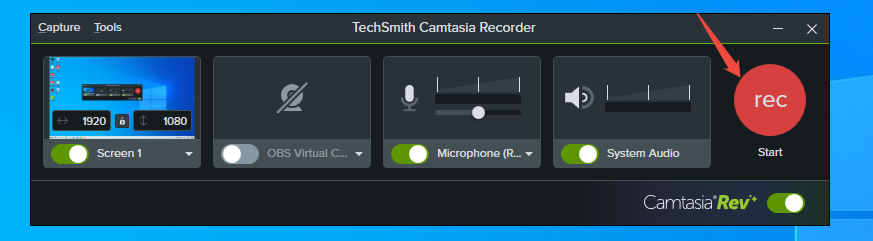
1. Click on the red rec button. After 3-seconds countdown, the screen will begin recording.
2. If you don’t want a particular segment, press F9 to pause recording. Until that segment is finished, press F9 again to resume recording.
3. Then press F10 to stop a recording.
Step 4. Export Camtasia Video in MP4
1. Once you stop recording, click on Export and then Local file.
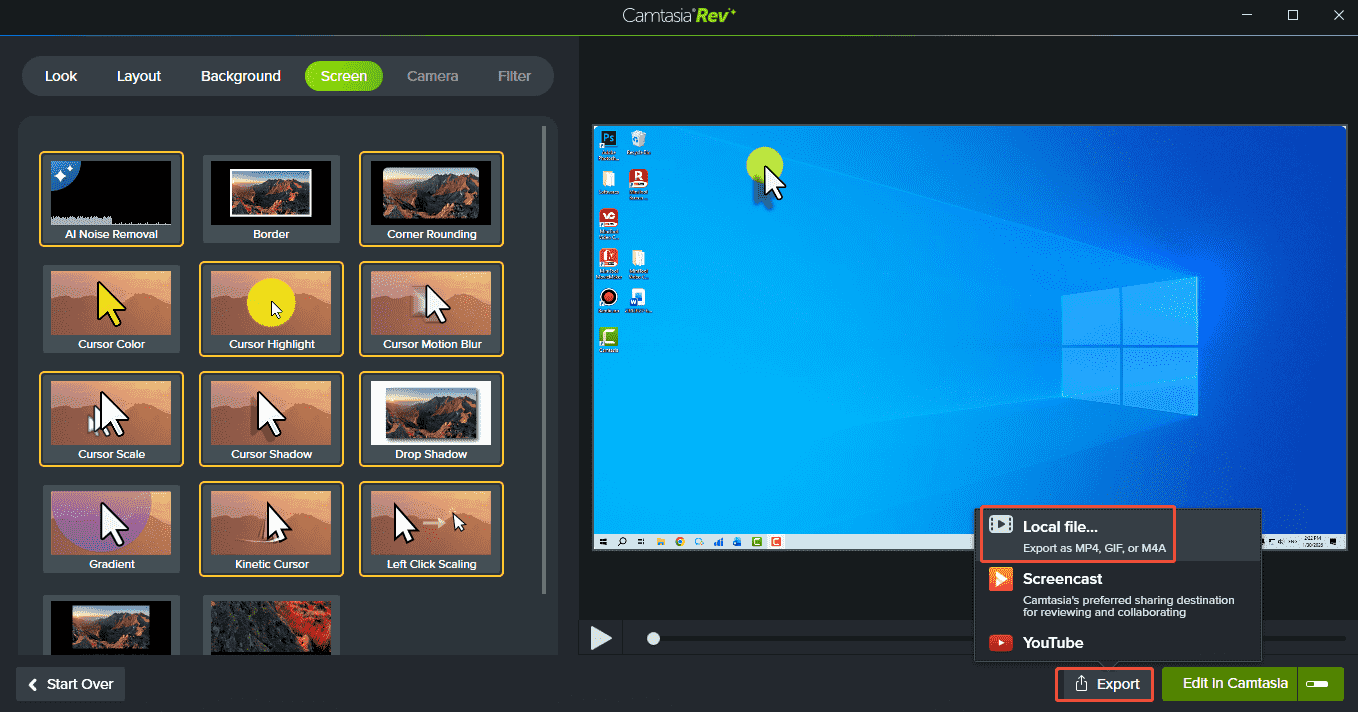
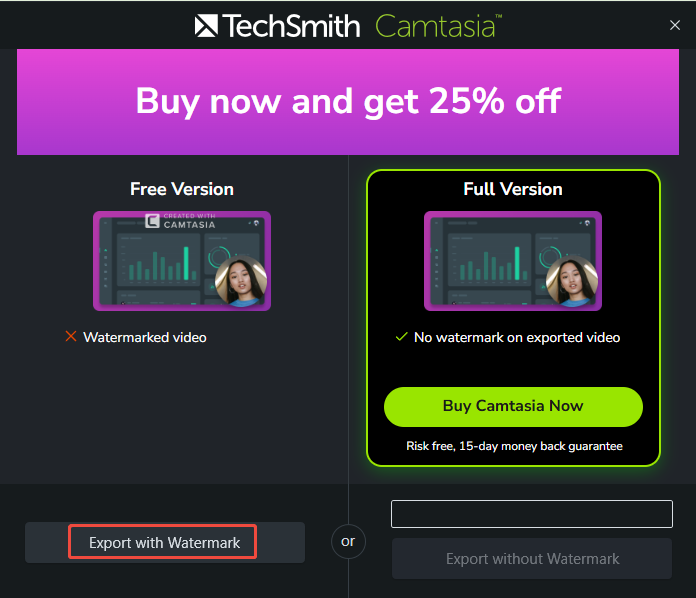
2. Click on Export with Watermark if you don’t want to use the paid version.
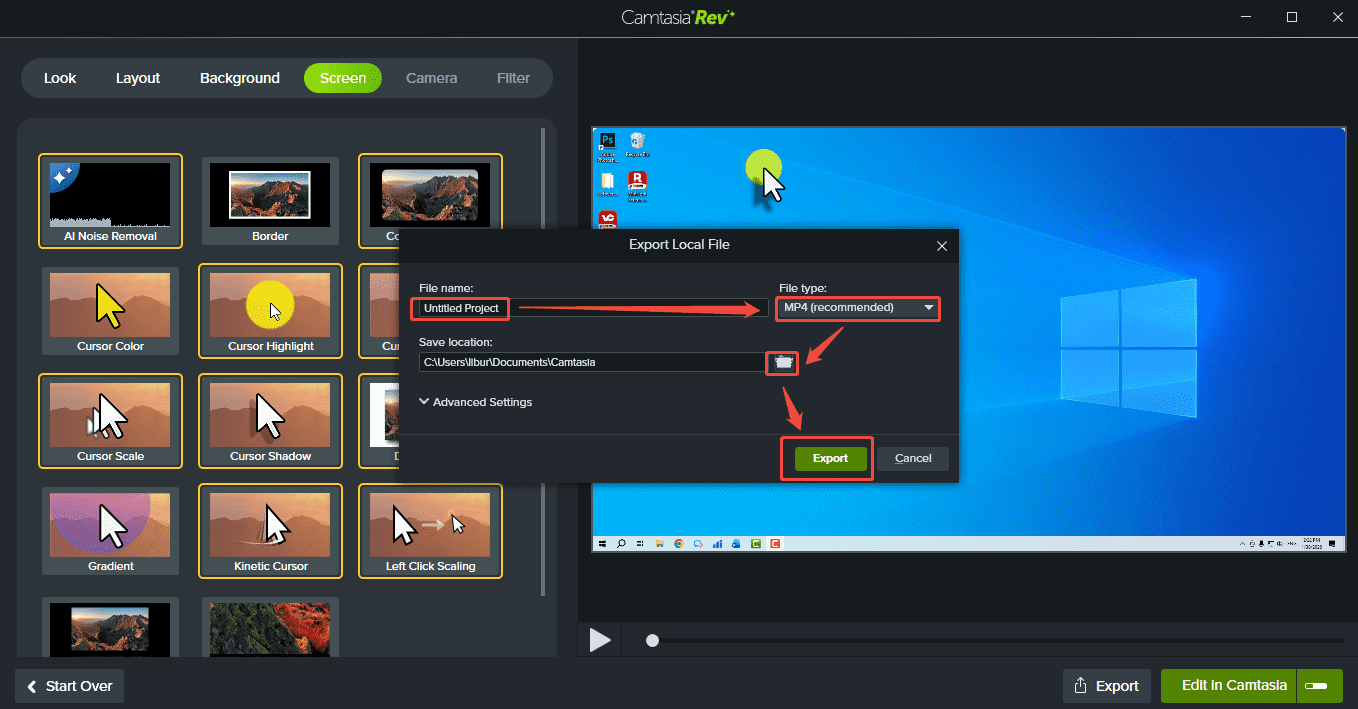
3. In the pop-up window, rename the recording file, choose MP4 as the file type, and set the save path by clicking the folder icon.
4. Click on Export.
Step 5. Find the Recorded MP4 File
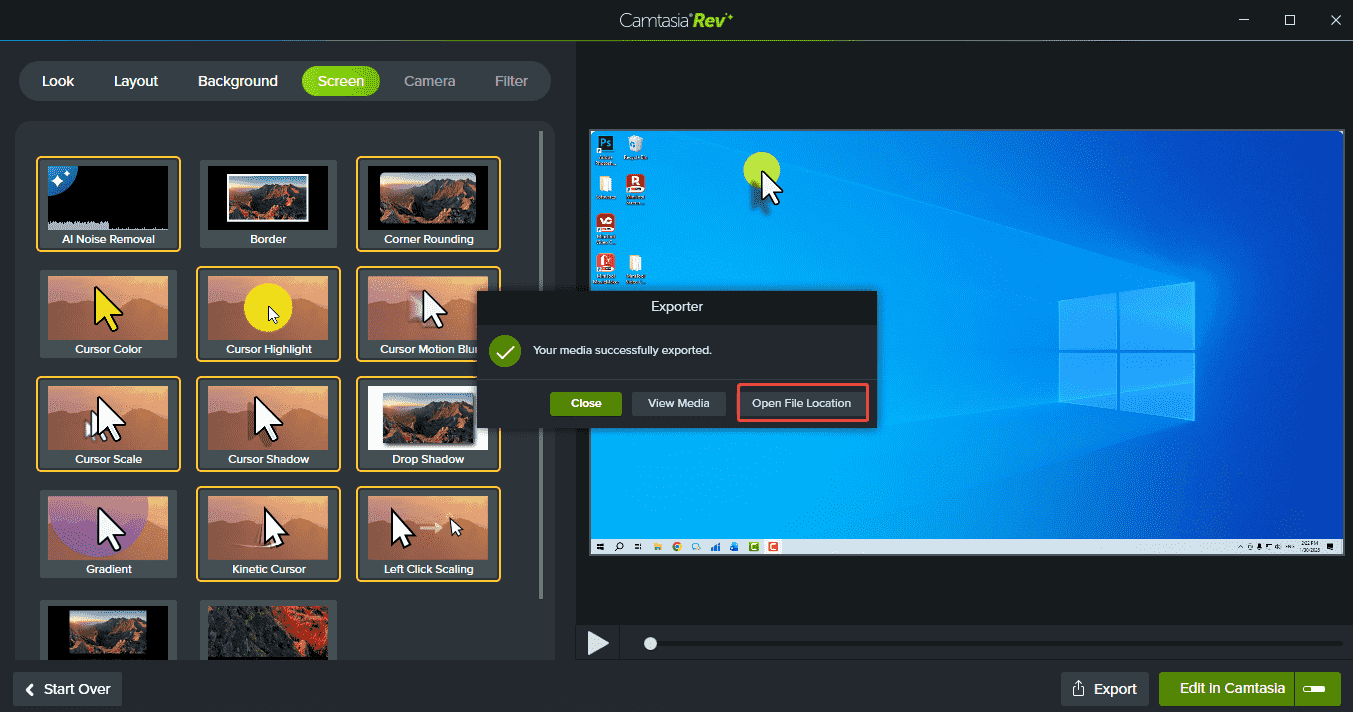
When the project is exported successfully, click on Open File Location to locate the recorded MP4 video.
Alternative Method to Record Camtasia Video as MP4
As introduced in the previous section, Camtasia will automatically add a watermark to the recorded video if you use the free version. How to save Camtasia video as MP4 Windows without watermarks? That is where the MiniTool Screen Recorder comes in.
MiniTool Screen Recorder is a professional-grade screen and webcam recording program with dual audio control: system and voiceover. You can go to Settings to set the flexible frame rate options, ranging from 15 FPS to 50 FPS, recording duration, and the output video quality.
Adding a screen annotation, including an interactive whiteboard, numbered labels, explanation texts, indicative lines, arrows, and shapes when recording, is a piece of cake. The recorded videos can be saved up to 4K resolution without watermarks and time limitations.
Below is how to capture video as an MP4 with MiniTool Screen Recorder.
Step 1. Install MiniTool Screen Recorder
Click the button below to download MiniTool Screen Recorder. Then, install it on your computer.
MiniTool Screen RecorderClick to Download100%Clean & Safe
Step 2. Configure Recording Area and Audio
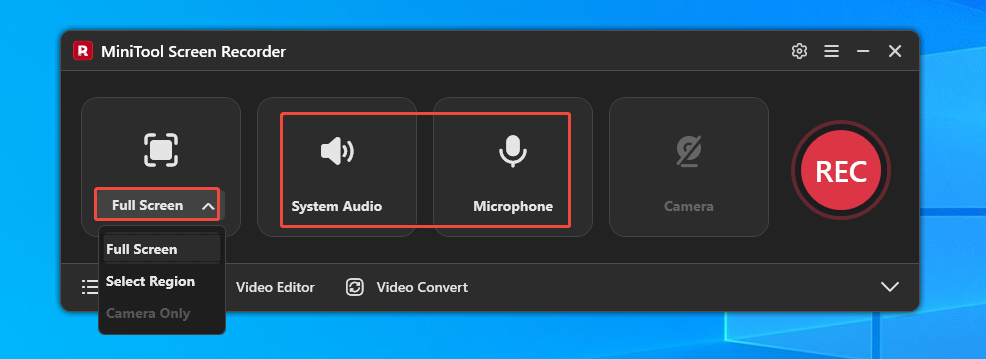
1. Recording full screen is the default option. You can expand the Full Screen to customize the recording area.
2. Click on the System Audio option and the Microphone option to pick which sounds you want turn off during recording.
Step 3. Customize Additional Settings
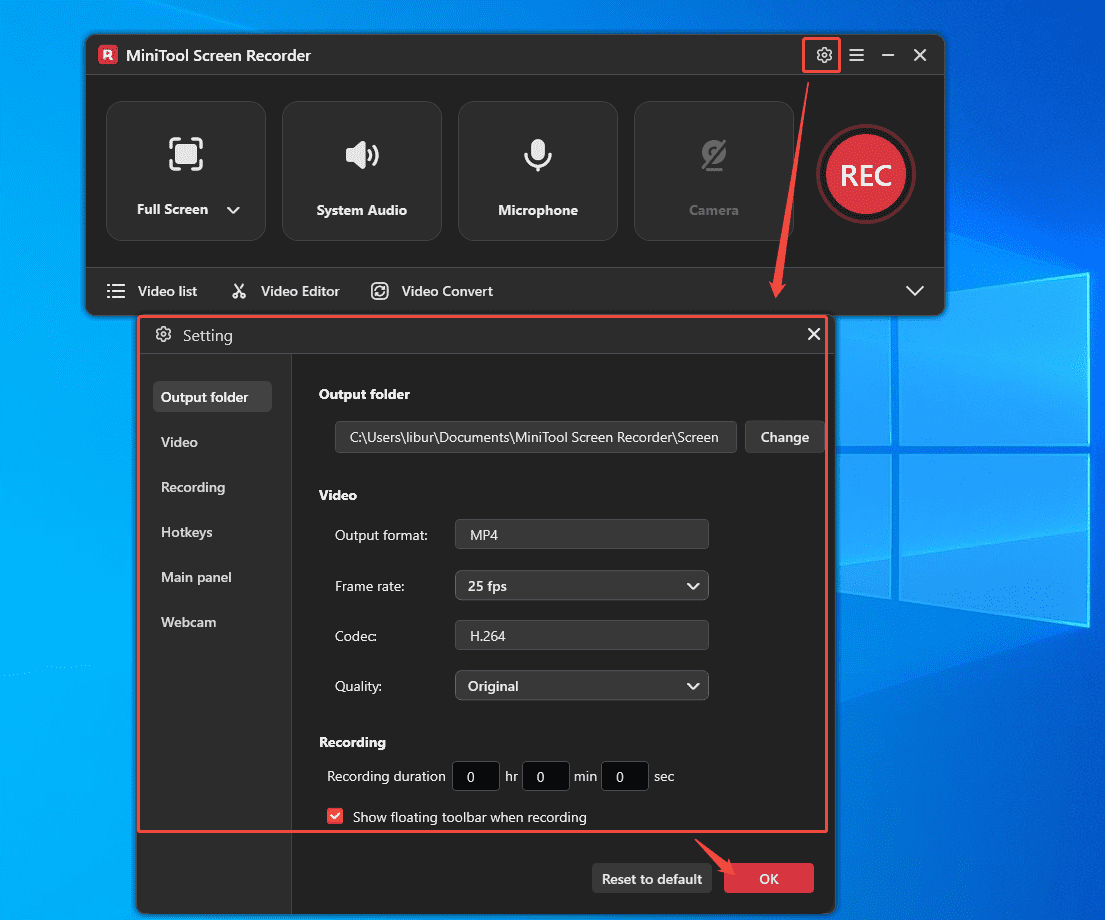
1. To access more options, click the Gear icon in the upper-right corner. Here, you can set a precise recording duration and adjust the video frame rate and quality according to your needs.
2. After configuring the settings, click OK to save the changes.
Step 4. Start and End Recording
1. Open the video you want to record and click the REC button or press the default F6 key on the keyboard to start recording the video.
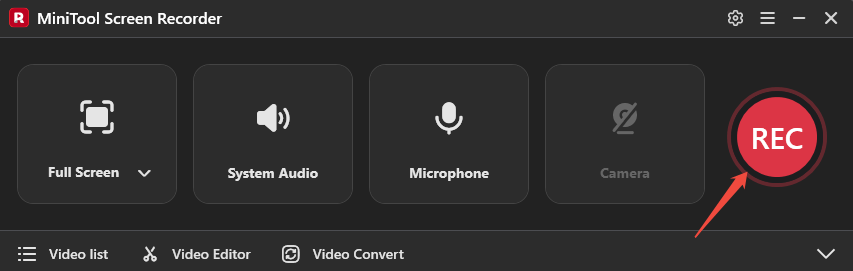
2. Press F6 to stop recording when finished.
Step 5. Check the Recorded MP4 Video
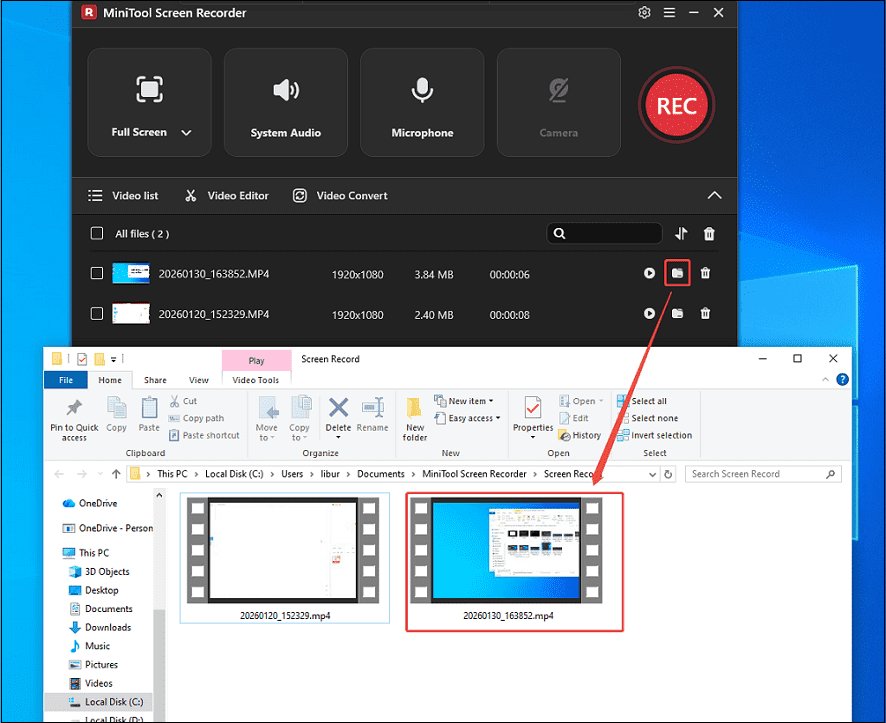
After the recording stops, the main interface of MiniTool Screen Recorder will appear and display a list of recorded videos. The latest recording will be shown at the top of the list. Click the Folder icon to locate the file on your computer.
How to Convert the Recorded Video to Other Formats
Do you suddenly want to save the Camtasia video in a different format, but don’t want to re-record it? You can directly convert the recorded video to the desired format quickly. Click on Video Convert at the main interface of MiniTool Screen Recorder to enter the conversion interface.
Alternatively, directly click on the button below.
MiniTool Video ConverterClick to Download100%Clean & Safe
This free converter can convert the MP4 file to a wide range of video and audio formats, such as MOV, MKV, AVI, WMV, M4V, Xvid, WAV, MP3, M4A, AIFF, M4B, etc. It also converts the MP4 video into a format compatible with Apple, Huawei, Android, and Samsung devices. Additionally, you can customize the conversion parameters, including bitrate, resolution, encoder, frame rate, sample rate, and channels.
Here, we take the MP4 to MOV conversion as an example and show you the conversion process.
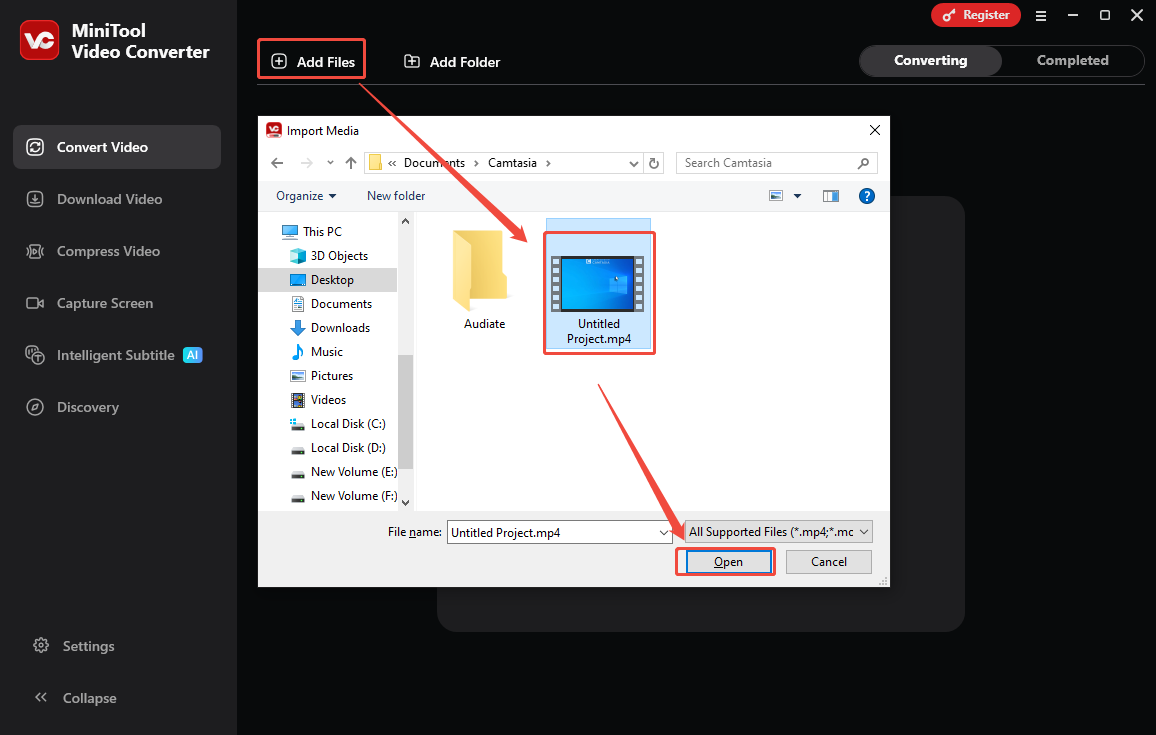
Step 1. Add the Recorded Camtasia MP4 Video
In the main interface, click on Add Files, find the recorded video, and click on Open to import it to the converter.
Step 2. Convert the Recorded MP4 File
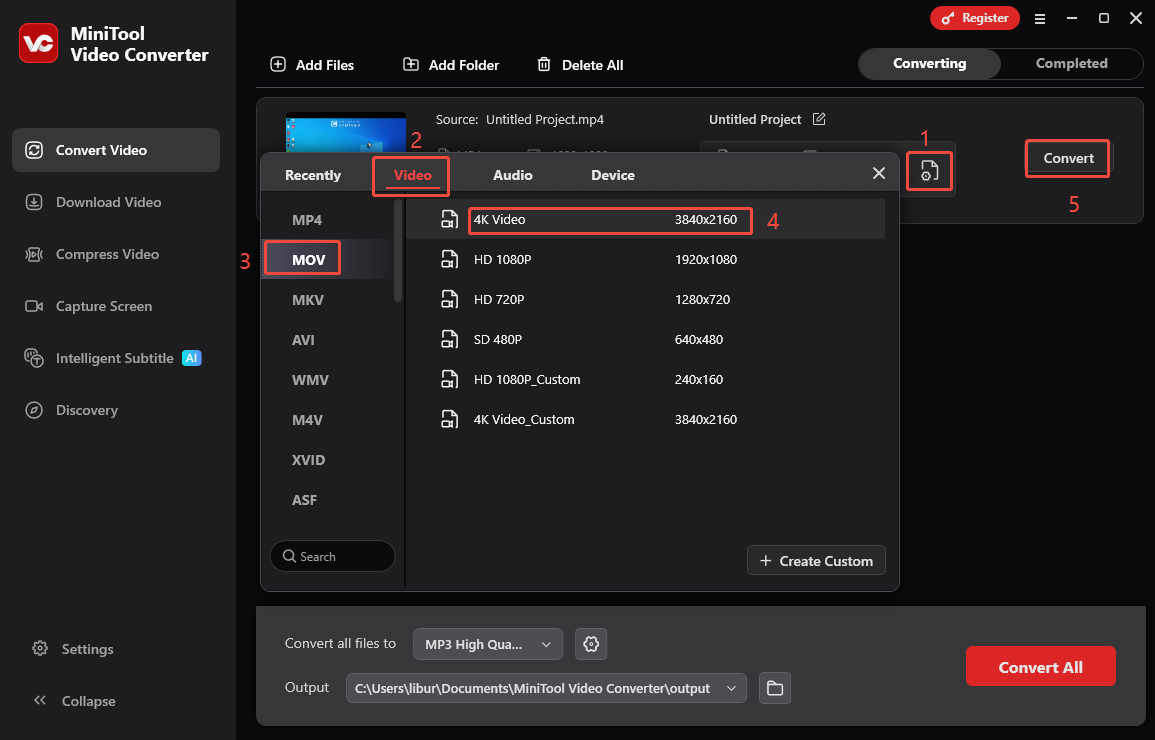
1. Click on Settings, switch to the Video tab, and click on the MOV module in the left column.
2. Then, pick a suitable resolution as needed. Here, I select 4K Video as an example.
3. Click on Convert.
Step 3. Play and Locate the Converted Camtasia Video
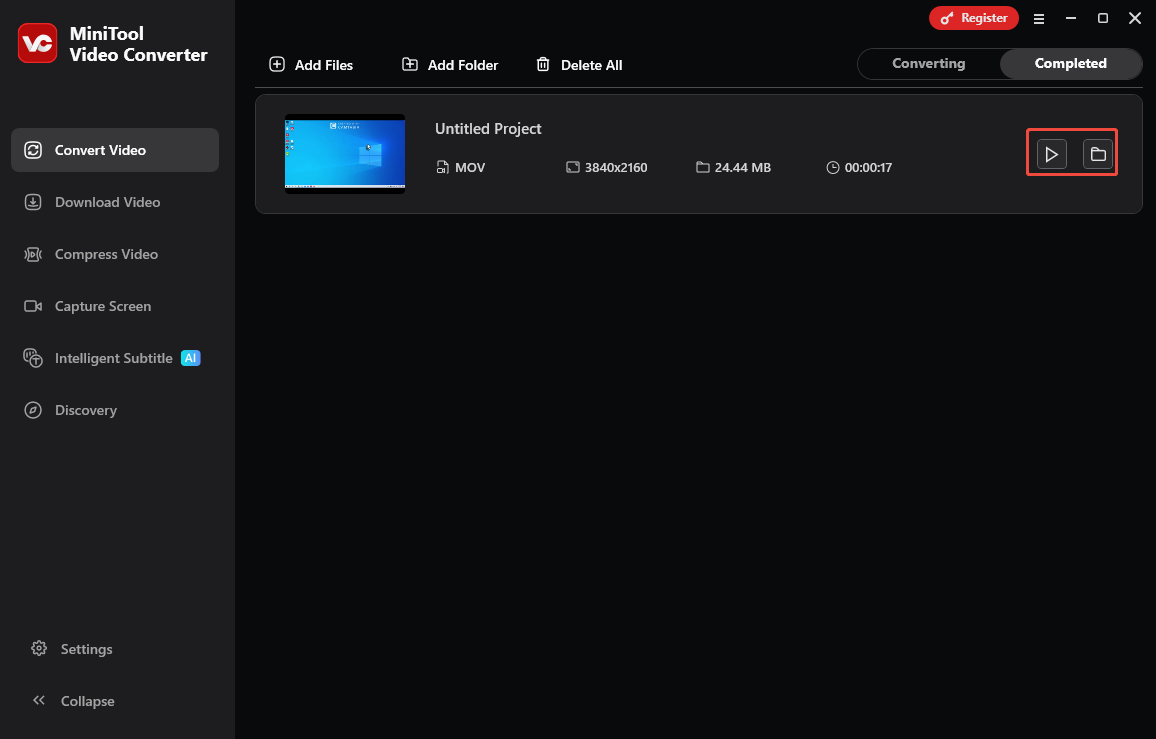
1. The converted video is listed under Completed.
2. Click on the play icon to watch the converted video or click on the folder icon to find the video directly.
Wrap Things Up
How to save Camtasia video as MP4? Directly record the video with Camtasia or MiniTool Screen Recorder. If you use the free trial of Camtasia like me, the recorded video will contain a watermark. If you don't want to add watermarks to your screen recordings or pay for them, then use MiniTool Screen Recorder.
If you have any problems when using MiniTool Screen Recorder and MiniTool Video Converter, please send an email to support@minitool.com to ask for help.