

If OBS not recording full screen on your desktop, this is usually caused by a resolution mismatch or incorrect source settings. This article gives you 7 solutions, including checking the default recording mode, modifying the canvas resolution, using MiniTool Screen Recorder as an alternative, and more.
When you record video using OBS Studio, it may only capture a portion of the screen instead of displaying the full screen. Why does this happen? The following section details the most common causes and solutions.
How to Fix OBS Not Recording Full Screen?
Why is OBS not recording full screen? This could be due to various reasons, such as not setting the recording area or not selecting an appropriate resolution. You can try the following methods one by one to resolve the issue.
Solution 1: Set the Default Recording Mode to Full Screen
If OBS Studio not recording full screen, first checking if you set full screen as the default recording mode. OBS comes with a built-in Display Capture feature, which helps you capture the entire screen. You need to activate it before starting recording or live streaming. Here's how:
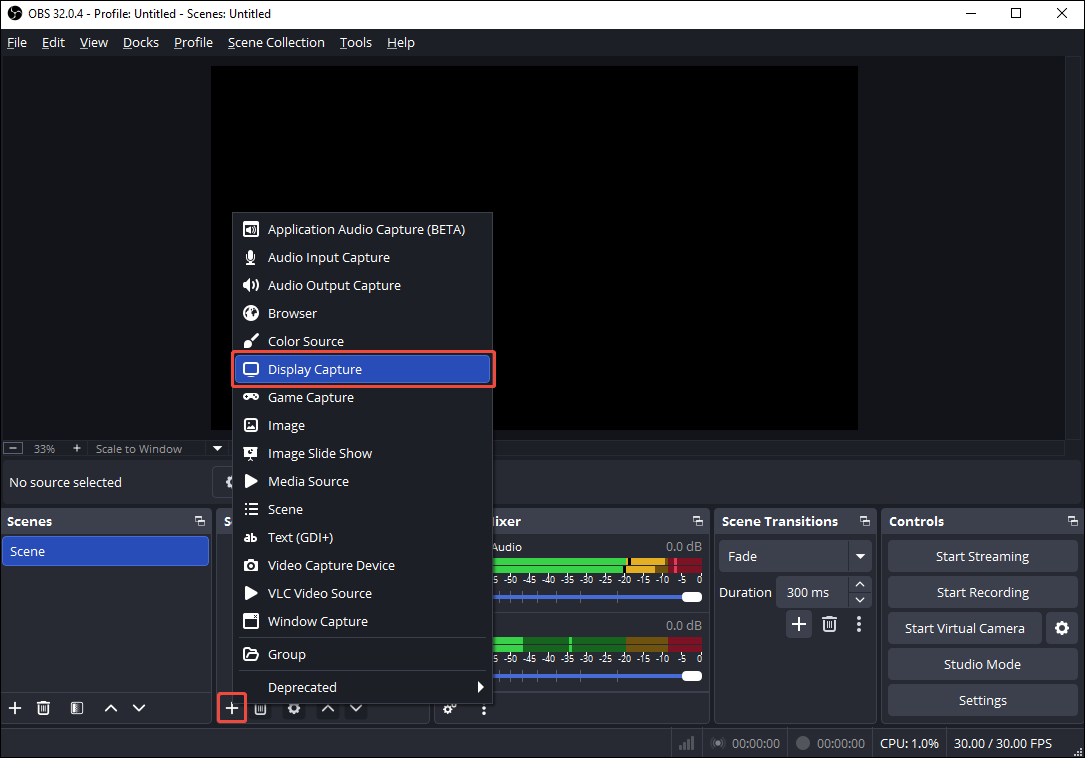
Step 1: Find Display Capture
Open OBS Studio and click the + icon in the bottom-left of the Source section. Then, choose Display Capture in the menu.
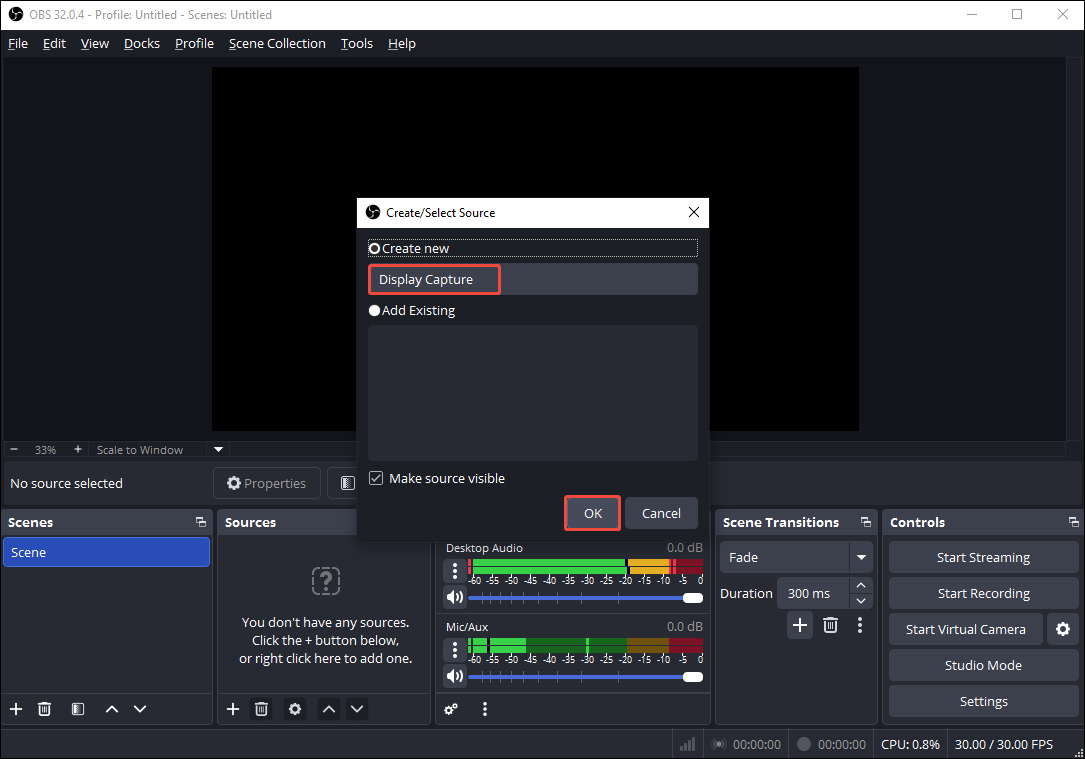
Step 2: Create New Source
In the pop-up window, check the Create new option, name it, and click OK. In the next window, choose whether to record the cursor, and click OK.
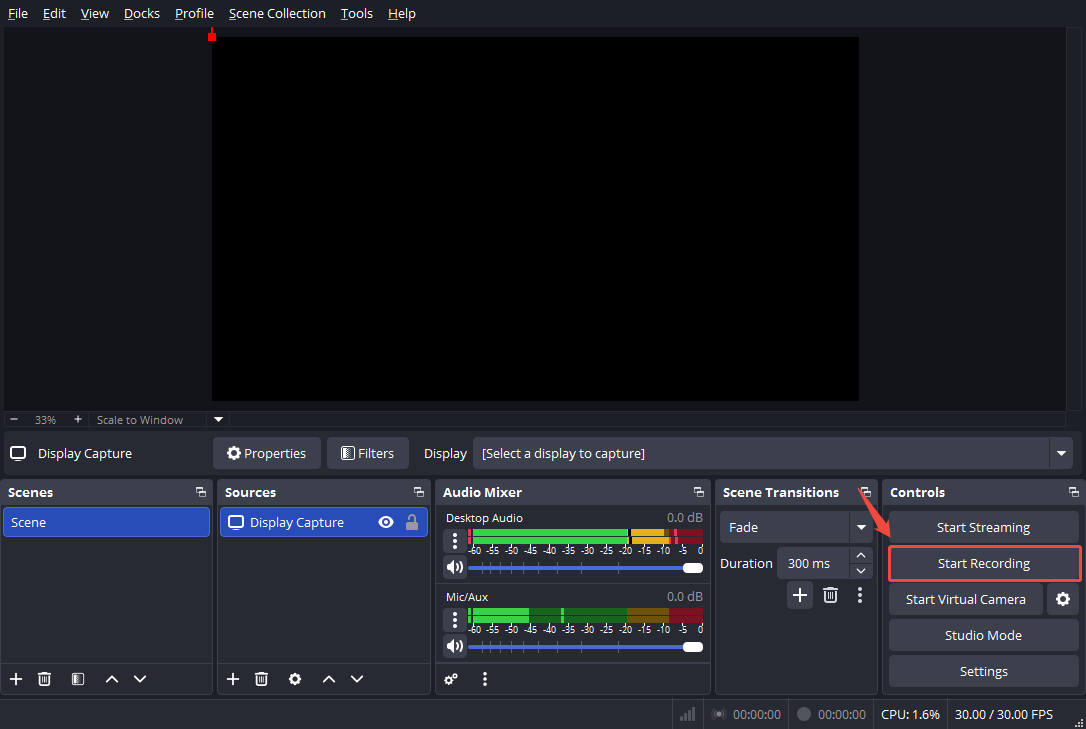
Step 3: Start and End Recording
Click the Start Recording option in the bottom-right Controls section to begin the recording. When you have recorded what you want, click Stop Recording to end it.
Step 4: Locate the Recorded Video
After the recording is complete, the location where the screen recording is saved will be displayed in the bottom bar of the interface. You can go to File Explorer to find it.
Solution 2: Modify the Canvas Resolution
OBS not recording full screen? You may set an inappropriate resolution. When OBS's canvas resolution does not match the screen resolution, it compresses the image to fit the screen, resulting in a smaller recorded video. Here’s how to change the base resolution on OBS:
Step 1: Open the OBS Settings
In the main interface, click the File option at the top-left corner, and select Settings.
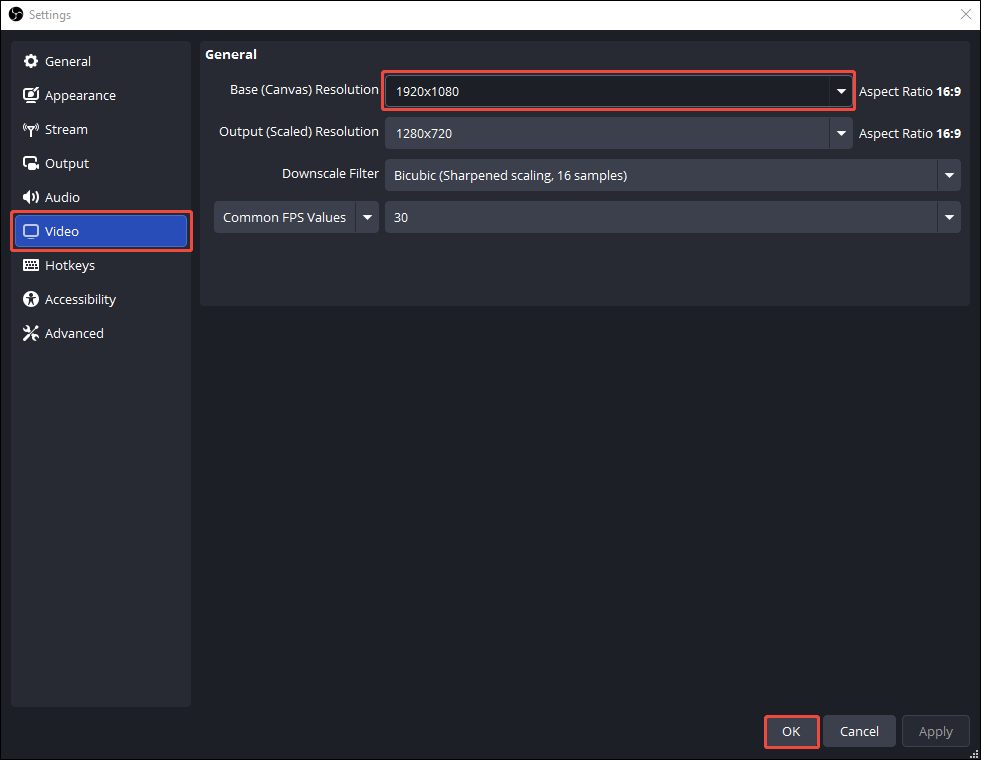
Step 2: Change the Base Resolution
In the Settings window, switch to the Video tab on the left, expand the Base (Canvas) Resolution option to choose the resolution that matches your screen resolution, and click OK.
Solution 3: Disable Windows Game Mode
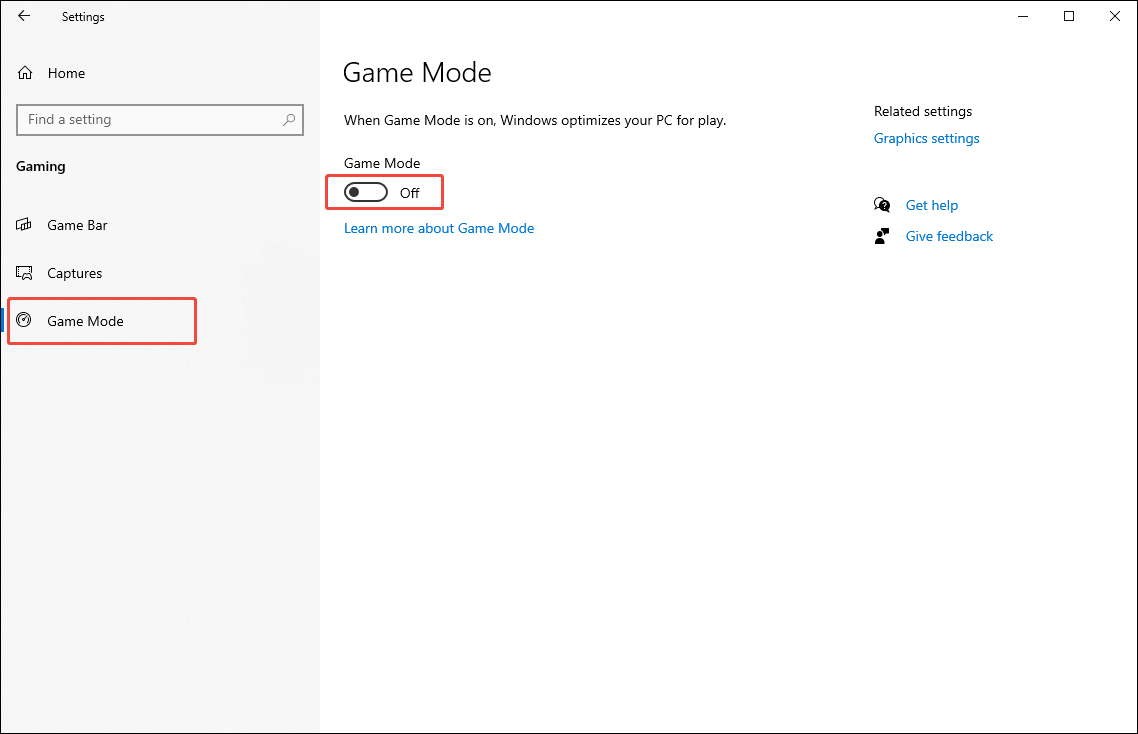
When Game Mode is enabled, Windows allocates most GPU resources to the game, preventing OBS from recording in full screen. You can disable Game Mode by following these steps (take Windows 10 as an example):
Step 1: Open Windows Settings
Press Windows + I to open the Settings window. Then, select the Gaming option.
Step 2: Turn off Game Mode
Choose Game Mode on the left menu and turn off the Game Mode toggle on the right.
Solution 4: Disable Xbox Game Bar
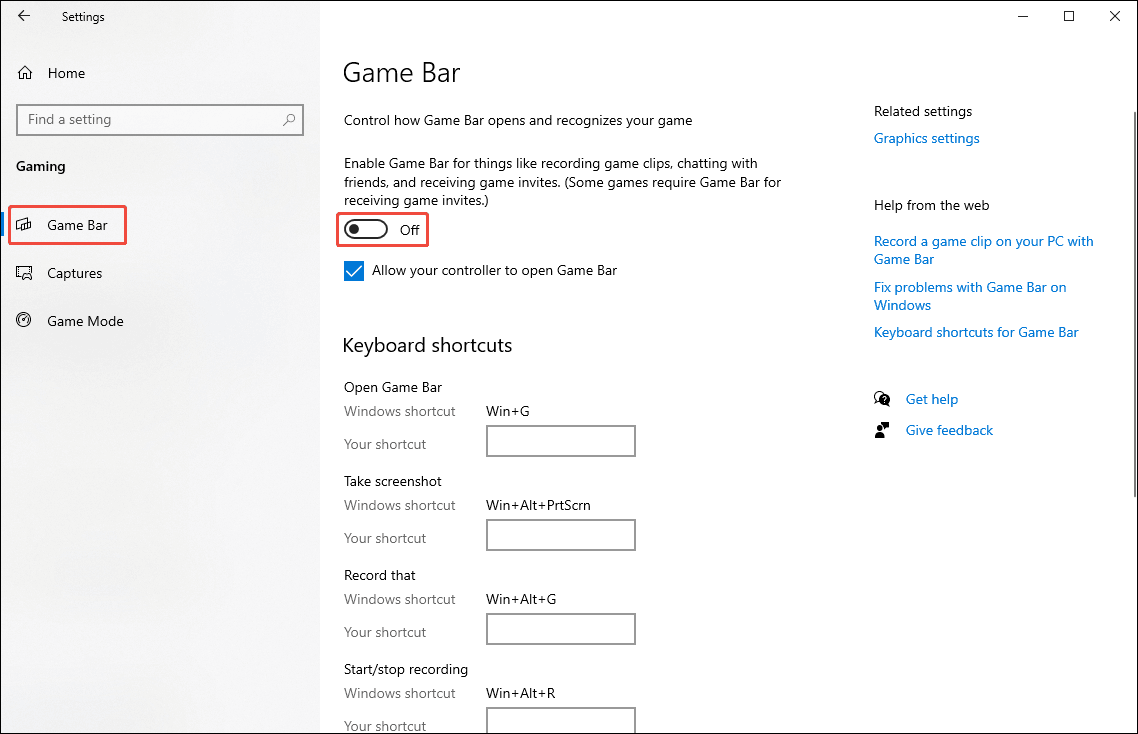
The Xbox Game Bar may consume system resources and interfere with OBS recording. You can try disabling the Xbox Game Bar to resolve the OBS Studio not recording full screen issue. Here’s how (take Windows 10 as an example):
Step 1: Open Windows Settings
Press Windows + I to open the Settings window. Then, select the Gaming option.
Step 2: Turn off Xbox Game Bar
In the Game Bar tab, find the toggle under the Game Bar section and then turn it off.
Solution 5: Enable Compatibility Mode
If you choose another screen recording software as your preferred option, this will cause OBS to record only a small window instead of the entire screen. Follow the steps below to set OBS Studio as your default screen recorder:
Step 1: Go to OBS Studio Properties
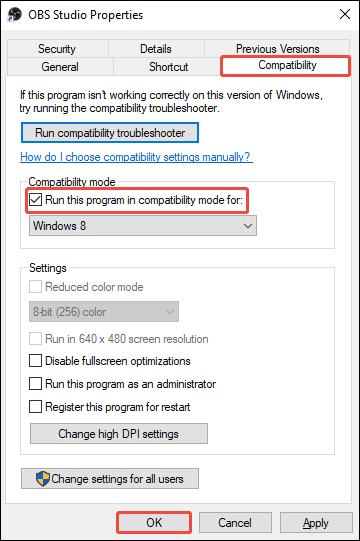
Right-click the OBS Studio shortcut on your desktop and select Properties.
Step 2: Set Running OBS in Compatibility Mode
In the OBS Studio Properties window, choose the Compatibility tab, select the Run this program in compatibility mode for option, and click OK.
Solution 6: Reinstall OBS Studio
If none of the above methods can solve the problem of OBS not being able to record full screen, you can try reinstalling the application on your computer.
Solution 7: Use an OBS Alternative
If you find OBS too complicated, try a simpler screen recording software: MiniTool Screen Recorder. It can record the entire screen with just one click. Besides full-screen recording, you can also select the recording area yourself.
Most importantly, MiniTool Screen Recorder allows you to record your webcam, screen, or both simultaneously. You can also adjust the position, shape, and size of the webcam overlay. Furthermore, this free screen recorder supports various annotation tools, such as text, arrows, rectangles, and numbers.
Next, let’s see how to record full screen with MiniTool Screen Recorder:
Step 1. Download and Install MiniTool Screen Recorder
Click the download button below, run the installer, and follow the prompts to install MiniTool Screen Recorder on your PC in seconds.
MiniTool Screen RecorderClick to Download100%Clean & Safe
Step 2. Choose the Recording Area
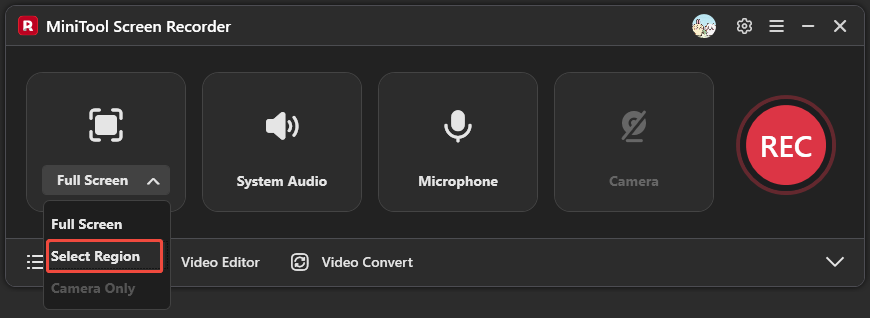
MiniTool Screen Recorder starts in full-screen mode by default. You can also expand the Full Screen option, click Select Region, and use your mouse to draw the area you want to record.
Step 3: Choose Audio You Want to Record
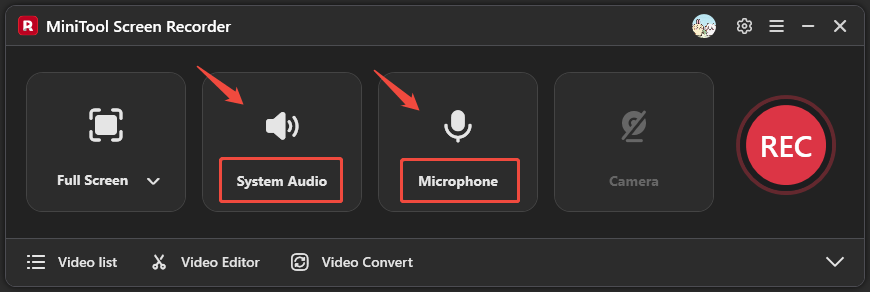
Click the System Audio and Microphone options to record or mute system and microphone sounds as needed.
Step 3. Start/end recording
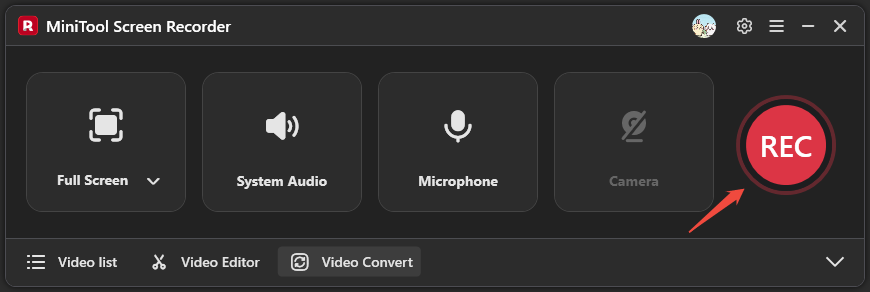
Click the REC button to start recording. You will see a 3-second countdown. After it, screen recording will start automatically. To stop recording, press the F6 key.
Step 4: View the Recorded Video
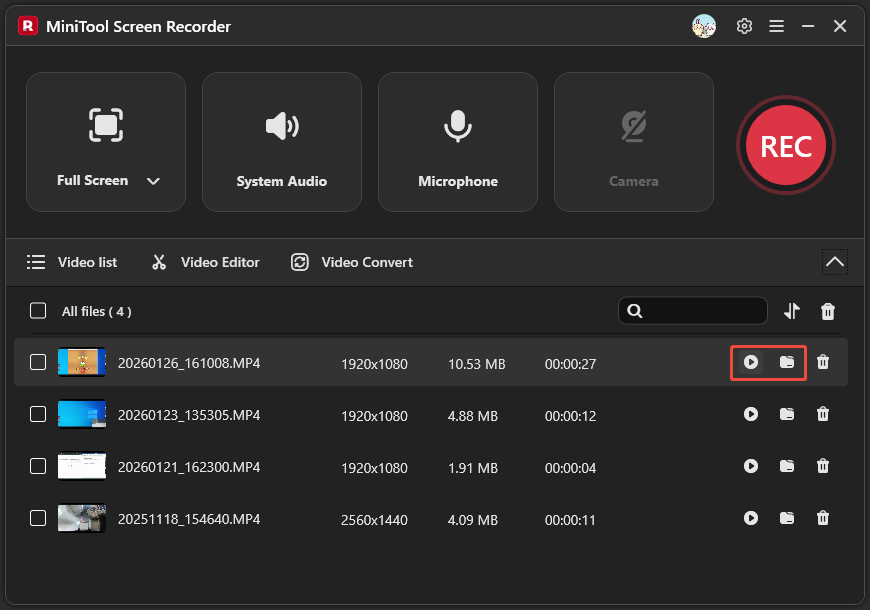
When the recording ends, the video list will automatically expand, where you can find the video you just recorded. Click on the play icon to view the recorded video or click on the folder icon to locate it.
Among the seven fixes above, at least one should resolve the OBS Studio not recording full screen issue.
Final Words
This article tells you how to fix OBS not recording full screen in 7 ways. Modifying the canvas resolution on OBS was the most effective solution for me. If your OBS is not working properly, you can also try using MiniTool Screen Recorder, a watermark-free screen recorder with no time limit.
If you have any problems when using MiniTool Screen Recorder, please send an email to support@minitool.com to ask for help.