

This article introduces OBS Studio to you and explains why OBS game capture black screen. Meanwhile, it summarizes 10 workable methods to fix this game capture issue, including restarting OBS, updating the drivers, trying an OBS alternative, and so on. Finally, this post recommends a recording editor: MiniTool MovieMaker.
OBS Studio is a popular choice for gamers to capture a wide range of games. However, these days, more and more users complain that they have been bothered by OBS game capture black screen. Don’t worry. The following content can help you fix that issue.
What Is OBS
Standing for Open Broadcaster Software, OBS Studio refers to an application with an open-source nature. With it, you can record the screen or live stream effortlessly. Meanwhile, it shows outstanding compatibility with various systems, such as Windows, macOS, and Linux. In addition, OBS Studio is an ideal option for gamers to stream to platforms such as YouTube and Twitch.
Why OBS Game Capture Black Screen
Here are the possible reasons for OBS black screen game capture.
Reason 1. Lack of Necessary Permissions
Necessary permissions ensure that the games can run appropriately. As such, if there are lower permissions when running OBS, this screen recorder can’t hook into the game you want to record. Finally, you will encounter the problem of game capture black screen OBS.
Reason 2. Detection Issues
The detection issues mean that OBS Studio fails to detect the game window that you want to capture. In essence, the injection of capture code into the game rendering engine fails within OBS Studio.
Reason 3. Outdated Graphics Drivers
Graphics drivers are often applied by OBS Studio for hooking into games. On condition that the drivers are outdated, the hooking connection could fail, which finally triggers the game capture OBS black screen error.
Reason 4. Multi-GPU Conflicts
Many PCs and laptops have 2 GPUs. One of them is an integrated, low-power GPU, while the other is a dedicated one ensuring high performance. In this background, if the recorded game and the OBS Studio app run on different GPUs, the conflict will cause game capture OBS black screen.
Reason 5. Game Mode Conflicts
Game Mode is a built-in setting on Windows to optimize performance. However, it may limit the resources necessary for OBS to record a game. Hence, if you have turned on the Game Mode option, issues like OBS game capture black screen Windows 11 will happen.
Reason 6. Problematic Overlays/Software
Problematic overlays and software will also lead to game capture OBS black screen. Specifically, they interfere with the hooking process of OBS Studio.
For instance, when OBS is injecting the code into the graphics pipeline of games to record frames, some software like MSI Afterburner and Discord may inject their code simultaneously, which causes a conflict over the graphics API control. Finally, the hooking process of OBS could fail, leading to game capture OBS black screen.
How to fix the OBS game capture issues? The following content can help.
Fix 1. Restart OBS
Restarting OBS is an effortless method to fix the OBS game capture black screen. Specifically, such restarting enables re-initialization of graphics hooks, proper detection of the game window, and reconnection with the display driver. This way, some issues like software conflicts or resolution changes can be fixed, which helps fix the problem of the black screen and OBS audio delay.
Fix 2. Run OBS as an Administrator
Running OBS as an administrator offers this screen recorder high-level permissions. Follow the steps below to do that.
Step 1. Enter the option menu of OBS Studio.
Find the shortcut of OBS Studio and right-click on it to access the option menu.
Step 2. Run OBS Studio as Administrator.
Choose the Run as administrator option to run OBS Studio as an administrator.
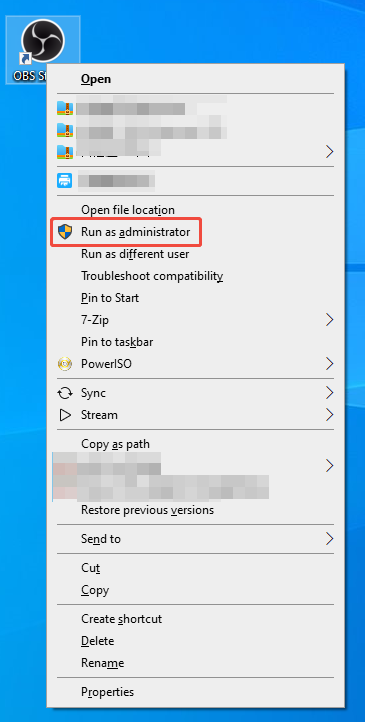
Once you have finished the operation, check whether the black screen issue is fixed.
Fix 3. Correct Windows Selection
By correcting windows selection, you can bypass the detection issues. Below are the detailed steps to conduct the correction.
Step 1. Enter the Properties for Game Capture window.
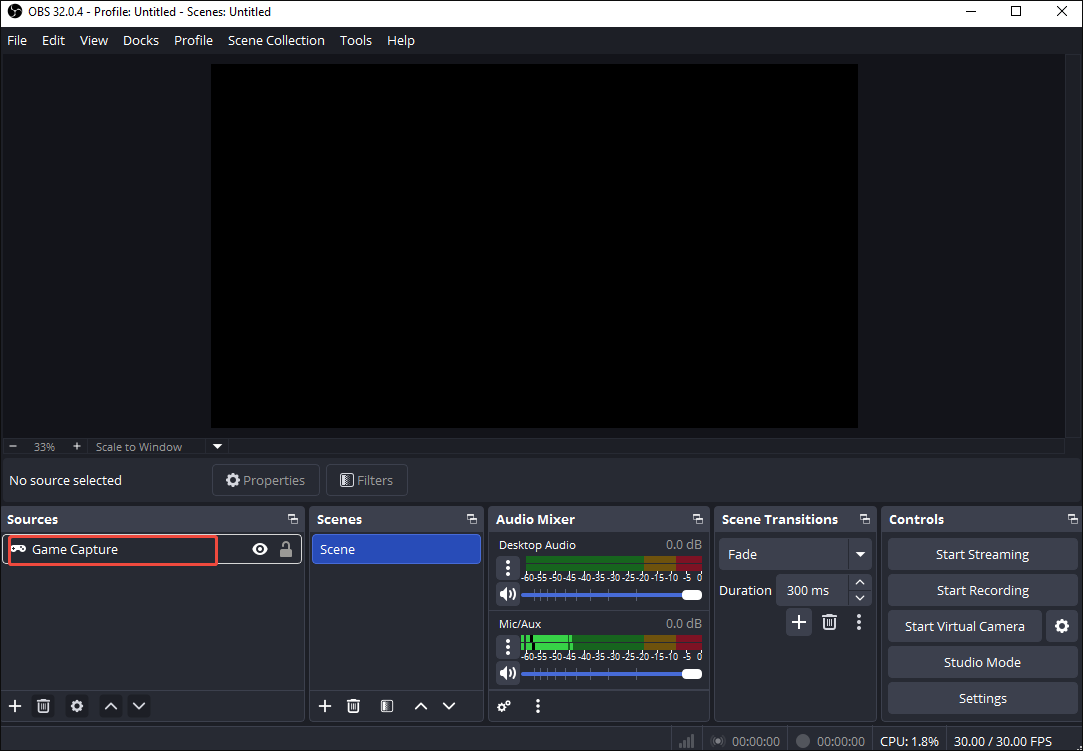
After launching OBS Studio, enter the Properties for Game Capture window by double-clicking on the Game Capture option.
Step 2. Correct the window selection.
In the window, expand the Mode option and choose Capture specific window. Next, expand the Window option and choose the game window you want to record. Finally, click on the bottom-right OK button to save the changes.
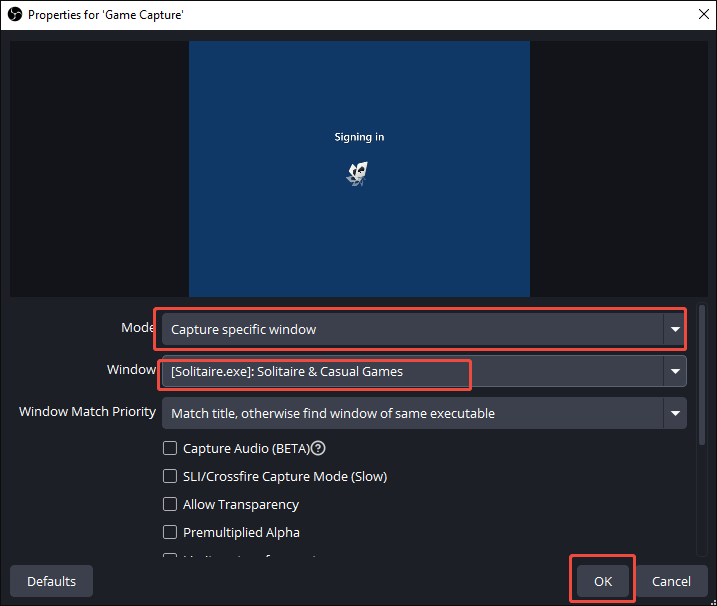
After following the steps above, record the game and check whether the black screen issues are fixed. If the guidance above doesn’t work, try other methods below.
Fix 4. Update the Drivers
If your drivers are outdated, you can follow the instructions below to update the drivers and fix OBS game capture black screen.
Step 1. Enter the Device Manager window.
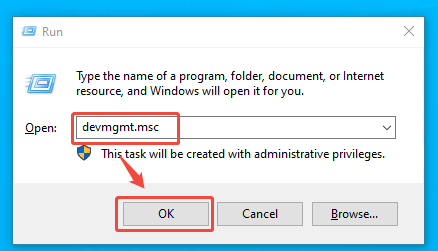
Press the Windows + R keys to activate the Run window. There, enter devmgmt.msc and click on the OK button to access the Device Manager window.
Step 2. Access the driver update interface.
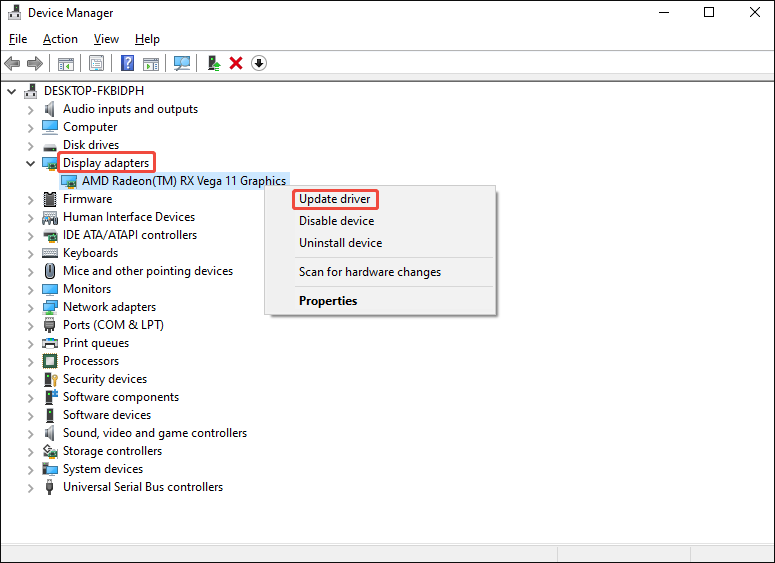
Expand the Display adapters option and right-click on your driver. Next, choose the Update driver option to enter the driver update interface.
Step 3. Begin the update process.
In the driver update interface, click on the Search automatically for drivers option to start the updating process.
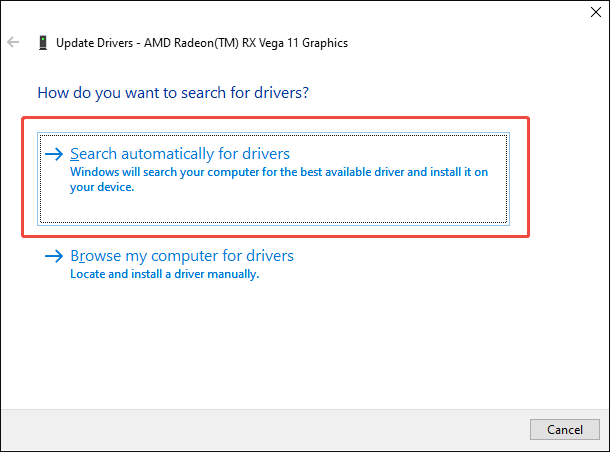
With the guidance above, you can update your driver to the latest version. Next, check whether the method is effective. As for the problematic software, during the recording process of OBS Studio, ensure that you have closed unnecessary apps, such as Discord, Zoom, Teams, Skype, and more.
Fix 5. Configure Graphics Settings
To avoid the GPU conflict, you can follow the tutorial below to configure the graphics settings of OBS Studio.
Step 1. Enter the Window Settings page.
Press the Windows + I keys to enter the Windows Settings page. There, choose the System option.
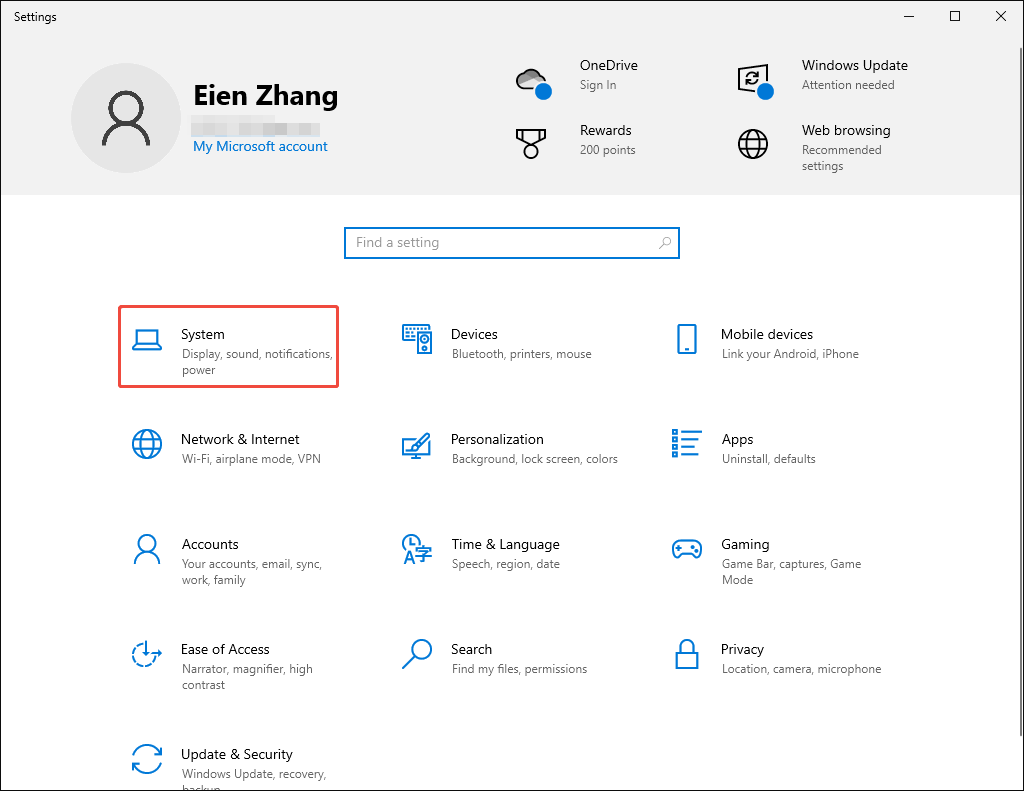
Step 2. Go to the Graphics settings interface.
Under the Display section, scroll down and click on the Graphics settings option to access the Graphics settings interface.
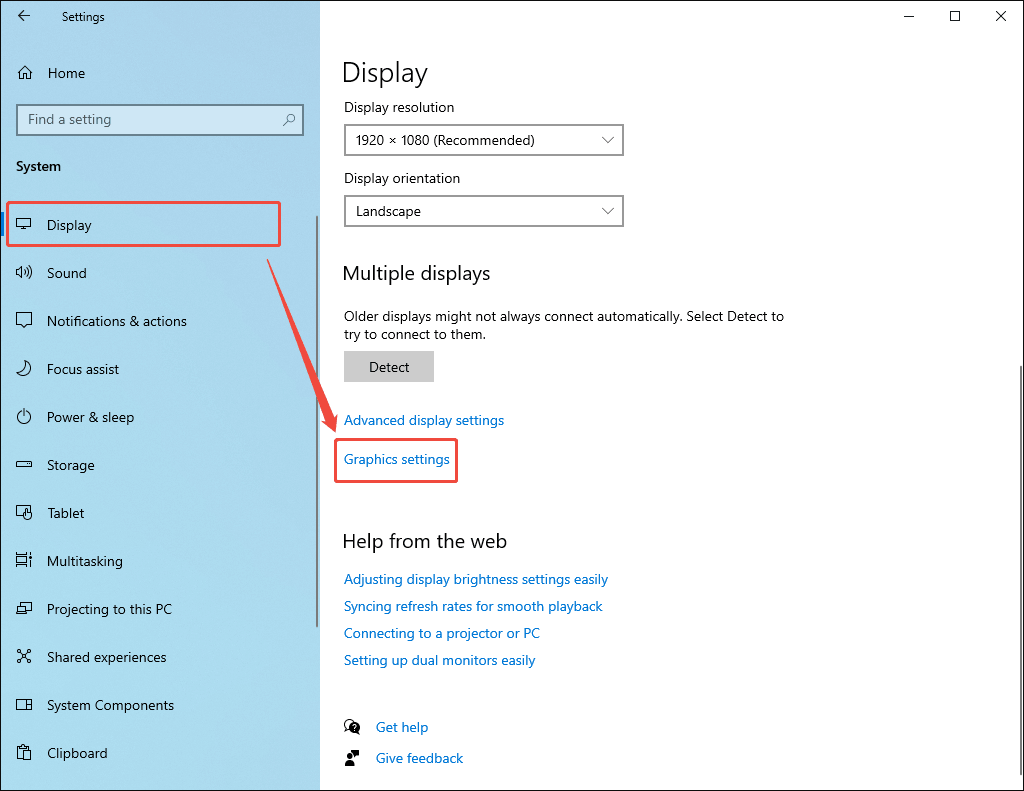
Step 3. Set OBS Studio as the target app.
Click on the Browse option and choose OBS Studio as the target application.
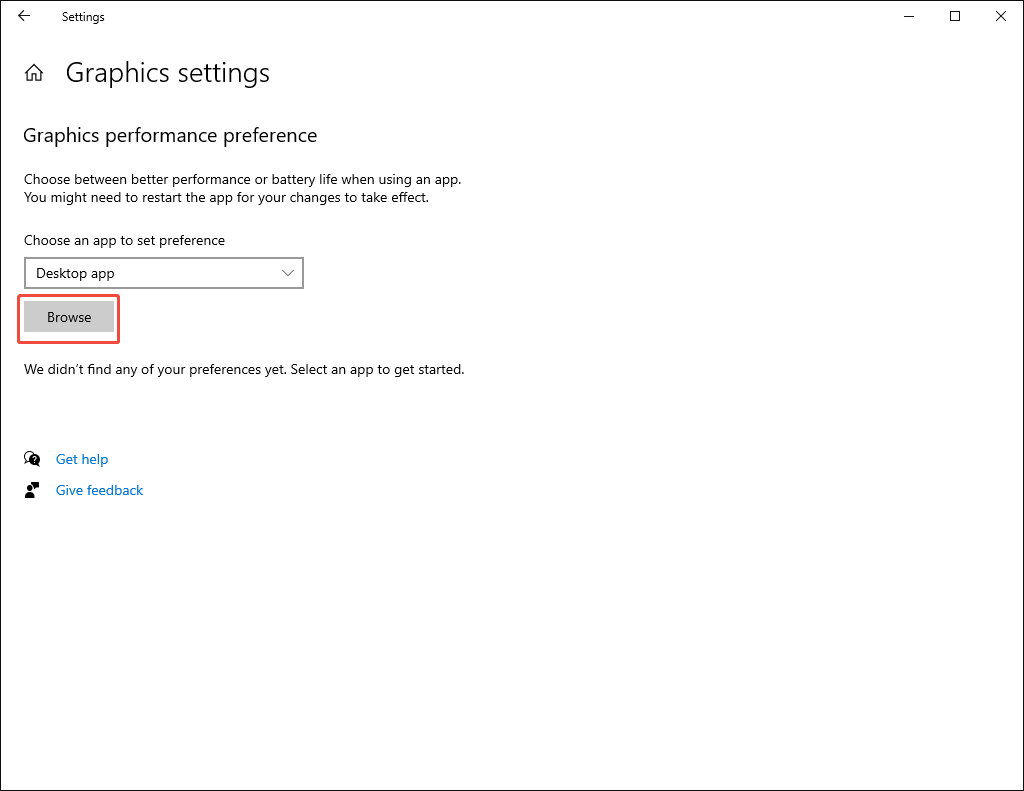
Step 4. Configure the graphics settings.
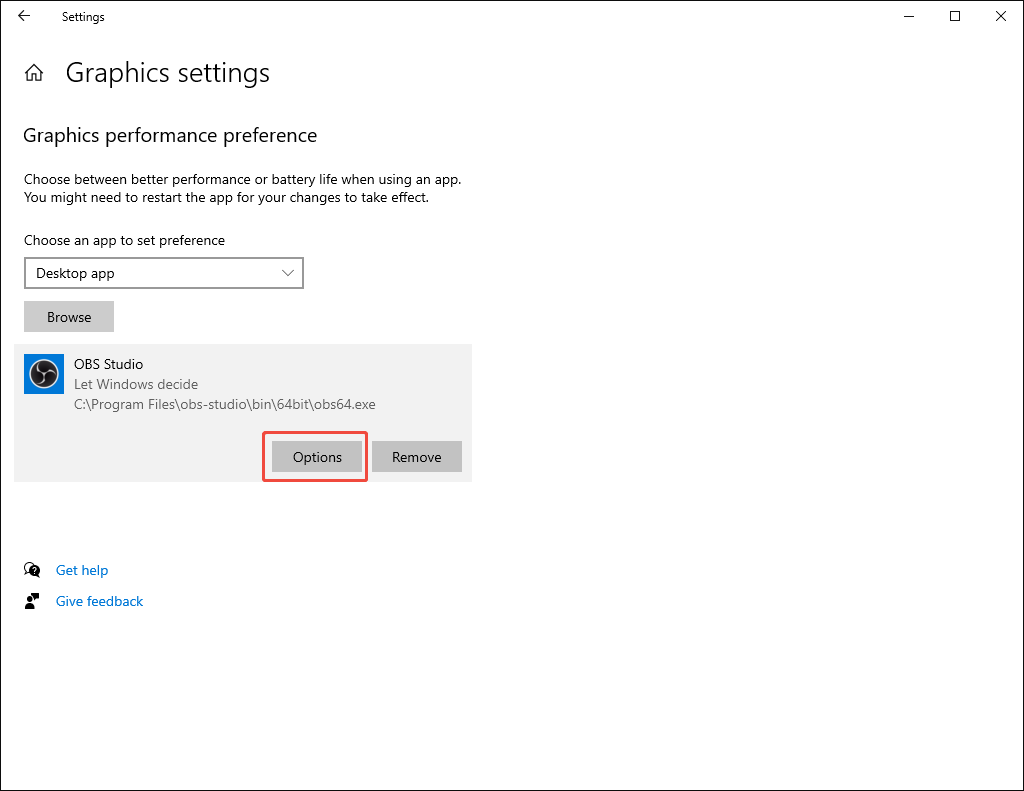
Click on the Option button to enter the Graphics preference window.
There, choose the High performance option. Finally, click on the Save button to confirm the changes.
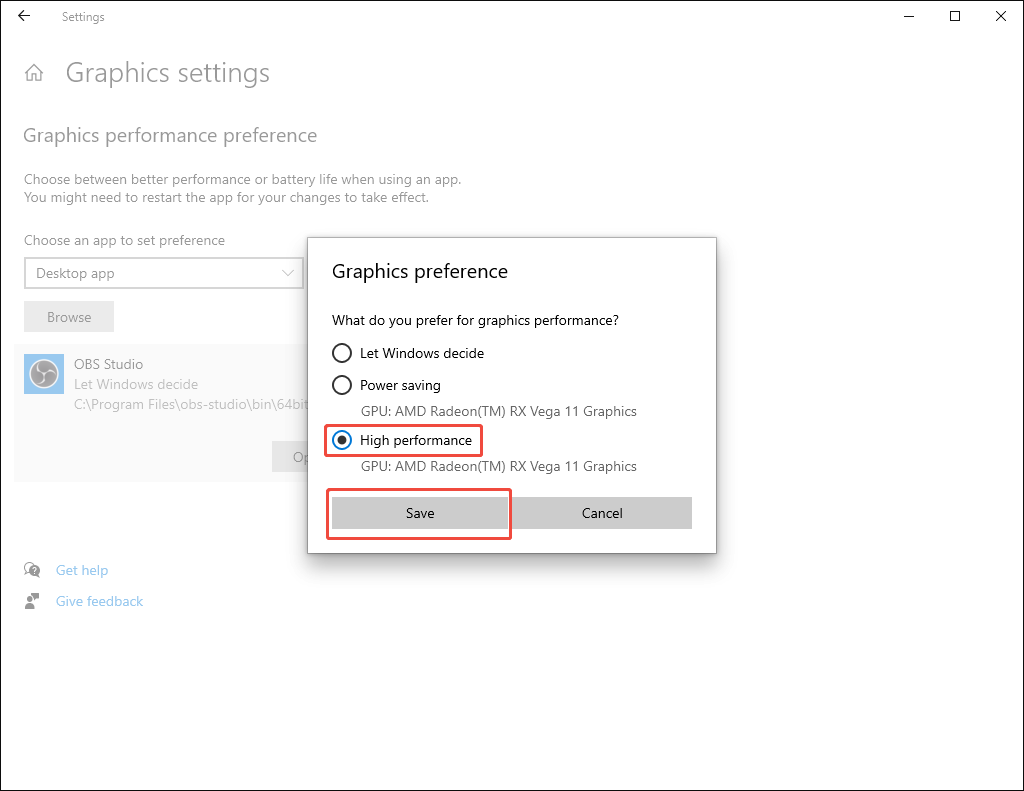
After configuring the graphics settings, check whether the method is effective.
Fix 6. Turn off Game Mode
To avoid the potential influence of the Game Mode function, follow the instructions below to turn it off.
Step 1. Enter the Windows Settings interface.
Press the Windows + I keys to enter the Settings page of Windows. There, select the Gaming option.
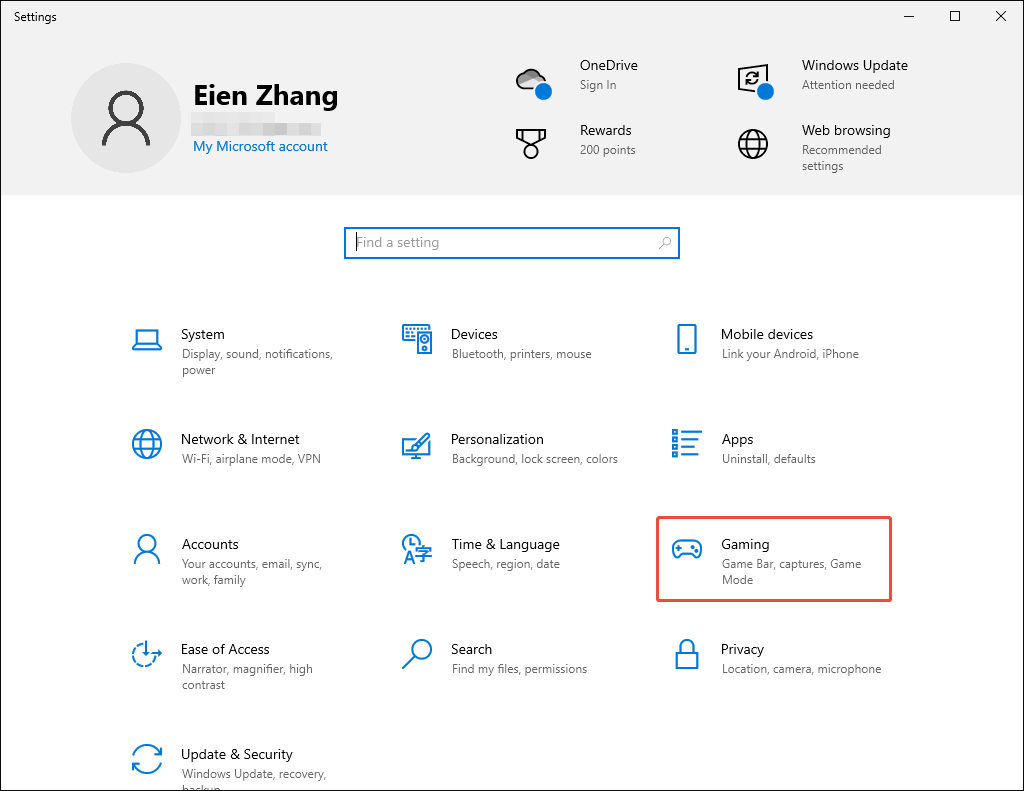
Step 2. Turn off Game Mode.
Switch to the Game Mode tab. There, toggle off the Game Mode option.
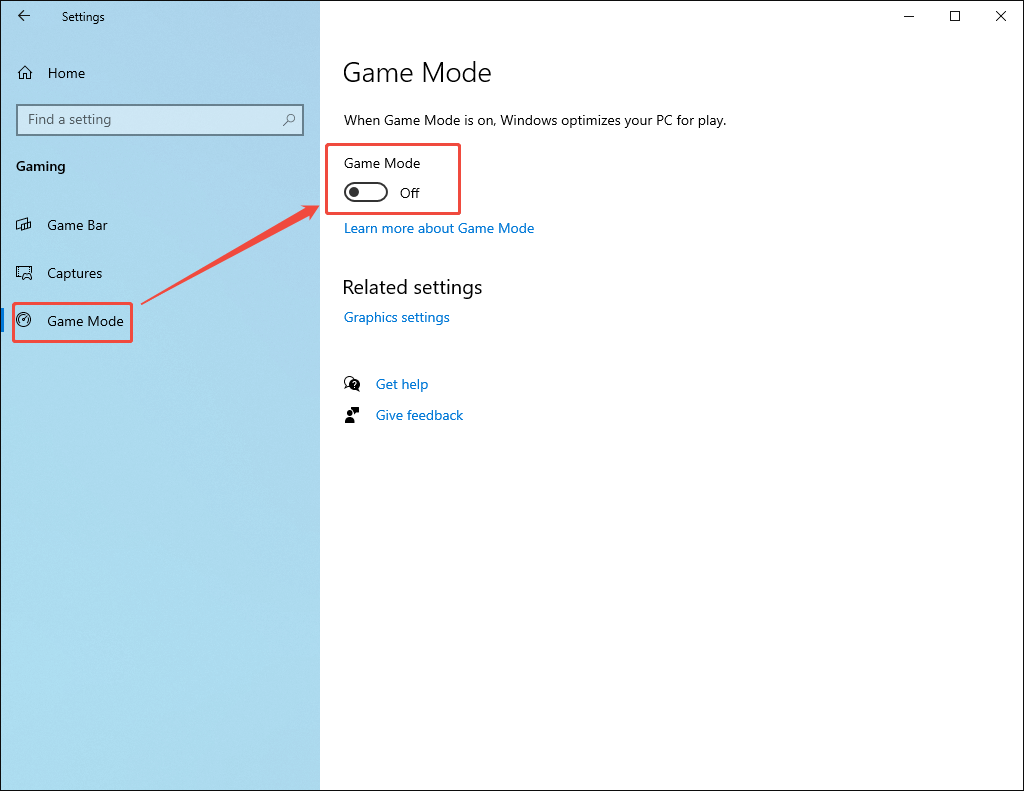
After turning off the Game Mode option, re-record the gameplay to check whether the method above is workable.
Fix 7. Use Other Capture Modes
When applying the Game Capture mode within OBS, it is necessary for this screen recorder to hook into the programs that are exclusive to full-screen. However, because of direct rendering or high security, such hooking may lead to a black screen. To fix that issue, you can follow the steps below to use the Window Capture mode in OBS.
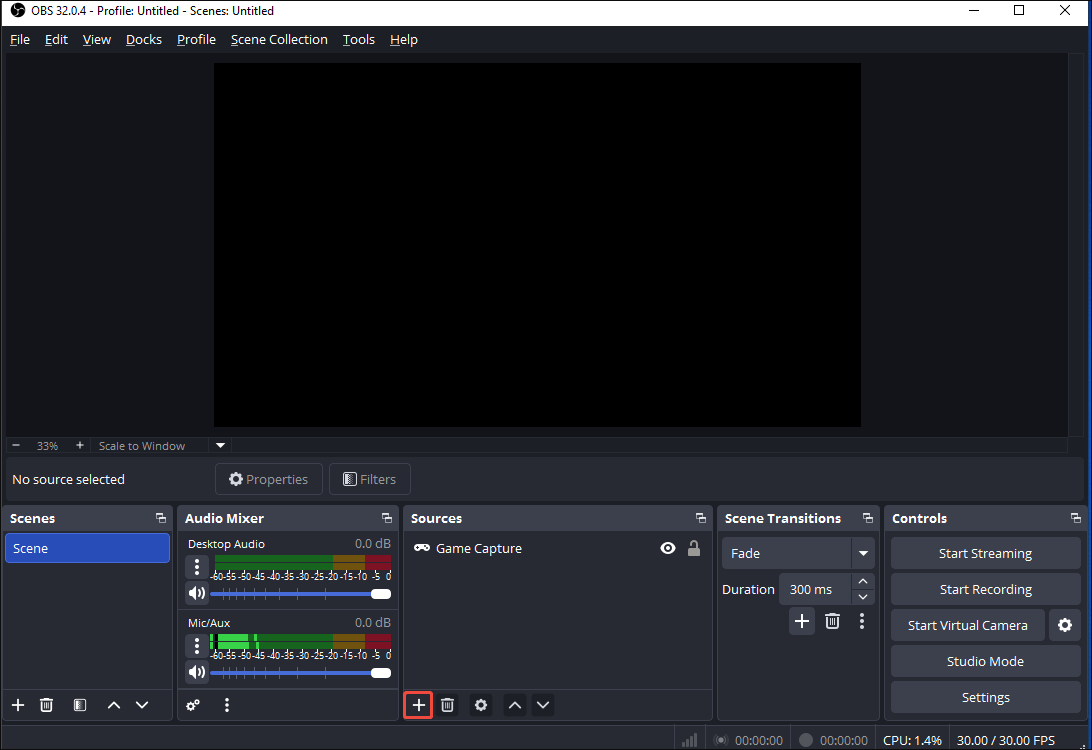
Step 1. Add Windows Capture to the source.
After launching OBS Studio, click on the bottom-left Plus icon in the Source section.
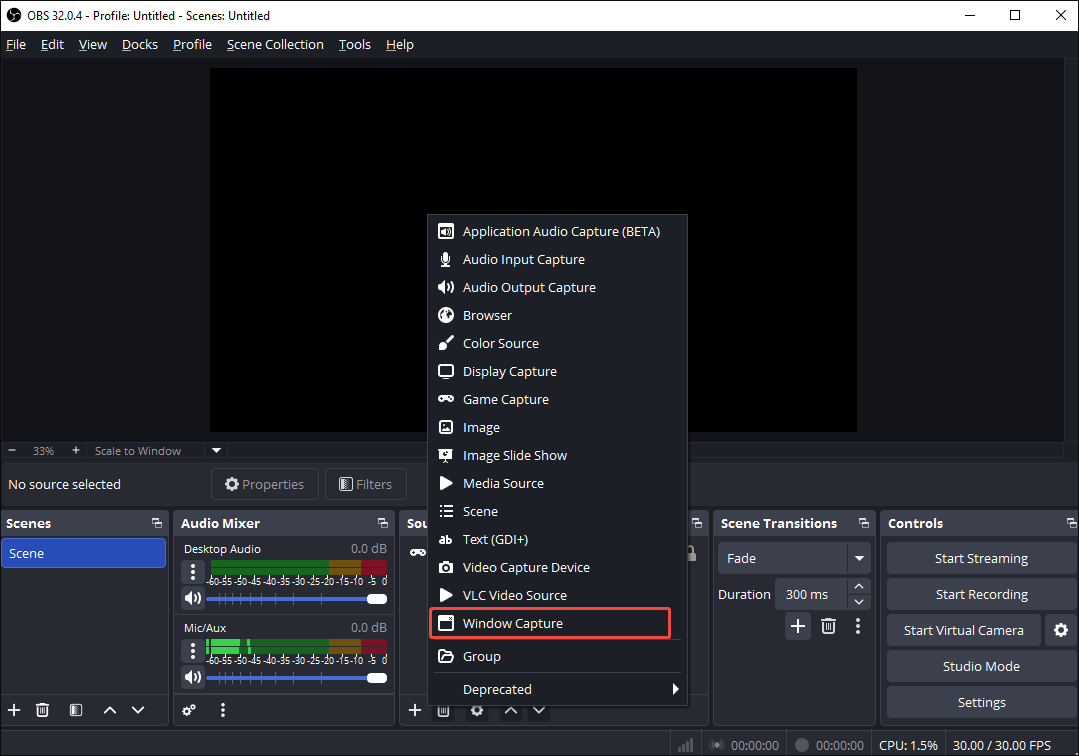
Then, select the Window Capture option.
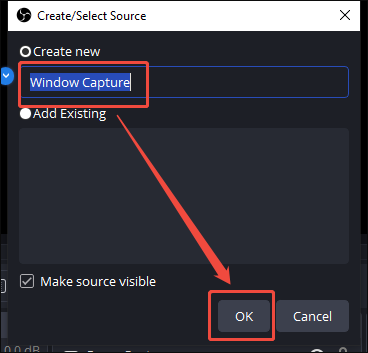
Rename the source and click on the OK button to add the Window Capture mode to the source.
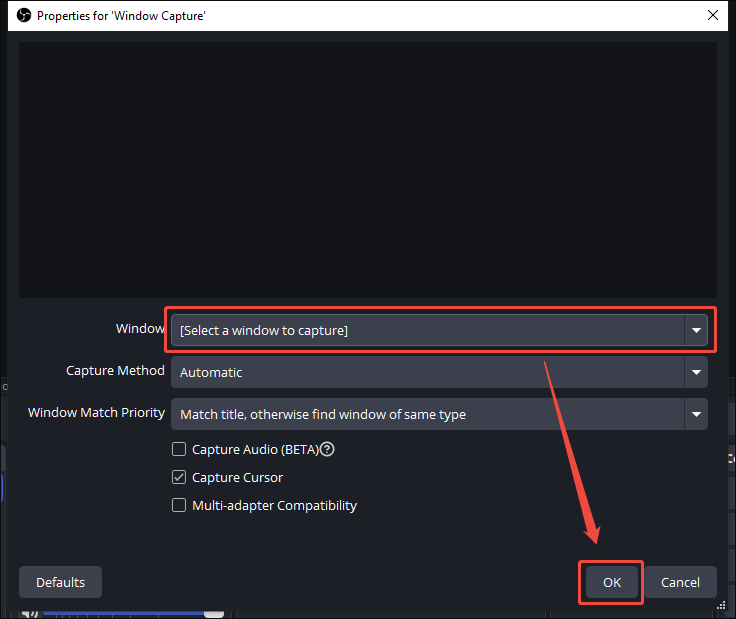
Step 2. Configure the recording settings.
In the pop-up Properties for Window Capture window, expand the Window option and select the game window that you want to record. Next, click on the OK button to save the changes.
After changing the Capture mode, try recording your game again and check whether the black screen error has been worked out.
Fix 8. Disable Problematic Overlays/Software
To solve the problems brought by problematic overlays, follow the guidance below to disable them.
Step 1. Enter the Properties window of Game Capture.
After launching OBS Studio, right-click on the Game Capture option in the Source section. Then, choose the Properties option.
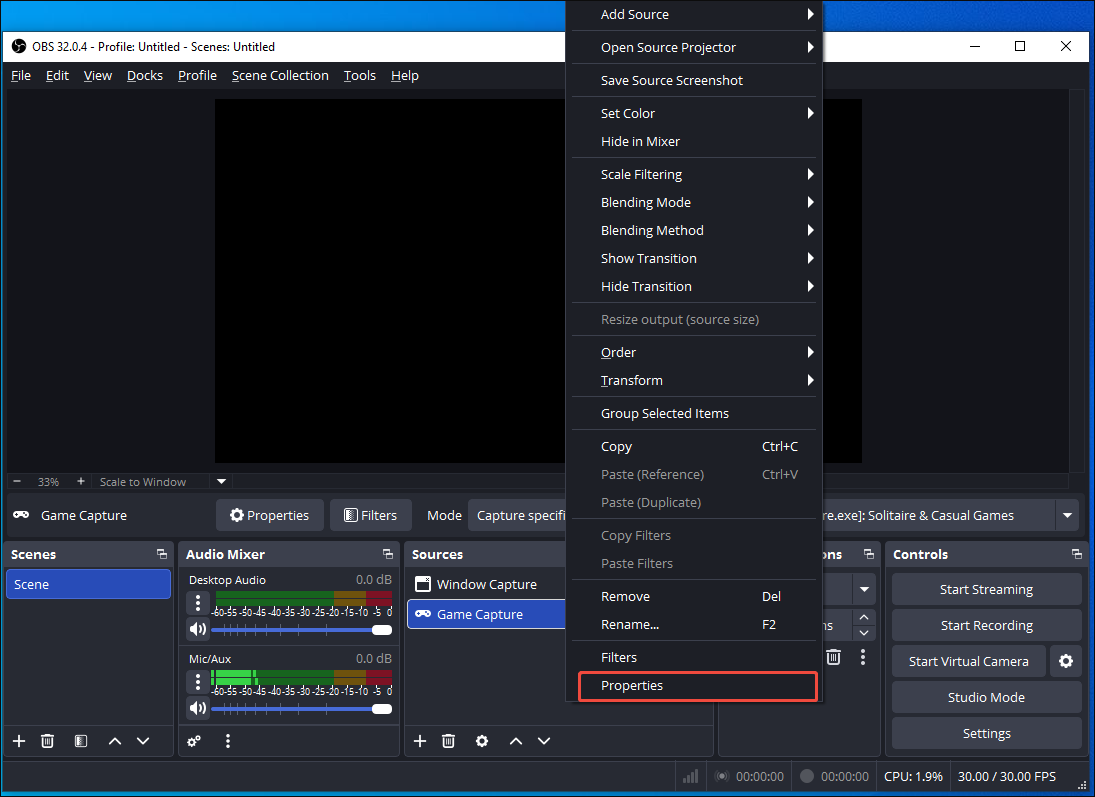
Step 2. Disable the problematic overlays.
In the Properties for Game Capture window, scroll down and uncheck the Capture third-party overlays (such as steam) option. Next, click on the OK button to save the changes.
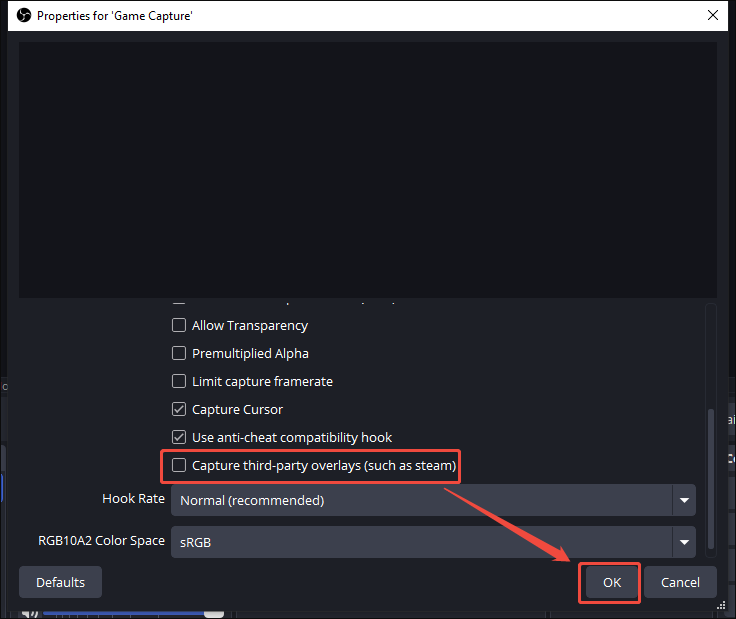
After disabling the overlays, conduct the recording task again and check whether the method above works.
Fix 9. Disable Browser Hardware Acceleration
The browser hardware acceleration applies a GPU for content rendering, which may stop OBS from recording the images. Therefore, if you are using OBS Studio to capture a browser game with the browser hardware acceleration enabled, you will be bothered by OBS game capture black screen.
To fix that issue, you can follow the steps below to disable browser hardware acceleration. Here, I will take Google Chrome as an example.
Step 1. Enter the Settings page of Google Chrome.
After launching your Google Chrome browser, click on the upper-right More icon and choose the Settings option.
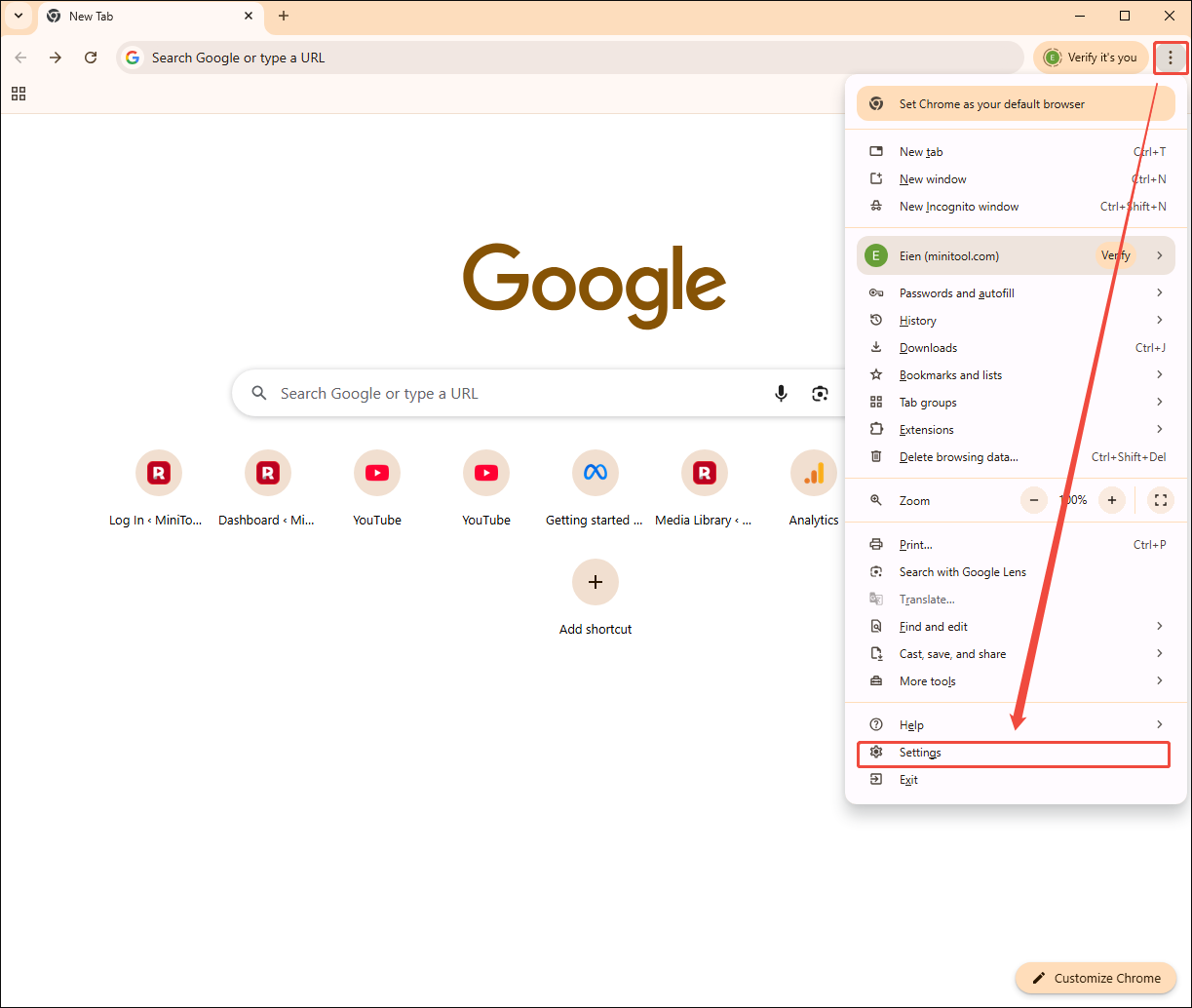
Step 2. Turn off hardware acceleration.
Switch to the System section. There, disable the Use graphics acceleration when available option.
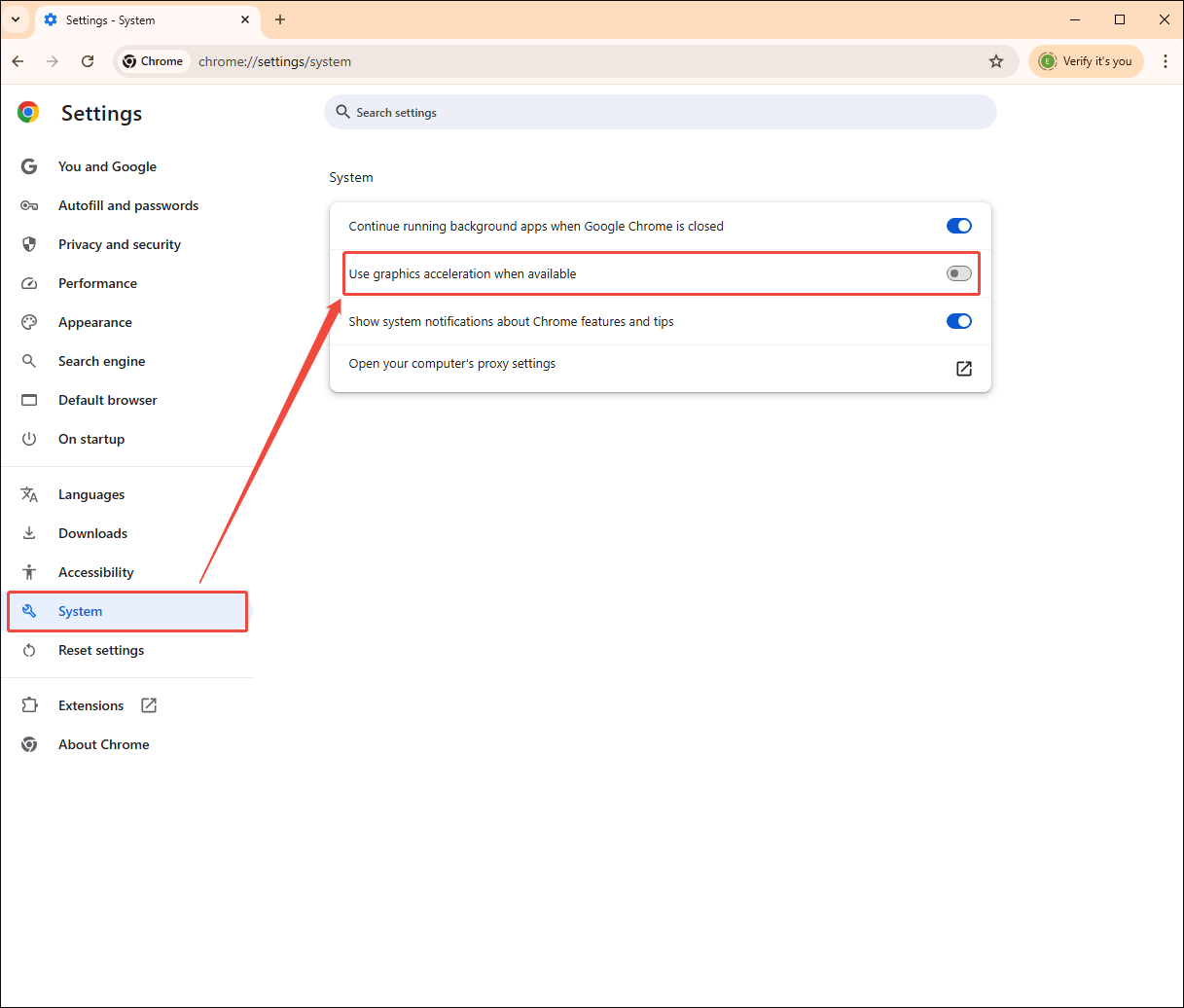
With the above-detailed steps, you can grasp how to fix OBS game capture black screen effortlessly.
Fix 10. Use an OBS Alternative
If all the methods don’t work, try an OBS alternative: MiniTool Screen Recorder to capture your gameplay videos.
What Is MiniTool Screen Recorder
MiniTool Screen Recorder is a watermark-free screen recorder that doesn’t require any payment. It enables you to capture the screen, record the webcam, or annotate your screen with simple clicks. In addition, MiniTool Screen Recorder will save all the recordings in the MP4 format, facilitating your video sharing/editing.
What’s more, MiniTool Screen Recorder features an intuitive interface, allowing every entry-level user to access this screen recorder easily and quickly. Simultaneously, this recording tool doesn’t set any limit for the recording duration. In addition, MiniTool Screen Recorder empowers you to capture audio from a PC effortlessly.
How to Record Gameplay Videos with MiniTool Screen Recorder
Below is a detailed guide on how to capture gameplay videos using MiniTool Screen Recorder.
Step 1. Download and install MiniTool Screen Recorder.
MiniTool Screen RecorderClick to Download100%Clean & Safe
Download MiniTool Screen Recorder by clicking on the download button above. Then, follow the on-screen prompts to install this OBS alternative on your PC.
Step 2. Select the recording area and manage the audio recording.
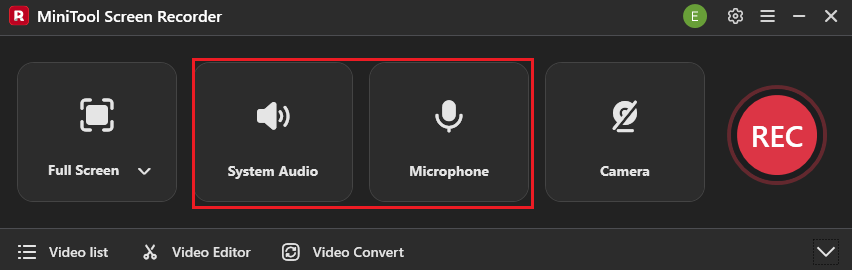
By default, MiniTool Screen Recorder will adopt a full-screen recording mode. If you want to customize the recording region, press the Alt + R keys to make a choice. Next, click on the System Audio icon and the Microphone icon to enable/disable the recording of system and microphone sounds.
Step 3. Enable the webcam recording and configure other recording settings.
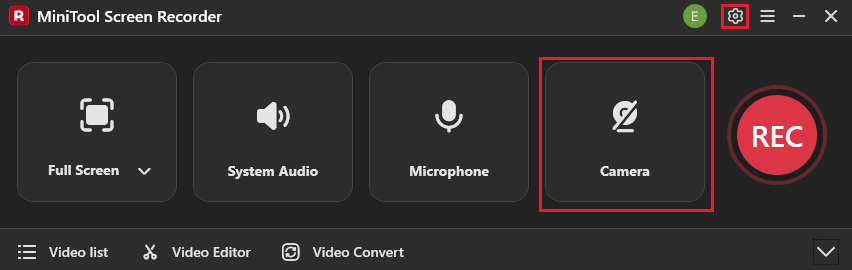
Click on the Camera icon to enable the webcam recording function. Then, click on the upper-right Settings icon to enter the Settings window.
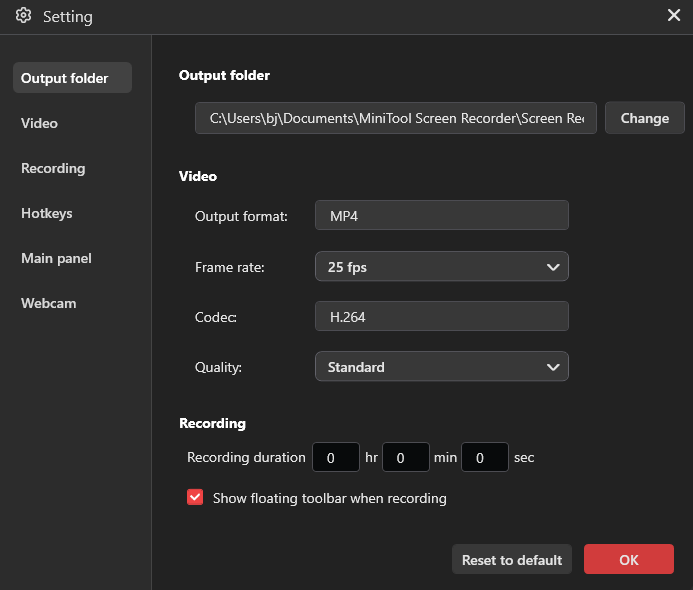
In the pop-up window, you can choose a destination folder for the recorded video. Meanwhile, you are free to preset the recording duration. In addition, you can also set the frame rate to 15fps, 20fps, 25fps, 30fps, or 50 fps. Simultaneously, it is feasible to specify the recording quality as High, Original, or Standard. Finally, click on the OK button to save the changes.
Step 4. Begin/end the recording and check the output files.
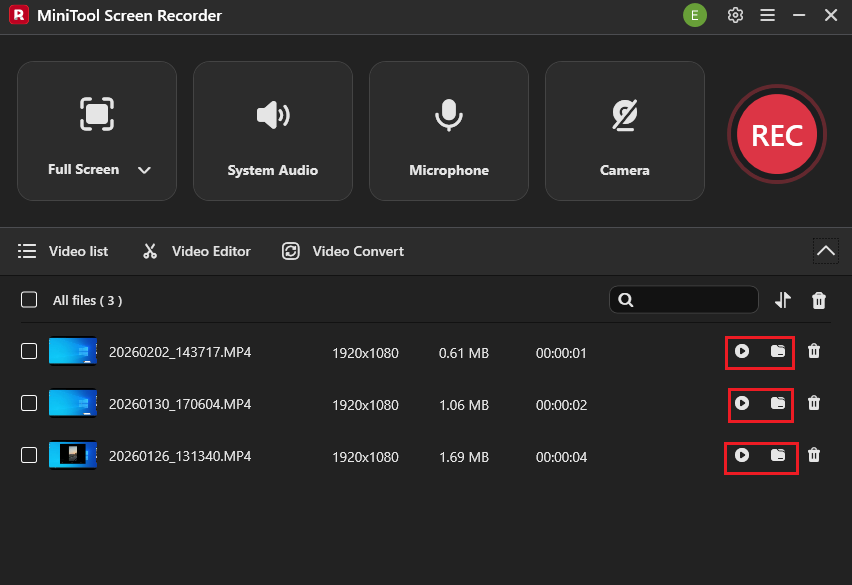
Start the recording process by pressing the F6 key. After a 3-second countdown, play the gameplay videos that you want to capture. When the recording process ends, stop it by pressing the F6 key again. In the expanded file list, click on the Play icon to view the output files. If you want to locate these files, click on the Folder icon.
MiniTool Screen Recorder is a top-grade OBS alternative that you can try.Click to Tweet
With the detailed steps above, the OBS game capture black screen will never be a headache for me.
Bonus: How to Edit Your Gameplay Recordings
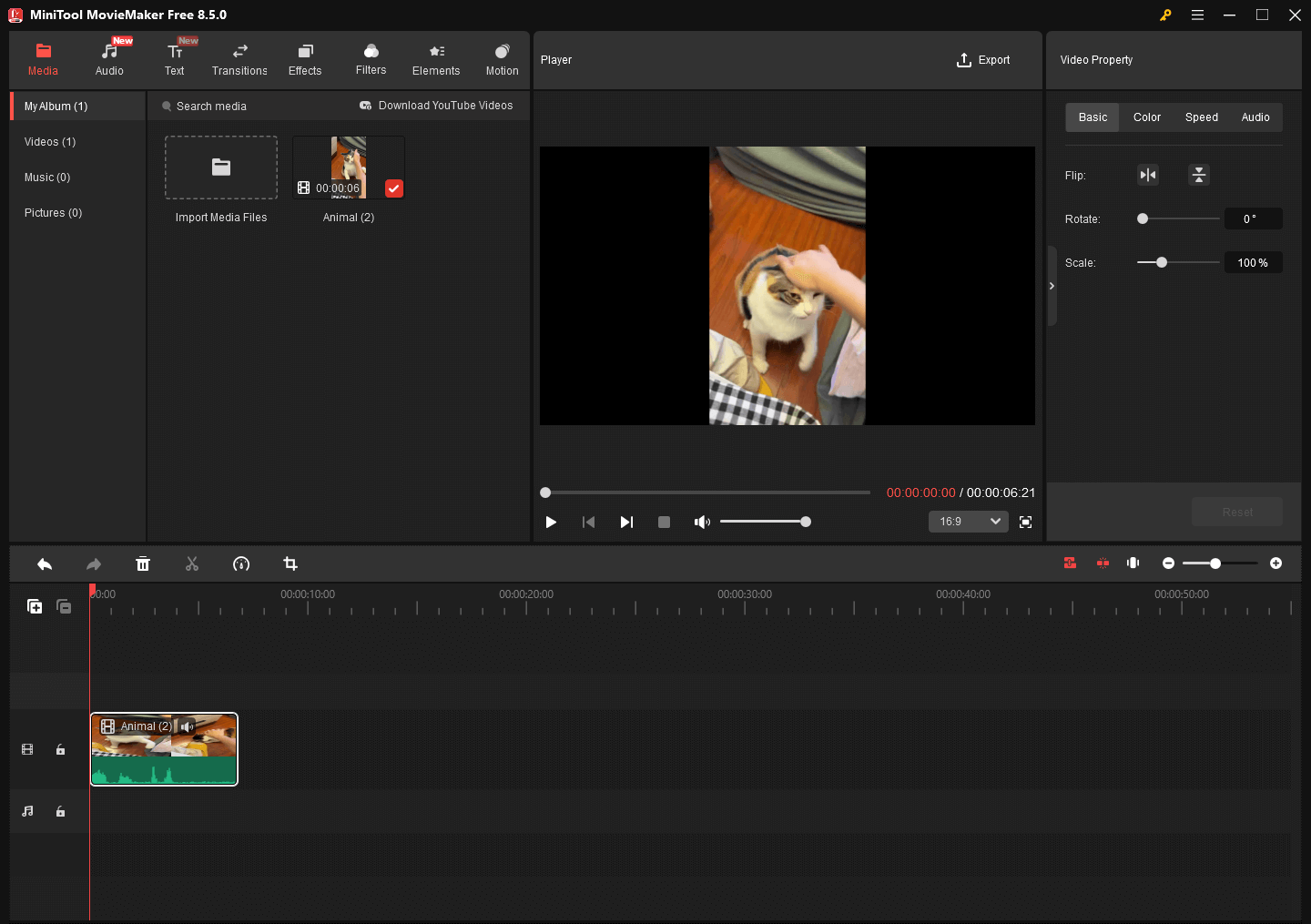
Do you want to edit your gameplay recordings? If yes, MiniTool MovieMaker is helpful. It enables you to trim, merge, rotate, flip, reverse, or speed up gameplay recordings effortlessly. In addition, MiniTool MovieMaker enables you to add various elements, such as motions, transitions, filters, effects, and more.
MiniTool MovieMaker also empowers you to change the aspect ratio of your recordings. Plus, it can save the recorded videos in multiple formats, including MP4, MKV, MOV, WMV, WEBM, GIF, MP3, and more.
MiniTool MovieMakerClick to Download100%Clean & Safe
In Summary
Here are various reasons for OBS game capture black screen, including lack of permissions, detection issues, and more. You can fix that issue by restarting OBS, running OBS as administrator, using an OBS alternative: MiniTool Screen Recorder, and other methods.
If you are bothered by any problems when using MiniTool Screen Recorder or MiniTool MovieMaker, please ask for help by sending an email to support@minitool.com. Also, you can share your problems with me on X. I will help you as quickly as possible.