

This article walks you through the Telegram app and explains whether you can record on Telegram. Meanwhile, it shows you how to screen record on Telegram with 2 reliable Telegram video recorders, including Xbox Game Bar and MiniTool Screen Recorder.
Capturing video calls on Telegram enables you to keep your memories with your friends or family members. Meanwhile, such a recording can be used for different purposes, such as meeting transcription or video editing. If you don’t know how to screen record on Telegram, read the following content to find out.
What Is Telegram
With a cloud-based nature, Telegram refers to a powerful, free messaging application. It empowers you to share a wide range of media content, such as videos, messages, images, and other large files. In addition, even if you want to call other people or join broadcasting channels, Telegram can also meet your needs.
Can You Screen Record on Telegram
Is it feasible to screen record on Telegram? The answer is positive. However, Telegram itself doesn’t offer you a recording function. As such, to accomplish the recording tasks, you need to use a screen recorder. Considering that some of you may be beginners in screen recording and don’t know how to choose a reliable tool, I will recommend 2 outstanding tools in the following content.
How to Screen Record on Telegram
There are 2 fantastic screen recorders that you can try, including Xbox Game Bar and MiniTool Screen Recorder.
Method 1. Use Xbox Game Bar
As a built-in overlay available on Windows, the Xbox Game Bar enables you to record the screen, take screenshots, monitor computer performance, and chat with your friends without downloading extra software. Below is a step-by-step guide on how to screen record on Telegram using Xbox Game Bar.
Step 1. Activate Xbox Game Bar.
Press the Windows + G keys to launch Xbox Game Bar.
Step 2. Turn on the microphone audio and begin recording.
Navigate to the upper-left Capture section. There, click on the Microphone icon to enable /disable microphone audio recording. Next, click on the Record button to begin the recording process. Then, start the Telegram call/chat that you want to record.
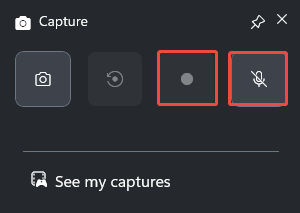
Step 3. End the recording and locate the recorded file.
When the recording process finishes, click on the Stop button to end it.
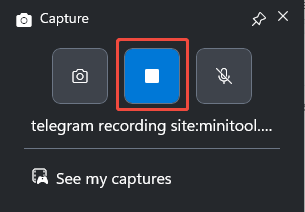
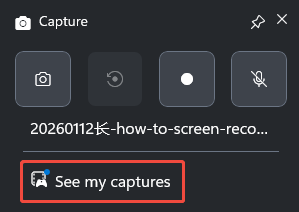
Next, click on See my captures to view the recording.
If you want to locate the video, click on the Open file location button.
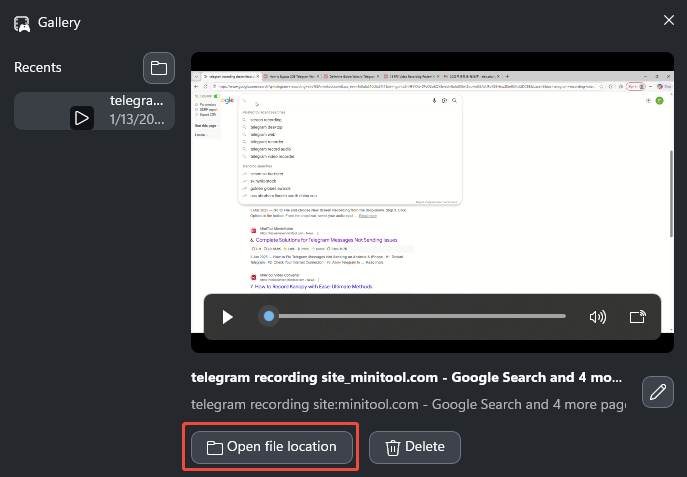
As you can see, with Xbox Game Bar, you can record on Telegram effortlessly.

Method 2. Use MiniTool Screen Recorder
MiniTool Screen Recorder is another top-grade tool that helps you grasp how to record on Telegram.
What Is MiniTool Screen Recorder
MiniTool Screen Recorder is a free video recording app with an intuitive interface. It empowers you to record the webcam/screen with or without system and microphone sounds easily and quickly. Meanwhile, MiniTool Screen Recorder offers you rich annotation functions, which allow you to highlight the key points of screen recording.
In addition, MiniTool Screen Recorder will automatically save the Telegram recordings in MP4 format, which facilitates video playback on various devices. Although you are a free user, this screen recorder provides you with a watermark-free recording experience without time limits.
How to Screen Record on Telegram with MiniTool Screen Recorder
Below is a detailed guide on how to screen record on Telegram using MiniTool Screen Recorder.
Step 1. Download and install MiniTool Screen Recorder.
MiniTool Screen RecorderClick to Download100%Clean & Safe
Download MiniTool Screen Recorder by clicking on the download button above. Then, follow the on-screen instructions to install this Telegram video recorder on your PC.
Step 2. Choose the recording area and manage the audio recording.
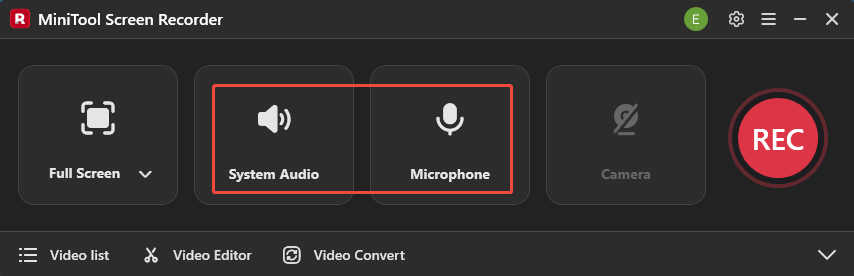
By default, MiniTool Screen Recorder will adopt a full-screen recording mode. If you want to customize the recording region, press the Alt + R keys. Next, determine whether to record the system and microphone sounds by clicking on the System Audio icon and the Microphone icon, respectively.
Step 3. Enable the webcam recording and configure other settings.
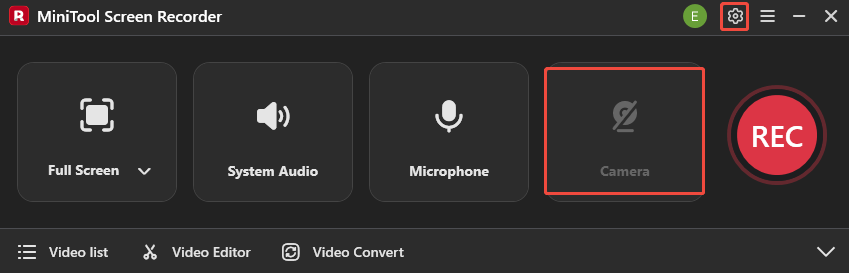
Click on the Camera icon to enable the webcam recording function. Then, click on the upper-right Settings icon to enter the Settings window.
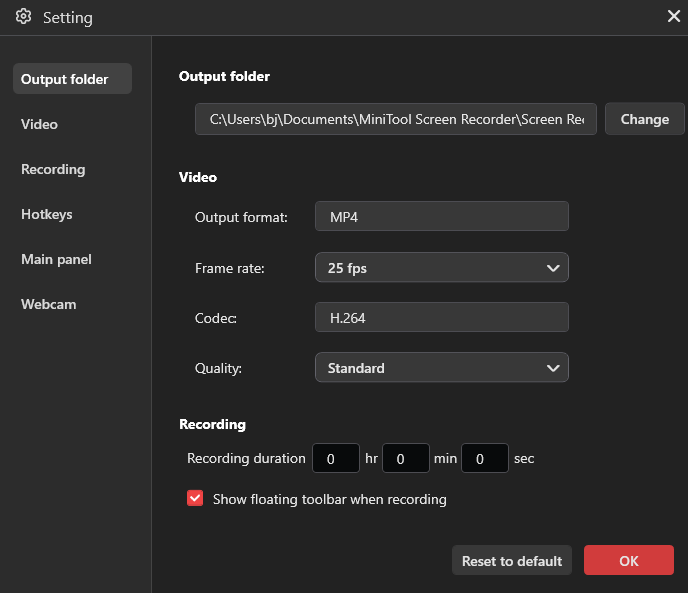
In the pop-up window, you can choose a destination folder and set the recording frame rate to 15fps, 20fps, 25fps, 30fps, and 50fps. Meanwhile, you are free to configure the recording quality as Standard, Original, or High. Finally, click on the OK button to confirm the changes.
Step 4. Begin/end the recording and check the recorded video.
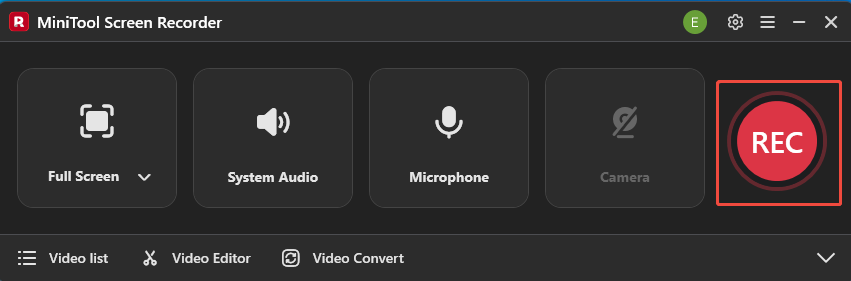
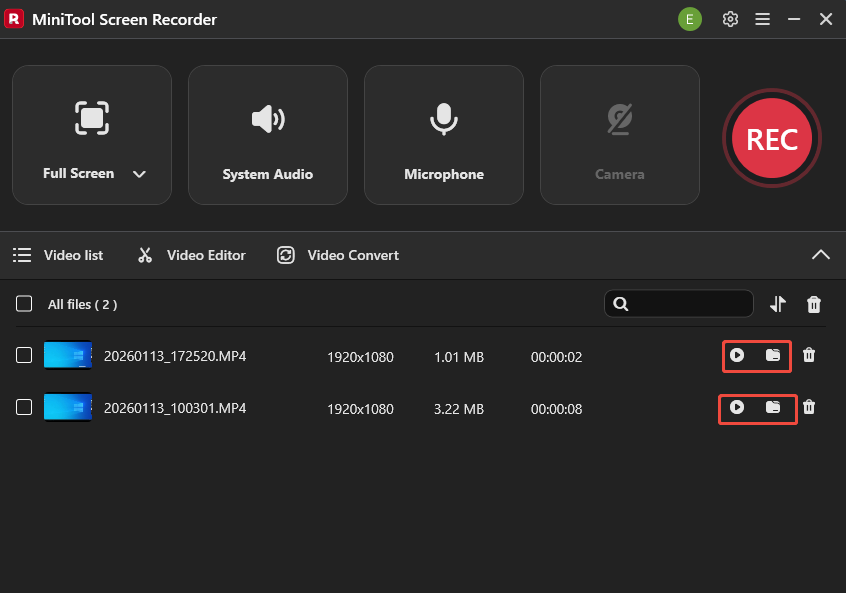
Start the recording process by clicking on the REC button. After a 3-second countdown, play the Telegram video that you want to capture. When the recording process finishes, stop it by pressing the F6 key.
To view the recording file, click on the Play icon. If you want to locate the recorded file, click on the Folder icon.
MiniTool Screen Recorder is a can’t-miss choice for you to screen record on Telegram.Click to Tweet
With MiniTool Screen Recorder, you can learn how to record a video call on Telegram with simple clicks. Even if you want to capture a video on Facebook, this application can help.
Bonus: How to Edit the Telegram Recording
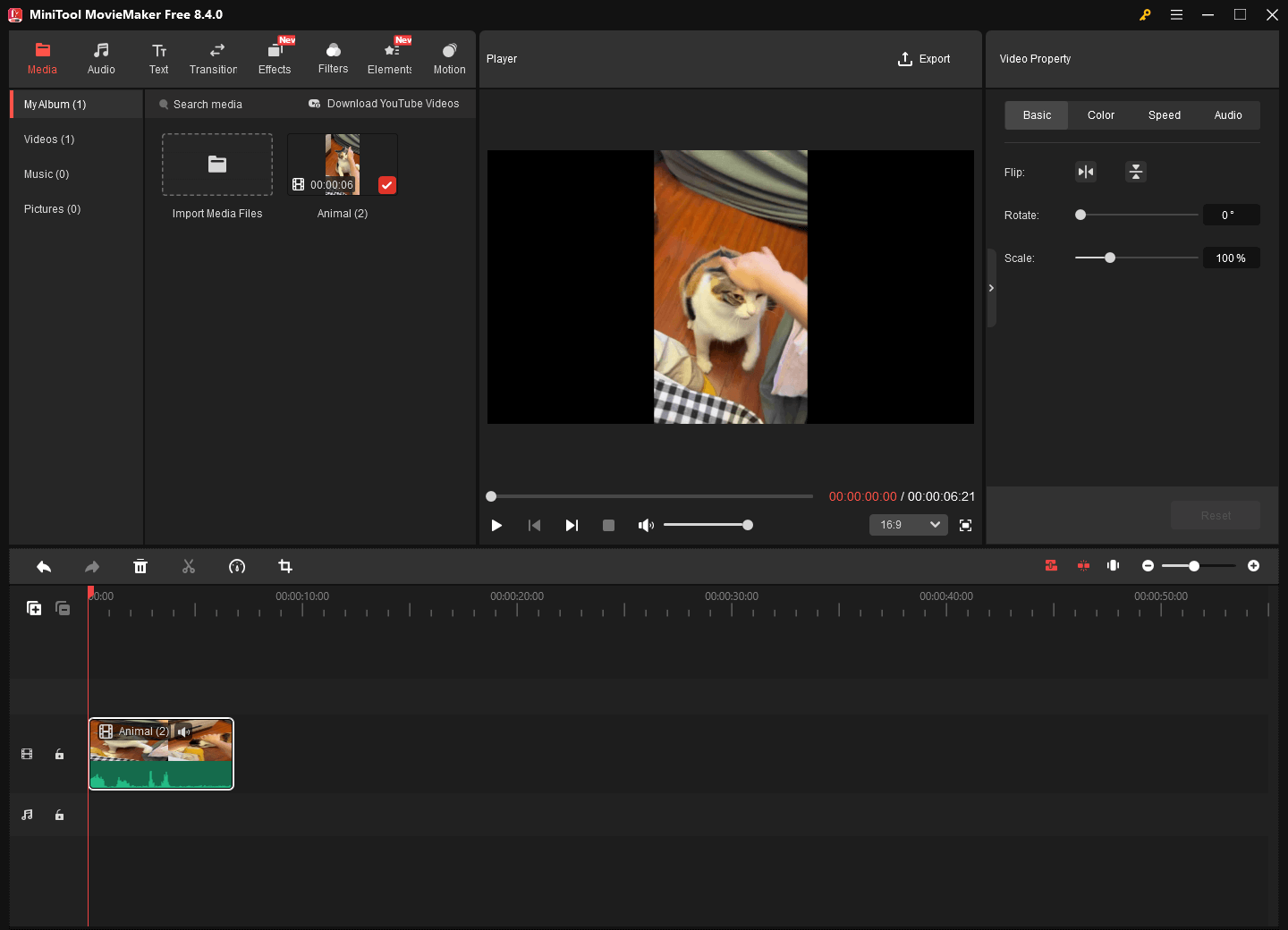
If you want to edit the Telegram recording, never miss MiniTool MovieMaker. It is a robust video editor that empowers you to crop, reverse, flip, rotate, reverse, trim, or merge the Telegram recordings with simple clicks. MiniTool MovieMaker also enables you to change the aspect ratio, speed, or volume of your screen recordings.
More importantly, MiniTool MovieMaker allows you to save the screen recordings in multiple formats, including MP4, MKV, MP3, GIF, and more.
MiniTool MovieMakerClick to Download100%Clean & Safe
Wrapping Up
How to screen record on Telegram? Both the Xbox Game Bar and MiniTool Screen Recorder can help. If you don’t want to install other software, the former one is better. On condition that you want a screen recorder with richer features like screen annotation, try the latter one.
If you have any problems when using MiniTool Screen Recorder or MiniTool MovieMaker, please ask for help by sending an email to support@minitool.com. Also, you can share your problems with me on X. I will give you some help as quickly as possible.