

This article introduces Disney Plus to you and walks you through whether you can record on it. Meanwhile, it shows you how to screen record Disney Plus with a powerful screen recorder: MiniTool Screen Recorder. In addition, this article recommends a fabulous video editor: MiniTool MovieMaker.
Disney Plus is a popular option for those who want to view a variety of video content. However, if there is a poor or even no internet connection, these users won’t enjoy these videos anymore. To solve that problem, learn how to screen record Disney Plus. Read the following content to find out the effortless recording method.
What Is Disney Plus
Disney Plus, also known as Disney+, is a streaming service with a subscription-based nature. Owned by The Walt Disney Company, it is a famous digital home for TV shows and movies from Disney's major entertainment brands.
Disney Plus also offers you various dedicated hubs for the flagship properties. If you want some live-action films, classic animation movies, or Disney Channel content, go to the Disney hub. On condition that you want to view all kinds of animated feature movies or shorts, go to the Pixar hub.
If you are a big fan of Marvel Cinematic Universe or other original content, such as Loki and WandaVision, go to the Marvel hub. As for the National Geographic hub, it is for those who desire the documentaries and series that have won awards.
Can You Record on Disney Plus
Can you screen record Disney Plus? Of course you can. However, Disney Plus doesn’t offer you a built-in recording function. To fix that issue, it is advisable to try a third-party screen recorder. For beginners, the recording app with an easy-to-use nature is the best choice.
In addition, some users report that there is a black-screen issue during the recording. How to record Disney Plus without black screen? Follow the steps below to disable the hardware acceleration of your browser. Here, I will take Google Chrome as an example.
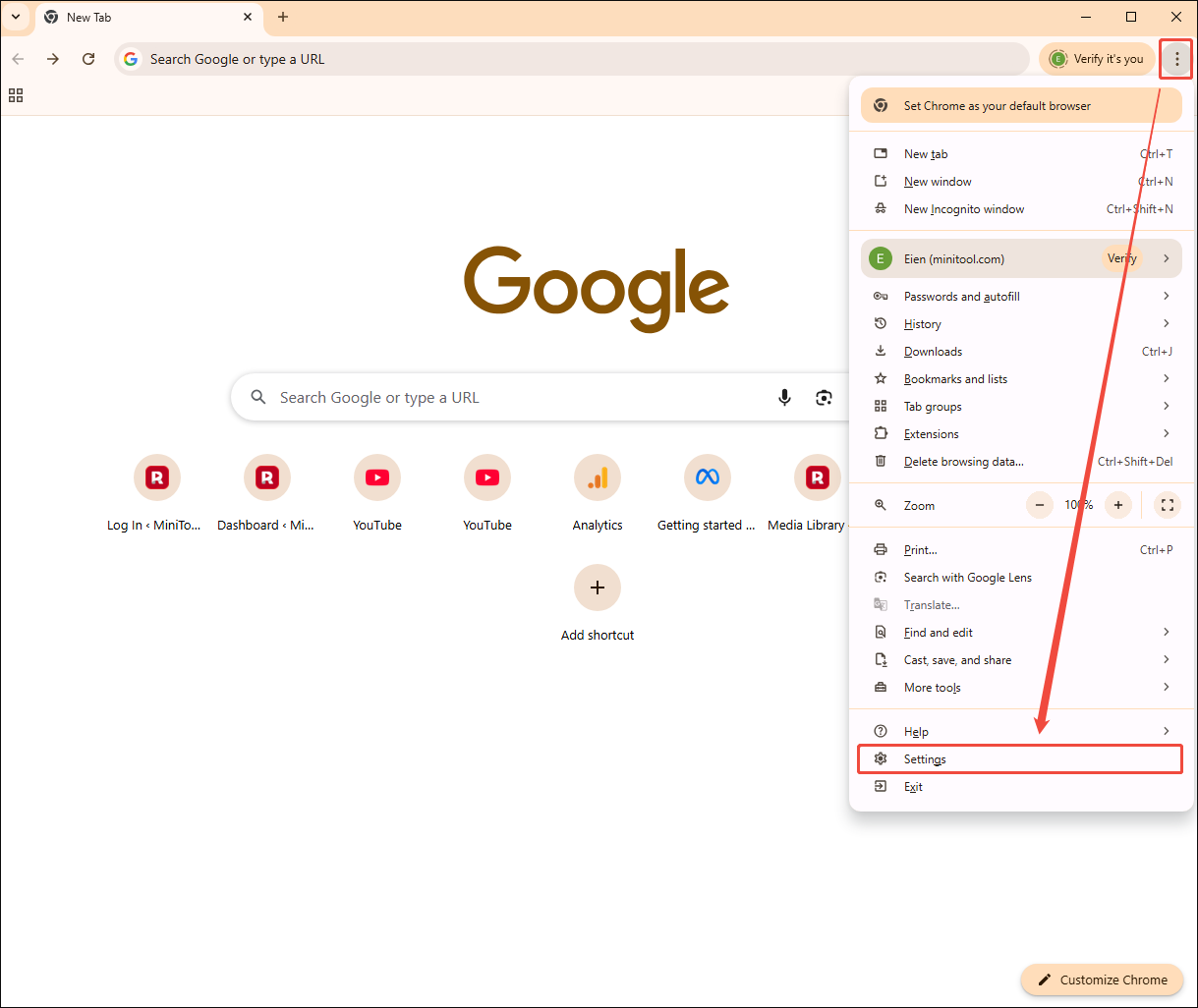
Step 1. Enter the Settings page of Google Chrome.
After launching Google Chrome, click on the upper-right More icon and choose the Settings option.
Step 2. Turn off hardware acceleration.
Switch to the System section. There, turn off the Use graphics acceleration when available option.
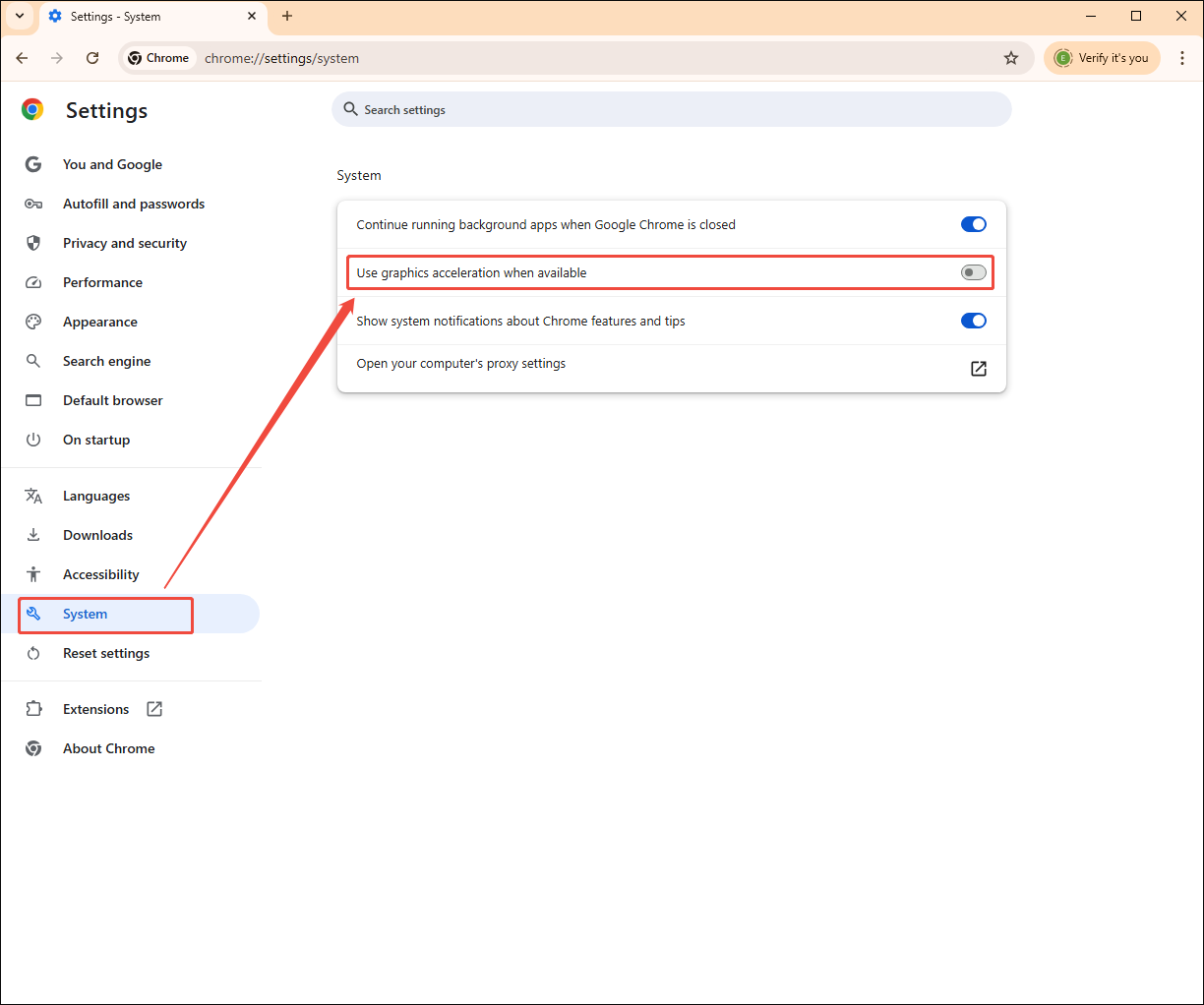
With the guidance above, you can toggle off hardware acceleration on Google Chrome easily. Then, you will never be bothered by the black screen issues during the recording.
How to Screen Record Disney Plus
How to screen record on Disney Plus? MiniTool Screen Recorder can help.
What Is MiniTool Screen Recorder
MiniTool Screen Recorder is a watermark-free, easy-to-use application for screen recording. It never sets any limit for the recording duration. Meanwhile, MiniTool Screen Recorder allows users to save recordings in MP4 format.
Moreover, MiniTool Screen Recorder offers you a wide range of customizable options that empower you to configure the frame rate or the recording quality. In addition, it never requires any payment for the screen recording. More than a screen recorder, MiniTool Screen Recorder also enables you to record the webcam or annotate your screen.
How to Screen Record Disney Plus with MiniTool Screen Recorder
Below is a step-by-step tutorial on how to screen record Disney Plus using MiniTool Screen Recorder.
Step 1. Download and install MiniTool Screen Recorder.
MiniTool Screen RecorderClick to Download100%Clean & Safe
Download MiniTool Screen Recorder by clicking on the download button above. Then, follow the on-screen prompts to install this Disney+ recorder on your PC.
Step 2. Select the recording area and manage the audio recording.
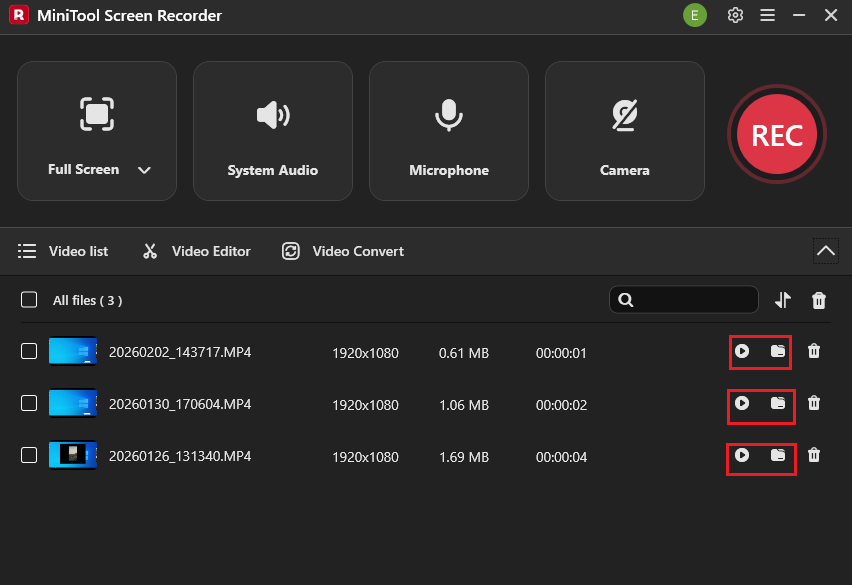
Run MiniTool Screen Recorder. By default, MiniTool Screen Recorder will adopt a full-screen recording mode. If you want to customize the recording region, expand the leftmost dropdown option and choose the Select region option.
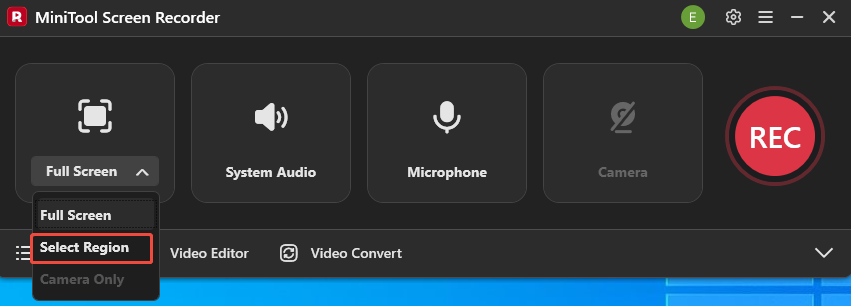
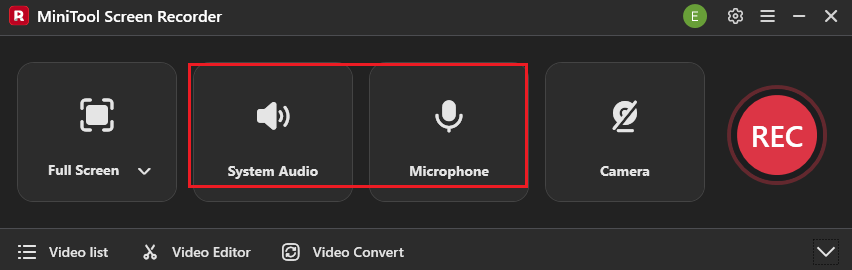
Next, click on the System Audio icon and the Microphone icon to turn on/off the recording of the system and microphone sounds.
Step 3. Enable the webcam recorder and configure the other settings.
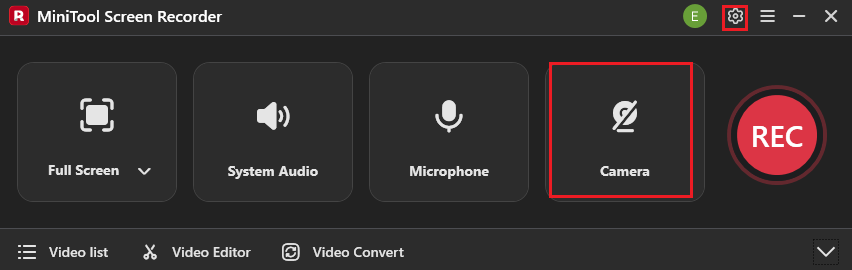
Click on the Camera icon to enable the webcam recording. Click on the upper-right Settings icon to access the Settings interface.
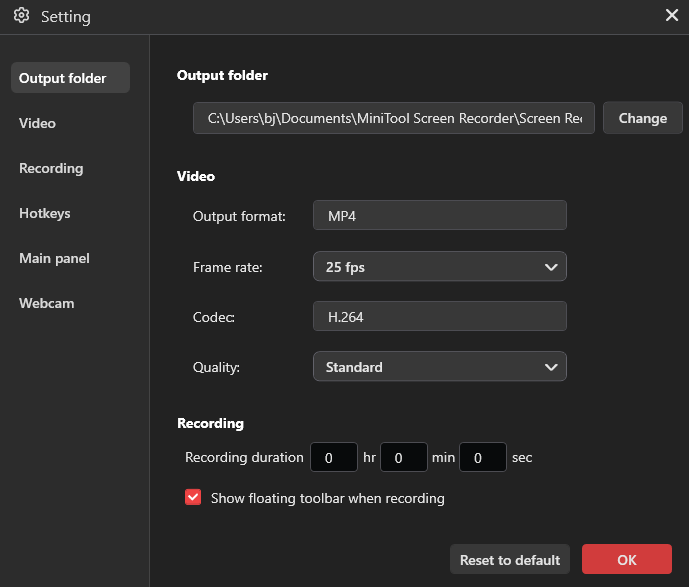
In the pop-up window, you are free to select an output folder for the recorded files. You can set the recording quality and frame rate based on your needs. In addition, there are customizable option that enables you to preset the recording duration. Finally, click on the OK button to save the changes.
Step 4. Begin/end recording and check the recorded files.
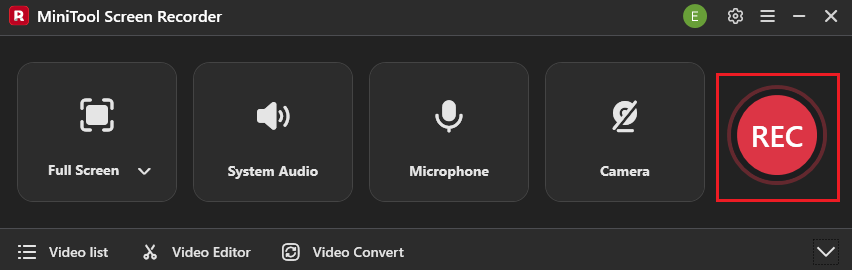
Start the recording process by clicking on the REC button. After a 3-second countdown, start the computer activity that you want to capture. When you have recorded what you want, press the F6 key to stop the recording.
Then, in the expanded file list, click on the Play icon to view the recorded video. If you want to locate the recorded file, click on the Folder icon.
MiniTool Screen Recorder lets you easily and quickly screen record on Disney+.Click to Tweet
With the above-detailed steps, you can grasp how to screen record Disney Plus without hassle. Also, you can use MiniTool Screen Recorder to screen record on Facebook.
Bonus: How to Edit Your Recordings
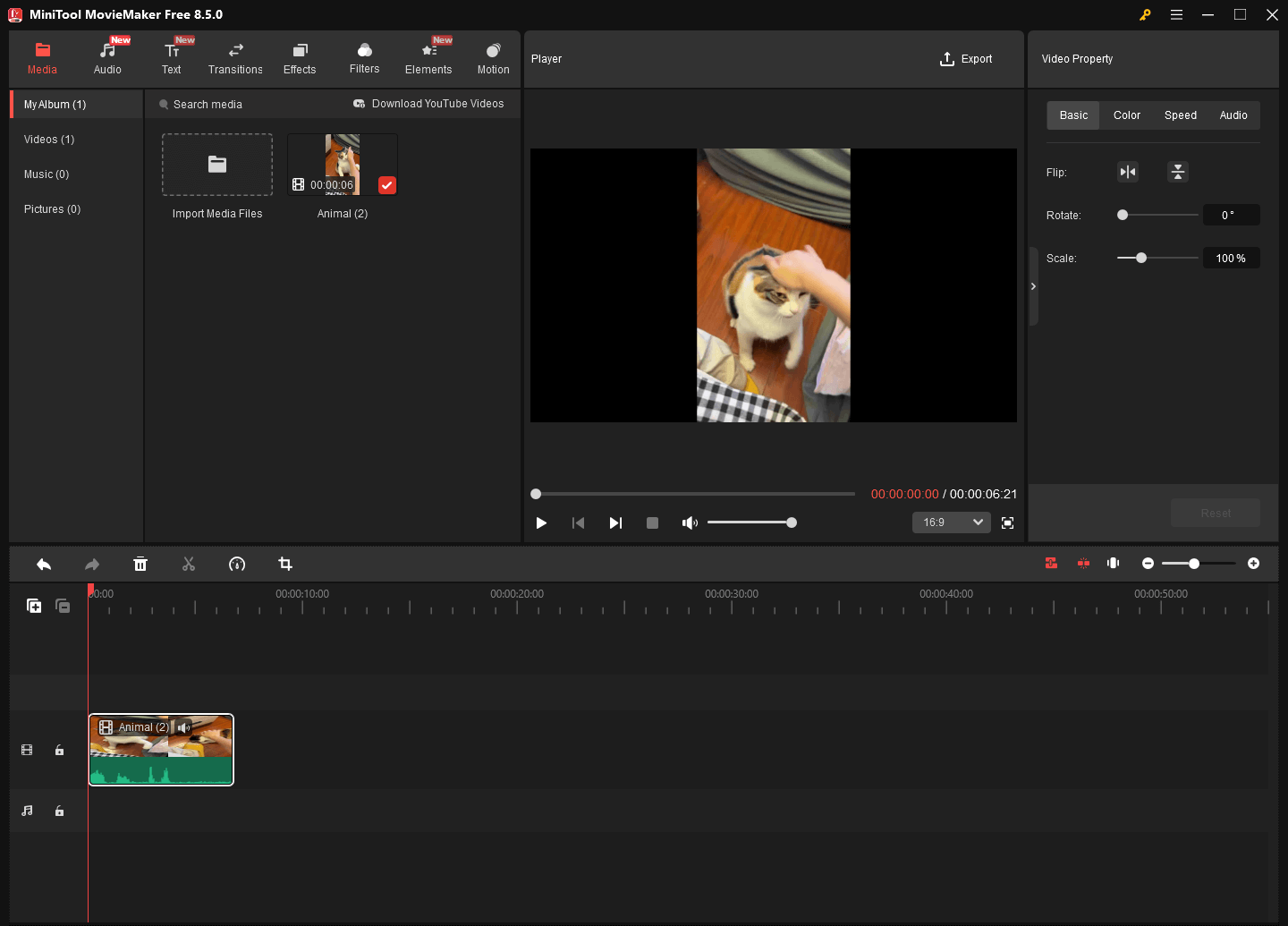
If you want to edit your Disney+ recordings, I highly recommend MiniTool MovieMaker. It is not only a video editor but also an audio editor. MiniTool MovieMaker allows you to add various elements to your recordings, including captions, effects, filters, transitions, and more.
Meanwhile, MiniTool MovieMaker enables you to change the volume, speed, and aspect ratio of your screen recording. Plus, this application can save your recorded videos in multiple formats, such as MP4, MKV, MOV, WMV, GIF, and more.
MiniTool MovieMakerClick to Download100%Clean & Safe
Wrapping Up
How to screen record Disney Plus easily and quickly? MiniTool Screen Recorder can offer a simple solution. However, before the recording task, remember to disable the hardware acceleration to avoid the problem of a black screen. If you want to edit the recordings, MiniTool MovieMaker can be a top-grade option.
If you have encountered any problems when using MiniTool Screen Recorder or MiniTool MovieMaker, please send an email to support@minitool.com to request support. Also, you can directly share your problems with me on X. I will help you solve them as quickly as possible.