

How to record Hearthstone gameplay? This article provides 2 free screen recorders to do this task, MiniTool Screen Recorder and Xbox Game Bar, with steps for each method. The general steps include launching the recording tool, choosing the recording area, adjusting audio settings, and starting the recording.
I am an avid Hearthstone player. Developed by Blizzard Entertainment, Hearthstone is a free-to-play online collectible card game that features turn-based duels between two players. My matches often produce exciting moments, but I always regret not having recorded them to look back on or share with others.
In this article, I explore how to record Hearthstone games on a PC using two free Hearthstone gameplay recorders:
- MiniTool Screen Recorder
- Xbox Game Bar
Brief Comparison:
| Feature | MiniTool Screen Recorder | Xbox Game Bar |
| Price | Free | Free |
| Watermark | No | No |
| Recording Area | Full screen, selected region, app/game window, other monitors | Full screen and supported app windows |
| Webcam Recording | Yes | No |
| Audio Recording | System audio and microphone | System audio and microphone |
| Real-Time Annotations | Yes | No |

How Can I Record Hearthstone
MiniTool Screen Recorder and Xbox Game Bar are not only free, but also very simple to use; I have outlined their features and how to operate them below.
Fast Track Steps:
- Launch Hearthstone
- Open the screen recording tool
- Choose the recording area
- Adjust audio recording settings
- Start recording
- Play the target game
- End the recording process
- Check the recorded game
Option 1: Use MiniTool Screen Recorder
MiniTool Screen Recorder is a free screen recording tool for Windows. It allows me to capture the entire screen, specific areas, individual application windows, extended monitors, or even the webcam feed. The tool also offers independent control over system audio and microphone input. For instance, I can mute system audio while recording only my own commentary for a game.
Furthermore, this application is excellent for creating Hearthstone tutorials, thanks to its built-in real-time annotation feature. Better yet, MiniTool Screen Recorder adds no watermarks and imposes no time limits on recordings; it also lets me adjust recording quality and frame rate. Now, follow the steps below to capture Hearthstone gameplay with this tool.
1. Launch Hearthstone.
2. Click the button below to download and install MiniTool Screen Recorder. Then, launch it on the PC.
MiniTool Screen RecorderClick to Download100%Clean & Safe
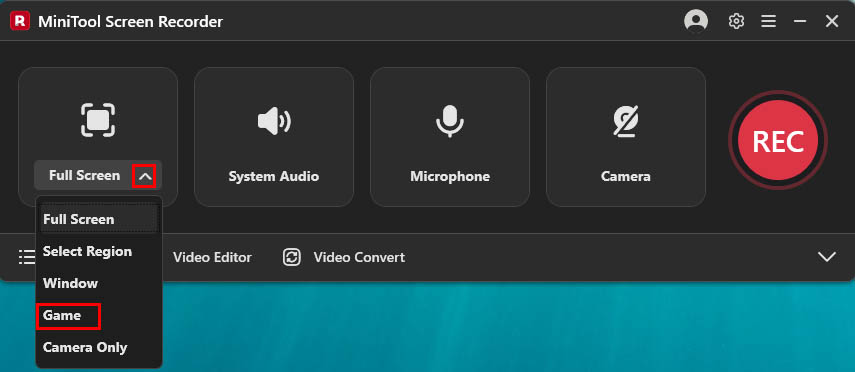
3. Since we are capturing gameplay footage from Hearthstone, we simply need to expand the Full Screen drop-down menu and select the Game option.
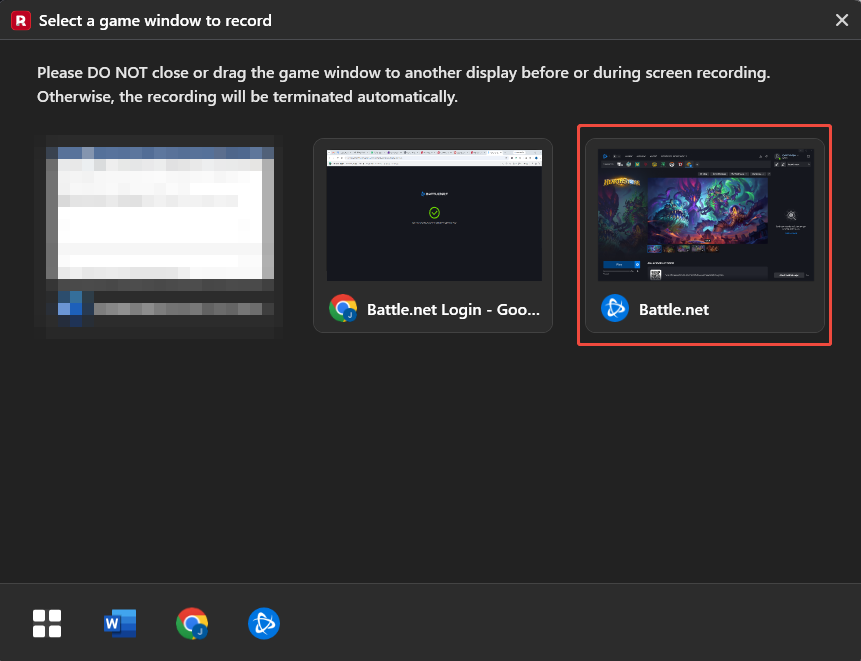
4. Then, when the Select a game window to record dialog pops up, select the Hearthstone game window.
5. System audio and microphone recording are enabled by default. Keep system audio on to record Hearthstone's game sounds, and leave the microphone enabled if commentary is needed. To include a face-cam overlay, click the Camera icon on the floating toolbar.
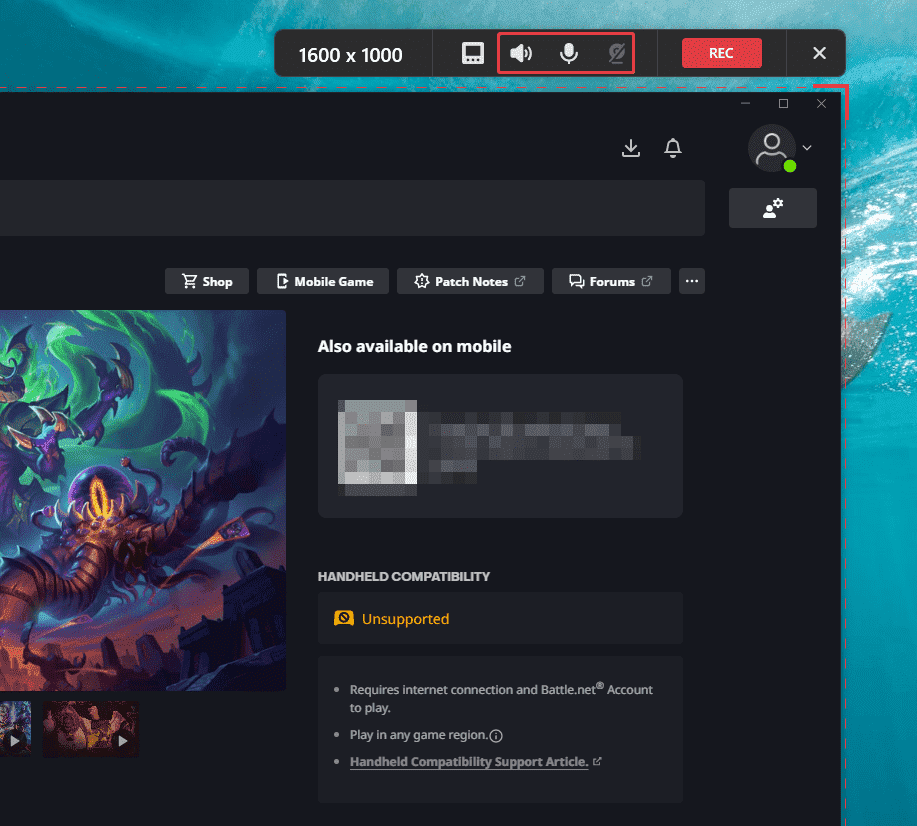
6. Then, click the REC button on the recording floating toolbar or press the F6 key to begin recording Hearthstone gameplay. After a 3-second countdown, play Hearthstone.
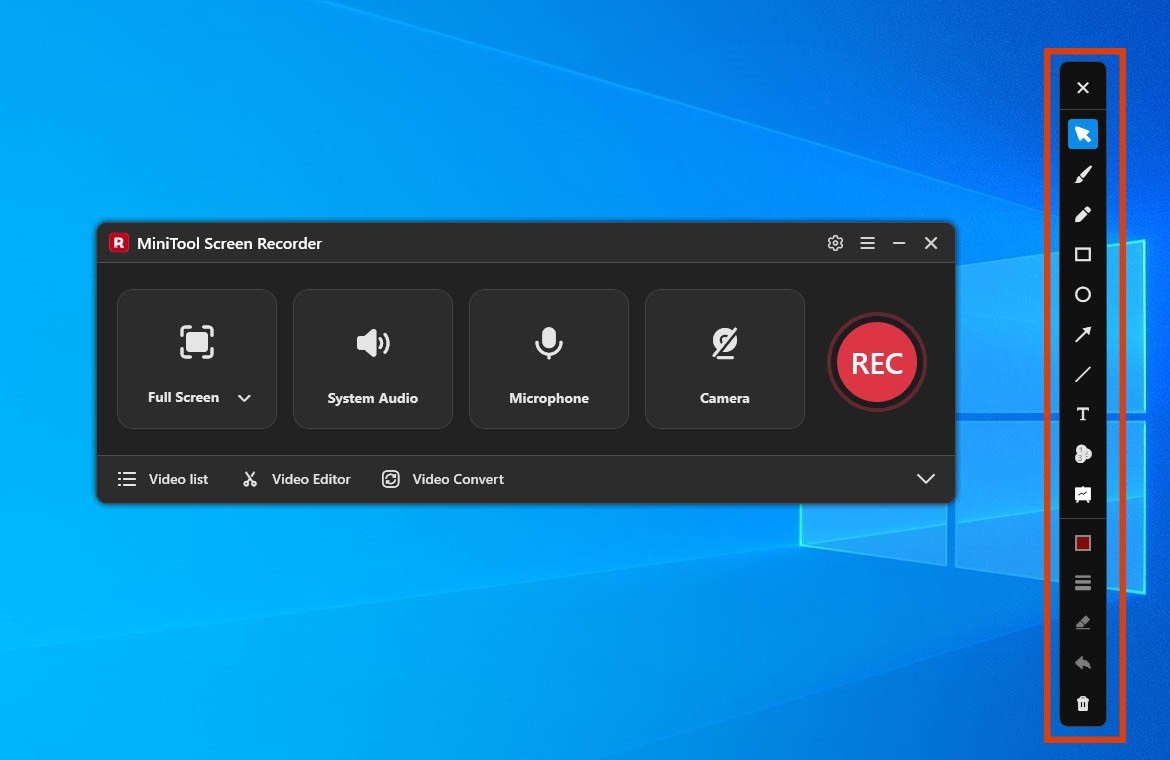
7. If there is a need to annotate the key steps while recording gameplay, select the tools from the annotation toolbar.
8. To end the recording process, press the F6 key. Then, the tool will automatically switch to the Video list section. Finally, click the Play icon to view the recorded Hearthstone video or click the Folder icon to locate it on the computer.
Option 2: Xbox Game Bar
Xbox Game Bar offers a convenient, built-in way to record gameplay, with no separate installation required, as it comes integrated directly into Windows. I can use it to capture live gameplay or even record highlights from recent sessions. Before I start, I can also customize settings such as maximum recording duration, video quality, and frame rate.
Furthermore, Xbox Game Bar provides handy keyboard shortcuts, allowing me to start or pause recordings at any moment. For instance, while playing Hearthstone, I can simply press Windows + G to begin recording. Notably, the tool is highly efficient and places a minimal load on the CPU, ensuring a smoother recording experience for games like Hearthstone.
Here are the detailed steps on how to record Hearthstone with Xbox Game Bar.
1. Launch Hearthstone.
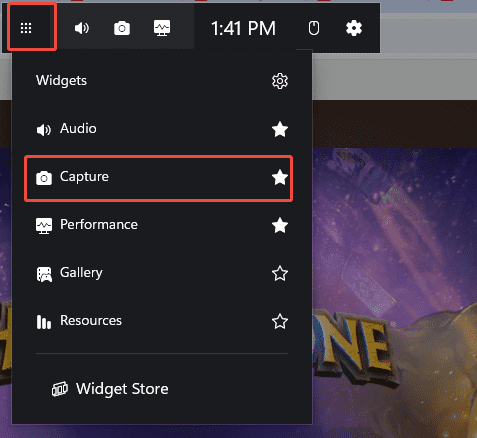
2. Press the Windows + G key to launch Xbox Game Bar. Then, click the Widget Menu icon to expand the drop-down menu, and choose the Capture option to enter the recording interface.
3. Next, make sure the audio recording feature is enabled by default. Then, click the Start recording icon or press the Windows + Alt + R key to begin capturing Hearthstone.
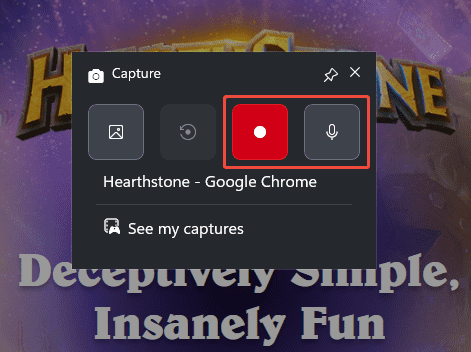
4. To end the recording process, press the Windows + Alt + R key again. Finally, check the recorded Hearthstone video under the See my captures section.
With MiniTool Screen Recorder and Xbox Game Bar, it is easy to capture Hearthstone gameplay smoothly and efficiently.
Final Words
Learning how to record Hearthstone is not complicated. MiniTool Screen Recorder and Xbox Game Bar introduced in this article provide straightforward methods for different users. The right choice depends on the recording features and level of control required.
If you have any questions when using MiniTool Screen Recorder, send an email to support@minitool.com.