

As a long-time user of Google Drive, I have stored a wide variety of files on the service, including tutorials, conference videos, and audio. Recently, due to frequent business travel, I had to watch these videos offline or create reaction videos to recap the conferences.
However, Google Drive does not offer a built-in recording feature to facilitate this. Consequently, I began searching for third-party recording tools; after experimenting with several options, I ultimately identified two effective solutions. Outlined below is an overview of the steps I followed when utilizing them.
How to Record a Video on Google Drive on Computer
Ultimately, I selected the two most practical and free screen recorders: MiniTool Screen Recorder and Snipping Tool. The former allows me to fully utilize a variety of advanced recording features, while the latter enables me to boost my recording efficiency.
Method 1: MiniTool Screen Recorder
My top choice is MiniTool Screen Recorder, a completely free Google Drive video recorder. The primary reason I selected it is its flexibility: I can record the entire screen, a specific region, or an individual window. Meanwhile, MiniTool Screen Recorder lets me record system audio and microphone audio simultaneously or independently.
With MiniTool Screen Recorder, I can utilize its webcam recording feature to record personalized videos. Additionally, this tool comes equipped with convenient annotation tools, allowing me to create reaction videos more effectively. Best of all, I can adjust settings such as video quality, frame rate, and webcam parameters directly within the application.
Now, follow the detailed steps below on how to record Google Drive videos using MiniTool Screen Recorder.
Step 1: Download and Install MiniTool Screen Recorder
Click the button below to download and install MiniTool Screen Recorder on the PC.
MiniTool Screen RecorderClick to Download100%Clean & Safe
Step 2: Select the Recording Area
1. Launch MiniTool Screen Recorder.
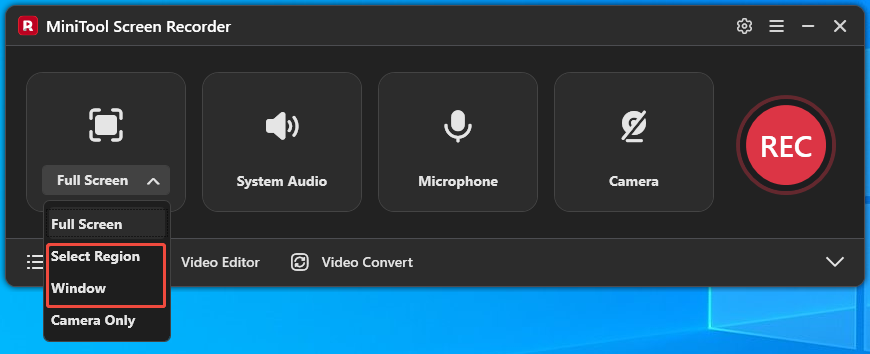
2. MiniTool Screen Recorder defaults to recording full-screen. To record a specific area and window, expand the dropdown menu next to the Full Screen option.
3. Then, choose the Select Region option or the Window option.
Step 3: Control the Audio
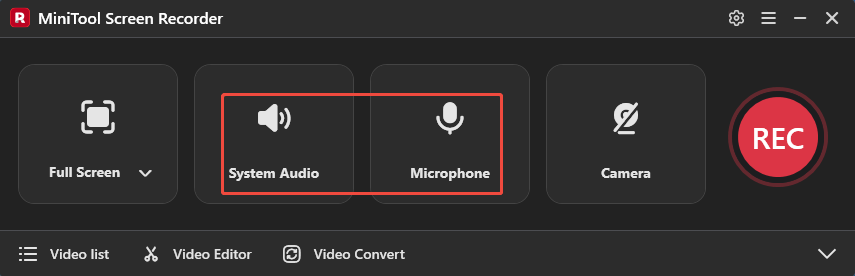
The system audio recording and microphone recording features are enabled by default. To disable them, click the System Audio icon and the Microphone icon respectively.
Step 4: Set the Camera Recording
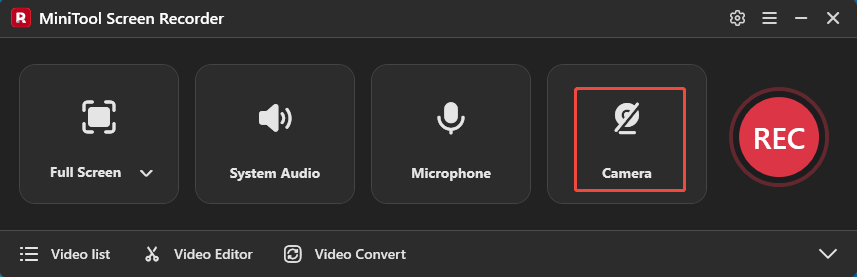
The camera recording functionality is disabled by default. To turn it on, click the Camera icon on the right.
Step 5: Start and End Recording
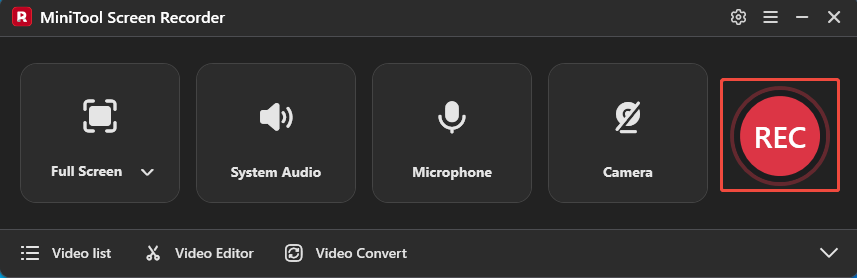
1. Click the REC button or press the F6 key to start the recording process.
2. Play the target video on Google Drive.
3. To end the recording process, press the F6 key again.
Step 6: Check the Recorded Video
1. When the recording ends, it will automatically switch to the Video list section, where the recorded video is listed.
2. To check the recorded video, click the Play icon, or click the Folder icon to locate it.
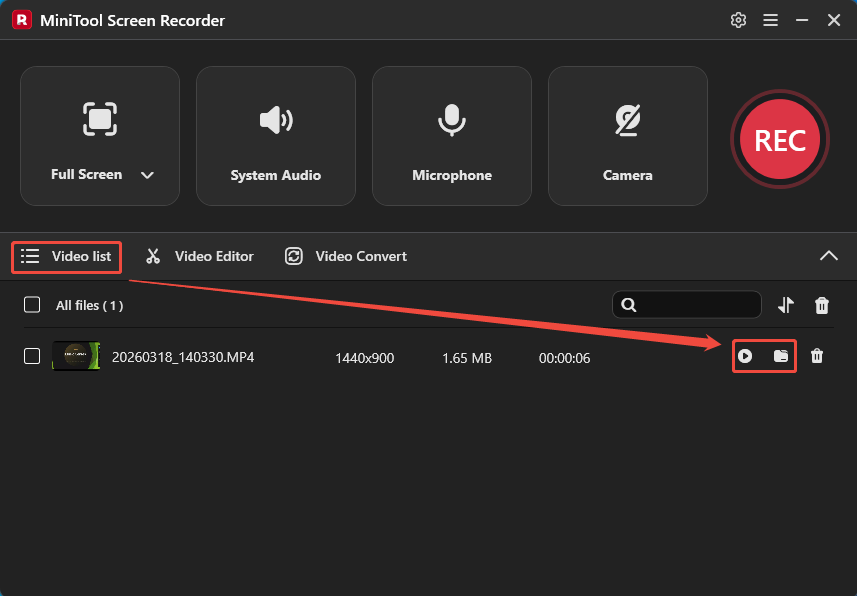
All in all, MiniTool Screen Recorder is my first choice when I need precise control over audio recording and capture areas, or when I am looking to record more extensive content.
Method 2: Snipping Tool
When I need to perform a quick and simple recording, the Snipping Tool stands out. This video recorder for Google Drive comes pre-installed on Windows systems, so I don't need to install any additional software. Although the Snipping Tool was originally designed for taking screenshots, it has since been updated to include basic recording capabilities.
While the Snipping Tool may not be as robust as MiniTool Screen Recorder, it is sufficient to meet my basic recording needs. For example, this tool also allows for customizing the recording area and capturing both system audio and microphone audio.
Here are the steps I followed to capture a video on Google Drive on computer with Snipping Tool.
Step 1: Launch the Snipping Tool
Go to the Windows search bar, type Snipping Tool. Then click Open to launch it.
Step 2: Select the Recording Area
1. Click the New option in the main interface.
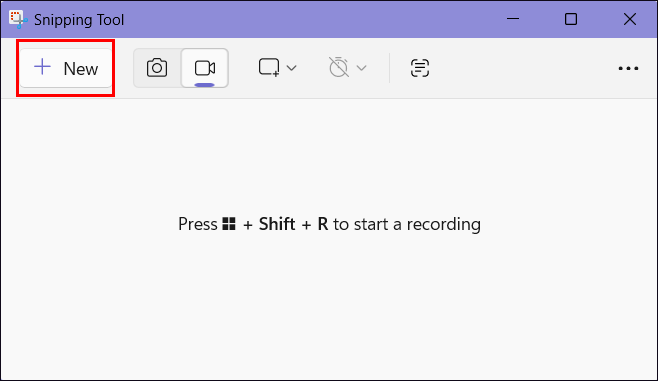
2. Tap the Record icon to enter the recording interface.
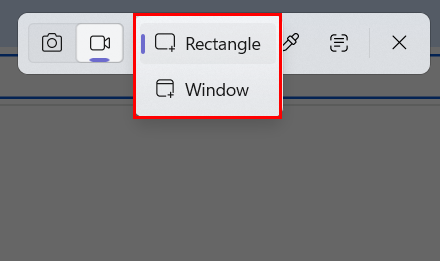
3. Expand the Snipping area option.
4. Click on the Rectangle option to record the specific region; or, click on the Window option to record the entire screen.
Step 3: Set the Audio Recording
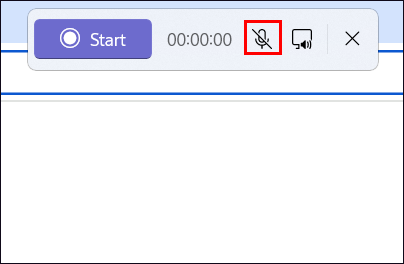
In the newly displayed horizontal panel, click on the Microphone icon to enable the audio recording functionality.
Step 4: Start and End Recording
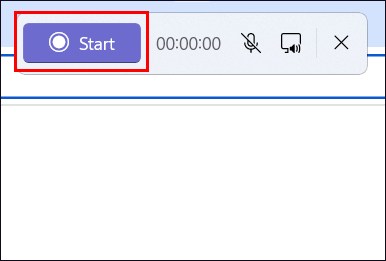
1. To start the recording process, simply click on the Start option..
2. Play the target video on Google Drive.
3. To end the recording process, click on the Stop recording button in the horizontal panel.
Overall, the Snipping Tool allows me to record screenshots more conveniently and quickly. It is worth noting that when I record videos exceeding 30 minutes in length, I often encounter issues where the recording suddenly stops. Therefore, I recommend using it primarily for recording shorter videos.
Bonus: Edit the Recoded Videos
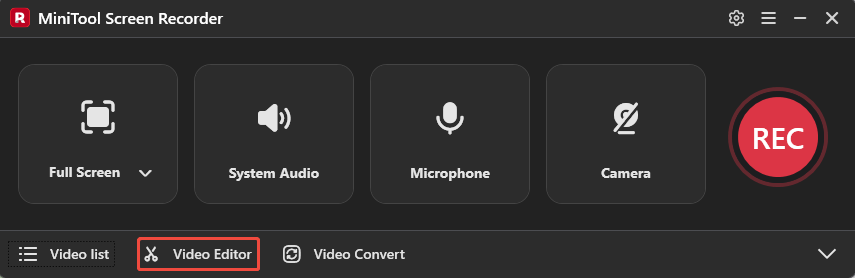
After recording a Google Drive video, I typically need to trim out redundant sections or add subtitles. This is where MiniTool MovieMaker, which I use frequently, really comes in handy. To access this tool, click the Video Editor option on the main interface of MiniTool Screen Recorder.
Alternatively, simply click the button below to get it.
MiniTool MovieMakerClick to Download100%Clean & Safe
With MiniTool MovieMaker, I can add elements such as transitions, filters, and text to make my recordings more engaging. Meanwhile, this tool allows me to easily cut, merge, crop, and reverse videos. What's more, MiniTool MovieMaker supports exporting videos in various popular formats, including MP4, MOV, MKV, AVI, and GIF, making video sharing effortless.
Final Words
How to record a video on Google Drive on Computer? This can be easily accomplished using MiniTool Screen Recorder and the Snipping Tool. Additionally, the video editing tools mentioned earlier can help me further optimize the videos. I hope the experiences I’ve shared will help you find the right screen recording solution.
If you encounter any issues when trying out MiniTool Screen Recorder or MiniTool MovieMaker, send an email to support@minitool.com.