

Flash Video is a container file format released by Adobe Systems. It was once widely used across various websites to host online animations, games, and other multimedia content. FLV and F4V are two specific types of Flash Video file formats.
However, with Adobe officially ending support for Flash Player in 2020, Flash Video has become less compatible, making it increasingly difficult to preserve content in this format. I later discovered that screen recording is an effective way to save Flash videos; it simplifies preservation and lets me save the content in a more universally compatible format (MP4) for offline playback.

How Can I Record Flash Video
Fast Track Steps:
- Open the screen recording tool
- Choose the recording area
- Configure the audio and webcam recording settings
- Start recording
- Play the Flash video
- End the recording
- Check the recorded Flash video
It is quite simple to do Flash video capture task with professional recording tools. In my own daily use, I typically rely on MiniTool Screen Recorder and VEED, both of which have proven to be excellent for capturing Flash videos.
Quick Comparison:
| Feature | MiniTool Screen Recorder | VEED |
| Installation Required | Yes | No |
| Type | Desktop tool | Online tool |
| Free to Use | Yes | Free/paid |
| Recording Features | Screen, audio, and webcam | Screen, audio, and webcam |
| Watermark | No | Yes (free plan) |
Method 1: Use MiniTool Screen Recorder
The main reason I chose MiniTool Screen Recorder is that it is not only completely free but also feature-rich. It offers a variety of recording area options, allowing me to capture the full screen, a specific region, a particular window, or even an extended display. Furthermore, the application enables me to record the webcam feed independently or overlay it while capturing the screen.
The biggest advantage I noticed is that MiniTool Screen Recorder includes a built-in, convenient annotation tool, a feature I frequently use when creating tutorial videos. Best of all, there is no limit on recording duration, which means I can capture long-form Flash videos without any concerns.
Here are the detailed steps on how to record Flash videos with MiniTool Screen Recorder.
1. Download and Install MiniTool Screen Recorder
Click the button below to download and install MiniTool Screen Recorder. Then, launch it on the PC.
MiniTool Screen RecorderClick to Download100%Clean & Safe
2. Select the Recording Area
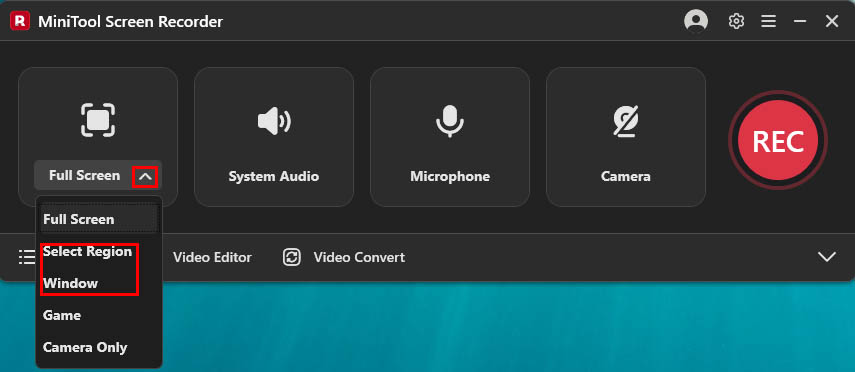
By default, this tool records in full-screen mode. If I want to record only the area containing a Flash video, or lock the recording area to a specific window, I need to expand the Full Screen option and select either the Select Region or Window option.
3. Configure Audio and Webcam Recording Settings
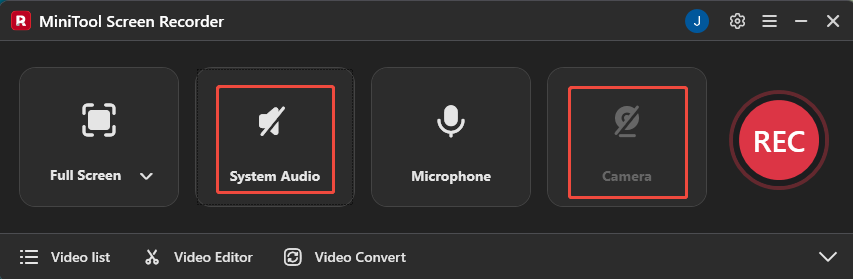
The recording features are enabled by default. To record Flash video, I recommend disabling the system audio recording feature by clicking the System Audio icon. Additionally, if there is a need to add a webcam overlay while recording, click the Camera icon.
4. Start Recording
Then, click the REC button to start the recording process. After a 3-second countdown, play the Flash video in the browser.
5. End Recording
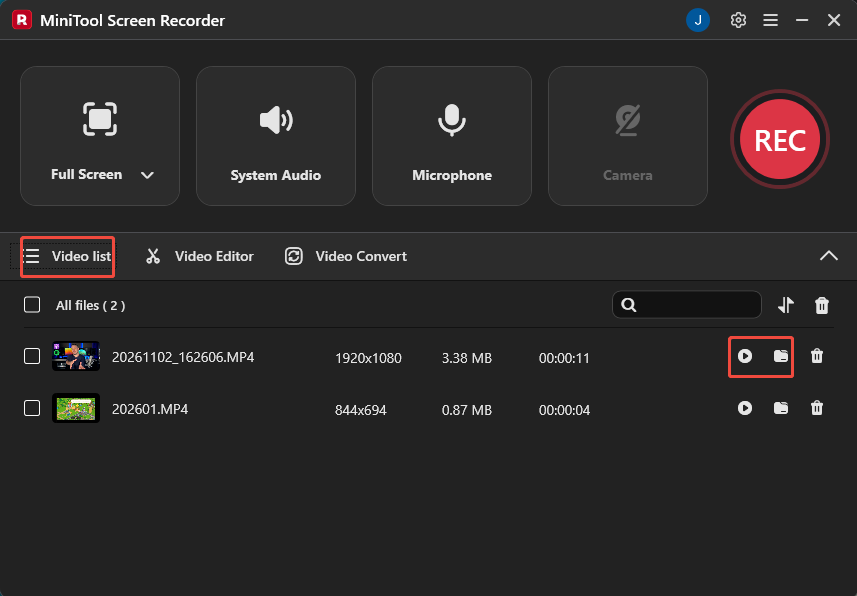
To end the recording process, press the F6 key. Then, when the tool automatically switches to the Video list section, you can click the Play icon to view the recorded Flash video or click the Folder icon to locate it on the computer.
Method 2: Use VEED
When I want to capture Flash videos directly in my browser, I always use VEED. It is an all-in-one online tool that combines recording and editing capabilities, allowing me to record my screen, webcam, and audio. What I like most is the ability to customize the layout when recording from multiple sources.
Furthermore, VEED stands out by offering smart assistive tools. For instance, I can use a teleprompter while recording commentary. What’s more, once I’ve finished recording a Flash video, VEED lets me proceed directly to editing it within the same platform.
Now, follow the steps below to record Flash video online with VEED.
1. Visit VEED
Visit the website of VEED: https://www.veed.io/tools/screen-recorder
2. Choose the Recording Area & Set the Audio Recording Settings
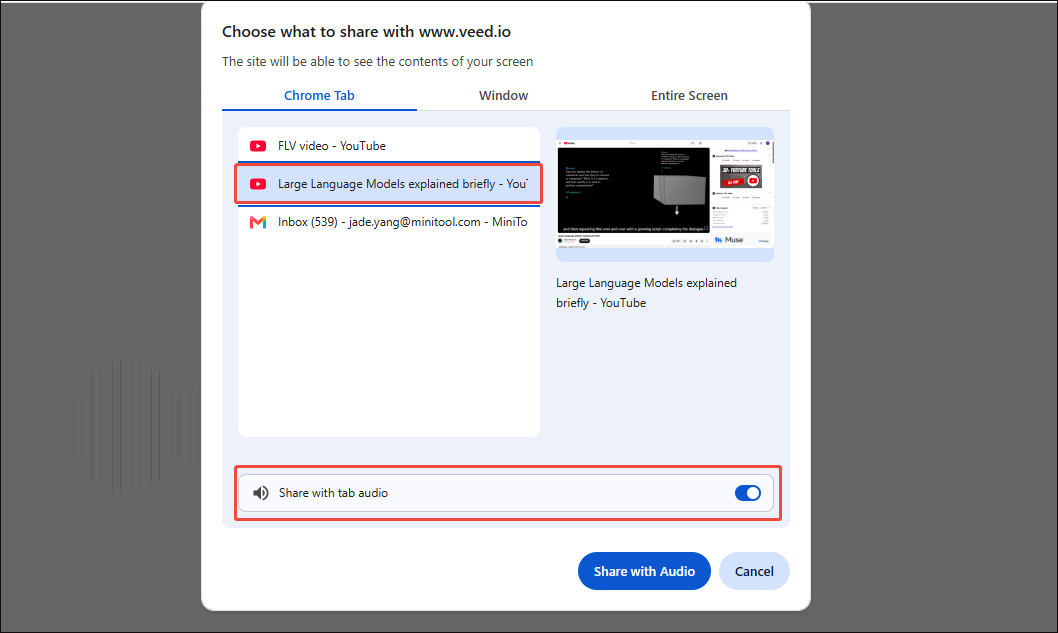
Since we are recording the Flash video in the browser, I recommend choosing the Screen recording mode. Then, click the Start Recording option. In the new interface, select the tab containing the Flash video. Next, check the Share with tab audio option to enable audio recording.
3. Start Recording
In the same interface, click the Share with Audio option to start recording. Then, play the Flash video in the tab.
4. End Recording
To end the recording, click the Stop sharing option on the floating bar. Finally, I can edit the recorded Flash video in the editing interface.
Overall, both MiniTool Screen Recorder and VEED offer convenient ways to record Flash videos. However, each has distinct advantages, so we recommend trying both and choosing the one that best suits your needs.
Conclusion
In a word, MiniTool Screen Recorder and VEED provide two efficient ways to record Flash videos. The former supports recording with no time limits and no watermarks, while the latter offers ease of use and supports online editing.
If you have any questions when using MiniTool Screen Recorder, send an email to support@minitool.com.