

This article clarifies whether a user can record a Figma prototype and shows how to select a remarkable Figma prototype recorder. Meanwhile, it offers a detailed guide on how to record Figma prototype using a reliable video recorder: MiniTool Screen Recorder.
Since I was young, I have always dreamed of becoming an IT engineer. To achieve my dream, I have done a lot of practice. Recently, I have used Figma to design a website interface. To make the interface more popular, I want to collect users' feedback.
However, some users don’t have Figma access. To bypass the restriction, I plan to record Figma prototype and share the recordings with users. To ensure a smooth recording process, I did a lot of research on the Internet. In the following content, I will share the findings with you.
Can You Record a Figma Prototype
Can you screen record on Figma? Absolutely yes. Although Figma doesn’t offer a built-in recorder, and there is no way to export a Figma prototype as a video or GIF, it is advisable to capture Figma prototypes with a third-party screen recorder.
Which Figma Prototype Recorder to Choose
I made some preparations before I started recording my Figma sessions. These are the main things I looked for in a good recorder.
Firstly, select a screen recorder without a time limit. When recording a complicated Figma prototype, such a recording may require a long duration. In this situation, a recording software without time limitations allows for accomplishing the recording at a time instead of splitting the task into 2 pieces of work.
Secondly, try a watermark-free recording software. Some screen recorders will automatically embed the watermarks into the Figma recordings, which makes them look less professional. To remove the watermarks, video cropping can help. However, such an action brings a waste of time. As such, it is suggested to directly use a watermark-free recording tool.
Thirdly, choose the screen recorder that supports webcam capture and screen annotation. Capturing the screen with the webcam shortens the distance between the authors and the audience. What’s more, annotating the screen while recording the Figma prototype enables the audience to grasp the key points more quickly.
Last but not least, it is recommended to select a video capture tool with a well-organized interface. This way, regardless of user skill level, everyone can grasp how to use this application to finish the recording task easily and quickly. By the way, remember to strike a good balance between ease of use and advanced functions.

How to Record a Figma Prototype
Based on my experience, I have found one of the best Windows screen recorders: MiniTool Screen Recorder. I highly recommend it for the prototype recording.
About MiniTool Screen Recorder
I have used MiniTool Screen Recorder for several months. This screen recorder leaves a deep impression on me with its intuitive interface, rich recording features, and watermark-free design.
In essence, MiniTool Screen Recorder is a one-stop solution for screen recording, webcam recording, and screen annotation. Meanwhile, it will automatically save my recordings in the MP4 format, which facilitates video editing or sharing.
More importantly, MiniTool Screen Recorder also enables me to preset the recording duration, saving me from ending the recording manually.
How to Record Figma Prototype with MiniTool Screen Recorder
Below is a step-by-step tutorial on how to screen record on Figma using MiniTool Screen Recorder.
Step 1. Download and install MiniTool Screen Recorder.
MiniTool Screen RecorderClick to Download100%Clean & Safe
Download and install MiniTool Screen Recorder on the PC. Then, launch this application.
Step 2. Select the recording region and manage the audio recording.
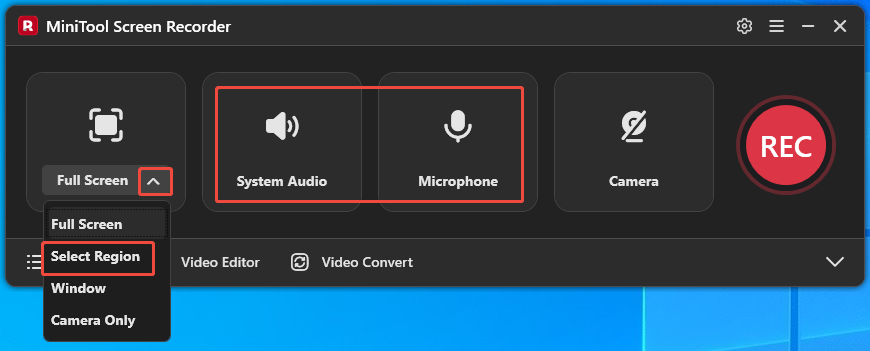
By default, MiniTool Screen Recorder will adopt a full-screen recording mode. If there is a need to customize the recording area, expand the leftmost drop-down option and click on Select Region. Then, to turn off the recording of system or microphone sounds, click on the System Audio icon or the Microphone icon.
Step 3. Enable webcam recording and specify other recording settings.
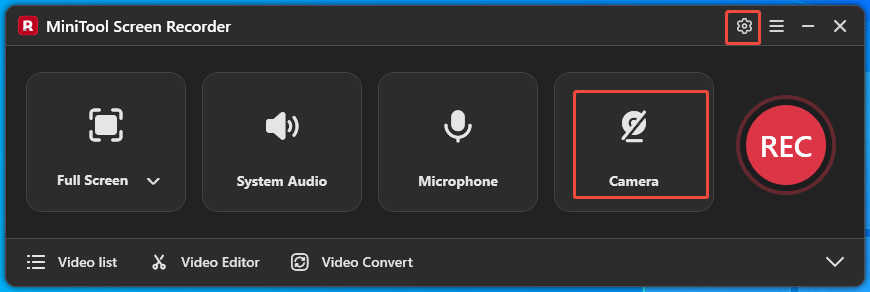
To enable the webcam capture, click on the Camera icon. Then, click on the upper-right Settings icon to access the Settings interface.
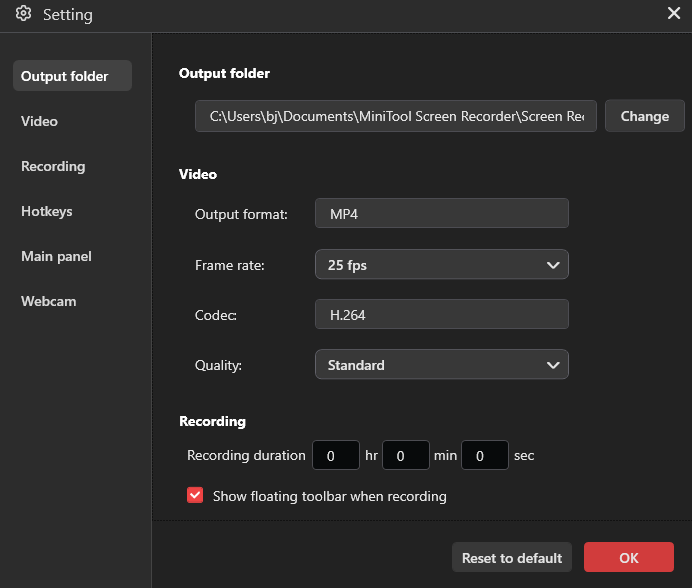
In the pop-up window, click on the Change option to set an output folder for the recorded files. Meanwhile, it is free to customize the recording quality, frame rate, and recording duration. Finally, click on the OK option to save the changes.
Step 4. Start/end the recording and check the output file.
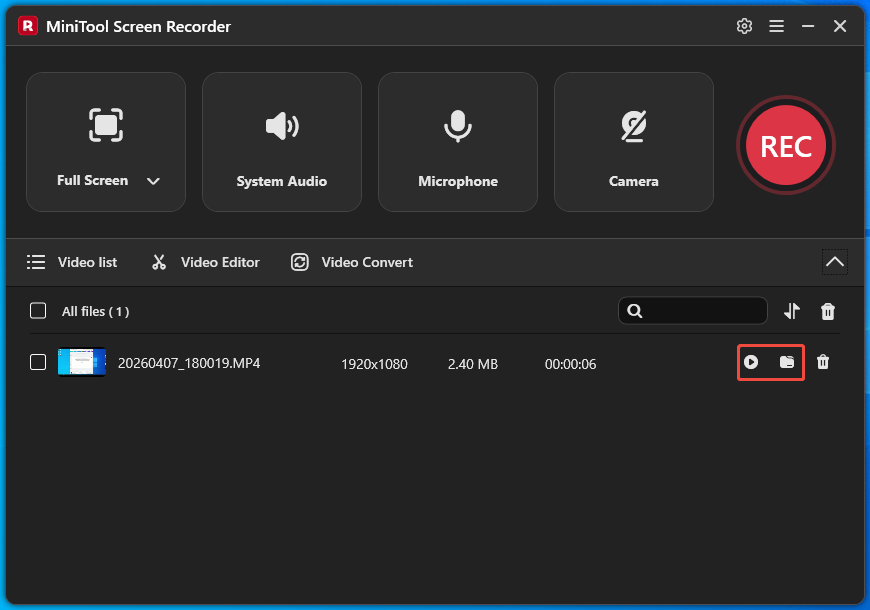
Begin the recording process by pressing the F6 key. After a 3-second countdown, play the Figma prototype. Once the prototype ends, stop the recording by pressing the F6 key again. Then, go to the expanded file list. There, click on the Play icon to view the recorded file directly. To locate the output video, click on the Folder icon.
How to record on Figma with ease and efficiency? Never miss MiniTool Screen Recorder.Click to Tweet
Undoubtedly, MiniTool Screen Recorder is a robust solution for recording Figma prototypes.
How to Edit the Prototype Recordings
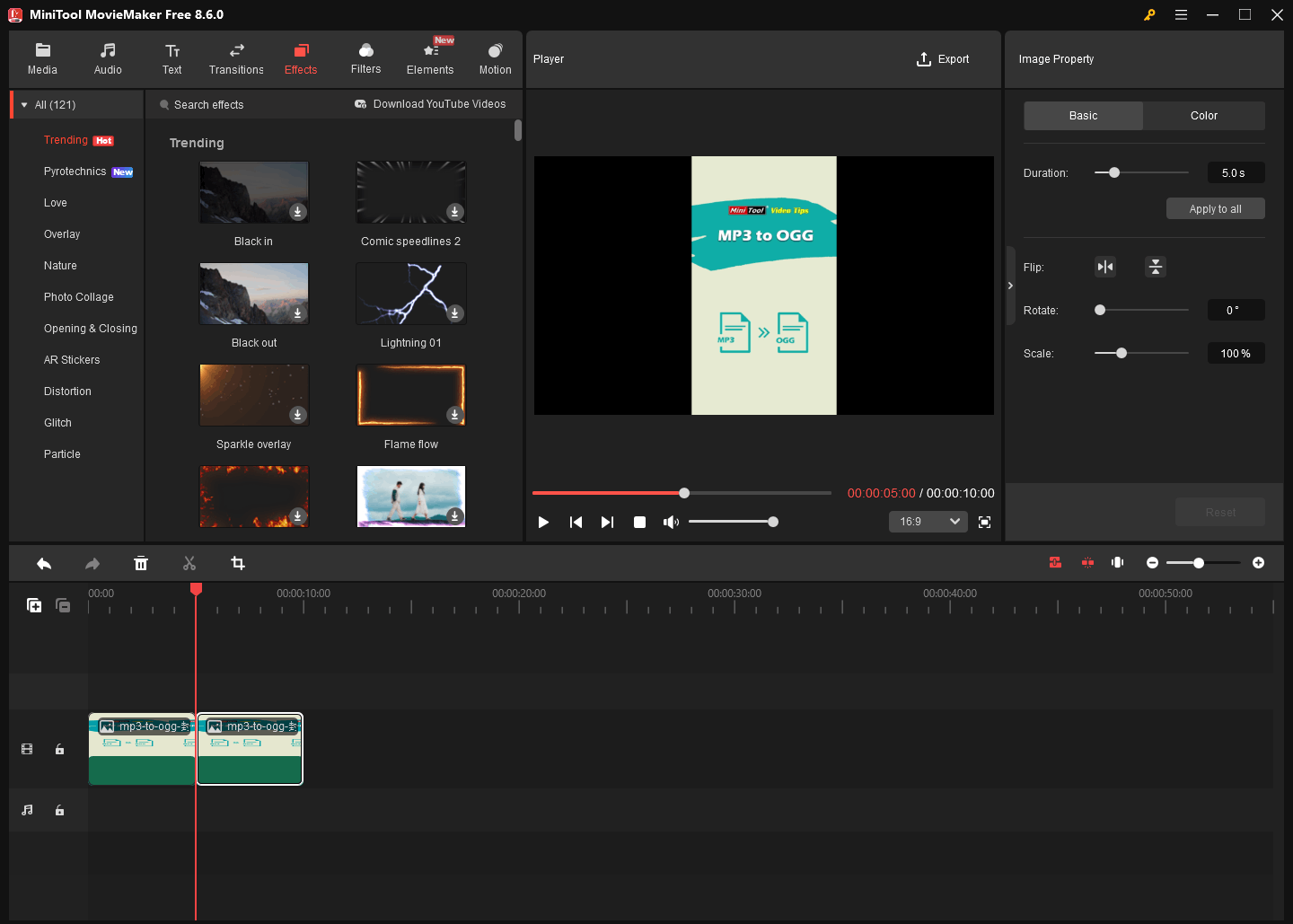
After recording a Figma prototype, I wanted to edit the recording to make it more attractive to the audience. Then, I tried many video editors. Finally, I found one of the most outstanding video editing software: MiniTool MovieMaker. It enables me to edit the video frame by frame with various functions, including trimming, merging, cropping, reversing, flipping, or rotating.
MiniTool MovieMaker also allows me to change the speed or aspect ratio of the video with simple clicks. Plus, there are plenty of elements available that I can add to my recording, such as motions, effects, filters, transitions, credits, captions, etc. If there is a need to edit the recording, click on the download button below to try this application.
MiniTool MovieMakerClick to Download100%Clean & Safe
To Wrap Things Up
MiniTool Screen Recorder is an ideal choice that helps record Figma prototypes without watermarks or time limits. To edit the Figma recording, never miss MiniTool MovieMaker. If you have run into any problems when using these 2 products, just ask for help by sending an email to support@minitool.com.