

This post introduces Twitch to you and explains why you need to record Twitch streams. With a lot of advice, it helps you to find a great Twitch stream recorder and tells you how to record Twitch streams with 2 reliable video recorders: Twitch Studio and MiniTool Screen Recorder.
How to record Twitch streams without hassle? Sometimes, you may be busy with work, family affairs, or other things and miss the Twitch streams you like very much. To solve that problem, you can capture the Twitch streams for offline watching. Read the following content to find out the recording methods.
What Is Twitch
As a powerful platform that focuses on live streaming, Twitch enables you to interact with others in real-time. Meanwhile, you can find a variety of entertainment content from different topics, such as gaming, art, music, and more.

Why Record Twitch Streams
Recording Twitch streams provides you with a local backup, which allows you to view the content without any internet connection. More importantly, by reviewing the Twitch stream recordings, you can improve your streaming ability by adjusting your body language or facial expression.
How to Find a Fantastic Stream Recorder
Before learning how to record Twitch streams, here are some suggestions that help you to choose a fabulous video recorder for your Twitch streams.
Suggestion 1. No Watermarks
Firstly, make sure you select a screen recorder that doesn’t embed the watermarks into the recorded videos. Some online screen recorders often have watermark limitations. To solve that problem, the upgrade payment or video cropping can work. However, those methods will cost more time and money. Simply put, for people who are on a tight budget, just choose a watermark-free screen recorder.
Suggestion 2. No Time Limitations
Since you don’t know how long your Twitch streams will last, it is advisable to use a video recorder that doesn’t set any limit for the recording duration. This way, your recording tasks will never be interrupted due to time limits. Meanwhile, choose the software that allows you to preset the recording duration, which allows for ending the recording automatically.
Suggestion 3. No Complicated Interface
To ensure that you can conduct a recording task easily and quickly, try recording apps without a complicated user interface. The more intuitive the interface, the less time you spend learning how to use this screen recorder. Meanwhile, despite a well-organized interface, if the screen recorder lacks necessary recording functions like webcam recording and screen annotation, don’t use it.

Method 1. Use Twitch Studio
Twitch Studio is another option for you to capture a Twitch stream on your PC. It not only allows you to conduct a live stream but also enables you to capture the Twitch streams with the built-in recording function. Below is the detailed guidance on how to capture Twitch streams using this function.
Step 1. Get and run Twitch Studio.
Download and install Twitch Studio on your PC. Then, run this application.
Step 2. Configure the output settings.
Click on the upper-left Burger icon and choose the File option. Then, select the Settings option and navigate to the Recording section. There, click on the Browse button to select a destination folder for your recorded videos. Next, set MP4 as the output format.
Step 3. Begin/end the recording process.
Go back to the main interface. There, click on the bottom triangle icon next to the Start Stream option. Then, choose the Record Video option to begin the recording process. Next, start your Twitch streams. When you have recorded what you want, click on the Stop Recording option at the bottom to end the recording process.
Step 4. Check the output file.
Go to the output folder to view and check the recorded video.
How to capture streams on Twitch? Twitch Studio offers you a solution. However, some users also report that they can’t download and install the Twitch Studio software on their computers. To fix that issue, you can use a third-party screen recorder like MiniTool Screen Recorder.
Method 2. Use MiniTool Screen Recorder
Taking the above advice into consideration, I highly recommend MiniTool Screen Recorder.
What Is MiniTool Screen Recorder
MiniTool Screen Recorder is a watermark-free screen recorder that enables you to record on a wide range of platforms, such as Twitch, TikTok, Facebook, and more. Regardless of how long your stream is, this screen recorder, with no time limits, can capture the whole process without interruption.
MiniTool Screen Recorder is also a feature-rich screen recorder that supports both webcam recording and screen annotation. What’s more, it automatically saves the recordings in the MP4 format, which facilitates your video editing, sharing, or playback on most platforms.
How to Record Twitch Streams with MiniTool Screen Recorder
Below is a step-by-step tutorial on how to record Twitch streams using MiniTool Screen Recorder.
Step 1. Download and install MiniTool Screen Recorder.
MiniTool Screen RecorderClick to Download100%Clean & Safe
Click on the download button above to download and install MiniTool Screen Recorder on your PC. Then, launch this Twitch Stream recorder.
Step 2. Select the recording area and manage the audio recording.
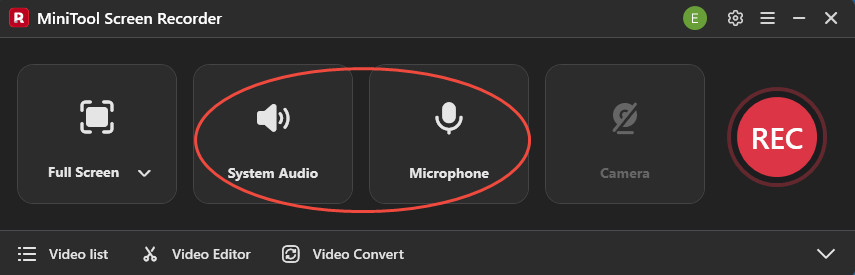
By default, MiniTool Screen Recorder will capture the whole screen. If you want to customize the recording region, press the Alt + R keys. Next, click on the System Audio icon and the Microphone icon to turn on/off the recording of system and microphone sounds.
Step 3. Enable webcam recording and specify other settings.
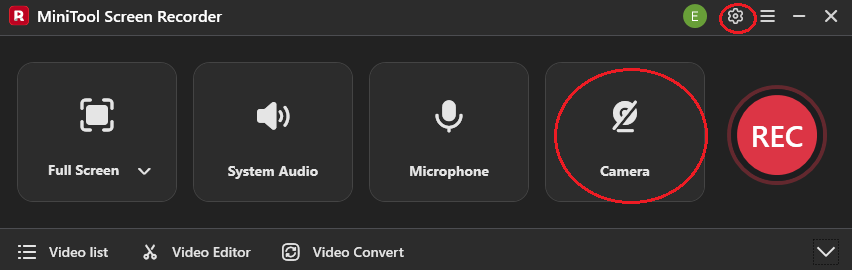
If you want to capture the webcam, click on the Camera icon. To adjust more recording settings, click on the upper-right Settings icon to enter the Setting window.
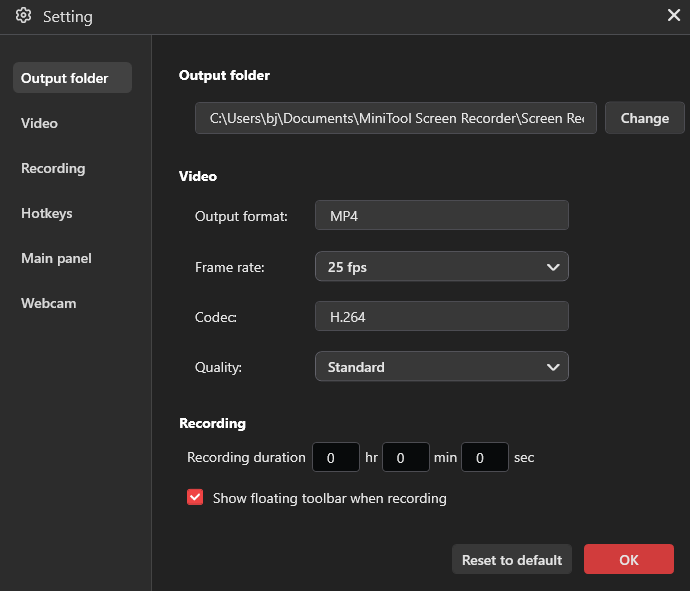
In the pop-up window, you are free to select an output folder for the recorded videos, set the recording frame rate, and specify the recording quality. Also, you can preset the recording duration as you want. Finally, click on the OK button to save the changes.
Step 4. Begin/end recording and check the output files.
Press the F6 key to begin the recording process. After a 3-second countdown, start the Twitch streams that you want to capture. When you have recorded what you want, stop the recording by pressing the F6 key again. Then, in the expanded file list, click on the Play icons to view the output files. If you want to locate the output files, click on the Folder icons.
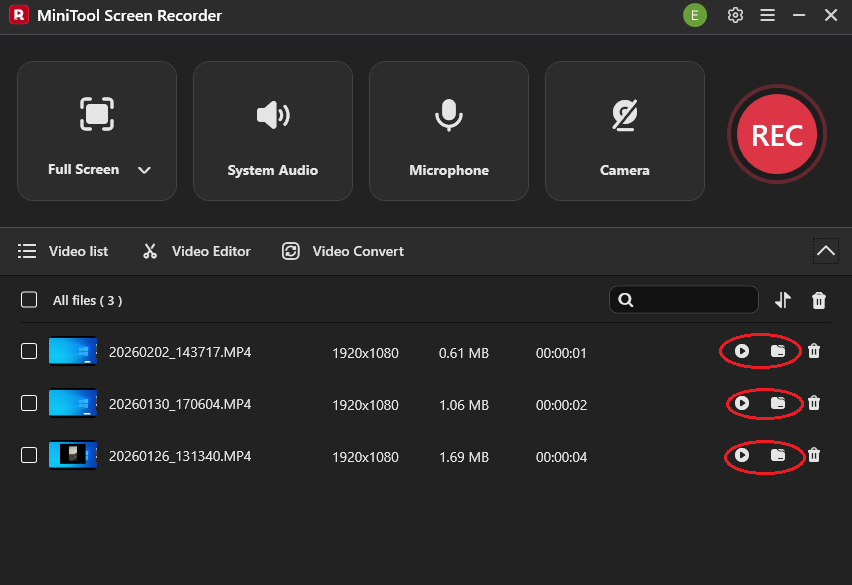
As you can see, MiniTool Screen Recorder enables you to grasp how to record your Twitch streams with ease.
Final Verdict
How to record Twitch streams with ease? Both MiniTool Screen Recorder and Twitch Studio can help. If you have downloaded Twitch Studio successfully, using its built-in recording function offers you more convenience. On condition that you can’t get Twitch Studio or want more recording functions, never miss MiniTool Screen Recorder.
If you have been bothered by any problems when using MiniTool Screen Recorder, please send the problem description to support@minitool.com. Then, you can get timely support. Also, you can directly share your problems with me on X. I will help you as quickly as possible.