

This post shows you how to record Vimeo videos with the Vimeo Record extension and the best screen recording software – MiniTool Screen Recorder. With the step-by-step guides offered below, recording Vimeo videos will be a breeze.
What Is Vimeo
Vimeo is a professional-grade video hosting, sharing, and streaming platform commonly used by creators and businesses to publish high-quality content. It prioritizes high-definition playback and an ad-free viewing experience, making it the preferred choice for filmmakers, artists, educators, businesses, etc.
Why record Vimeo videos? First, offline viewing is the most common use case. Recording Vimeo videos allows you to watch content without worrying about network connectivity, buffering, or data limits.
In addition, for educators and students, screen recording on Vimeo lets them watch and study content repeatedly. After recording, you can edit or repurpose the video. Recorded videos can be played on any device without worrying about compatibility issues.
How to record Vimeo videos? The content below offers two reliable methods.
![How to Screen Record on Tubi TV with No Effort [2 Methods]](https://images.minitool.com/recorder.minitool.com/images/uploads/2026/02/how-to-screen-record-on-tubi-thumbnail.png)
How to Record Vimeo Videos on Desktop
MiniTool Screen Recorder is a clean, professional, and user-friendly screen recorder designed for Windows users. It features an intuitive user interface, empowering everyone to easily handle each function. With no ads, bundles, watermarks, or time limits, you can record Vimeo videos smoothly.
In addition, MiniTool Screen Recorder offers flexible recording options. It supports full screen, selected region, and webcam recording. Also, you can record your screen with system audio and microphone sound at the same time or separately.
Moreover, MiniTool Screen Recorder lets you customize output video parameters. You save recordings as high/standard/original quality with multiple frame rates. The hotkeys allow you to start/resume/pause/end the recording conveniently.
Furthermore, MiniTool Screen Recorder features real-time screen annotation tools. With them, you can draw on your screen or add text, numbers, arrows, etc. To record Vimeo videos, you can follow the instructions below.
Step 1. Download and Install MiniTool Screen Recorder
Click the download button below to download and install MiniTool Screen Recorder on your computer. Then, launch it by double-clicking the desktop shortcuts.
MiniTool Screen RecorderClick to Download100%Clean & Safe
Step 2. Customize Recording Settings
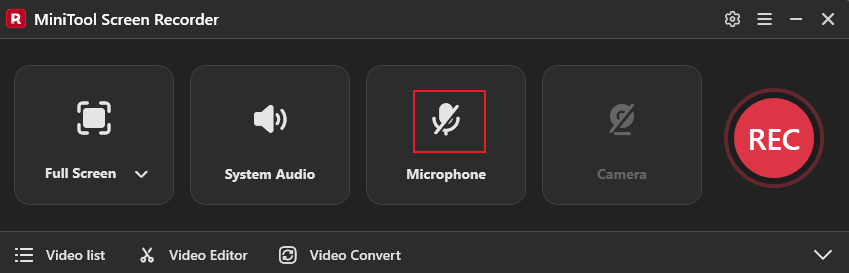
Adjust audio settings
The system audio and microphone are turned on by default. To record videos on Vimeo, turn the microphone off to avoid the noise or unrelated speech being recorded.
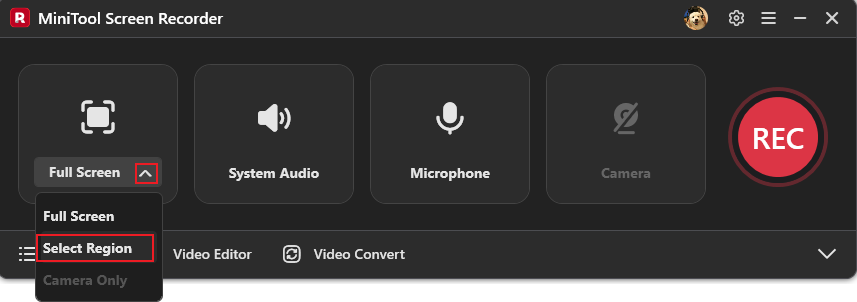
Choose the recording region
The default recording region is the full screen. If you want to record a specific area, expand the Full Screen drop-down menu and choose Select Region, then hold and drag the mouse cursor to choose the Vimeo playback window.
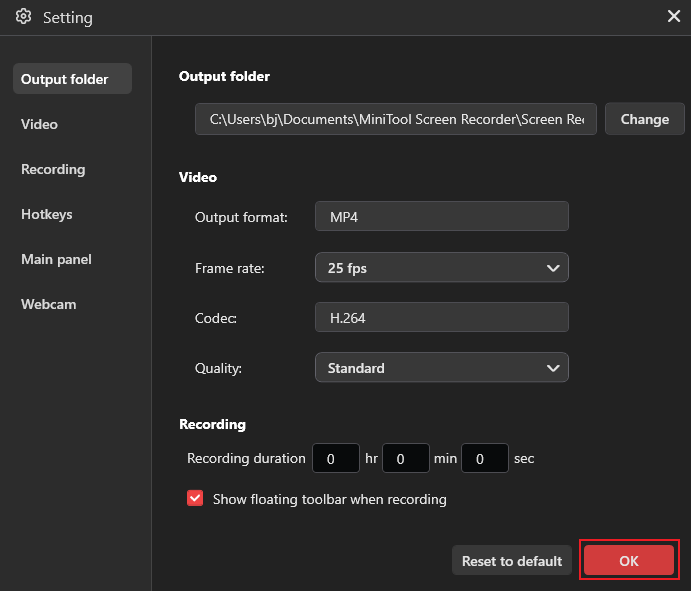
Set parameters for the output video
Click the Settings icon in the top right to open the Settings window. Then, you can change the frame rate and quality for the output video. Click the OK option to save the modifications.
Step 3. Start Recording Vimeo videos
Click the REC button in MiniTool Screen Recorder. The recording will start after a three-second countdown. Go to Vimeo and open the video you want to record. Press the F9 key to pause/resume when recording.
Step 4. Stop the Recording
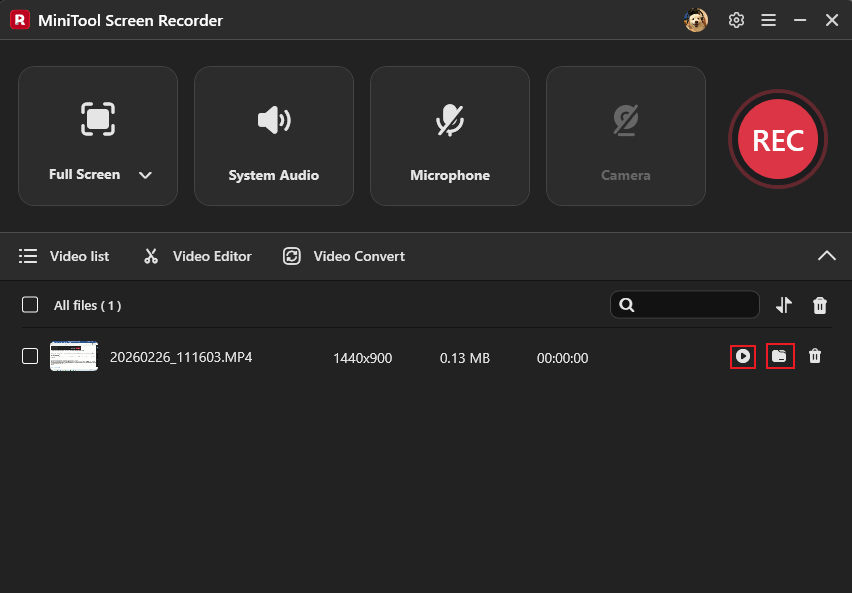
Press F6 to stop the recording. Then, you can find the recording in the Video list. Click the Folder icon to locate the recording in your folder or click the Play icon to watch it.
Want to edit your recorded videos to create a highlight reel or make them more interesting? MiniTool MovieMaker can do you a big favor! Click the Video Editor option next to the Video list option to open or download this editor. There, you can merge, cut, crop, reverse, rotate, and speed up videos efficiently.
In addition, MiniTool MovieMaker has a vast resource library, including transitions, effects, music, filters, motions, and stickers. Add them to your videos and take them to the next level for free.
MiniTool MovieMakerClick to Download100%Clean & Safe
How to Record Vimeo Videos Online
Another workable method to record Vimeo videos is using the Vimeo Record Chrome extension. Follow the step-by-step guide below to install the extension and record Vimeo videos.
Step 1. Install Vimeo Record Chrome Extension
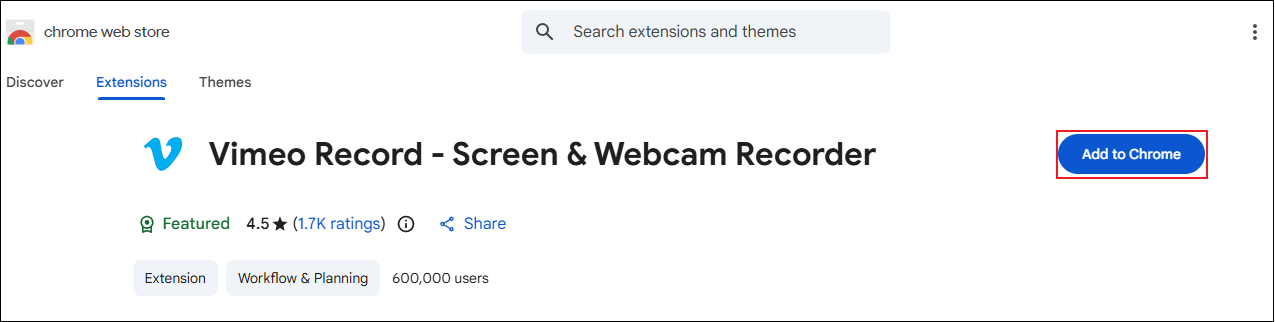
Open your Chrome browser, go to the Chrome Web Store, and find the Vimeo Record Chrome extension. Next, click the Add to Chrome button and click the Add extension optionto download and install the Vimeo screen recorder.
Step 2. Customize Recording Settings
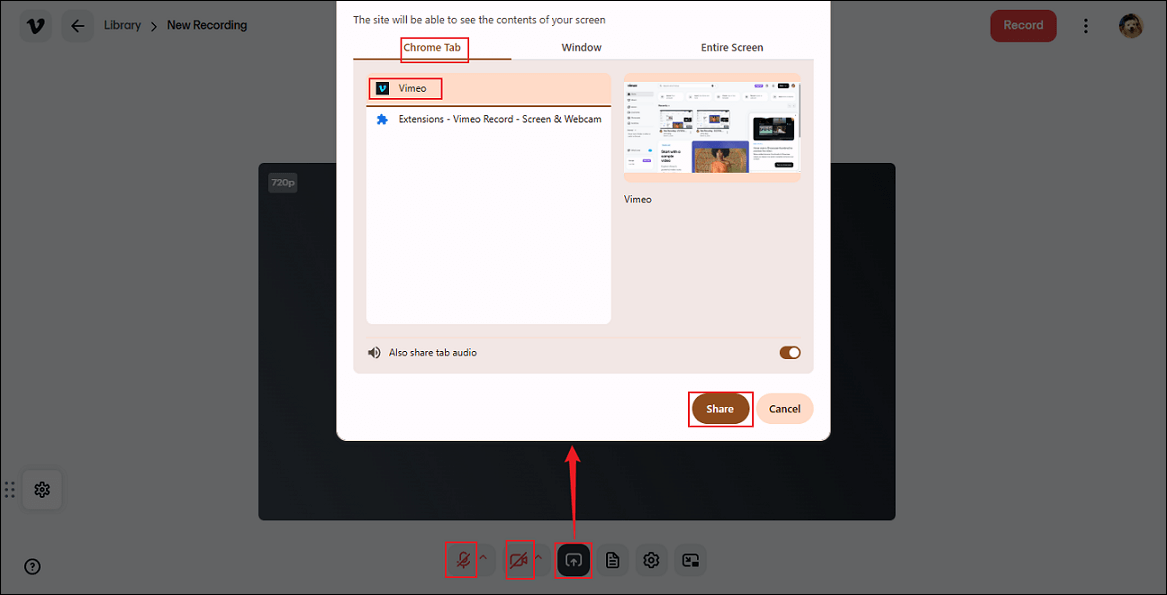
Open Vimeo and locate the video you want to record. Open the Video Record Chrome extension and turn off the microphone and camera. Then, click the Share screen option, go to Chrome Tab, choose the Vimeo tab, and click Share.
Step 3. Start Recording
Click the Record button to start recording. After a three-second delay, the recording will begin. Play the Vimeo video you wish to record.
Step 4. Stop Recording
Click the Stop recording button to end the recording. Wait for the generating process to complete. In the Share recording window, you can rename the recording and set the video privacy. Then, click Copy link. You can share the recording with whoever you want.

In Summary
How to record Vimeo videos? This article offers two reliable and easy methods and guides you through the whole recording process. With the two Vimeo screen recorders mentioned above, you can record videos on Vimeo with no effort.
Feel free to contact us via support@minitool.com if you have any questions about using MiniTool Screen Recorder or MiniTool MovieMaker. Or you can send me messages directly on X, and I’ll reply to you as quickly as I can.