

What Is Tubi
Tubi is the largest ad-supported streaming service in the United States, offering a vast library of TV shows, movies, and documentaries. What sets Tubi apart is its extensive catalog, featuring content from major studios and independent filmmakers alike. This allows users to watch their favorite shows and movies without a subscription.
Users can enjoy Tubi across various platforms, including smart TVs, phones, tablets, game consoles, and streaming devices, making it a convenient choice for entertainment seekers. Additionally, Tubi requires no subscription and is available in the United States, Canada, the United Kingdom, Australia, and other markets.
Can you record on Tubi? No, you can’t directly record Tubi content. It does not offer a built-in recording feature. But fortunately, you can use third-party software to accomplish the job. Read on.

How to Screen Record on Tubi TV
To screen record on Tubi TV with no hassle, here are two reliable and professional recorders.
Note: Please be aware that recorded content should only be for personal use. Please don't use it for commercial purposes.
Method 1. Use MiniTool Screen Recorder
MiniTool Screen Recorder is a top-grade and user-friendly screen recorder designed for Windows users. It features an intuitive user interface, allowing both beginners and professionals to handle it easily. More importantly, this application has no ads or bundles and leaves no watermarks on the recorded video.
Now, let’s discuss what MiniTool Screen Recorder can do. It is capable of capturing your 4K screen with no lag or black screen. Plus, this application can record the entire screen, a selected region, and webcam footage with or without system audio and microphone sound. Based on your needs, you can control the system audio and microphone sound, recording them simultaneously or separately.
Moreover, MiniTool Screen Recorder allows you to adjust video parameters, saving recorded videos as original/standard/high quality with optional frame rates. Therefore, Tubi content can be recorded in high quality, and you can have an enjoyable watching experience.
When recording, you can use real-time screen annotation tools to add arrows/text/numbers or directly draw on the screen. This function makes MiniTool Screen Recorder perfect for creating how-to videos, online presentations, etc. Furthermore, the webcam recording feature empowers you to record online meetings, online courses, etc., easily and effortlessly.
Follow the step-by-step guide below to screen record on Tubi TV:
Step 1. Download and Install MiniTool Screen Recorder
Click the download button below to download MiniTool Screen Recorder. Then, follow the on-screen setup instructions to install it on your PC. Then, launch this program by double-clicking the shortcut icon on the desktop.
MiniTool Screen RecorderClick to Download100%Clean & Safe
Step 2. Complete Recording Settings
Adjust audio settings
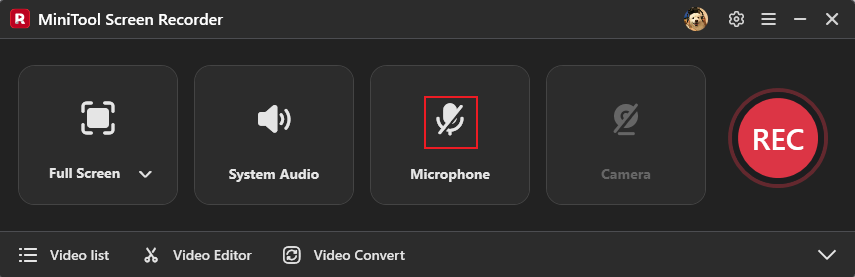
By default, the microphone and system audio are turned on. If you don’t want to include speech or noise while recording TV episodes, click the Microphone option to disable it.
Select the recording area
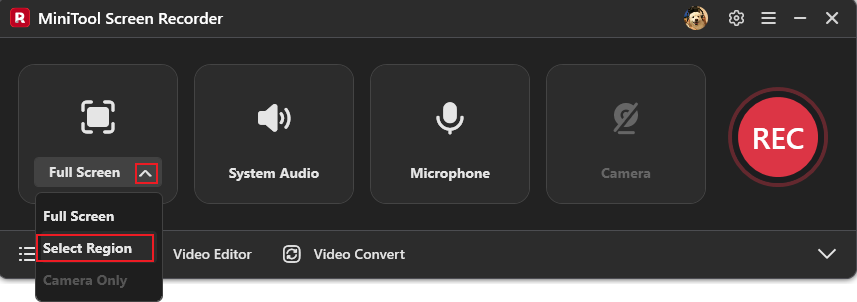
By default, the full screen is captured. If you want to record a selected region, expand the Full Screen option, select the Select Region option, and drag the mouse to define the area you wish to record.
Configure more settings
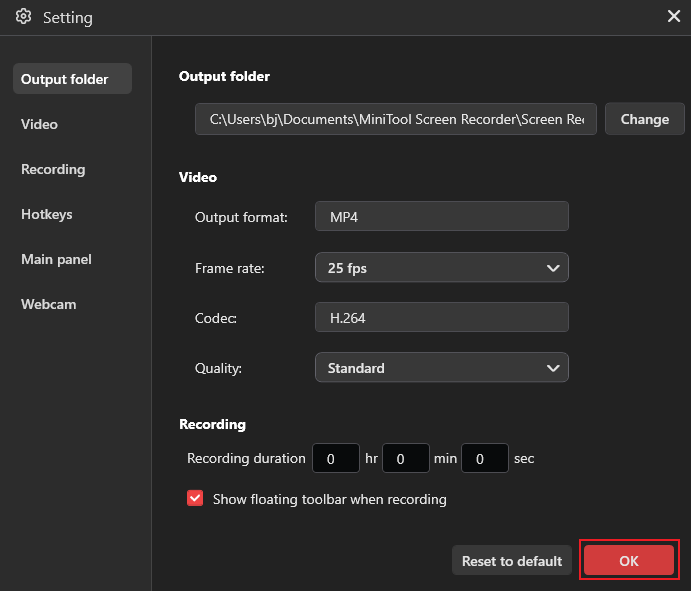
To access the Settings window, click the Settings icon in the upper-right corner. After that, you can adjust the frame rate and quality. You can set the recording duration to match the program's length. When the program ends, the recording will automatically stop. Next, save the modifications by clicking the OK button.
Step 3. Start Recording on Tubi TV
Start the program you wish to record. Click the REC button. Then, the recording will begin after a three-second countdown. Press the F9 key to pause/resume during recording.
Step 4. Stop the Recording
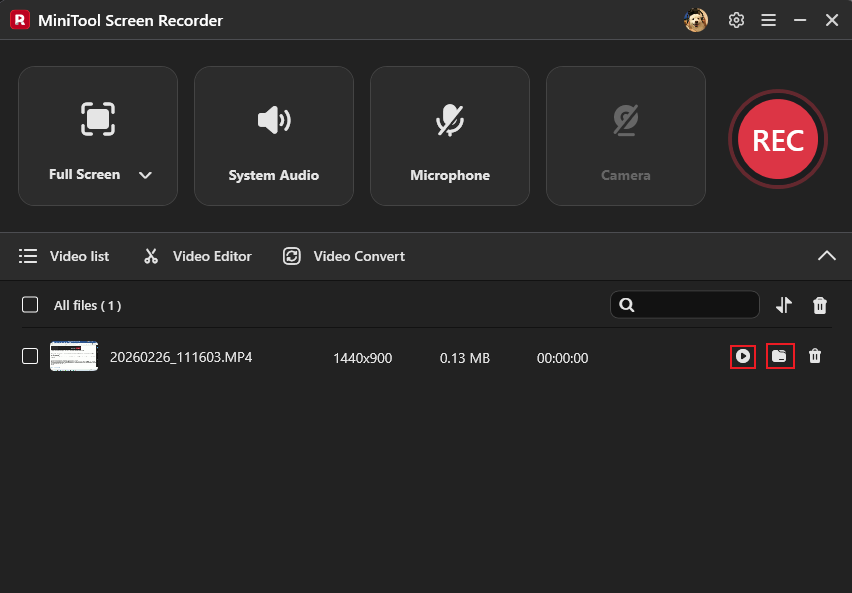
Press F6 to end the recording. After that, you can view the recording in the Video list section. Click the Folder icon to locate the recording, or click the Play icon here to directly view it.
Additionally, if you wish to refine the recording, you can download or launch MiniTool MovieMaker by selecting the Video Editor option next to Video list. Trimming, cropping, dividing, reversing, rotating, and other editing tools are all available there. Transitions, effects, music, stickers, motion, and text can all be added to the video to make it more engaging. Simply click the download button below to try the editor!
MiniTool MovieMakerClick to Download100%Clean & Safe
Method 2. Use Microsoft Clipchamp
Microsoft Clipchamp is a pre-installed Windows 11 app that offers expert, easy-to-use screen recording for quick, clear captures. It can record the full screen, a single window, or a browser tab, with flexible audio options: system sound, microphone, or both. With this watermark-free and high-quality recording software, you can save your favorite TV programs and edit them in one tool.
Moreover, Clipchamp supports simultaneous webcam recording for picture-in-picture videos, perfect for tutorials, online meetings, online lessons, etc. However, Clipchamp has limited recording time.
Here’s a quick guide on how to screen record on Tubi TV with Clipchamp:
Step 1. Access Clipchamp
Launch Clipchamp directly from the Start section if you’re on Windows 11. If not, go to the Microsoft Store to download and install this program.
Step 2. Open Screen Recorder
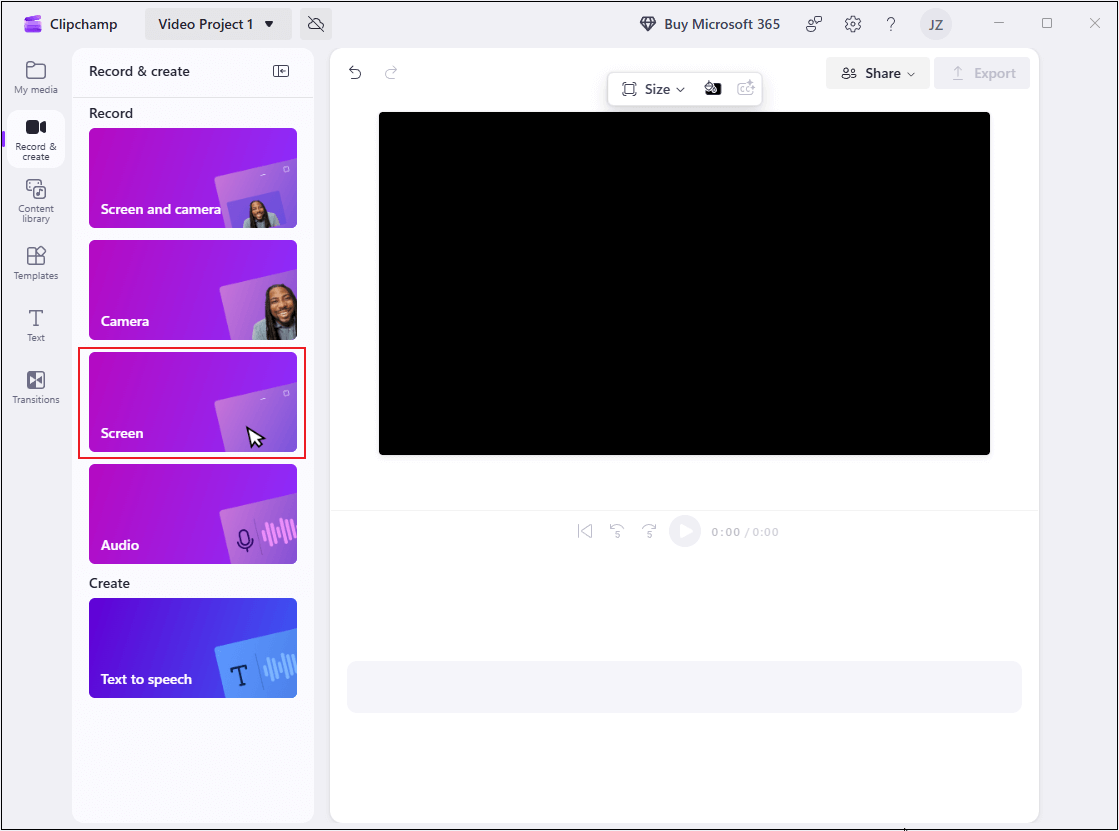
Click Create a new video to enter the main page. Then, choose the Record & create option and select a recording mode (Screen and camera/Camera/Screen/Audio). To record on Tubi TV, you should choose Screen.
Step 3. Turn Off Microphone
Click the Mic option to turn off the microphone sound.
Step 4. Start Recording
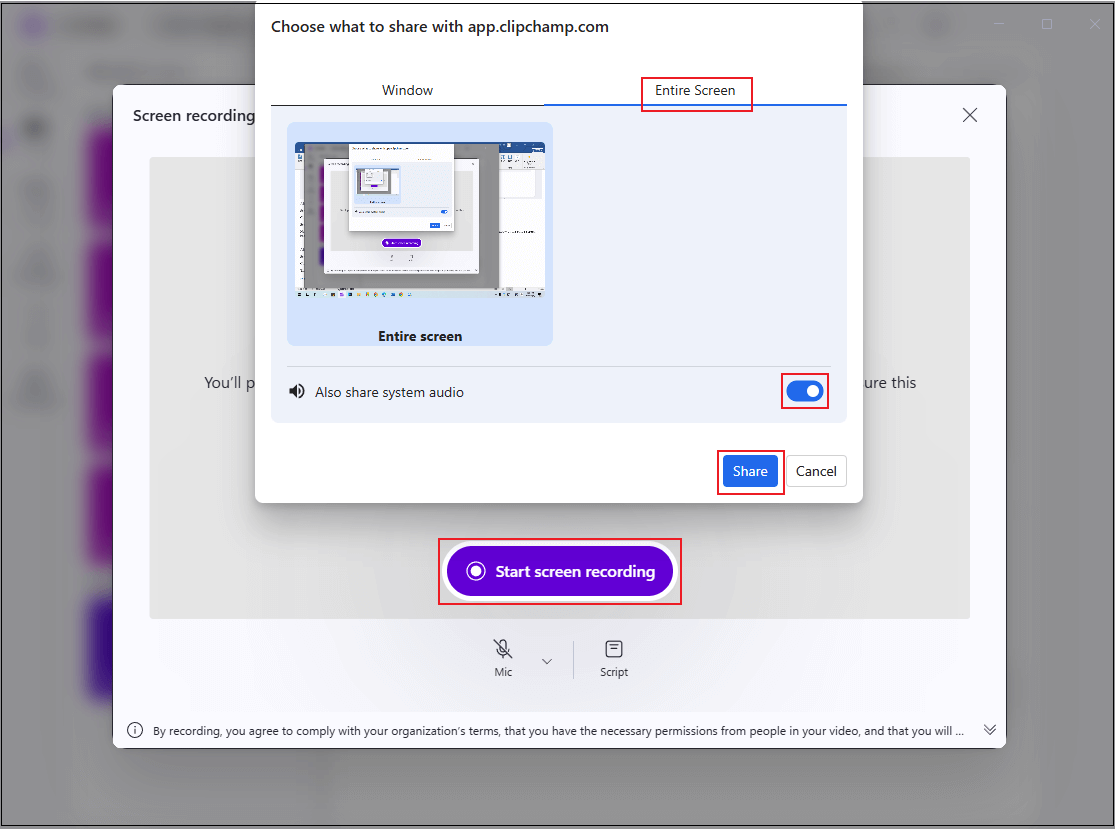
Navigate to Tubi and open the program you want to record. Then, click the Start screen recording button, choose to record a specific window or the entire screen based on your needs, enable Also share system audio, and click Share. The recording will start in three seconds.
Step 5. Stop the Recording
Click the Stop and review button to end the recording. Then, click Save and edit to export the video.
That’s all!
![How to Record on YouTube TV with Ease [Step-by-Step Guide]](https://images.minitool.com/recorder.minitool.com/images/uploads/2026/02/how-to-record-on-youtube-tv-thumbnail.png)
In Summary
This article introduces two simple and easy-to-use Tubi recording tools and provides detailed instructions on how to screen record on Tubi TV for free. This way, you can easily capture and save your favorite movies or shows from this streaming platform for offline viewing.
You can contact us via support@minitool.com if you have any questions about using MiniTool Screen Recorder or MiniTool MovieMaker. Also, you can send me messages directly on X, and I’ll help you as soon as I can.