

Paramount Plus is a subscription video-on-demand streaming service launched in America in 2014. It offers live TV and on-demand streaming services, allowing you to watch programs from CBS Studios, Paramount Media Networks, Nickelodeon, MTV, Comedy Central, etc. Plus, this platform has a vast library of movies, live sports, news, and episodes. It offers a one-week free trial for new users. Sometimes, you may want to record your favorite programs on Paramount Plus for later watching or archiving. How to record on Paramount Plus easily? The content below offers 2 best methods. Read on for more.
Can You Record on Paramount Plus
Can you record on Paramount Plus? Unfortunately, Paramount Plus doesn’t have a built-in recording tool or DVR function. Users who subscribe to the SHOWTIME plan can download videos for later watching.
If you want to watch videos offline on Paramount Plus but don't want to pay extra for a subscription plan, what should you do? The best solution is to use third-party screen recording software to capture the content.
![How to Record on YouTube TV with Ease [Step-by-Step Guide]](https://images.minitool.com/recorder.minitool.com/images/uploads/2026/02/how-to-record-on-youtube-tv-thumbnail.png)
How to Record on Paramount Plus
To screen record on Paramount Plus with no lag or black screen, I recommend two easy-to-use screen recorders, which can capture Paramount Plus content without watermarks. Read on for more.
Method 1. Use MiniTool Screen Recorder
MiniTool Screen Recorder is a top-grade screen recorder that can capture your 4K screen with high quality. It has no ads, bundles, or watermarks, allowing you to record for as long as you want. With its intuitive user interface, you can capture Paramount Plus content with no effort.
MiniTool Screen Recorder offers multiple recording options, including full-screen, selected region, and webcam recording. It lets you control the audio settings – record screen with microphone sound and system audio simultaneously or separately.
In addition, MiniTool Screen Recorder provides real-time screen annotation tools, enabling you to add arrows/numbers/text and draw on the screen. Those tools are perfect for creating how-to videos, online presentations, online lessons, etc. Moreover, you can customize video quality (original/standard/high) and frame rate before recording.
Furthermore, MiniTool Screen Recorder supports setting recording durations, meaning you can precisely adjust the recording time to match the length of a TV episode. This way, you won't need to stay glued to your computer waiting for the recording to finish.
How to record on Paramount Plus with MiniTool Screen Recorder, follow the step-by-step guide below.
Step 1. Download and Install MiniTool Screen Recorder
Click the download button below to download and install MiniTool Screen Recorder on your computer. Then, launch this software by double-clicking the shortcut icon on the desktop.
MiniTool Screen RecorderClick to Download100%Clean & Safe
Step 2. Get Recording Settings Ready
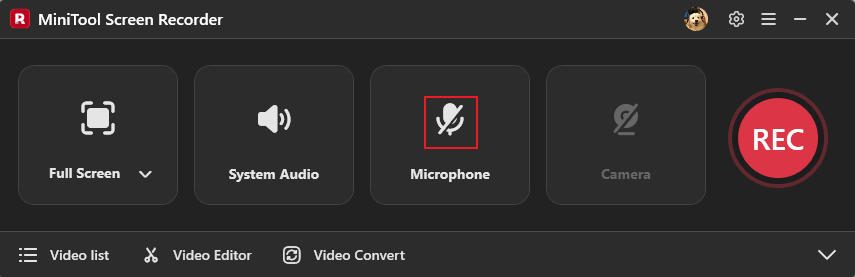
Control audio settings
The system audio and microphone are activated by default. Click the Microphone option to turn it off if you don't want to record TV shows with noise or conversation.
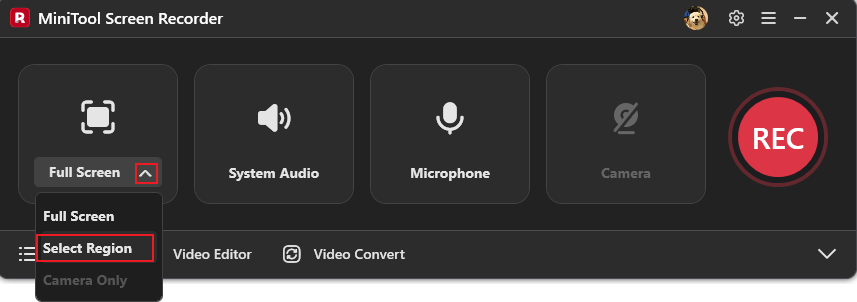
Choose the recording area
The entire screen is recorded by default. To record a specific area, select the Select Region option from the Full Screen drop-down menu, then use the mouse to select the area you want to record.
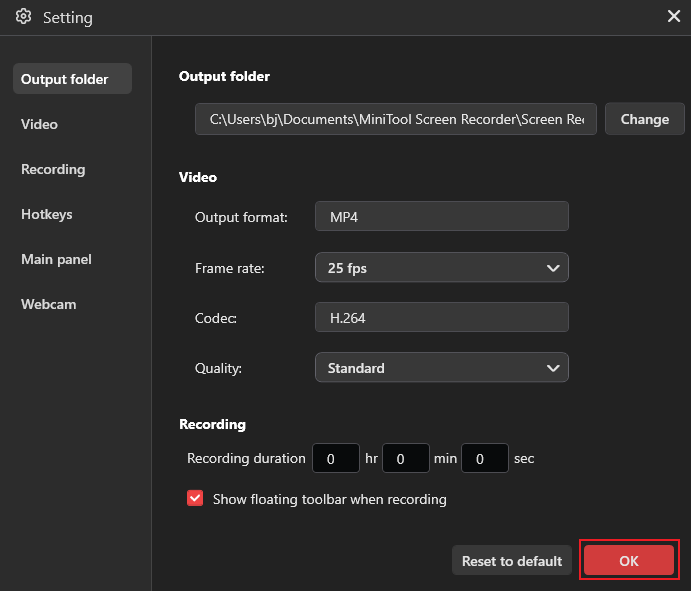
Access more settings
Click the Settings icon in the top-right corner to open the Settings window, where the frame rate and quality can be changed as you prefer. Set the recording duration to correspond with the length of the TV show if you want. The recording will automatically end when the preset time is reached. Click the OK button to save the changes.
Step 3. Start Recording on Paramount Plus
Go to Paramount Plus and open the program you want to record. Click the REC button. After a three-second countdown, the recording will begin. During the recording, you can press the F9 key to pause/resume.
Step 4. Stop the Recording
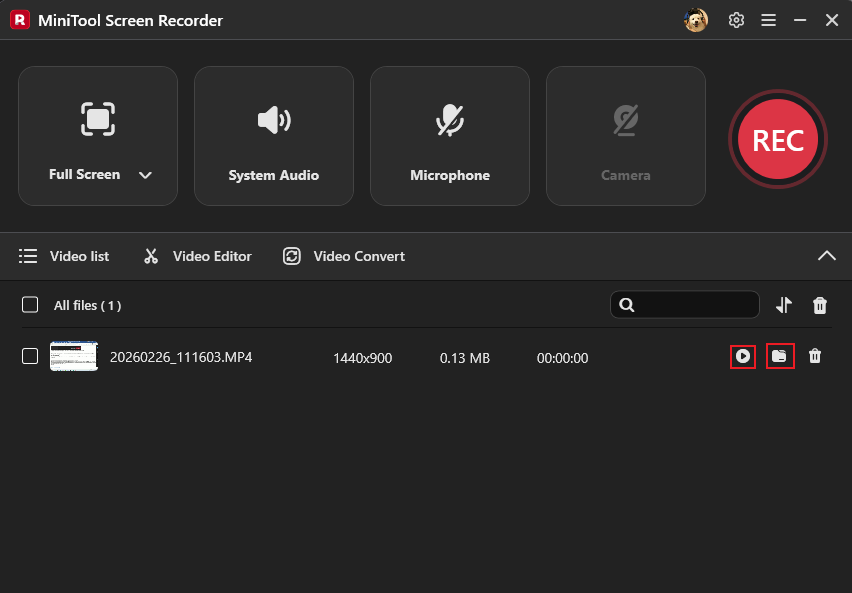
Press F6 to end the recording. Then, you can watch the recording in the Video list section. Click the Folder icon to locate the recording, or click the Play icon to view it directly.
Want to edit your recording to turn it into a movie highlight reel? Download or launch MiniTool MovieMaker by choosing the Video Editor option next to the Video list. In MiniTool MovieMaker, you can edit your recording by trimming, cropping, reversing, rotating, speeding up/down, and more.
Plus, MiniTool MovieMaker has an extensive library of various transitions, effects, stickers, music, motion, and filters. You can use them in your videos for free. Simply click the download button below to unlock more possibilities for your recordings!
MiniTool MovieMakerClick to Download100%Clean & Safe
Method 2. Use Game Bar
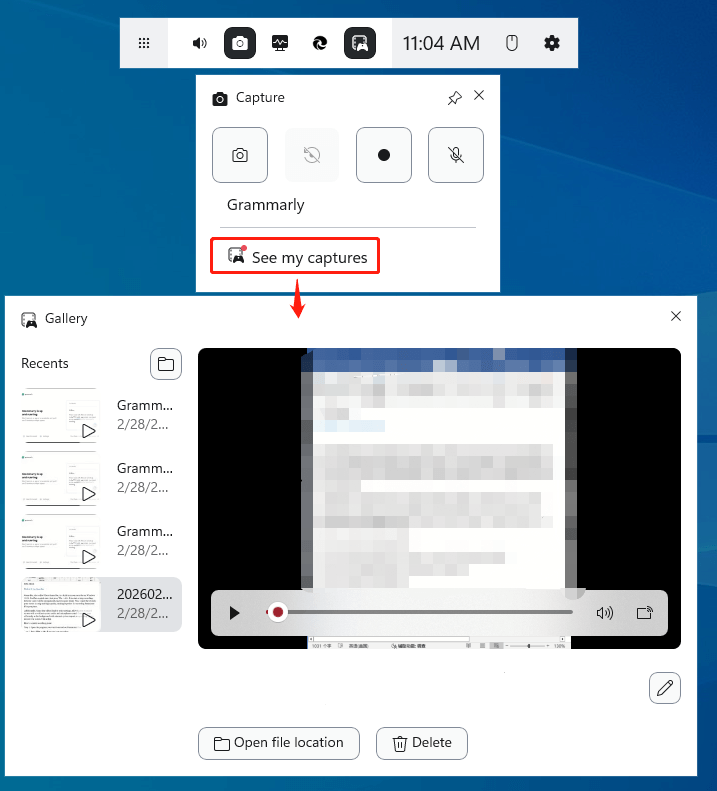
Game Bar, also called Xbox Game Bar, is a built-in screen recorder on Windows 10/11. It offers a quick start. Just press Win + Alt+ R to start or stop recording, then the video will be automatically saved in your folder. Plus, Game Bar records your screen in crisp and high quality, making it perfect for recording Paramount Plus programs.
Additionally, Game Bar offers flexible audio settings, allowing you to record the screen with or without system audio and microphone sound. Game Bar runs efficiently in the background with minimal system impact, empowering you to record your screen with no lag.
How to record on Paramount Plus? Here’s a quick recording guide:
Step 1. Open the program you want to record on Paramount Plus.
Step 2. Press Win + Alt+ R to start/stop recording.
Step 3. Find the recording in the See my captures section.
In Summary
Recording on Paramount Plus lets you watch your favorite program anywhere, anytime. How to record on Paramount Plus? This post recommends two reliable and user-friendly screen recorders and shows you how to complete the job step by step. Hope you find this article helpful!
You can contact us via support@minitool.com if you have any questions about using MiniTool Screen Recorder or MiniTool MovieMaker. Also, you can send me messages directly on X, and I’ll help you as soon as possible.