

This article clarifies the importance of recording a YouTube live stream and tells you what to prepare before the recording. Meanwhile, it shows you how to record YouTube live stream with the professional screen recorder: MiniTool Screen Recorder.
YouTube is one of the most popular platforms where you can view a variety of video content. More than a video hub, it also allows you to conduct a live stream and communicate with the audience in real-time. If you enjoy watching YouTube live streams but are busy with personal affairs, you can record them for offline watching. Can you record a YouTube live stream? Of course you can. The following content will show you how to do that.
Why Record YouTube Live Stream
Recording a live stream on YouTube has many benefits for live streamers. Firstly, doing so enables you to finish your to edit your videos more efficiently. If you want to edit the live stream into highlights or a tutorial, you can immediately begin video editing with the recorded footage. However, without the recordings, you have to wait for the streams to process and download them from YouTube.
On the other hand, although some users will upload the live stream review to YouTube, some videos may be removed due to some factors, such as copyright infringement. This way, viewers won’t watch the video content anymore. To solve that problem, you can record a YouTube live stream and save it to your own computer.

Preparations for YouTube Live Stream Recording
Before learning how to record a live stream on YouTube, you need to follow the content below to make some preparations.
Preparation 1. Select a Robust Video Recorder
A fabulous screen recorder makes it more effortless for you to capture a live stream on YouTube. Here are some factors you need to consider, including ease of use, no watermark limitations, and unlimited recording duration. In terms of easy-to-use nature, a video recorder app with a well-organized interface is great.
Preparation 2. Disable Unwanted Sounds
Before the recording process, remember to turn off the unwanted sounds like music and notification prompts. If these sounds are mixed with the audio from YouTube live streams, you will get a low-quality recorded video. In addition, if you only want to capture the system audio, ensure that you have turned off the microphone sounds.
The Best Recording Tool for YouTube Live Stream
Based on the advice above, I have selected an outstanding screen recorder: MiniTool Screen Recorder, for you.
About MiniTool Screen Recorder
MiniTool Screen Recorder, without any limitations on recording duration, allows you to screen record on various platforms, such as YouTube, Twitch, TikTok, and more. Meanwhile, all your recordings from this screen recorder don’t have any watermarks.
Moreover, MiniTool Screen Recorder features an intuitive interface, which enables all users with different skill levels to access this software effortlessly. In addition, it also provides you with advanced options for customizing recording parameters and presetting the recording duration. By the way, MiniTool Screen Recorder supports webcam recording and screen annotation.
How to Record YouTube Live Stream with MiniTool Screen Recorder
Below is the detailed guidance on how to record a YouTube live stream.
Step 1. Download and install MiniTool Screen Recorder.
MiniTool Screen RecorderClick to Download100%Clean & Safe
Download MiniTool Screen Recorder by clicking on the download button above. Follow the on-screen prompts to install this YouTube live stream recorder on your PC.
Step 2. Specify the recording area and manage the audio recording.
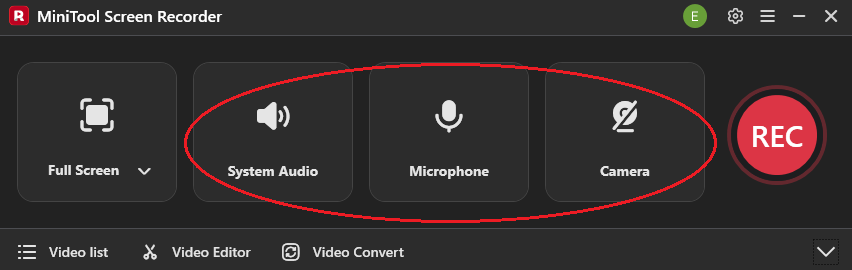
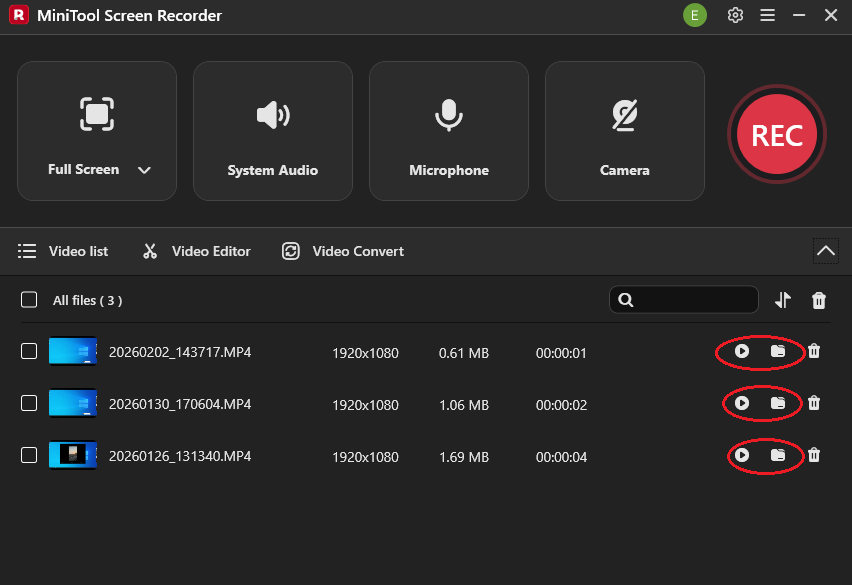
By default, MiniTool Screen Recorder will adopt a full-screen recording mode. If you want to customize the recording area, press the Alt + R keys. When you need to record the system and microphone sounds simultaneously or separately, click on the System Audio icon and the Microphone icon based on your needs. On condition that you need to capture your webcam, click on the Camera icon.
Step 3. Configure the output settings.
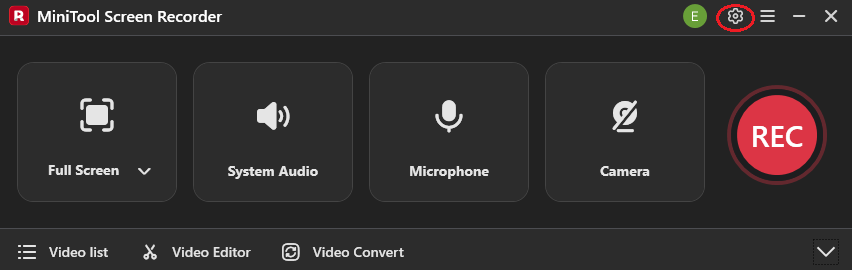
Click on the upper-right Settings icon to enter the Setting window.
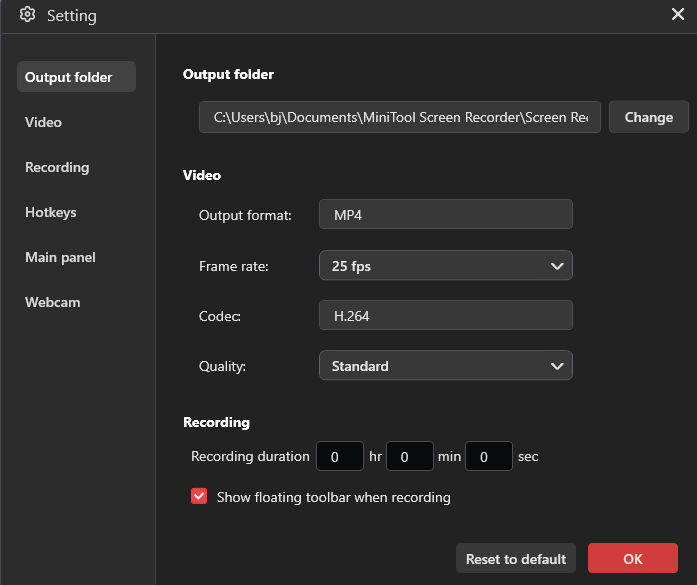
In the pop-up window, click on the Change option to set an output folder for the recorded videos. Meanwhile, you can specify the recording frame rate and quality as you want. Also, you are free to preset the recording duration. Finally, click on the OK button to save the changes.
Step 4. Begin/stop recording and check the output files.
Start the recording process by pressing the F6 key. After a 3-second countdown, begin the YouTube live stream that you want to capture. When you have recorded what you want, press the F6 key again. In the expanded file list, click on the Play icons to view the output files. If you want to locate the recorded videos, click on the Folder icons.
If you are looking for an easy-to-use and professional video recorder for YouTube live streams, never miss MiniTool Screen Recorder.
Bonus: How to Edit Your Live Stream Recording.
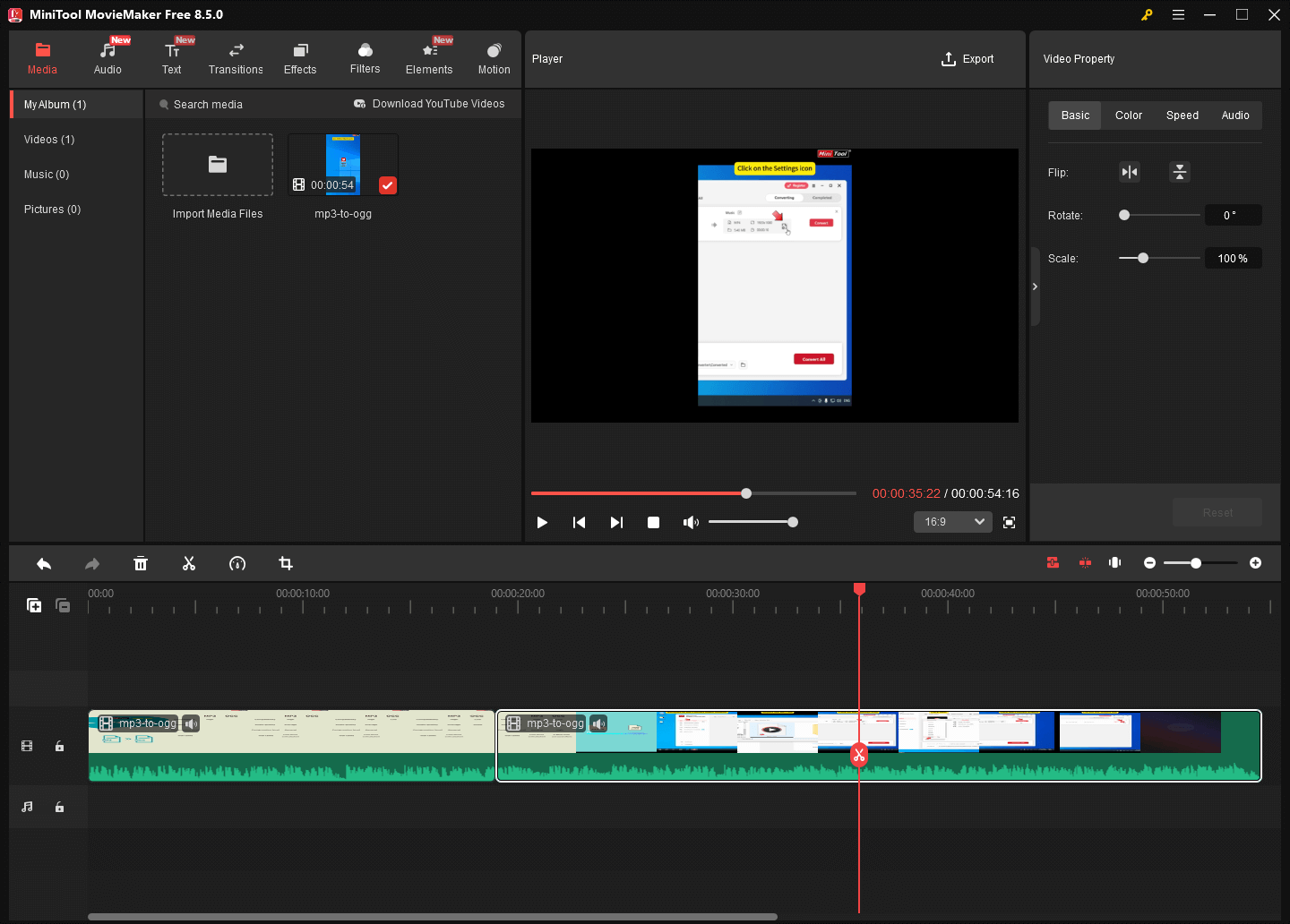
After getting recorded videos, do you want to edit them for platforms such as YouTube, Facebook, and more? If you do, never miss MiniTool MovieMaker. This software is a top-grade video editor that empowers you to edit videos frame by frame. Meanwhile, MiniTool MovieMaker allows you to trim, merge, reverse, crop, flip, or rotate the videos easily.
MiniTool MovieMaker also allows you to change the aspect ratio or the speed of videos easily. What’s more, it empowers you to add various elements, including motions, transitions, filters, effects, credits, and so on. Simultaneously, MiniTool MovieMaker can save the output videos in multiple formats such as MP4, AVI, MOV, GIF, MP3, WMV, etc.
MiniTool MovieMakerClick to Download100%Clean & Safe
In Summary
MiniTool Screen Recorder enables you to record YouTube live streams without watermarks or time limits. If you want an easy-to-use application, give it a try! On condition that you encounter any problems when using MiniTool Screen Recorder or MiniTool MovieMaker, please send an email to support@minitool.com to ask for help. Also, you can directly share your problems with me on X. I will help you solve them as quickly as possible.