

How to record ChatGPT conversations on Windows? This post provides two easy and reliable methods: using MiniTool Screen Recorder and Microsoft Clipchamp. With them, you can complete the recording task with no effort.
Why Record ChatGPT Conversations on Windows
The ChatGPT macOS desktop app features a record mode that can transcribe and summarize meetings, offering voice note recording capabilities. After capturing conversations, you can convert audio files into text for easy documentation and review. However, the ChatGPT Windows desktop app does not support the recording functionality. If you wish to record conversations on Windows systems, you will need to use third-party software.
How to Record ChatGPT Conversations on Windows
How to record ChatGPT conversations on Windows? Since the ChatGPT Windows desktop app does not have a recording tool, in the following content, I recommend 2 professional and user-friendly screen recorders to help you complete the work. Read on for more.
Method 1. Use MiniTool Screen Recorder
MiniTool Screen Recorder is a professional and easy-to-use screen recorder for Windows users to complete smooth and high-quality recording. It features a clean and intuitive interface, allowing you to record your entire screen and custom regions with just one click. It also supports webcam recording.
Additionally, MiniTool Screen Recorder also supports capturing your 4K Ultra HD screen with multiple frame rates, ensuring crisp and smooth recordings for tutorials, gaming, webinars, live streaming, and more.
Moreover, MiniTool Screen Recorder can record the screen with system audio and microphone sound simultaneously or separately. It also offers real-time screen annotation, customizable hotkeys, and scheduled recording features, giving you greater control over the recording process.
Most importantly, MiniTool Screen Recorder has no watermarks, no time limits, no ads, and no bundles. You can easily record, preview videos, and save them in MP4 format.
How to record ChatGPT conversations on a PC? Follow the step-by-step guide below.
Step 1. Download and Install MiniTool Screen Recorder
Click the download button below to download and install MiniTool Screen Recorder on your computer. Then, double-click the shortcut to launch it.
MiniTool Screen RecorderClick to Download100%Clean & Safe
Step 2. Finish Recording Settings
Adjust audio
The system audio and microphone are turned on by default. Since you want to record conversations, keep them turned on so your voice can be captured.
Select the recording area
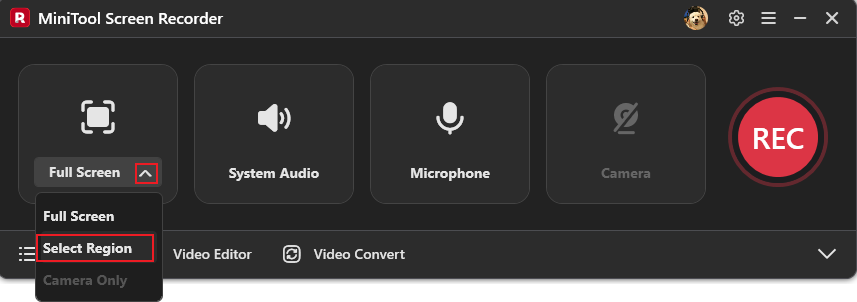
The full screen is recorded by default. If you want to record a specific region, expand the Full Screen drop-down menu and choose Select Region, then drag the mouse to select the target area.
Configure more settings
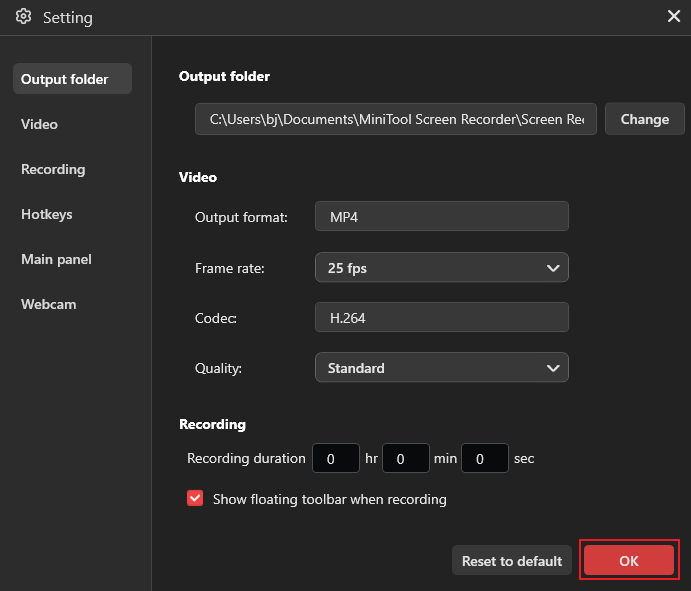
Click the Settings icon in the top right to open the Settings window. Then, you can customize the frame rate and quality for the video. Click the OK option to save the changes.
Step 3. Start Recording ChatGPT Conversation
Click the REC button, and the recording will start after a three-second countdown. Open ChatGPT and get ready to start your conversations. Press the F9 key to pause/resume during the recording.
Step 4. Stop the Recording
Press F6 to end the recording. Then, check the recording in the Video list part. Click the Folder icon to locate the recording or click the Play icon to view it.
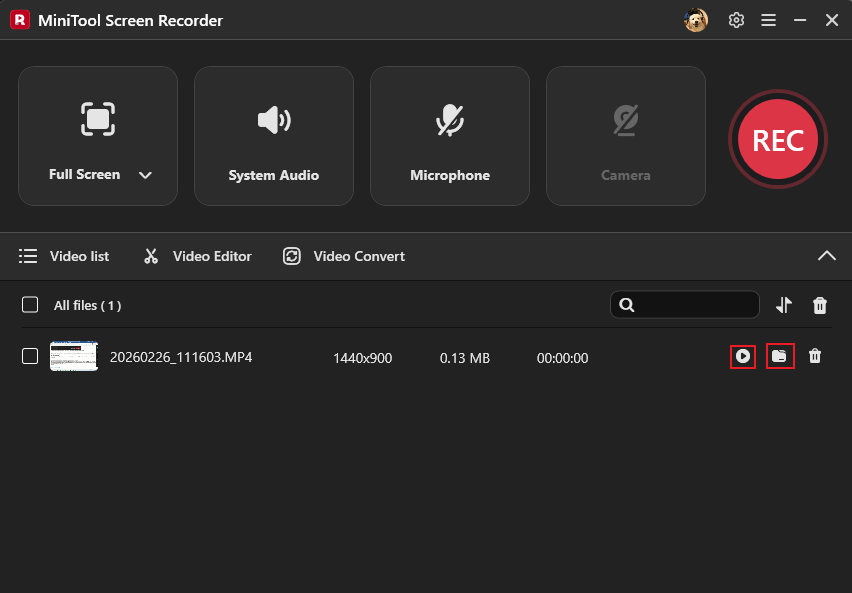
If you want to edit your recording and make it more engaging, click the Video Editor option next to the Video list to download or open MiniTool MovieMaker. There, you can edit your recorded videos by trimming, cropping, reversing, rotating, speeding up/slowing down, and more.
In addition, MiniTool MovieMaker has a vast library of transitions, music, stickers, motion, and filters, which you can add to your video for free.
MiniTool MovieMakerClick to Download100%Clean & Safe
Want to transform conversations into text? Use MiniTool Video Converter! It is an AI-powered audio-to-text tool that can convert video/audio to text in a flash. After importing the audio file into the program, it will efficiently analyze the text content and allow you to edit it to ensure accuracy. To access this tool, click the Video Convert option next to Video Editor to download or open it.
MiniTool Video ConverterClick to Download100%Clean & Safe
![How to Record Twitter Spaces on Windows [4 Reliable Methods]](https://images.minitool.com/recorder.minitool.com/images/uploads/2026/02/record-twitter-spaces-thumbnail.png)
Method 2. Use Microsoft Clipchamp
Microsoft Clipchamp features a built-in, no-installation-required screen recording tool for Windows. It captures browser tabs, application windows, or full-screen content with system audio and microphone input. You can also record your webcam simultaneously for picture-in-picture video effects.
Plus, recordings will be saved directly to the timeline, which means you can trim, cut, add text, captions, effects, or filters to your video. Each recording lasts up to 30 minutes and is watermark-free with the free plan.
How to record ChatGPT conversations on Windows with Clipchamp? Simply follow the instructions below.
Step 1. Open Microsoft Clipchamp
Windows 11 users can launch Microsoft Clipchamp directly from the Start section. If you’re on Windows 10, go to the Microsoft Store to download and install this program.
Step 2. Activate Screen Recorder
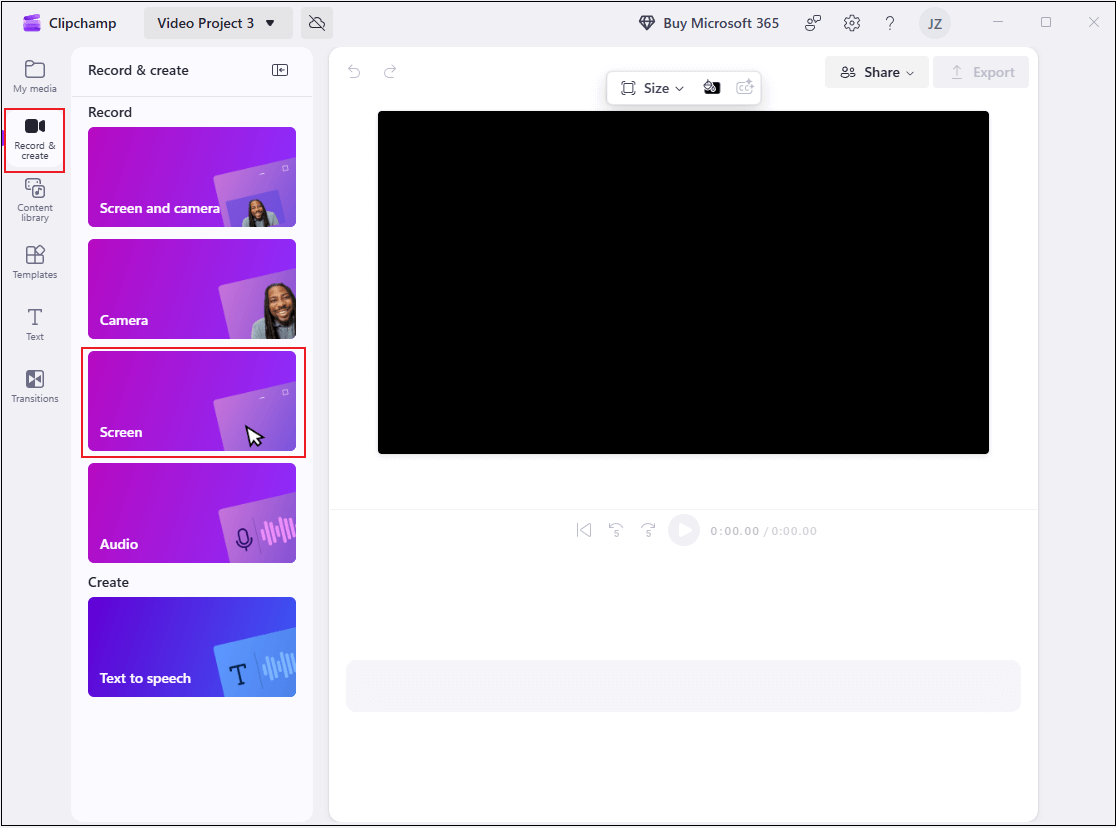
Click Create a new video to enter the main user interface. Then, choose the Record & create option and select Screen.
Step 3. Start Recording
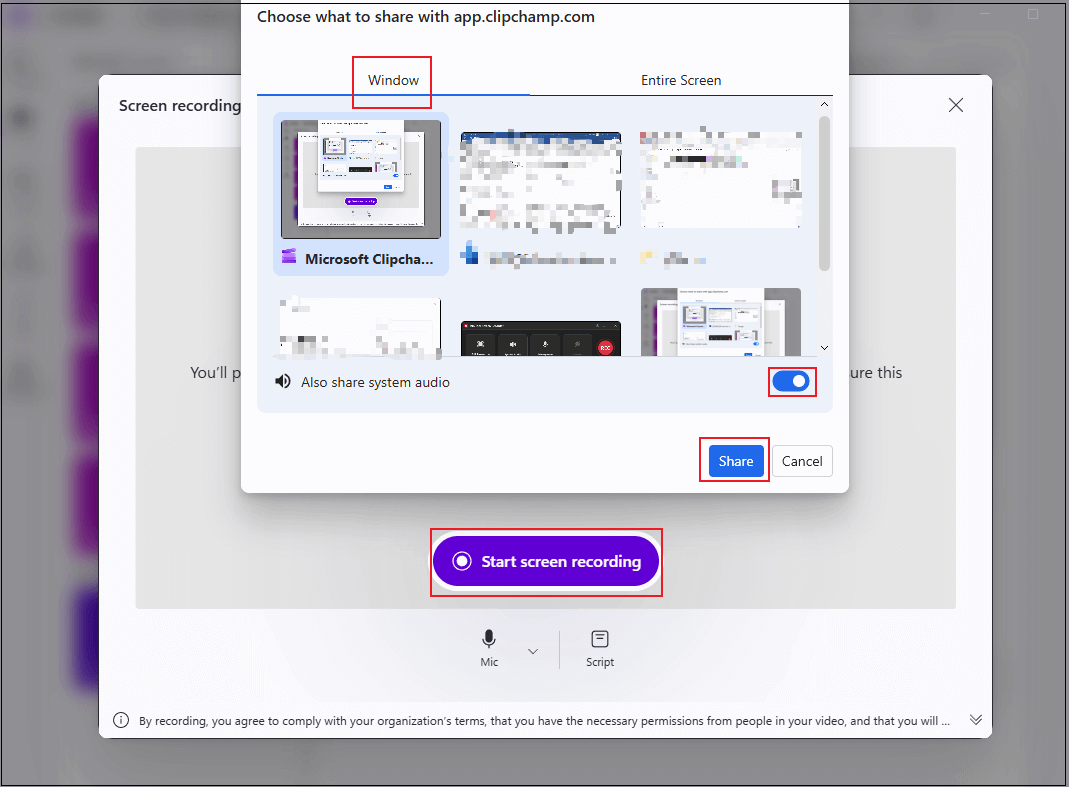
Navigate to the ChatGPT conversation window. Then, click the Start screen recording button, choose the ChatGPT window, enable Also share system audio, and click Share. The recording will begin in three seconds.
Step 4. Stop the Recording
Click the Stop and review button to end the recording. Then, click Save and edit, click the Export option at the top right, and choose a resolution to export the video.
All done!
In Summary
This post offers two professional and easy-to-use screen recorders and shows you how to record ChatGPT conversations on Windows step by step. MiniTool Screen Recorder offers a smooth and high-quality recording. If you don’t want to download extra software, Clipchamp is an ideal option as well. But it has limited recording time. Feel free to choose the one you prefer. Now, it’s your turn!
If you meet any issues while using MiniTool Screen Recorder or MiniTool MovieMaker, feel free to email us via support@minitool.com or send me a message on X for help.