

How to screen record on Microsoft Edge easily? This post offers five professional and user-friendly screen recorders to complete the task: MiniTool Screen Recorder, Windows 11 Snipping Tool, Game Bar, Snap Screen Recorder, and Amazing Screen Recorder.
Introduction to Microsoft Edge
Microsoft Edge is a modern web browser developed by Microsoft that runs on platforms such as Windows, macOS, Android, and iOS. It offers fast speeds, high security, and rich features. With the intuitive user interface, you can learn to use it in a short time.
In addition, Microsoft Edge comes equipped with a wide range of practical tools to meet daily needs. Vertical tabs help users organize multiple pages more effectively. The Collections feature allows users to save links, images, and text, grouping them for project management.
Moreover, Microsoft Edge prioritizes user security. It warns users about malware and phishing attempts and blocks malicious websites and risky downloads. Edge also includes an InPrivate mode that doesn't save cookies, browsing history, or personal information.
Why screen record on Microsoft Edge? This is mainly used for creating on-screen tutorials, sharing presentations, recording online meetings, etc. Plus, a great screen recorder makes the recording process smoother and creates high-quality results. How to screen record on Microsoft Edge? The best way is to use MiniTool Screen Recorder.
Best Way to Screen Record on Microsoft Edge
MiniTool Screen Recorder is a professional, user-friendly screen recorder for Windows users. Featuring a straightforward user interface, it empowers both beginners and professionals to navigate easily.
MiniTool Screen Recorder provides multiple recording modes, including full-screen recording, custom-region recording, screen and webcam recording, and camera-only recording. It allows you to control audio settings. You can record system audio and microphone audio simultaneously or separately.
In addition, MiniTool Screen Recorder offers multiple custom options, allowing you to adjust the output video frame rate and quality, customize shortcut hotkeys, schedule recording duration in advance, and more. It has a built-in screen annotation tool, empowering you to draw an arrow and input text, numbers, etc., on your screen while recording. This makes this recorder ideal for creating how-to videos, online presentations, etc.
Follow the step-by-step guide below to screen record on Microsoft Edge.
Step 1. Download and Install MiniTool Screen Recorder
Click the download button below to download this screen recorder. Next, follow the on-screen setup instructions to install it on your computer.
MiniTool Screen RecorderClick to Download100%Clean & Safe
Step 2. Configure the Recording Settings
Double-click the desktop shortcut to launch MiniTool Screen Recorder.
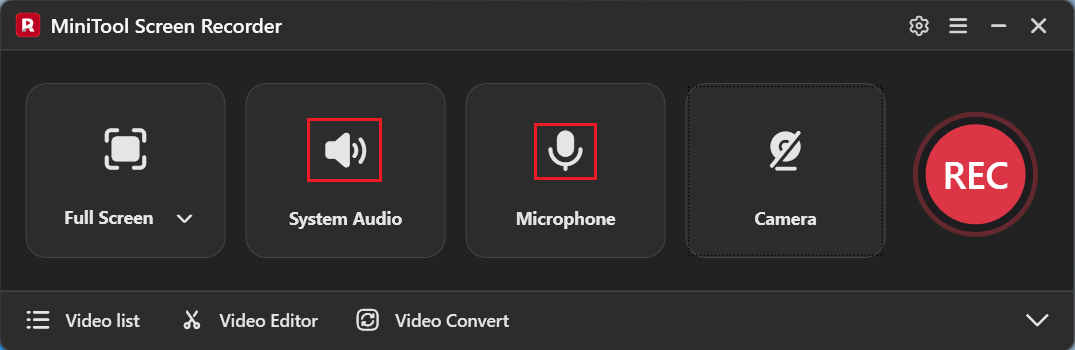
Control Audio Settings
The system audio and microphone input are turned on by default. Based on your needs, you can click their corresponding icons to control them.
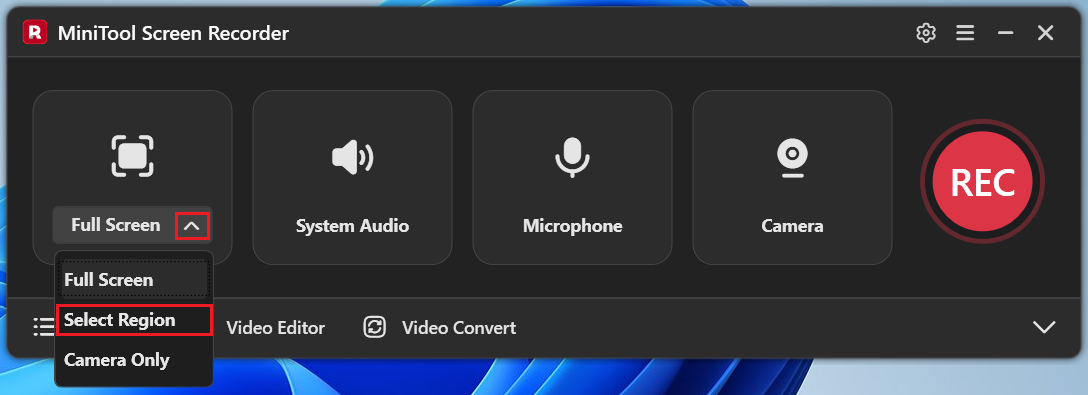
Specify the Recording Region
The default mode is recording the full screen. To record a specified area, expand the Full Screen option, then click the Select Region option and drag the mouse to define it.
Adjust Output Video Settings
Click the Settings icon in the upper-right corner to open the Settings window. There, you can change the output video frame rate and quality.
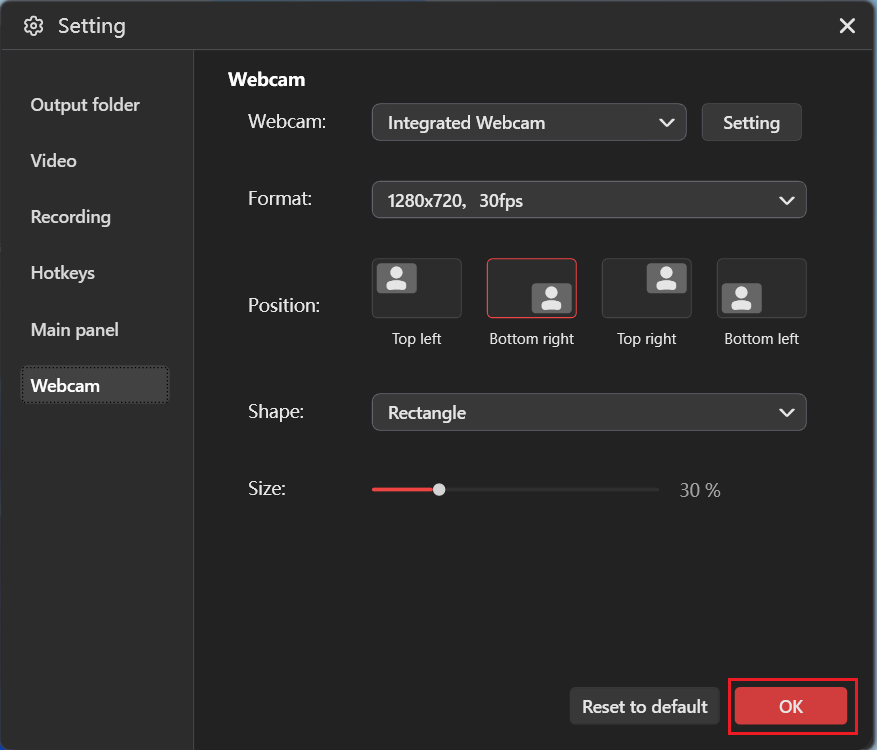
Configure Webcam Settings
In the Webcam settings, you can adjust the camera position, shape, size, etc. Then, click OK to save the changes.
Step 3. Start Screen Recording on Microsoft Edge
Open the browser and navigate to the target page you want to record. Then, click the REC button on the top floating toolbar. Then, the recording will begin after a three-second countdown. During the recording, press F9 to pause or resume.
Step 4. Use Screen Annotation Tools
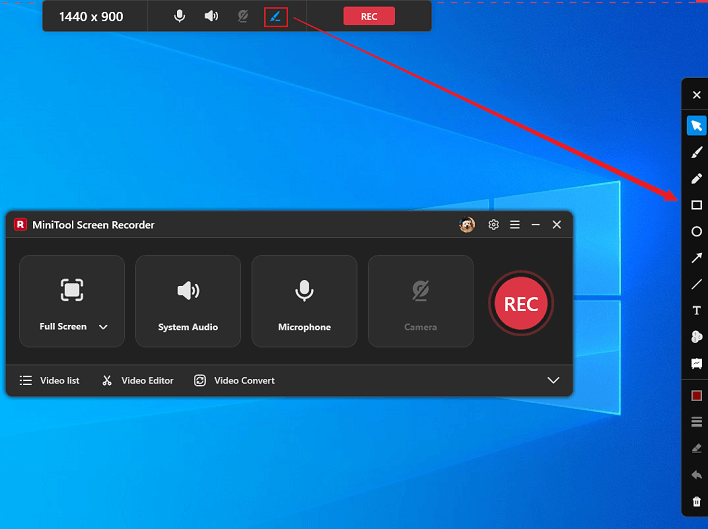
If you want to draw or take notes when recording, annotation tools can help. Hover your mouse over the top-center area of the screen to activate the floating toolbar. Click the Brush icon to open the annotation toolbar on the right side of the screen. Then, you can select the desired tool to add annotations during the recording.
Step 5. Stop the Recording
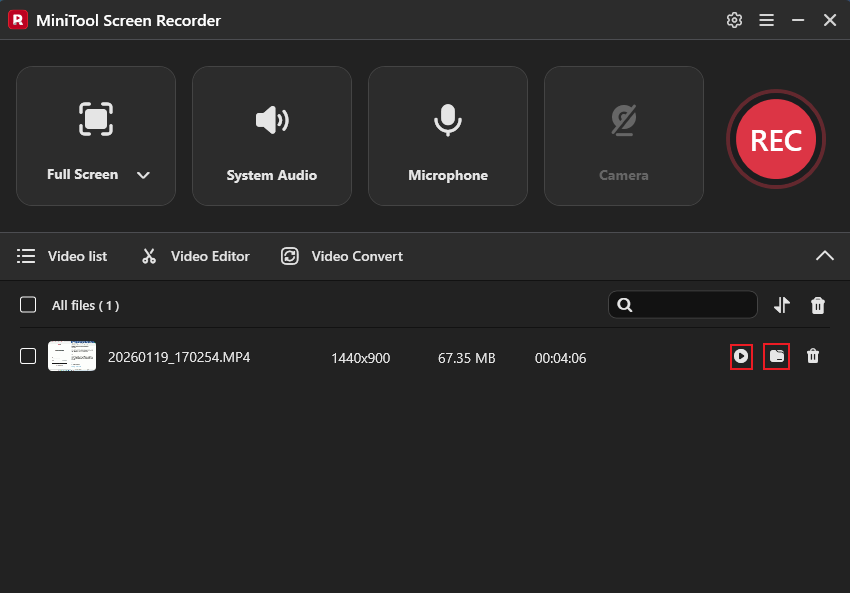
Press F6 to stop recording. The recorded video will be listed in the Video List section. You can click the Play icon to watch the recording or click the Folder icon to locate it.
How to edit your recording? Click Video Editor next to the Video list option to open or download MiniTool MovieMaker! It is a powerful and versatile video editing tool that features various editing tools, polishing your recording with trendy filters, stickers, transitions, effects, etc.
Additionally, this video editor can trim, split, crop, rotate, and reverse video. It also supports advanced editing functions, like multi-track editing, high-resolution editing, video text overlay, copy and paste on the timeline, and more. Click the download button below to give it a try!
MiniTool MovieMakerClick to Download100%Clean & Safe
Windows Built-in Screen Recorders for Microsoft Edge
To record Microsoft Edge, you can also use Windows built-in screen recorders.
# Windows 11 Snipping Tool
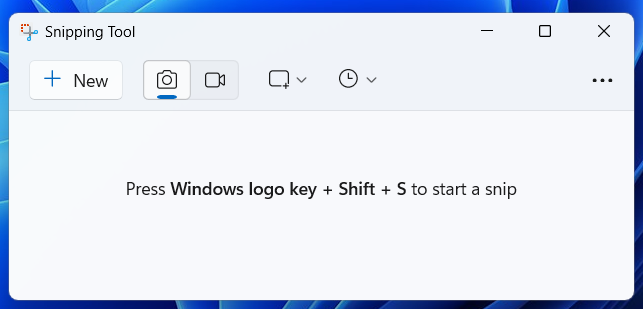
Windows 11 Snipping Tool is a built-in and easy-to-use screen recording tool. It allows you to record the entire screen or a specified region with/without microphone sound or system audio. Besides, Snipping Tool has an intuitive user interface that lets you start recording with just a few clicks. The recorded videos will be saved in MP4.
# Game Bar
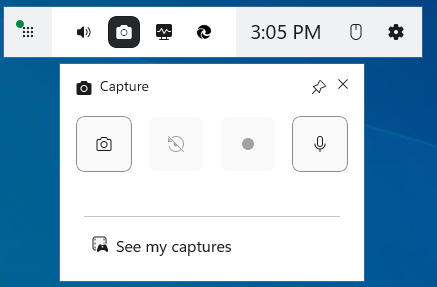
Game Bar is a pre-installed screen-capturing tool on Windows 10/11. It enables you to record Microsoft Edge with the system audio and microphone input. It offers a quick launch. Whenever you need to record your screen, simply press the Win + G key.
Microsoft Edge Screen Recorder Extensions
The Microsoft Edge extension store offers numerous free screen recording extensions. Here, I've curated two excellent Microsoft Edge screen recording plugins. Let's find out together.
# Snap Screen Recorder
Snap Screen Recorder is an excellent screen recording extension that helps you capture your Edge browser screen. With just a few clicks, you can capture your desktop screen or Microsoft Edge browser. Not only that, it can record your screen while optionally adding webcam video and microphone input. With this screen recorder extension, you can efficiently record presentations, tutorials, meetings, and other content.
# Amazing Screen Recorder
Amazing Screen Recorder is a Microsoft Edge screen recording extension that effortlessly captures your entire screen, browser tabs, or specific windows. It simultaneously supports recording video and voice commentary via webcam and microphone. Plus, this screen recorder extension saves recordings in MP4 or WebM.
![How to Record on YouTube TV with Ease [Step-by-Step Guide]](https://images.minitool.com/recorder.minitool.com/images/uploads/2026/02/how-to-record-on-youtube-tv-thumbnail.png)
In Summary
How to screen record on Microsoft Edge? You can use a professional third-party screen recorder: MiniTool Screen Recorder, Windows built-in tools (Snipping Tool and Game Bar), and Microsoft Edge screen recorder extensions (Snap Screen Recorder and Amazing Screen Recorder). Feel free to choose the one you prefer and start your recording journey!
You can contact us via support@minitool.com if you have any questions about using MiniTool Screen Recorder or MiniTool MovieMaker. Also, you can send me messages directly on X, and I’ll help you as quickly as I can.