

What Are Instagram Reels
Instagram Reels are short-form video format launched by the platform in 2020, similar to TikTok videos. These videos use a vertical format, allowing users to record or edit content lasting between 15 and 90 seconds. Instagram offers two ways to create Reels: users can either shoot live videos directly through the in-app recording button or import videos from their device.
Additionally, Instagram Reels has gained immense popularity among users thanks to its convenient browsing features, simply swipe up on the screen.
How to Record a Reel on Instagram
If you want to save your favorite Instagram Reels as a source of creative inspiration or for content analysis, recording them is the most efficient option. How do you record a Reel on Instagram? You can use two excellent tools we recommended below: MiniTool Screen Recorder and the Xbox Game Bar.
#1 Use MiniTool Screen Recorder
MiniTool Screen Recorder is an excellent screen recorder for Instagram. It supports recording specific areas, full screen, or camera footage. The software also allows users to record system audio and microphone audio simultaneously or separately.
Additionally, to help users capture clear instructional videos, MiniTool Screen Recorder offers convenient annotation tools. What’s more, it supports high-definition recording without watermarks and allows users to adjust recording parameters, including video quality, frame rate, recording hotkeys, and more.
Now, follow the recording tutorial below to record a Reel on Instagram using MiniTool Screen Recorder.
Step 1: Download and Install MiniTool Screen Recorder
MiniTool Screen RecorderClick to Download100%Clean & Safe
Click on the button above to download MiniTool Screen Recorder. Then, follow the prompts to install it on your computer.
Step 2: Select the Recording Area
1. Launch MiniTool Screen Recorder on your computer after you install it.
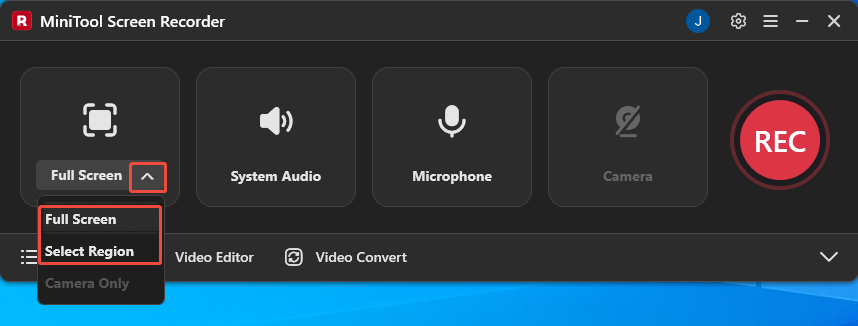
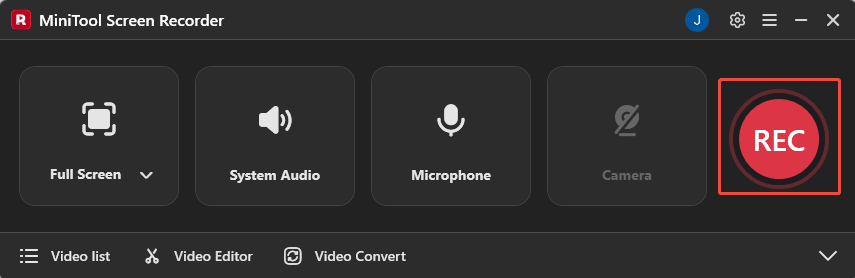
2. MiniTool Screen Recorder defaults to full-screen recording mode. If you want to customize the recording area, expand the dropdown menu next to the Full Screen option and choose the Select Region option.
Step 3: Configure the Audio Recording
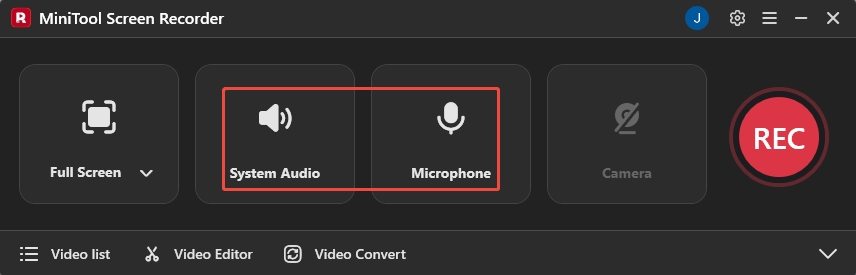
By default, the recording functions for system audio and microphone audio are enabled. To disable these functions, click the System Audio icon and the Microphone icon respectively.
Step 4: Set the Camera Recording
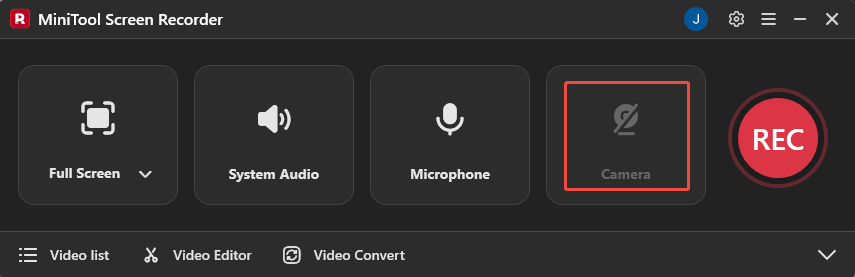
Click on the Camera icon to decide whether to turn on the webcam recording functionality.
Step 5: Start and End Recording
1. To start the recording process, click on the REC button on the right side of the main interface or press the F6 key on your keyboard. After a 3-second countdown, it will automatically begin.
2. Go to the Instagram website and play the Instagram Reel you want to record.
3. When you want to end the recording process, press the F6 key again.
Step 6: Check the Recorded Instagram Reel Video
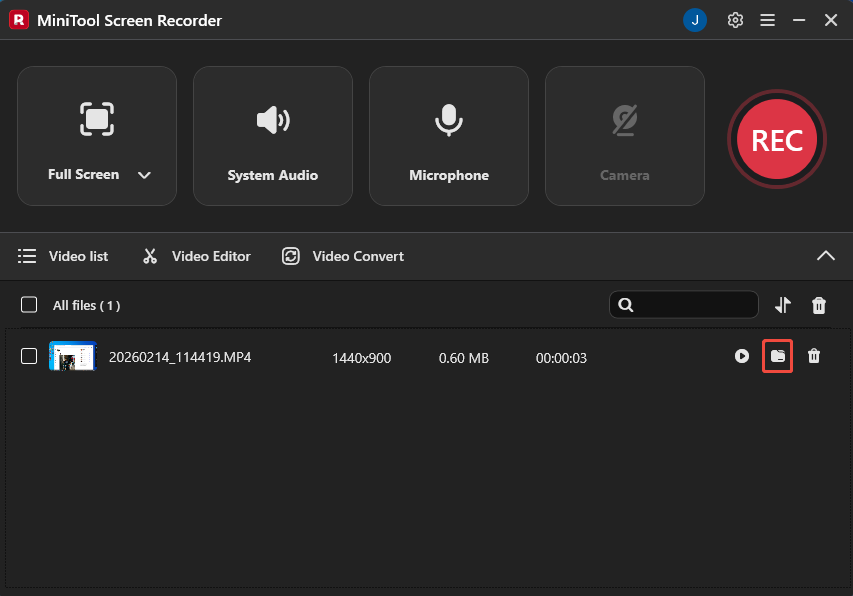
1. After the recording process is completed, you will be automatically redirected to the Video list module.
2. Then, you can check the recorded Instagram Reel video by tapping the folder icon.
#2 Use Xbox Game Bar
If you don't want to install additional software, you can consider using the Xbox Game Bar. The Xbox Game Bar is a built-in Windows app designed specifically for gamers, allowing you to take screenshots, record gameplay, chat with Xbox friends, and more. Of course, you can also use Xbox Game Bar to record application windows such as Instagram Reels.
Additionally, you can record both system audio and microphone audio while capturing the Instagram Reel. Here is a step-by-step guide on how to screen record Instagram Reels using the Xbox Game Bar.
Step 1: Select an Instagram Reel
Go to the Instagram website and select a Reel you want to record.
Step 2: Launch the Xbox Game Bar
Press the Windows + G key to open the Xbox Game Bar on your computer.
Step 3: Enable the Recording Mode
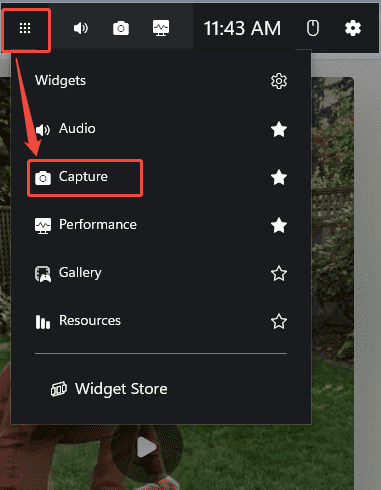
Click on the Widget Menu on the upper-left side of the main panel, then choose the Capture option to enter the recording interface.
Step 4: Control the Audio Recording
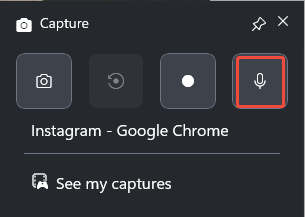
By default, the audio recording feature is open. If you don’t want to record the audio, click the Microphone icon to disable it.
Step 4: Start and End Recording
1. When you want to start the recording process, click on the Start recording icon or press the Windows+ Alt + R key on your keyboard.
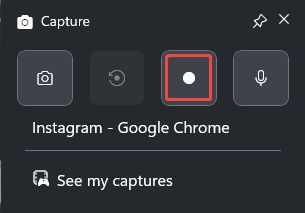
2. Play the Instagram Reel you selected.
3. To end the recording process, press the Windows + Alt + R key again. Then, you can check the recorded Instagram Reel under the See my captures section.
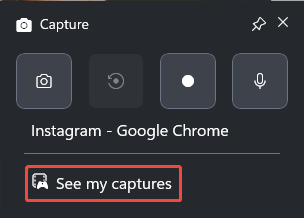
Both MiniTool Screen Recorder and the Xbox Game Bar can easily record Instagram Reels. However, if you need more advanced features, such as selecting specific areas to record, we recommend using MiniTool Screen Recorder.
Bonus: Edit Your Recordings
After recording, if you need to trim excess video content, you'll require professional video editing tools. Now, click the Video Editor option at the bottom of the MiniTool Screen Recorder main interface to get the video editing tool.
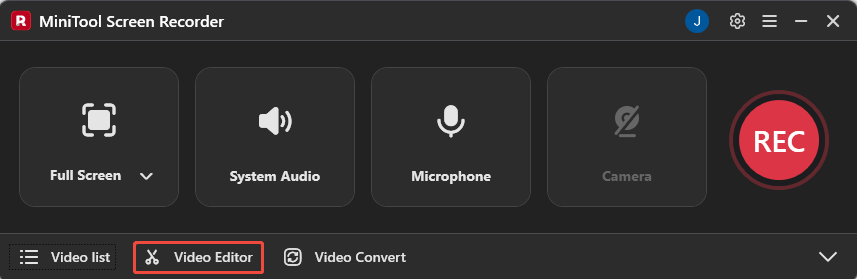
You can also directly click the button below to get this video editing tool.
MiniTool MovieMakerClick to Download100%Clean & Safe
If you accidentally capture extra content when ending a screen recording, you can trim unwanted segments using the editing tool. You can also remove irrelevant elements from the interface, such as Instagram account avatars or the platform logo, by adjusting the video canvas size.
Additionally, the media library in the editing tool supports adding filters, transitions, and more to enhance your video's appeal. You can also add subtitles or titles for smoother transitions. If the recorded video's audio is too loud or too quiet, you can adjust the volume directly within the editor.
Bottom Line
How do you record a Reel on Instagram? You can choose between the two screen recording tools recommended in this article, MiniTool Screen Recorder and the Xbox Game Bar, based on your specific needs. Additionally, don't forget to use the recommended video editor to enhance the visual appeal of your recorded content.
If you encounter any issues while trying out MiniTool Screen Recorder or MiniTool MovieMaker, feel free to email us via support@minitool.com or send me a message on X for assistance.