

This post provides step-by-step instructions to help you efficiently record screen and audio with MiniTool Screen Recorder. Whether capturing gameplay, live stream, webinars, or video calls, this guide ensures smooth, lag-free, and high-quality recording.
How to Record Screen on PC
Ready to start recording? The following step-by-step guide will walk you through the entire process. Simply follow each instruction to record screen and audio smoothly.
MiniTool Screen RecorderClick to Download100%Clean & Safe
Step 1: Select the Recording Area
1. Expand the drop-down menu of the Full Screen option.
2. Click Full Screen and select a display to capture.
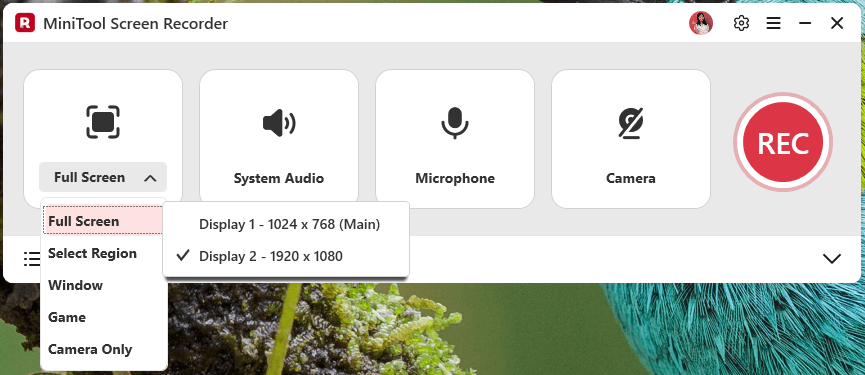
3. Or click Select Region, then drag the red dashed border that appears to define the specific recording area (it can range from the main display and multiple external displays).
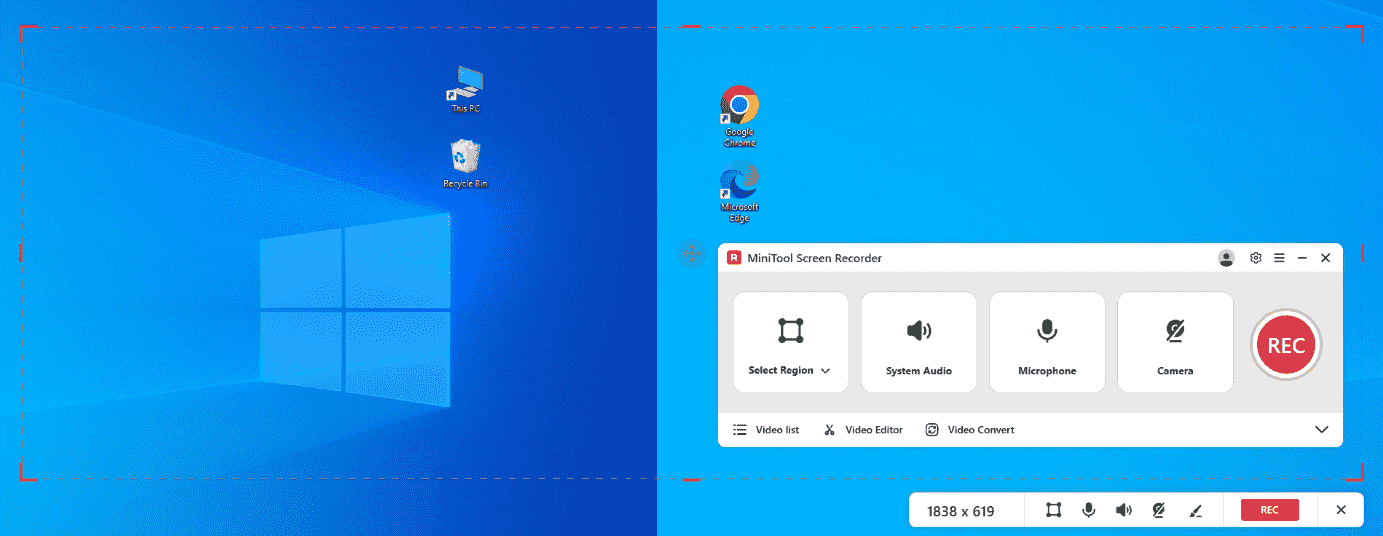
4. Or just select an App window or game window to record.
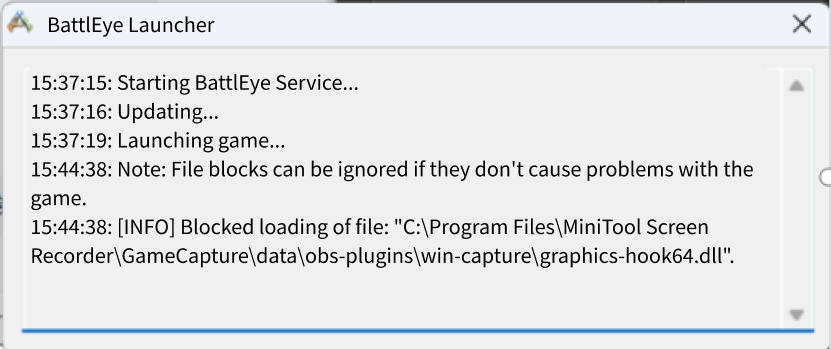
Note: If you encounter the following error when starting a game recording model, don’t worry. This means that your game doesn’t support hook recording. MiniTool Screen Recorder will automatically switch to window recording model to continue capturing your gameplay.
Step 2: Control Audio Recording
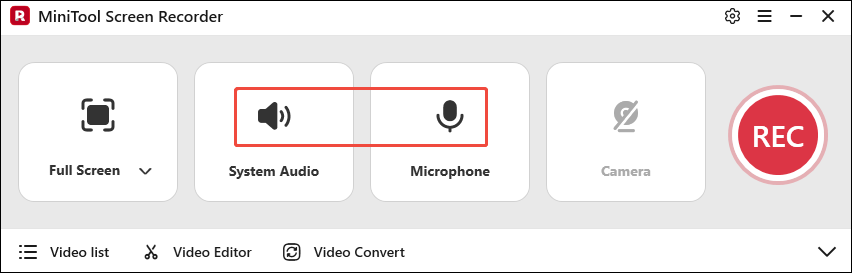
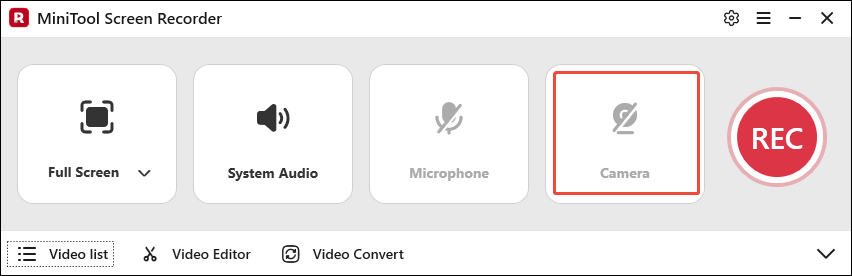
Click the System Audio icon or the Microphone icon to determine if you want to record screen with audio from the system or the microphone.
Step 3: Control Camera Recording
If you want to record the screen with your face, simply click the Camera icon on the right.
Step 4: Adjust Screen Recording Advanced Settings
1. Click the Settings icon in the upper-right corner to enter the advanced settings page.
2. Then, you can modify the video output folder, video frame rate, video quality, and preset recording duration.
3. Additionally, you can choose whether to show the floating toolbar when recording based on your needs.
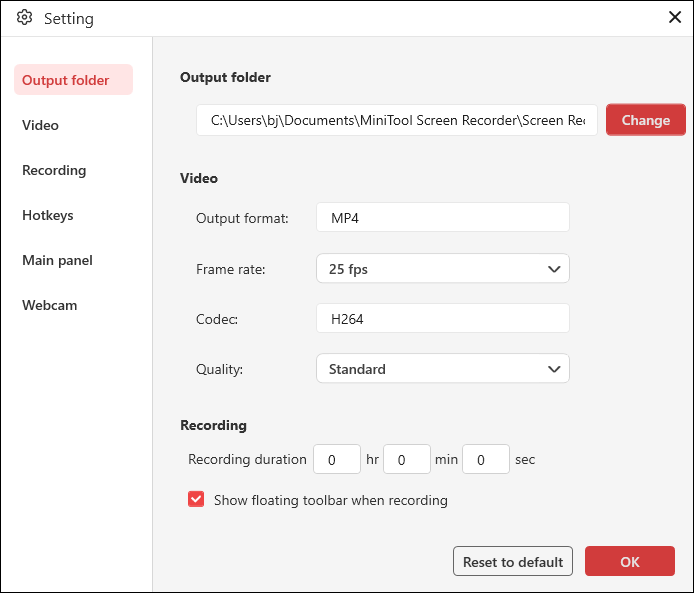
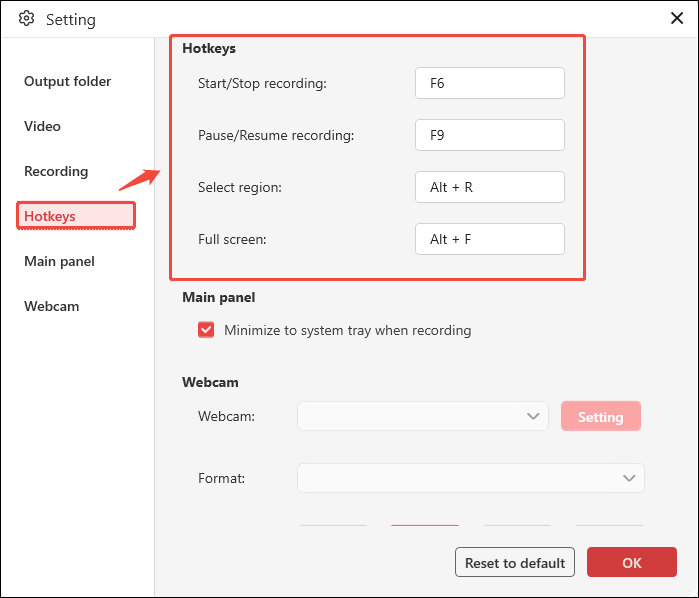
4. To change the recording shortcut keys, navigate to the Hotkeys section and modify the shortcut settings for the following actions: Start/Stop recording, Pause/Resume recording, Select region, and Full screen.
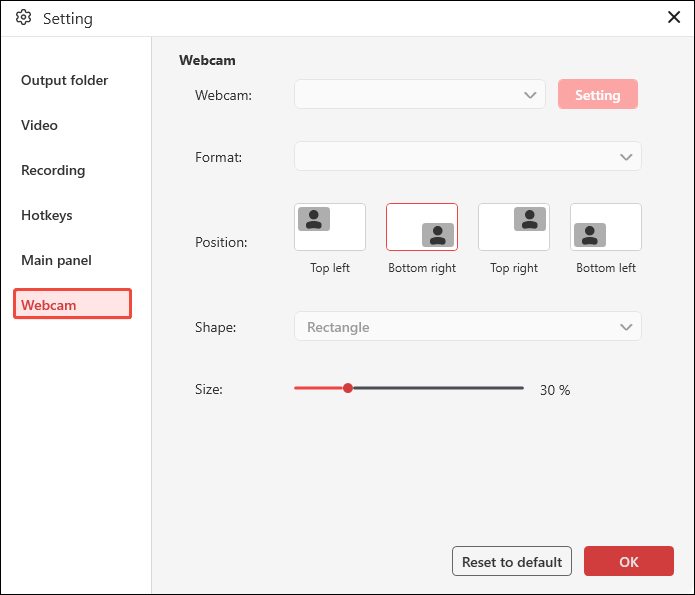
5. You can also adjust the webcam's format, position, shape, and size in the Webcam section.
Step 5: Start and End the Recording Process
1. Click the REC button on the right side of the main interface or press the F6 key on your keyboard to start the recording process.
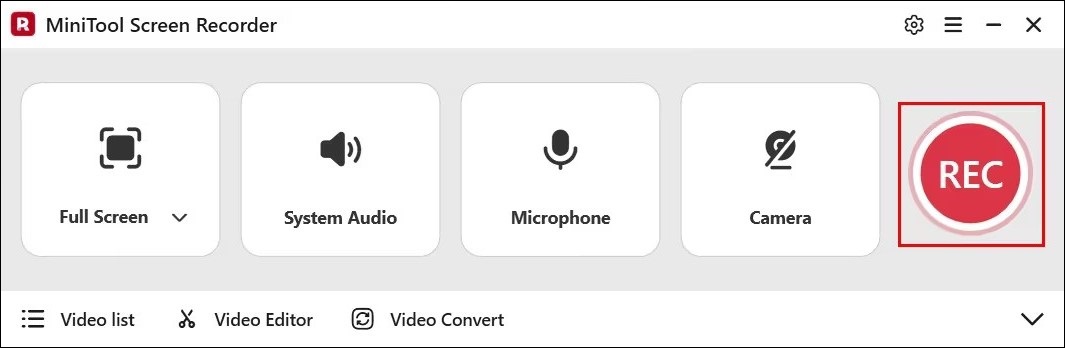
2. During the recording process, you can press the F9 key to pause or resume the recording.
3. When you want to end the recording, press the F6 key again.
Step 6: Play, Locate, and Delete the Recorded Video
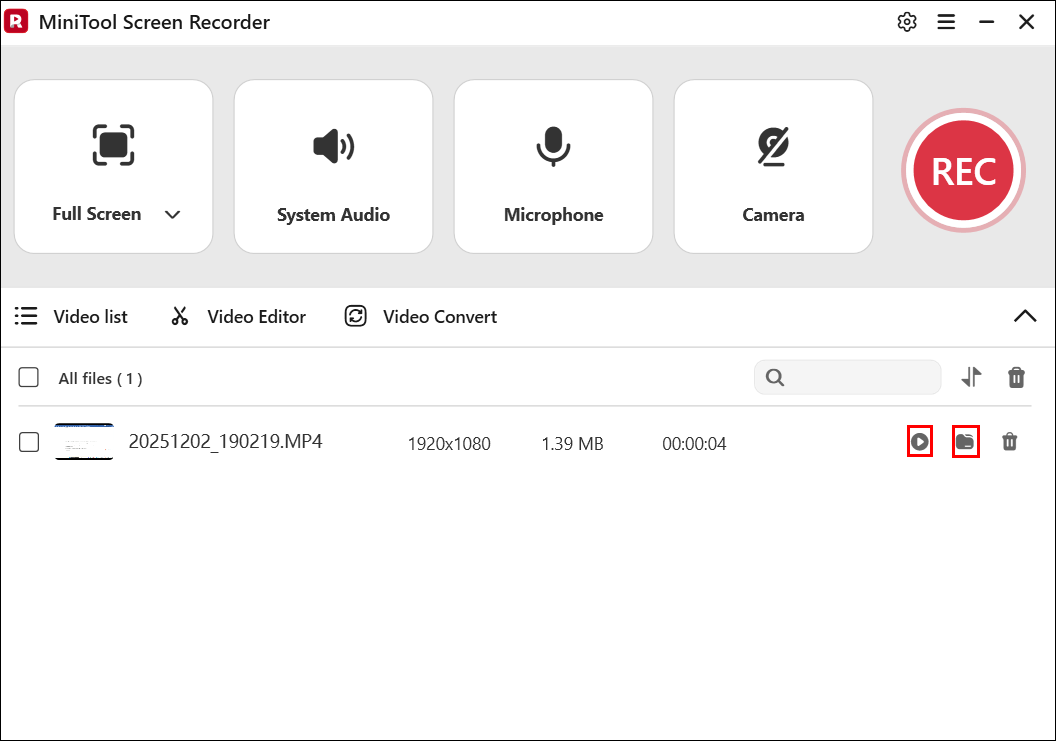
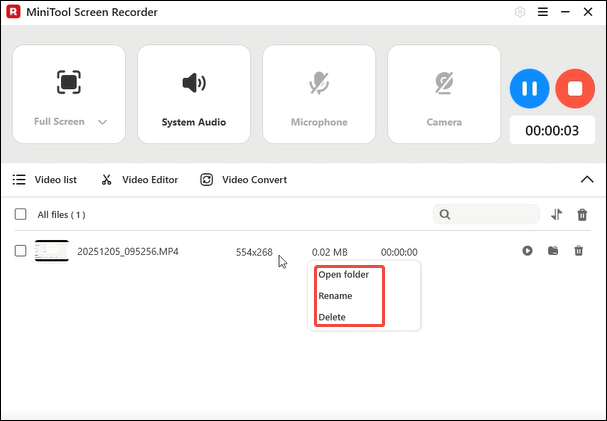
1. After recording completes, you will automatically be redirected to the Video list module in MiniTool Screen Recorder, where your recordings will be displayed.
2. Click the play icon next to the video to watch it, or click the folder icon to locate the video's storage location.
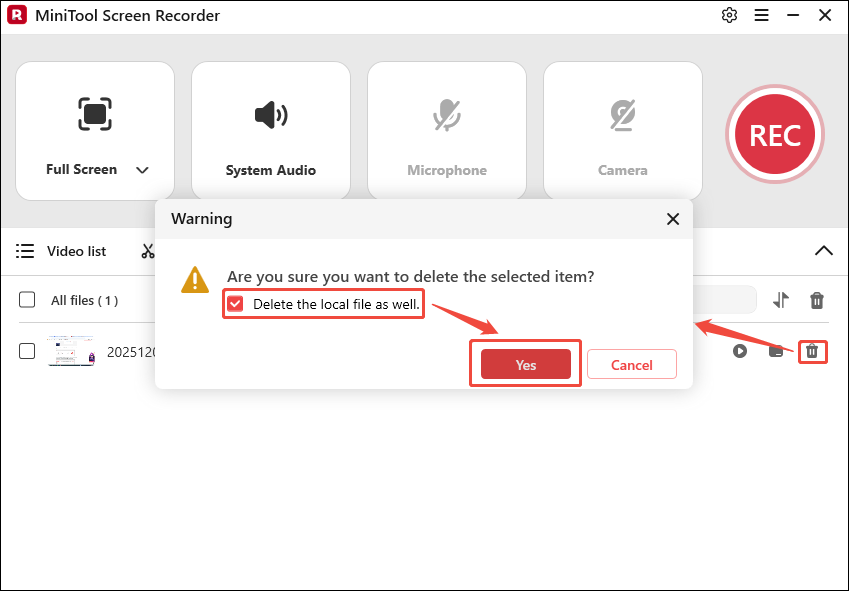
3. If you want to delete a recording from MiniTool Screen Recorder, click the delete icon to the right of the video, then click Yes in the new pop-up window. Check the box labeled Delete the local file as well if you need to delete the local file simultaneously.
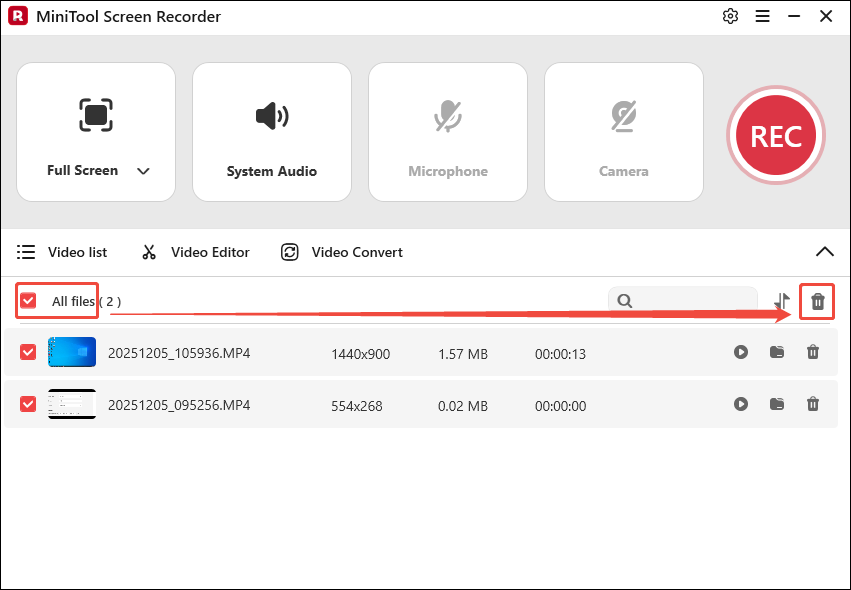
4. Additionally, to delete all recorded videos, check the All files option and click the delete icon on the right.
Bottom Line
You should now be familiar with how to use MiniTool Screen Recorder software to record screen easily. In addition, you can also use it to record the webcam and annotate the screen when recording.