

Read this article to learn how to annotate screen when you record the screen with MiniTool Screen Recorder, such as adding texts, circling the important information, indicating the order of operations, and adding a whiteboard to display new content.
How to Annotate a Screen
Please click on the download button below to download and install MiniTool Screen Recorder on your computer. And then follow the step-by-step instructions on how to use the screen capture and annotate function.
MiniTool Screen RecorderClick to Download100%Clean & Safe
Step 1. Locate and Open the Annotate Screen Feature
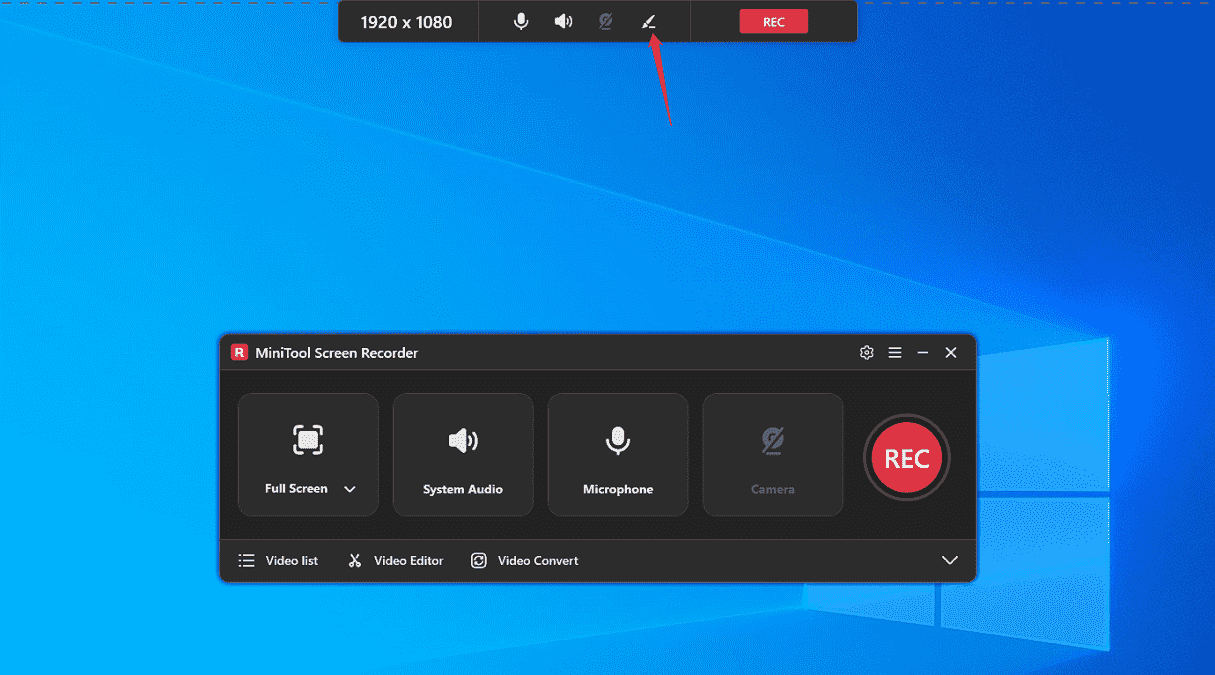
1. After launching the free screen annotation tool for Windows on your PC, there’s a horizontal strip pane appears on the computer desktop.
2. Hover your mouse over the top of your computer screen and click on the Screen Annotation icon on the small strip pane.
Step 2. Annotate Screen with MiniTool Screen Recorder
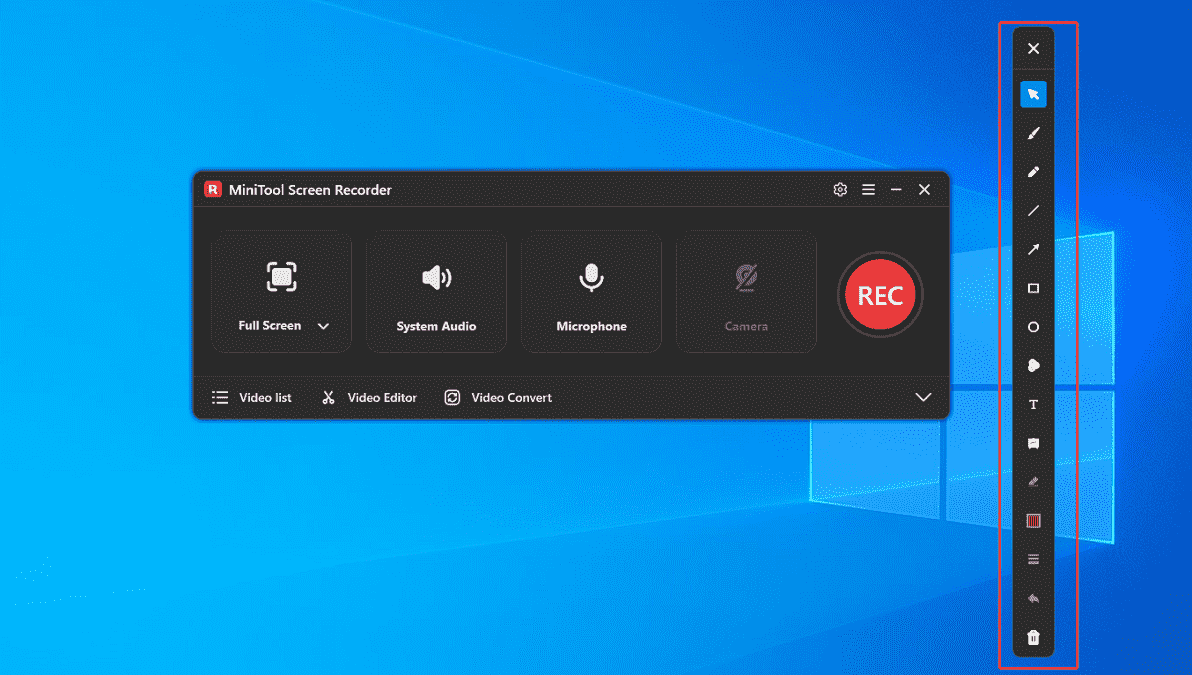
Many icons appear on the right side of your screen once you click on the Screen Annotation button. We will introduce them one by one from top to bottom before using them.
- The X icon: Close the annotation mode.
- Cursor: Show the position of the cursor.
- Pen: Write or draw everything manually.
- Highlight: Mark out key elements on the screen.
- Line: Draw a line on the screen.
- Arrow: Draw an arrow on the screen to indicate movement or emphasis.
- Rectangle: Draw a rectangle on the screen to select the key information.
- Ellipse: Draw an ellipse on the screen to circle important content.
- Numbering: The circles contain numbers to indicate the order of operations.
- Text: Add texts.
- Whiteboard: Add a whiteboard to display new content.
- Eraser: Erase unwanted annotation.
- Color: Change annotation color.
- Line width: Change the width of an annotation line.
- Undo: Undo the previous steps.
- Clear all: Clear all the annotations added on your screen.
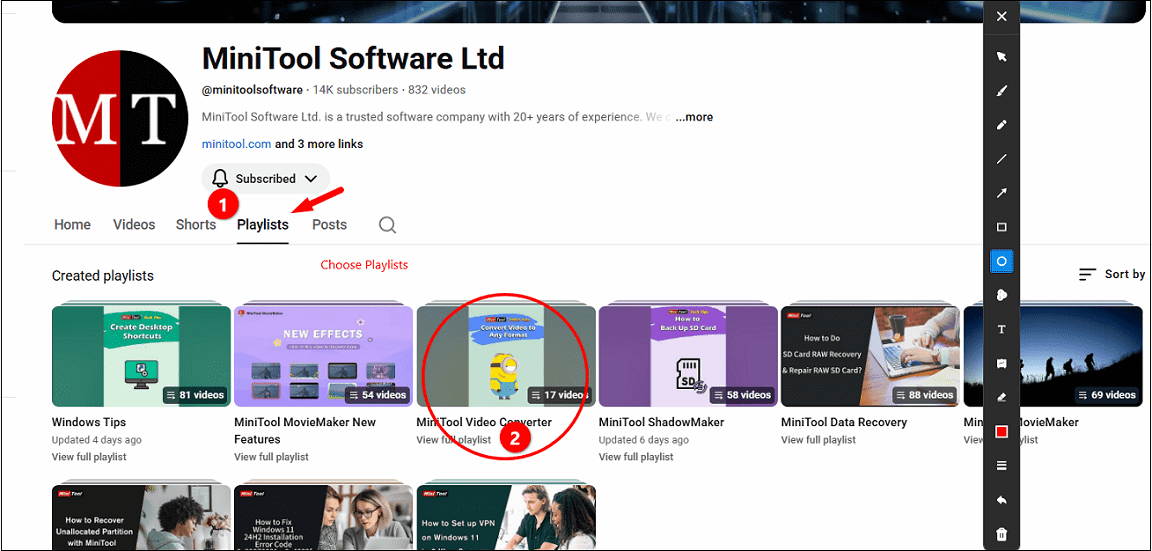
Now, choose some of the needed screen capture annotation tools above to annotate the screen and make your video easier to understand. We chose some tools as examples to show you in the picture below.
Bottom Line
MiniTool Screen Recorder can annotate screen using a large number of tools to show better presentation results. As a powerful screen recorder, it also enables users to record the screen and webcam simultaneously without time limitations and watermarks.