

Although Geometry Dash lacks a built-in recording feature, gameplay can still be captured with external screen recorders. This guide explains how to record Geometry Dash on PC using MiniTool Screen Recorder and Xbox Game Bar.
Geometry Dash is a rhythm-based platformer developed and published by RobTop Games in 2013. The gameplay is quite simple: players must navigate a geometric shape while avoiding obstacles, yet it serves as a rigorous test of the player's reaction time.
How Can I Record Geometry Dash on PC
Like me, many players want to record their best moments while playing Geometry Dash. Since the game lacks a built-in recording feature, I have to rely on third-party Geometry Dash capture tools. With that in mind, I’ve selected two user-friendly tools for capturing the gameplay:
- MiniTool Screen Recorder
- Xbox Game Bar
Method 1: Use MiniTool Screen Recorder
MiniTool Screen Recorder is my go-to tool because it is not only free but also feature-rich. It offers a variety of recording options, allowing me to capture the full screen, a specific area, an individual window, or a webcam. Another convenient feature is the ability to independently control the recording of system audio and microphone audio.
However, what I like most is that this app has built-in annotation tools, which means that I can use the tools to mark the steps or operation methods that need attention when recording the game explanation. In addition, MiniTool Screen Recorder also allows me to modify recording parameters, such as recording quality, frame rate, recording duration, shortcut keys, camera parameters, etc.
Fast Track Steps:
- Launch MiniTool Screen Recorder
- Configure the recording settings
- Choose the recording area
- Manage the audio and webcam recording
- Start recording
- Play Geometry Dash
- End recording
- Check the recorded Geometry Dash gameplay
Here are the detailed steps on how to screen record Geometry Dash on pc with MiniTool Screen Recorder.
1. Open the Game
Launch Geometry Dash on the computer.
2. Download and install MiniTool Screen Recorder
Click the button below to download and install MiniTool Screen Recorder. Then, launch it on the computer.
MiniTool Screen RecorderClick to Download100%Clean & Safe
3. Configure the recording settings
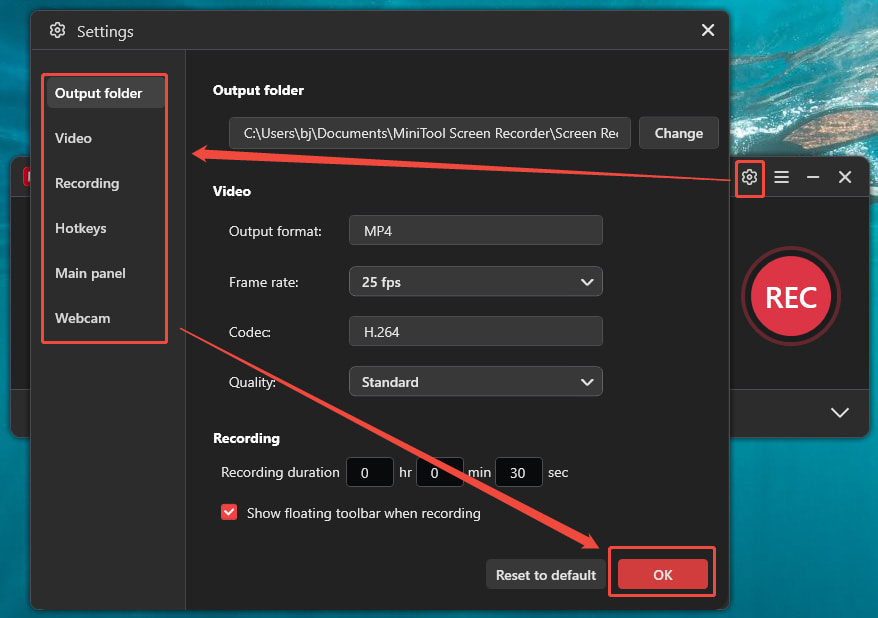
Click the Settings icon in the upper-right corner. Then you can set the output folder, recording quality, frame rate, recording time, and other parameters in the relevant tabs on the left-hand menu bar. Next, click OK to save the changes.
4. Choose the recording region
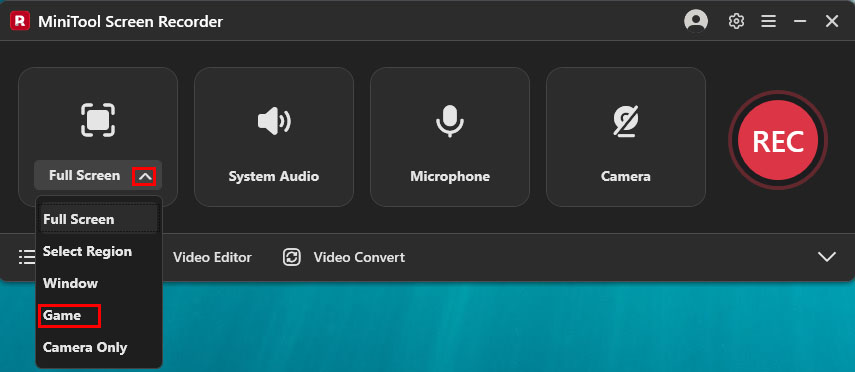
MiniTool Screen Recorder automatically selects the full screen as the recording area. If only a specific game needs to be captured, expand the Full Screen menu and choose the Game option. Then, when a Select a game window to record dialog opens, select the Geometry Dash window.
5. Manage the audio and webcam recording settings
Both System Audio and Microphone are turned on by default. If either audio source is unnecessary, click its icon to disable it on the floating bar. To record webcam footage alongside the game, enable the Camera option on the right.
6. Start recording
Then, click the REC button or press the F6 key to begin the recording process. After a 3-second countdown, play Geometry Dash.
7. End recording
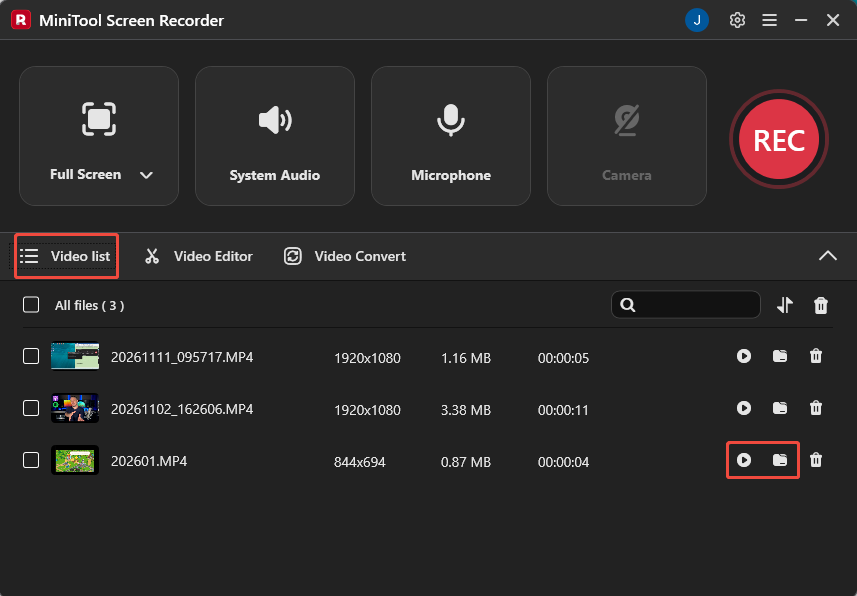
To end the recording process, press the F6 key. Then, the recorded video will automatically appear in the Video list section. Finally, click the Play icon to view the recorded Geometry Dash gameplay or click the Folder icon to locate the file.
Method 2: Use Xbox Game Bar
However, I also frequently use the Xbox Game Bar. Since it’s built into Windows, there’s no need for any additional downloads. It’s also very convenient to launch; I can simply press Windows + G to bring up the control panel.
Another reason I choose this tool is that, in addition to standard screen recording, it offers background recording; for instance, I can set it to automatically record the last 30 seconds of gameplay, which is perfect for capturing highlights. Furthermore, it’s quite lightweight in terms of GPU usage, ensuring a smoother experience while recording games.
Fast Track Steps:
- Open Geometry Dash
- Launch the Xbox Game Bar
- Manage the audio recording
- Start recording
- End recording
- Check the recorded Geometry Dash gameplay
Now, follow the guide below to learn how to record Geometry Dash on pc with the Xbox Game Bar.
1. Open Geometry Dash
Launch Geometry Dash on the computer.
2. Launch the Xbox Game Bar
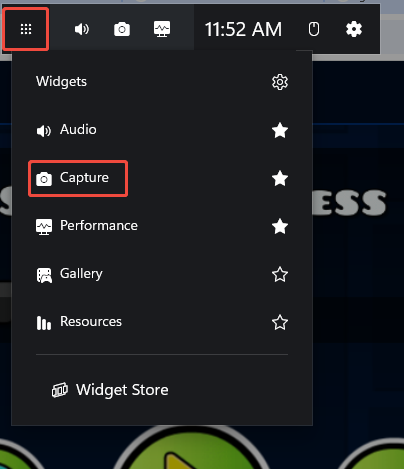
Press the Windows + G keys to launch the Xbox Game Bar on the computer. Then, expand the Widget Menu icon and choose the Capture option to access the recording panel.
3. Control the audio recording settings
The audio recording feature is enabled by default. To turn it off, click the microphone icon.
4. Start and end recording
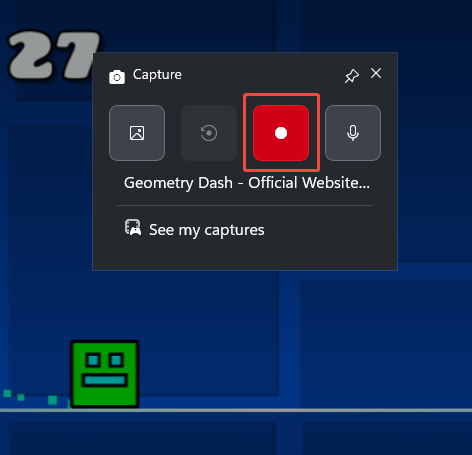
Then, click the Start recording icon or the Windows + Alt + R keys to begin recording Geometry Dash gameplay. To end the recording process, click the Windows + Alt + R keys again.
5. Check the recorded Geometry Dash video
When the recording ends, check the recorded Geometry Dash video under the See my captures section.
Both of the aforementioned tools are great choices for capturing the best gaming moments. However, the best way to record Geometry Dash ultimately depends on your specific recording needs. Therefore, I recommend trying out both tools before deciding which one works best for you.
How to Choose Between These 2 Screen Recorders
Based on the descriptions of MiniTool Screen Recorder and the Xbox Game Bar, including their features and how to use them, it is clear that both can meet the recording needs of various users. So, which tool is the right one for you? You can refer to the simple comparison table below.
| Comparison | MiniTool Screen Recorder | Xbox Game Bar |
| Installation Required | Yes | No |
| Free to Use | Yes | Yes |
| Recording Area | Full screen, specific area and window, external monitor | Game, app window |
| Audio Recording | System audio and microphone | System audio and microphone |
| Webcam Recording | Yes | No |
| Annotation | Yes | No |
| Recording Hotkeys | Yes | Yes |
| Recording Time Limit | No limit | Up to 4 hours |
Conclusion
How to record Geometry Dash on pc? This guide covers two methods: using MiniTool Screen Recorder or the Xbox Game Bar. Each has its own advantages: the former offers a wide range of flexible recording options, while the latter is better suited for quick, straightforward gameplay recording.
If you have any questions when using MiniTool Screen Recorder, send an email to support@minitool.com.
People Also Ask
1. Navigate to the Settings section.
2. Go to the Graphics tab and click the Advanced option.
3. Turn off the Vertical Sync option, then enter the frame rate you want.